Timesheet Approvals
- time tracking
- timesheet approvals
- timesheets
In this guide we will cover:
- Enabling Timesheets and Timesheet Approvals
- Adding a Manager to Approve
- Approval/Rejection
- Approve For The Week
- Rejection Emails
- Holidays
Admin Guides:
This guide details how to configure timesheet approvals and their use. It also details how you can implement holidays onto timesheets and their functionality.
Enabling Timesheets and Timesheet Approvals
In order to enable timesheet approvals, the following setting can be checked in Configuration > Time Management.
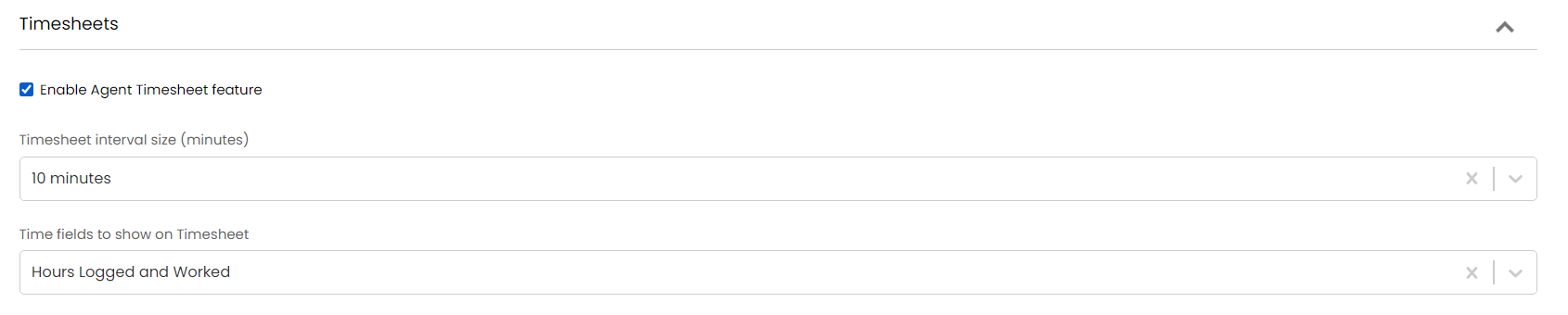
Fig 1. Enabling Timesheets for Agents
 Fig 2. Timesheet approvals checkbox
There are additional settings that can be added for business best practice if timesheet approvals are in use:
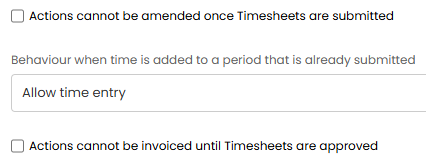 Fig 3. Timesheet approval additional options (Only visible to turn on if "Enable Timesheet Approvals" is checked)
Adding a Manager to Approve
If an agent has submitted their timesheet, they will have to get the approval from their manager (named timesheet manager in some versions), which can be configured under each agent in Configuration > Teams & Agents > Agents > Details tab:
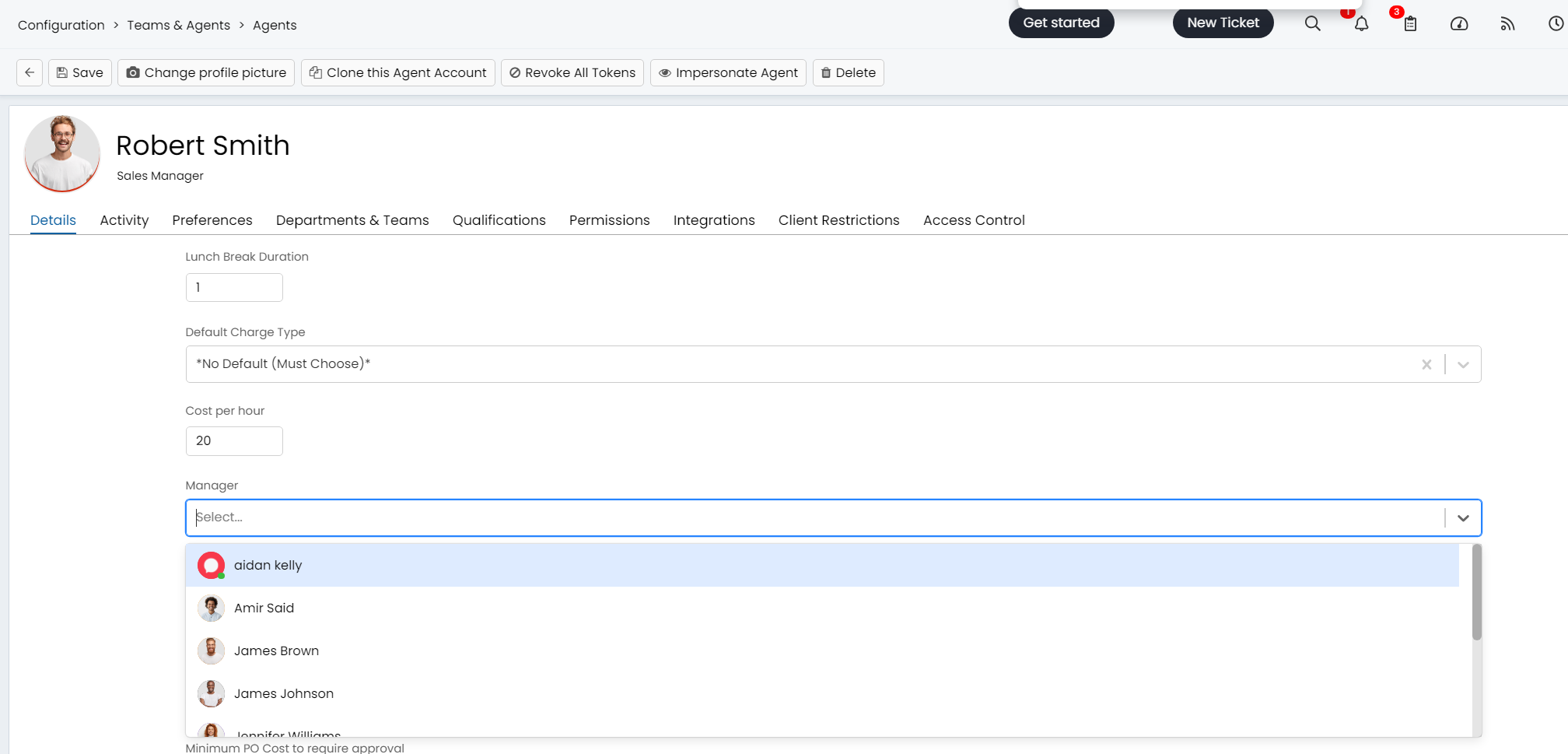 Fig 4. Adding a manager/timesheet manager to an agent, to allow for timesheet approvals
Within Configuration > Teams & Agents > Agents, you can now set the Manager to be the *Determined from Default Team* option, this will mean the timesheet manager set at the default team of the agent, will also be their timesheet manager.
You can see the default team of an agent against their agent profile, seen in Fig 5.
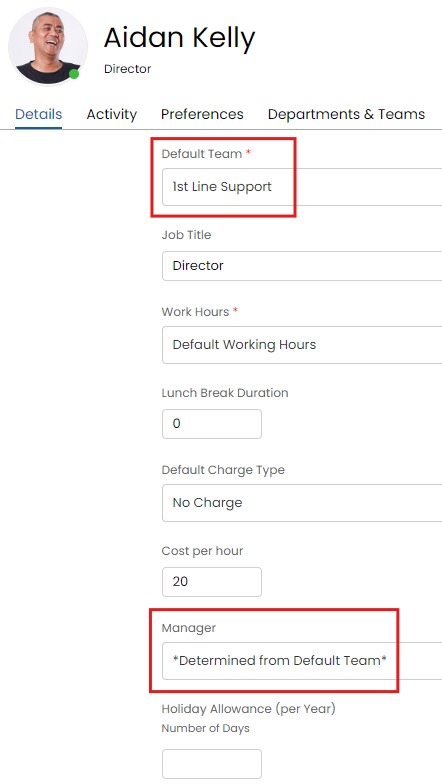
Fig 5. Manager and Default Team Options at Agent Level (Configuration > Teams & Agents > Agents)
To set the approver for the team head to Configuration > Teams & Agents > Teams > select a team > Defaults tab, here set 'Timesheet Approver'. Then the timesheet approver set at that team level will be able to approve timesheets for any agents who have this team as their default team and who have the manager on their agent profile set to be *Determined by Default Team*.
From v2.248+, if the Timesheet approver is not available, the timesheet approval can be delegated to another Agent. In the Preferences tab of the timesheet approver's Agent account (Configuration > Teams & Agents > Agents), enable "Timesheet approval delegation activated". When selected, an additional field will show to determine who the approvals should be delegated to when the Agent is unavailable. With this set, if the original approver is unavailable, any timesheets they are responsible for approving will also show the delegated approver.
Note: When delegation is enabled, the original approver will still be able to approve timesheets.
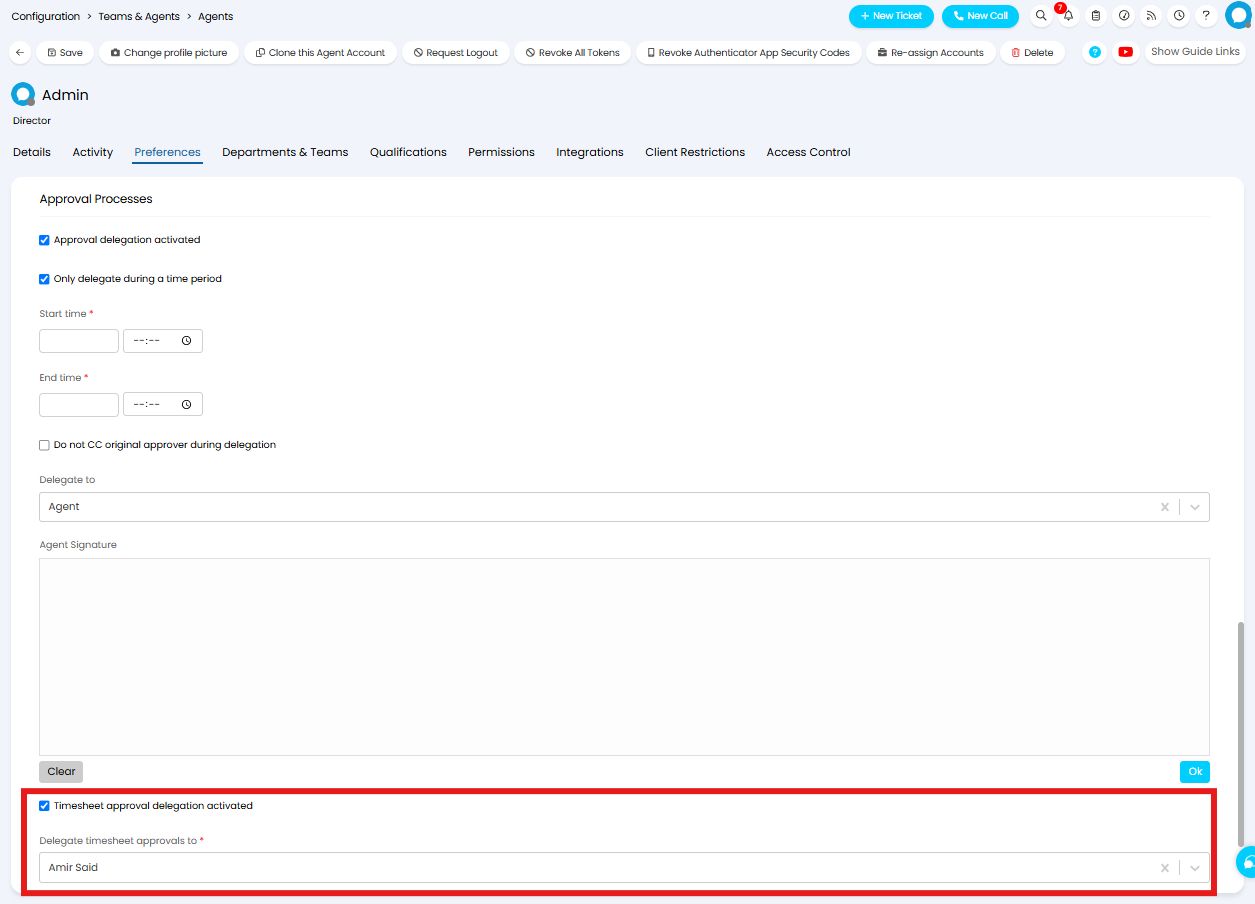
Fig 6. Delegating Timesheet Approvals
For agents that do not require their timesheets to be approved they can set themselves as their timesheet approver. To do this they will need to have their manager set to be *Determined by default Team* then this agent will need to be set as the 'timesheet manager' for their default team.
Once set, the agent will still need to submit their timesheets but they will have the option to immediately 'approve'/'reject' the timesheet after submitting.
This submission can then be sent by an agent via the timesheet module, they can click on the "Submit" button which is attached to all days on the timesheets. The agent will have the option to 'Revert Submit' against the timesheet once they have submitted it. This will cancel and re-start the approval, allowing the agent to make any changes needed to the timesheet before submitting it again. Once the timesheet has been approved the agent will no longer be able to retract their submission.
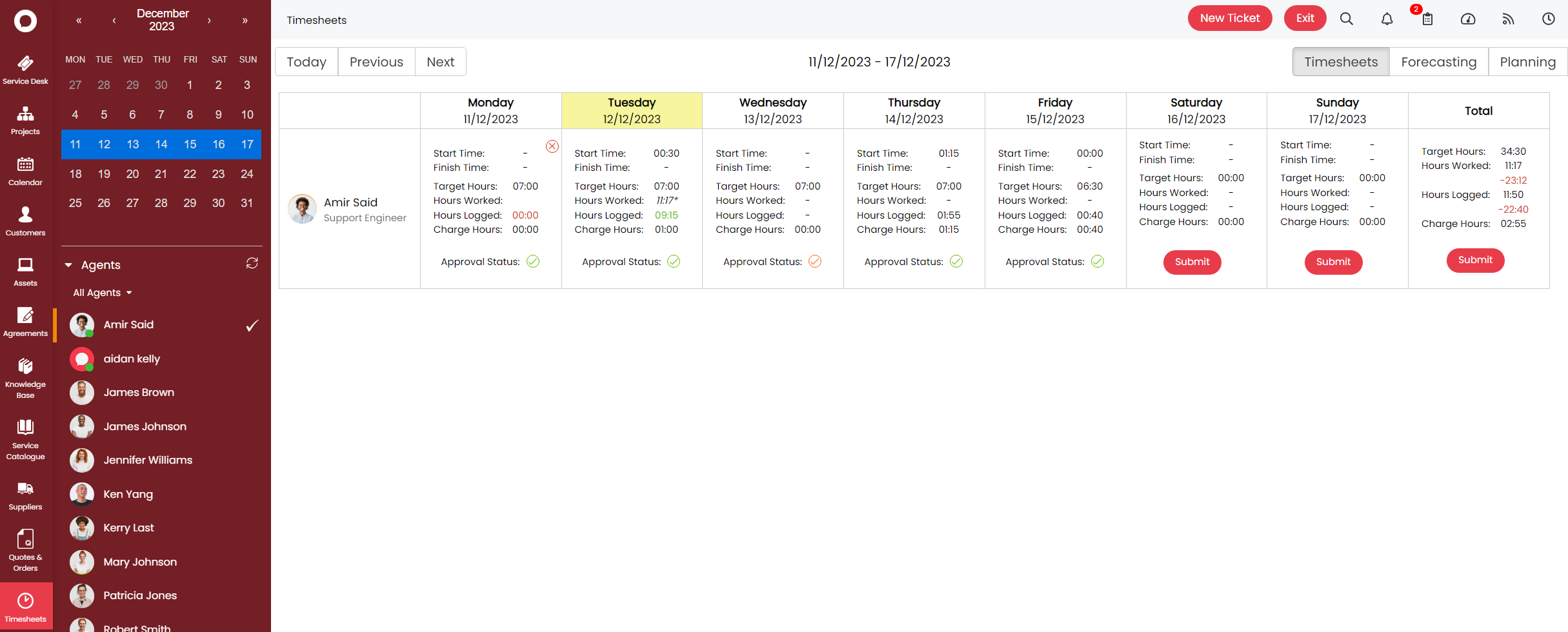 Fig 7. Submission Buttons on Agents Timesheets
Tmesheets can also be submitted from the side pane.
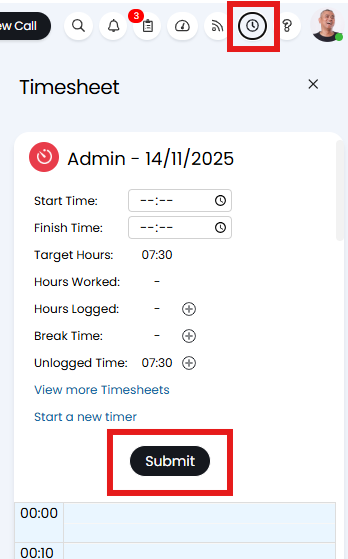
Fig 8. Submission Button on the side pane
If you would like to prevent agents from adding new or editing time entries once they have been submitted for approval, adjust the setting 'Behaviour when time as added to a period that is already submitted' found under Configuration > Time management. Adjust this to 'Do not allow time entry and show a warning'.
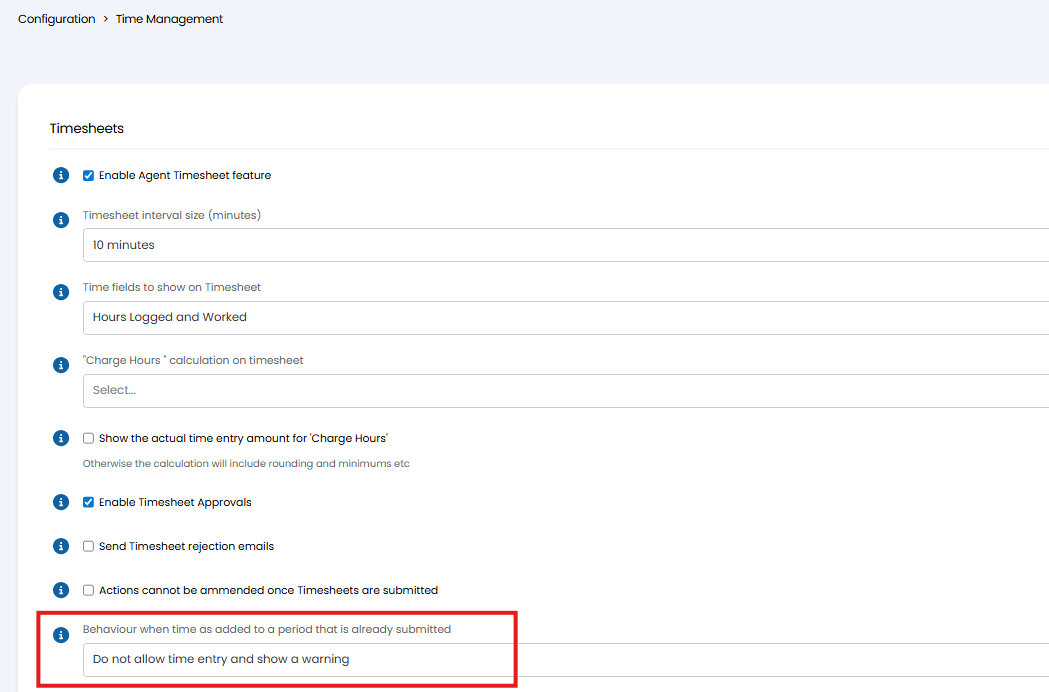
Fig 9. Behaviour when time as added to a period that is already submitted
Approval/Rejection
The manager of the agent can approve or reject the timesheet that has been submitted by heading into their 'Timesheets' module. They will be able to see the timesheets of each agent they have access to approving. They can approve the timesheet for each day by using the 'approve' button.
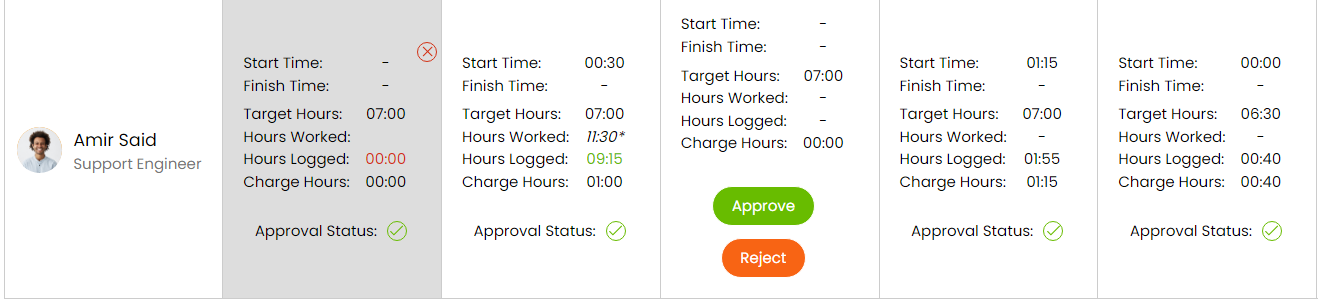 Fig 10. Approve/Reject buttons on the timesheet of the agent
If the approver requires further information in regards to the time entry they can select the day's timesheet, this will show each action the agent has logged that day. Each action can then be selected to show the action details, this will include information such as the action time spent on the action, the billable time for the action, the related contract, charge type used. This is useful if an approver spots an anomaly in the time entries as they can open the related action and see all the details for that action, as well as the related ticket.
Referring back to Fig 3. If the first setting is on, it will mean that when an agent adds an action to their timesheet then submits, they wont be able to edit the actions on the timesheet they created before the submit, after hitting the submit button (Fig 7/8), however, if they create actions on that day after hitting submit, those actions will be editable. Similar to this, the second option on Fig 3 can be used in order to stop actions being invoiceable until the timesheet has been approved. In order for the approval to make the action invoiceable, the charge rate override on the ticket type cannot be set to "No Charge", it can be set to "Not Set". To get an approval to allow you to invoice the actions, the ticket must be closed and the action logged must have a charge rate on it, this will place the ticket in ready for invoicing.
Say the agent has submitted the timesheet for approval and the ticket type has a charge type that is billable. then the invoice wont come through until the timesheet has been approved.
The manager will also have the option to 'Revert approval' for the timesheet after they have approved it. This will re-start the approval process and require the agent to re-submit this timesheet. The agent will be notified of this if incomplete timesheet notifications are in use.
Approve for the Week
Another option is to use the Approval button for the entire week, this can be used if the Manager wants to approve all the timesheets of the agent. This is visible if the agent clicks on even one submit button on one of the days that week:
 Fig 11. Approve button on the Total Tile
If the manager then clicks on the "Approve" button of the "Total" tile, then an approval will be completed for each day that week.
 Fig 12. The result of the manager hitting the approve button on the Total Tile. Any days that didn't have approvals submitted will also be automatically approved
Also if an agent clicks the submit button on the "Total" tile, then the manager will be able to see approval/reject buttons for all tiles that week.
You can configure to send rejection emails, which have an email template attached to them
 Fig 13. Option to send a rejection email if timesheet approval is rejected
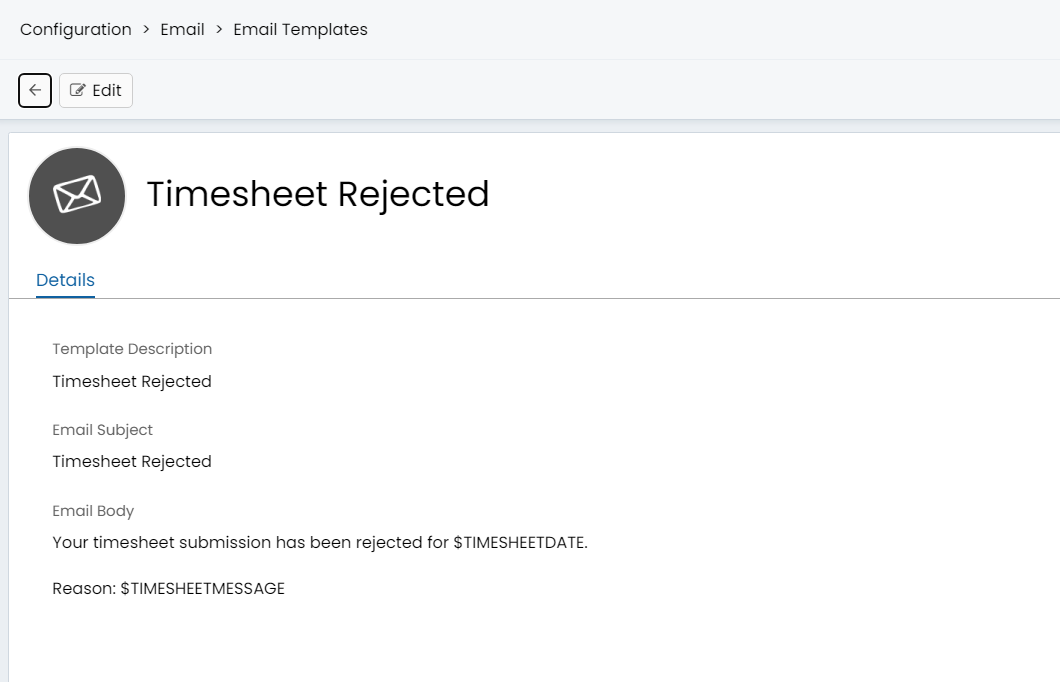 Fig 14. The email template to edit for rejection emails sent when approvals are rejected
The $TIMESHEETMESSAGE is whatever you put in the following memo box:
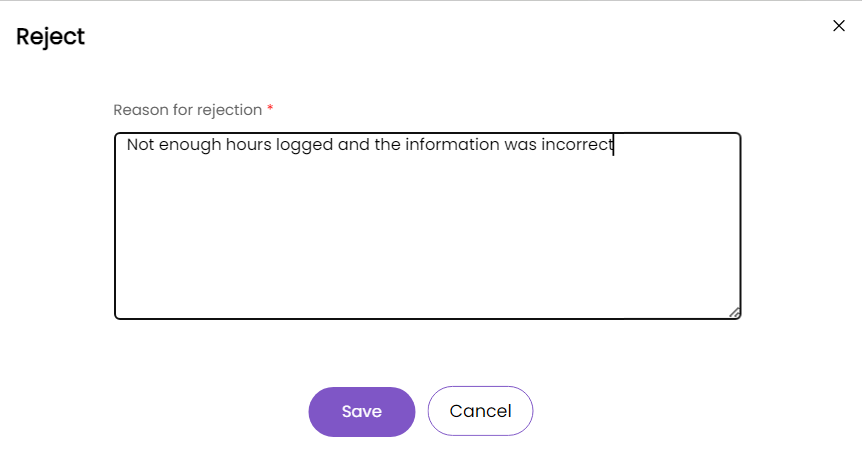 Fig 15. The $TIMESHEETMESSAGE output
This is how it will appear on the email:
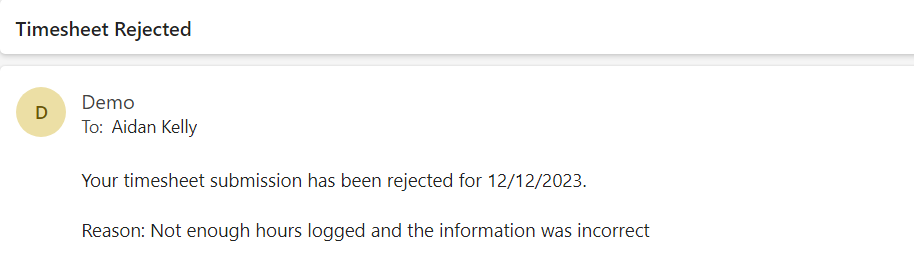 Fig 16. The email received by the agent
If a timesheet has been rejected, the agent will see the following on the tile that was rejected:
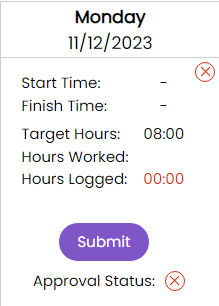 Fig 17. What the agent will see if the manager has rejected their timesheet tile
They can re-submit again if it has been rejected previously.
Holidays
Timesheets are configured in a way that includes the holiday time taken by agents, based off of their work hours.
If an agents hours (Configuration > Teams & Agents > Agents > *Details Tab*) for i.e. a Tuesday is 08:00 - 16:00 and they book a 4 hour holiday for that Tuesday between 13:30 - 17:30 the target hours taken off of their daily and weekly will only be 2 hours and 30 minutes, because the rest of the holiday taken is out with their working hours.
Work Hours can be configured in Configuration > Teams & Agents > Workdays.
Holidays are also configurable to need approval this can be configured in Configuration > Teams & Agents > Holiday Management.
Holidays can be added to timesheets the same way they show on calendars, this is achieved by ticking the following setting.

Fig 18. Adding Agents Holidays to Timesheets