Time zone Overrides
- time zone
- time zone override
- time zone heirarchy
In this guide we will cover:
- Time zone Override Hierarchy
- Determine if the SLA is using agent or user working hours
- Override Locations
Time zones can be set in various places in Halo, with the time zone set in some places overriding others.
Time zone Override Hierarchy
Time zone hierarchy used for SLAs and OOH charge rate multiplier calculations
The time zone that will be used for SLA calculations will be determined by the following hierarchy, in which the time zone set on the ticket field takes precedence over all else. The hierarchy of the time zone used will differ based on if the SLA is set to use the agent's working hours.
If the SLA is using agent working hours the time zone:
- Ticket Field (if used)
- Team
- Global
If the SLA is not using agent working hours:
- Ticket Field (if used)
- Site
- Global
Time zone used for Resource booking
The time zone that will be used for resource booking will be determined by the following hierarchy, in which the time zone set on the ticket field takes precedence over all else.
- Ticket Field (if used)
- Workday (assigned to team)
- Global
Time zone used for out of hours notifications
The time zone that will be used for out of hours notifications will be determined by the following hierarchy, in which the time zone set on the ticket field takes precedence over all else. The hierarchy of the time zone used will differ based on if the SLA of the ticket is set to use the agent's working hours.
If the SLA is using agent working hours the time zone:
- Ticket Field (if used)
- Workday (assigned to SLA)
- Site
- Global
If the SLA is using agent working hours the time zone:
- Ticket Field (if used)
- Workday (assigned to SLA)
- Team
- Global
Determine if the SLA is using agent or user working hours
Whether the SLA uses the agents or the users working hours is determined by the setting 'Work hours are the Agents working hours instead of the End-Users' against the SLA.
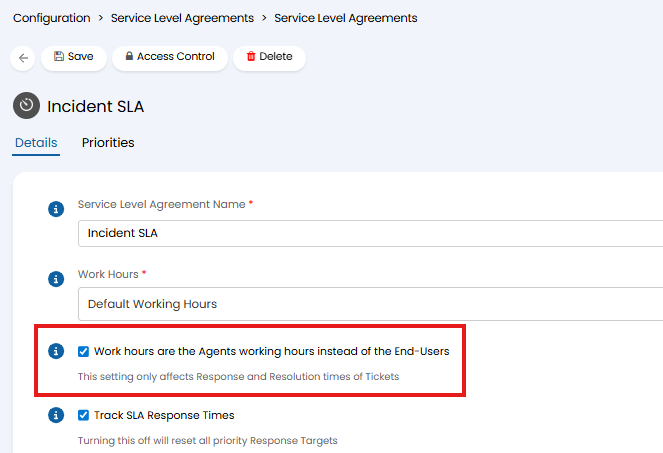
Fig 1. Work hours are the Agents working hours instead of the End-Users setting.
When this setting is enabled the SLA will use agent working hours, allowing you to set a time zone override against each agent team and have this time zone be used to calculate the response/resolution targets. If a site time zone is set this will be ignored as agent working hours are being used.
When this setting is disabled the SLA will use user working hours, allowing you to set a time zone override against each customer site and have this time zone be used to calculate the response/resolution targets. If a team time zone is set this will be ignored as user working hours are being used.
Override Locations
Ticket Field
The 'Time Zone' field will need to be added to the field list of the ticket type. Then, this field can be used to choose which time zone calculations the ticket should use.
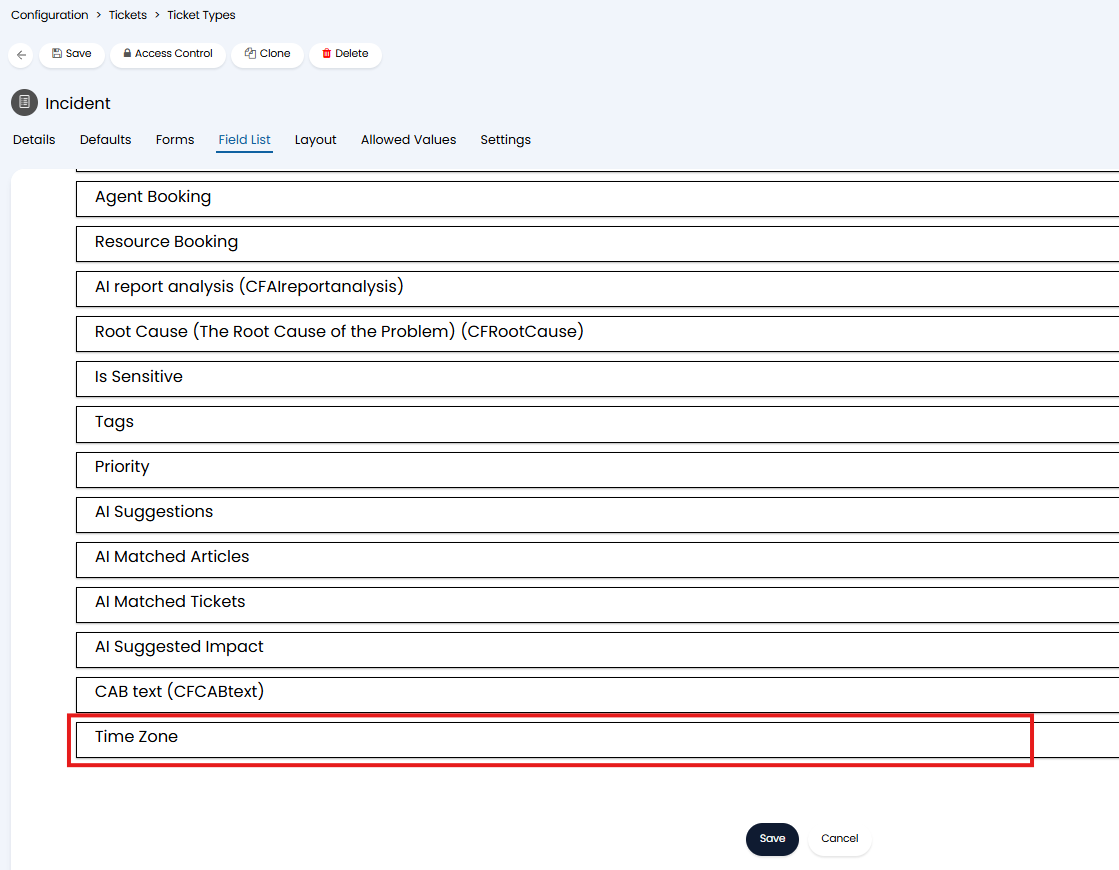
Fig 2. Time Zone field.
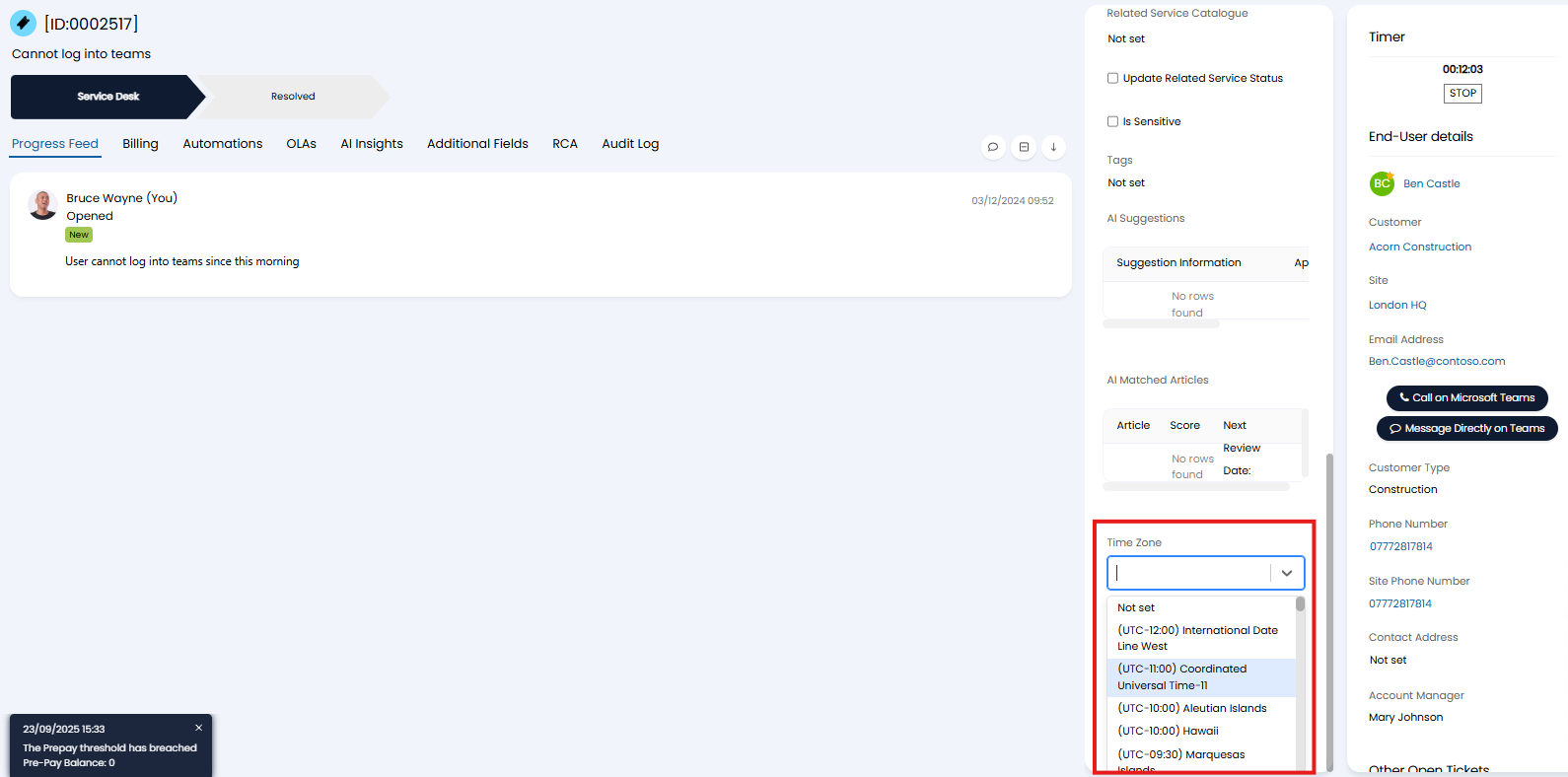
Fig 3. Time Zone field on ticket.
Only when this field is populated will the time zone used be overridden. If left blank/not used the next override location in the hierarchy will be used.
Note: The default time zone in this field can be set using the global setting "Timezone input default timezone" under Configuration > Advanced Settings.
Team
Under Configuration > Teams and Agents > Teams > select a team > you can set a time zone for the team in the 'Time Zone' field.
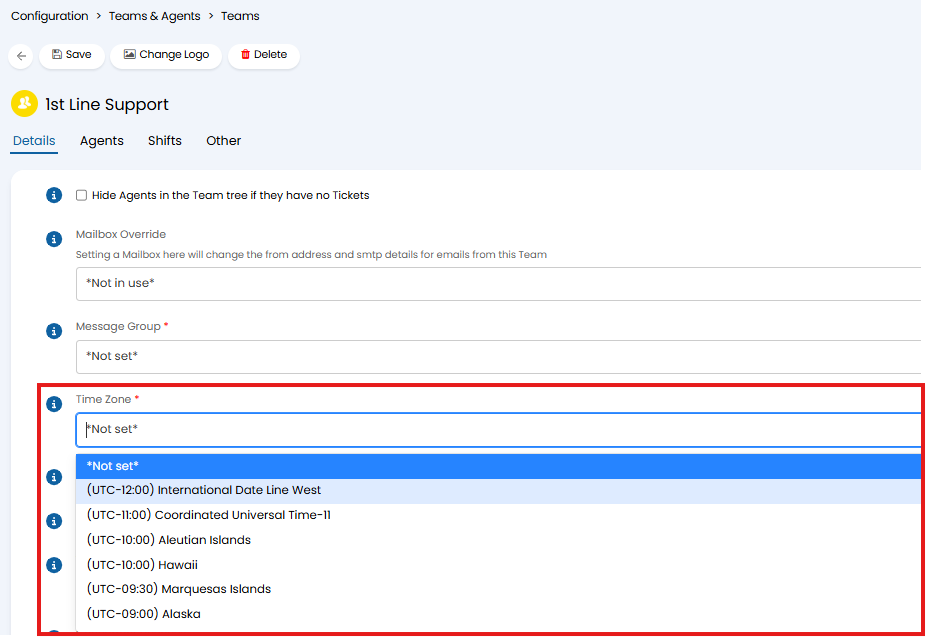
Fig 4. Team Time Zone override.
This time zone will only be used to calculate response/resolution targets for SLAs when the SLA is set to use the agents working hours and no time zone is set in the 'time zone' field against the ticket.
Site
Under a site > details tab/side pane, you can set a time zone for the site in the 'time zone' field.
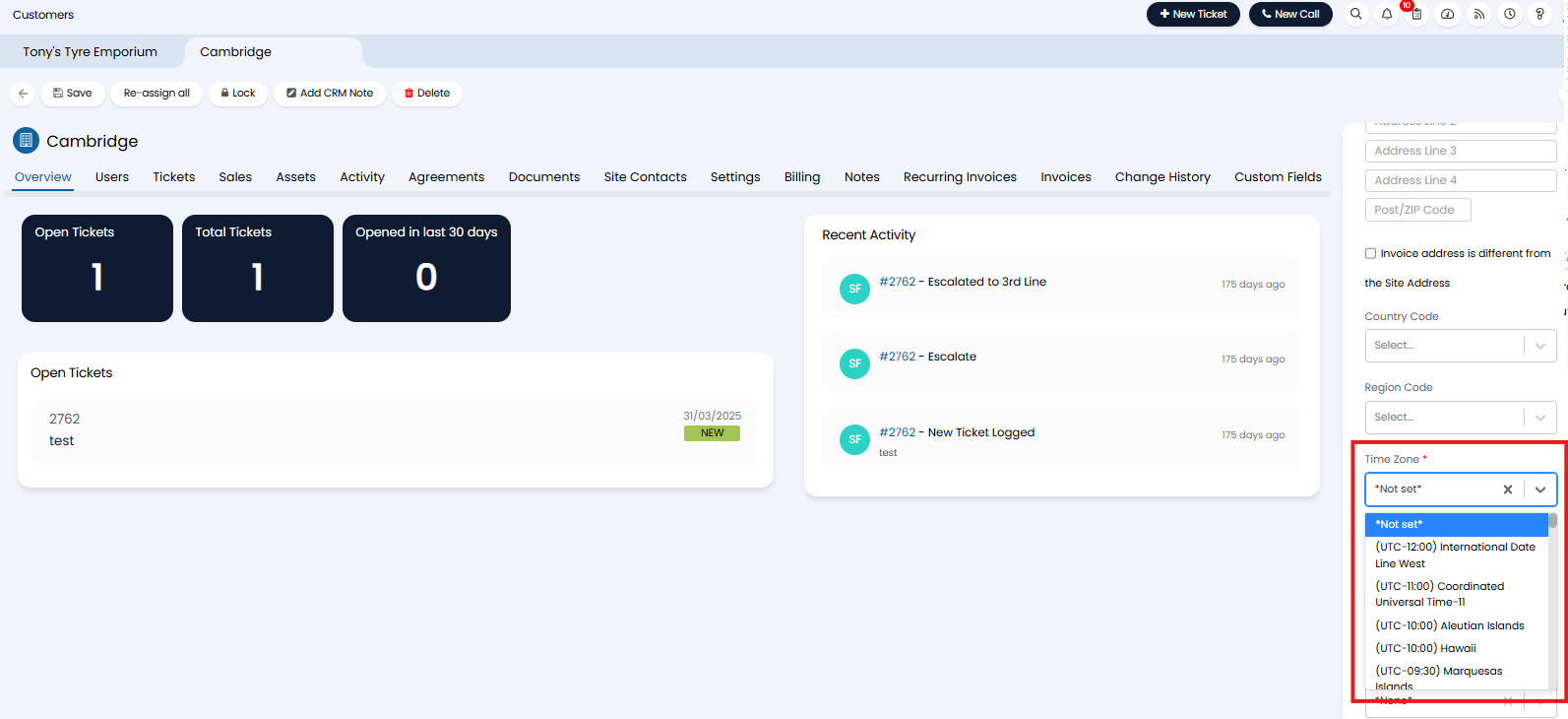
Fig 5. Time Zone field.
This time zone will only be used to calculate response/resolution targets for SLAs when the SLA is set to use the users working hours, and the time zone field against the ticket is not set. Otherwise it will be ignored.
From v.230.1+, the value set here can be pulled on Tickets using the variables $-SITETIMEZONENAME for the time zone name, and $-SITETIMEZONEOFFSET for the UTC offset.
Workday
Under Configuration > Teams and Agents > Workdays > select a workday, you can choose a time zone override for the workday in the 'Timezone Override' field.
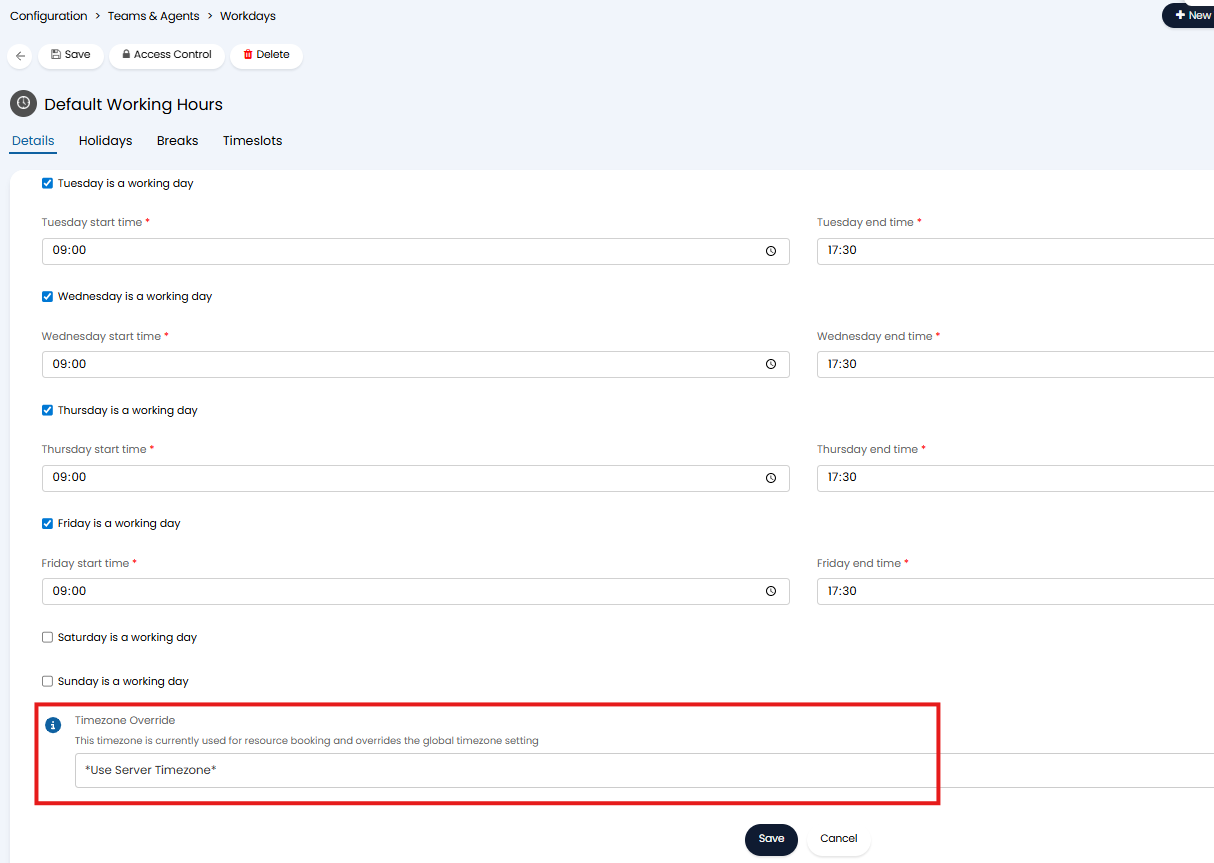
Fig 6. Workday time zone override.
The time zone set here will be used for agent/asset resource booking, when this workday is selected as the 'Working hours for resource booking' (figure 7) for the team assigned to the ticket. This will not contribute to SLA response/resolution targets.
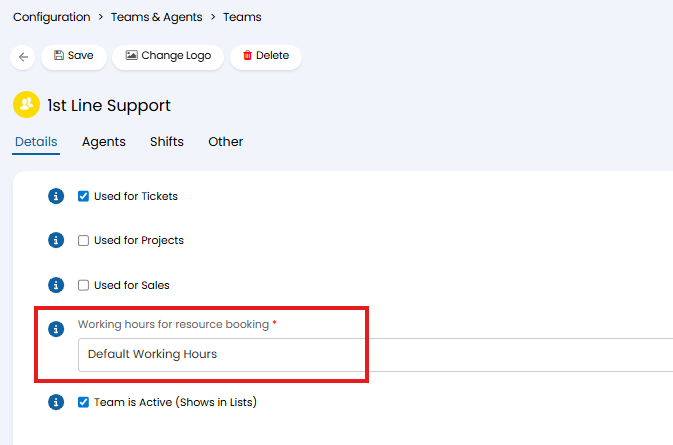
Fig 7. Working hours for team resource booking.
Global Setting
Under Configuration > Advanced Settings you can set a global default time zone in the 'Time Zone' field.
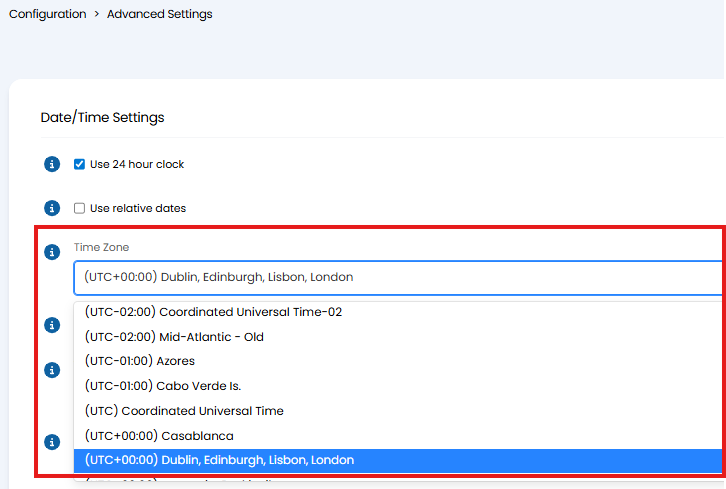
Fig 8. Time Zone global default.
The time zone set here will be used for various calculations dependent on time zone if no other override is set.