Sales Mailboxes - Azure
- sales
- sales mailbox
In this guide we will cover:
- What is the Sales Mailbox Integration?
- Azure Active Directory Configuration
- Connecting the Mailbox
- Adding the Mailboxes
- Importing Mail
- Using Sales Mailboxes
- Setting Overrides
In this guide we will cover how to setup Sales Mailboxes using Azure mailboxes. For information on setting up using Google mailboxes, checkout Sales Mailboxes - Google.
What is the Sales Mailbox Integration?
Sales Mailboxes allow agents to connect and use their own mailboxes for emails in and out of Halo, allowing the sales process to take place inside of Halo whilst still remaining personal to the prospect. Incoming emails to these mailboxes can be automatically added to the associated opportunity, or just monitored by the agent within Halo. Sales Mailboxes can also be utilised for project use.
Sales mailboxes for outgoing emails send via actions on tickets or to send Mail Campaigns.
Azure Active Directory Configuration
This integration allows you to create actions on open opportunities from emails within specified sales mailboxes.
The integration will scan the sales mailboxes and detect if the email can be added to an opportunity based on the opportunity email address and the subject. You can also see the items in the mailbox and choose to manually relate them to opportunities or create new opportunities.
To get this up and running, you need to register a new application in Azure.
Application Registration
To register a new application in Azure, browse to your Azure Active Directory page and select App Registrations > New Registration. Give your application a sensible name before moving onto choosing what account types should be able to access your application.
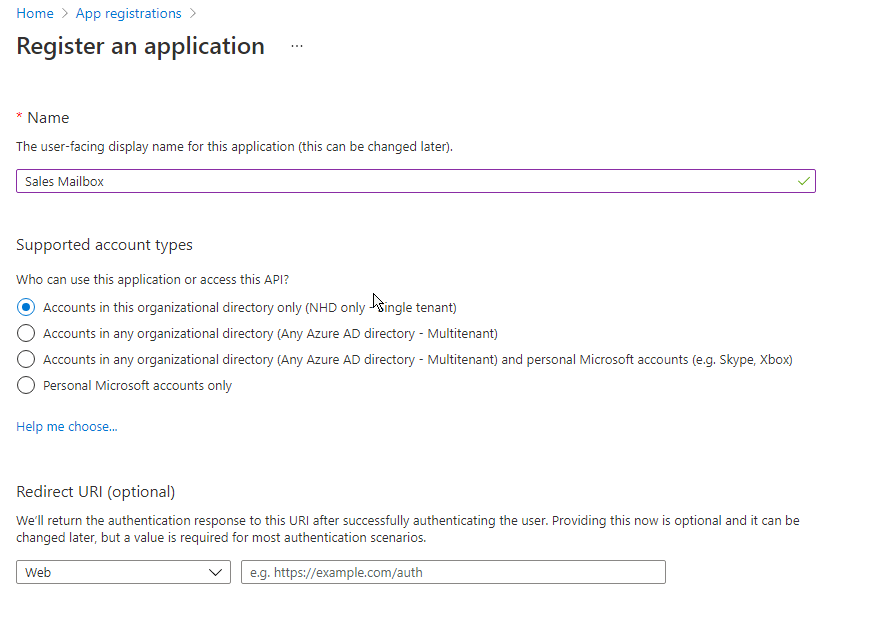
Fig 1. Registering an application.
The redirect URI can be left blank for now, as multiple redirects can be configured later in the application setup process.
API Permissions
Now that an application has been registered, you must give it the relevant permissions required by the integration. In your new application, go to the API Permissions tab to get started. You should see your list of current permissions will be listed, along with options to manage these. Select the option to add a new permission, and choose Microsoft Graph from the available APIs.
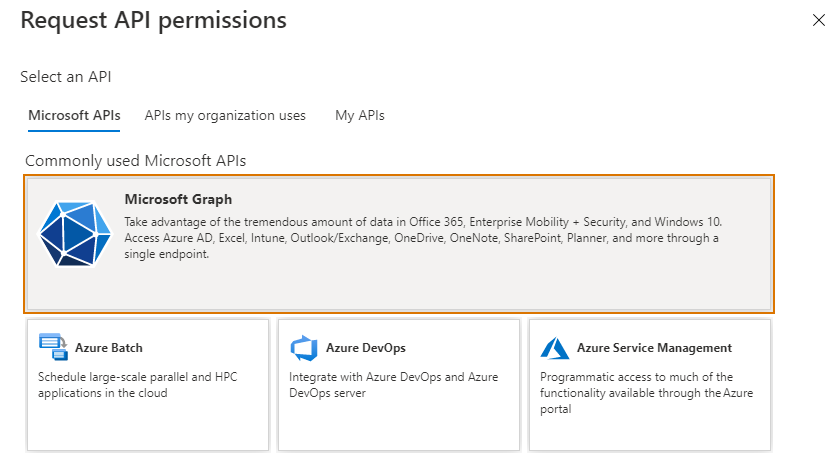
Fig 2. Selecting an API
Next select delegated permissions, and select the following permissions from the list:
- User.Read
- Mail.Send.Shared
- Mail.Send
- Mail.ReadWrite.Shared
- offline_access
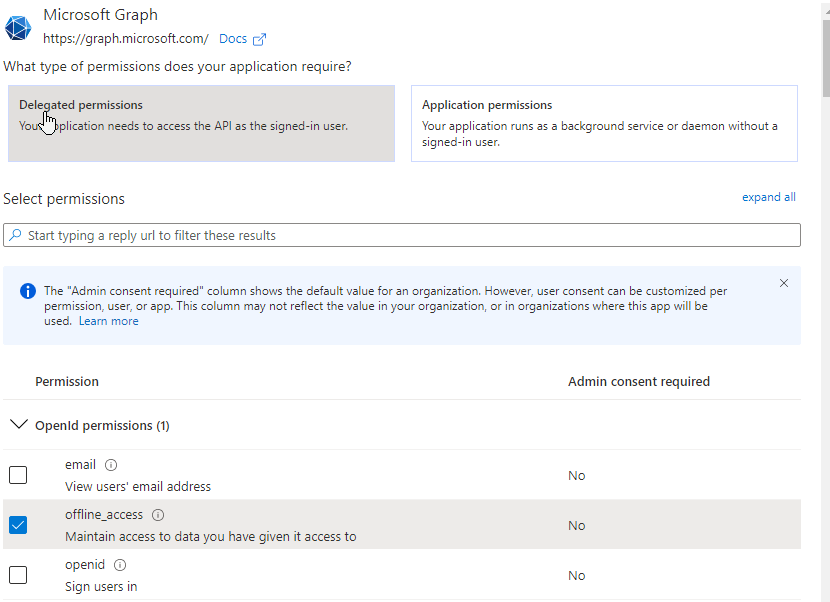
Fig 3. Adding permissions
Once all permissions have been selected, press the add permissions button to add these to your application.
Redirect URIs
Next, you need to navigate to the Authentication tab within your Azure application, where you can add valid redirect URIs. Start by adding a platform and choosing "Web". Once selected, add your Halo web application URL as the redirect URI and register the platform. This will give you the option to add additional redirect URIs.
There are extra redirect URIs that must be added for different elements of the integration to work successfully. The first redirect URI that needs to be added will differ depending on the version of Halo you are using.
On versions prior to v2.200 the following redirect URI will need to be used:
On versions v2.200+ you the following redirect URI will need to be used:
But the exact redirect URI you need can be found on the setup page for the integration in Halo.
Note: If you have disconnected to the mailbox and are reconnecting, if your Halo instance is on v2.200+ you will need to use the new redirect URI (https://YOURHALODOMAIN/authcallback).
A further redirect URI must be added, that requires you to obtain the authorisation server URL of your Halo application. To find the URL of your authorisation server, in your Halo application, open Configuration > Integrations > Halo API:
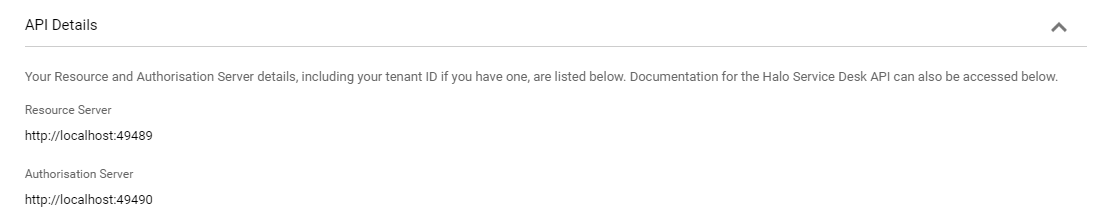
Fig 4. API details
After obtaining the authorisation server URI, you must append /account/azureresponse to it, and add this value as a redirect URI. Using the value from the screenshot above as an example, the redirect URI that must be added is http://localhost:49490/account/azureresponse .
If you have any difficulty obtaining your authorisation server URL, please contact the Halo Support Team.
Underneath the area of the Authentication tab where you can register redirect URIs for your application, you must ensure that the application is able to issue access tokens.
Connecting the Mailbox
To enable the Sales Mailbox integration in Halo, go to Configuration > Sales, and enable the Sales Mailbox module by clicking on the + symbol.
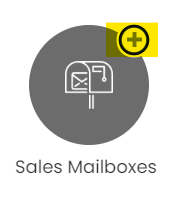
Fig 5. Enabling the module
Once the module has been enabled, click into the module to begin configuring it. Once you have selected new (top right hand side), you will be presented first with the details tab of your connection, where you can begin by giving your connection a unique name. At this stage you can also enable "Import Sent Items as well as the Inbox" this means that agents sent mail will be imported as well as incoming mail.
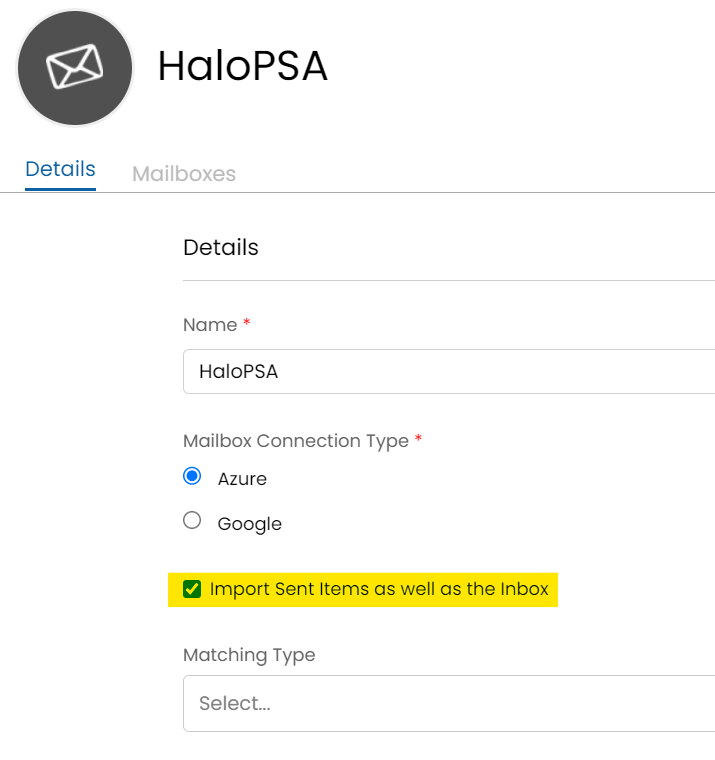
Fig 6. Import sent items
There are two options for matching existing Opportunities,
- Match on Email Address and Subject - Matches to any non-closed opportunity with an exact match on email address and subject.
- Match on Email Domain - Matches to any non-closed opportunity with the same email domain as the sender of the email.

Fig 7. Matching type
Note: This will determine how emails are automatically matched to opportunities but automatic matching will need to be enabled for each agent email address for this to take place. More info on this below.
Once complete, you then need to add tenant id (directory id), application id and application secret. To retrieve the Azure Application and Directory IDs, open Azure and open your configured application.
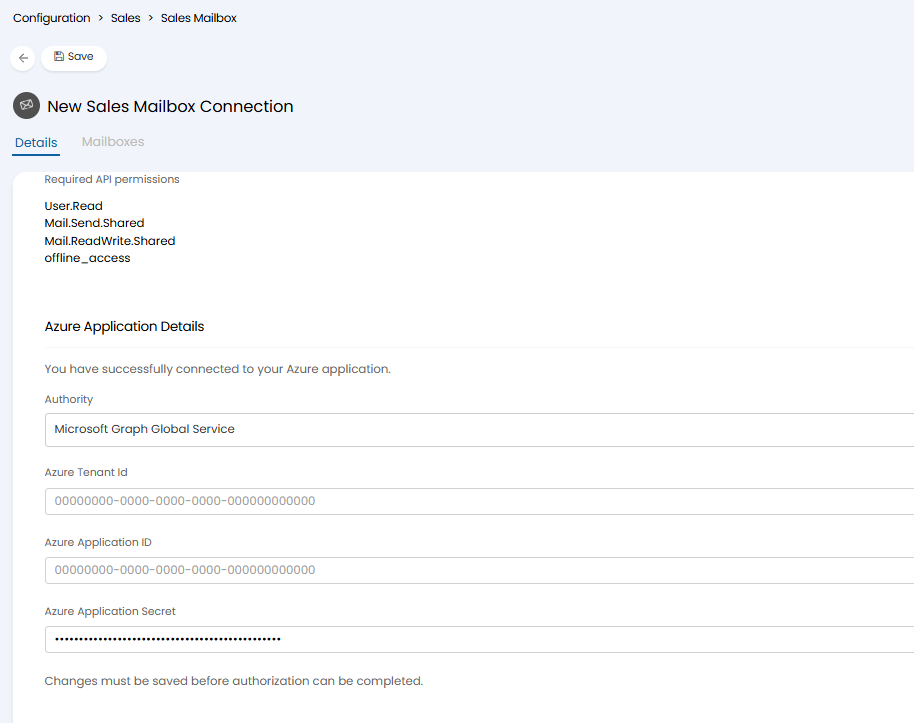
Fig 8. Connection detail fields in Halo.
Obtain Client ID and Secret
You can find the application ID from the overview page for the application.
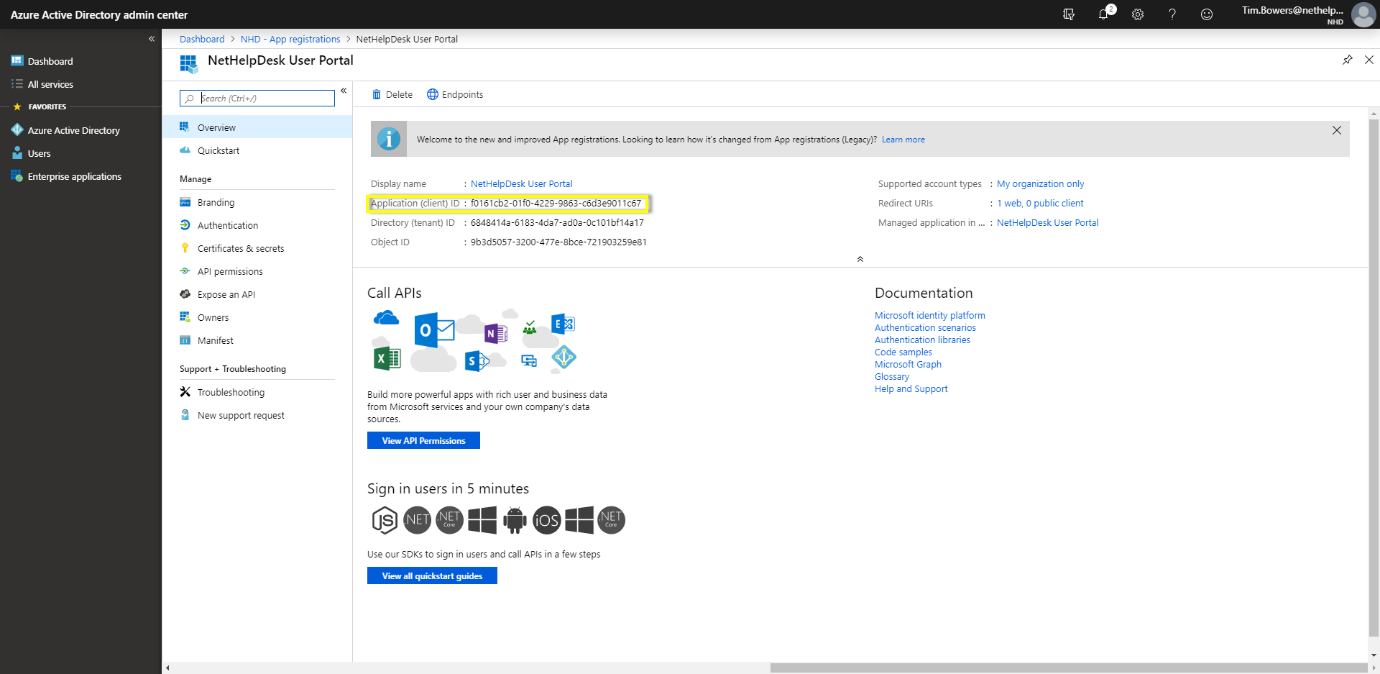
Fig 9. Application ID
Generate a client secret by navigating to the Certificates and Secrets tab within Azure. Underneath the Client Secrets heading, register a new client secret. You can choose whichever expiry length you wish, but keep in mind that you will need to update this value in Halo once it expires and you generate a new secret. You must ensure you copy and take note of the secret's value, as it is not retrievable again after you leave this page.

Fig 10. Creating a secret
Although these fields are not all marked with an Asterix to indicate they are mandatory, the integration will not function with any of these fields unpopulated.
Authorising the Connection
Once you have plugged your connection details into Halo you will need to authorise the application, using the 'Sign in with Microsoft' button.
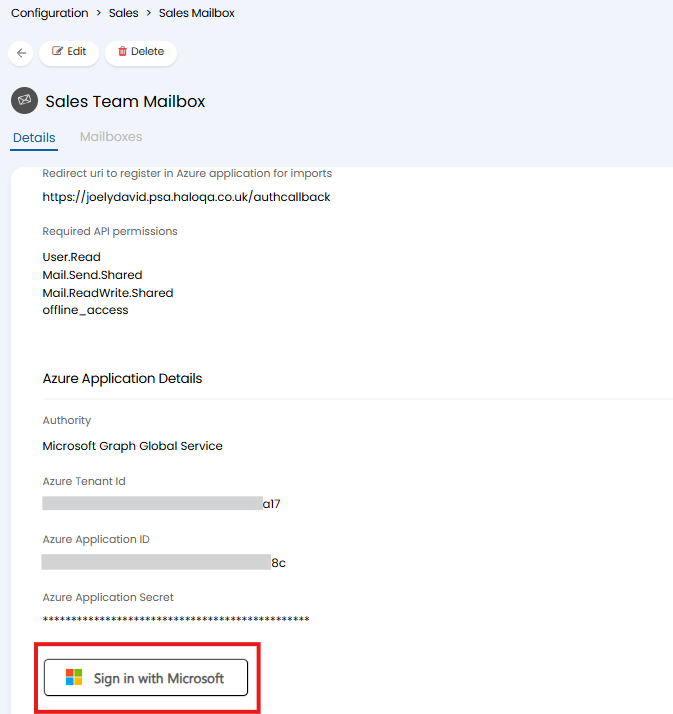
Fig 11. Sign in with Microsoft
The account that signs in must have access to each mailbox (each personal user mailbox) you would like to connect. We recommend creating a service account and having each user grant this service account access to their mailbox.
Create Service Account
Create an Azure AD/Entra ID user account to use as the service account. This service account does not need an Exchange Online licence or it's own mailbox. Simply create the user and name it accordingly.
Give the Service account access to Mailboxes
The service account must be given the following access to each user's mailbox:
- Send as
- Read and Manage
- Send on behalf of
This must be done for each mailbox you would like to connect to Halo.
For information on how this access/permissions are granted checkout Microsoft's documentation here.
Note: Alternatively PowerShell can be used to grant the service account access to each user's mailbox.
Now head back to Halo and 'Sign in with Microsoft' using the service account.
Adding the Mailboxes
Once the connection has been added the next step is to add all of the mailboxes which you would like to scan. Switch over to the Mailboxes tab and you will be presented with a table containing all of the currently mapped sales mailboxes. To add new mailboxes to the list click Edit and then Add.
Here, enter the email address of the mailbox you would like Halo to process, and the agent this belongs to. The incoming and outgoing mail to this address will be scanned. The agent chosen here, will be the only agent able to send emails from this address.
Note: Only personal mailboxes can be added to the sales mailbox. A shared mailbox cannot be added here.
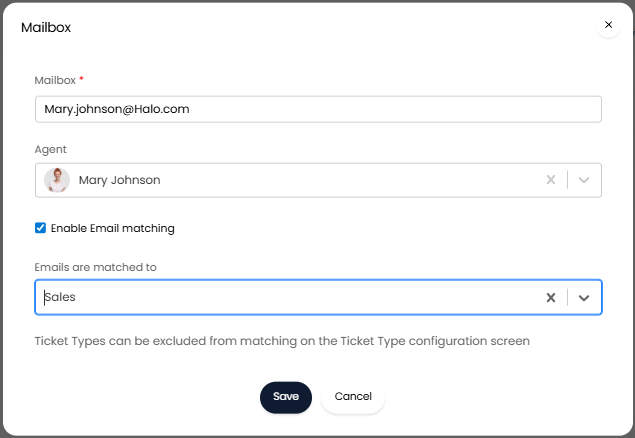
Fig 11. Add an Agent's Mailbox
Enable Email matching - This setting determines whether emails processed by this address will be matched to tickets automatically. When checked emails in this mailbox will be attempted to be matched to an opportunity/project ticket automatically, if they cannot be matched they will remain in the inbox for manual processing. If unchecked, agents will need to manage their incoming emails manually using the 'My Inbox' module. Each email can be checked and added to an existing opportunity, or added to a new one. If enabled an additional setting will appear 'Emails are matched to' here you can select which tickets emails within this mailbox are matched to, opportunities or projects (based on the ticket type 'Use'). More information on this and using Sales Mailboxes is covered later in this guide.
Emails are matched to - Available when "Enable Email matching" is checked. Here, you can choose if incoming emails to this mailbox are matched to opportunity tickets or project tickets.
Now, repeat this for all your agents, until all mailboxes are added here.
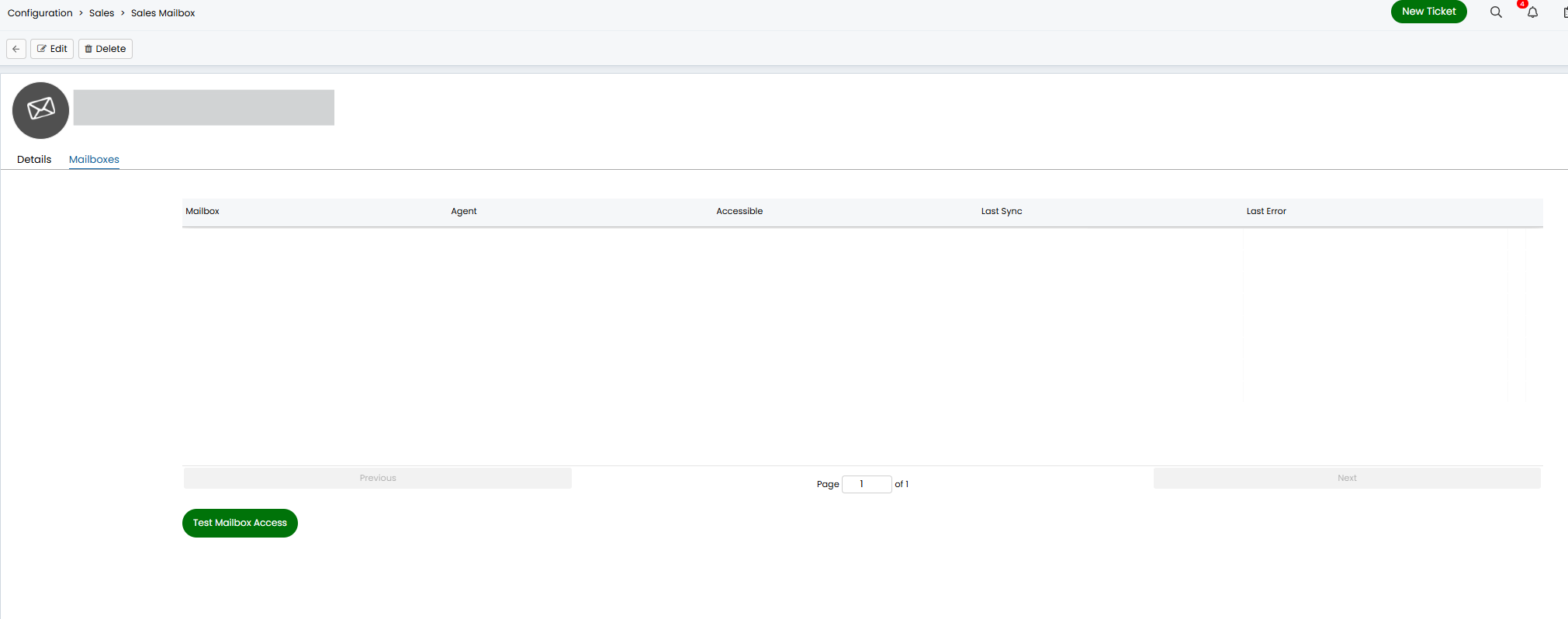
Fig 12. Mailboxes table
Once happy with the list of mailboxes in Halo you can click the "Test Mailbox Access" button to test that the connection has access to the specified mailboxes. If any of them fail you will need to go into Azure and alter the permissions of the main connection to be able to read all the mailboxes that are needed.
Click save to persist the list of mailboxes.
Importing Mail
Once you’re happy with your configuration for the rest of the connection, you can then enable the connection to be synced via the Halo Integrator application. This will import mail on a scheduled basis (every 10 minutes).
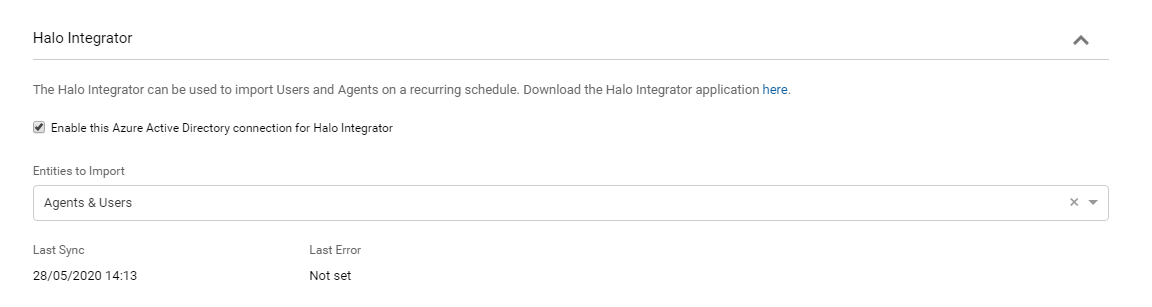
Fig 13. Enabling the integrator
If you require a more frequent sync you can host your own integrator and set this to import mail on a custom schedule.
Note: If you are having issues with connecting the Halo Integrator/Sales Mailbox, please check the list of synced entities for the Halo Integrator from within Configuration > Integrations > Halo Integrator, you should see the "Sales Mailboxes" in the list of Active Integrations.
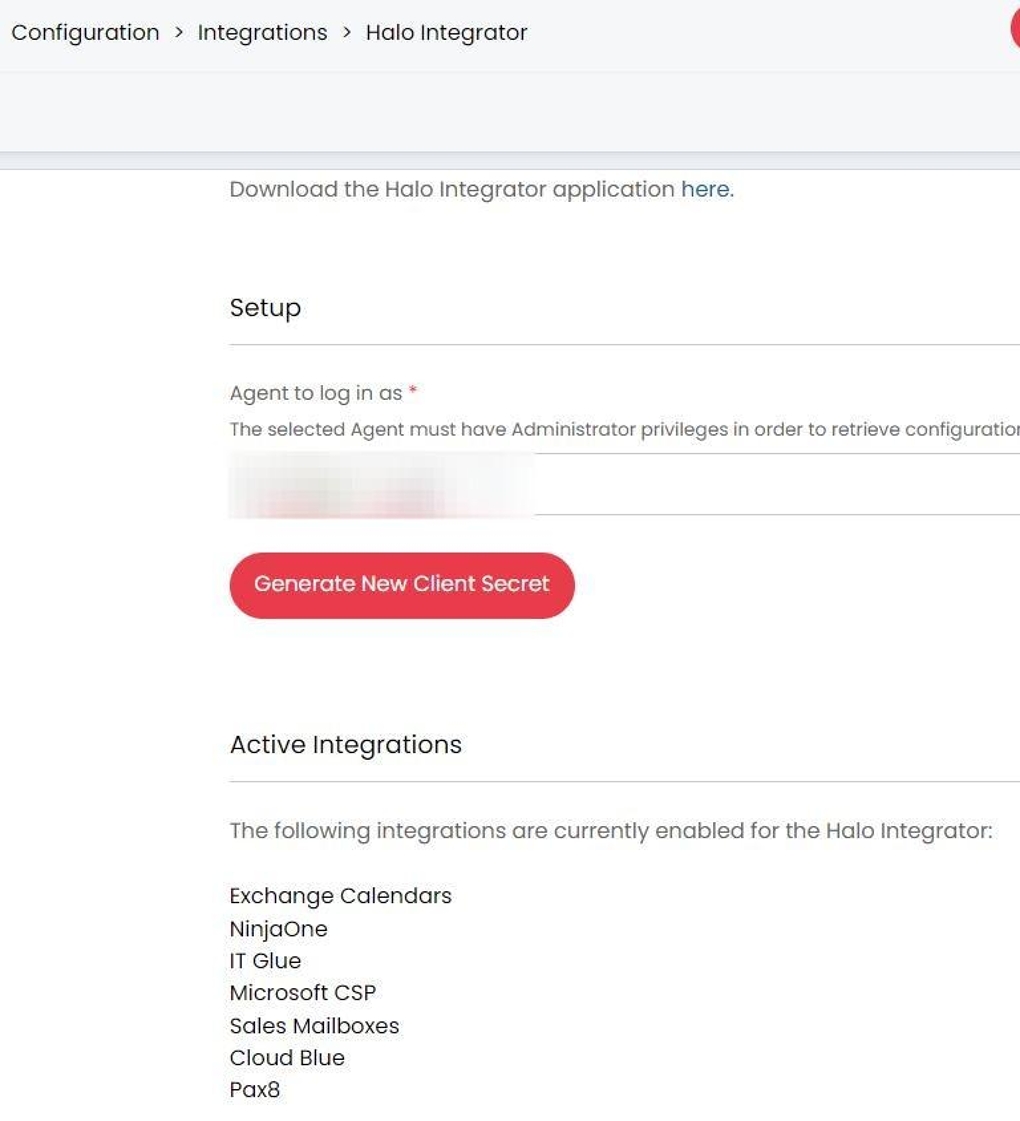
Fig 14. Integrator configuration
When emails are imported they will not be removed or read in personal mailboxes. Importing essentially creates a copy of the email in Halo.
Using Sales Mailboxes
Processing Incoming Mail
Sales Mailboxes can process incoming mail in one of two ways:
1. Incoming emails can automatically be added to opportunity/project tickets based on matching criteria.
2. Incoming emails can be viewed in the "My Inbox" module. Here, agents can process the mail, either adding them to an existing opportunity or creating a new one.
Having emails match to opportunities automatically can allow for faster processing, but it relies on emails always meeting matching criteria. Options can be set per agent for flexibility.
Add Incoming Emails to Opportunities Automatically (option 1)
If you would like to use this option, ensure you "Enable Email matching" for each agent.
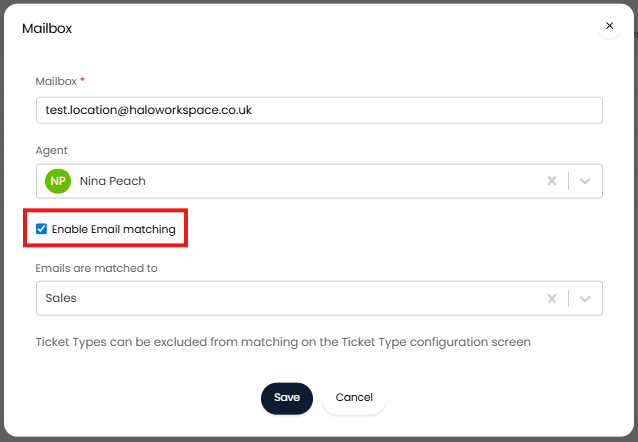
Fig 15. Enable Email matching for agent
Now, every email received by this mailbox will be attempted to match to an opportunity ticket in Halo.
How are Emails Matched to Opportunities?
The "Matching Type" setting will determine how emails are matched to opportunities.
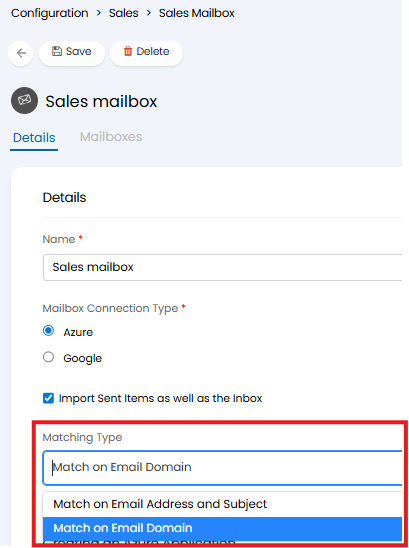
Fig 16. Matching Type
Use "Match on Email Address and Subject" if email subjects are typically unique and each opportunity has one associated contact. The from address of incoming email will be checked to see if this matches the contact email against an opportunity. The subject of the email will also be checked to see if it matches the summary of an opportunity. If both match, the email will update the matched opportunity. Otherwise a new ticket will be logged.
Use "Match on Email Domain" if each of your opportunities tend to have multiple contacts at the same organisation, requiring emails from anyone at the organisation to update the opportunity. The from address of incoming emails will be checked to see if the domain in the address matches the domain of an opportunity contact. If a match is found the opportunity will be updated.
Note: Domains matching the Agents own domain will be ignored.
Only open opportunities will be matched on and updated with emails. Matching will also only apply to tickets with the use "Opportunity", or projects, if the mailbox is set to be used for projects.
Exclude chosen Ticket Types from Matching
To prevent email matching for chosen ticket types, enable "Exclude this Ticket Type from Sales Mailbox matching" for the ticket type. This is set under Configuration > Sales > Opportunity Types > select an opportunity type > Settings tab.
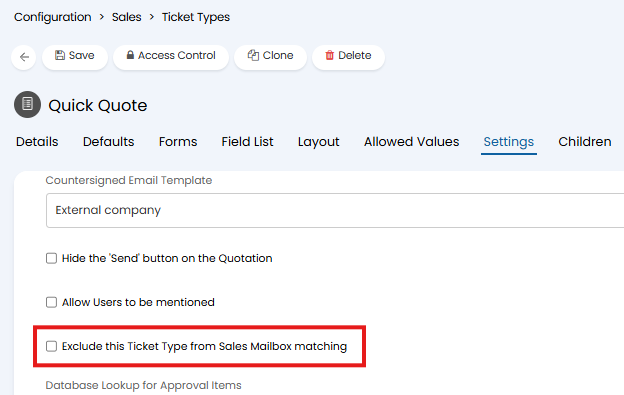
Fig 17. Exclude this Ticket Type from Sales Mailbox Matching
Prevent the whole Email Chain being added to the Ticket
By default, when an email matches an opportunity ticket, the whole email chain will be added to the ticket. However, you can adjust this so only the email that matched is added.
To do this head to Configuration > Sales > General Settings > enable "Hide email chain on Sales Mailbox Actions".
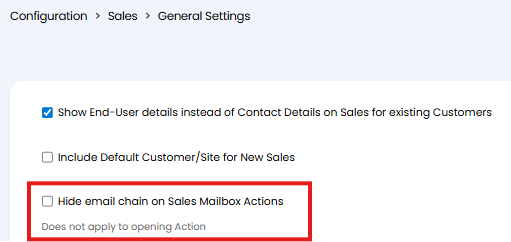
Fig 18. Option to prevent whole email chain being added to opportunities
This setting does not apply to opening actions, so emails that log a new opportunity will still have the whole chain added.
Using the My Inbox Module (option 2)
If you would like to use this option, ensure "Enable Email matching" is disabled for each agent.
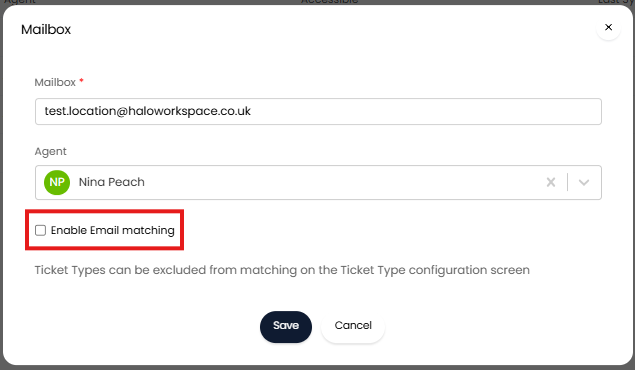
Fig 19. Enable Email matching is disabled
Now, every email received into this agent's mailbox will appear in the "My Inbox" module.
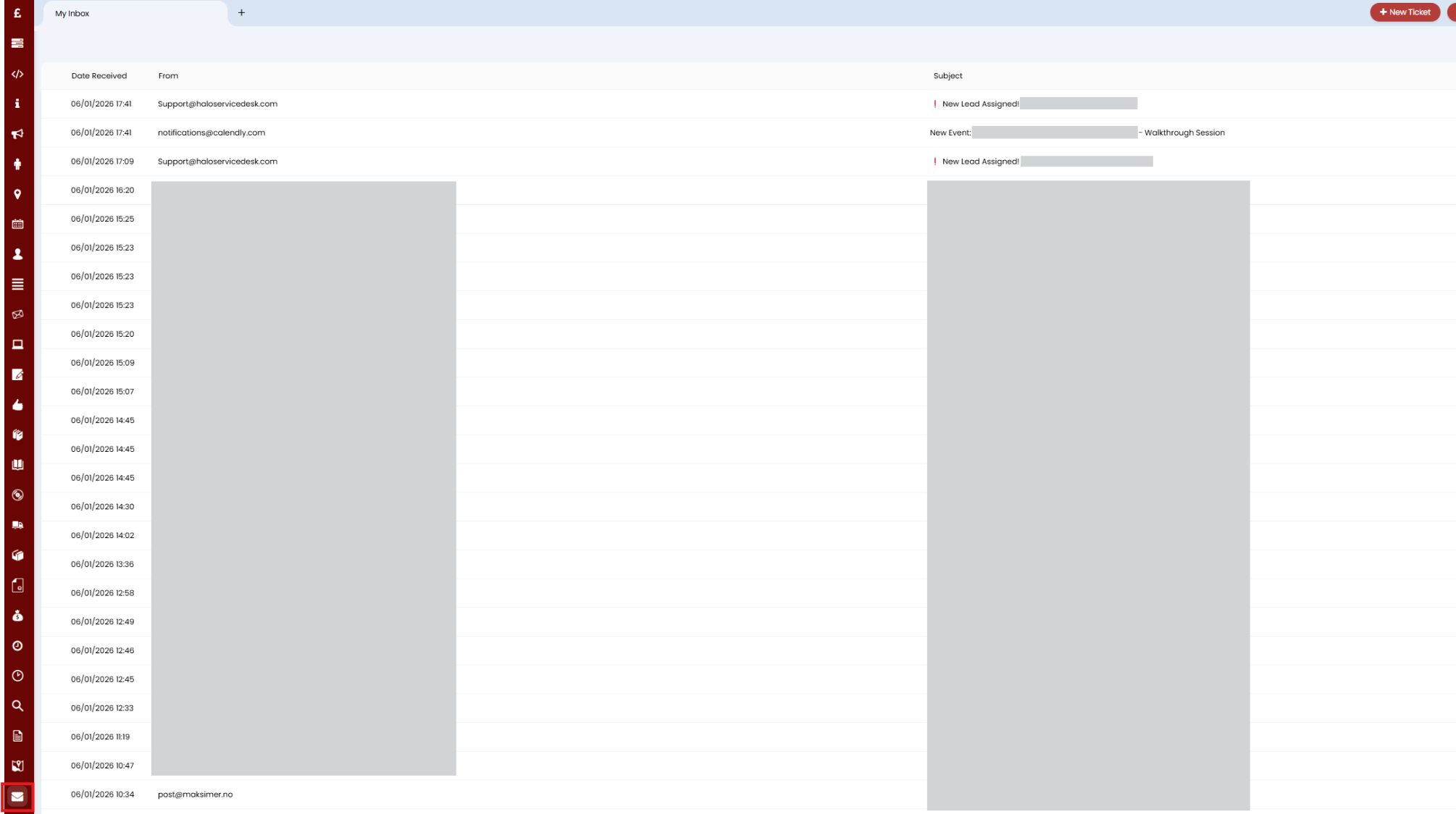
Fig 20. My Inbox module
Here, agents can review all their incoming mail and process them onto opportunities.
Click into an email here to action.
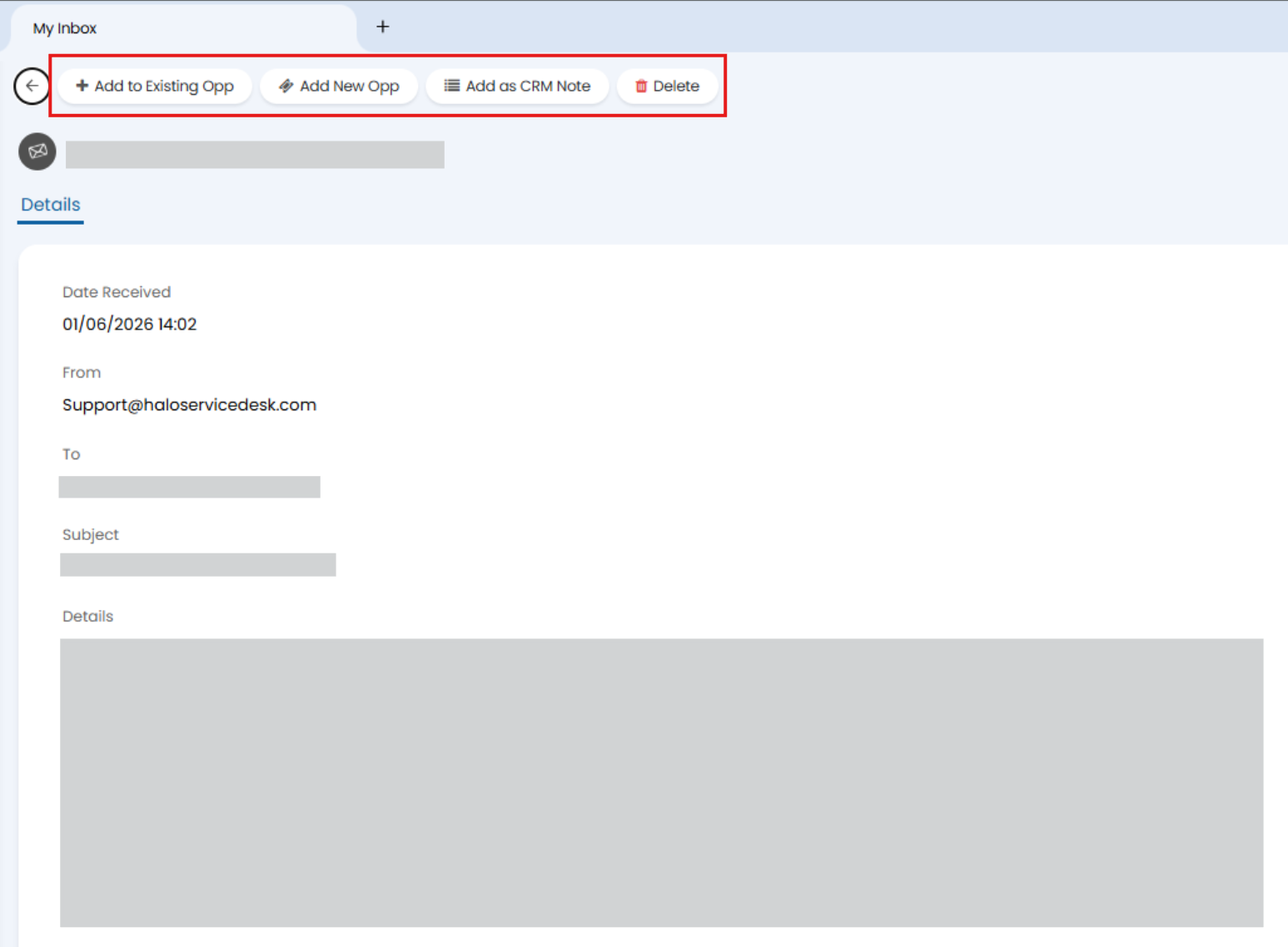
Fig 21. Options to action an email
Add to Existing Opp - This will add the email to a chosen opportunity as an email action.
Add New Opp - This will allow you to create a new opportunity, the body of this email will be copied into the details of the opportunity automatically.
Add as CRM Note - This will add this email as a CRM note to a chosen client. A client will be suggested based on the email details, but this can be overridden.
Delete - This will remove the email from the My Inbox module. Only agents who are administrators in Halo will be able to delete emails from the My Inbox Module.
Use a Sales Mailbox to Send Outgoing Emails
Sales Mailboxes can be used to send outgoing emails on opportunity tickets.
Actions can be configured to use the personal email of the agent that is completing the action, rather than using a shared mailbox. To do this head to the action configuration (Configuration > Tickets > Actions > Defaults tab) and set the 'From address' to be '*Sales Mailboxes*'.
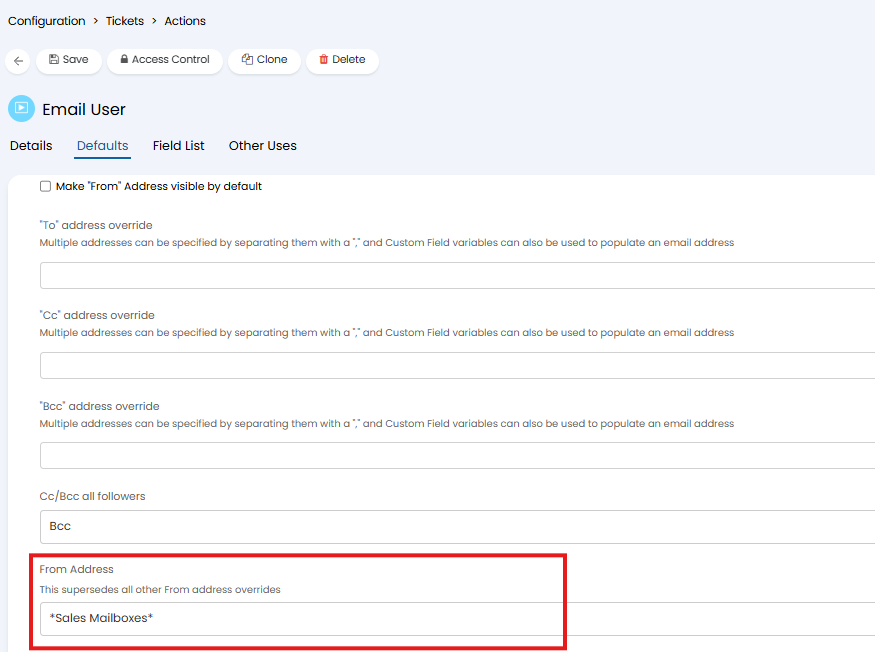
Fig 22. Default action from address to Sales Mailbox
Now, when this action is used the email will be sent from the agent's Sales Mailbox (personal) address. It will be sent from the address of the agent completing the action, not the agent assigned to the ticket.
Setting Overrides
Set Global Sales Mailbox Override
To set a global sales mailbox override head to configuration > Quotations, 'From Address'. Select 'Sales Mailboxes' and this will ensure all quotes are sent out using the configured sales mailbox. Quotes will be sent from the sending Agent's personal mailbox.
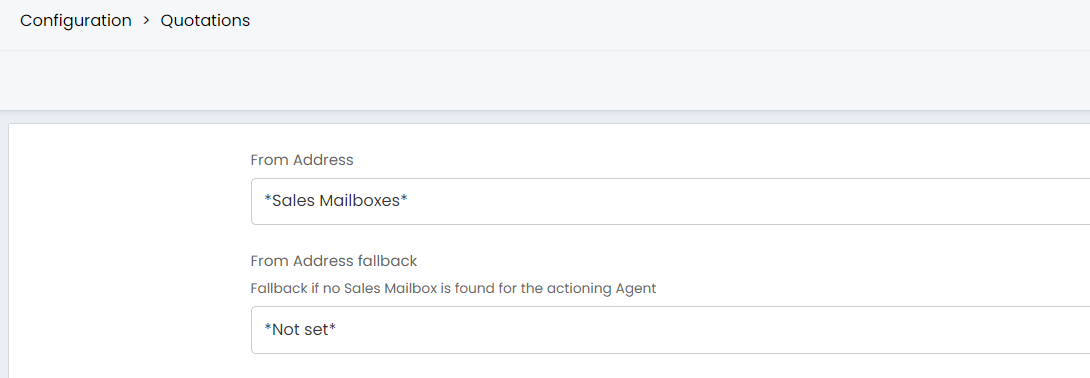
Fig 23. Quotations configuration.
You can also set a 'fallback' mailbox, this is the mailbox that is used to send out the quotation if the agent sending it is not configured as part of the sales mailbox.
If you do not set a fallback mailbox then there will be no restriction on the from address, the agent will be able to choose to send the quotation from all the mailboxes they have access to.
Note: This setting is overridden by the mailbox settings on the action.
Set override at Client level
To set the sales mailbox override at the customer level, head to the customer's profile > Settings > Email Defaults, 'Mailbox override for Quotation emails'.
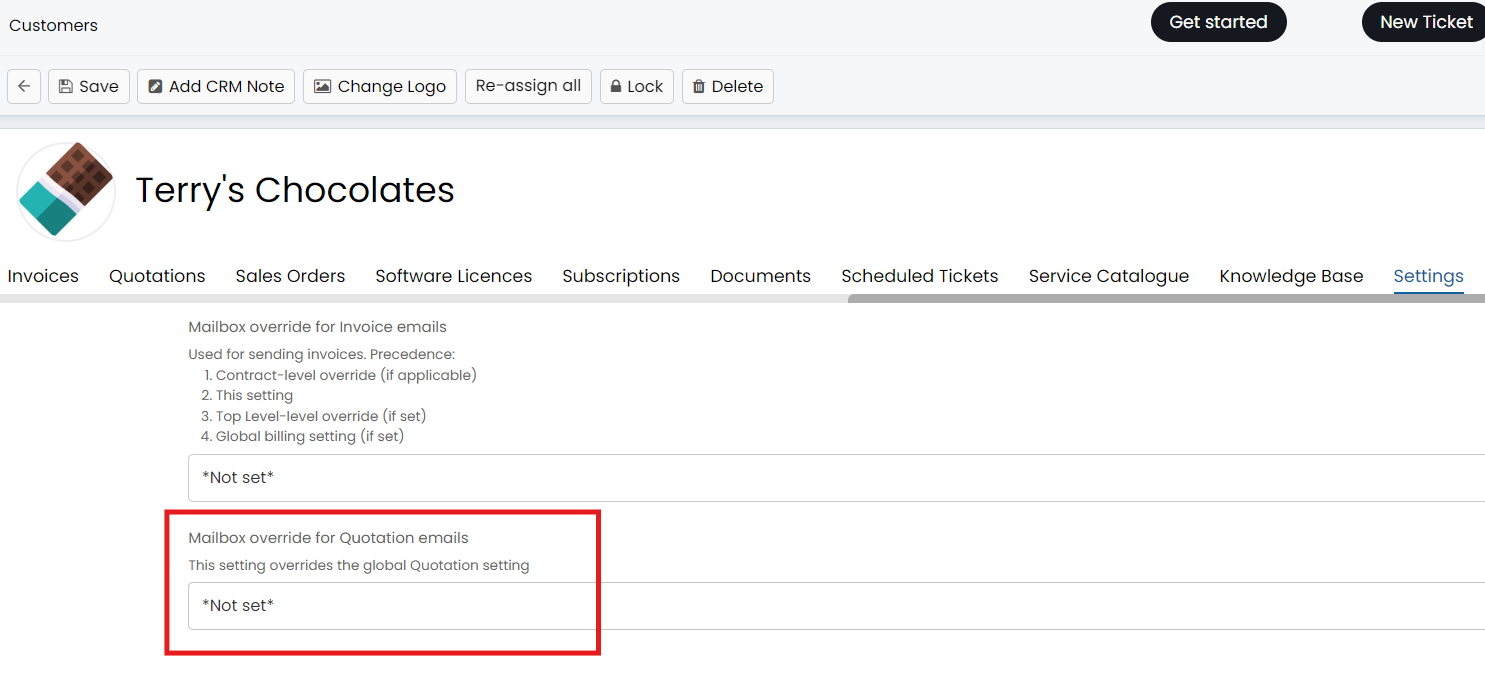
Fig 24. Customer override.
Here you can choose the mailbox used to send out quotations for this customer. This will override the global setting for quotations. Useful if you would only like to use sales mailboxes for selected customers.