Report Online Repository
- reporting
- online repository
In this guide we will cover:
- What is the Online Repository?
- Downloading Reports
- Downloading Data Sources
Related Guides:
What is the Online Repository?
The Online Repository is Halo's built-in compilation of pre-made reports and data sources that are available for download and use within your own system.
Clicking into the reporting suite, and then the "Online Repository" section will bring you to the below screen. This allows you to browse and preview reports and data sources made by our team.
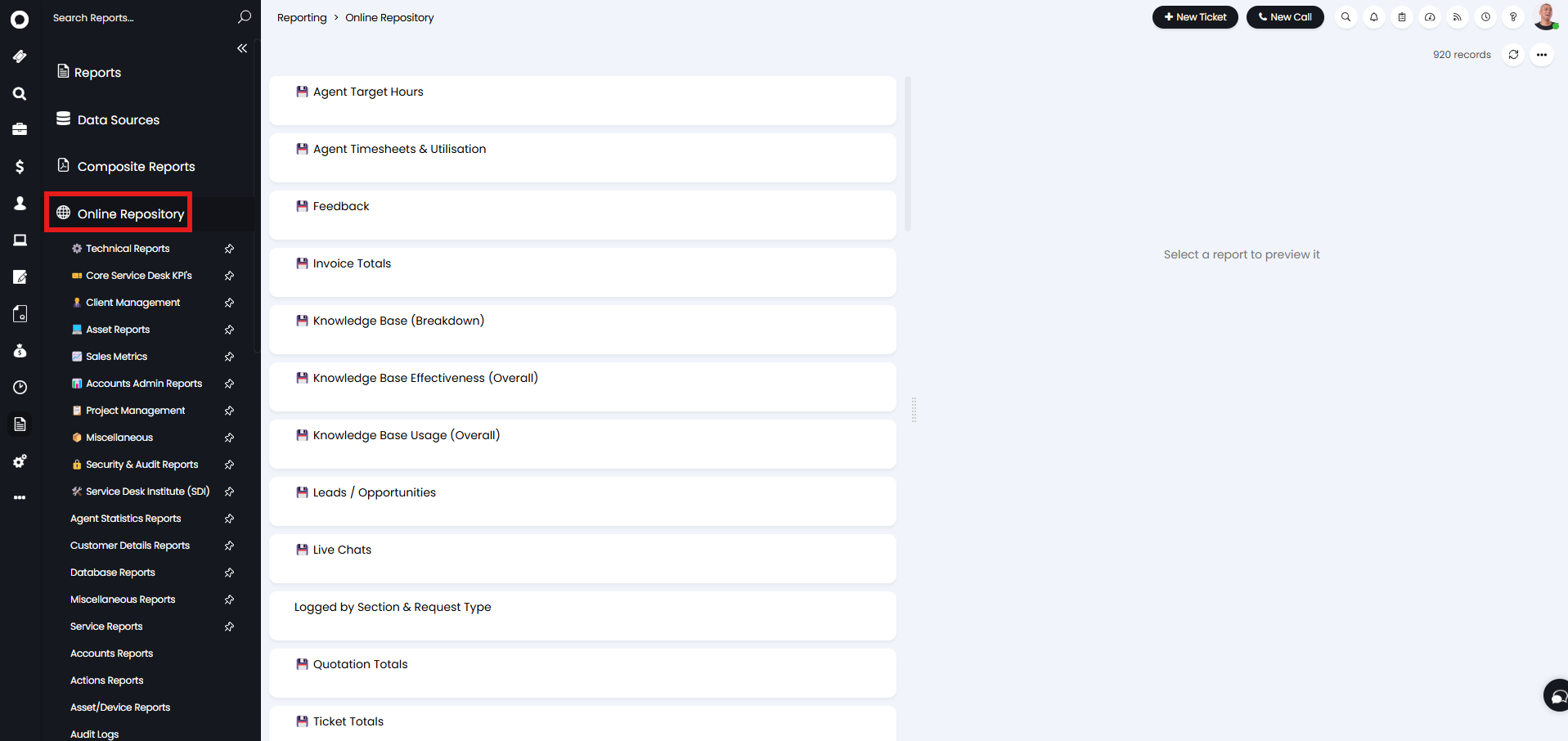
Fig 1. Online Repository screen.
Downloading Reports
Reports can be downloaded from the Online Repository. Simply search what you are looking for, and if you know an SQL column you want to have included, you can search that as well.
Clicking on a report will preview it on the right side of the screen.
Note: The report may appear empty or lacking content at first. This is because filters for only "Today" are often added to these by default so the preview loads quickly. This can be changed in the filter dropdown at the top.
If you decide you want to download the report, click "Add this report to my library" at the top.
If downloading reports that are created with data sources, the data source will also download with the report.
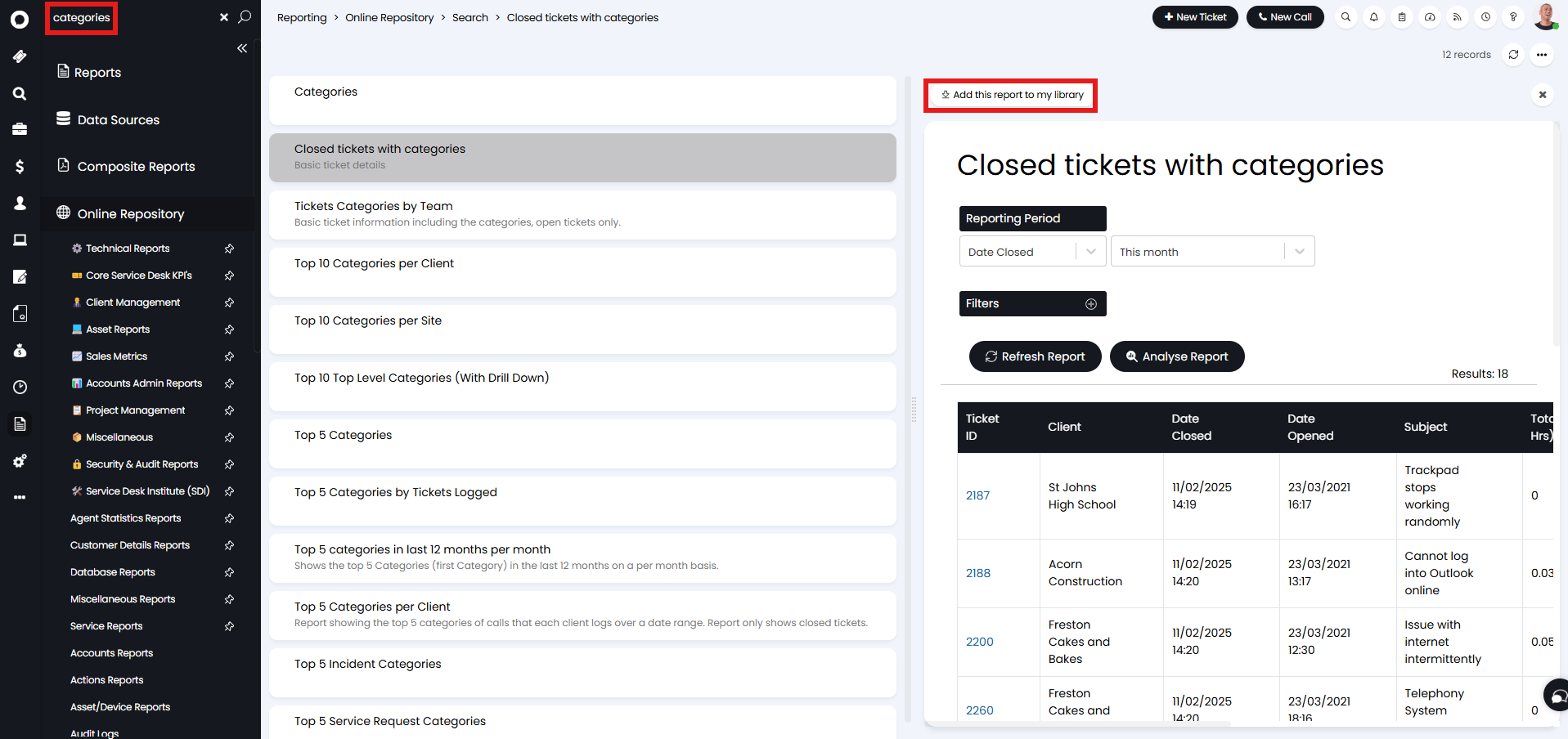
Fig 2. Downloading a report.
The button will now change to "Update local version" and the report will show that is is "In Your Library".
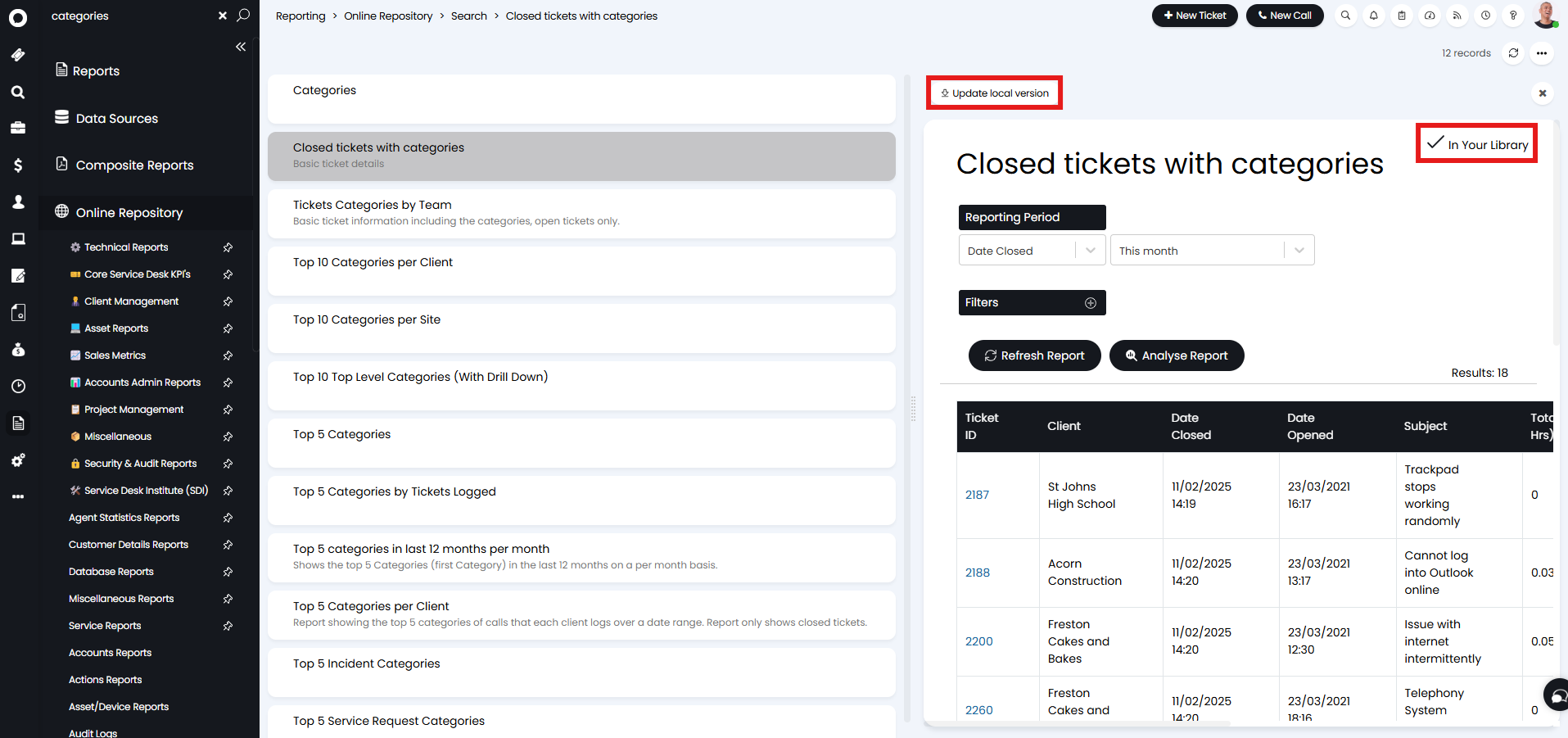
Fig 3. Downloaded report.
You can now go back to your "Reports" area to make use of your new report. The search field you used will stay, so the report will likely show up near the top.
Once you have clicked on it, you can treat this as you do any other report. You can adjust the filters, edit the SQL, create composite reports with it, etc.
Note: Make sure to change the "Group" in the report details to wherever you want to store it.
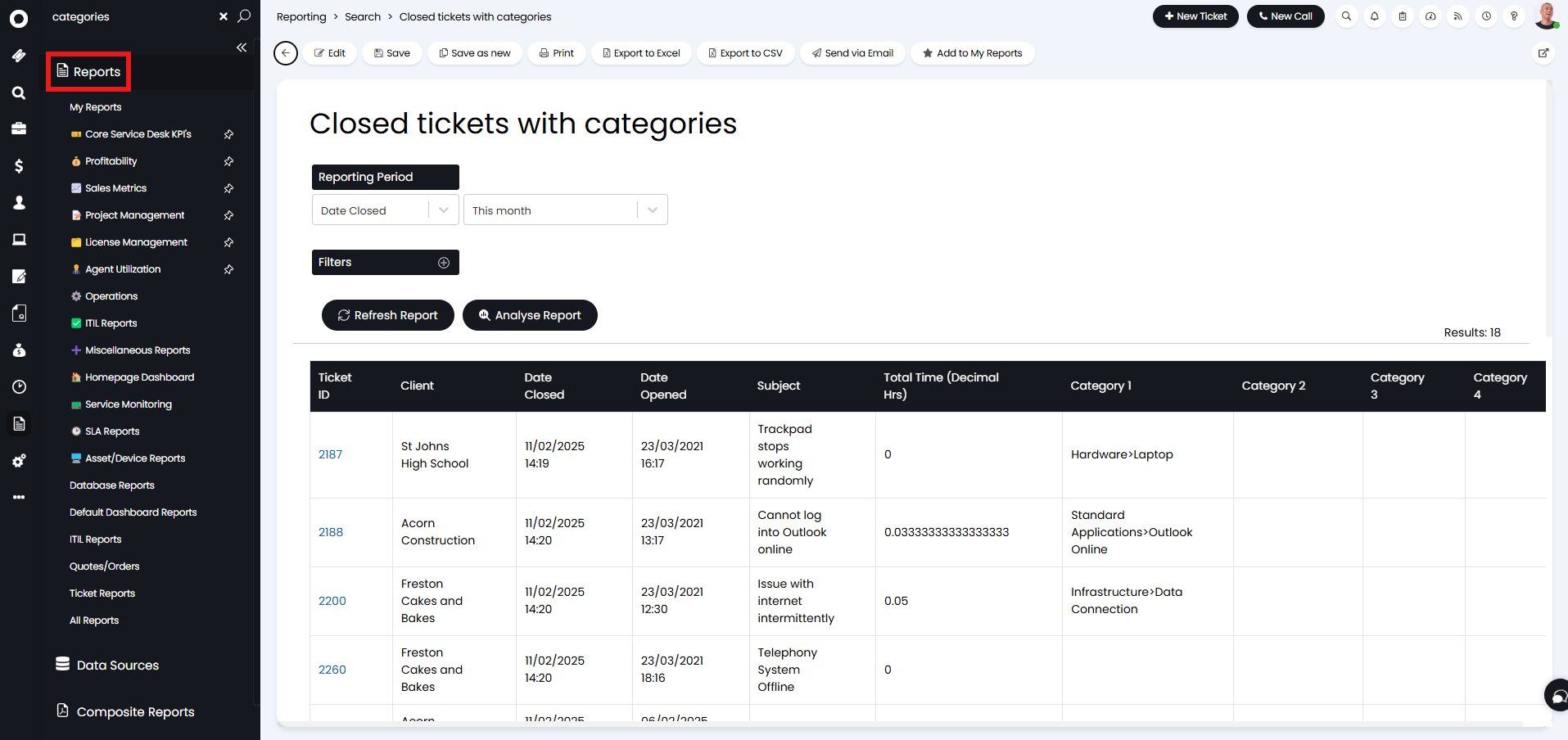
Fig 4. Downloaded report in Reports area.
Editing the report can also allow you to adjust the SQL to your liking.
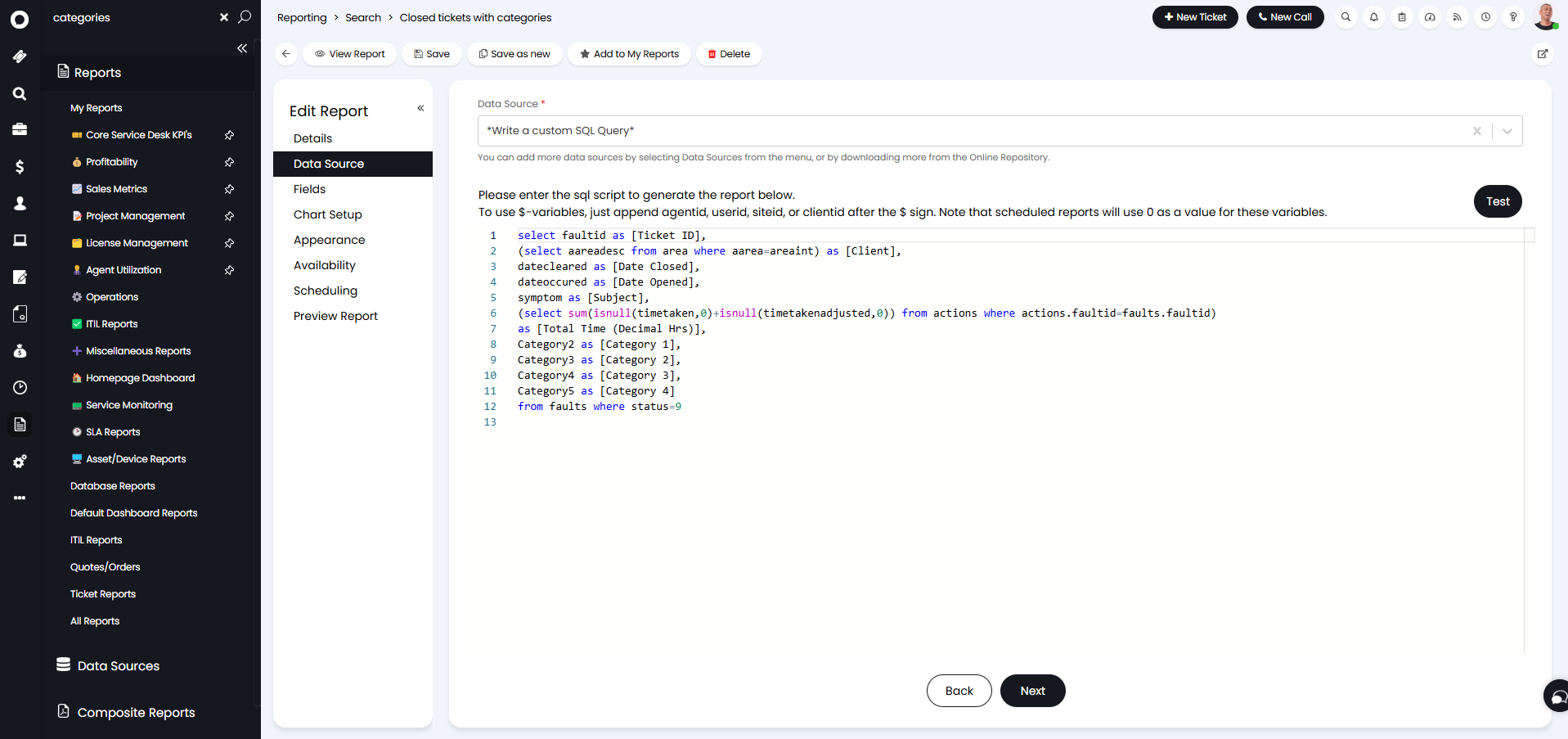
Fig 5. SQL of the downloaded report.
Downloading Data Sources
The Online Repository also has data sources available for download. Data sources are pre-made reports that can be used as the data source of a report, and allows fields to be added based on them, similar to the query builder/report builder.
Data sources can be saved the same way as reports.
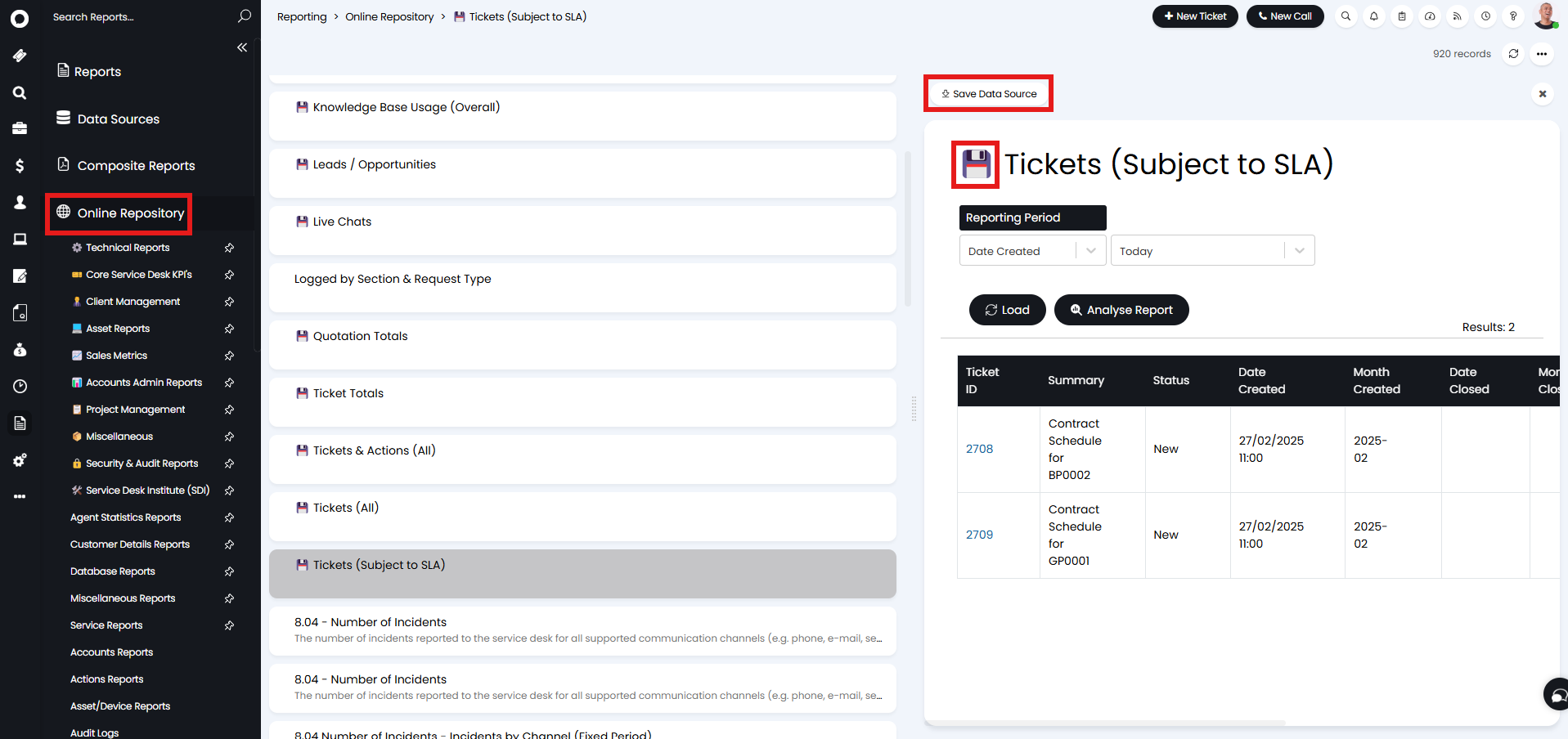
Fig 6. Downloading a data source.
You can then go back to the reports area and create a "New" report.
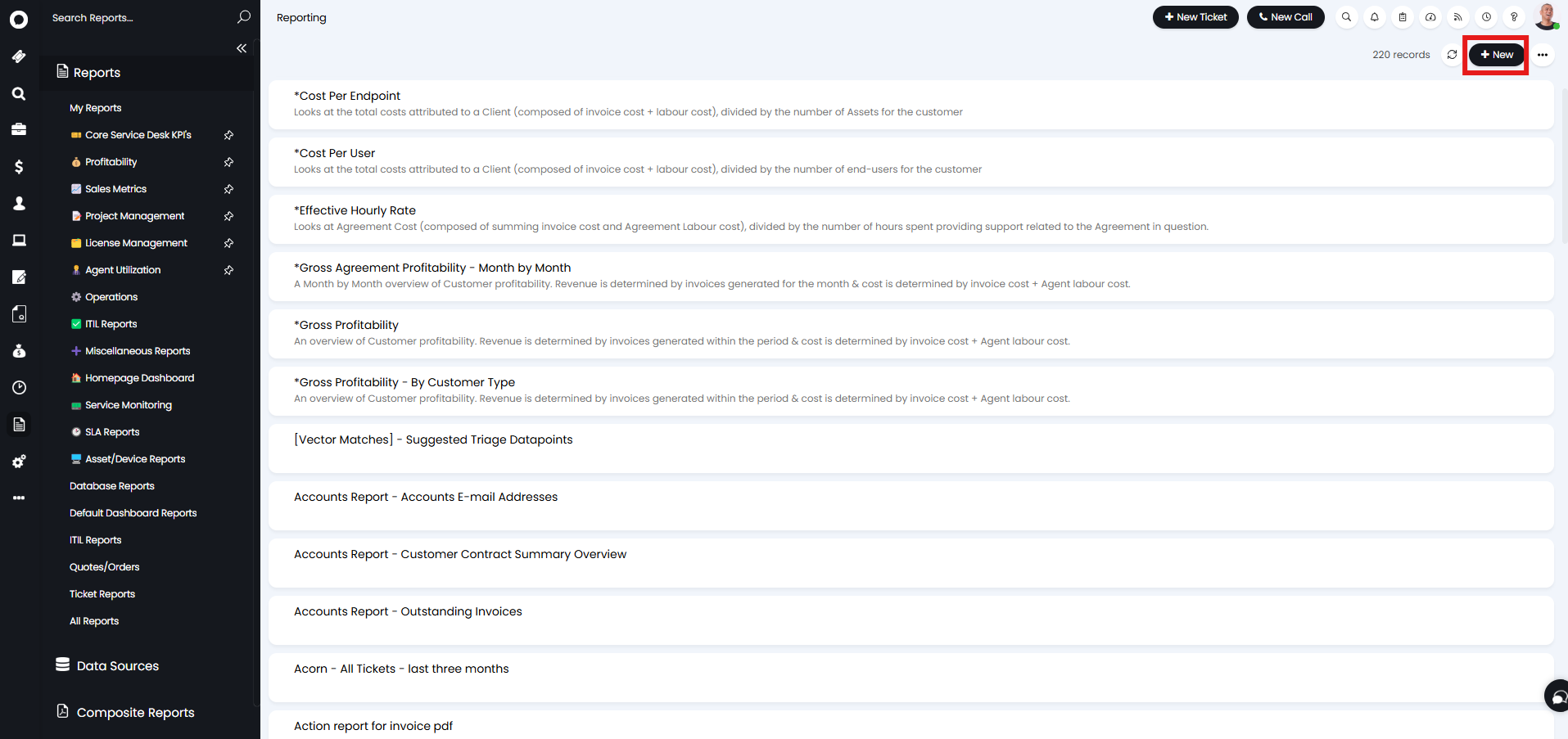
Fig 7. Creating a new report.
In the "Data Source" tab of the new report, the downloaded data sources will appear at the top of the corresponding dropdown. For more information on the full process of making reports with a data source, check out the guide linked at the top.
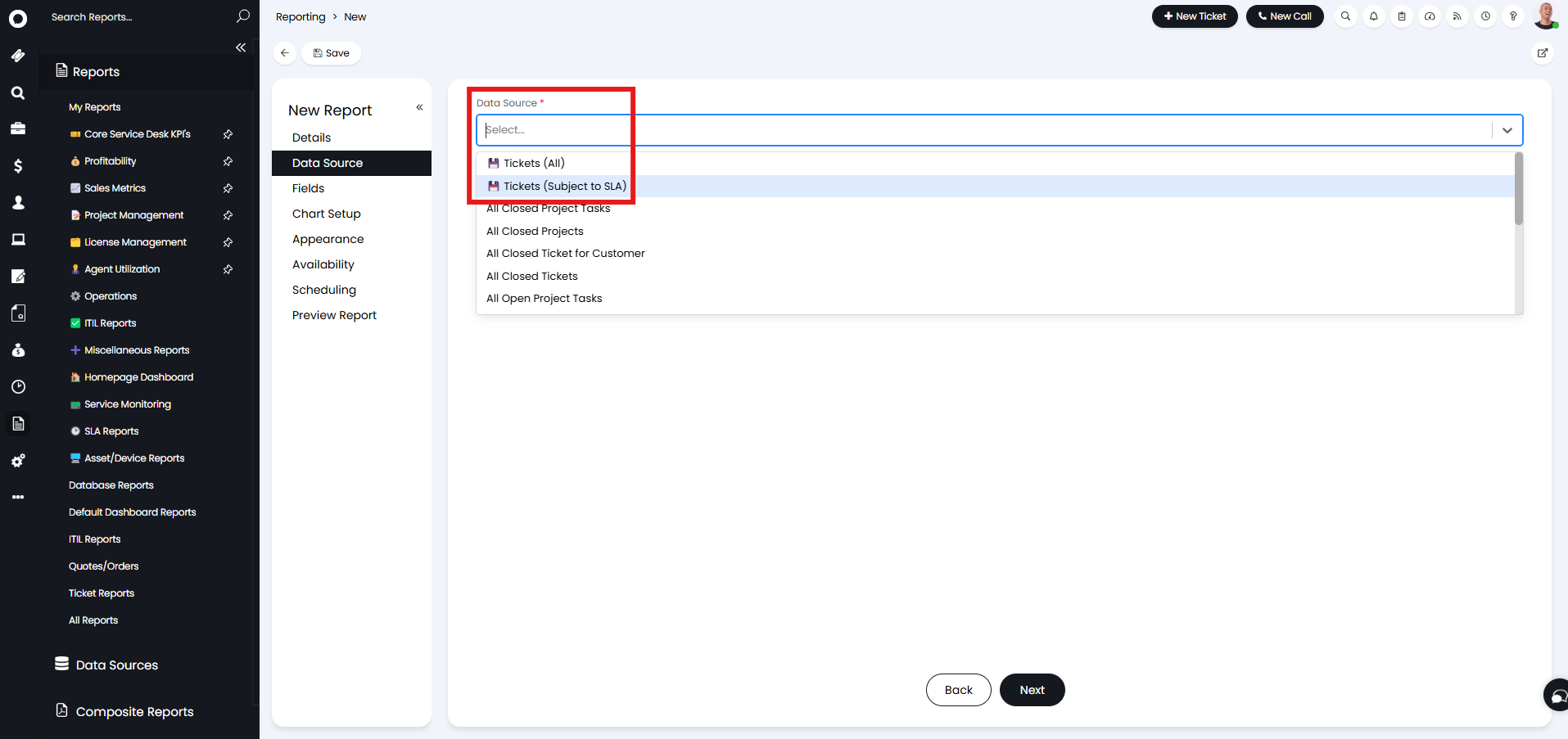
Fig 8. Selecting the downloaded data source.
Referenced by
- Agent Cost Tracking and Profitability Reporting
- External MCP Servers Use Case: Procuring & Installing Software In Halo
- Knowledge Base
- MCP Endpoint: Use the Chatbot to Query and Update Data in your Instance
- Process Agent Use Case: Major Incident Detection
- Reports and Scheduling
- Start to Finish: Project Dashboards