Process Agent Use Case: Major Incident Detection
- ai
- incident management
- major incident management
- AI Agent
- Process Agent
In this guide we will cover:
- What Is Halo's AI Major Incident Detection?
- How Does It Work?
- Setting Up AI Major Incident Detection
- Creating The Process Agent
- Creating The Runbook
Related Guides
What Is Halo's AI Major Incident Detection?
Whenever a new incident Ticket is raised in the system, an evaluation is carried out on its related Ticket Cluster to check whether that Cluster is 'surging'.
If it is determined that a 'surge' is occurring, intelligent analysis is carried out on that Ticket and its Cluster by a Process Agent to determine whether a Major Incident should be declared. If the outcome of this analysis is yes, then the Agent will create a major incident Ticket and link the effected Tickets to it.
If you have a HaloITSM environment that was deployed after August 28th 2026, then this process will be pre-built in your system and ready to use without further configuration.
If you have a HaloITSM environment that was deployed before this date, or if you have an instance of another Halo product (PSA, CRM, CSM), then you will need to set up the process using the "Setting Up AI Major Incident Detection" section of this guide.
Important: Ticket Clustering must be enabled and set up in order for this process to work. If you do not yet have Ticket Clustering set up in your environment, see the guide for configuration help: AI Ticket Clustering.
How Does It Work?
Every time a new incident is logged in the system, a Custom Integration Runbook is triggered called "Halo AI - Major Incident Detection".
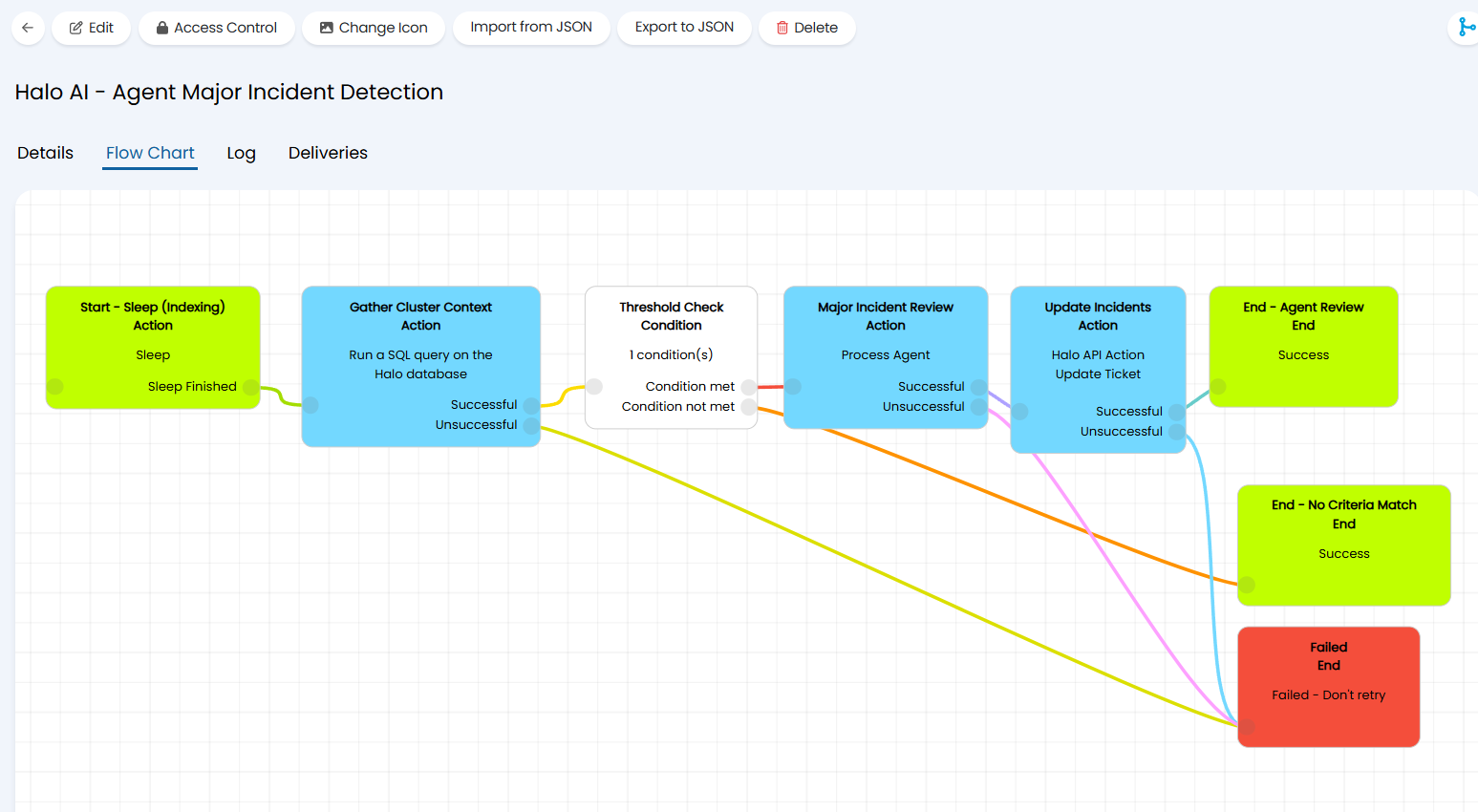
Fig 1. The major incident detection runbook
The runbook checks for a 'surge' of Tickets, within the newly logged Ticket's related Cluster, by running a SQL query against the Cluster. A 'surge' will be flagged if one of the following is occurring within the Cluster:
- The Cluster is less than 60 tickets large, and 3 or more of those Tickets were logged in the last ten minutes.
- The Cluster is 60 tickets or more, and 5% or more of those Tickets were logged in the last ten minutes.
As you can see in Figure 1, if a 'surge' is identified then the fourth step of the runbook will trigger a Process Agent to review the ticketing data for the surging Cluster and determine whether a Major Incident is necessary.
If the Agent decides a Major Incident is necessary, it posts to the Ticket and creates the Major Incident Ticket. The Major Incident is then linked as a parent to the existing incidents by the runbook.
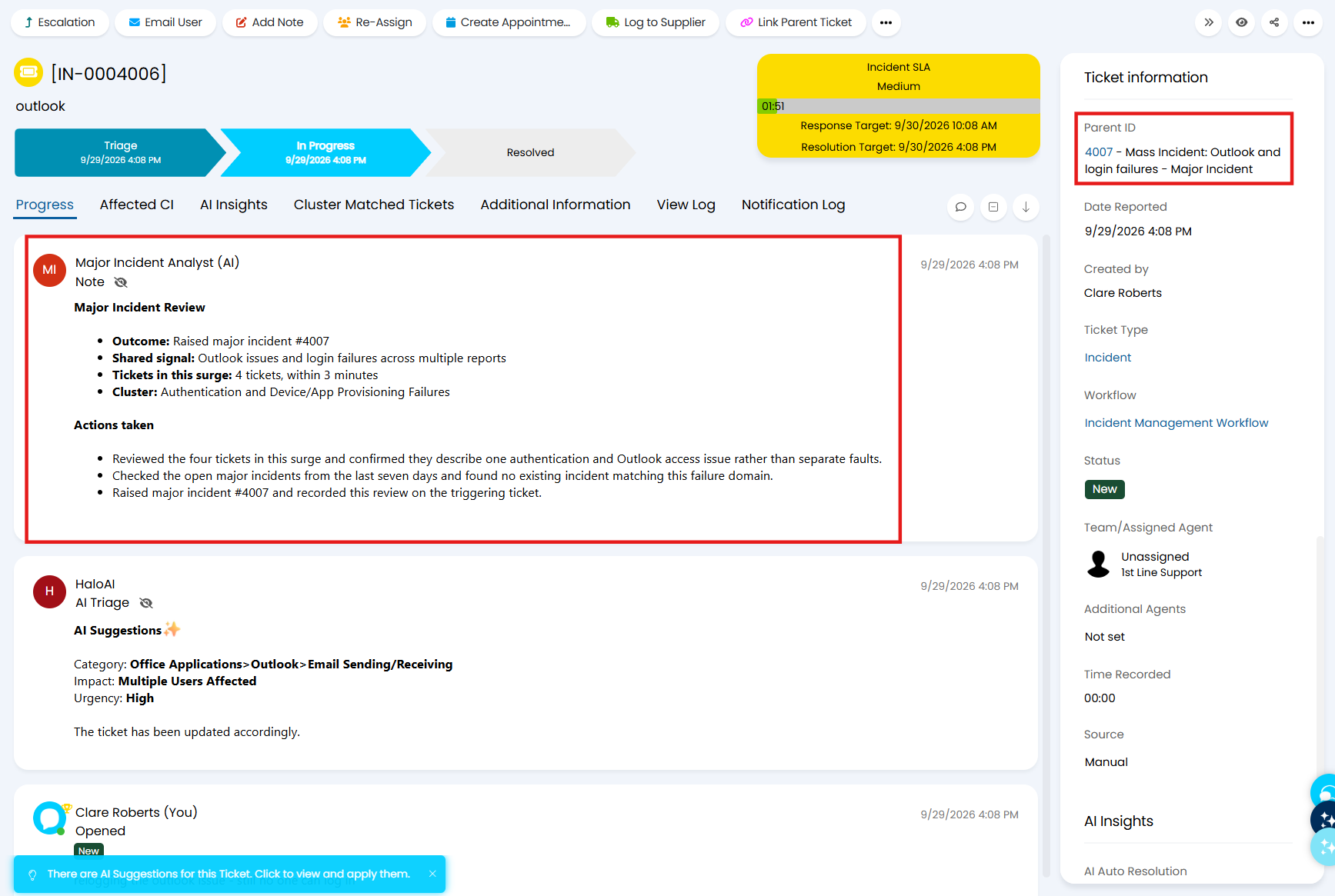
Fig 2. A major incident is created from a ticket indicating a 'surging' cluster
Setting Up AI Major Incident Detection
As mentioned in the introduction to this guide, if you have a HaloITSM environment that was deployed after August 28th 2026, then this process will be pre-built in your system and ready to use without further configuration.
If you have a HaloITSM environment that was deployed before this date, or if you have an instance of another Halo product (PSA, CRM, CSM), then you will need to set up the process using this section of the guide.
The AI Major Incident detection process is composed of a Custom Integration Runbook and a type of AI Agent called a 'Process Agent', foundational understanding of both these features is assumed. To learn more about either feature, see the dedicated guides: Custom Integrations/Runbooks & Process Agents.
As the Process Agent is triggered by a step within the runbook, it is best to create the Process Agent first.
Creating The Process Agent
Note: This section assumes that you are creating this process manually (not by downloading the runbook from the online repository), or that you are on a version earlier than version 2.250. If you are operating on version 2.250 or later, then this AI agent will be automatically created and set up for you if downloading the runbook from the online repository.
AI Agents in Halo require authorised API access provisioned via API applications. If you are operating on version 2.250 or later, then an API application will be created for you automatically when creating the Process Agent. However, if you are on a version prior to version 2.250, then an API application will need to be created before the Agent is created.
Note: If you are downloading the "Halo AI - Agent Major Incident Detection" runbook from the online repository, then this creation of the Process Agent is not necessary, as the Agent will be created for you when the runbook is installed. However, once the Agent is installed via this method, you will need to set the ticket type and the report for the CF_Create_Major_Incident and CF_Get_Open_Major_Incidents functions respectively. See the "Functions" section of this guide for further insight.
API Application (Versions v2.250+)
On versions 2.250+, an Automation Identity API Application will be created for you automatically when creating a Process Agent, saving you the need to create an API Application yourself. Once the Agent is saved, a link to the created application will be available.
The permissions the Automation Identity application has will be determined by the functions you enable for the Process Agent. E.g. adding the "Get One Ticket" function to the Agent automatically adds the "read:tickets" permission.
API Application (Versions prior to v2.250+)
To create the Process Agent, you will first need to create an API Application to allow the Agent to connect to Halo. Head to Configuration > Integrations > Halo API, and click on the "View Applications" button.
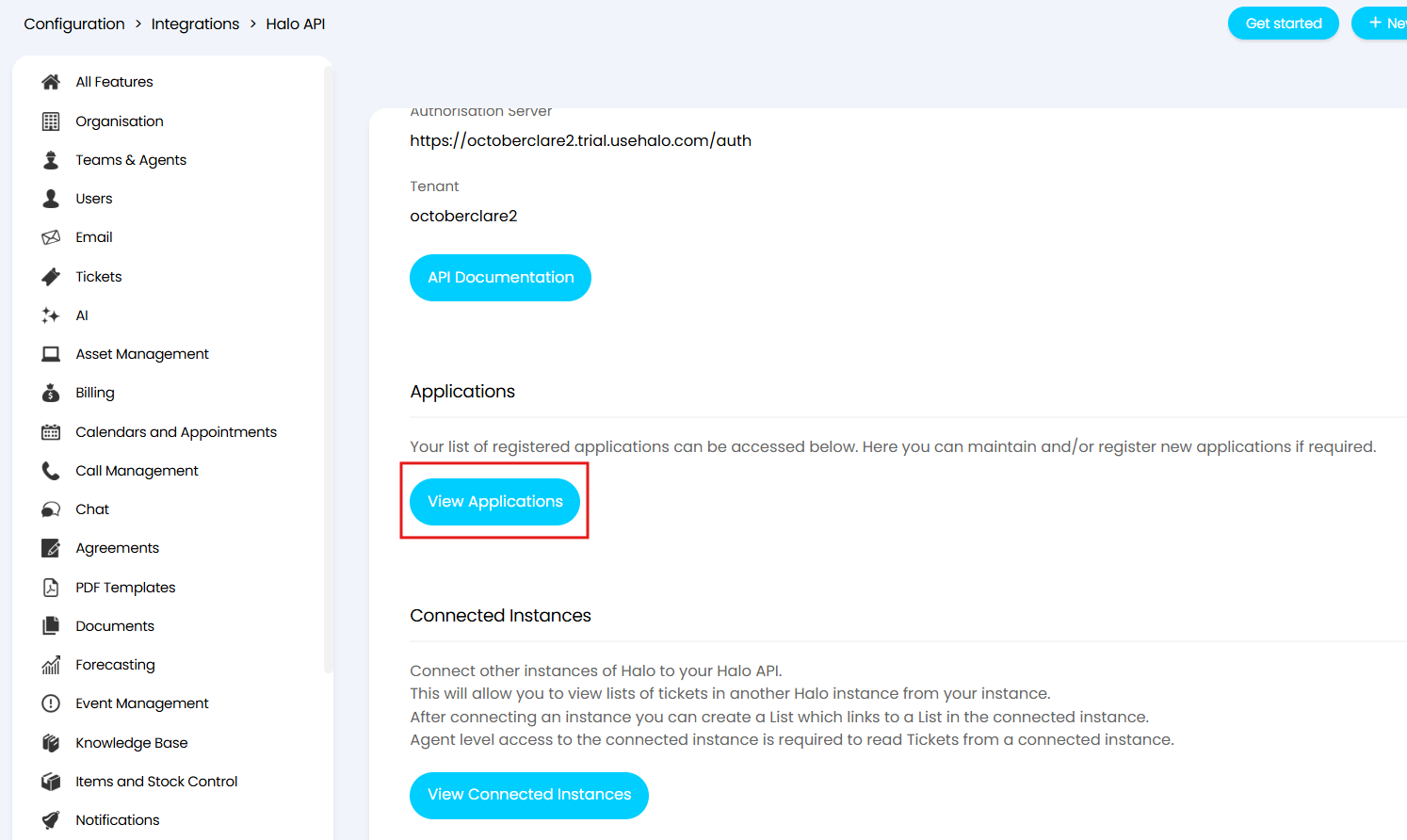
Fig 3. The API Application configuration area
Click "+ New" to create a new API Application.
Give this application a recognisable name and set the Authentication Method to "Halo Automation Identity".
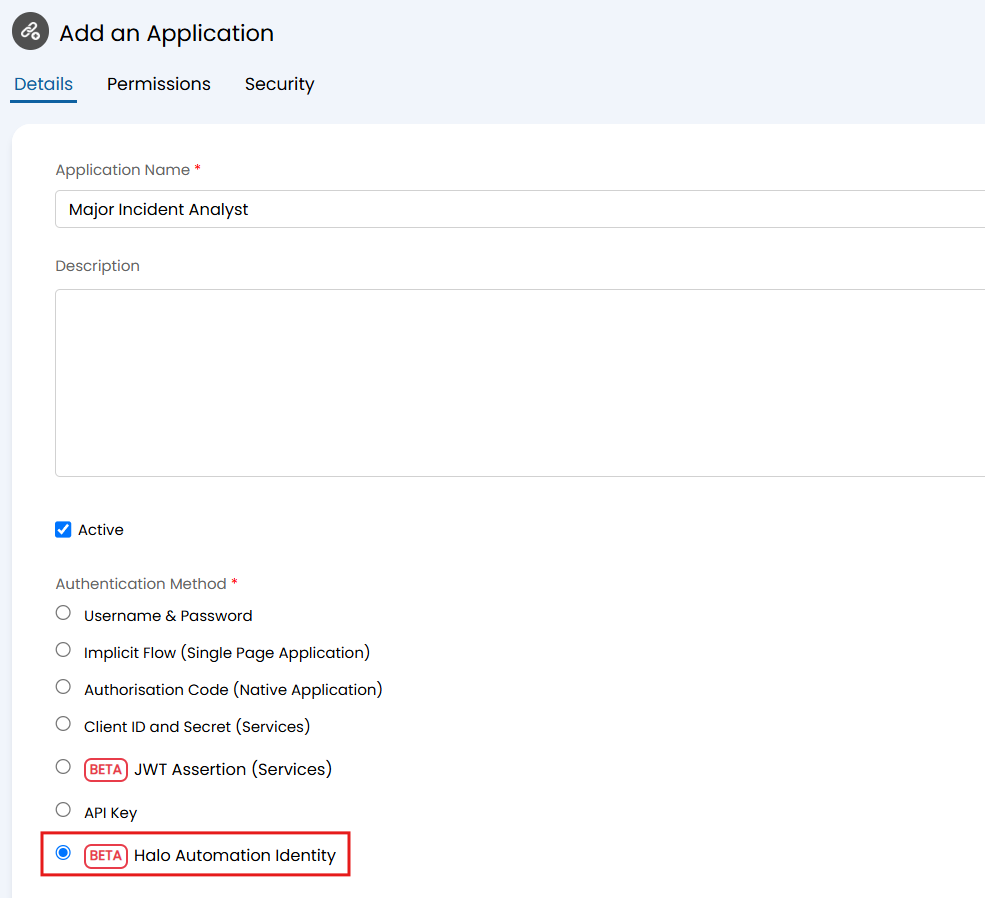
Fig 4. Creating an API Application with Halo Automation Identity
Once selected, you will need to specify an identity for the application. This informs the base level of access granted to the application. The option "Application identity" is recommended here, as you can use roles to control the base level of permission rather than having to pick a specific Agent. When this option is selected the "Identity Roles" field can be used to determine which roles to use as the base level permissions.
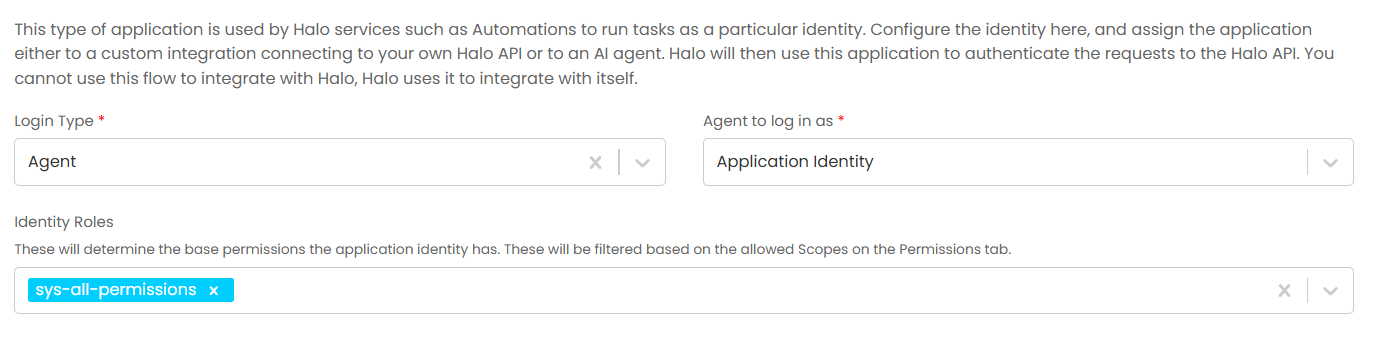
Fig 5. API Application using Application identity
You will then need to ensure that you set the correct permissions in the 'Permissions' tab of the application.
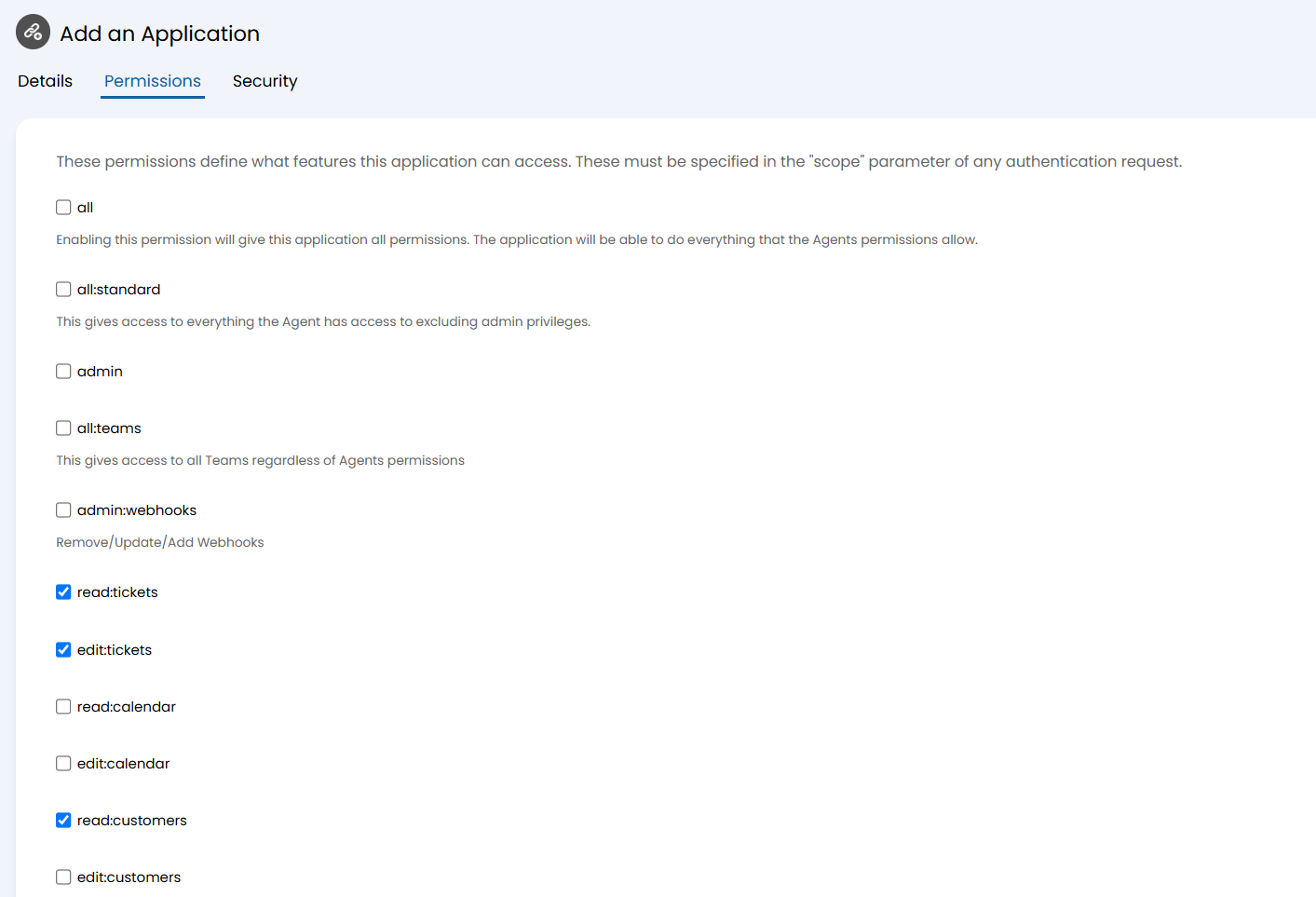
Fig 6. Setting the required permissions for the API application
These permissions should be based on what the Process Agent will be required to do. If you will be replicating the Major Incident Detection process without changes, then the recommended permissions are as follows:
- read:tickets
- edit:tickets
- read:customers
- read:kb
- read:assets
Once the permissions for the application are set, save the application. The next stage will be to create the Process Agent that will use this API application.
Process Agent
A Process Agent is a specific type of AI Agent. Therefore, to create a new Process Agent, navigate to Configuration > AI > AI Agents. Select the "Process Agents" button and select the "+ New" button in the top right corner.
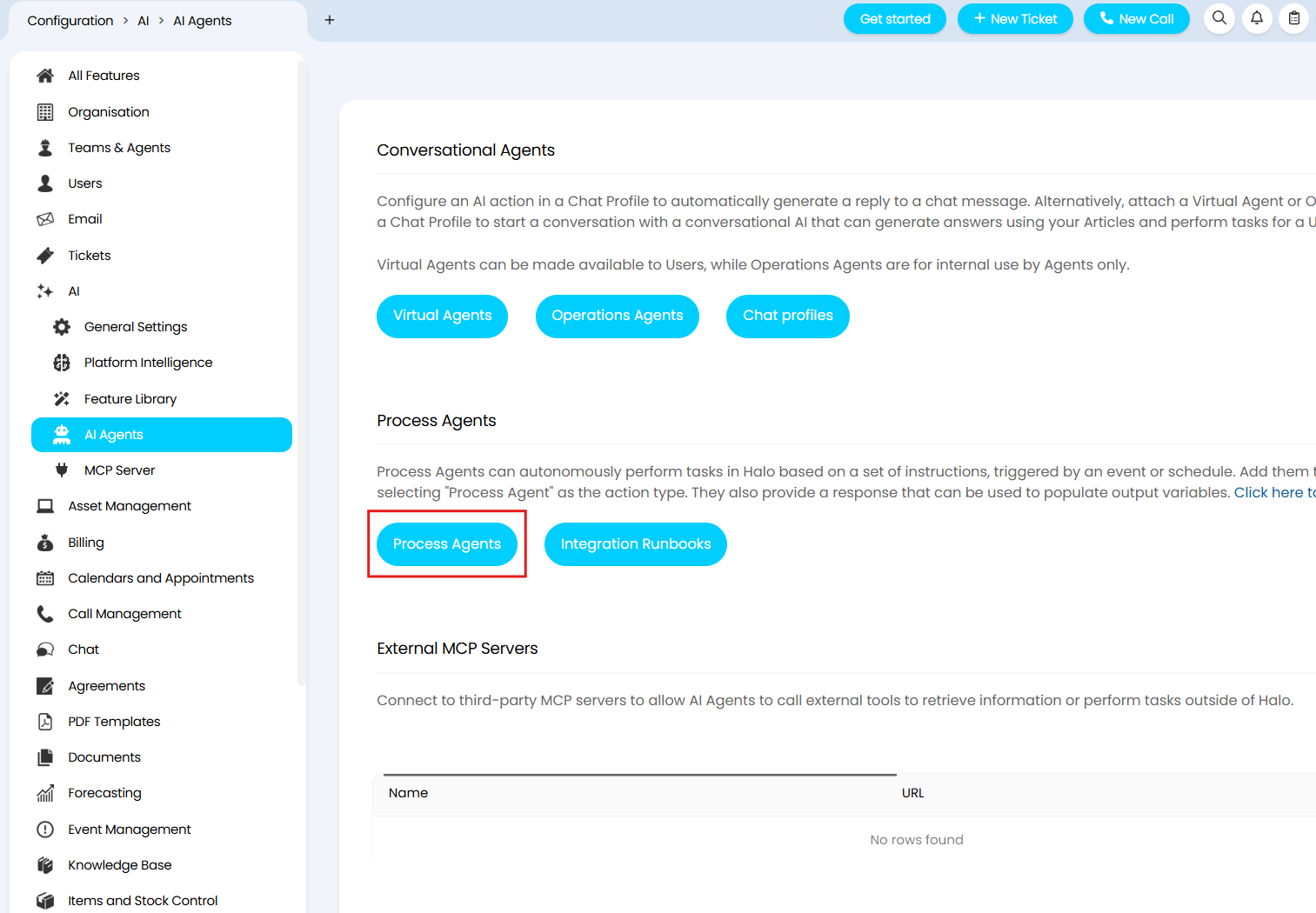
Fig 7. Navigating to the process agents configuration area
Details & Configure Connection
Give the Process Agent a relevant name, and then configure both its AI connection and its Halo connection. The "Built-in OpenAI" connection can be used for the AI connection, but you can use your own connection if you would prefer. See our dedicated guide on AI connections for more information: Connecting AI to Halo.
For the Halo connection, select the "Agent to log in as". Here, it is best practice to choose "Application Identity" and then choose "sys-all-permissions" for the "Identity Roles" option.
Note: If you are on version 2.250 or later, then an API application will be created for this connection when the Process Agent is saved. If you are on a version prior to 2.250, then you will need to select your newly created API application as the "Halo Application to authorise as".
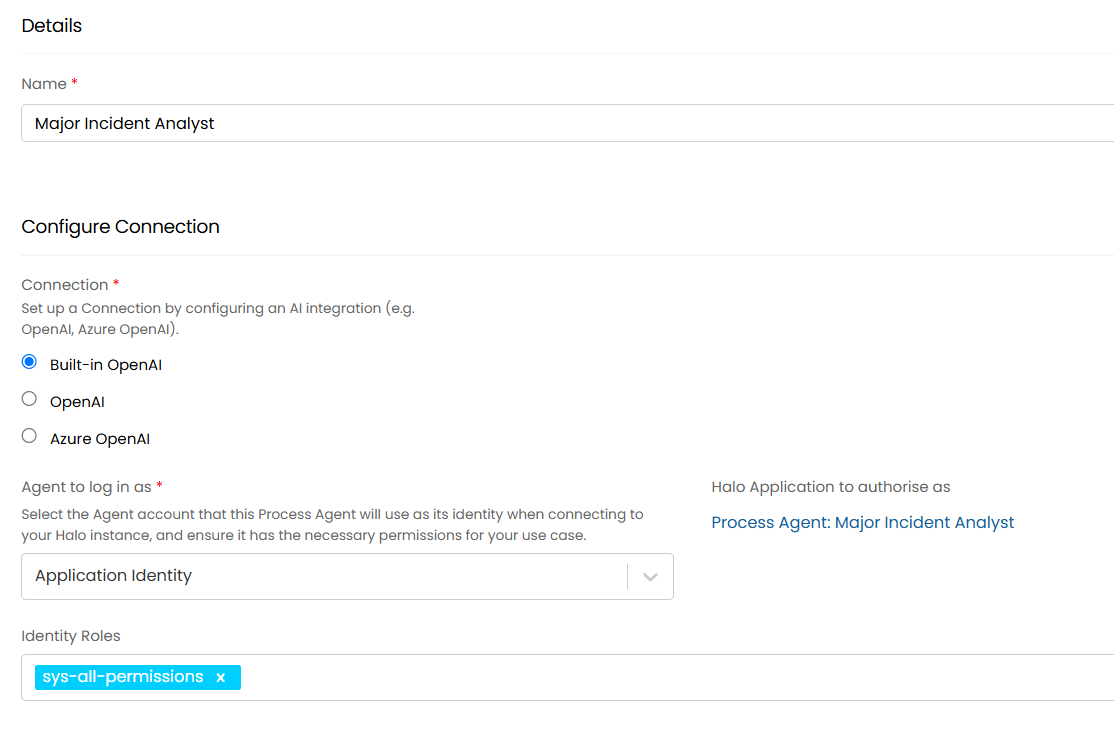
Fig 8. Setting up the AI and Halo connections for the Process Agent
Assistant Fields
For the Process Agent's instructions, if you would to like to use the same instructions that are used in pre-built environments, download the file attached to this article labelled "Major Incident Analyst instructions". If you are reading this guide on our website, you will need to view it on our support portal in order to access the attachments.
Copy all text within the file and paste it into the instructions field of the Process Agent.
Please note that it is not necessary to enable the "Force JSON response" checkbox.
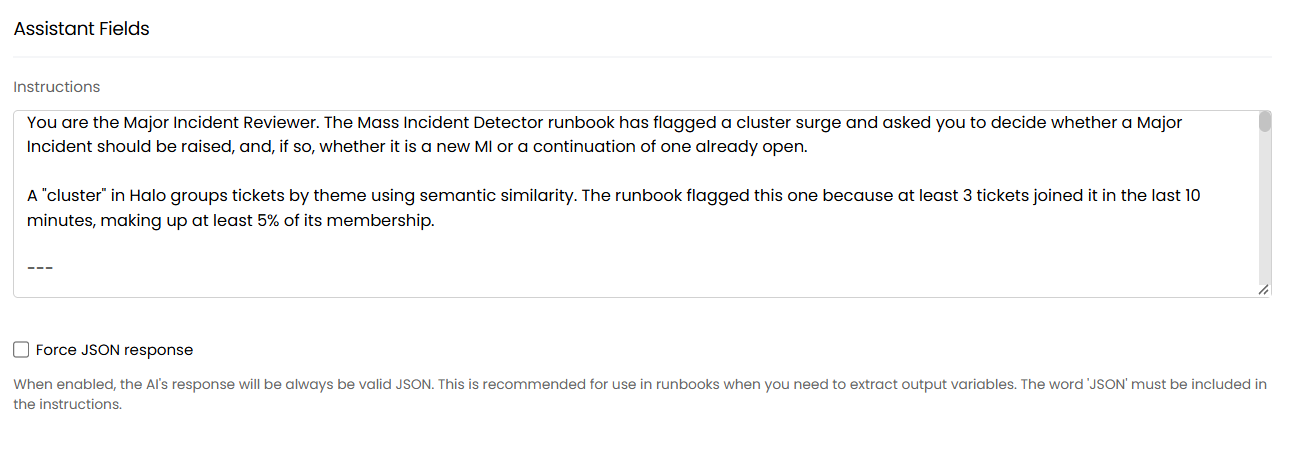
Fig 9. Provide the instructions for the Process Agent
The instructions instruct the following:
- Read the recent Tickets in the flagged Cluster and note each one’s affected service, summary, requester and time logged.
- Decide whether to declare a Major Incident, leaning towards declaring unless there are fewer than 3 Tickets or they are clearly unrelated.
- If not declaring, post a note on the triggering Ticket only, explaining why.
- Check the open Major Incidents from the last 7 days for one that matches the same problem, timeframe and failure domain.
- If a match is found, post an update note on that existing MI only, listing the new incoming Tickets.
- If no match is found, create a new MI using the set summary and description format, then post a note on every affected Ticket.
- Write all notes as a human MI manager would, using only the permitted HTML tags and no dashes or references to tools or automation.
- Finish with a single JSON reply listing each Ticket, its parent MI and the decision taken.
If you would like to customise your handover review process, these instructions are your main opportunity to do so. You may want to edit the instructions to tailor it towards your company's handover processes in order to make the review as beneficial and accurate as possible.
Note: If you create new instructions, ensure that the input variables are included for providing the AI model with the context of the Ticket, or that new variables are created to provide your chosen data. To learn more about creating input variables for Process Agents, see this guide: Process Agents.
You will notice that, in the instructions, both input variables (inputs) and functions (tools) are referenced. These need to be created in the Process Agent's configuration in order for them to be leveraged.
Input Variables
If using the provided instructions, you will need to create 7 input variables:
| Name | Data Type | Mandatory | Description |
| TriggeringTicketID | Number | No | Set the parameter to the input Ticket ID |
| TriggeringTicketSummary | String | Yes | Summary of the incoming ticket |
| ClusterID | Number | No | The cluster ID the triggering ticket joined |
| ClusterName | String | No | Name of the cluster/theme |
ClusterMemberCount | Number | No | Total existing members in the cluster |
| RecentJoinCount | Number | No | Count of tickets that joined this cluster in the last 10 minutes |
| RecentTicketsJson | String | No | JSON array of recent member tickets (faultid, summary, details, userid, user_name, service_id, dateoccured) |
These input variables are populated by the runbook step that triggers the Process Agent, and they are how the relevant data is provided to the AI model.
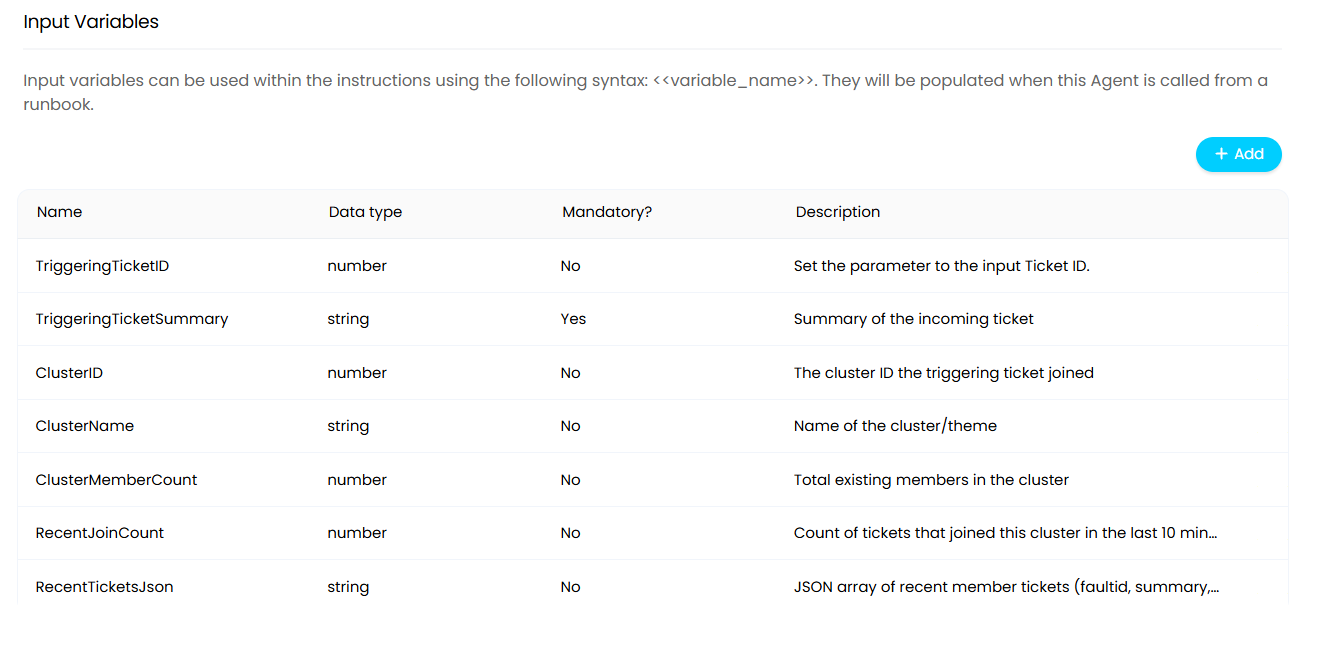
Fig 10. Configure the input variables for the process agent
Note: If you have created your own instructions, or customised the ones provided, then you should ensure that input variables are still specified in your instructions - either the provided ones or your own. For more information on input variables for Process Agents, see this guide: Process Agents.
Functions
The functions for a Process Agent are the way in which an Agent is able to carry out certain actions in your Halo, such as running reports or adding notes to Tickets. For more information on them, please see the guide: Process Agents.
If you are using the pre-built instructions then this particular Agent does not require any system functions, but it does require 4 custom functions.
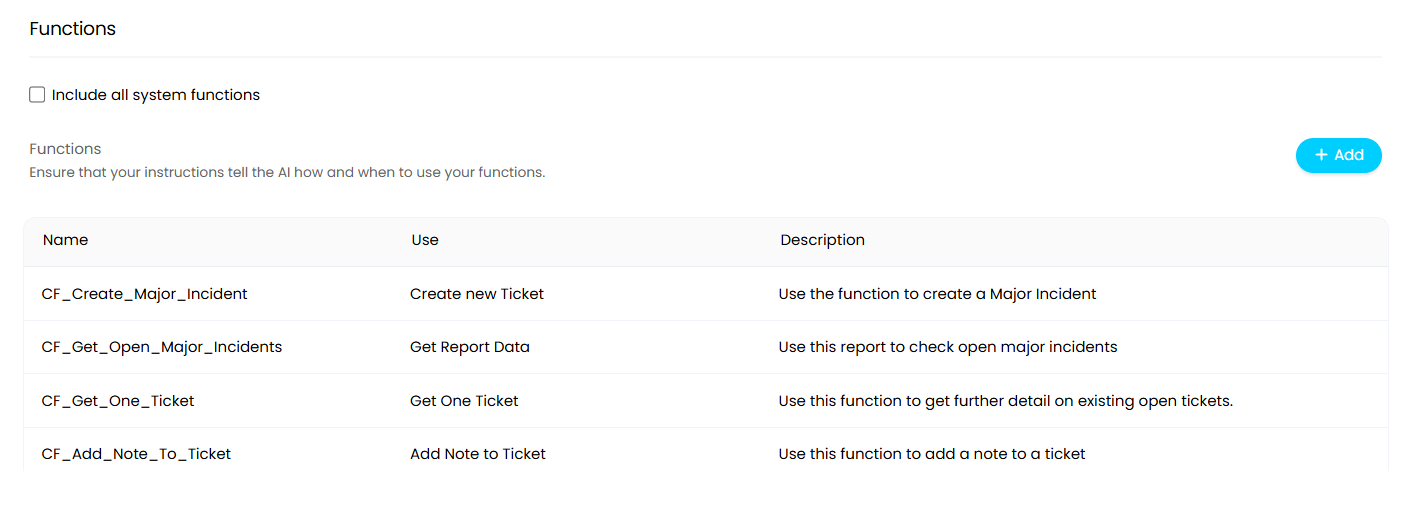
Fig 11. Create 4 custom functions for the Process Agent
| Name | Description | Use |
| CF_Create_Major_Incident | Use the function to create a Major Incident | Create new Ticket |
CF_Get_Open_Major_Incidents | Use this report to check open major incidents | Get Report Data |
| CF_Get_One_Ticket | Use this function to get further detail on existing open tickets | Get One Ticket |
| CF_Add_Note_To_Ticket | Use this function to add a note to a ticket | Add Note to Ticket |
Note: The CF_Create_Major_Incident fuction should have the Incident ticket type set against it, and it should use the "Summary and Details" fields as parameters.
Note: The CF_Get_Open_Major_Incidents function should run the "Open Major Incidents" report. This will need to be downloaded from the reporting online repository to be able to select it for the function. For information on how to do this, see the guide: Report Online Repository.
Once the functions have been fully configured, the Agent can be saved and you can move on to configuring the runbook.
Creating The Runbook
The runbook is the method by which the Process Agent is triggered and provided with the data for its analysis.
To create the runbook, navigate to Configuration > Integrations > Custom Integrations > Integration Runbooks. From here, there are two creation methods to choose from.
Install From The Online Repository
As has been noted throughout this guide, on versions 2.250+ it is possible to download the runbook from the online repository and have that also install the Process Agent and API Application. To do this, select the globe icon in the top right corner to enter the online repository. Locate the "Halo AI - Agent Major Incident Detection", click into the runbook and select the "Install to Halo" button to install it locally to your environment.
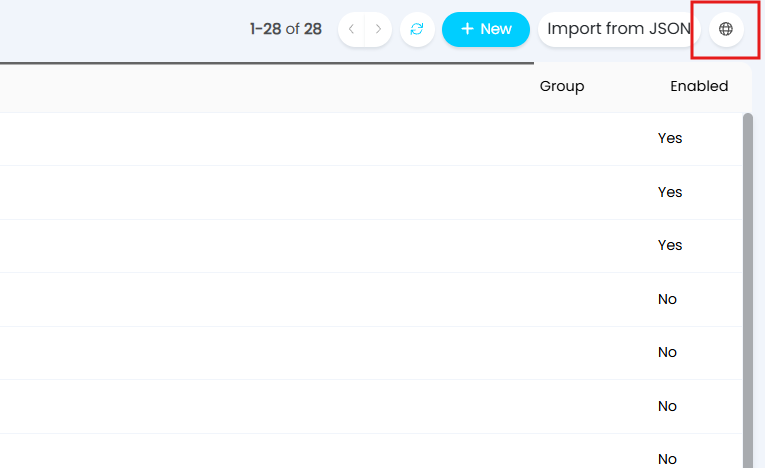
Fig 12a. Entering the runbook online repository
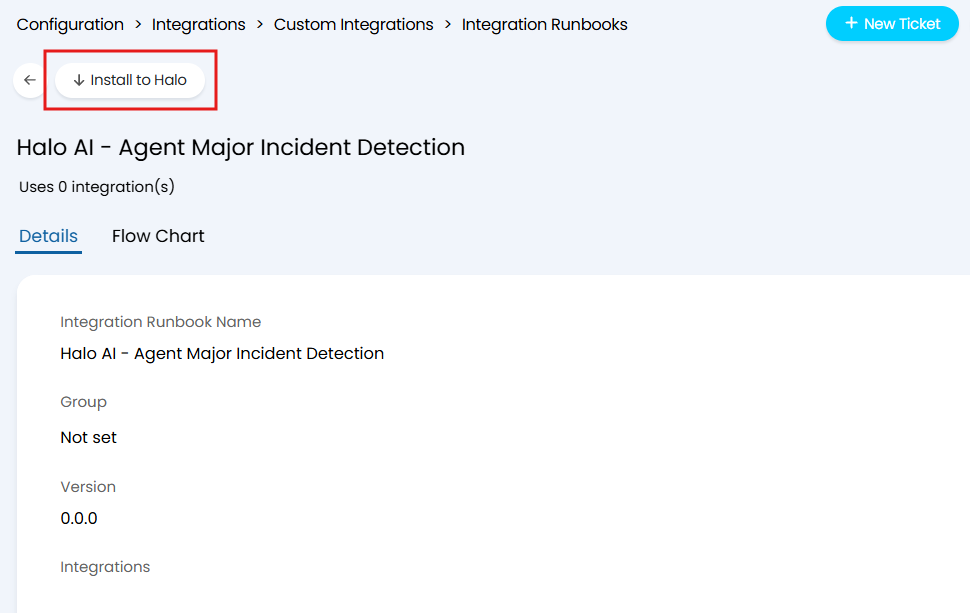
Fig 12b. Installing the runbook locally
When the install button is selected on any runbooks containing Process Agents, a modal window will pop up allowing you to choose the "Agent to log in as". The Agent chosen here is down to your discretion, however best practice would be to choose the "Application Identity" option.
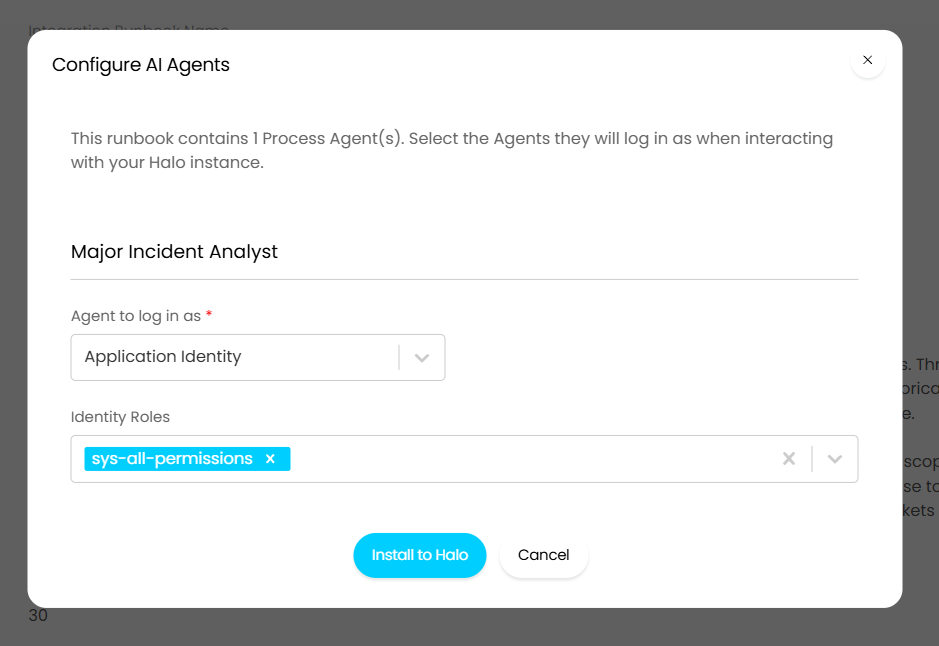
Fig 13. Choosing the Halo connection for the Process Agent
Once "Install to Halo" is selected, the runbook, Process Agent, and API application will be created in your environment.
Note: As noted in the "Process Agent" section of this guide, you will need to set the ticket type and report for the "CF_Create_Major_Incident" and "CF_Get_Open_Major_Incidents" Agent functions respectively. See the "Functions" section for more information. This is the only additional configuration needed if setting up the process via this method.
Note: If you are on a version prior to 2.250, the runbook will still be available to download from the online repository, but the Process Agent will not be created automatically. As such, you will still need to create the Agent.
Importing From JSON
The alternative method of creating the runbook is to import the JSON.
Note: Even if you are on version 2.250 or later, this method of creating the runbook will not automatically create the Process Agent.
Download the file attached to this guide labelled "Major Incident Detection JSON", and copy all text within the file. If you are viewing the guide on our website, you will need to view it via our portal in order to access the attachments.
Select the "Import from JSON" button in the top right corner, paste all of the copied JSON into modal window pop-up, and save. Once successfully imported, the "Halo AI - Agent Major Incident Detection" will appear in your list of runbooks.
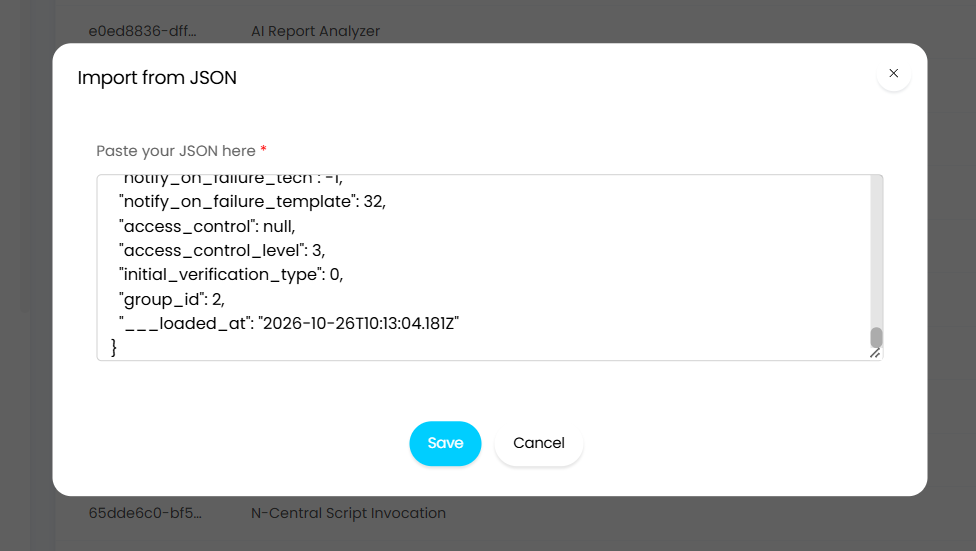
Fig 14. Importing the runbook via JSON
Click into the runbook and then into the "Flow Chart" tab.
Edit the "Major Incident Review" step by editing the runbook and selecting the pencil icon on the step.
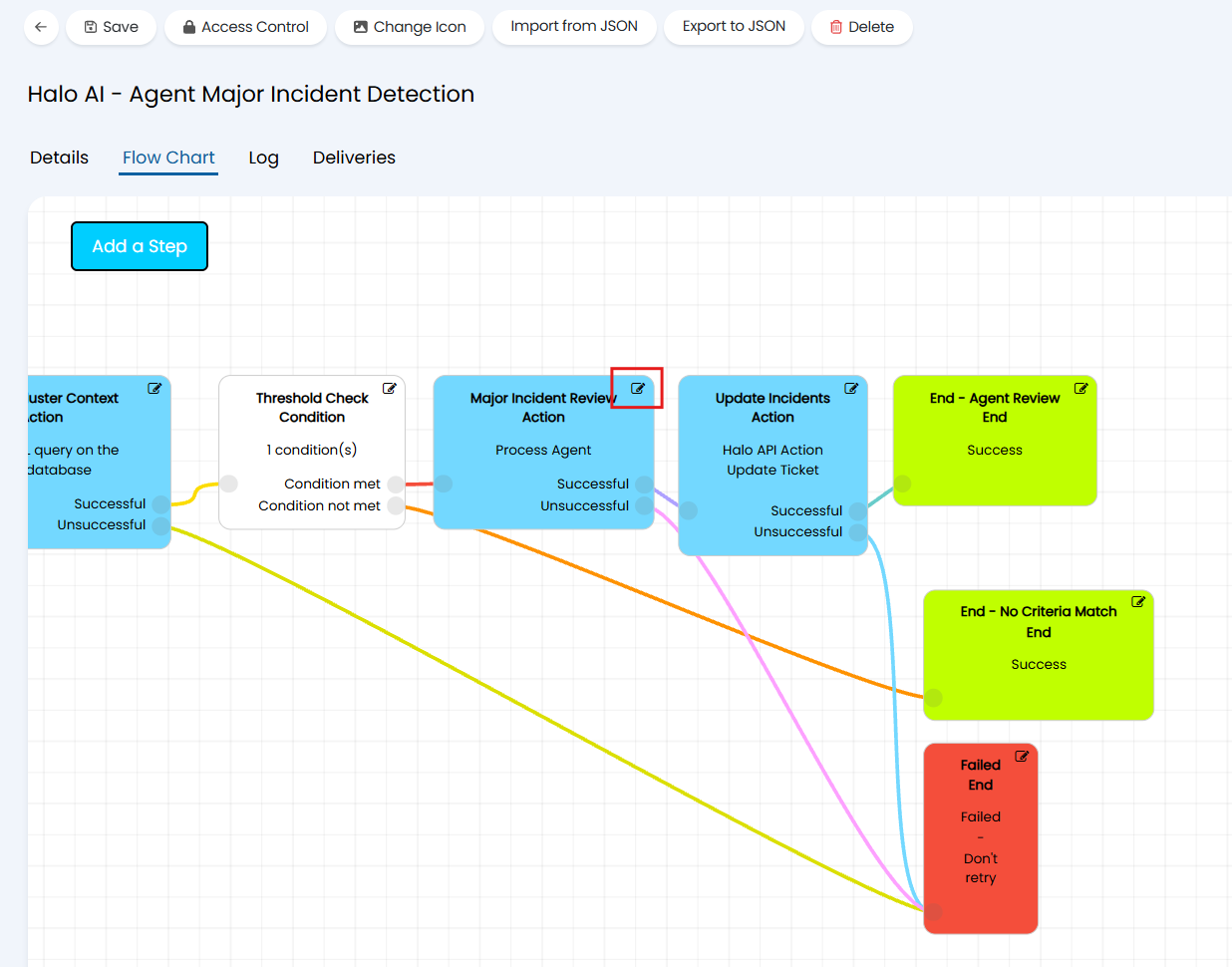
Fig 15. Editing the runbook
Select the Process Agent that you created earlier from the "Process Agent" drop down field, this sets that Agent to be triggered by the runbook.
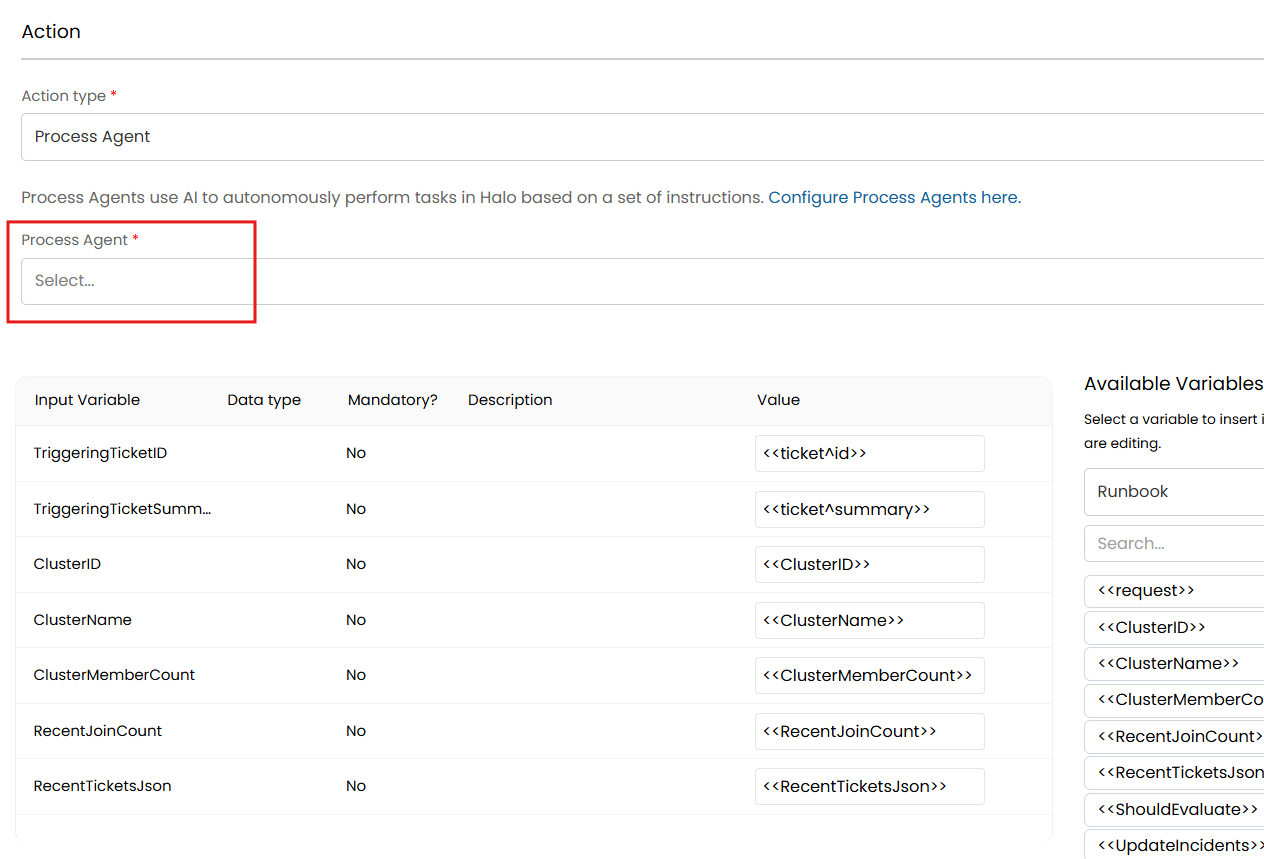
Fig 16. Setting the Process Agent to be triggered by the runbook
You will notice that the instructions dynamically populate once the Agent is selected.
Note: If you created your own input variables for the Process Agent, then you will need to edit the variables table visible in Figure 16. This is because the imported JSON will set up these variables according to the pre-built Agent instructions.
Once your Agent step is set up, save the step and save the runbook.
Choose Your Trigger
Once the Major Incident Detection process is fully configured, the final thing to do is to choose when the runbook will be triggered.
To do this, click into the "Details" tab of the runbook and locate the "Events" section. This is where you can choose the runbook trigger.
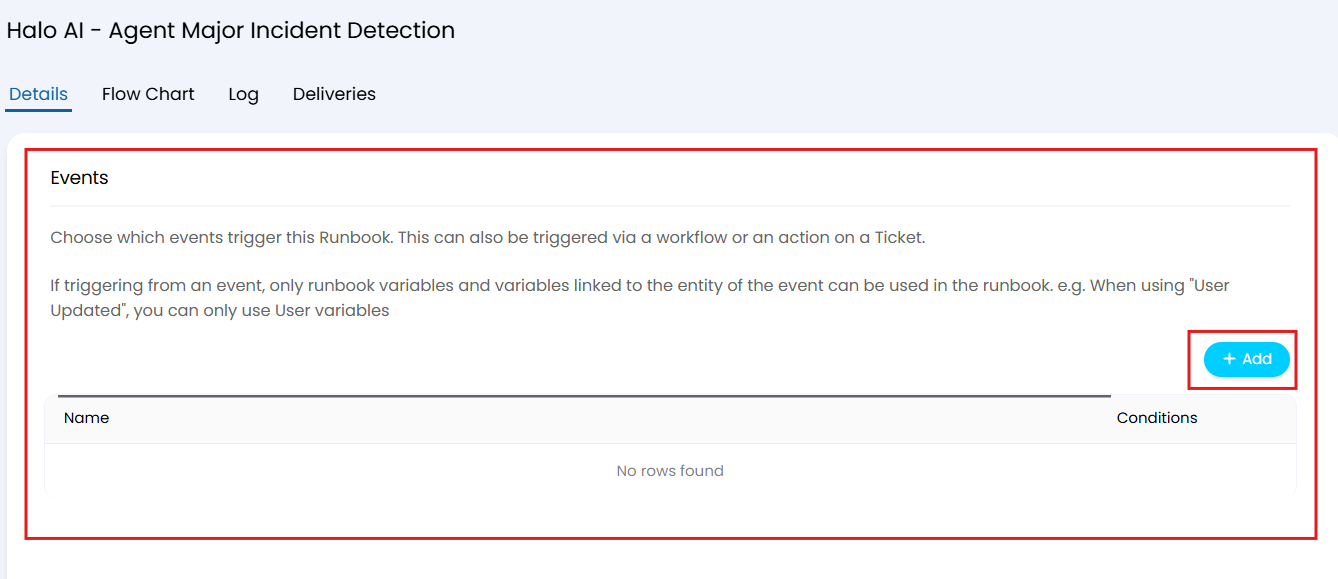
Fig 17. Setting the trigger for the Major Incident Detection runbook
In pre-built environments, the trigger is when an incident Ticket is logged.
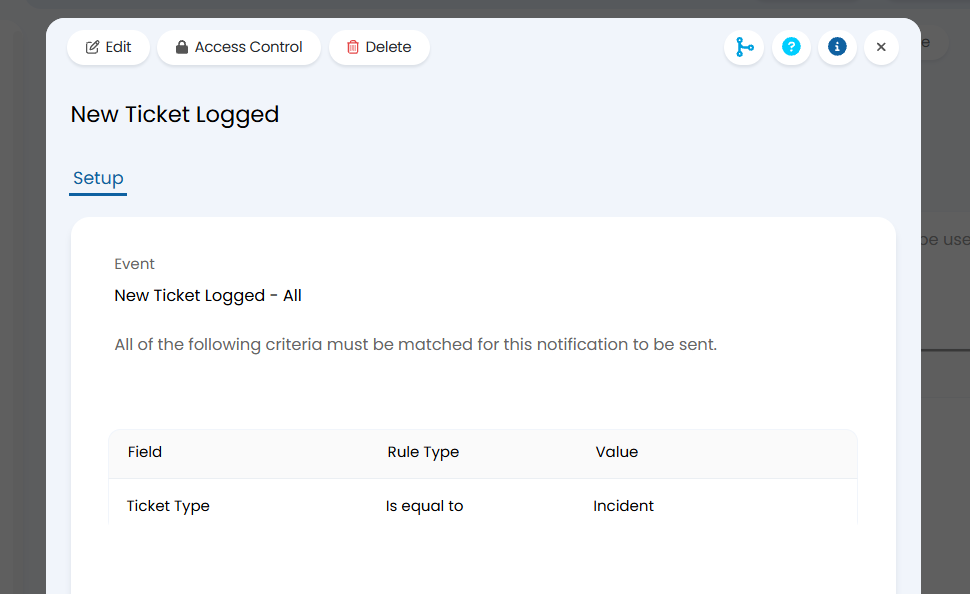
Fig 18. The runbook trigger for pre-built environments
For more information on triggering runbooks, see the guide: Custom Integrations/Runbooks.
Once your runbook trigger has been configured, your Halo AI Major Incident Detection process is live and ready for use.