Process Agents
- Agent
- software
- pax8
- custom AI prompt
- AI Agent
- AI in runbooks
In this guide we will cover:
- What are Process Agents?
- API Application
- Creating Process Agents
- Process Agents in Runbooks
- View Where the Process Agent is used
Configuration Settings:
Related Guides:
What are Process Agents?
A Process Agent is a custom set of instructions that can be sent to an AI model to generate a response and perform certain tasks. The Process Agent can execute requests in your own instance via the API. Using Process Agents makes the creation of Runbooks easier, as you do not need to create your own integration method with a JSON body, instead you can just give AI instructions on what you want to do at a given step of a Runbook and it will execute the request via the API for you.
Tickets, actions, and Knowledge Base Articles created by an Process Agent will be "flagged" as AI in reporting under the columns: faicreated, aacreated, and kbaicreated. The ID of the Process Agent that was used to create the entity can also be identified using the following fields: fvirtualagentid, avirtualagentid, and kbvirtualagentid. This will correlate to the ID in the VirtualAgent table.
For more information on setting your OpenAI connection see our guide on connecting AI to Halo.
API Application
On versions prior to v2.250, before you can set up an Process Agent you will need to create an API application with the Authentication Method "Halo Automation Identity".
Versions v2.250+
On versions v2.250+ an Automation Identity API application will be created for you automatically when creating a Process Agent, saving you needing to create an API application yourself. Once the agent is saved a link to the created application will be available.
The permissions the Automation Identity application has will be determined by the functions you enable for the Process Agent. E.g. adding the "Get One Ticket" function to the Agent automatically adds the "read:tickets" permission.
Note: You may need to manually add extra permissions to the application in some scenarios (for example, if the Agent needs to view the Asset associated with a ticket, then the application would also need "read:assets").
When creating the agent you will need to choose which agent to 'log in as'. The Process agent will inherit this agent's identity and permissions.
Give this application a sensible name and set the Authentication Method to "Halo Automation Identity".
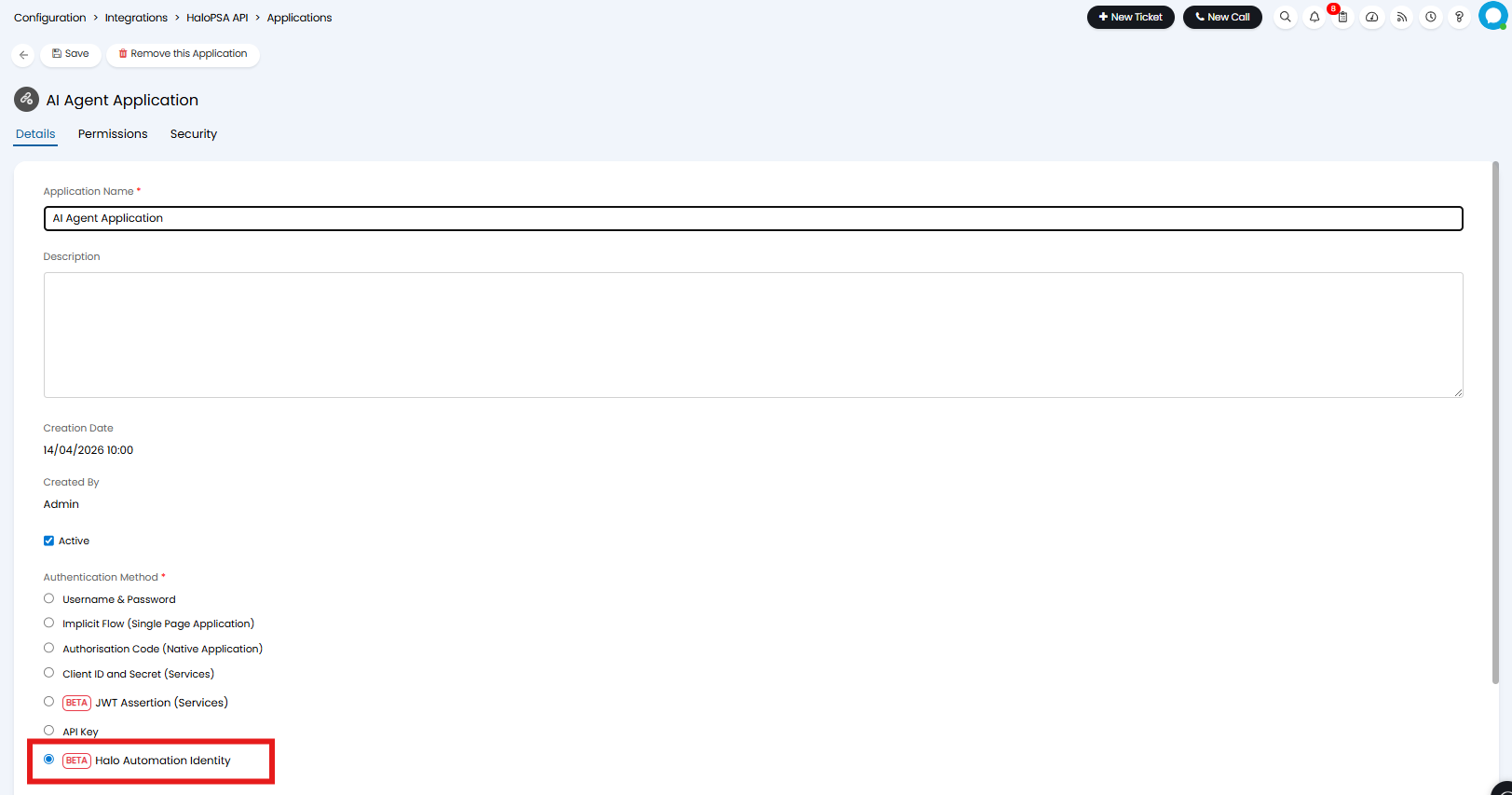
Fig 1. Creating an API application
Once selected, you will need to specify an identity for the application. This informs the base level of access granted to the application. The option "Application identity" is recommended here, as you can use roles to control the base level of permission rather than having to pick a specific agent. When this option is selected the "Identity Roles" field can be used to determine which roles to use as the base level permissions.
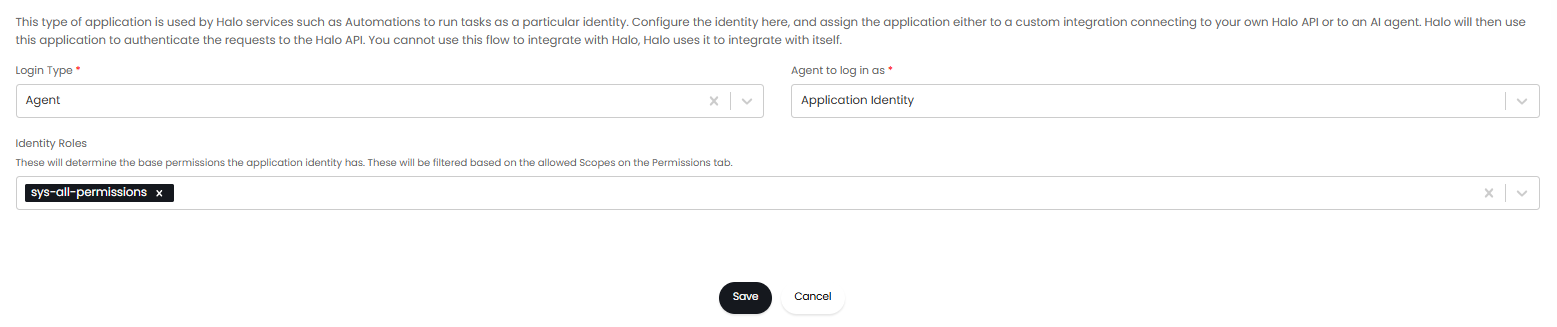
Fig 2. API application login
Under the "Permissions" tab set which specific features (scopes) you would like to allow the application to have access to.
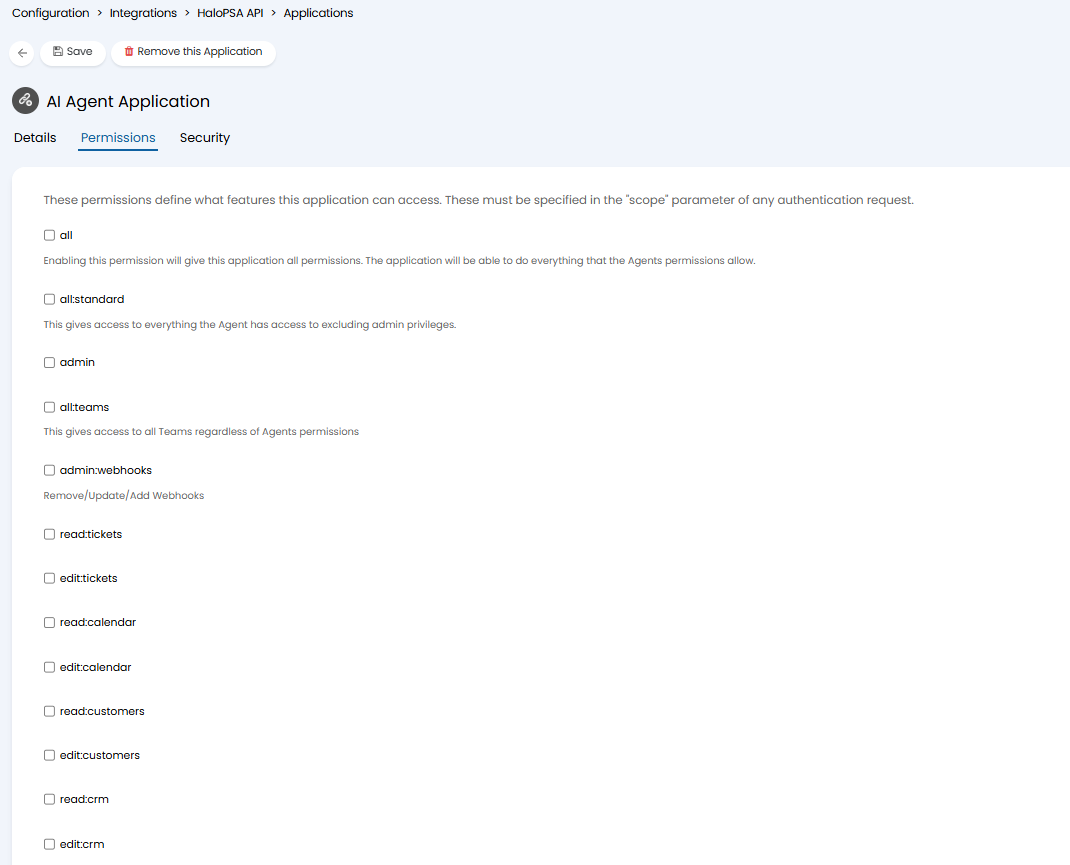 Fig 3. API application permissions
For more information on API applications see our guide linked here.
Creating Process Agents
Once your application has been created you can create a Process Agent. To do this head to Configuration > AI > AI Agents, and click the "Process Agents" button.
Note: From v2.250+ when a runbook is downloaded from the online repository, if it contains a Process Agent, the Agent will be created in your instance automatically.
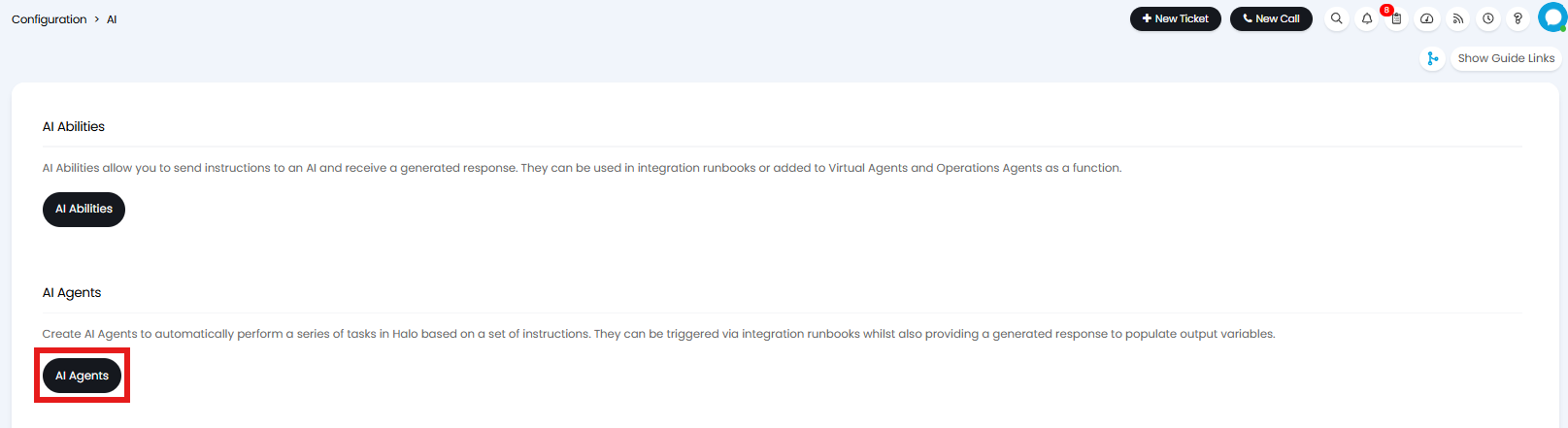
Fig 4. Process Agents button
When you create a new Process Agent you will need to set a name, connection, and model for your Process Agent to use. You will need to set the "Halo Application to authorise as" to your newly created application.
For more information on setting your OpenAI connection see our guide on connecting AI to Halo.
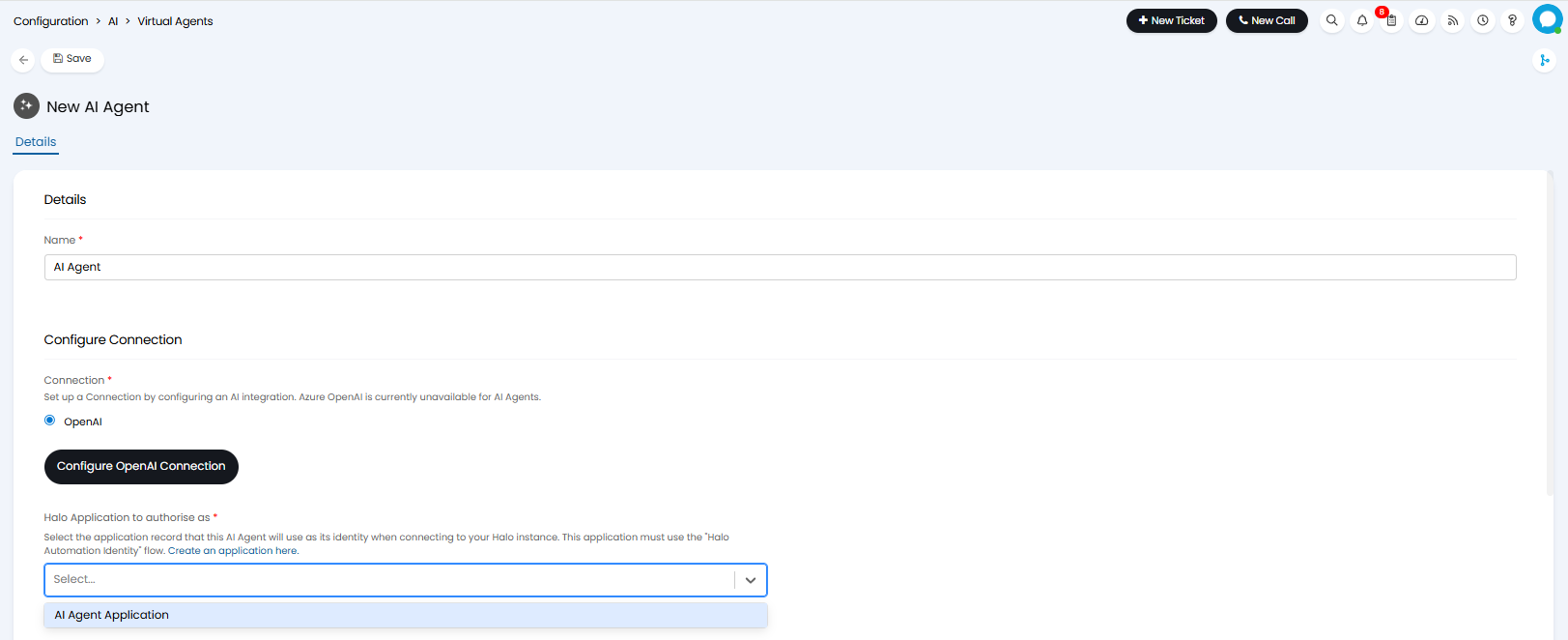
Fig 5. Creating a Process Agent
Next you can set the instructions for your Process Agent to follow. The instructions you set here control the request that is sent to the API. You must state exactly what you want the Process Agent to do here.
These instructions can include input variables in the format <<variable_name>>, which will need to be specified in the table below. These variables let you change the instructions dynamically based on the event that triggered, or information obtained by the Runbook.
If you are using your Process Agent to extract output variables for a Runbook you will want to select "Force JSON response". This will make sure the response provided is in JSON format, allowing successful variable declared in the Runbook. If you force a JSON response you will also need to include the word 'JSON' in the instructions.
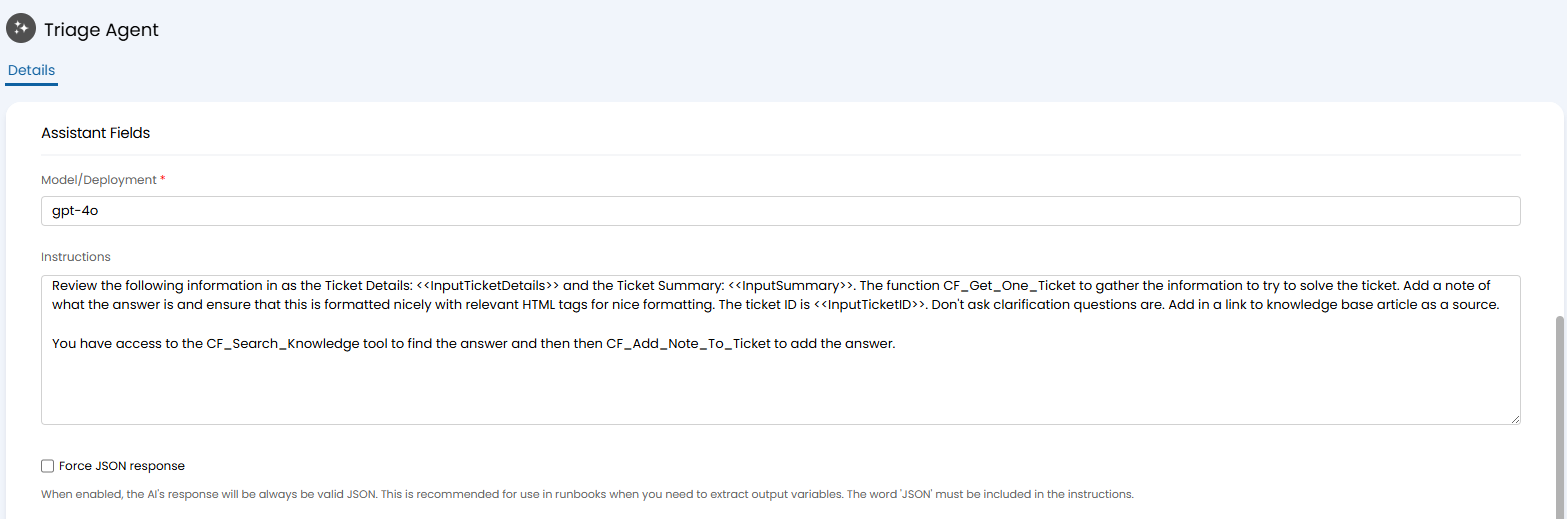
Fig 6. Process Agent instructions
Any input variables you are including in your instructions need to be added to the Input Variables table. These variables will be mapped to the variables used in the runbook later. Click "Add" to set the name and data type for your variable. Here you will also have the option to set the variable as mandatory, and set a description for the parameter.
From v2.251+, you can choose the data type "Attachment URL" to provide a file URL for the AI to access in your Input variables table. The parameter will appear in the Runbook Configuration, where it can be populated with a runbook variable. To use Halo attachments, add an Action step to the Runbook before the Agent with the Action type "Halo API Action". Select "Get Attachment Link" in the Action dropdown to retrieve a URL, then pass that value to the Agent.
Finally, you can set any functions that are available to this Process Agent. Deselecting "Include all system functions" will remove system functions, allowing you to add specific system and custom functions to the Functions Table. When adding a system function as a 'custom' function this also allows you to customise the system function somewhat. Leaving this checkbox selected will include all system functions and allow you to add additional custom functions using the table.
The available system functions are as follows:
- Action a Ticket – Allows you to add any action that is configured to be a 'quick action' to a ticket on behalf of the agent, allowing agents to update tickets.
- Add Note to Ticket – Allows you to add a private note to a ticket on behalf of the agent, allowing agents to update tickets.
- Apply AI Suggestion – Applies AI suggestions to a ticket, rather than the agent having to do this from within a ticket.
- Assign to me – Re-assigns a ticket from one agent to the agent logged in.
- Get Assigned Tickets – Returns a list of tickets that are assigned to the agent.
- Search Knowledge Base – Searches the knowledge base based in the input from the agent. It can return resolution suggestions based on the relevant articles it finds, it can also suggest articles for the agent to read.
- Get matching Articles and Tickets for a Ticket – Re-runs AI ticket and article matching for a specific ticket. Beneficial when the ticket has been open for some time, in which closer matches may exist. This allows the agent to ensure the matched tickets and articles are the most up to date matches in the database.
- Get One Article – Can summarise or extract details from a specific KB article and return these to the agent.
- Get One Ticket – Return a list of tickets that are assigned to the agent. On versions prior to v2.250 this will return core system fields, it will not return custom fields or other system field values against the ticket. From v2.250+ this function can return custom field values, provided the function is added as a custom function. When it is added as a custom function you will have the option to "Include custom fields" when this this function is used. Keep in mind when custom fields are included dynamic field visibility will not be considered.
- Get User Info – Returns the information held about the user in Halo.
- Search Service Catalogue – Search services using AI Search, and receive the names and links to any matched services, and direct the user to the relevant service where appropriate.
- Log Time – Logs a quick time entry for the agent.
- Search Tickets – Searches ticket content based on a prompt from the agent. Allowing it to effectively summarise and suggest replies or resolutions to tickets based on this info
- Search Assets – Searches assets based on a prompt from the agent.
- Get One Asset – Can summarise or extract details from a specific assets and return these to the agent.
- Search Users – Searches users based on a prompt from the agent. (Only available to agents)
- Get One User – Can summarise or extract details from a specific user and return these to the agent (only available to agents).
- Use specific action (v2.238+) - Can add an action to a ticket, including populating any fields on this action. The action must be available to use on the ticket's current workflow step, and the Process Agent must also have access to a function that allows it to check the workflow step of the ticket (such as get one ticket).
Custom Tools can be created with the following uses:
- Use an AI Ability – Allows you to use/trigger an AI ability. See our guide on AI Abilities for information on this.
- Log a ticket of a certain type or template – Logs a new ticket of a specified type or template. You can also use the option "Any Ticket Type the user has access to" to allow users/agents to log any ticket type they have access to, provided they provide the ticket type name. From v2.238+, you can set the fields to use a as parameters. This allows you to choose between including the ticket type's field list as parameters for the AI to populate, or or using the Summary and Details.
- Get Report Data – Returns the data from a specified report. From v2.251+, when this is selected, you will have the option to "enable pagination", this will allow you to specify a page size to improve performance for reports with a large number of results.
- Execute a Runbook – Executes a runbook of choice.
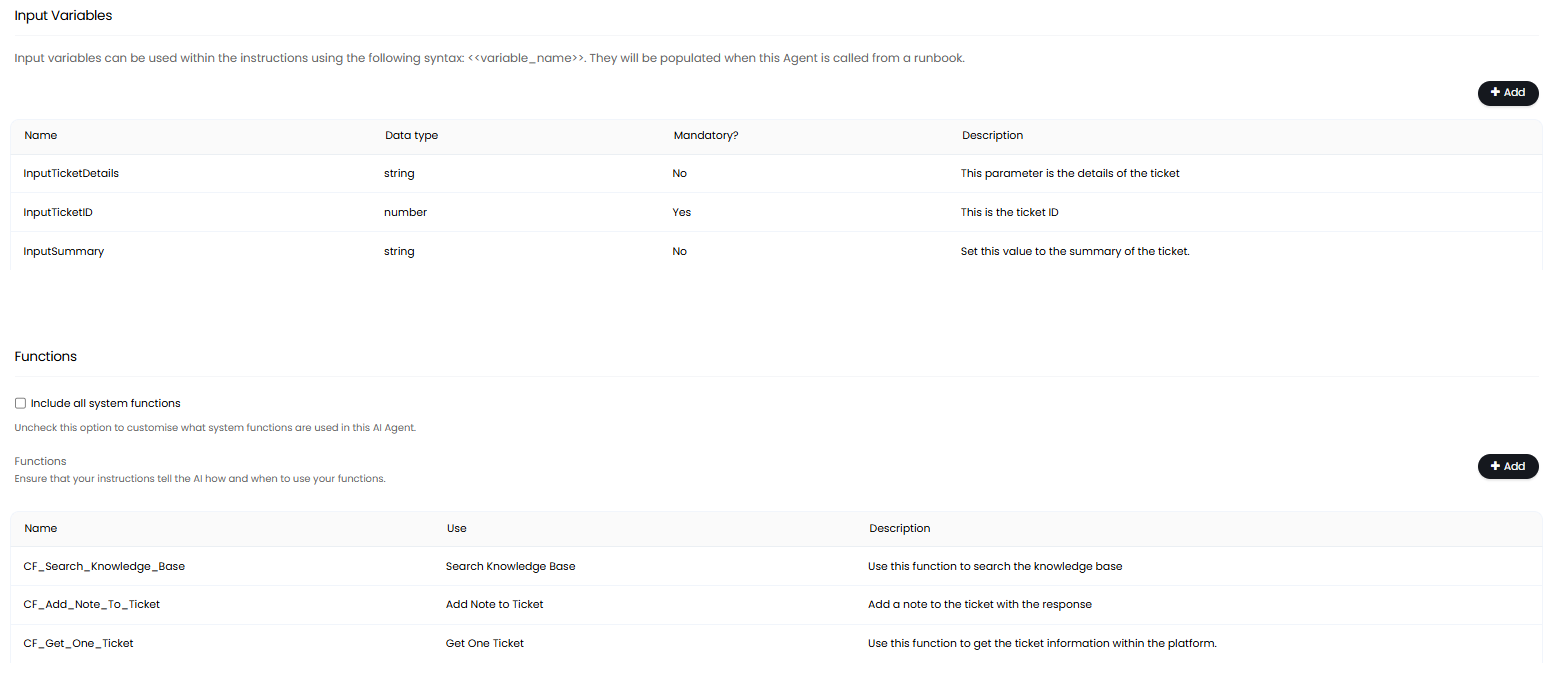
Fig 7. Process Agent variables and functions
Now you have created your Process Agent click "Save". This Process Agent can now be used in a Runbook.
Filter the Tickets and Articles Returned by a Process Agent (v2.244+)
When adding individual system functions to the Process Agent (rather than allowing all), additional customisation is available for each of the system tools when. For each tool, you can customise the prompt passed to the AI model to outline when to use this tool.
From v2.244+ the search tools "Search Tickets" and "Search Knowledge Base", also allow you to filter which tickets and knowledge base articles can be returned by the search. This allows you to ensure only the tickets/articles relevant to the Process Agent's use are returned, for example for an Process Agent used in your portal you can restrict the Search Knowledge Base function to only return articles on user facing FAQ lists.
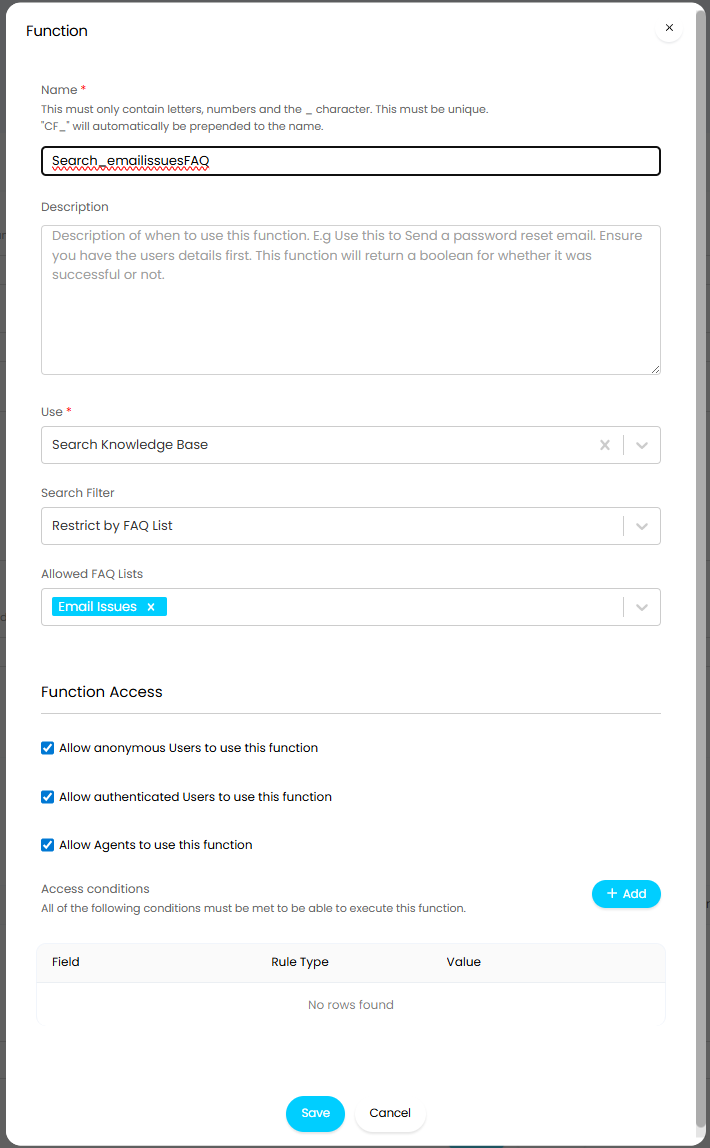
Fig 8. Set the Search Knowledge Base Function to only return articles in the 'Email Issues' FAQ list
The Search Knowledge Base Function can filter articles based on their FAQ list.
The Search Tickets function can filter tickets based on their Ticket Type, ITIL Type or Ticket Type Group.
Process Agents in Runbooks
To add a Process Agent to a Runbook, head to Configuration > Integrations > Custom Integrations, select the "Integration Runbooks" button. Click a Runbook to edit, or create a new one using the "Add" button.
Against your Runbook flow you can add or edit a step of type "Action". When the action type is set to "Process Agent" an additional dropdown will show, allowing you to select which Process Agent to use. Selecting this will automatically populate the variable table. You will need to set the value for this to use by typing or selecting a default Runbook-level variable from the "Available Variables" list, using the dropdown to select the relevant entity to filter by. For more information on Runbook-level variables, see our guide linked here.
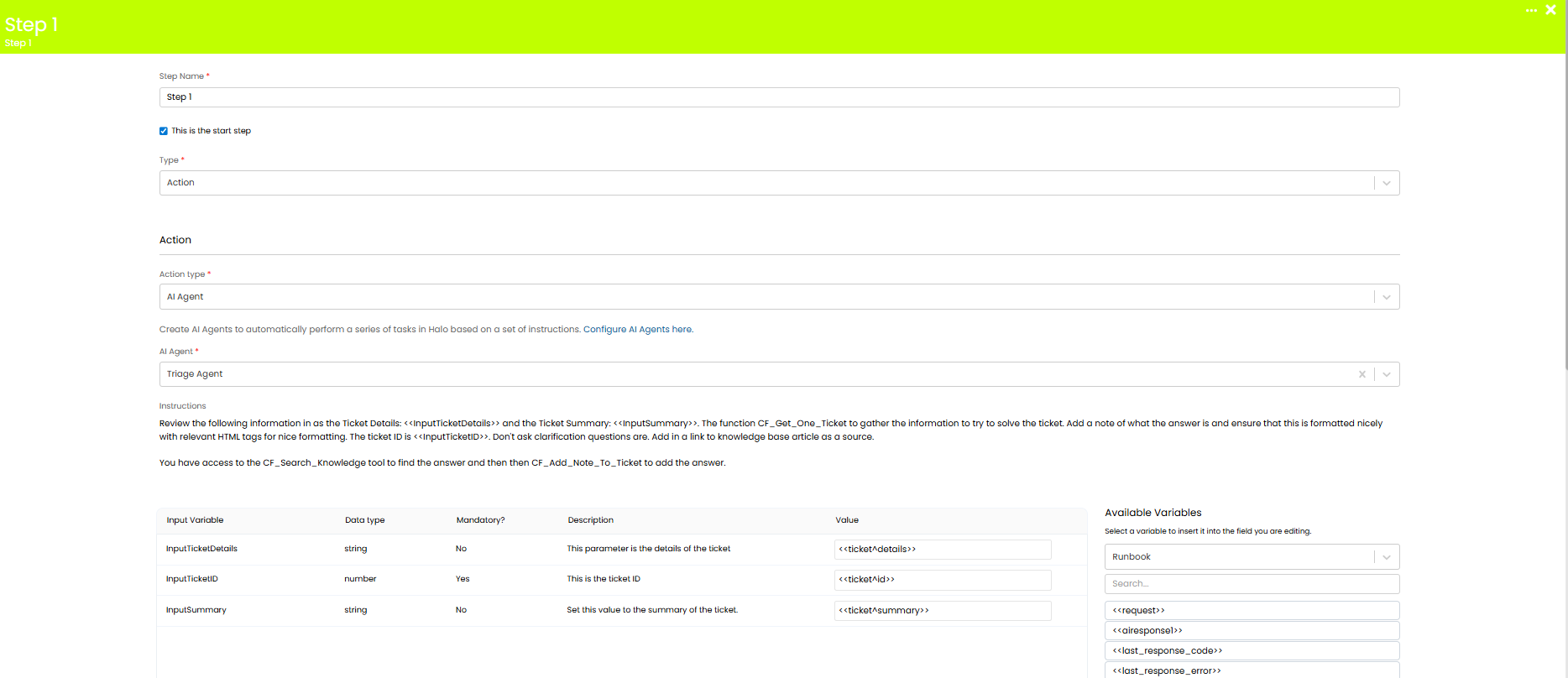
Fig 9. Using a Process Agent in a Runbook
In the Figure 9 example, when the Runbook is triggered the Ticket ID populates the <<ticket^id>> variable. This is set as the value for the <<InputTicketID>> variable, which informs the Process Agents what Ticket to action.
This tells the Process Agent to perform the instructions in response to the input variable, in this case adding a note and providing a recommended resolution and Knowledge Base article.
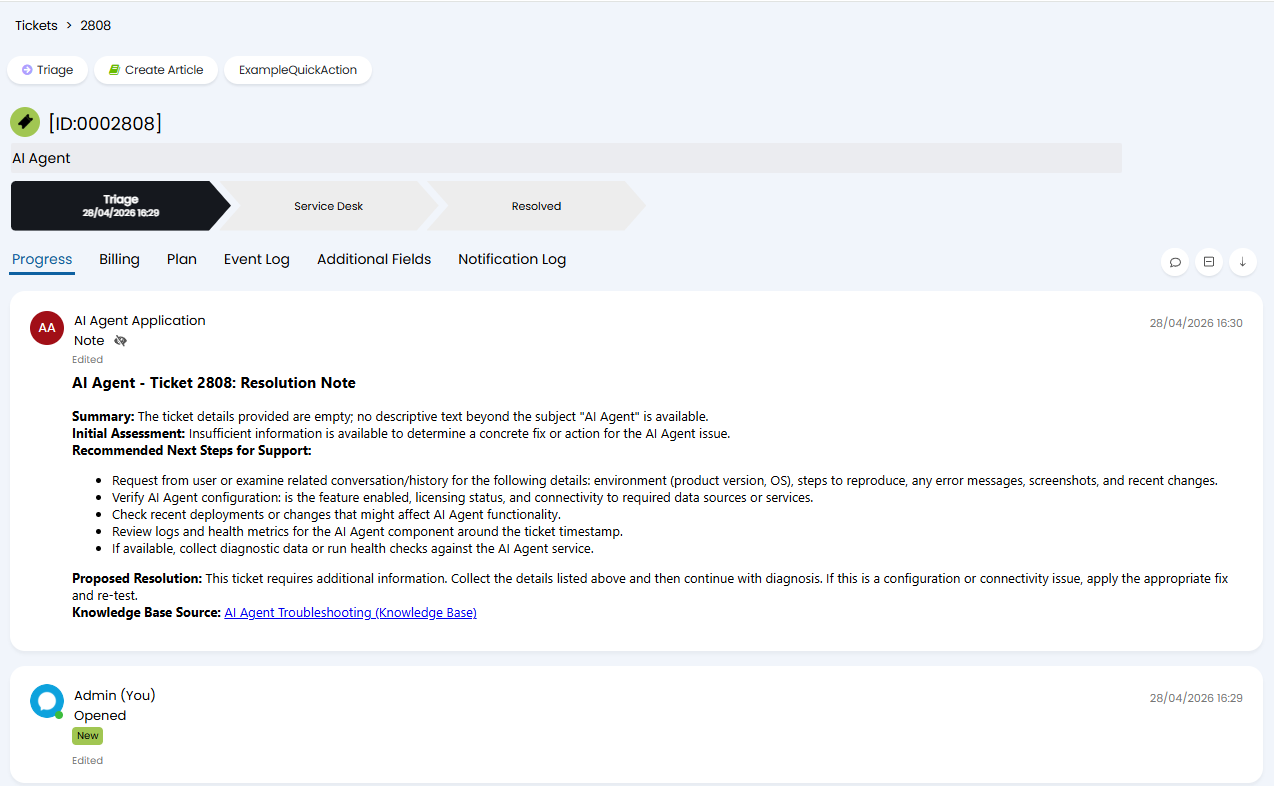
Fig 10. Process Agent performing a task
View Where the Process Agent is used (v2.250+)
From v2.250+ an "Other Uses" tab is available against Process Agents. Here, you can view the runbooks the Agent is used in, helping you manage/review where an Agent is being leveraged.
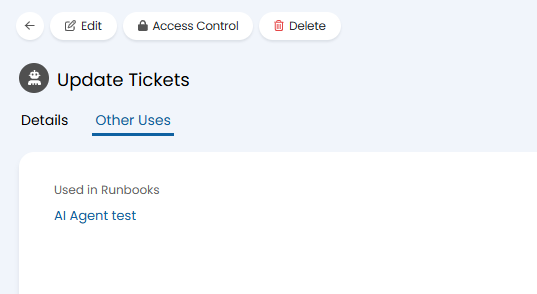
Fig 11. Other Uses Tab
Referenced by
- AI Abilities
- AI Agents Settings
- Connecting AI to Halo
- External MCP Servers Use Case: Procuring & Installing Software In Halo
- External MCPs Use Case: Triggering N-Central Scripts From Halo
- Halo MCP Server Connection
- Leveraging AI in Halo
- Process Agent Use Case: Closure Review Agent
- Process Agent Use Case: Dispatch Agent
- Process Agent Use Case: Major Incident Detection
- Use AI to Analyse Business Performance
- Using the Halo MCP AI Agent With The ChatBot (Pre-Configured Environments)