External MCP Servers Use Case: Procuring & Installing Software In Halo
- License
- software
- pax8
- ai
- subscription
- chat bot
- automated billing
- AI Agent
- MCP
- MCP chat
- ImmyBot
- MCP Ser
- External MCP
In this guide we will cover:
- How It Works
- AI Features Used
- External MCP Server
- Process Agent
Related Guides:
This guide illustrates an example use case for connecting external MCP servers to Halo.
In this example, using both ImmyBot MCP and the Pax8 integration, you can create a software marketplace from within Halo to automatically sell and bill for licences procured via Pax8, and then install the software using the ImmyBot MCP server.
To see this functionality in action, please view the video below:
This guide assumes an understanding of Custom Integration Runbooks, AI Agents, and how to trigger AI Agents from a Runbook - to learn about any of these features, please do refer to the relevant guides linked in the Related Guides section above. Although external MCP servers can be leveraged by all AI Agents, this particular example utilises a Process Agent.
Note: What is illustrated in this guide is an example use case, it is not a step by step configuration guide. This is not a feature that is available out of the box, please use this guide as reference when creating your own similar process that has been adapted to fit your company's needs.
How It Works
The "New Software" service is provided as part of my Service Catalogue on the end-user portal. When a User selects this service they can request additional or new software for their devices. In Figure 1 you can see that the User has requested a new Microsoft Project 365 license for their device. Note that they have specified the license in the details of the request, and chosen their device from the list of Assets available to them.
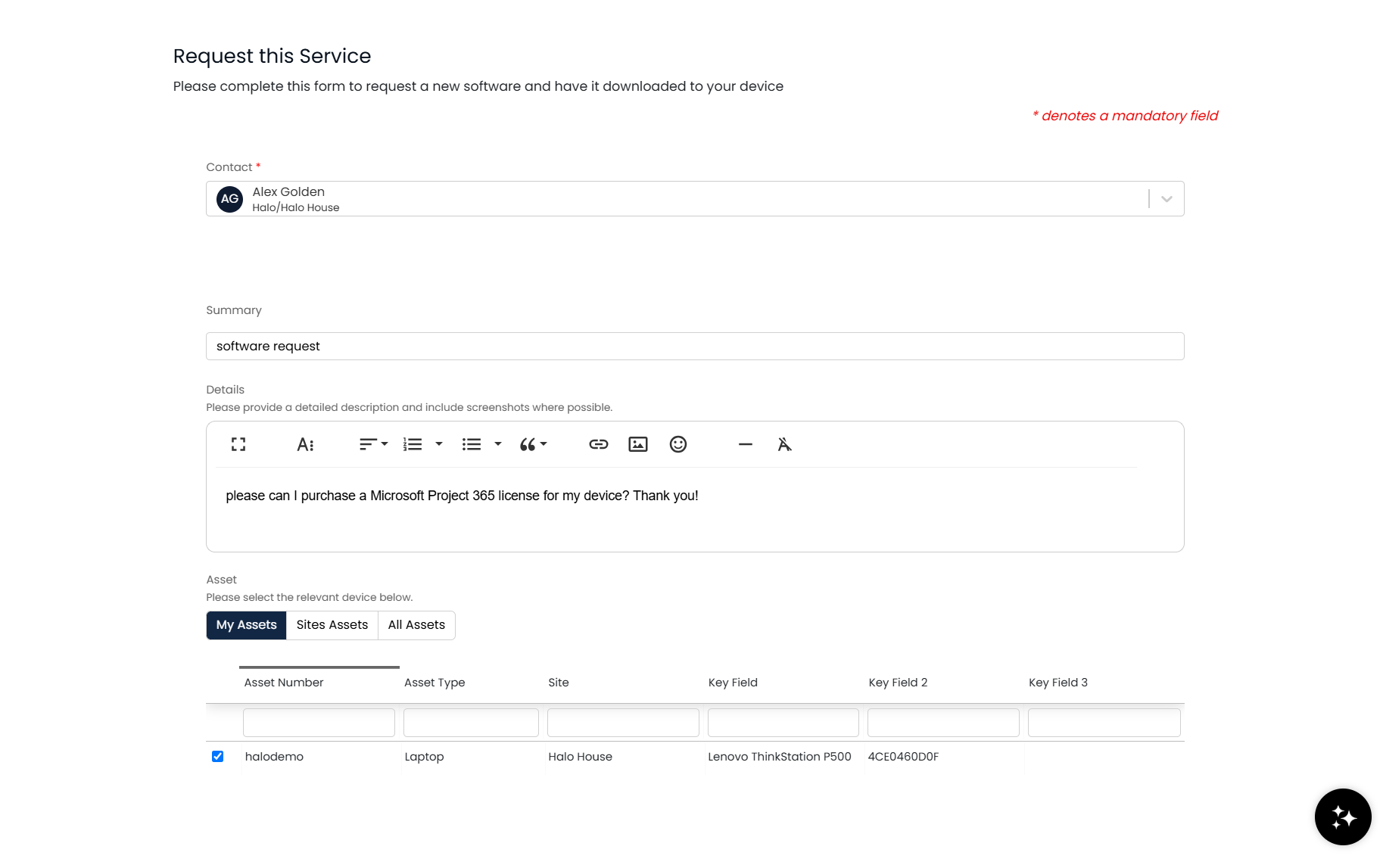
Fig 1. A User raising a new software request
Once the Ticket comes into the service desk, the license procurement is routed for approval via an automated Approval Process on the Ticket.
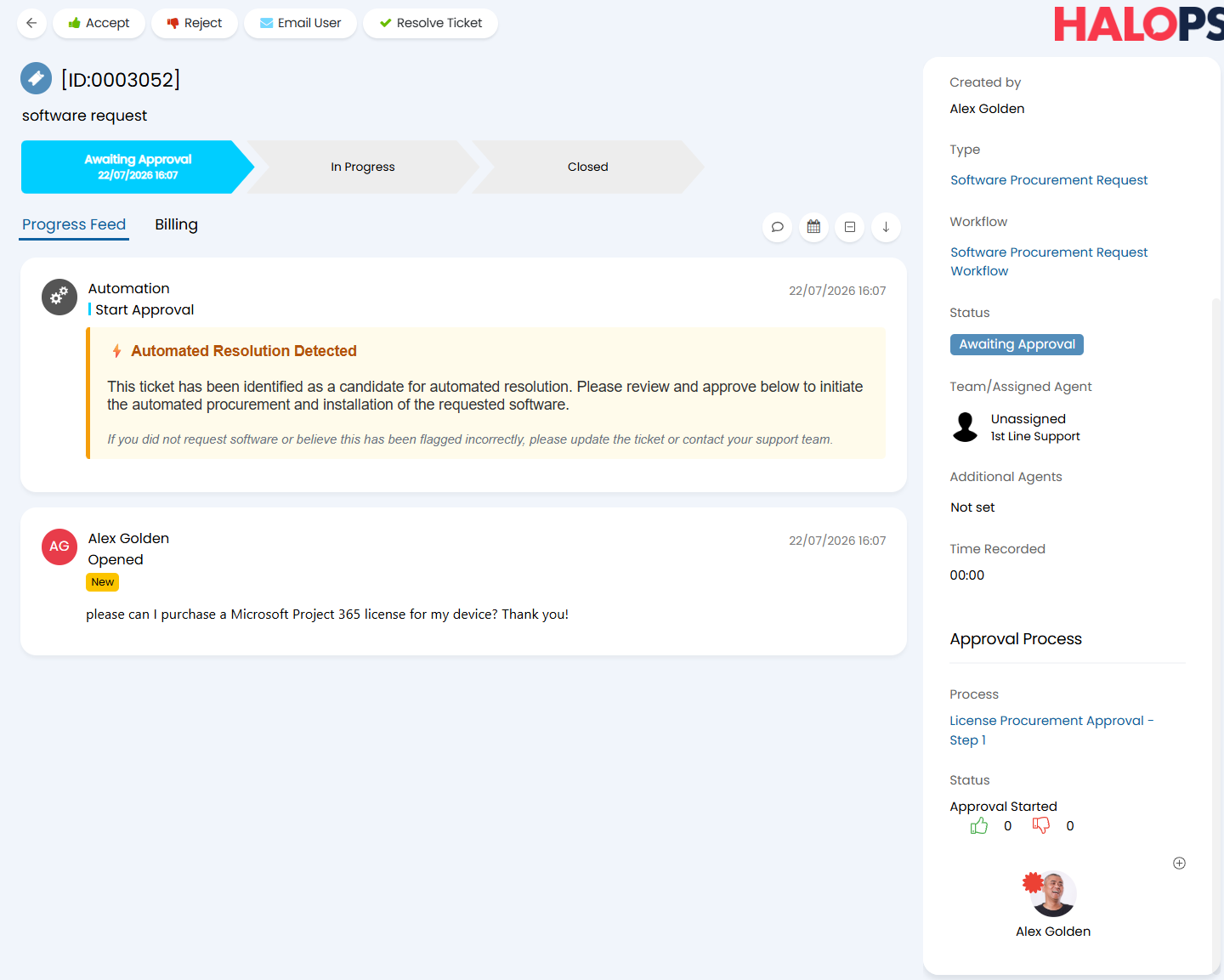
Fig 2. Approval for a new license
Once the Ticket is approved, a Runbook in Halo is automatically triggered to run my Process Agent.
The Process Agent then goes through the following steps
- Read the Ticket
- Confirm the Client and the name of the License being requested
- Retrieve the ID for the requested License and the Client's current count for that License
- Calculate the quantity to add and the new total
- Update the license quantity in Pax8
- Query ImmyBot MCP server to deploy the software to the device
- Post a formatted note back to the Ticket detailing steps taken
Once the process is complete, I will see the note in the Ticket.
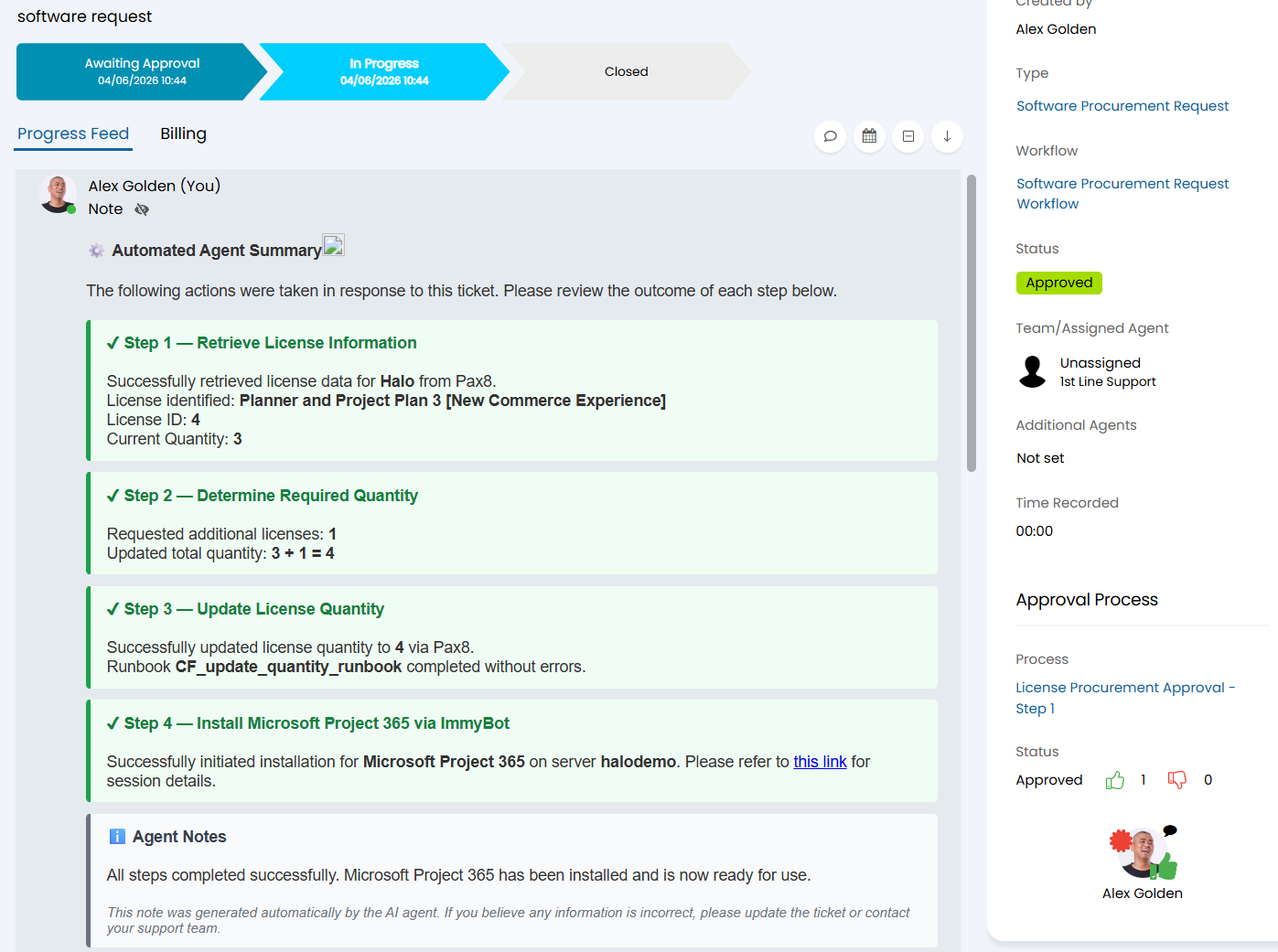
Fig 3. The note posted by the Software Procurement AI Agent
When the license count is automatically increased by this process, this is also reflected in the Client's associated recurring invoice by showing a pro-rated quantity increase on the line connected to that license.
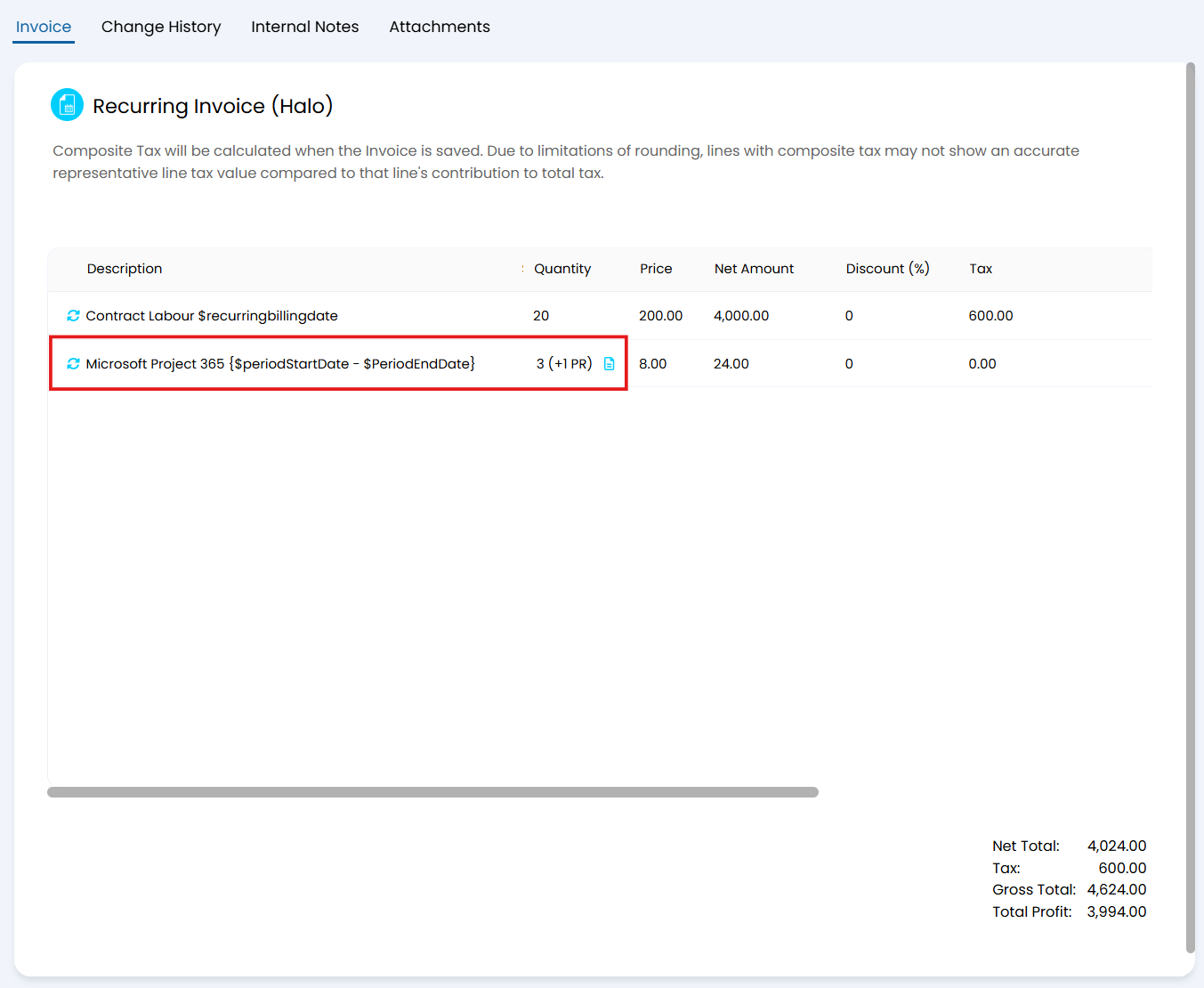
Fig 4. Recurring invoicing is updated due to calculated quantities based on the subscription count
Note: The pro-rata behaviour will differ depending on how you have configured it in your environment.
With this process, I am now able to provide a fully automated software marketplace with both procurement and installation handled by the automation.
AI Features Used
The two main AI features used in this process are connection to external MCP servers and the use of Process Agents. In this following section you can find the setup of these two features specific to this use case.
External MCP Server
To provide the Process Agent the ability to deploy newly procured software, Halo has been connected to ImmyBot's MCP server, allowing the Process Agent to trigger the scripts in ImmyBot that deploy software onto users' devices.
To be able to configure a new MCP server connection, navigate to Configuration > AI > AI Agents and locate the 'External MCP Servers' section towards the bottom of the page.
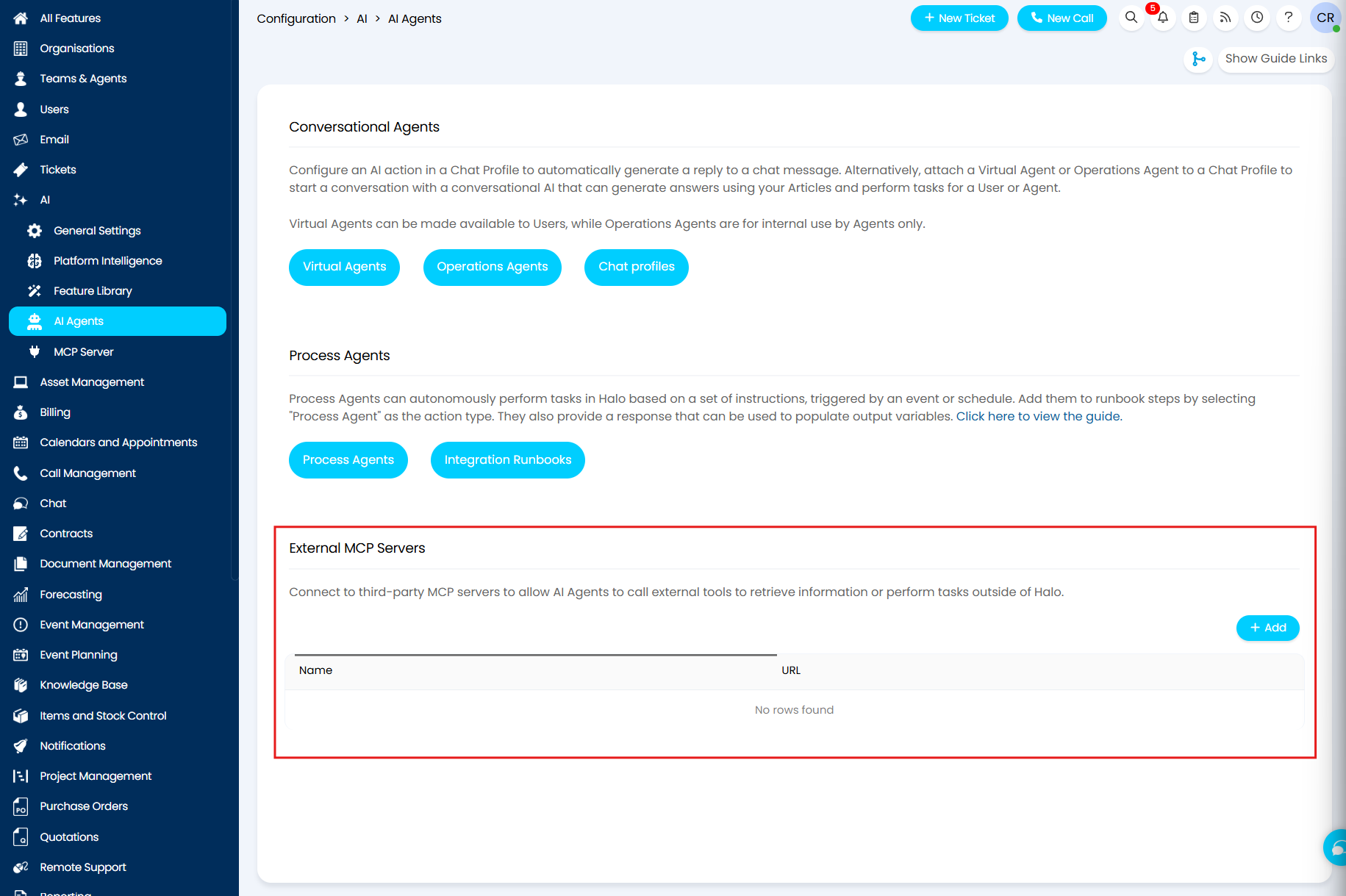
Fig 5. The 'external MCP servers' section of AI config in Halo
This is where you can connect MCP servers of third party tools, such as ImmyBot, to Halo. To connect a new MCP connection, select the "+ Add" button.
For the ImmyBot MCP connection:
- Give the new connection a relevant name
- Set the MCP URL
- Enter in the API key with "Authorization" as the Header Name
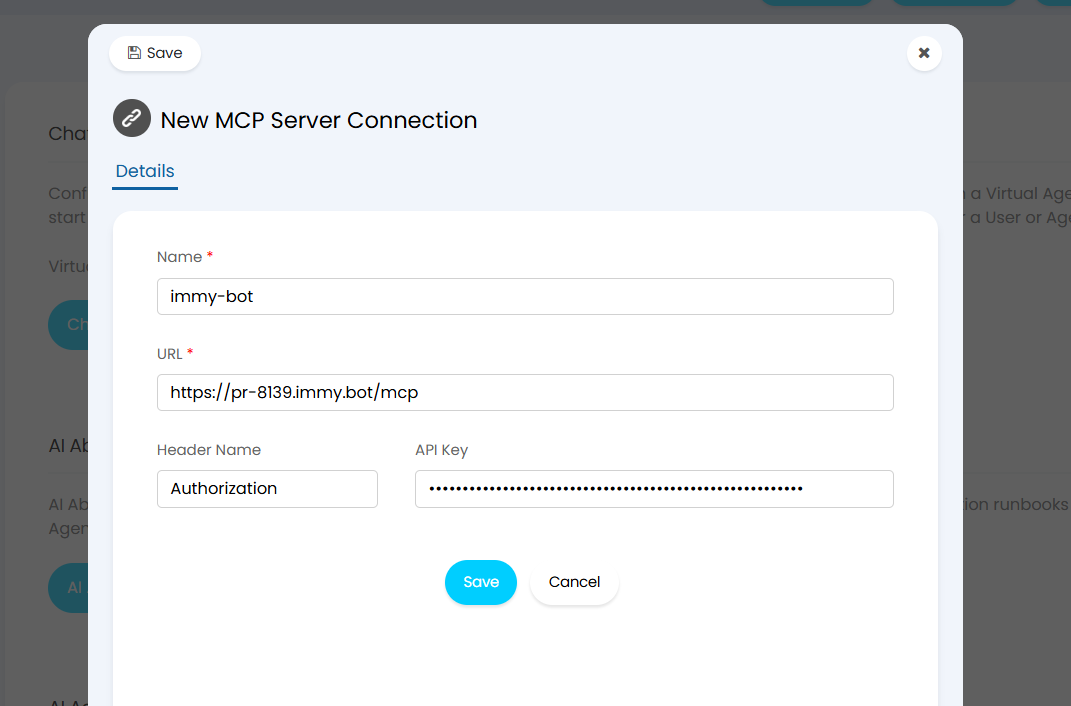
Fig 6. Creating a new ImmyBot MCP server connection
Select "Save" and you now have a connection to ImmyBot's MCP that can leveraged by all AI Agents in Halo.
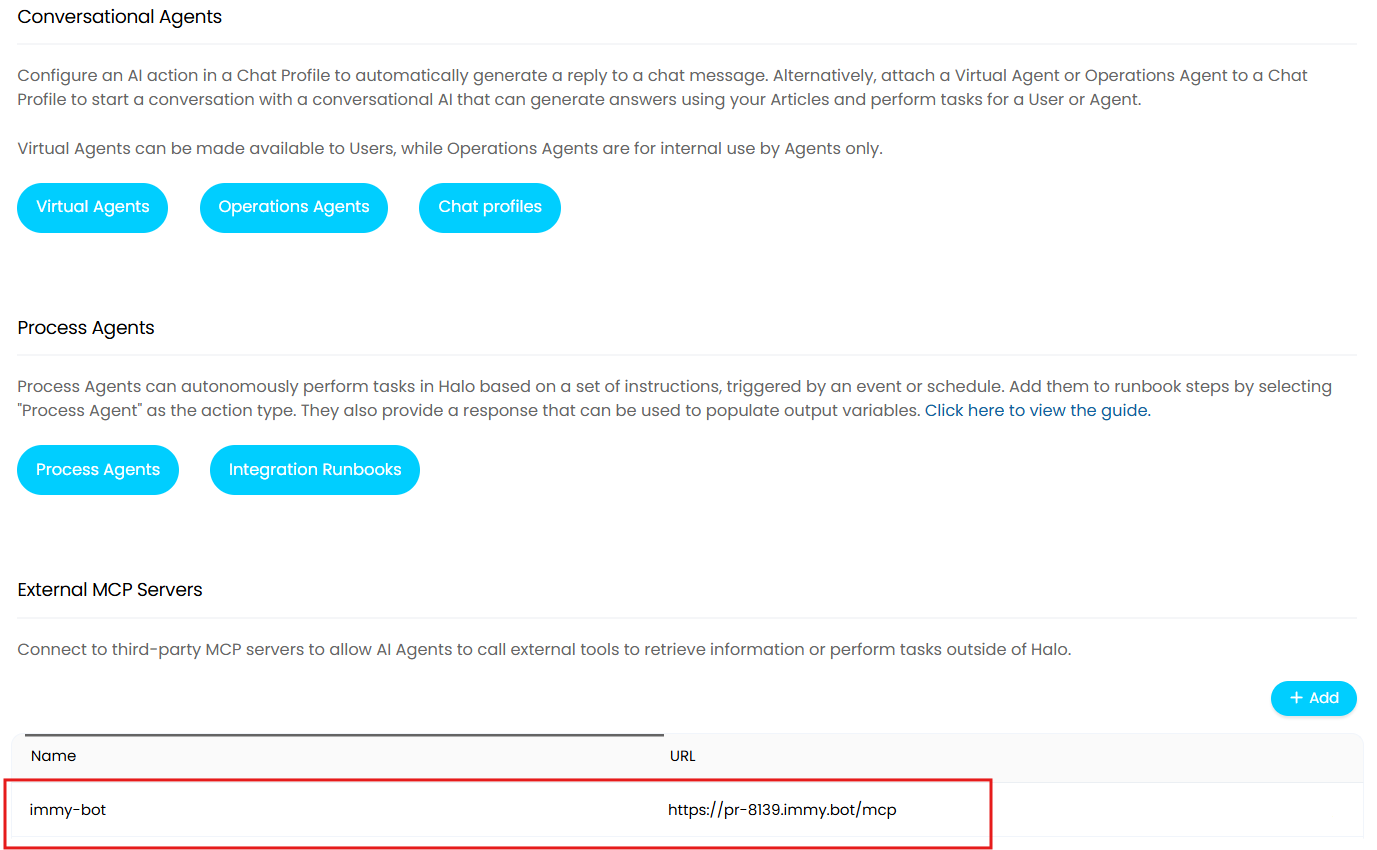
Fig 7. Available external MCP server connections in Halo
Process Agent
The Agentic driver behind the entire process is a Software Procurement specific Process Agent. As mentioned in the introduction to this guide, a 'Process Agent' is a type of AI Agent.
This Process Agent processes the requests being made by the Agent in Halo, and leverages its available functions to return data or trigger scripts and actions, both in Halo and in tools to which it is connected via their MCP servers.
To set up an Agent of this type, navigate to Configuration > AI > AI Agents, locate the Process Agents section of the page and select the "Process Agents" button.
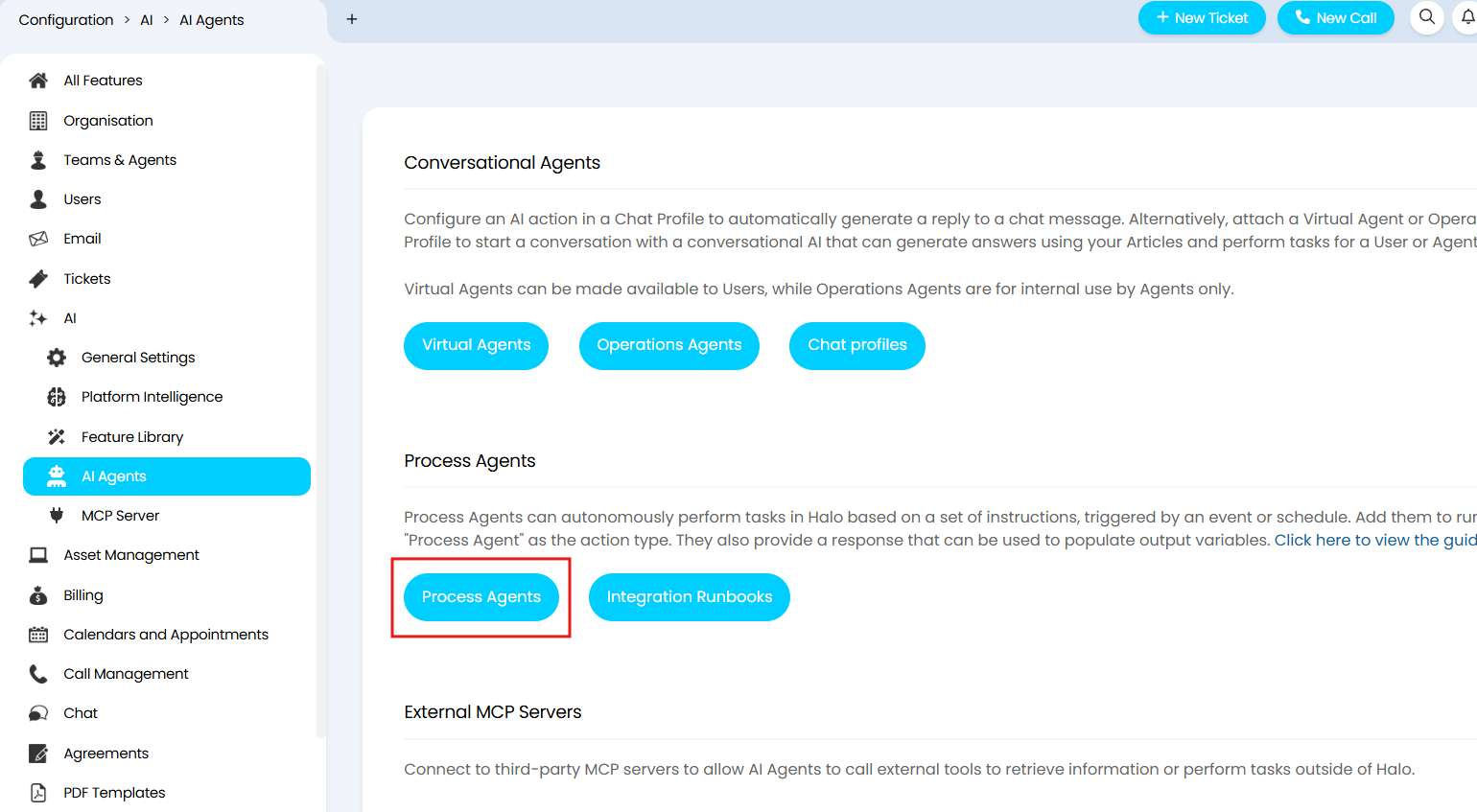
Fig 8. The AI Agents configuration area
Select the "+ New" button in the top right corner to create a new Process Agent.
Give the Agent a name relevant to its purpose.
Set the connection to your preference (Built-in OpenAI connection can be used, for more information on the connection methods please visit this guide: Connecting AI to Halo).
Set the 'Halo application to authorise as' to be an API application that uses the "Halo Automation Identity" authentication method, and has "all:standard" permissions. For more information on creating API applications, please refer to the guide: Creating API Applications.
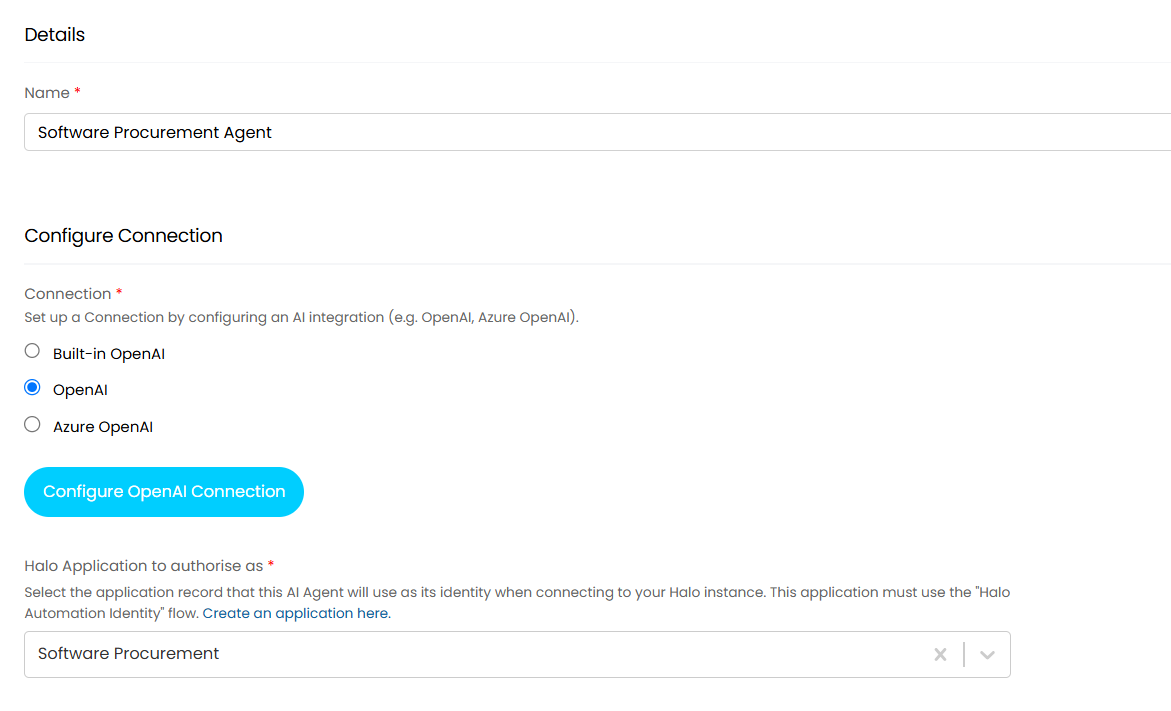
Fig 9. Setting the details of the software procurement agent
For the AI Agent's instructions, you will find attached to this article an example set of instructions. You will need to access this article on our portal to download the attachment.
In the first part of the instructions, the context of the Ticket is provided to the Agent, along with rules that it must follow for the duration of its task.
For the task itself, it is given steps to follow:
Retrieve the current license information for that Customer using a Pax8 report > Find the Customer's current license count for the license being requested > Determine the quantity being requested > Update the licence quantity in Pax8 via a runbook > Deploy the licence on the device selected by the User, using ImmyBot MCP > Post a formatted note to the Ticket in Halo, detailing the steps it has carried out.
Note: The attached instructions are provided as an example. It is recommended to create your own instructions or adapt the example instructions to fit your needs and company processes.
Using the example instructions, you would need to create the following input variables:
- ticket_summary (string, not mandatory)
- ticket_details (string, not mandatory)
- ticket_clientname (string, not mandatory)
- ticket_id (number, not mandatory)
- license_id (number, not mandatory)
- updated_quantity (number, not mandatory)
- current_count (number, not mandatory)
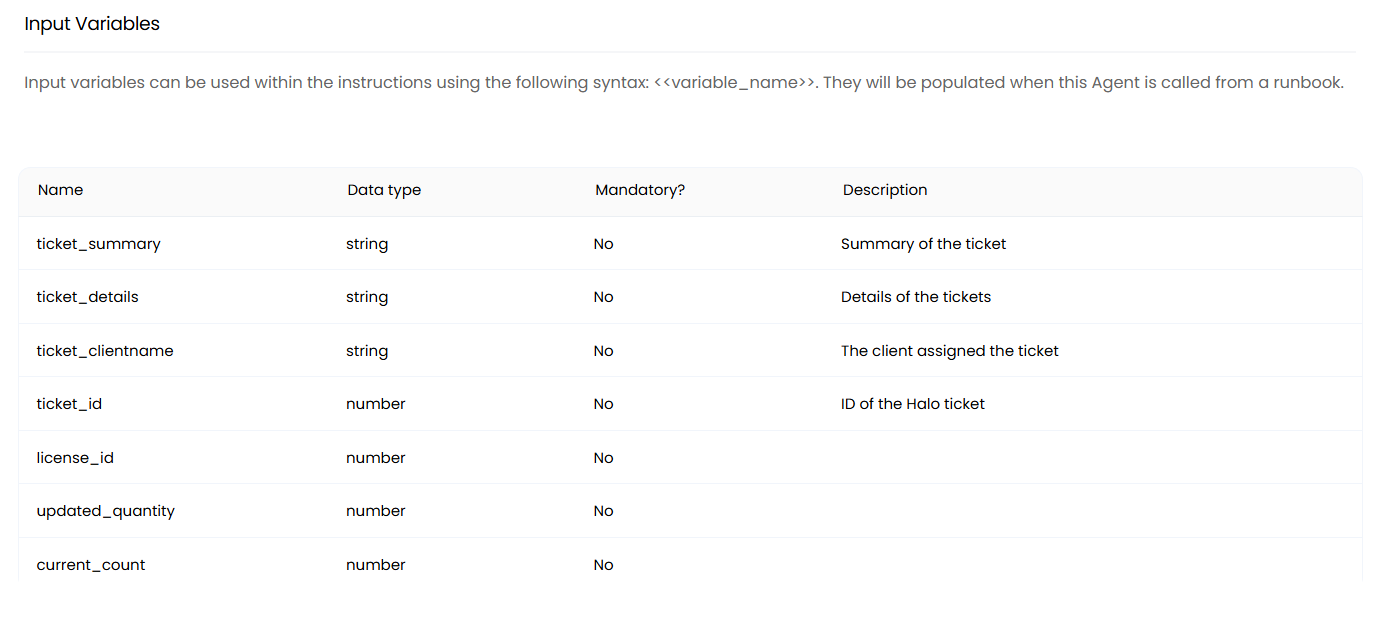
Fig 10. The input variables for the software procurement agent
In the Functions section of the Agent configuration, you should enable all system functions and then create two additional functions.
The first function will run the Pax8 License report that you can download from the reporting online repository. This report facilitates the Agent's ability to gather current license data for the Customer.
- CF_pax8_licenses
- Use: Get Report Data
- Report: Pax8 License
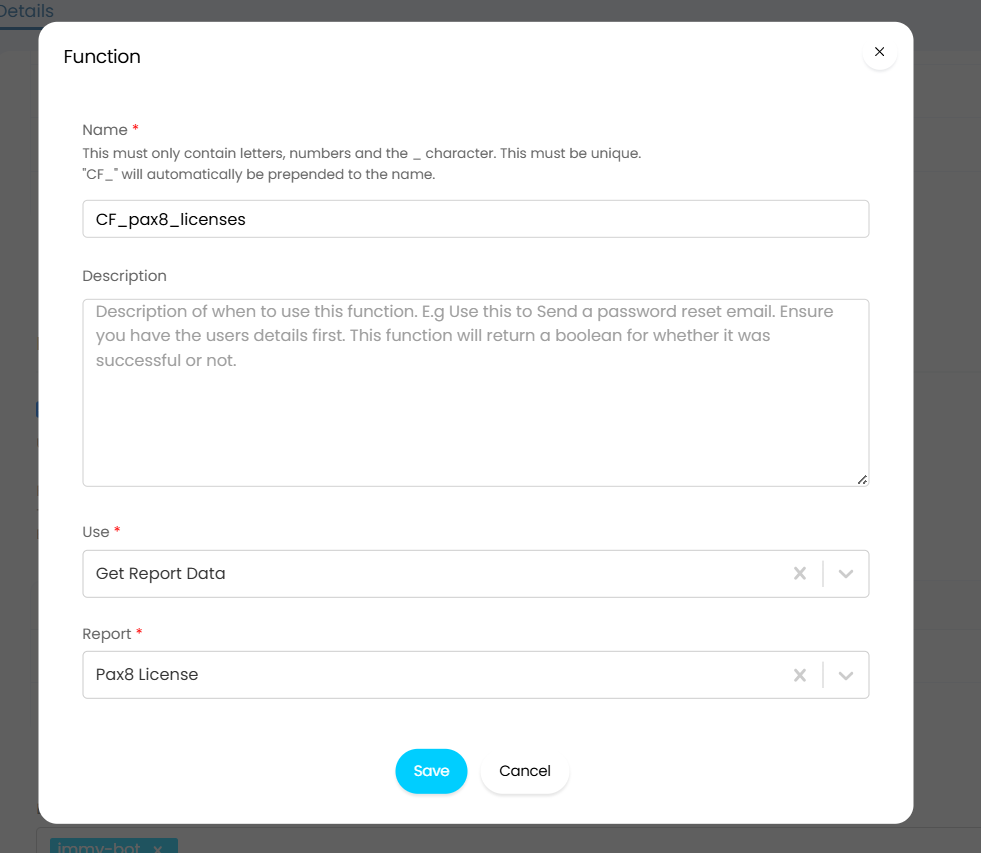
Fig 13. AI Agent custom function for running the Pax8 report
The second function runs a 'Pax8 License Update' runbook that you will need to create before creating this function.
- CF_update_quantity_runbook
- Use: Execute a Runbook
- Runbook: Pax8 License Update
- Runbook execution mode: Execute and await completion
- Parameters:
- license_id (number, not mandatory)
- updated_quantity (number, not mandatory)
- current_count (number, not mandatory)
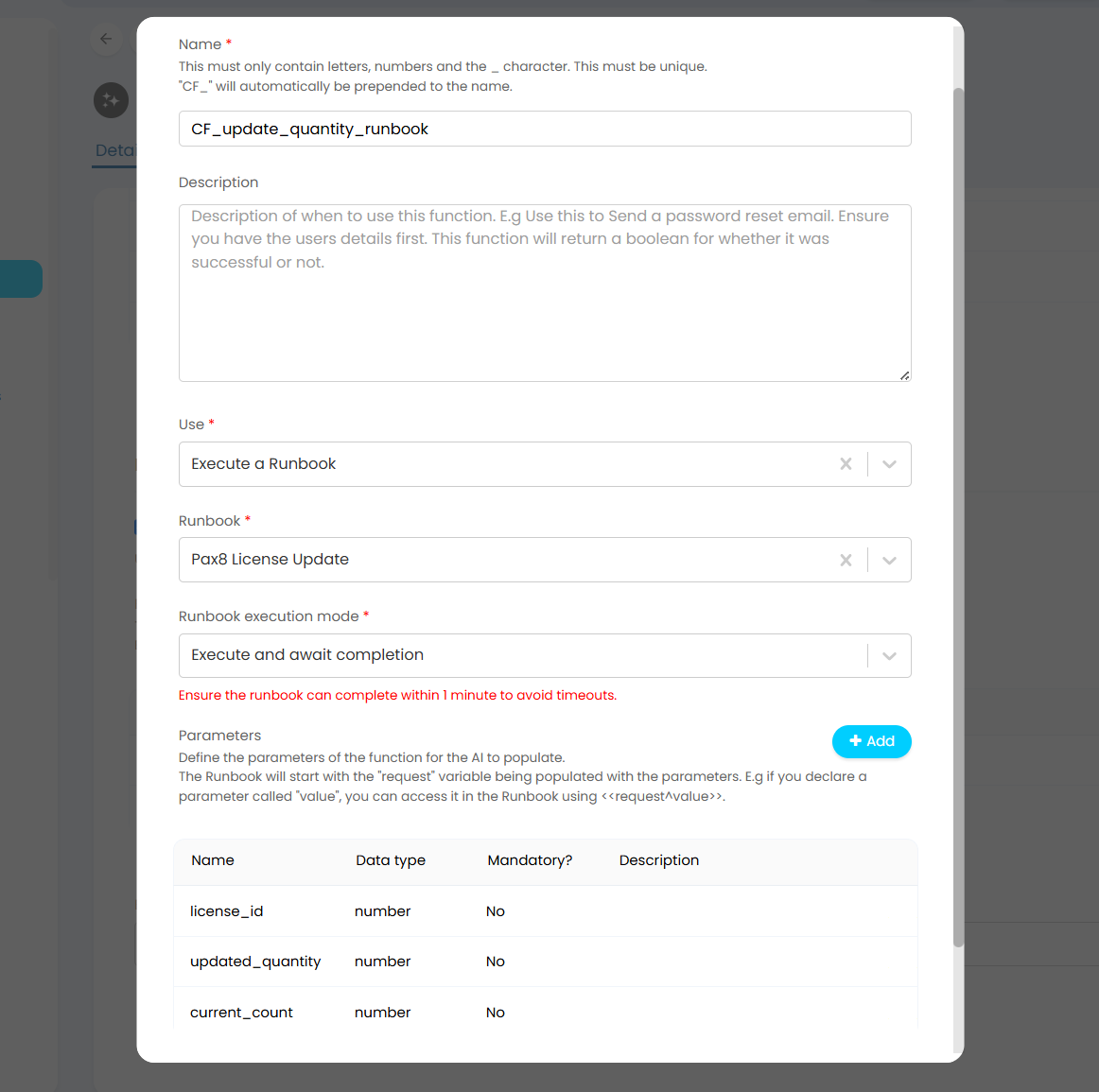
Fig 14. AI Agent custom function for running the Pax8 License Update runbook
The Pax8 runbook should contain one step that leverages the Pax8 integration to update the license count for the Customer.
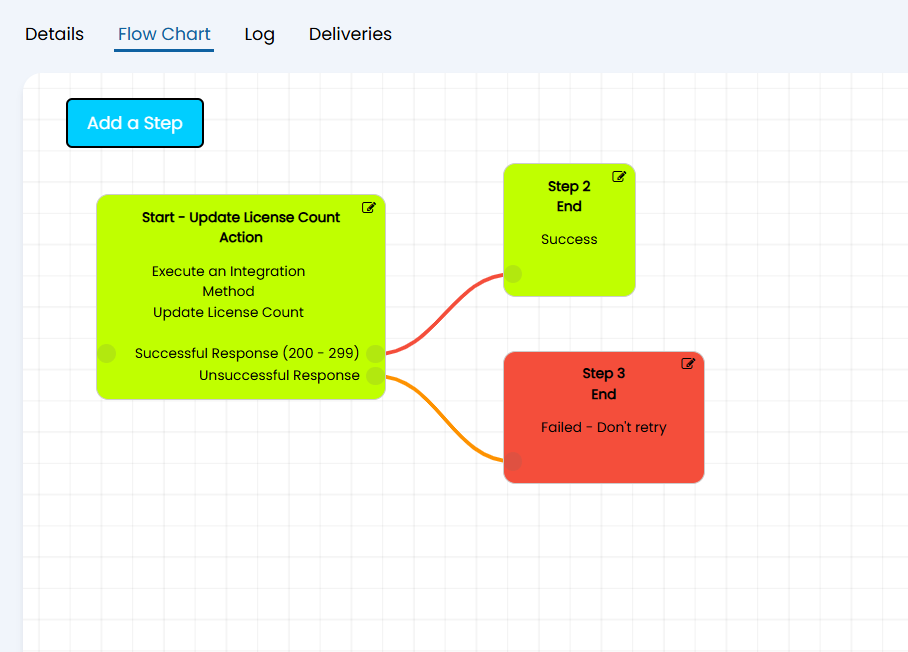
Fig 15. A runbook for updating license counts in Pax8.
This is done by creating a runbook method posting to this endpoint in Halo: /api/IntegrationData/AdjustQty/Pax8
For full configuration of the method you should refer to Figure 16.
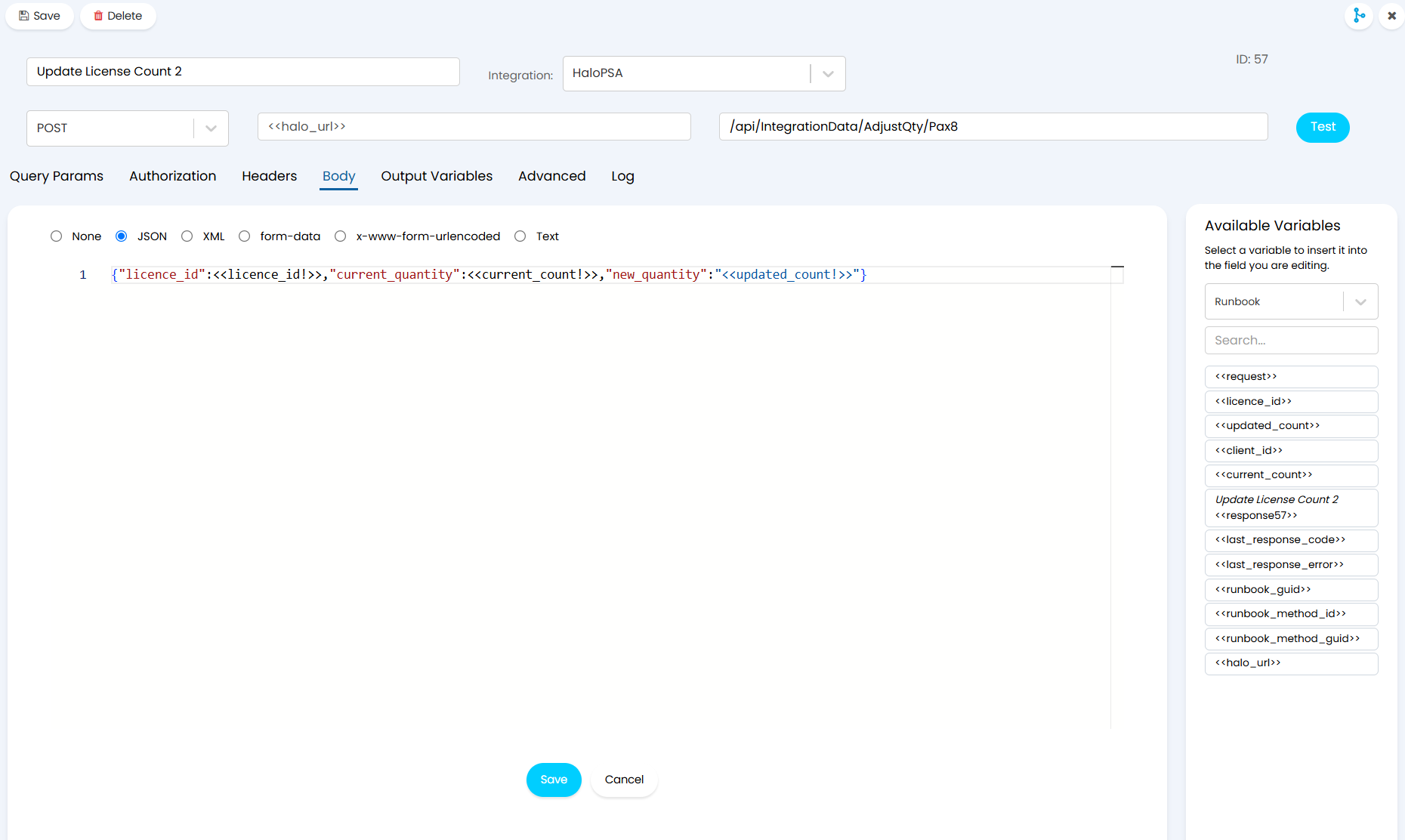
Fig 16. Creating the method to post to Pax8
You will also need to create four runbook variables for the runbook with the values illustrated in Figure 17.
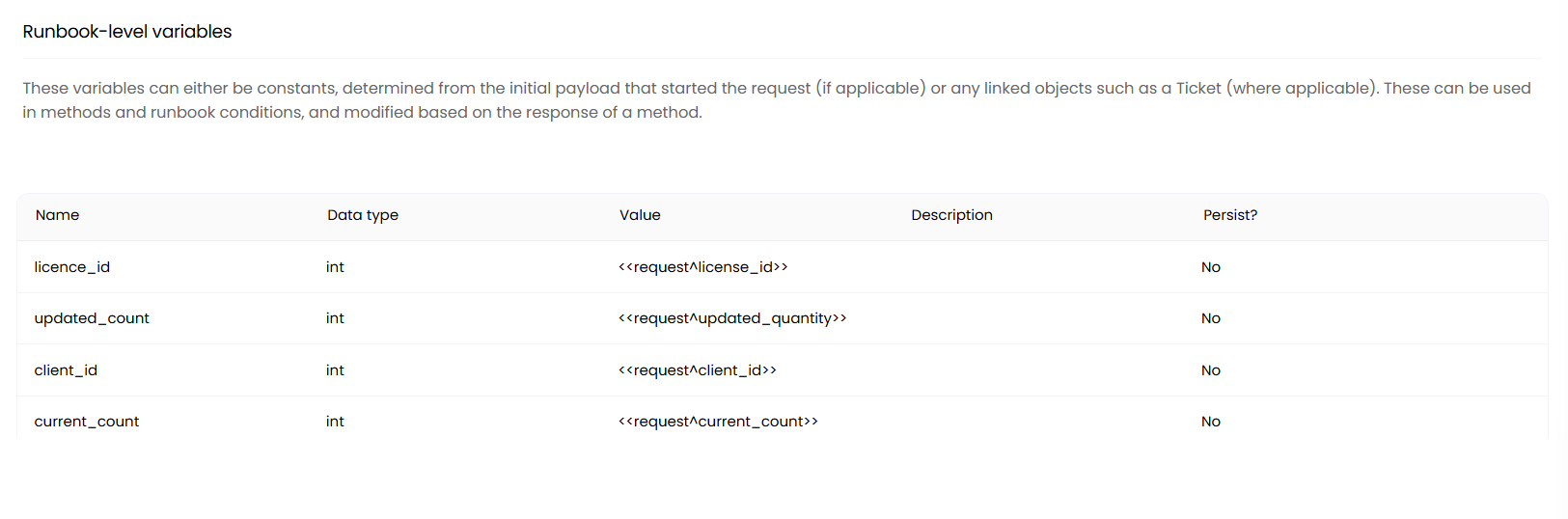
Fig 17. The runbook variables needed for the Pax8 runbook
You will also need the setting on in your Pax8 integration to "allow subscription quantities to be increased from Halo".
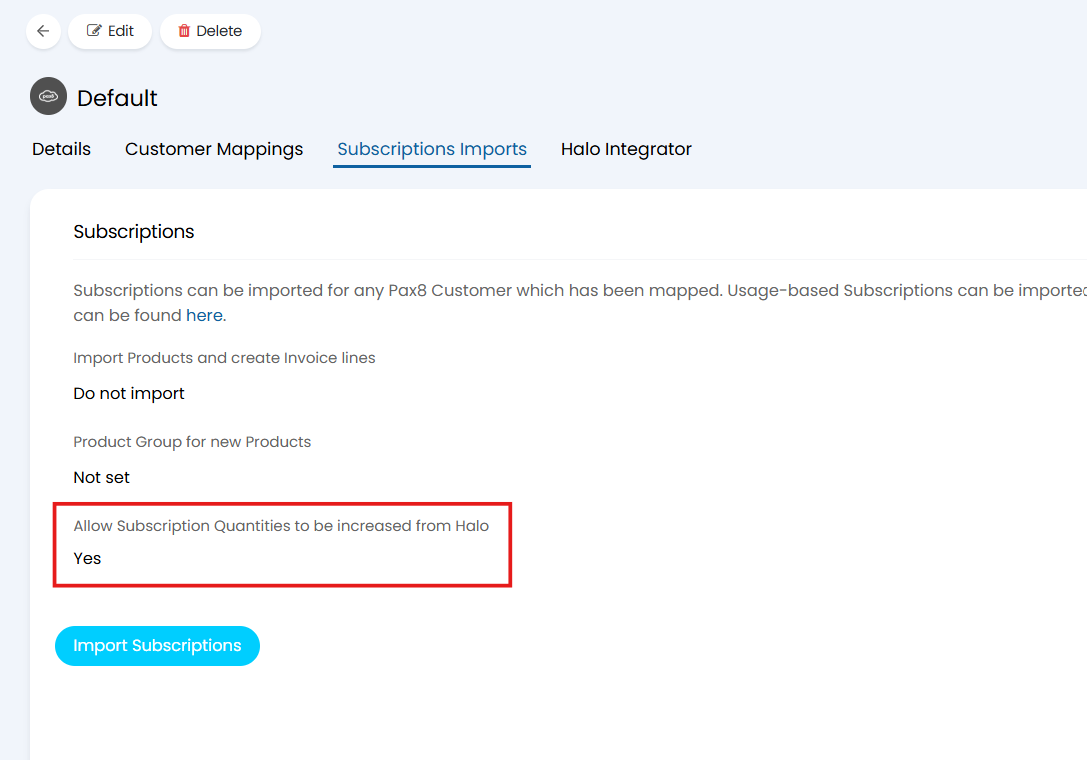
Fig 18. Ensure Halo can increase Pax8 subscription quantities
This runbook can then be leveraged by the Process Agent to update the license count for the Customer once the new quantity has been calculated.
For more information on creating runbooks, please refer to the guide: Custom Integrations/Runbooks.
In the External MCP Servers section of the Agent configuration, set the ImmyBot MCP server that you connected earlier.
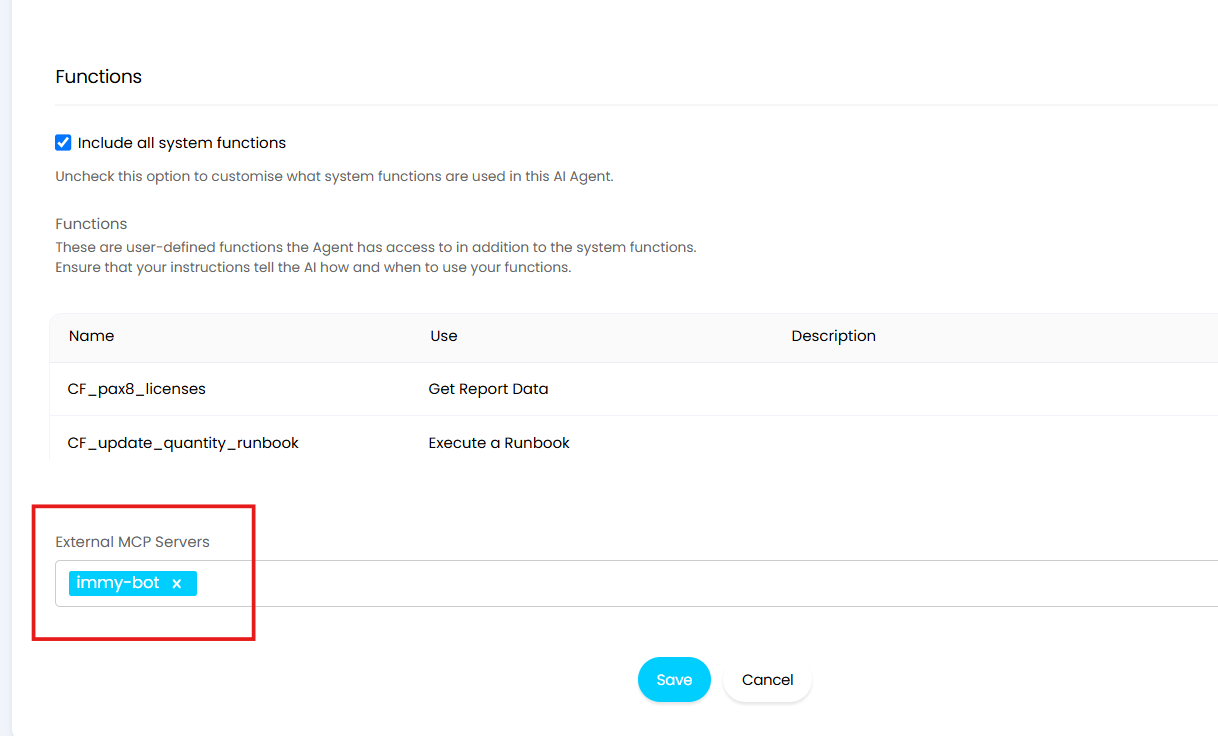
Fig 19. Setting the External MCP server access for the Process Agent
This can then be leveraged by the Agent to deploy any new software to the User's specified device.
Save your Process Agent once the configuration is complete.
You will need to trigger the Process Agent via a runbook, this runbook will then need to be triggered within the Chat Profile. If you require guidance on how to trigger a Process Agent please refer to this documentation: Process Agents.
If you require guidance on configuring Chat Profiles, please refer to this documentation: Chat Bot and Chat Profiles.
Once you have set up your triggers, you will have a fully automated software procurement process.