AI Abilities
- AI ability
- send prompt to AI
- custom AI prompt
In this guide we will cover:
- What are AI Abilities?
- Creating AI Abilities
- AI Abilities in Virtual Agents
- AI Abilities in Runbooks
- View where the AI Ability is used
- Worked Example- Creating an AI Ability for Triaging tickets
Configuration Settings:
Related Guides:
- Connecting AI to Halo
- Leveraging AI in Halo
- Virtual Agents in the Chat Bot
- Custom Integrations/Runbooks
- Process Agents
Note: If you are looking for information on each of the AI features Halo has available, this can be found in our guide on Contents of AI Guides.
What are AI Abilities?
An AI Ability allows you to configure a prompt to be sent to an AI model to instruct AI to evaluate the data provided and generate a response. Each ability can be used as a function of a virtual agent/operations agent and within integration runbooks. This makes it easier to leverage AI in your Halo instance as you only need to configure the ability and plug this in where needed. Runbooks/virtual/operations agents will handle when the ability is executed and what happens with the response returned.
Additionally, AI Abilities can be utilised using Halo's built in OpenAI connection, available to everyone out of the box. Allowing everyone to create their own custom AI integrations without the need for their own AI connection.
Creating AI Abilities
To create your AI Abilities head to Configuration > AI > Feature Library and click the "AI Abilities" button.
Note: From v2.250+ when a runbook is downloaded from the online repository, if it contains an AI Ability, the Ability will be created in your instance automatically.
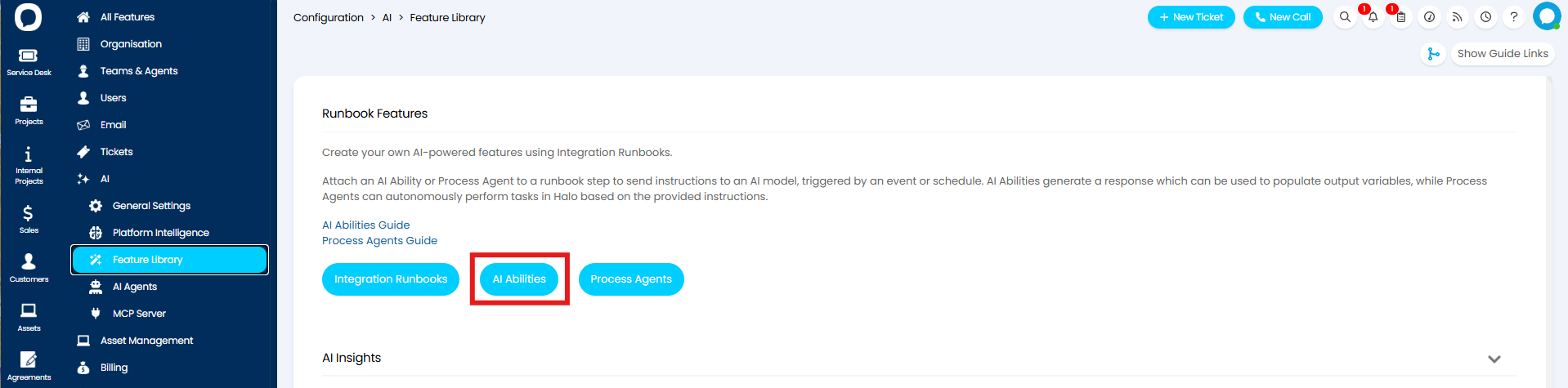
Fig 1. AI Abilities button
This will open a screen where you can view your existing and create new AI Abilities.
When you create a new AI Ability you will need to set a name and choose the connection method you would like to use.
For more information on setting your AI connection see our guide on connecting AI to Halo. The Amazon Bedrock connection will be available for use in AI Abilities from v2.244+.
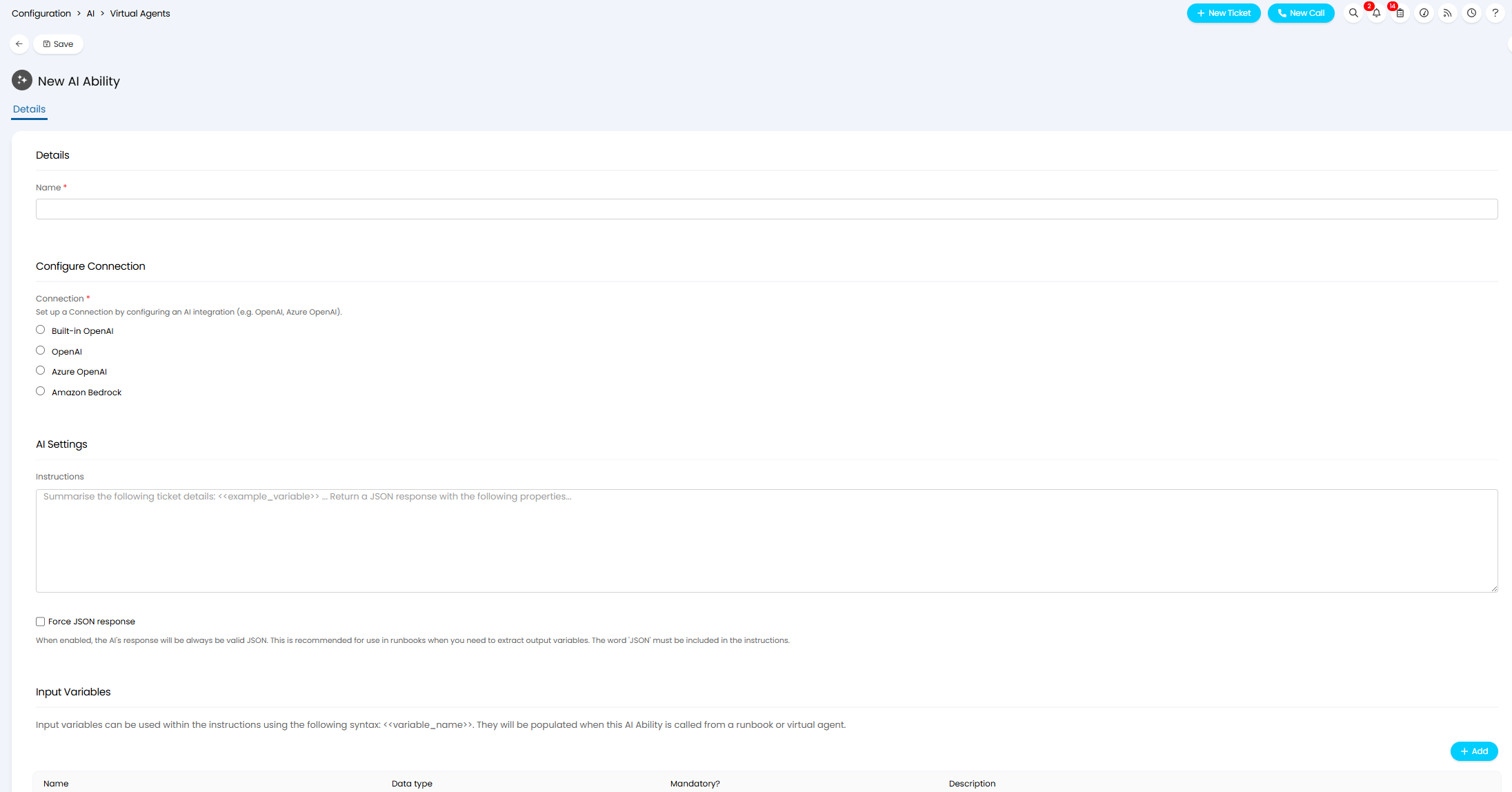
Fig 2. Configuring AI Abilities
Then you can set the prompt that will be passed to the AI model in the "Instructions" field.
Using Variables in the Prompt
If your AI Ability was triggered from a runbook, the prompt can include variables to have the instructions populate with data dynamically based on the event that triggered the ability. Variables will need to be in the format <<variable_name>>, which each need to have their name specified in the "Input Variables" table, and be mapped to a runbook level variable present in the runbook triggering the Ability.
If you are using your AI Ability in a Runbook ensure you select "Force JSON response". This will make sure the response provided is in JSON format, allowing variables to be resolved correctly. If you force a JSON response you will also need to specify in the prompt that you would like the response to be returned in JSON, including the word 'JSON' exactly.
To use any variables in the prompt, these will need to be added to the Input Variables table. Click "Add" and enter the name and data type for your variable.
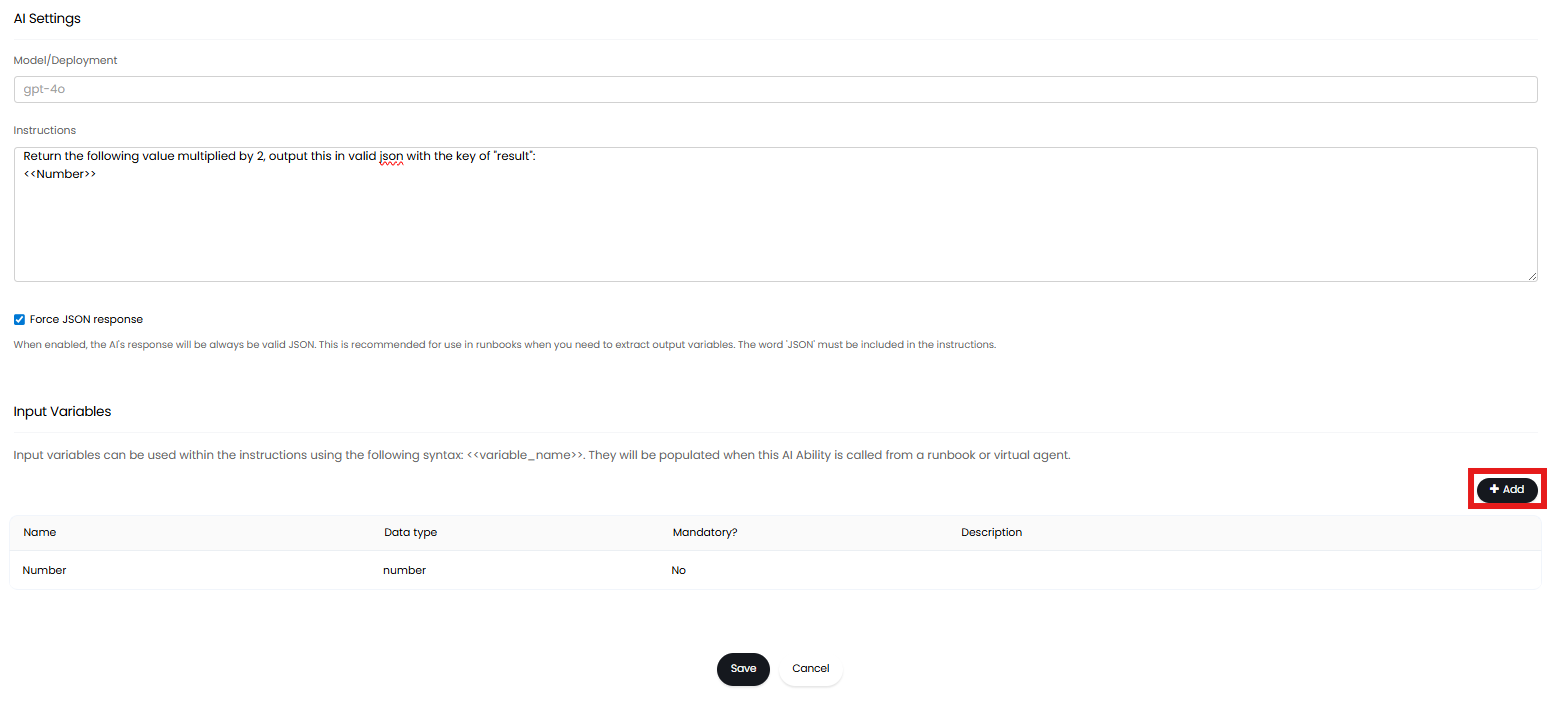
Fig 3. Input Variables table
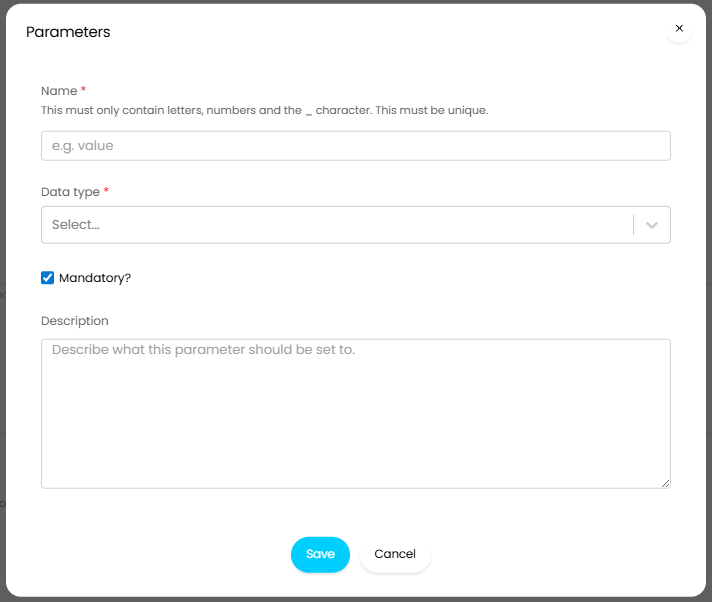
Fig 4. New Input Variable
Name - Must be the name of the variable as it is declared in your runbook.
Data Type - Must be the type of data the variable contains.
Mandatory - When checked, this variable must be resolved in the prompt for the ability to be used.
Description - Here you can add a summary of the information the variable should contain/resolve, this is just for your own reference.
From v2.251+, you can choose the data type "Attachment URL" to provide a file URL for the AI to access in your Input variables table. The parameter will appear in the Runbook Configuration, where it can be populated with a runbook variable. To use Halo attachments, add an Action step to the Runbook before the Agent with the Action type "Halo API Action". Select "Get Attachment Link" in the Action dropdown to retrieve a URL, then pass that value to the Agent.
Now you have created your AI Ability click "Save". This AI Ability can now be used in a Virtual Agent or Runbook.
Use AI Abilities in Conversational Agents
AI Abilities can be added as a function to each of your virtual operations agents. This allows the prompt outlined in the ability to be evaluated by AI when the agent executes the function, giving you more flexibility and customisation over what and how AI analyses the chat conversation.
When an AI Ability is triggered/used by a virtual/operation agent, the entire chat conversation is sent to the AI model along with the prompt. This means the ability has access to the full conversation as context and can analyse any part of it. This differs from when an Ability is triggered via a runbook, where variables are required to extract the relevant data and include it in the prompt. With Agent-triggered Abilities, variables aren't needed, since the whole conversation is already sent as context, instead, you can simply instruct the AI (in plain English) which parts of the conversation the Ability should focus on as part of your prompt.
To add your AI Ability to a Virtual or Operations Agent as a function, head to Configuration > AI > AI Agents, and click the "Virtual Agents" or "Operations Agents" button.
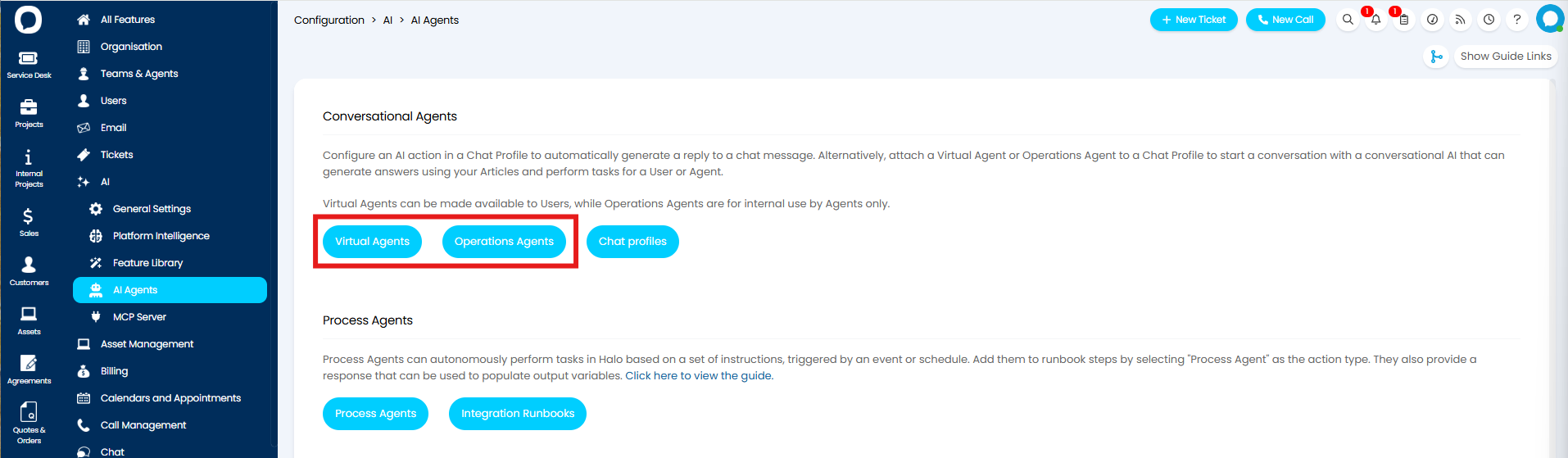
Fig 5. Virtual Agents button
Here choose, or create a new, Agent.
Note: Out of the box Agents cannot use custom functions, so they cannot make use of AI Abilities. However new Agents can be created using the built-in Halo AI connection.
When adding a function to your Agent you can add a function with the use "AI Ability". This will show another dropdown where you can select the AI Ability to use.
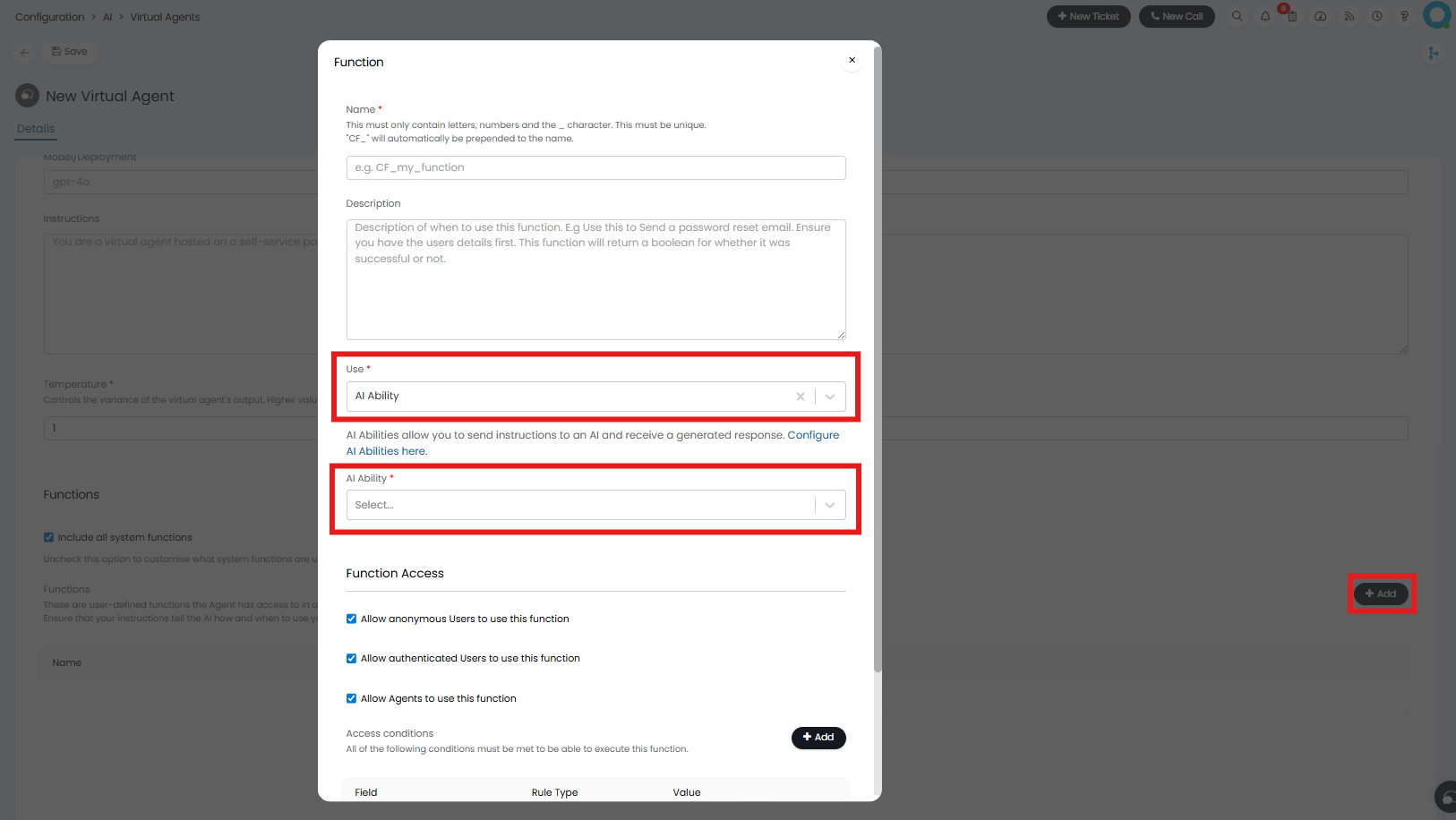
Fig 6. AI Abilities in a Virtual Agent
Make sure you describe when the function (this AI Ability) should be used in the "Description" field. This will be used to instruct the virtual agent when to use the Ability. Also ensure you include instructions as to when this function should be executed in the "Instructions" of the agent.
When the Virtual/Operations Agent decides it needs to call the AI Ability function, it will send the prompt to AI which returns a response. The Agent reads this response and acts accordingly, if you would like information to be returned to the user in the chat, ensure you specify this in the Ability prompt, and function description.
AI Abilities in Runbooks
Adding your AI Ability to a Runbook automates and simplifies the creation of Runbook methods. Rather than needing to create a custom integration method to send a a request containing a prompt to an AI model, you can just set the runbook to trigger an ability when it reaches a set step. For example, an ability can be used to have AI triage a ticket, suggesting and populating category and priority ticket fields for you. Information about the ticket can be extracted by the runbook, then an AI Ability can send this information to AI to be analysed and triaged, the response received can then be used in subsequent steps of the runbook to populate the ticket's field with the relevant triage information.
To have an AI Ability used in a Runbook step, head to Configuration > Integrations > Custom Integrations, select the "Integration Runbooks" button. Click a Runbook to edit, or create a new one using the "Add" button.
When adding a step of type "Action" to your runbook flow you will be able to choose the action type "AI Ability" an additional dropdown will show, allowing you to select an AI Ability to use.
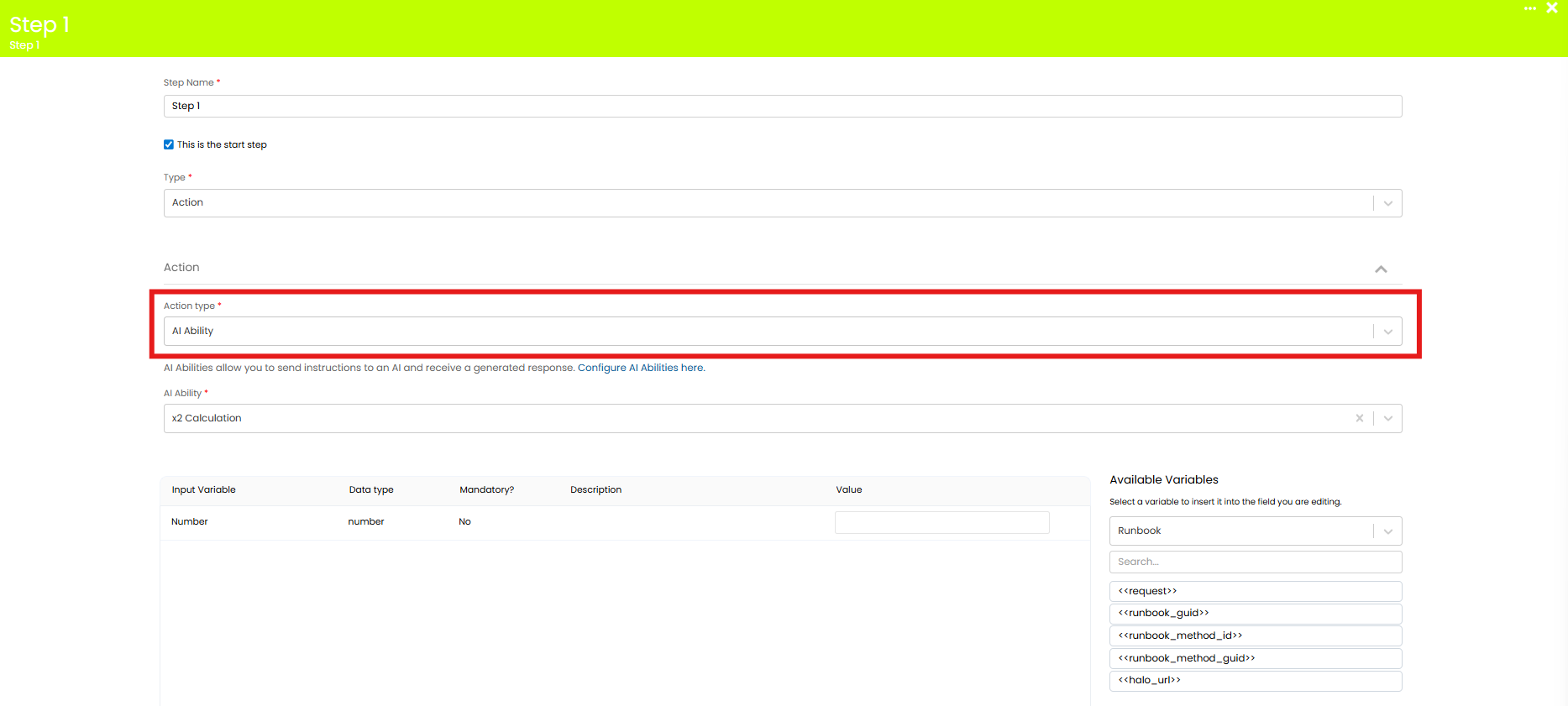
Fig 7. AI Abilities in a Runbook
If the Ability contains any input variables, these will automatically populate the variable table on the runbook step. You will need to map the variables used in the AI Ability to existing runbook level variables to set the value that will populate the variables.
View where the AI Ability is used (v2.250+)
From v2.250+ an "Other Uses" tab is available against AI Abilities. Here, you can view the runbooks, Virtual/Operations Agents and MCP endpoints the Ability is used in, helping you manage/review where an Ability is being leveraged.
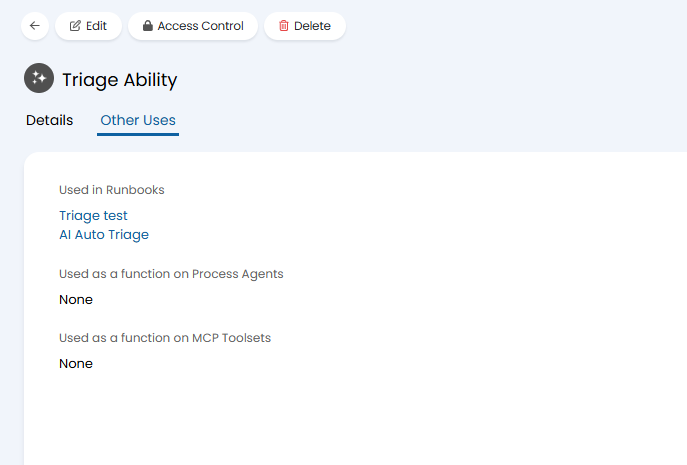
Fig 8. Other Uses Tab against an Ability
Worked Example- Creating an AI Ability for Triaging tickets
In this example we will work through how to create an AI Ability to assist in automatically triaging your tickets. In this example the AI Ability is plugged into a custom integration runbook.
I will start by creating a new AI Ability called "Triage Ability" and set the connection to be the built-in Halo connection.
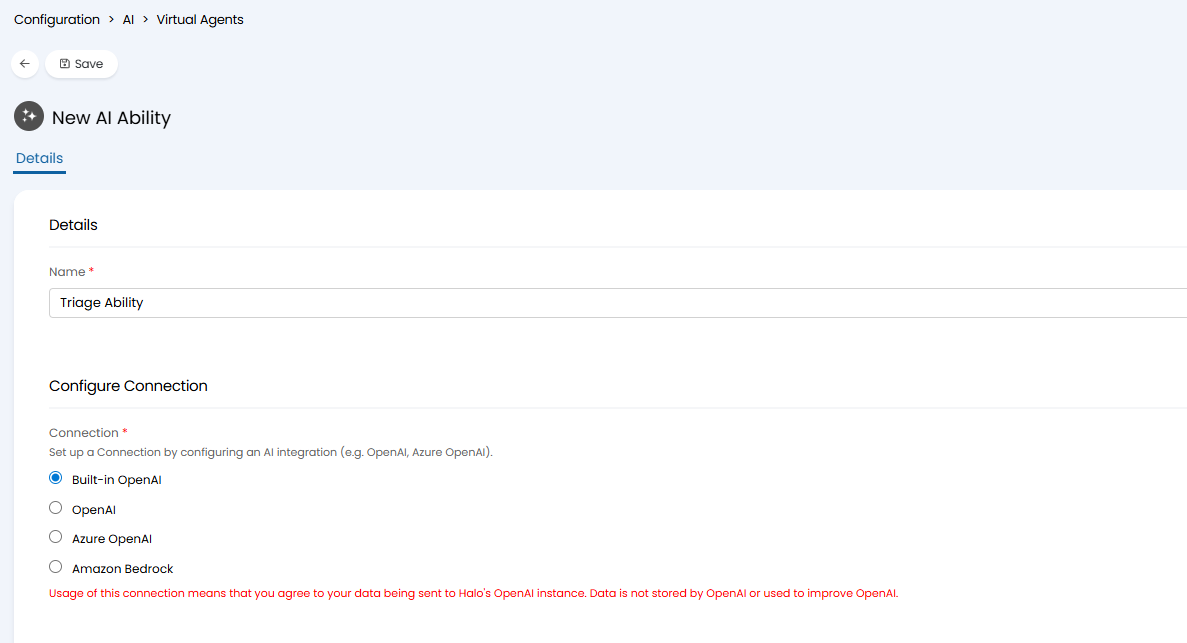
Fig 9. New AI Triage Ability
Set the Prompt/Instructions
Then in the instructions field I enter a prompt, giving the AI context on the information it is being provided, in this case it is being provided with a list of the available categories, impact levels and urgency levels. I then instruct it to select a category, impact, and urgency from the provided lists.
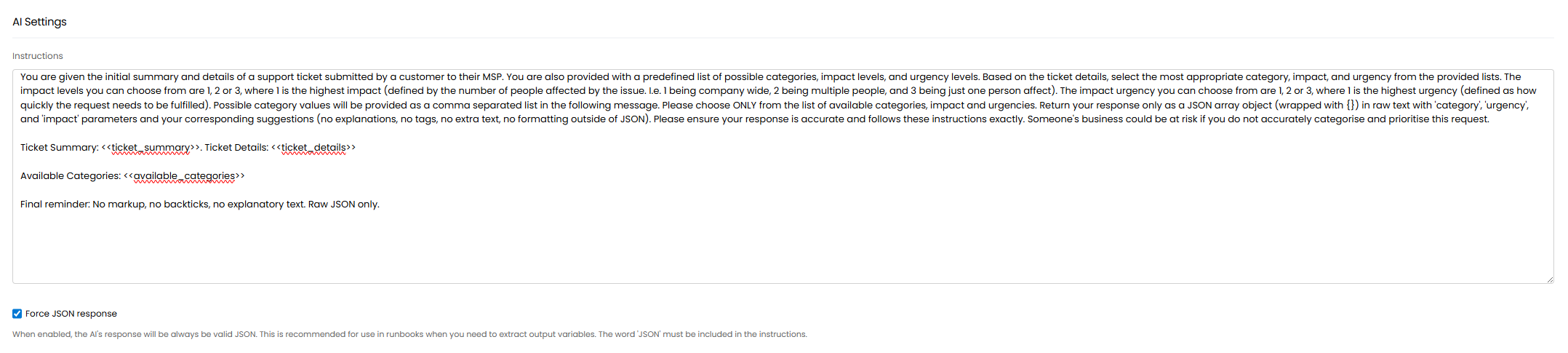
Fig 10. Ability Instructions/Prompt
I would like to extract the category, impact and urgency AI gives me from the response and post these into separate fields in Halo. Therefore I need the response to be returned as a correctly formatted JSON array object with 'category', 'urgency', and 'impact' parameters, so this can be processed by subsequent steps of my runbook. Therefore, I have prompted the AI to return the response in this format, I have also enabled "Force JSON response".
Variables are used to take data from the ticket I would like to be triaged and include these in the prompt. The variables <<ticket_summary>> and <<ticket_details>> will provide the summary and details of the ticket that triggered the runbook, and the variable <<available_categories>> will provide the list of categories I have in my instance.
Using Variables in the Prompt
As I am using variables in my prompt I will declare these in the "Input Variables" table. I name the variables I am using to pull in the ticket summary, details and category list.
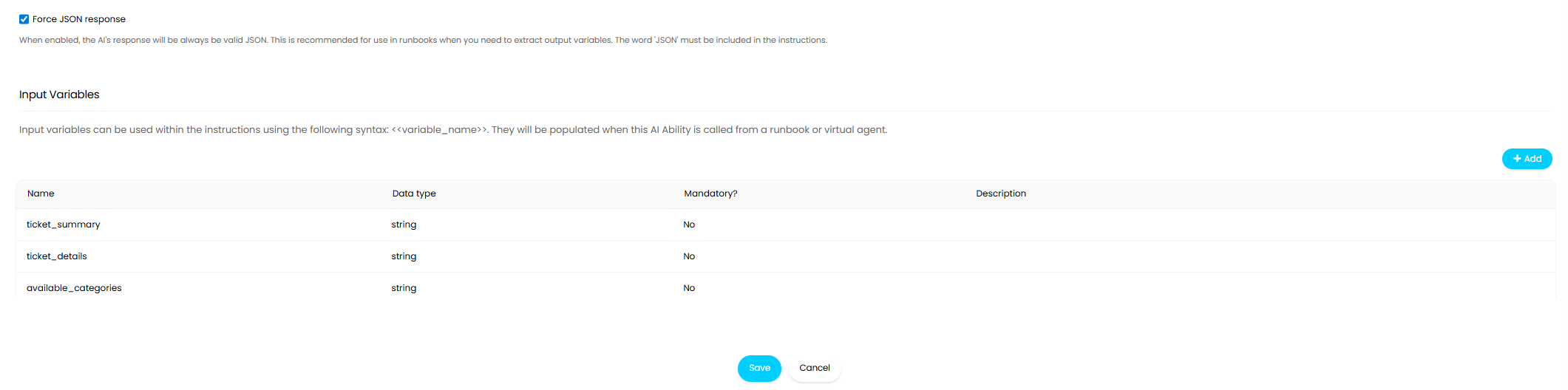
Fig 11. Input Variables
All the variables I am using have the data type string as the value the variables resolve to will be a string.
The names need to match the names of the variables as they are used in the prompt, they do not need to match the name of the variables as they appear in my runbook as these will be mapped together later.
I have not wrapped the variable names in <<>> when declaring them in the table. But when they are used in the prompt they will need to be wrapped in <<>>.
Now the Ability is configured it can be plugged into a runbook. The runbook will, control when the ability is used, will populate the variables and will process the response.
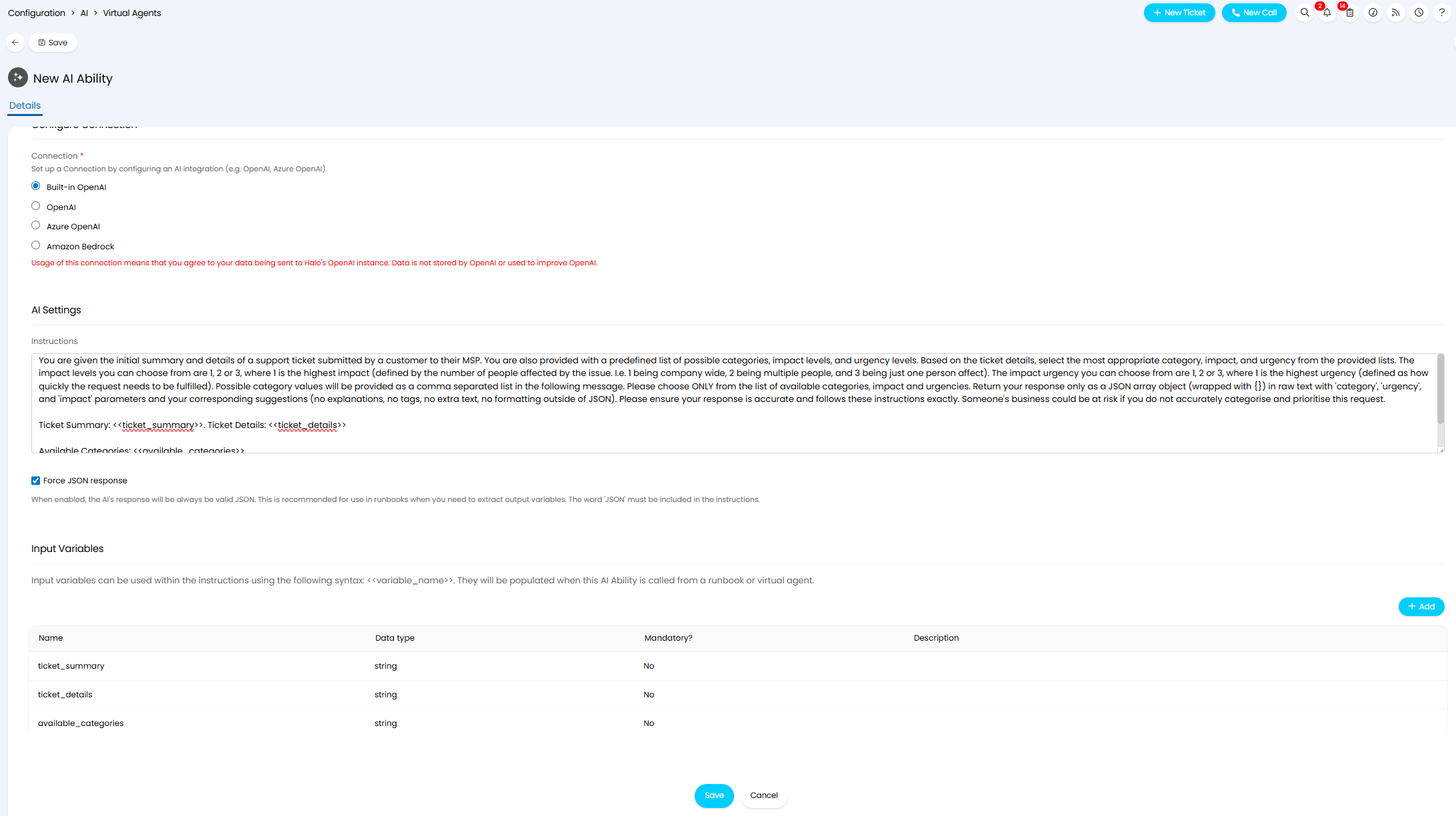
Fig 12. Configured AI Ability
Plugging the Ability Into a Runbook
Now the AI Ability is created I can plug this into my runbook.
Note: This example uses a pre-made runbook, the configuration of which will not be configured in this guide.
I create a new action step on my runbook with the action type, AI Ability, then choose the ability I have just created. Once the ability is selected the table below will populate with the input variables configured against the Ability.
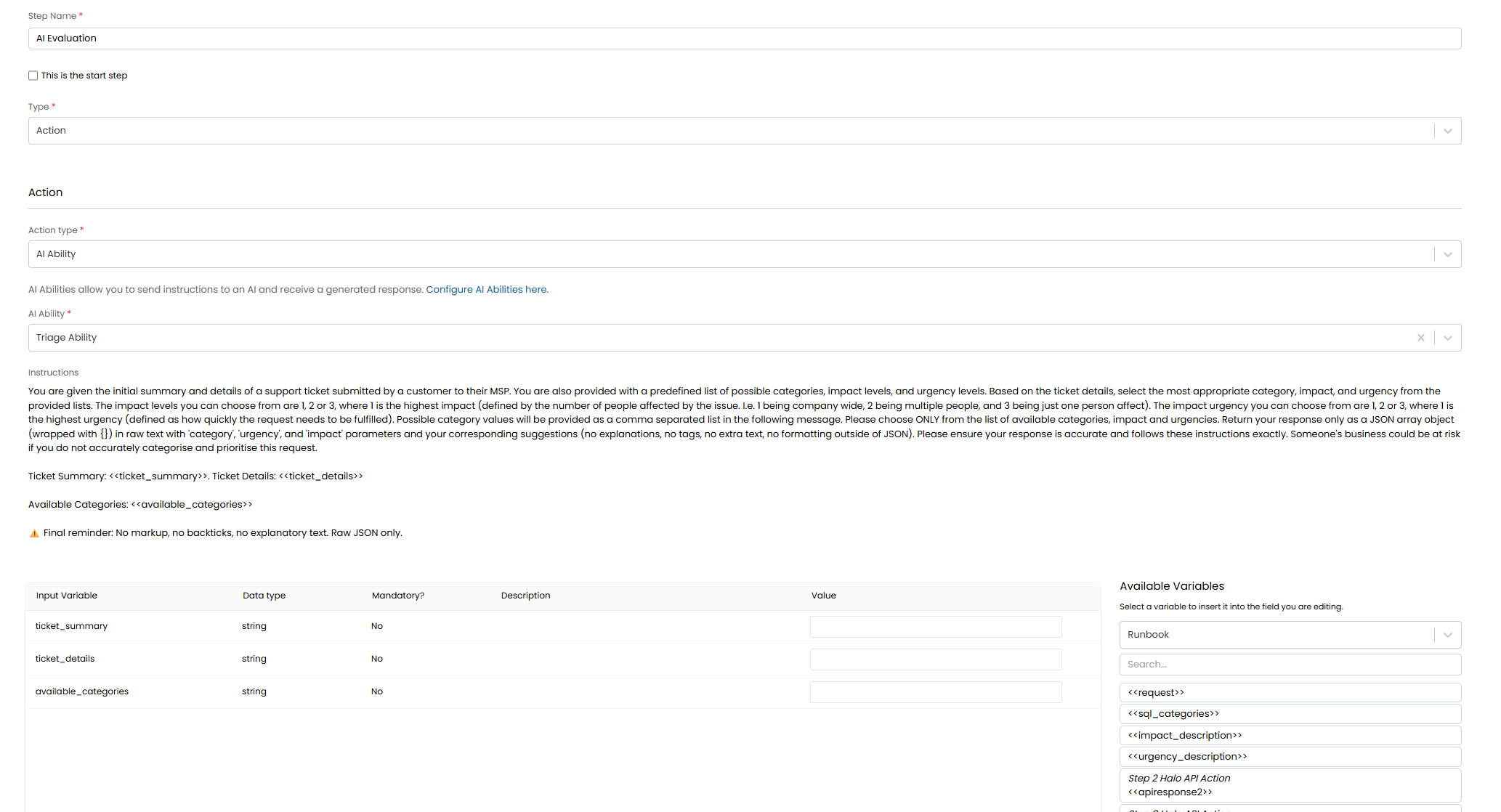
Fig 13. AI Ability runbook step
Now, I need to map the variables I declared in my Ability to the ones in my runbook that actually hold the data I want to include my my Ability's prompt. For information on runbook variables see our guide here.
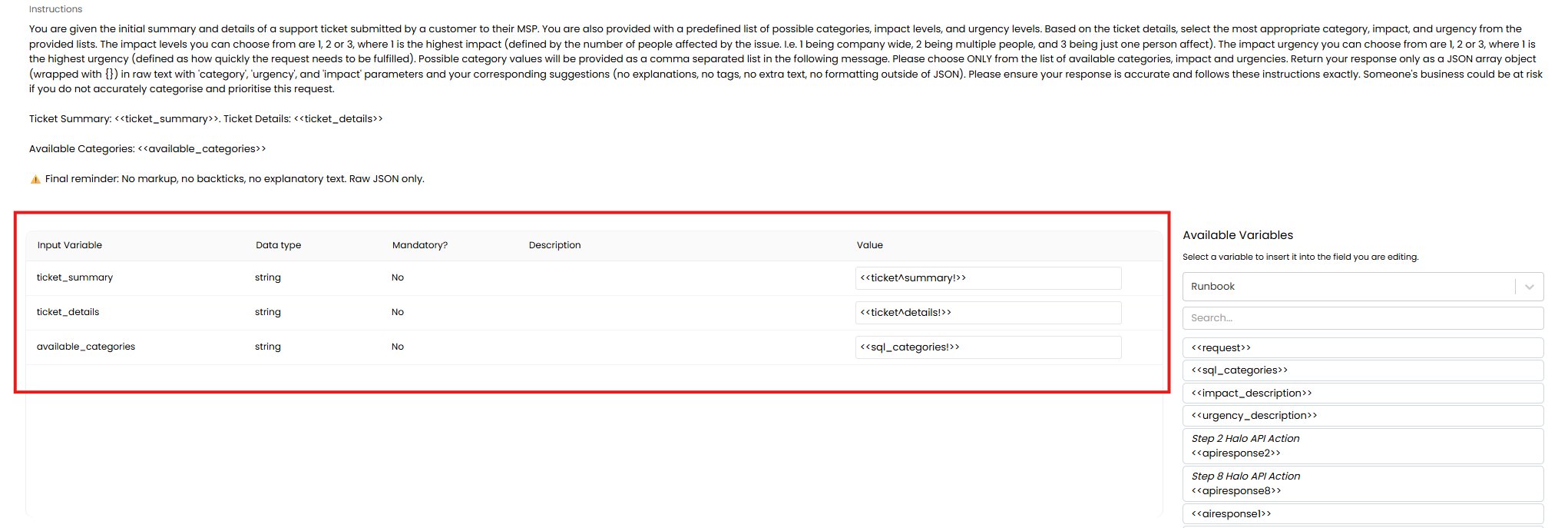
Fig 14. Ability variables mapped to Runbook variables
The runbook variables I am mapping to have been created in earlier steps of the runbook.
As I am using the AI response to obtain category, impact and urgency suggestions, I will also create new runbook level variables on this runbook step. These will extract the required values from the response AI gives me, storing them in variables, so I can use them in later steps of the runbook.
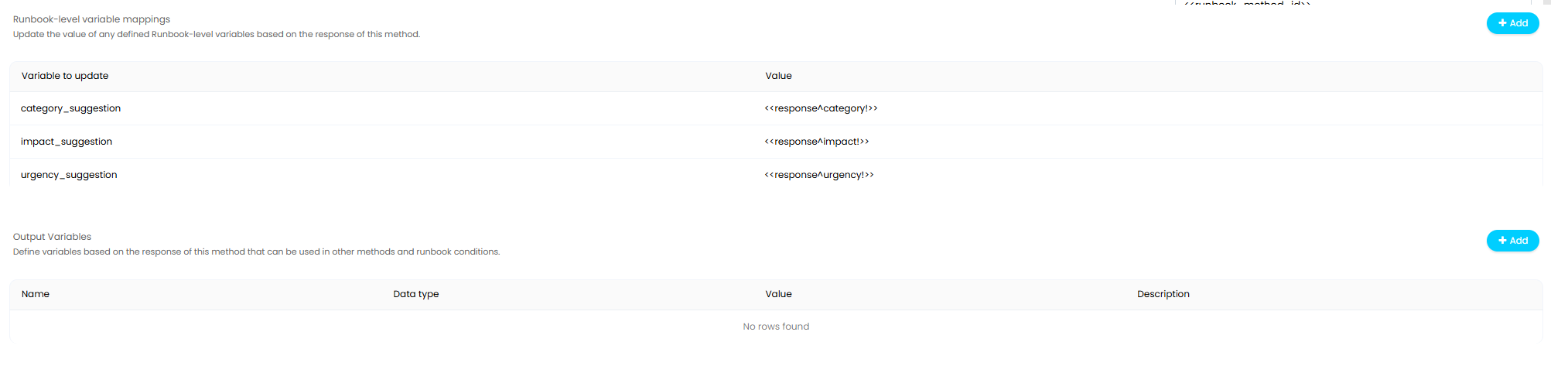
Fig 15. New Runbook Level Variables
Now, my AI Ability can be successfully used to have an AI suggest category, impact and urgency values for a ticket based on the ticket's summary and details.
Referenced by
- A Break down of the Automated Statement of Work Generation & AI Project task Creation
- AI Ability Use Case: AI Suggested Resolution
- AI Ability Use Case: Sentiment Analysis and Case Wrap up
- AI Ability Use Case: Smart Handover Review
- AI Feature Library Settings
- Chat Web Searching with Conversational Agents
- Connecting AI to Halo
- Contents of AI Guides
- Embedding Optimisation
- Leveraging AI in Halo
- Process Agents
- Use AI to Analyse Business Performance