AI Ability Use Case: Smart Handover Review
- AI
- AI Ability
- Abilities
- use case
In this guide we will cover:
- What is Halo's Smart Handover Review?
- How does it work?
- Setting up Smart Handover Review
Related Guides
What is Halo's Smart Handover Review?
The smart handover review is a process by which the current state of a ticket is evaluated by AI at the point of reassignment. This intelligent evaluation is posted to the ticket as a way of providing context to the Agent to whom the ticket has been re-assigned in order to help them action the ticket effectively and efficiently.
If you have a HaloITSM environment that was deployed after August 28th 2026, then this process will be pre-built in your system and ready to use without any further configuration.
If you have a HaloITSM environment that was deployed before this date, or if you have an instance of another Halo product (PSA, CRM, CSM), then you will need to set up the process using the "Setting Up AI Suggested Resolution" section of this guide.
How does it work?
In Figure 1, there is an existing ticket on the service desk that needs to be re-assigned, the "Re-Assign" action is used to do so.
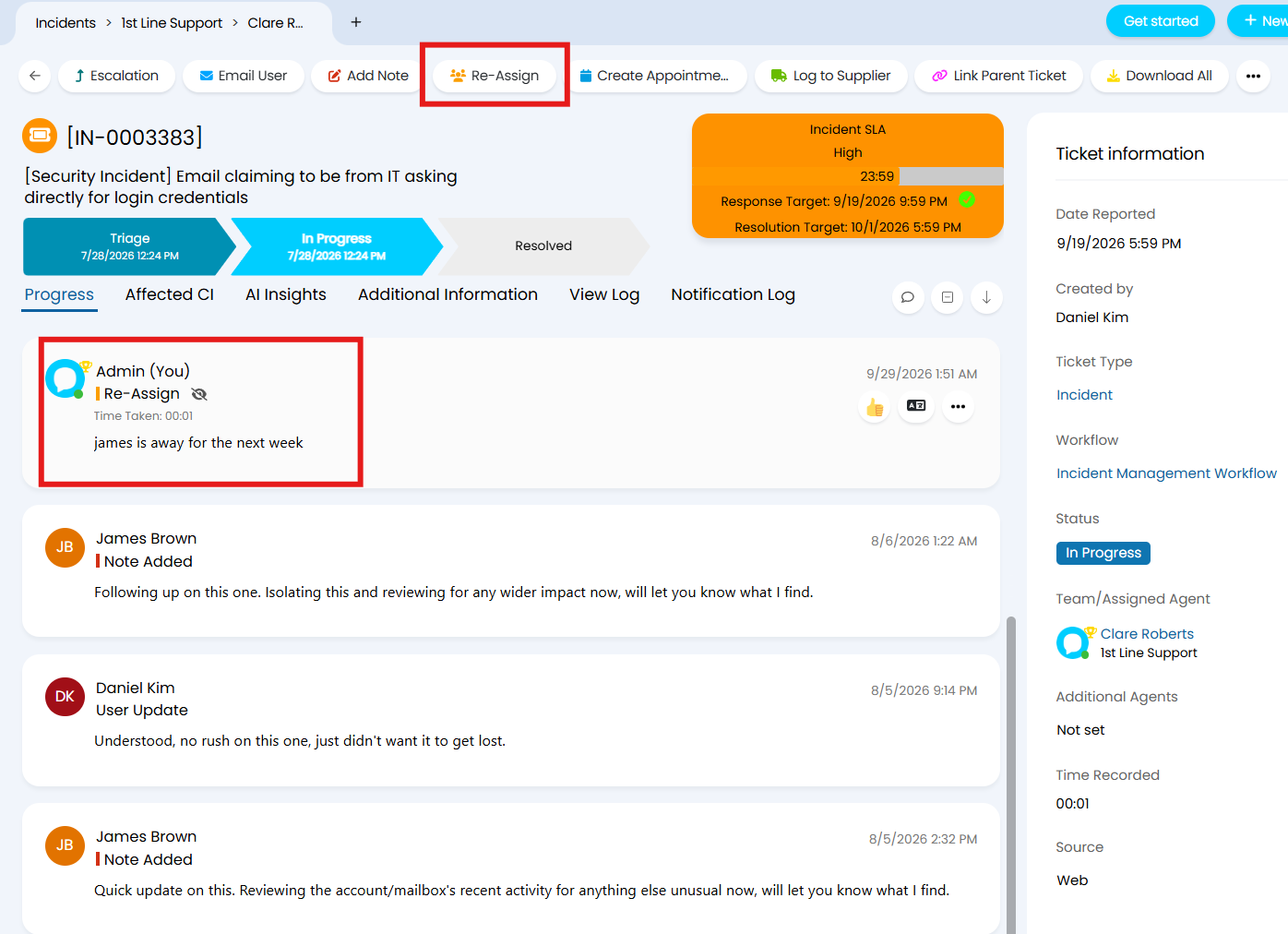
Fig 1. A ticket is re-assigned to a new agent using the "Re-Assign" action
This action triggers a custom integration runbook called the "Halo AI - Smart Handover Review".
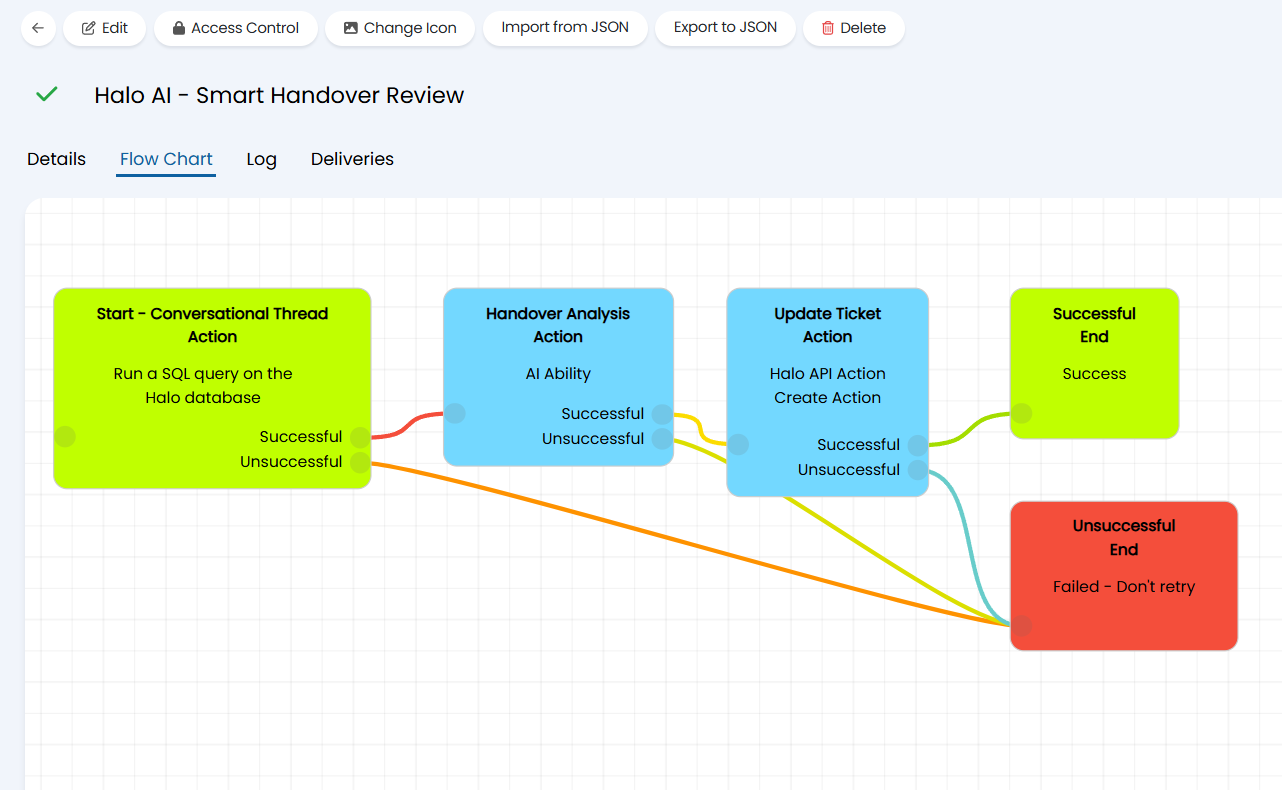
Fig 2. The Halo AI runbook triggered by the re-assignment
As you can see in Figure 2, an AI ability is leveraged in the second step of the runbook to analyse the progress of the ticket that is retrieved in the first step.
Step 3 of the runbook then posts the analysis that is returned by the AI ability into the ticket in the form of a handover note.
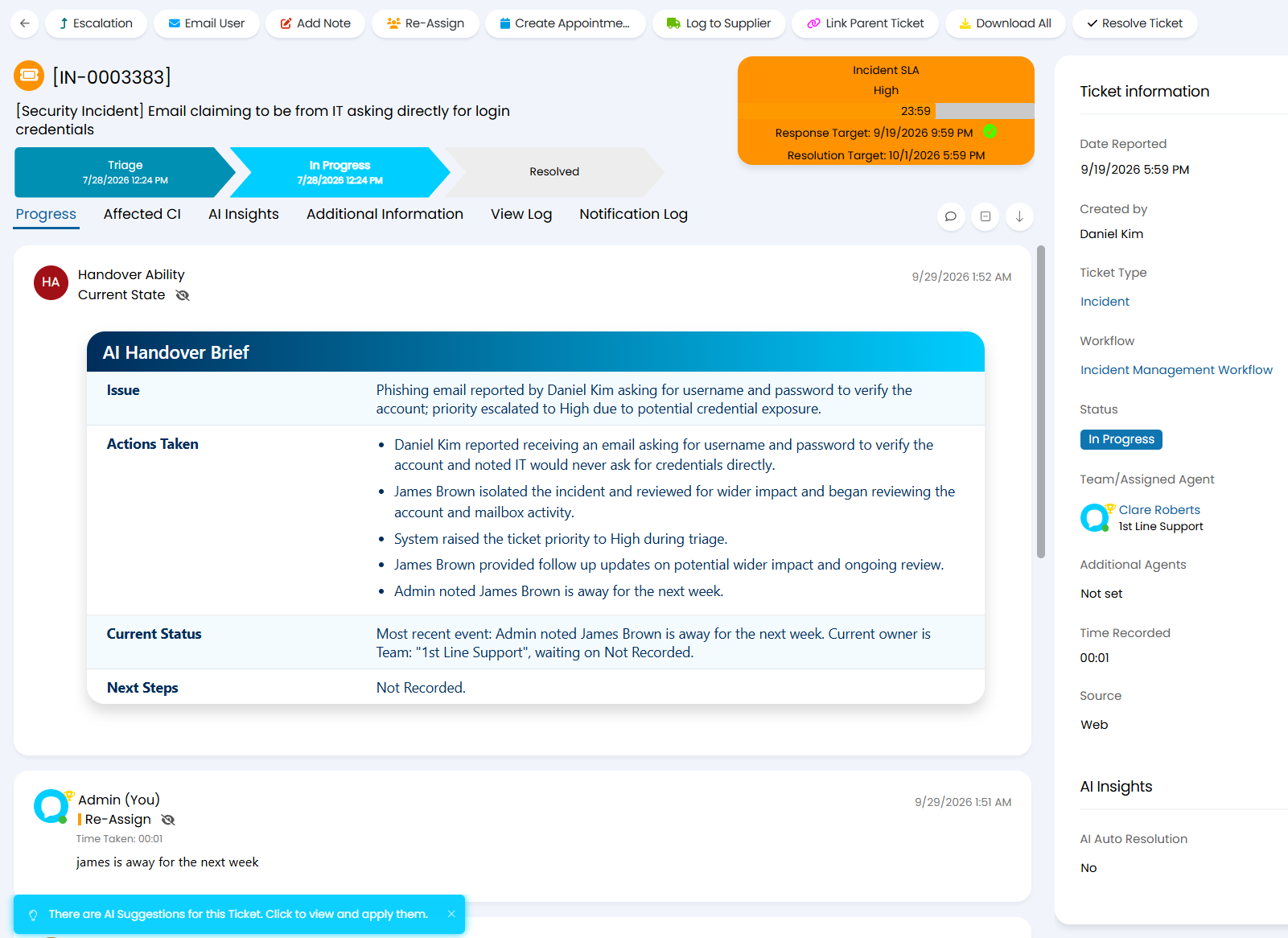
Fig 3. The analysis from the AI ability is posted into the ticket
This intelligent analysis can then be used by the newly assigned agent to action the ticket effectively and with context, helping to eliminate the 'back and forth' feeling that a user can feel when their ticket is passed between technicians.
Setting Up Smart Handover Review
As mentioned in the introduction to this article, if you have a HaloITSM environment that was deployed after August 28th 2026, then this process is pre-built in your instance using Halo's default AI connection and does not require any additional configuration. If you have a Halo ITSM environment that was deployed before August 28th 2026, or you have a HaloPSA, HaloCRM, or HaloCSM environment, then you will need to build this process into your environment using the following section of this guide.
The setup for this process composes of an AI ability and a runbook, foundational understanding of both is assumed. To learn more about AI abilities or runbooks, visit our University or see the relevant guides: AI Abilities & Custom Integrations/Runbooks.
Creating The AI Ability
Note: This section assumes you are creating this process manually (not by downloading the runbook from the online repository) or that you are on a version earlier than version 2.250. If you are operating on version 2.250 or later, then this AI ability will automatically be created and set up for you if you download the runbook from the online repository.
The AI ability will be the intelligent piece of your handover process, and will be the part that actually generates the handover details. As you will set the ability to be triggered by a step in the a runbook, it is best to create the ability first.
To create a new AI ability, navigate to Configuration > AI > Feature Library > AI Abilities, and select the "+New" button in the top right corner.
Give your new ability a recognisable name and configure the AI connection, you can use the built-in OpenAI connection or your own connection if you would prefer. For more information on the AI connections, see this guide: Connecting AI to Halo.
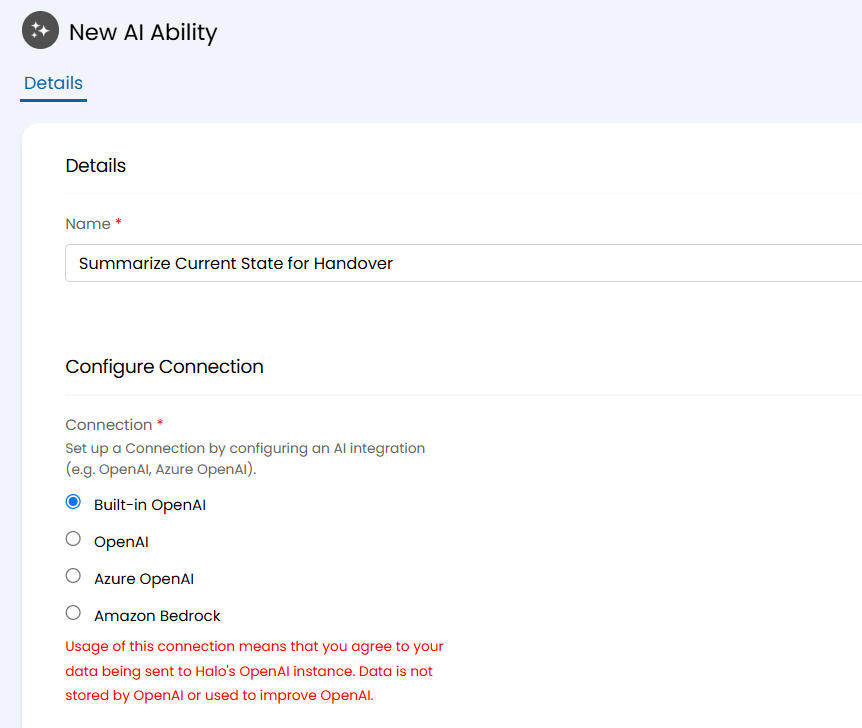
Fig 4. Initial configuration of a new AI ability
If you would like to use the same instructions used in pre-built environments for the ability's instructions, you can download the "Handover Ability Instructions" file attached to this article and copy and paste all text from within this file into the instructions field.
The instructions instruct the following:
- Read the ticket notes in order and evaluate the current standing of the ticket.
- Do not infer anything, only use the ticket data provided.
- Only provide a 'next step' for the new agent if that next step is provided in the ticket data.
- Summarise only significant events.
- Construct a factual and concise handover brief for a colleague using the provided formatting rules.
If you would like to customise your handover review process, these instructions are your main opportunity to do so. You may want to edit the instructions to tailor it towards your company's handover processes in order to make the review as beneficial and accurate as possible.
Note: If you create new instructions, ensure the input variables are included for providing the AI model with the context of the ticket or that new variables are created to provide your chosen data. To learn more about creating input variables for AI abilities, see the "Using Variables in the Prompt" section of this guide: AI Abilities.
Once the instructions are pasted in, you should enable the setting below the instructions that forces a JSON response. It is important to enforce this to ensure that the AI's response can be properly extracted by the runbook.
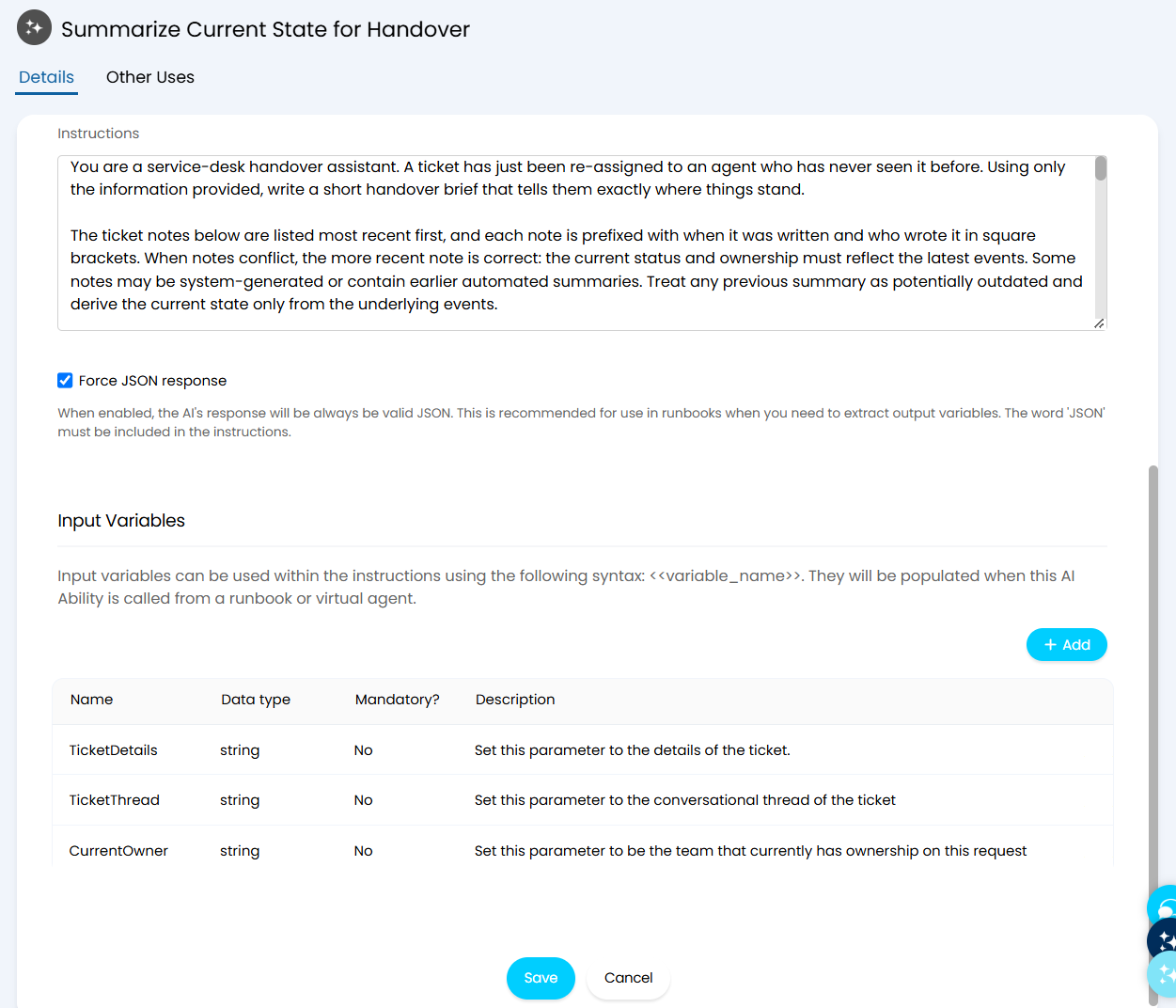
Fig 5. The instructions and variables for the AI ability
The input variables for the AI ability are populated by the runbook step that triggers the ability, and they are how the ticket's data is provided to the AI model. If you are using the instructions attached to this article, you will need to create three input variables.
- TicketDetails (string, non-mandatory)
- TicketThread (string, non-mandatory)
- CurrentOwner (string, non-mandatory)
Once you have created the input variables, you can save the ability and move on to creating the runbook.
Creating The Runbook
The runbook is the main driver behind this process.
To create the runbook, navigate to Configuration > Integrations > Custom Integrations > Integration Runbooks. From here, you can download the "Halo AI - Smart Handover Review" runbook from the online repository by selecting the globe icon in the top right. Alternatively, you can select the "Import from JSON" button to import the runbook using the JSON in the file attached to this article labelled "Smart Handover Review JSON". See Figure 6 for reference.
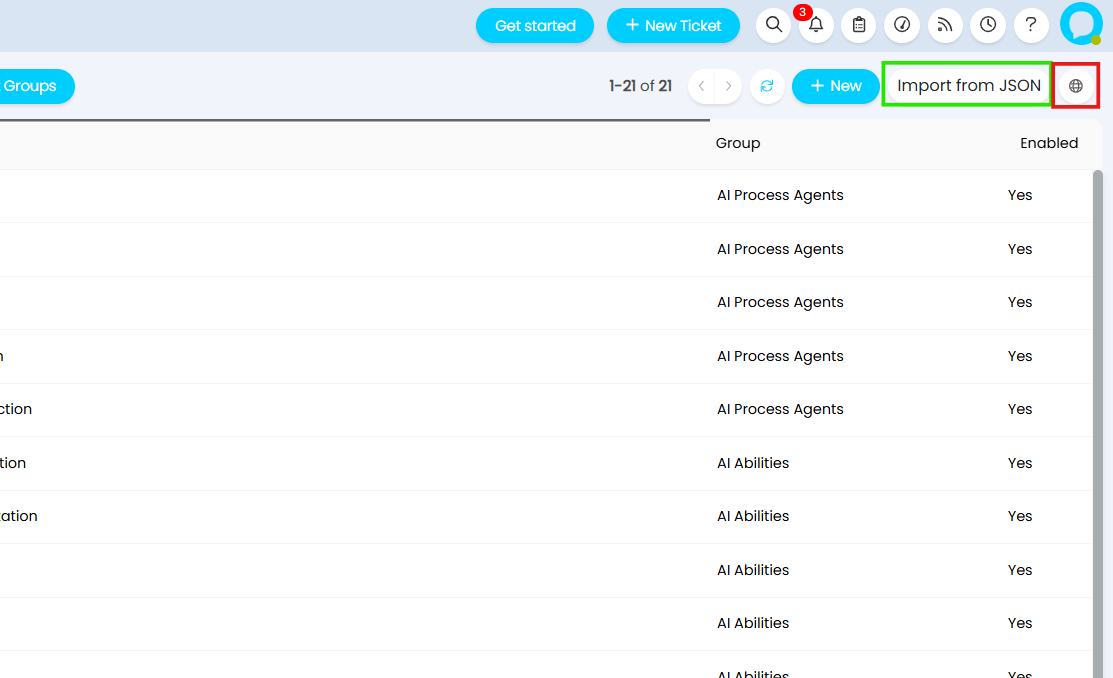
Fig 6. Create the runbook by importing the JSON (green) or by downloading it from the online repository (red)
Once the runbook has successfully downloaded/imported, the "Halo AI - Smart Handover Review" runbook will appear in the list. Click into into the runbook and navigate to the "Flow Chart" tab where you will be able to see the workflow of the runbook.
Edit the runbook and edit the second step of the runbook where the AI ability is triggered.
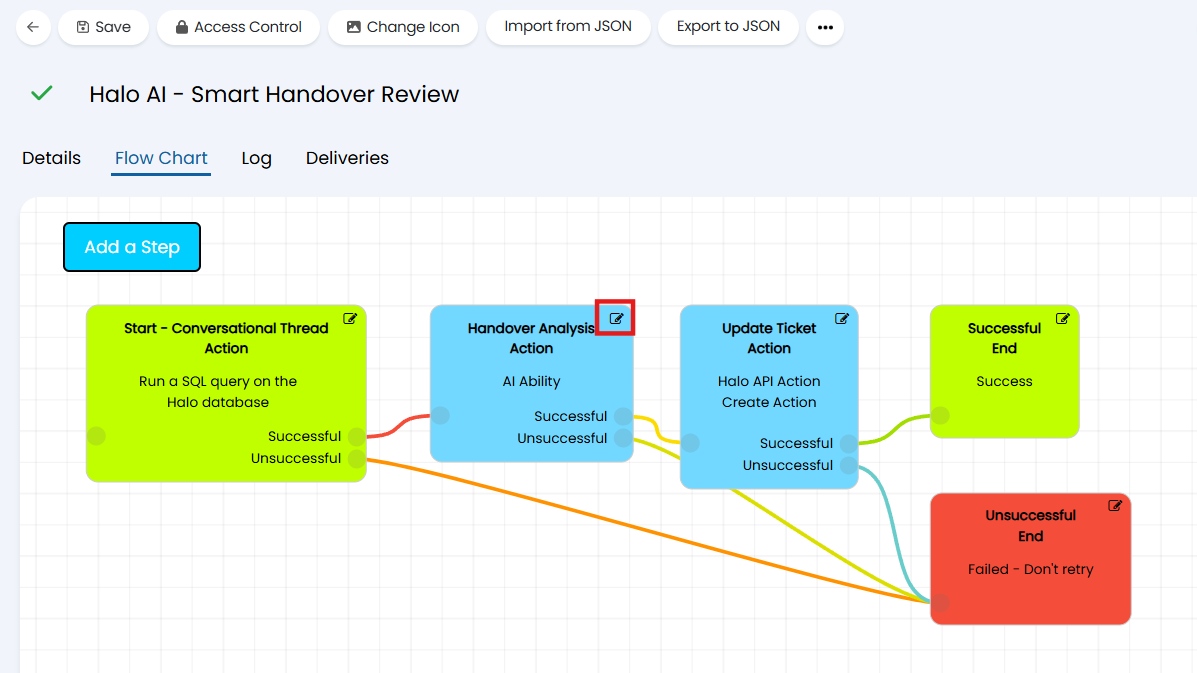
Fig 7. Edit the second step of the runbook
Select the AI ability you created and the instructions will dynamically populate.
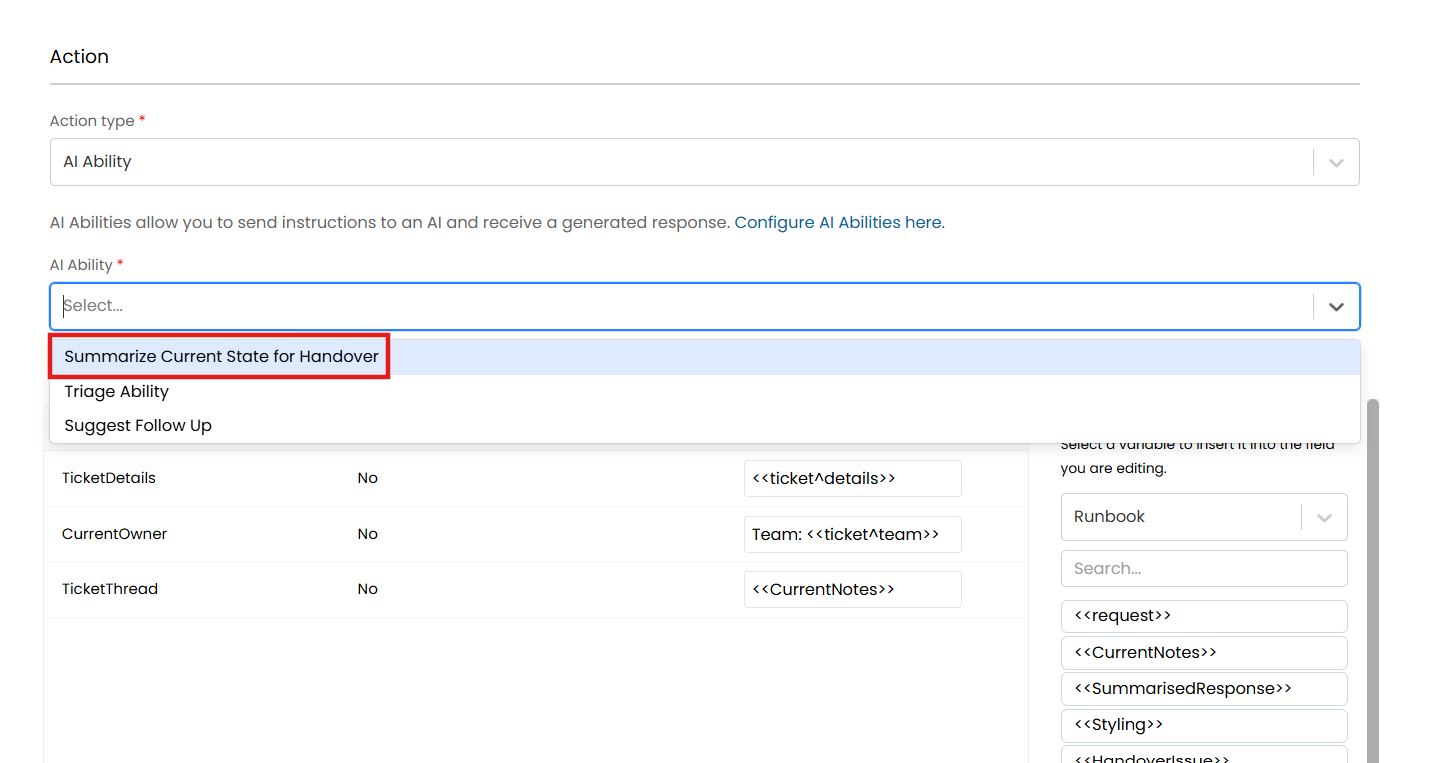
Fig 8. Set the AI ability in the runbook step
The input variables and their values will be pre-populated by the runbook import. If you created different input variables for your AI ability, then you will need to edit the input variables table visible in Figure 8 to reflect your variables and provide the correct values for those variables. For more information on this, see the main guide on AI Abilities.
Note: If you are downloading the runbook from the online repository on version 2.250 or later, this will automatically create the AI ability for you and add it to the runbook step.
Save the step and then save the runbook.
In the "Details" tab of the runbook, you can set the trigger for the runbook in the "Events" section.
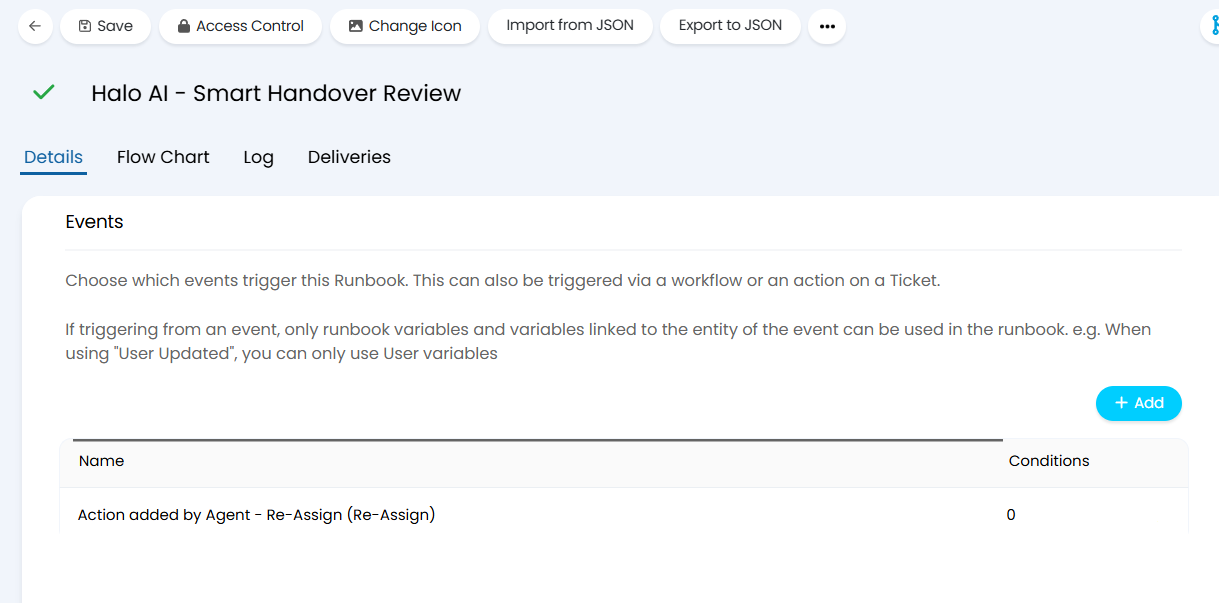
Fig 9. The runbook trigger
In pre-built environments, the trigger is set to be when the "Re-Assign" action is used on a ticket. However, you may have a different trigger action in mind, such as an 'Escalate' action for example.
Once you have set your desired trigger, save the runbook. You now have a fully configured, and fully automated, smart handover review process.