Conversational Agents
- automation
- chat flow
- chat bot
- virtual agents
- AI chat
- custom functions
- azure knowledge search
- knowledge search
- Virtual agent automation
- Trigger runbooks with AI
- attachments via chat
- add file to chat
In this guide we will cover:
- What are Conversation Agents in Halo?
- Using Conversation Agents
- Creating Conversational Agents
- Plugging a Conversation Agent into a Chat Profile
- External MCP Connection
Related Guides:
What are Conversational Agents in Halo?
Conversational Agents are a type of AI Agent. They leverage AI to converse with a user or agent, returning information and carrying out actions based on the user's/agent's input. Conversation Agents are primarily used in conjunction with the Chat Bot, they can be plugged into a chat profile to process/direct the chat, making chat profiles much easier/quicker to set up as AI is used to dynamically determine what information the user would like based on their input, rather than having to create pre-configured steps.
Any tickets, actions, and knowledge base articles created by a Conversational Agent will be "flagged" as AI in the database under the columns: faicreated, aacreated, and kbaicreated of the respective tables. The ID of the Conversational Agent that was used to create the entity can also be identified using the following columns: fvirtualagentid, avirtualagentid, and kbvirtualagentid. This will correlate to the ID in the VirtualAgent table.
Types of Conversational Agents
Two subtypes of conversation agents are available, split based on the intended audience, Operations Agents and Virtual Agents:
- Operations Agents - Used by agents.
- Virtual Agents - Used by users.
The primary difference between these two subtypes are the system functions they each have available. Virtual Agents will have a more limited list of functions available as users will not need to complete the same range of tasks as agents. For example, Operations Agents have the system function to log quick time whereas Virtual Agents do not, as users do not need to log time.
For information on the specific functions available for each type of Conversational Agent, see our guide here.
Using Conversation Agents
Out-of-the-box Agents
As the Conversation Agent functionality uses AI you will need to have the AI module enabled and a default AI connection set (and connected). The Conversation Agents will still work without this enabled but functionality will be limited. To set a default connection head to Configuration > AI > General Settings 'Default AI Connection'.
Hosted customers will have some pre-configured Conversational Agents in their instance already. These each have their own use cases and require minimal setup. These agents use the built in OpenAI connection (regardless of the AI connection you have configured under Configuration> AI), by using them you agree to your data being sent to Halo's OpenAI instance, nothing is trained on and the data is removed after the chat ends. If using your own connection, data will be stored out with Halo. To see the Conversational Agents you have available in your Halo head to Configuration > AI > AI Agents > Virtual Agents/Operations Agents.
Halo Agent App Default Operations Agent v1 - This Operations agent is used for agent app chats, in which an agent can ask the Operations Agent questions, for information and to carry out actions to assist them in resolving tickets.
Halo Chat Default Virtual Agent v1 - This virtual agent is used for end user chats, in which end users can ask the Virtual Agent questions, for information and to carry out actions to improve customer service and accessibility.
Halo Documentation Operations Agent v1 - This Operations Agent is used for agent app chats, to guide Halo administrators in how to use Halo. Agents can ask this Virtual Agent questions about Halo as a platform and they will be provided with information or recommended a knowledge base article(s) to read.
Under the configuration for each of these Agents you will see an 'Instructions' field, which contains the prompt for the AI model to use for this Agent. The out-of-the-box Agent prompts cannot be changed, but if you would like to customise the prompt you can create your own new Conversation Agent.
Data Retention when using the default Conversational Agents
By using any out of the box Conversational Agents (outlined above) you agree to your data being sent to Halo's OpenAI instance. Whether data is retained by OpenAI will depend on if the user using the Conversational Agent is authenticated.
Authenticated Users
Zero data will be retained by OpenAI for authenticated users/agents using the Conversation Agent. Users can be authenticated either by logging into the self service portal or using "Embeddable Chat User Matching" when a chat is embedded on another site.
Unauthenticated Users
When unauthenticated users are using a Virtual Agent, either when users are not logged into your Halo portal, or when the chat is embedded on another site, data will be retained temporarily. OpenAI will hold this data for 30 days for usage monitoring purposes. This data will not be used to train models. This is in line with OpenAI's zero data retention policy here.
Note: If you are creating your own Conversational Agent with your own connection this will not apply, data will be retained based on how your project is configured.
Creating Conversational Agents
You may want to create your own Conversational Agent if you would like to customise the connection method or prompt the Agent uses.
To create a new Conversational Agent head to Configuration > AI > AI Agents > Virtual Agents/Operations Agents > New.
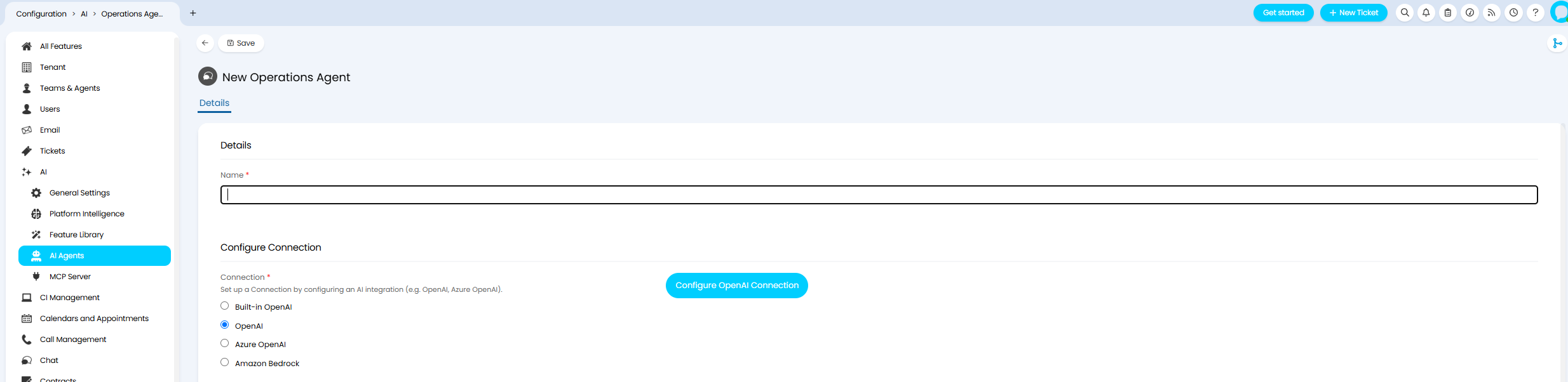
Fig 1. New Conversational agent setup screen
Here, give the Agent a name and select a connection method from OpenAI, Azure OpenAI, built in OpenAI, or (from v2.244+) the Amazon Bedrock connection. Once a connection is selected an additional button will appear to 'Configure ... connection', select this to bring up the connection page. Here, you will need to complete the details required for connection, only once this is completed successfully will the Agent be able to use AI functionality.
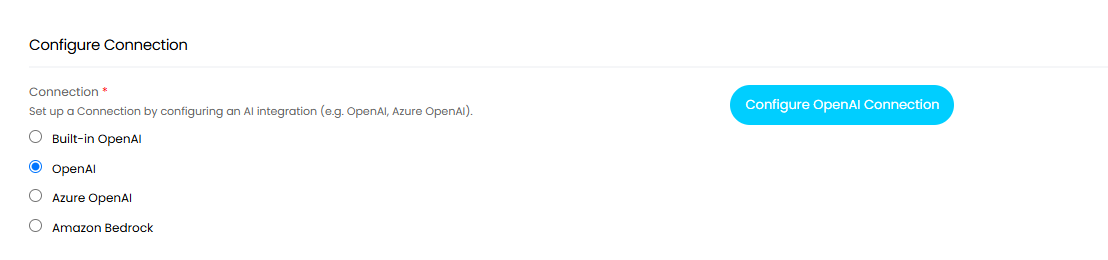
Fig 2. Configure connection for Conversation Agent
Note: If connecting using Azure OpenAI you will need to be on version 2024-05-01 preview or higher.
Once connected under the 'Assistant Fields' section of the setup page you will need to enter the Model/Deployment you are using within the chosen AI model. Then complete the 'Instructions' field.
You will also find a "Temperature" field in this section. The value given here will determine how focused the response will be. Higher values like 1 will make the output more random, using a more creative approach, while lower values like 0.2 will make it more focused and consistent. The default value is 1 which remains in line with behaviour before this setting was introduced.
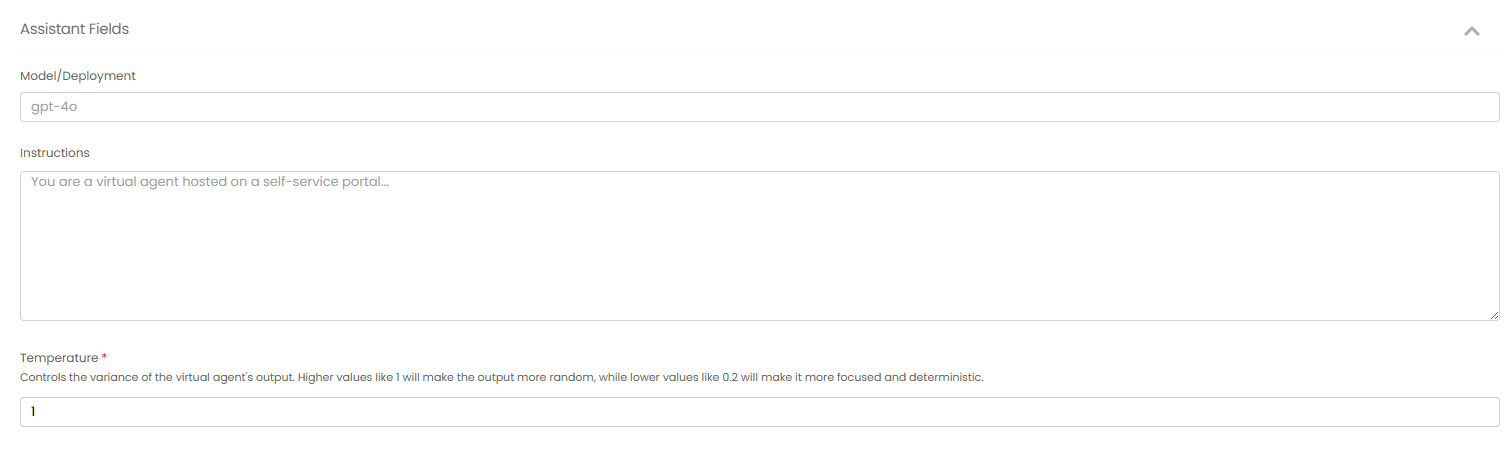
Fig 3. Assistant fields (for OpenAI connection)
The 'Instructions' field should contain a prompt for the AI model to use within this Conversation Agent. This should include information like: what context is the model being used in, who is using this, what tasks the model is expected to carry out, the more information you provide here, the more accurate the Agent chat will be. If you would like the Agent to function similarly to an out-of-the-box agent, but with some amendments, you can copy and paste the instructions from an existing agent into your new agent then make the required changes.
Note: The "Instructions" field does not have any character limit in itself, but will follow any character limit from the OpenAI model you use.
Open AI's Deprecation of the Assistants API/Responses API
On versions prior to v2.252, if connecting using OpenAI, you will have an additional option to choose which API to use.
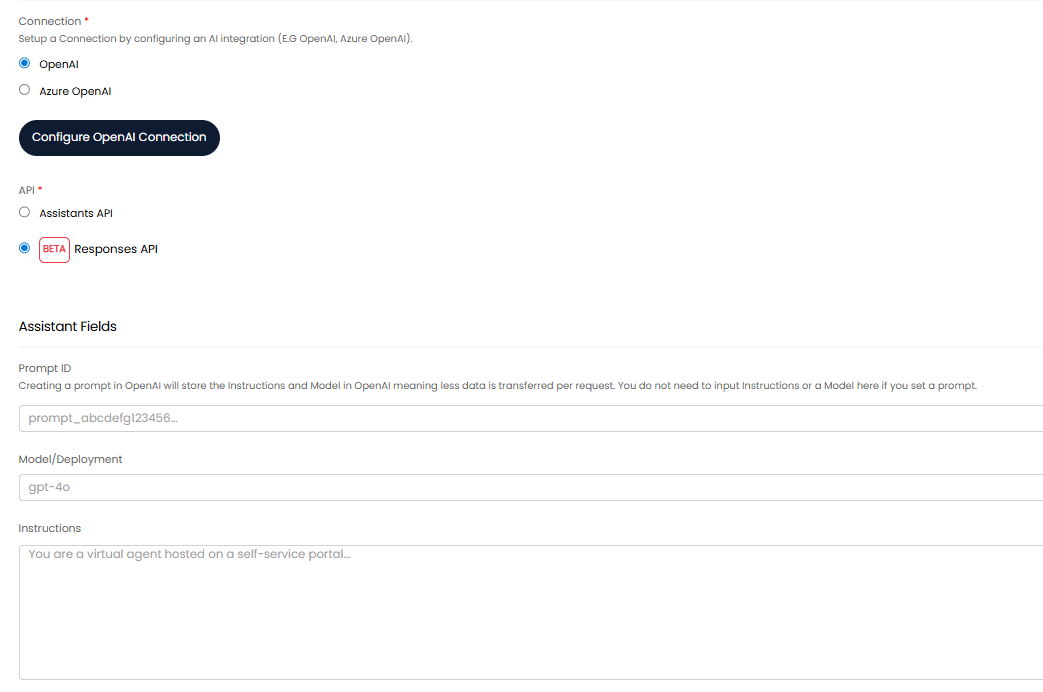
Fig 4. Connecting to OpenAI using the Responses API
Open AI are deprecating the Assistants API from August 2026, therefore new Conversational Agents should be setup using the Responses API. Existing Agents will be automatically migrated to use the Responses API closer to the deprecation date.
If you receive any errors when using a Conversation Agent that is utilising the Assistants API, switch to the Responses API as your first point of troubleshooting as this can often resolve issues.
If connecting using the Responses API you will have an additional option to provide a prompt ID for the Conversation Agent.
Prompt ID - Here, enter the ID of the prompt you would like to provide the AI model when this Conversation Agent is used. This will need to be the ID of a prompt saved within your OpenAI account. The instructions and model should be stored inside the prompt, therefore when this is used you do not need to populate the "Model/Deployment" and "Instructions" field. Using a prompt will reduce the size of the request sent to OpenAI which can be more cost effective.
Allow Functions for the Conversation Agent
Once you have configured the connection for the Conversation Agent you can set which functions the Agent can use. If you would like the Agent to be able to use all available functions enable "Include all system functions". Keep in mind, different system functions are available for Operations vs Virtual Agents.
Additional custom functions can also be configured for the Agent to allow it to excecute automations, or to customise when certain system functions can be used.
For information on the available system functions and creating custom functions, for Conversational Agent, see our dedicated guide: Conversational Agent Functions.
Plugging a Conversation Agent into a Chat Profile
Once you are happy with the Conversation Agent you have set up you can plug this into a chat profile for your agents/users to use.
To do this head to Configuration > Chat > Chat profiles > New > Bot Flow tab. Here a new step will automatically appear, set the step type to be 'Virtual Agent Conversation', once selected you will be able to choose which Conversational Agent is used within this chat.
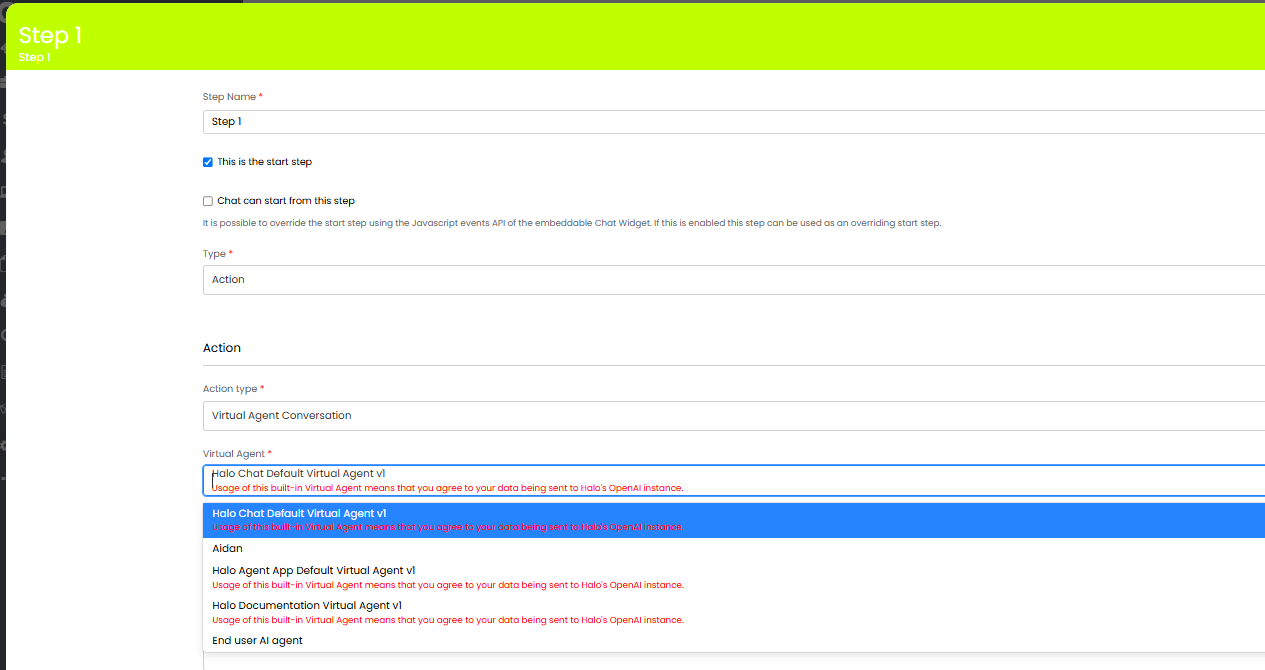
Fig 5. Configuring Chat step to use a Conversational Agent
You will also be able to provide an additional prompt/instructions for the Conversational Agent at this step. This allows you to provide step specific prompts, supporting the use of general Conversation Agents that can be specialised per chat profile step.
You will also need to enter an 'AI Failure Message', this message will display to the user if the AI response fails.
You will need to specify what team the user will be transferred to if the Conversational Agent is prompted to start a live chat with a human agent. You can also specify what ticket type or template is used when the user requests to log a ticket, if the user/agent specifies a particular ticket type/template they would like to log this will override what is set here.
Message Suggestions - Here, you can configure pre-set message suggestions for the user to use within a set context of the chat. These will give the user set options they can choose from, once selected the Conversational Agent will be given a set prompt. This provides your users an easy way to give the agent complex prompts.
- Context - This determines when the suggestions appear, 'viewing a ticket' will only show this suggestion when the user is viewing a ticket. 'Anywhere else' will show this suggestion at all stages of the chat.
- Prompt text - This is the suggestion text that the user will see and can select
- Message text - This is the text that will be posted into the chat, the Agent will provide a response based on this text.
You can also configure criteria for message suggestions in the "Context" of "Viewing a Ticket". This allows you to filter which suggestions can be used based on properties of the ticket. If configured, all criteria will need to be met for the suggestion to appear.
In the Figure 6 example, when a user is viewing a ticket an option will appear on screen called 'Summarise #XXX'. When selected the Conversation Agent will be asked to return a summary of the ticket ($-faultid). Another option will also appear called "Suggest a resolution for this ticket", but this will only appear if set criteria is met.
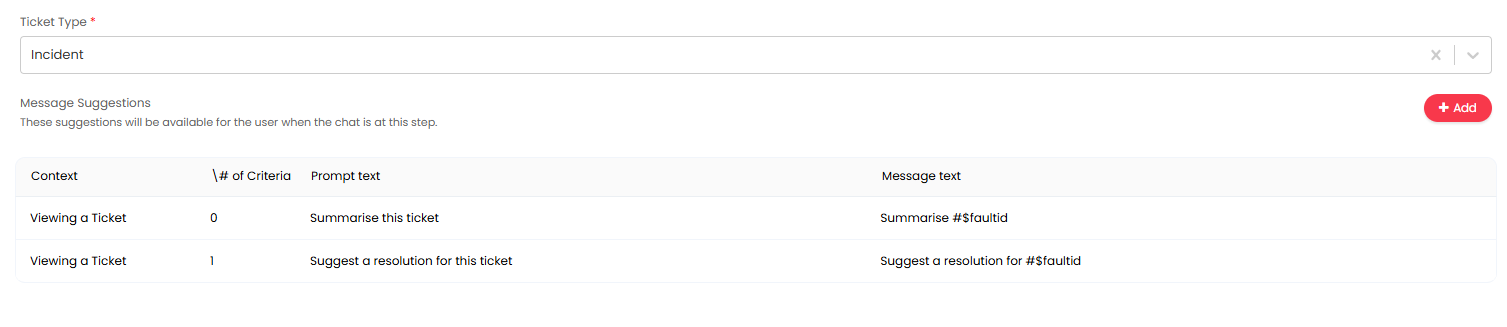
Fig 6. Example message suggestion
View which Chat Profiles the Agent is Used in (v2.250+)
From v2.250+ an "Other Uses" tab is available against Conversation Agents. Here, you can view the chat profiles the Agent is used in, helping you manage/review where an Agent is being leveraged.
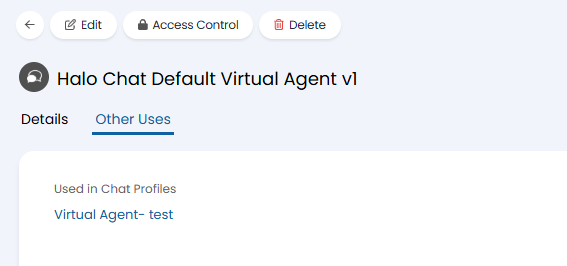
Fig 7. Other Uses Tab against Conversation Agent
External MCP Connection
Conversation Agents (using OpenAI's "responses" API) can connect to third-party MCP servers. This allows the AI to call external tools for other applications. For information on setting up the connection, see the guide linked here.
Once you have configured your connection you will be able to add it to your Conversation Agent using the "External MCP Servers dropdown.

Fig 8. External MCP connection