Improve Search Using AI
- ai
- Azure OpenAI
- Azure AI Search
- AI Search
In this guide we will cover:
- What is AI search?
- Connecting AI models for AI search
- Indexing Articles/Services
- Using AI search
Admin Guides:
Related Guides:
What is AI search?
Search functionality in Halo, including searching for tickets, knowledge base articles, and services, can be enhanced with AI Search. By leveraging AI, the search delivers more accurate results by analysing the context and underlying concepts of the content, rather than relying solely on keyword matching. This functionality is particularly useful for the conversational agents functionality, as it allows AI agents to provide responses to users based on content from knowledge base articles. In this guide we will cover how to set up AI search and how it can be used.
In order to use AI search functionality you will need to connect to a vector search database hosted by Azure AI Search or AWS OpenSearch.
Prerequisites
- Your default AI connection must be Own Azure OpenAI connection
- Or, you must have an AWS OpenSearch tenant
Connecting AI models for AI search
You will only need to follow the sections relevant to the AI model you are using to support the AI search functionality.
Connecting to Azure OpenAI
It is important to make sure your Azure tenant is setup to support the Azure AI area, it may be disabled. If this is the case, please contact Microsoft to get Azure AI enabled for your tenant. There are multiple models which you can deploy in the Azure AI area, so the possibilities are extensive when configuring your own models (AI Models).
Setup Azure AI Search
Head to Configuration > AI > General Settings > Article and Service Embeddings section > select a Vector search database (you will need your own Azure or OpenSearch database). Then hit "Configure Connection", here you will need to enter your connection details.
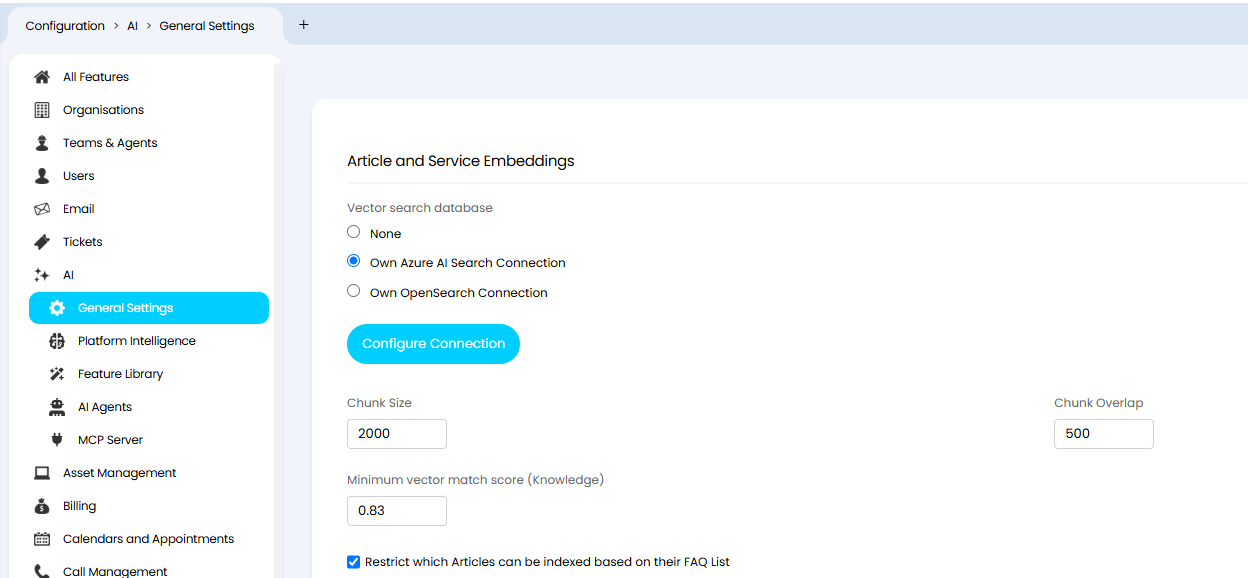
Fig 1. AI Article and Service Embeddings
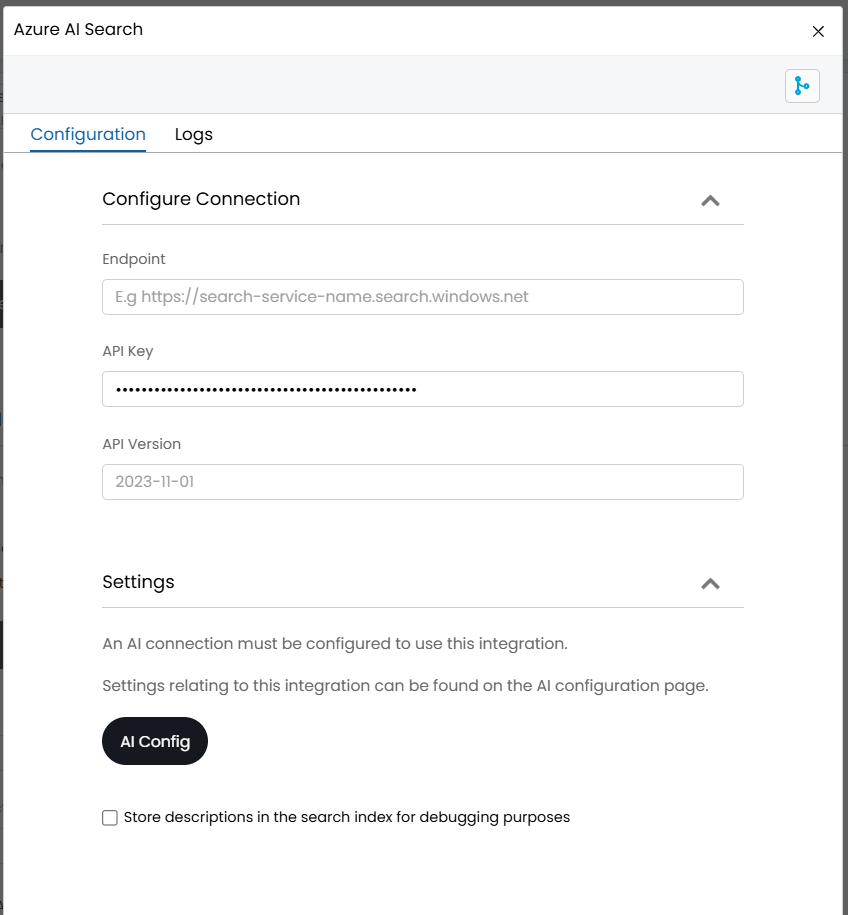
Fig 2. Credential required for Azure AI search
Obtaining Azure AI search Credentials
To obtain the credentials required for the Azure AI Search Integration, you must go to the Azure AI portal on Microsoft Entra and then "Azure AI Services" from here you can create an model for AI Searching.
 Fig 3. Azure AI Services
Within this service you can create a different type of model called an AI Search model. If you do not have the Azure AI search module available yet you will need to configure Azure AI Search within the Azure Admin Console. Please refer to the following Microsoft Documentation https://learn.microsoft.com/en-us/azure/search/search-create-service-portal on how to do this.
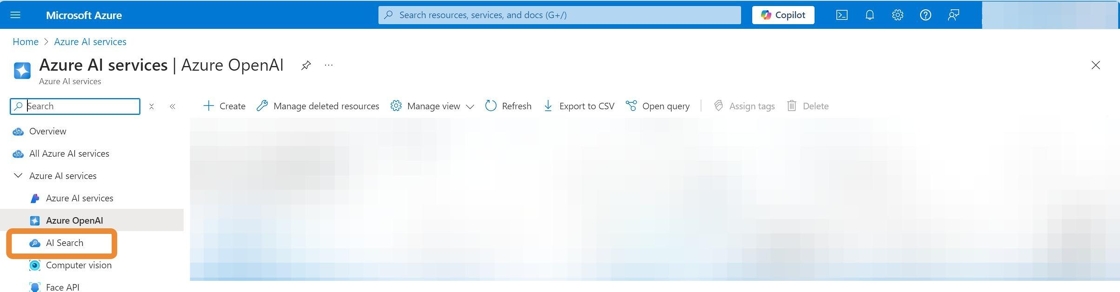
Fig 4. AI search model
After creating the model, navigate to the overview tab and you will notice a URL field, this is the endpoint to use in the configuration input within Halo. Clicking into the JSON view on the overview page, you can find the API Version to input into Halo.
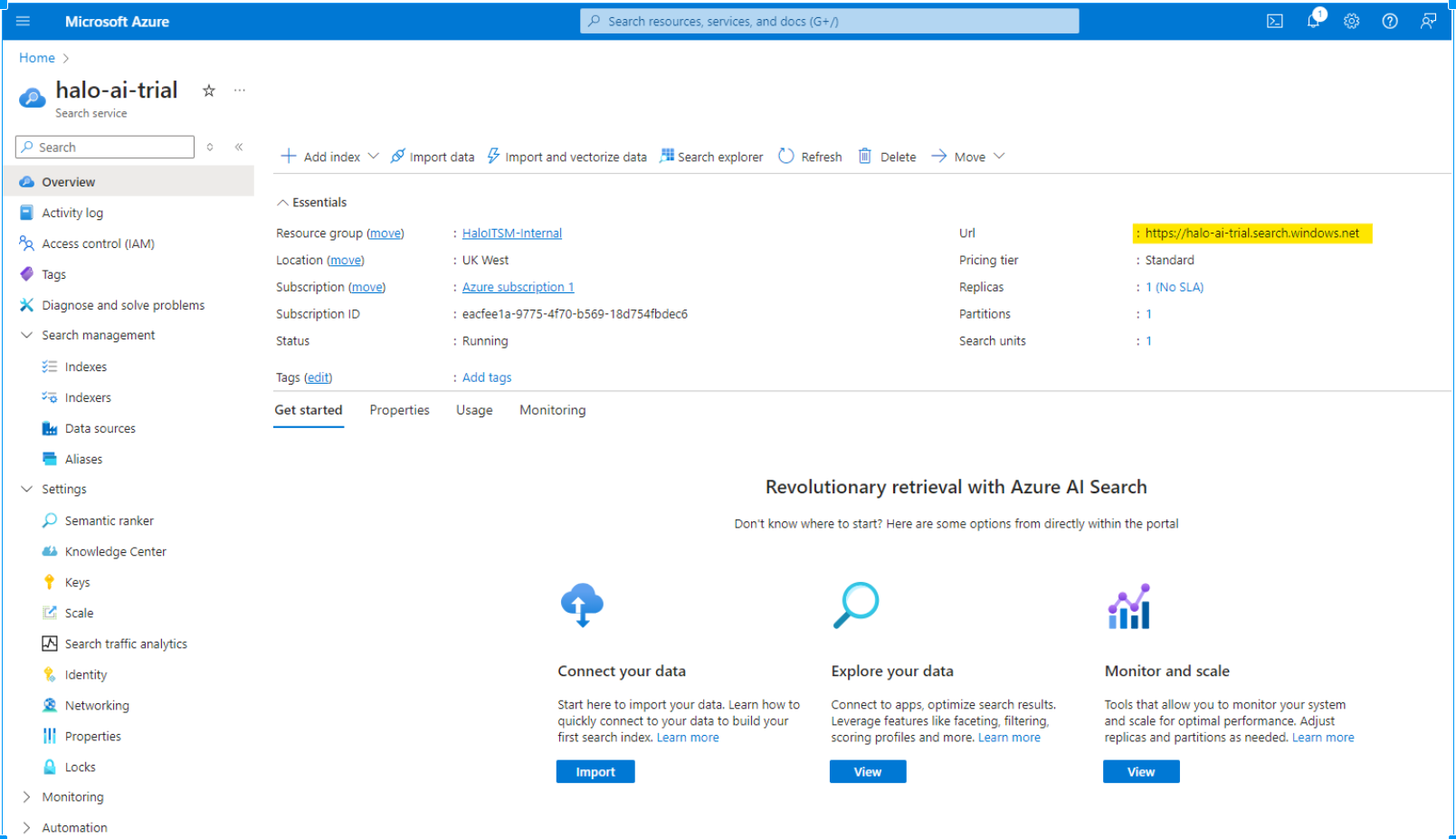
Fig 5. Endpoint URL for Azure AI search
Under the 'Keys' tab you can obtain the API key required.
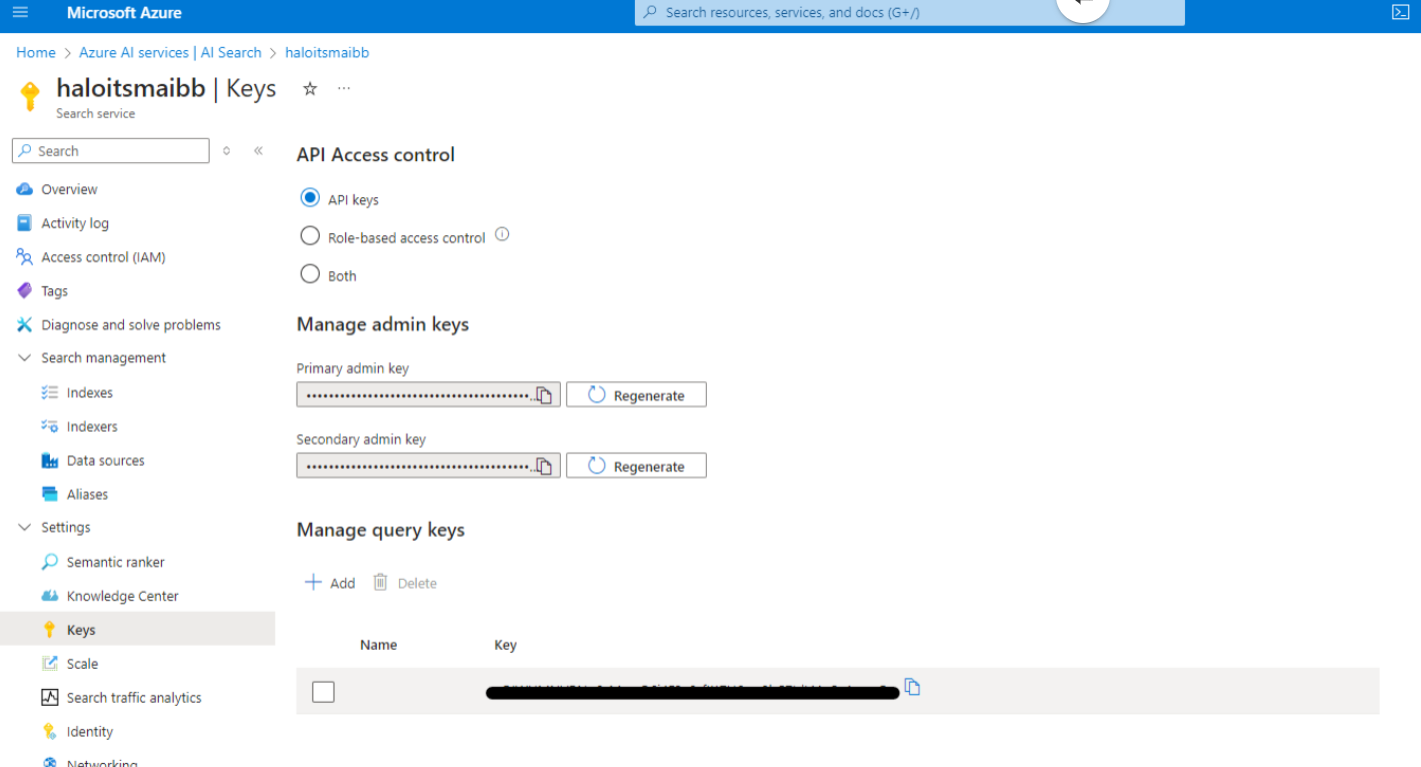
Fig 6. API key
You can now enter these credentials into Halo to connect.
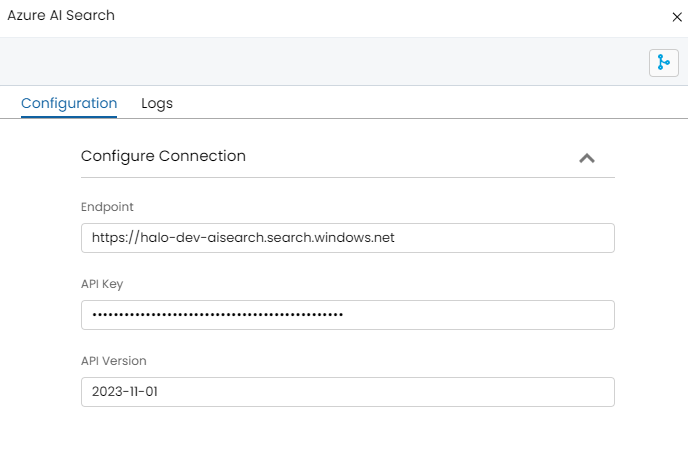
Fig 7. Completed credentials for Azure AI search
Connecting to AWS OpenSearch
Follow this section if you want to use AWS OpenSearch to support AI searching in Halo.
Head to Configuration > AI > AI Knowledge Search in Halo. Select OpenSearch as your "Vector search database", then hit "Configure OpenSearch", here you will need to enter your connection details.
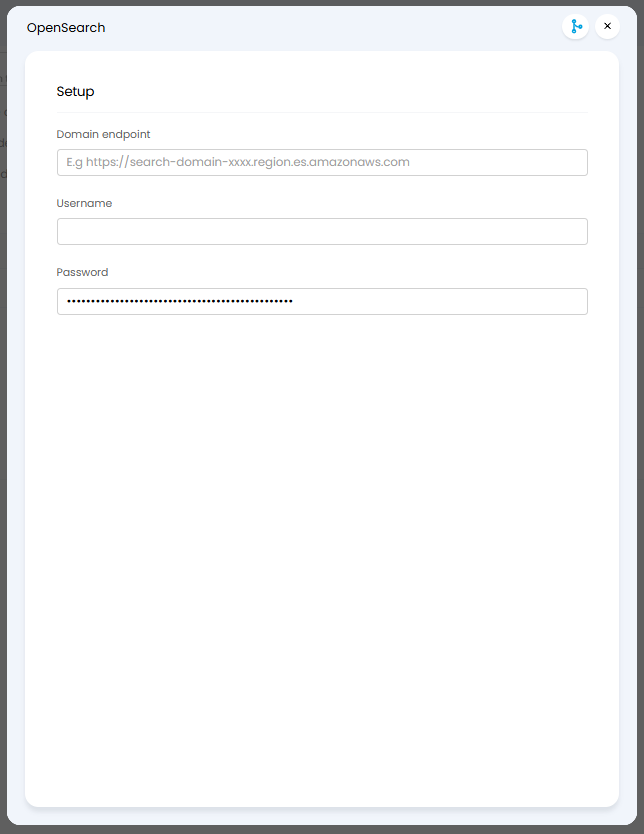
Fig 8. Credentials required to connect to OpenSearch
Domain endpoint - Here you will need to enter the Domain endpoint of your AWS OpenSearch domain. This can be obtained from your AWS OpenSearch Service console.
Username/Password - Here, enter the username and password of the master user for your OpenSearch. This will need to be an internal database user, not an IAM ARN user.
Indexing Articles/Services
Once configured, the indexing of all articles and services currently in the database can be scheduled. When articles and services are created, edited or deleted, the search indexes in are automatically updated with the embeddings in the background. But for historical articles/services to be indexed you can schedule this using the 'Index articles' and 'Index Service Catalogue' button.
When manually running indexing you may receive a pop-up stating it is scheduled to run at a certain time.

Fig 9. Index scheduling pop-up
You can force the initial indexing by going to Configuration > Advanced Settings > Backend Service Monitoring > "Automation Log" tab > filter to "Upcoming".
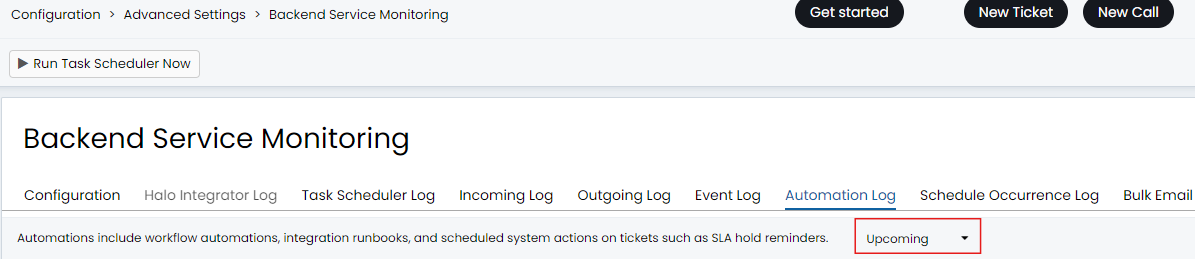
Fig 10. Automation log
Right click on the indexing row that will appear in the table and then click "Retry".
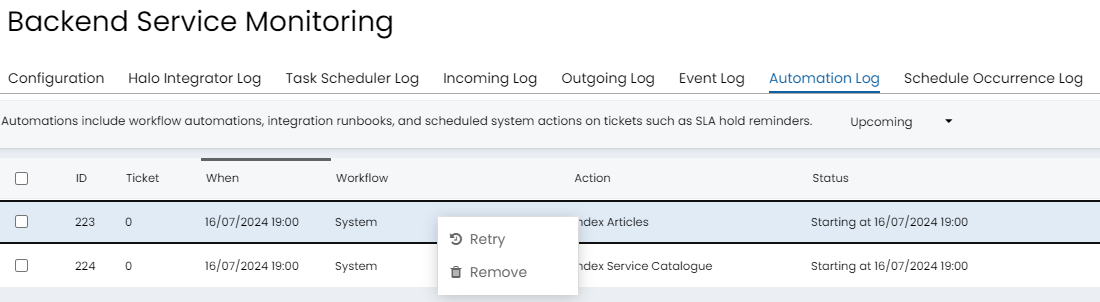
Fig 11. Retry (indexing) automation
Configuring AI Search
Settings are available for customising how AI search functions under Configuration > AI > General Settings > AI Search Section. 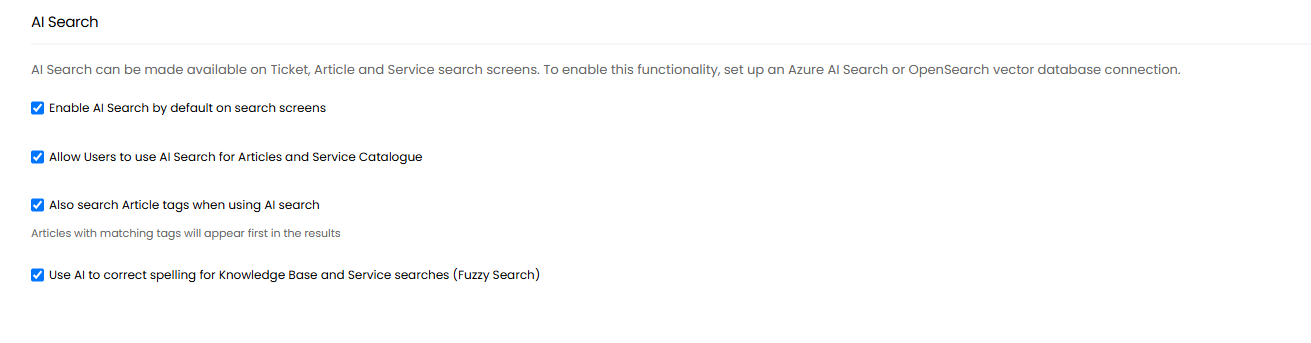
Fig 12. AI Search Settings
Enable AI Search by default on search screens - When enabled, all search screens will use AI search by default. AI search can still be disabled manually against each screen upon search.
Allow Users to use AI Search for Articles and Service Catalogue - (v2.238+) When enabled, users will be able to use the AI search functionality to find articles and services.
Also search Article tags when using AI search - When enabled, the search will include article tags, and will show articles with matching tags at the top of the results list.
Use AI to correct spelling for Knowledge Base and Service searches (Fuzzy Search)- (v2.238+) When enabled, The AI Search will use fuzzy searching to correct spelling for Knowledge Base and Service searches.
Using AI Search
The search screen then allows you to do an AI search using the AI button in the search bar. When active, all filters are cancelled and search as you type is disabled, and the search becomes text only. An embedding is created for the search term, and an AI similarity search is run in Azure AI Search. The match score is also shown in the results.
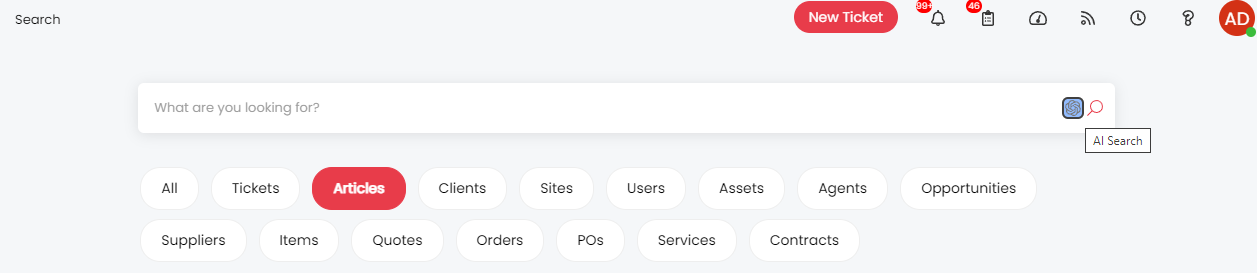
Fig 13. AI search in search bar
For example searching for "Signing In" doesn't return any search results when I do not have AI search enabled.
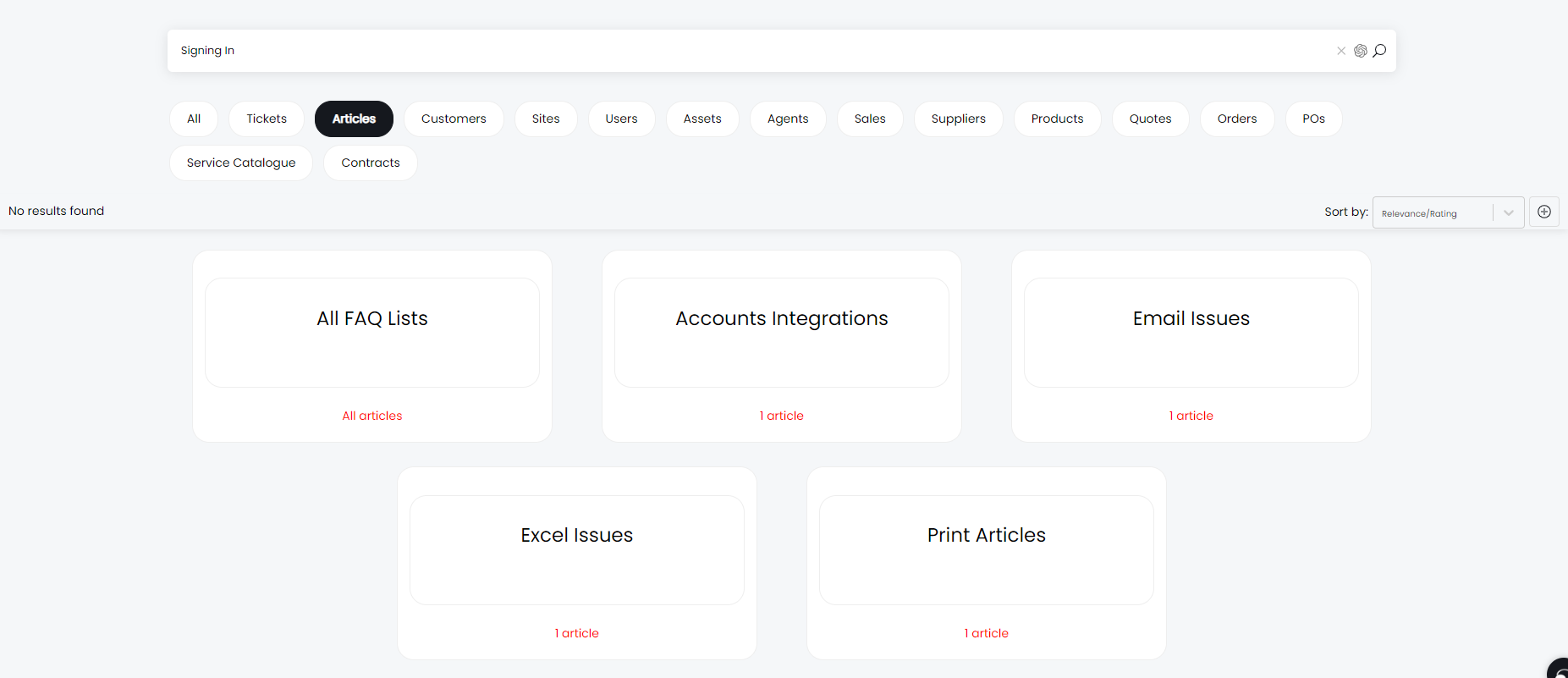
Fig 14. Searching with AI search disabled
When enabling AI Search, more results are returned, the similarity score is also visible underneath the article views. These particular articles have been returned as they meet the minimum vector match score with the search prompt.
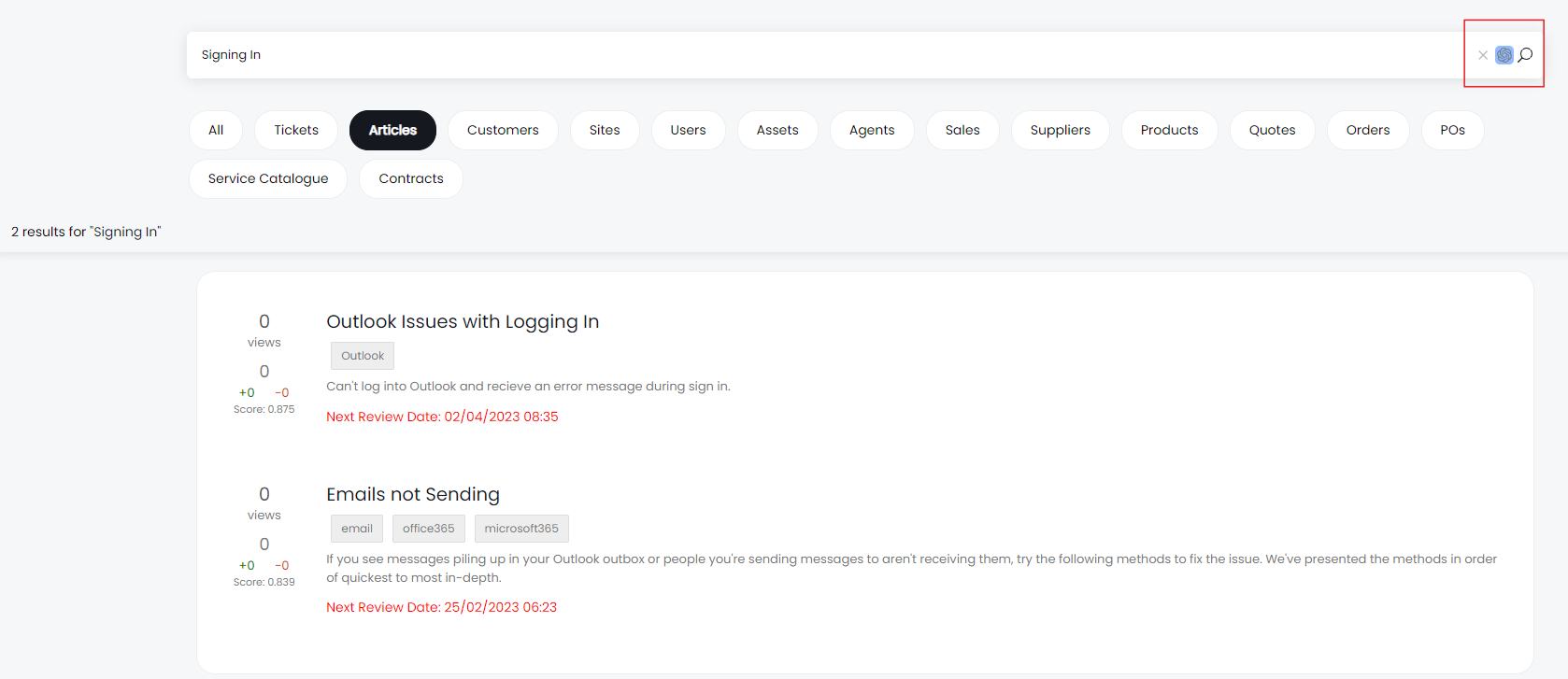
Fig 15. Searching with AI search enabled
The main use case for this functionality is the Conversation Agents feature, which uses AI Search to search the knowledge base for answers to users' queries. Conversation Agents can be used without AI Search, but there will be limitations with the search results. For more information on using conversation agents see our dedicated guide here.
If the article suggestions are not displaying in the problem resolution finder, please enable the AI Insights within the ticket types forms tab:
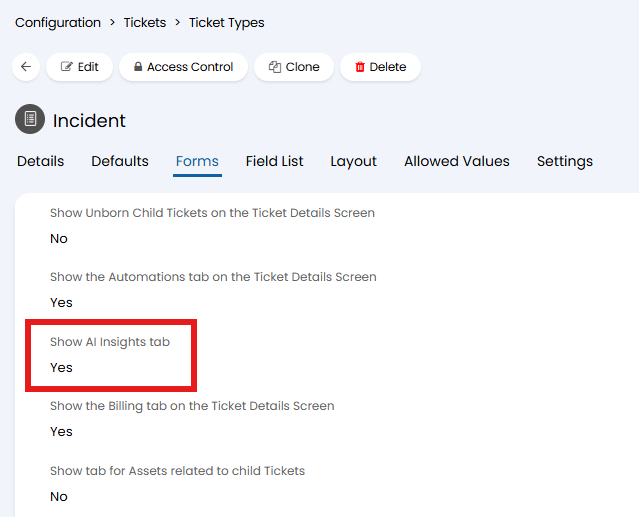
Fig 16. Enabling the AI Insights Tab