Vector Search Databases and Embeddings (used for AI Search)
- Vector store
- Vector DB
- Azure AI Search
- AI Search
- Opensearch
- vector database
- embeddings
- embedding model
In this guide we will cover:
- What is a Vector Search Database?
- What are Embeddings?
- Indexing
- Vector Search Database Options
What is a Vector Search Database?
A vector search database is a database that is designed to store and search embeddings.
A vector search database is a core component of AI searching, therefore is required to complete any AI search functionalities in Halo.
What are Embeddings?
Embeddings - Numerical representations of data used to find items that are semantically similar. In Halo embeddings can be created for tickets, articles and services. Allowing search based on semantic meaning rather than exact word/string matches. When searching, embeddings are compared to see how similar the two are.
Embedding Model - The embedding model you are using will determine how embeddings are created.
When connecting AI to Halo you will be need to choose which embedding model to use, when using Halo's AI connection additional embedding models are available from v2.244+. For information on how to handle switching embedding models, and choosing a model from Halo's embedding model options see the section "Choosing and Switching Embedding Models" of this guide.
Indexing
Indexing is the process of organising and storing embeddings so they can be searched quickly and accurately. This indexing takes place within the vector search database, where the embeddings are stored.
In Halo, indexing means tickets, knowledge base articles, or services are scanned, broken down into searchable pieces (like words, phrases, or embeddings), and added to a database. This makes it much faster for AI or search tools to find relevant matches later.
When initially setting up AI functionality in Halo, historic tickets, knowledge base articles, and services (if being used for semantic search in chatbots) will need to be indexed. All new tickets logged after the initial bulk indexing will be automatically indexed in the background (if configured to do so). After changing the method, vector search database, or embedding field, we would recommend re-indexing recent tickets.
Keep in mind indexing tickets requires pre-purchased tokens (if not using 'Default AI Connection' as your Default AI Connection). Therefore, the more tickets/articles/services you index (and the more data associated with each) the more tokens will be used, increasing the associated cost.
Tokens - Tokens are the small text units (pieces of words or symbols) that AI models process and charge for. Each token processed will be chargeable. You will need to purchase tokens before you can begin using your AI connection, costs depend on how many tokens your input and output contain.
Indexing Tickets
Indexing tickets is required in order to use Halo's AI Suggestions (Tickets and Articles) functionality.
Before you can index tickets you will need to choose a vector search database to store ticket embeddings in under Configuration > AI > General Settings, shown in Figure 1.
From v2.250+, OpenSearch serverless is now an option for Vector Search Database via the "Built-in OpenSearch Connection" option . This uploads vectors to Halo's own AWS OpenSearch instance, meaning your own OpenSearch connection is no longer required. If you are currently using Halo Vector Store v1 as your database, it is recommended to switch to the built-in OpenSearch connection and reindex due to improved performance when handling large amounts of data. Please note that data for all regions except ZA will be processed in its dedicated region (UK and Europe in EU, US in US). Due to AWS not provisioning OpenSearch serverless in the ZA region, data is routed to the EU for processing. The data is then stored locally in the ZA region.
Disclaimer: Due to the way in which OpenSearch serverless handles data,
Note: After changing the vector database records will need to be re-indexed.
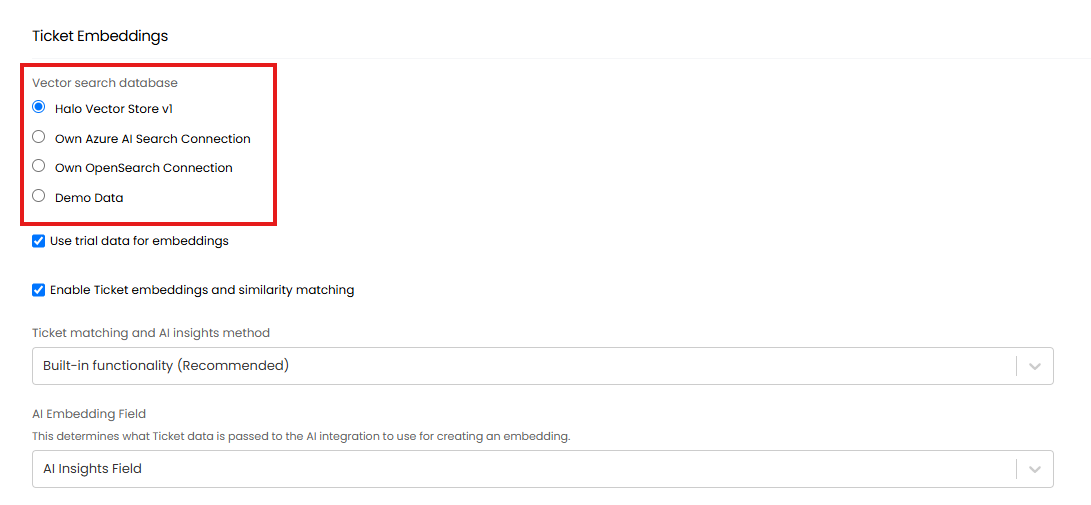
Fig 1. Ticket vector search database
To complete a bulk index of historic tickets, head to Configuration > AI > General Settings and use the 'Index Tickets' action. This will preview the options shown in Figure 2.
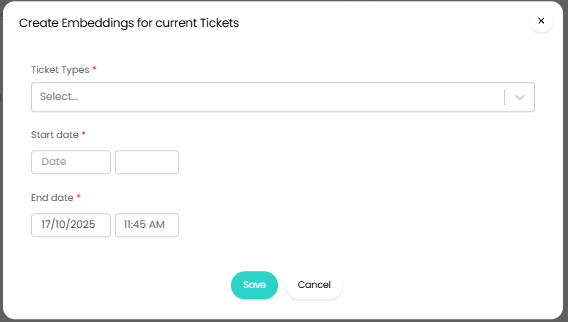
Fig 2. Create embeddings to index tickets
You will need to choose which ticket types should be indexed, along with a start date and an end date for the indexing range. The start date is based on the date and time the ticket was originally logged in your Halo instance. Tickets logged between these dates will be indexed.
Once saved, the indexing automation will be scheduled to run outside of working hours. This will always be scheduled to run at 6pm local time, with the time zone determined by the time zone set under Configuration > Advanced settings. This will be set to your server time zone by default.

Fig 3. Indexing scheduled
You do have the option to run this manually by heading to Configuration > Advanced Settings > Backend Service Monitoring > Automation Log > 'Upcoming' filter. You will then see the entries for the scheduled automations, and if you right-click, you will be presented with the option to retry, which will run the automation immediately.
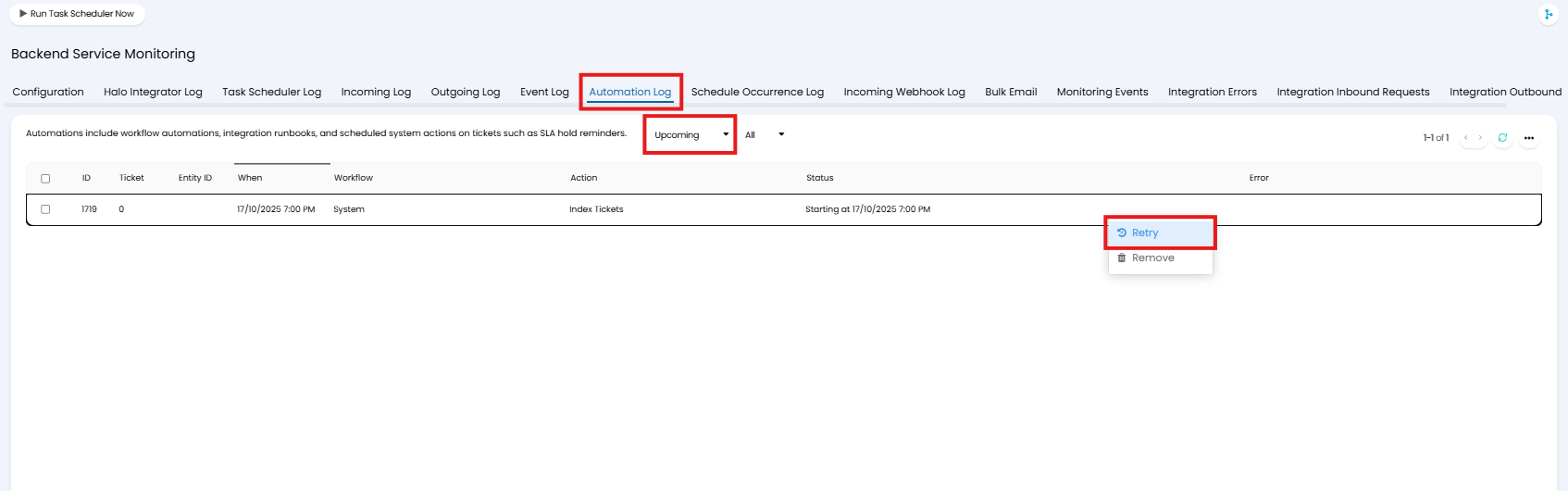
Fig 4. Run Indexing immediately
For more information on running ticket indexing, and customising which tickets are indexed, check out AI Suggestions (Tickets and Articles).
Indexing Knowledge Base Articles and Services
Indexing articles is required in order to use AI Suggestions (Tickets and Articles) functionality.
Before you can index articles (and services) you will need to choose a vector search database to store articles/services embeddings in under Configuration > AI > General Settings > Article and Service Embeddings section, shown in Figure 5.
From v2.250+ the option "Built-in OpenSearch Connection" is avalible. This uploads vectors to Halo's native OpenSearch instance, meaning no additional setup is required. It is recommended to switch to the built-in OpenSearch connection to stay up to date with the latest features embedding related features if you are currently using Halo Vector Store v1.
Note: After changing the vector database records will need to be re-indexed.
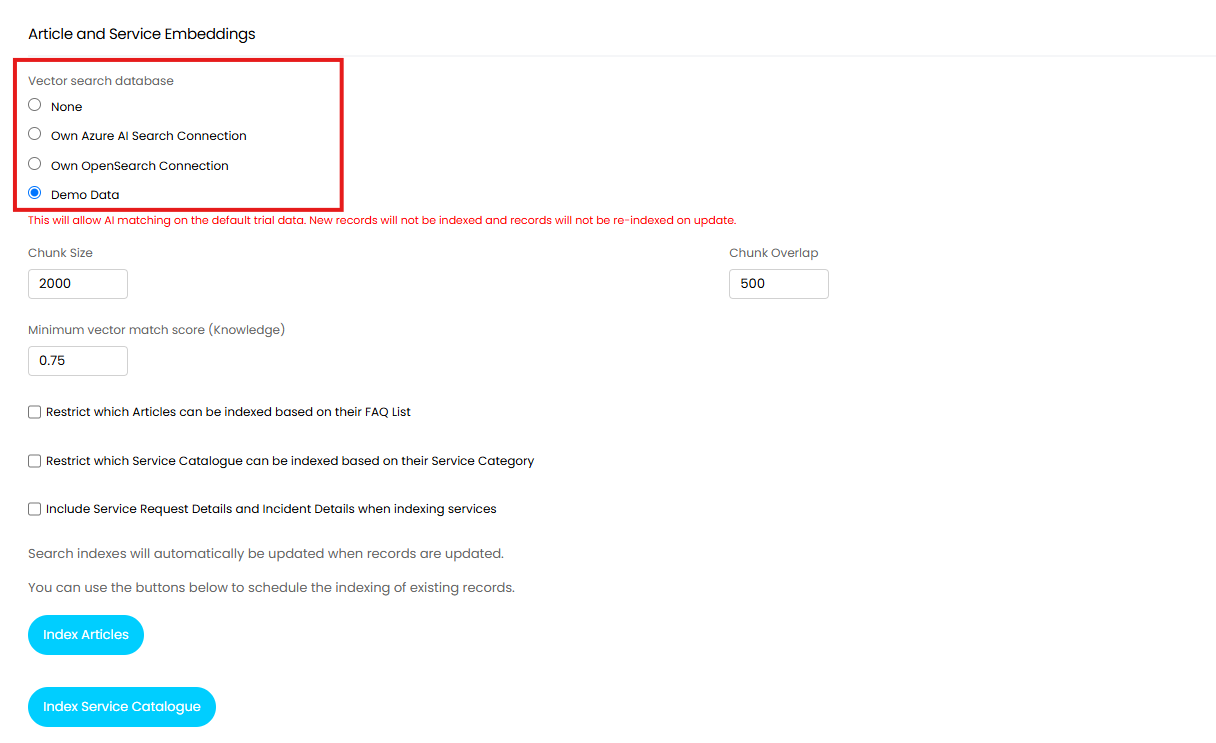
Fig 5. Article/services vector search database
To complete a bulk index of knowledge base articles, use the 'Index Articles' button (Figure 6).
To complete a bulk index of services, use the 'Index Services' button (Figure 6).
This will trigger a bulk indexing job for the selected entity. Each button schedules an automated background task.
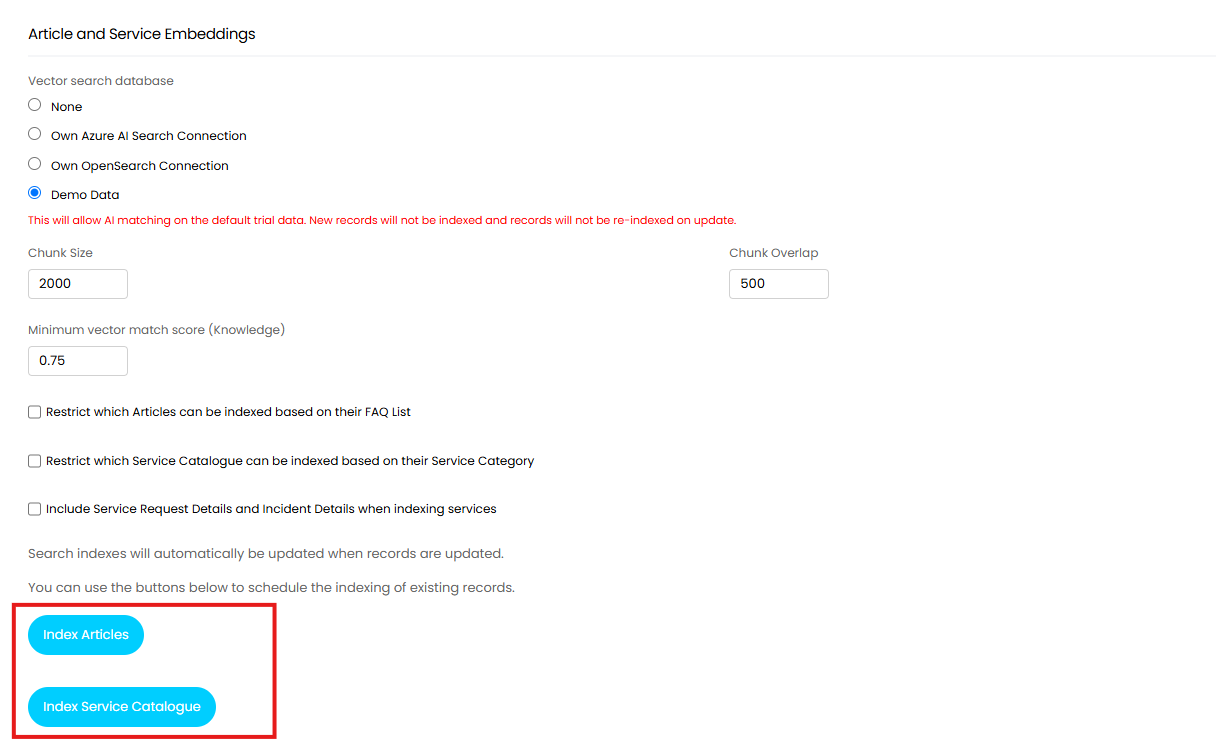
Fig 6. Index Articles/Services
Similarly to when indexing tickets, this will be scheduled to take place out of hours, but this can be forced to run earlier under Configuration > Advanced Settings > Backend Service Monitoring > Automation Log.
After the first index is run, the search indexes will automatically be updated when records are updated (provided 'Create Embedding Scores for Tickets' is enabled').
From v2.242+, the setting "Include Service Request Details and Incident Details when indexing services" can be enabled to include the request and incident details on a service as part of the embedding. This means they will be accounted for in AI search, so if a request or incident label matches the search term, the parent service will appear in the results.
Additionally from v2.242+ services can be excluded from indexing based on their service category, by selecting the checkbox "Restrict which services are indexed based on their service category". Selecting this will show a field against each Service Catergory where you specify whether to allow indexing. For a service to be eligible for indexing, it must be directly under a category with indexing enabled.
For more information on running indexing, and customising which articles are indexed, check out AI Suggestions (Tickets and Articles).
Vector Search Database Options
Halo Vector Store V1
Halo Vector Store V1 is Halo’s built-in vector search database. It allows your tickets to be indexed directly inside Halo, making them searchable and usable for AI features without the need for an external service like Azure AI Search. When using this vector store the text-embedding-ada-002 embedding model will be used to generate embeddings.
Important: This vector search database can only be used for ticket searching and not knowledge searching.
Pros:
- No additional connection needs to be configured.
Cons:
- Restricted AI functionality is available when using this database. Knowledge base searching (article matching) cannot be used when using this database.
Built-in OpenSearch (v2.250+)
Built-in OpenSearch is Halo’s second built-in vector search database. It allows your tickets to be indexed directly inside Halo, making them searchable and usable for AI features without the need for an external service like Azure AI Search.
Pros:
No additional connection needs to be configured.
- Tickets, articles and services can be indexed allowing you to utilise all of Halo's AI functionality.
Azure AI Search
Azure AI Search uses Microsoft's vector search database. Tickets, articles and services will be indexed outside of Halo with both ticket and embedding data stored within your Azure search service. When using this vector store you can choose which embedding model will be used to generate embeddings.
Pros:
- Tickets, articles and services can be indexed allowing you to utilise all of Halo's AI functionality.
Cons:
- Requires a connection to an Azure AI search service
Create an Azure AI Search service (for Azure AI search)
For information on how to setup an Azure AI search service in Azure checkout Microsoft's guide: Create an Azure AI Search service in the Azure portal.
Ensure the service you setup allows authentication using API keys.
Once setup obtain:
- Admin key (Found under Settings> Keys section within your search service).
- Endpoint URL (displayed on the Overview page).
These will need to be plugged into Halo to authorise the connection between Halo and your Azure AI Search service. To plug these details in, head to Configuration > AI > General Settings> Select 'Azure AI Search' as the 'Vector search database' > Configure Connection.
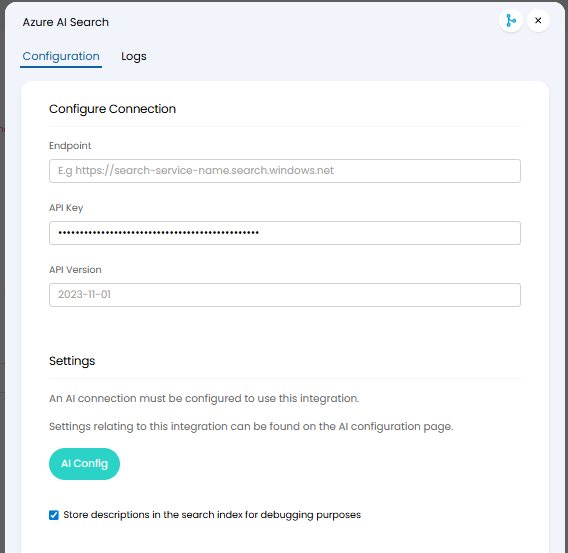
Fig 7. Azure AI connection details
AWS Opensearch
AWS Opensearch uses AWS's vector search database. Tickets, articles and services will be indexed outside of Halo with both ticket and embedding data stored within your opensearch domain. When using this vector store you can choose which embedding model will be used to generate embeddings.
Pros:
- Tickets, articles and services can be indexed allowing you to utilize all of Halo's AI functionality.
Cons:
- Requires a connection to an AWS Opensearch search service
Connecting
Setting up a connection to your own AWS OpenSearch service will require a Domain endpoint URL, Master Username, and Password, we outline how to obtain these below:
To create a new search service within AWS, start by signing in to the AWS Management Console > create a new OpenSearch Domain > search for OpenSearch Service > Create domain.
- Choose a deployment type (usually Production for live environments or Development and testing for non-production).
- Enter a Domain name (e.g., halovectorsearch).
- Under Deployment options, choose your preferred AWS Region.
- Configure data nodes and storage as needed (defaults are fine for testing).
- Under Access policy, select a configuration that allows secure access from Halo (either by specific IPs or IAM roles).
- Click Create to deploy your OpenSearch domain.
Once the domain is action retrieve the connection details required.
Go to your OpenSearch domain dashboard in AWS.
- Copy the Domain endpoint URL — this will be used as the connection endpoint in Halo.
- Note down the username and password associated with your OpenSearch domain (these are typically created during setup, or you can manage them under Security > Master user).
Now plug your AXS Opensearch credentials into Halo to authorise the connection.
In Halo, navigate to Configuration > AI > General Settings > select 'OpenSearch' as the Vector search database > Configure OpenSearch > Enter the following details from your AWS OpenSearch domain:
Domain Endpoint - This will be your copied OpenSearch endpoint URL.
Username - The OpenSearch master username.
Password - The corresponding password
Save your configuration to establish the connection.
Switching Embedding Models
Each vector search database has several embedding models it can use (excluding Halo Vector Store v1), the embedding model you choose will impact how embeddings are created and therefore how matches are made. When changing the embedding model you are using, newly generated embeddings will be incompatible with any existing embeddings. Therefore you will need to clear your vector search database before switching models, otherwise you will experience inconsistent matching/results.
Halo Vector Store v1 uses the "text-embedding-ada-002" model, this is the only model available for this database.
Note: If switching vector search databases you will not need to clear embeddings as the new database will not contain your previous embeddings, your previous database will not longer be checked.
From v2.244+ you can clear embeddings from the "Azure AI Search" and "OpenSearch" vector search databases from your Halo instance. Making it easier to handle switching embedding models.
Clear embeddings using the "Delete Ticket/Article/Service Vectors" button available on the AI General Settings configuration page, under the respective embeddings section.
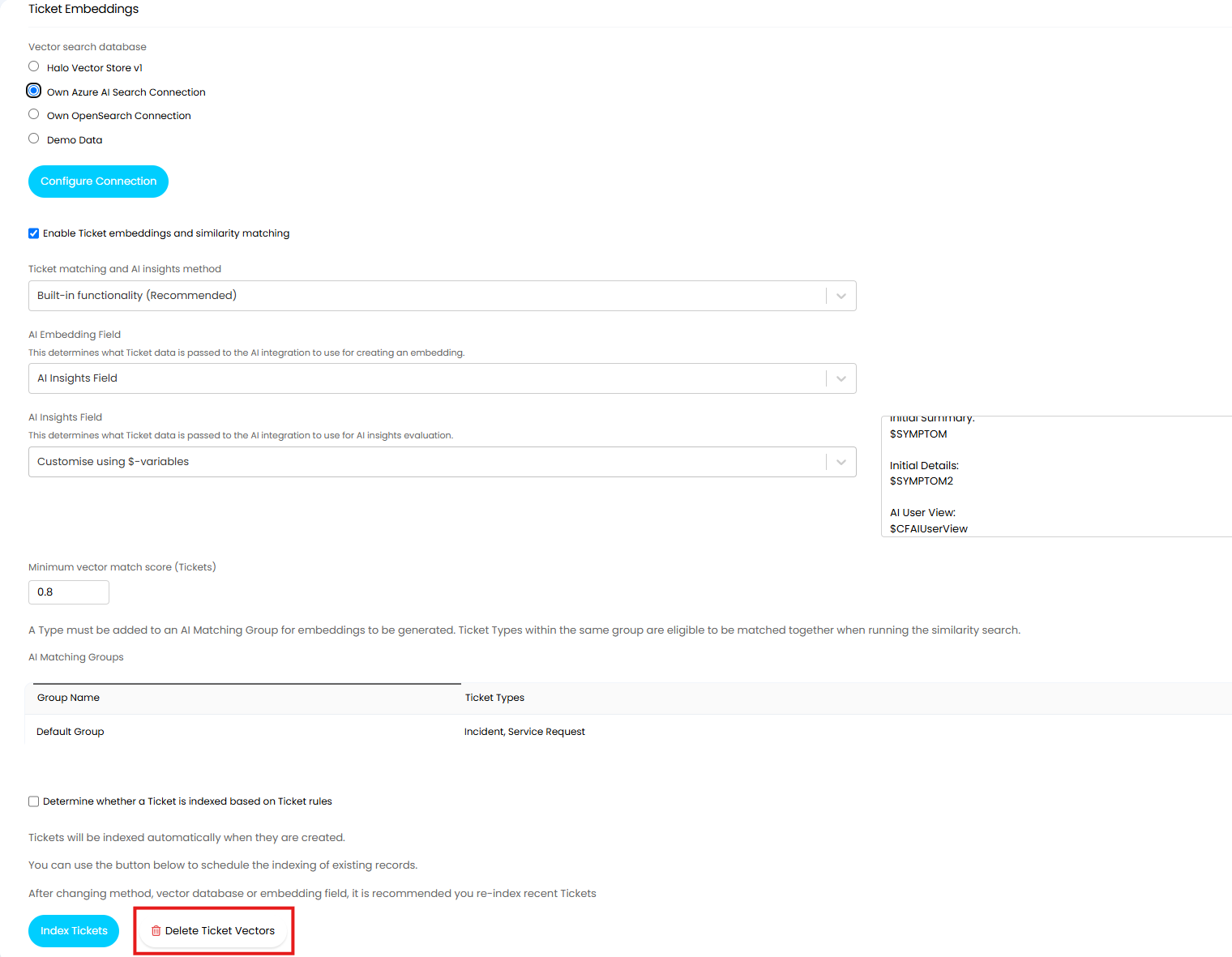
Fig 8. Button to Delete embeddings from your connected Vector Search database
Important: Deleting is permanent and irreversible.
Once you have cleared your vector search database all entities must then be re-indexed with the new model.