AI Ticket Clustering
- indexing
- ai
- Clustering
- cluster runs
In this guide we will cover:
- What is AI Ticket Clustering?
- Clustering Runs
- Viewing & Using Ticket Clusters
- New Clustering Runs & Archiving
- Reporting on Clusters
Related Guides:
Configuration Settings Guide:
Ticket Clustering is now a part of Halo's AI functionality. It can only be used if you have indexed Tickets in the system, it can work with the default Halo connection but it is advisable to have Azure AI Search as your vector storage method.
Note: If you would like to use AWS OpenSearch instead of Azure AI Search, but you do not have your own instance, you can request OpenSearch credentials from Halo support.
What is AI Ticket Clustering?
Halo's AI Ticket Clustering feature automatically groups your indexed Tickets into Clusters based on their embedding scores, using a KMeans algorithm.
"KMeans" works by sorting Tickets into a set number of groups (K), where Tickets within the same group are as similar to each other as possible. You define how many Clusters you want, for example 5, and the algorithm uses each Ticket's vector scores to determine which Tickets belong together.
Each Cluster is assigned an AI-generated description and suggested resolution, derived from the most similar tickets within that Cluster. This gives Agents immediate context on what the Cluster represents, any trend it reflects, and how similar issues have been resolved historically.
The algorithm runs server side within Halo's backend services against the embeddings stored in your configured vector database, meaning no data leaves your environment during the Clustering process beyond what is already indexed.
This Clustering helps teams to auto-route Tickets, spot trends, and resolve Tickets faster without having to manually sort through or report on similar matched Tickets found by the AI - the Clusters will already be present on the Ticket, allowing for swift action to be taken as soon as the Ticket comes in.
Cluster Runs
To create your Clusters in Halo, you must set up a "Clustering Run" which will determine certain parameters of your Clusters.
Before creating your first Cluster, you must first ensure that you have a working AI connection in your Halo environment, and that you have Indexed your Tickets - having embeddings for Tickets is a requirement for a successful Clustering Run on those Tickets.
For guidance on setting up AI in Halo and Indexing Tickets, please refer to relevant documentation that can be found through this guide: AI Guides.
To create a new Cluster Run, navigate to Configuration > AI > Platform Intelligence and scroll to the "Ticket Clustering" section. Here you will see an option to "Enable Ticket Clustering".
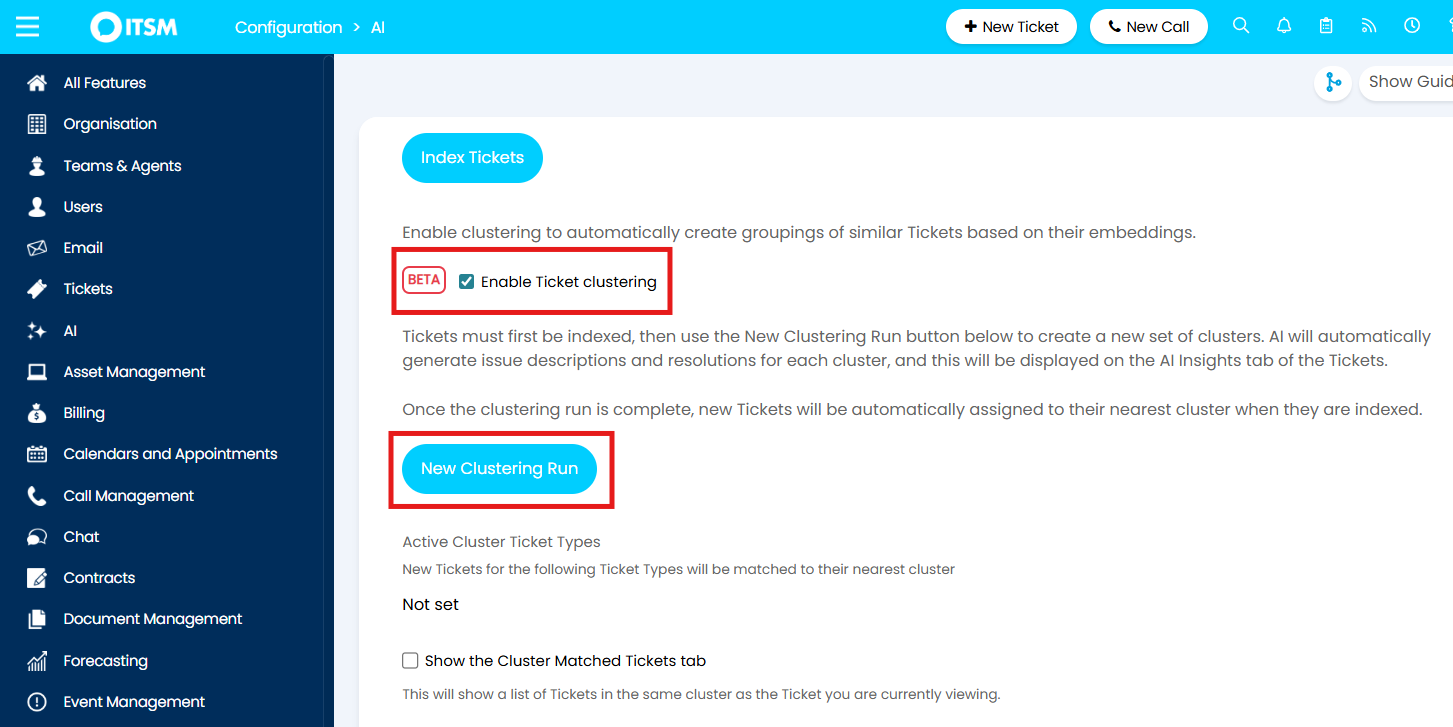 Fig 1. Enabling Ticket Clustering and creating a new Cluster Run
Once Clustering is enabled, you can select the "New Clustering Run" button to create a new set of Clusters.
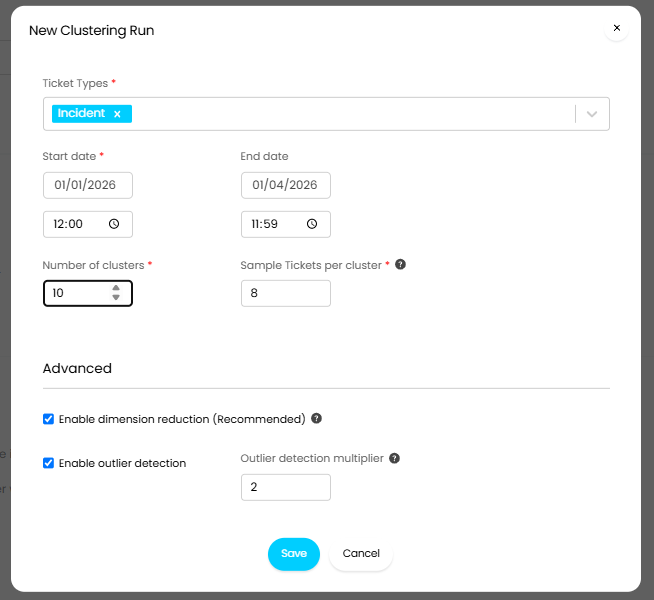
Fig 2. Setting up a new Clustering Run
When setting up a new Clustering Run, you will need to configure how clusters should be generated.
Ticket Types - Choose the "Ticket Types" that Clusters will be generated using - for example, if I set the "Incident" Ticket Type, then only Tickets of the Incident Ticket Type will be in the Clusters created from the run. If I selected Incidents, Problems and Alerts, then a Cluster created from that run could contain Tickets of all three Types.
Start date/End date - Determines the date parameters for which Tickets will be included in the run. These dates are based on when the Tickets were logged in the system.
Number of Clusters - Defines how many groups your Tickets will be sorted into. The right number depends on what you are trying to achieve, so it is worthwhile thinking about your use case before deciding this number. For example, if you are clustering Service Requests or Change Requests, where Tickets tend to follow a predictable, structured pattern, then a good starting point is to match the number of Clusters to the number of distinct processes you have. This way each Cluster is likely to represent one process. On the other hand, if you are Clustering Tickets such as Incidents, where there is less of a structured workflow, then the number of Clusters you set here is more open. It is, however, good to keep in mind that the greater the number of Clusters, the smaller those clusters will be, which in theory leads to less broad and more accurate Clustering.
Sample Tickets per cluster (v2.258+) - This determines the number of Tickets used from each Cluster to generate a summary of the Cluster. The larger the sample the more accurate the cluster summary will be, but this will consume a higher number of tokens.
Enable dimension reduction (Recommended) (v2.258+) - When enabled, Tickets' vector dimensions are reduced, this improves performance, allowing larger datasets to be Clustered but can reduce the accuracy of Clustering. It is recommended to enable this, unless your dataset (number of tickets being clustered) is very small (<100 tickets). However, even for small datasets we recommended testing with/without this setting enabled to see when the best results are obtained, as performance/Clustering can be impacted by the data itself rather than just the quantity of tickets.
Enable outlier detection (v2.258+) - When enabled tickets that do not fit into a Cluster will be classed as outliers and will not be included in a Cluster. The threshold of distance can be set using the "Outlier detection multiplier" field.
Outlier detection multiplier - Determines the threshold for outliers. Tickets X times further away from their nearest cluster than average will be classed as an outlier.
In a similar fashion to Indexing, once you select the "Save" button, Clustering will be queued as an automated task to run out of working hours.
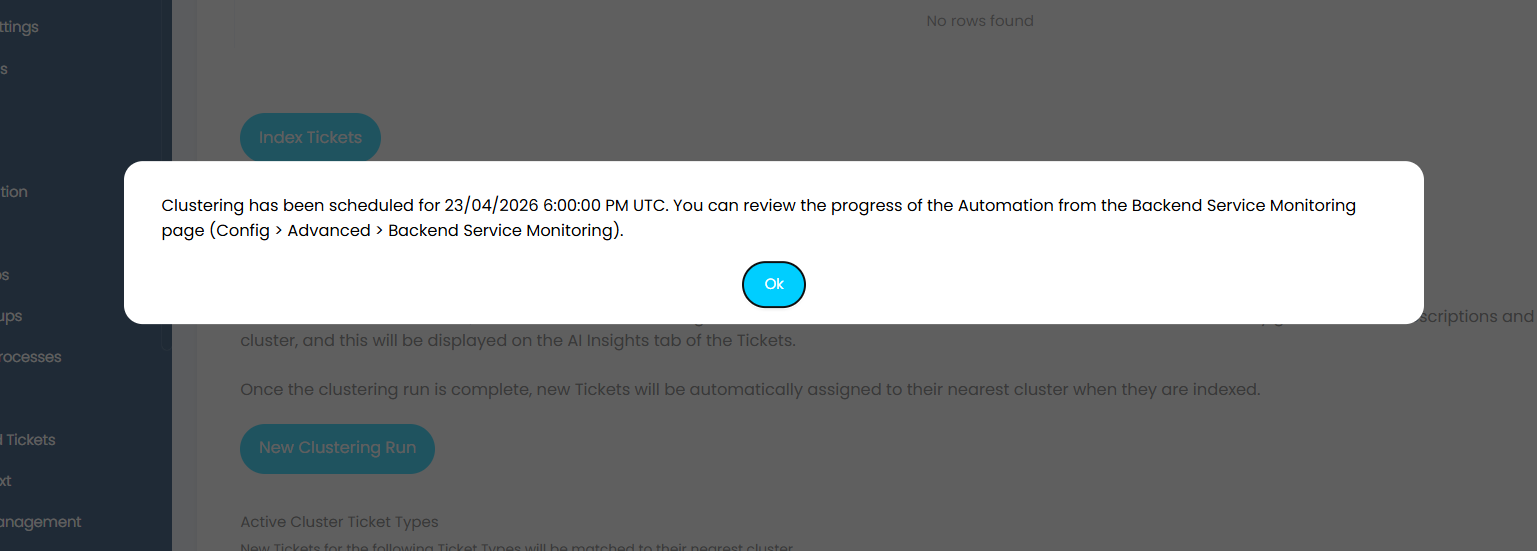
Fig 3. A Clustering Run queuing to run after the working day
If you do not want to wait for this task and wish for the run to take place immediately, you can manually trigger it. To do this navigate to Configuration > Advanced Settings > Backend Service Monitoring and then navigate to the "Automation Log" tab and change the first drop down filter from "Past" to "Upcoming". The "Cluster Tickets" action should appear, on which you can right/secondary click and select "Retry" to manually trigger the task.
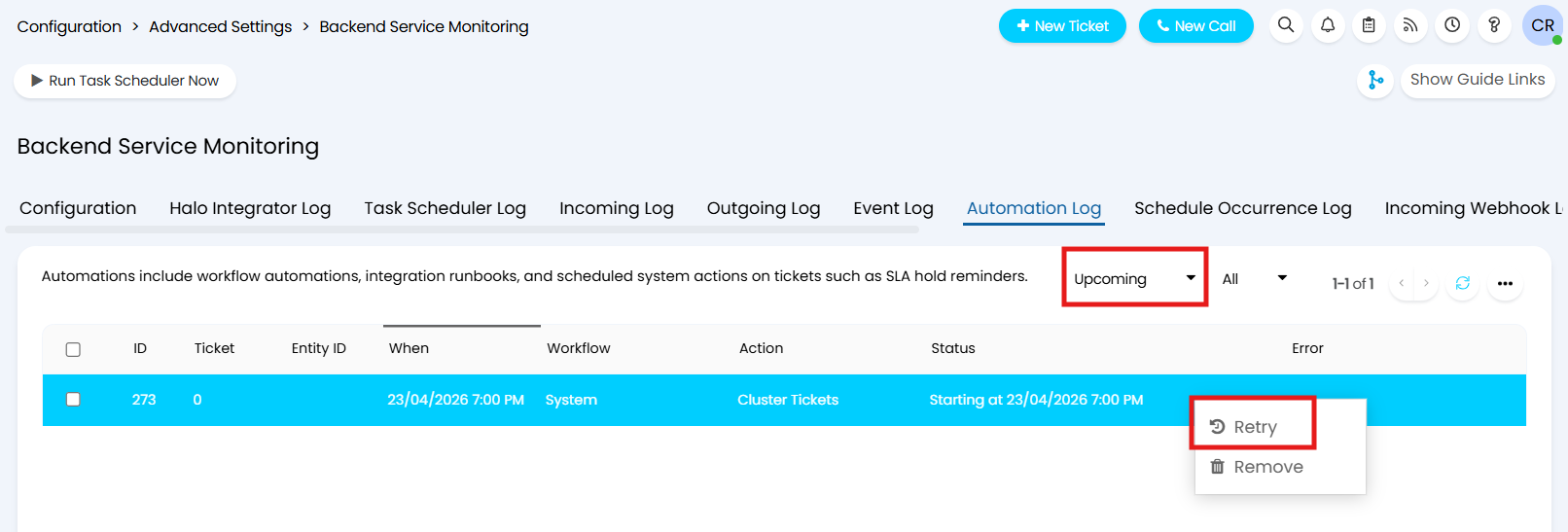
Fig 4. Manually triggering the Cluster Run to run immediately
After the initial Cluster Run, there will now be Clusters of similar Tickets in the database to which any newly logged Tickets will be assigned as they are indexed, based on which Cluster they are nearest to in similarity. This means that you do not have to keep creating new Cluster Runs to ensure Cluster membership is kept up to date.
Note: It is recommended to do new Cluster Runs fairly frequently - depending on the number of Tickets your company ingests and the Ticket Type(s) the Cluster Run is for, it could be advisable to do a new Run every six months to a year to ensure older Tickets are not influencing any Cluster's central vector score. Having older, or no longer relevant, Tickets in a Cluster could impact the accuracy of determining recent patterns, trends, and potential Problems.
Viewing & Using Ticket Clusters
Once the Clusters are in your system, you are able to view any matched Clusters for new Tickets logged on the Ticket itself.
To be able to see the individual Tickets within the matched Cluster, ensure you have enabled the tab by navigating to Configuration > AI > Platform Intelligence and scroll to the "Ticket Clustering" section. The final setting of this section enables the "Cluster Matched Tickets" tab.
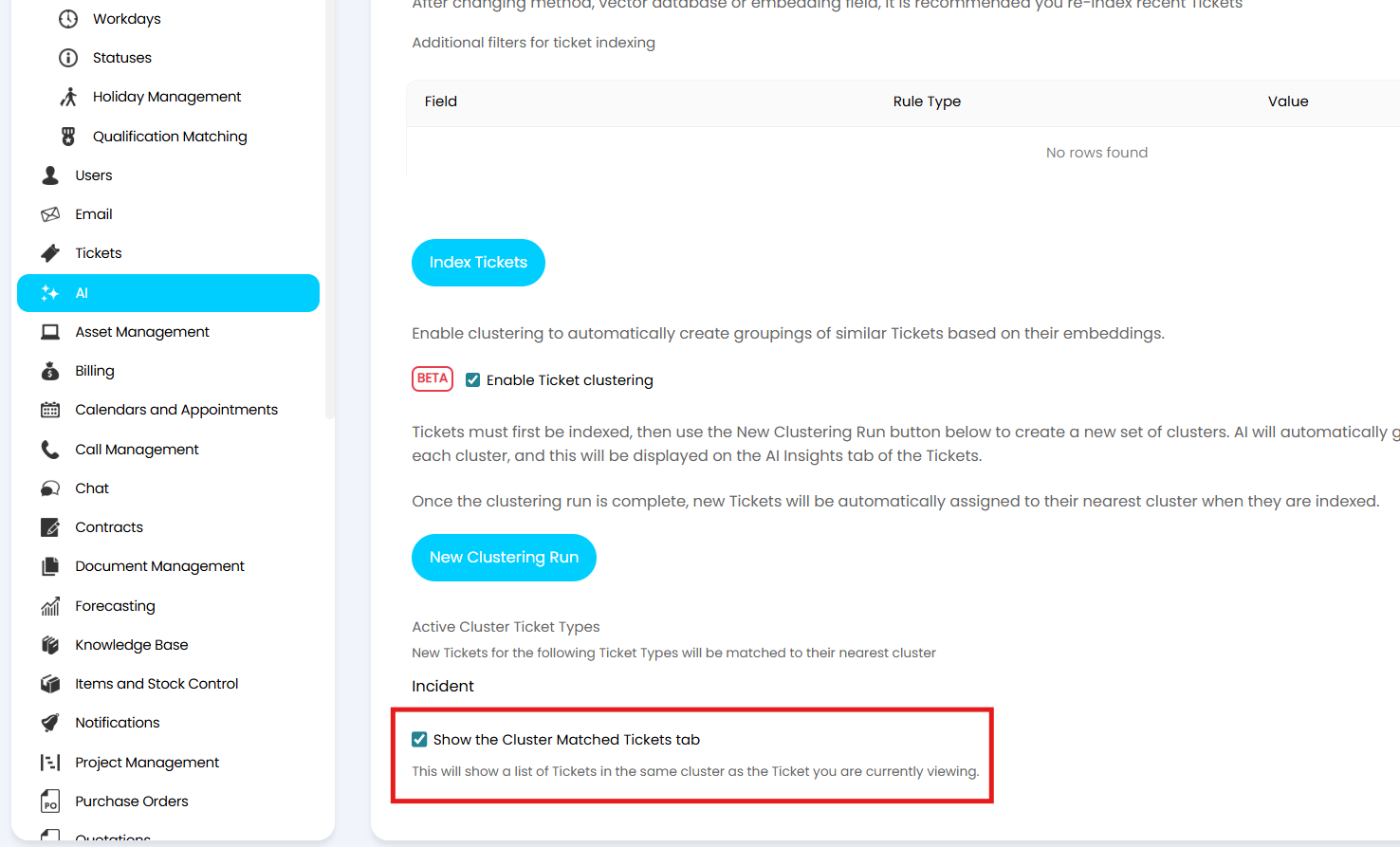
Fig 5. Enabling the "Cluster Matched Tickets" tab in Configuration > AI > Platform Intelligence
As illustrated in Figure 6, with the tab enabled it will be clearly visible on newly logged Tickets and will display all Tickets within the matched Cluster.
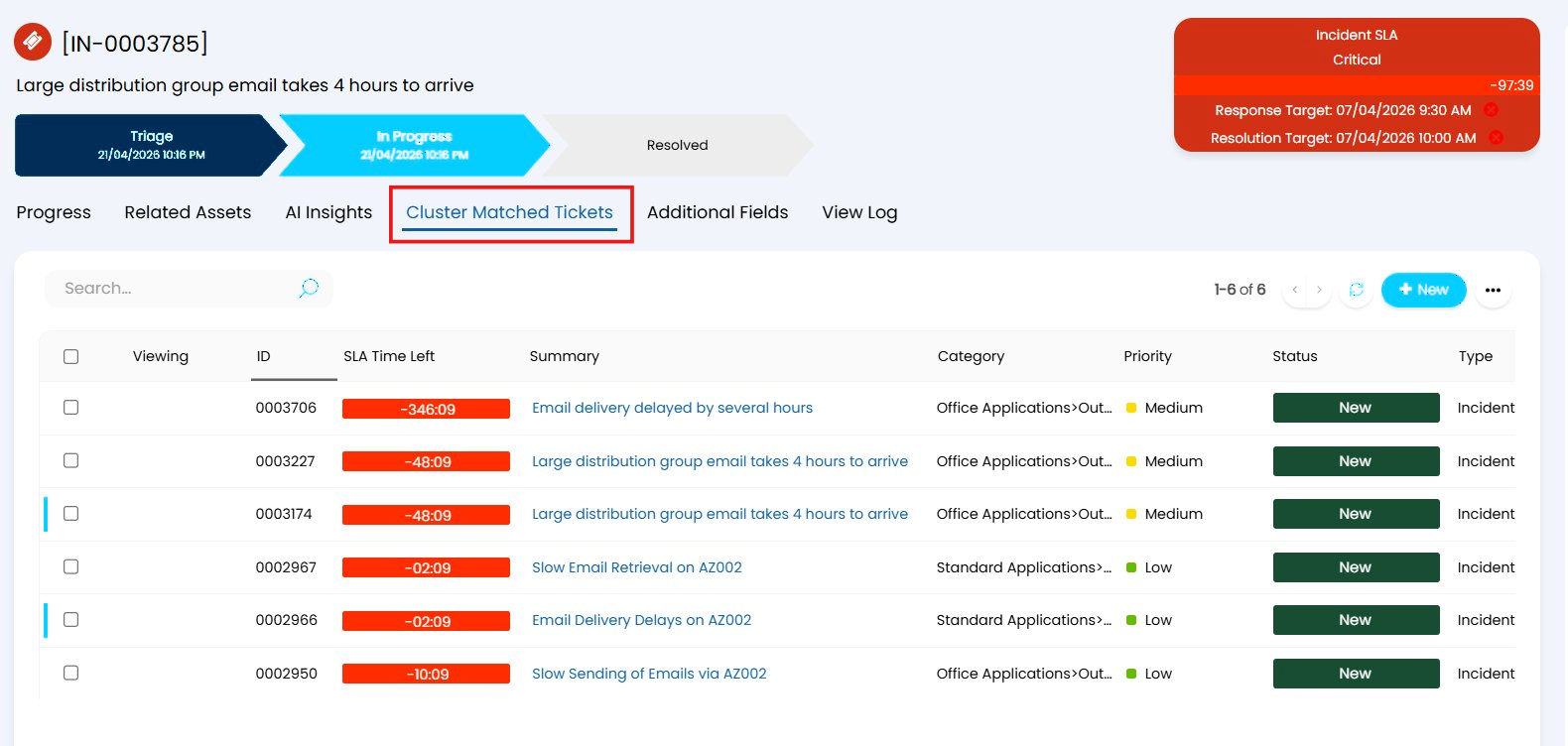
Fig 6. The "Cluster Matched Tickets" tab on new Tickets
Within the AI Insights tab you will also be able to see the name of the Cluster, the "Cluster Description" and the "Cluster Resolution" for the Ticket's matched Cluster.
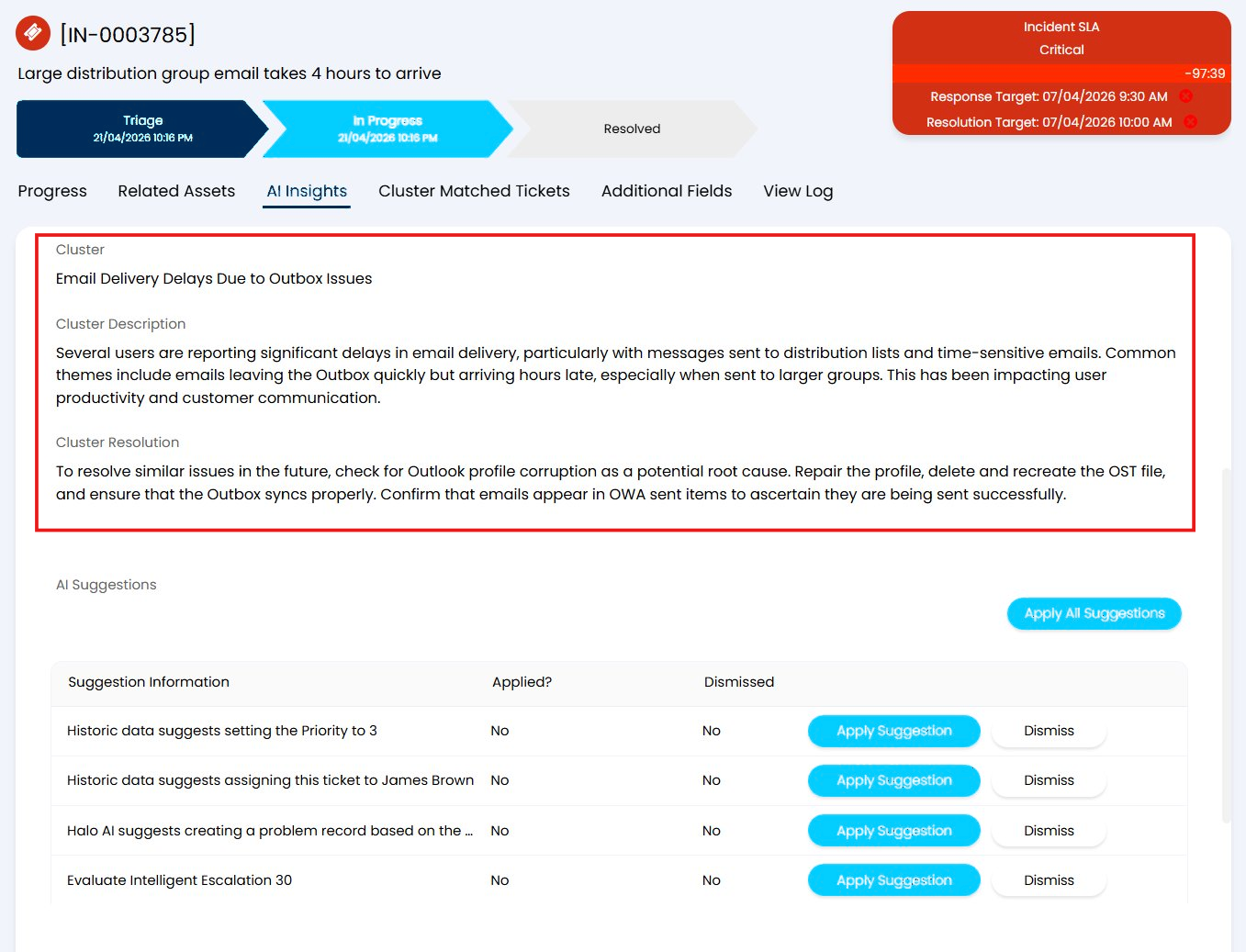
Fig 7. Matched Cluster information provided in the AI Insights tab
Note: These fields will only show in the AI Insights tab if Ticket Clustering has been enabled.
As you can see, these two tabs provide immediate visibility of any patterns and potential issues on the Ticket itself, instead of having to do further analysis or compare all AI matched Tickets and verify the similarity.
New Cluster Runs & Archiving
An important feature of Clustering to understand is that one Ticket can only ever exist within one active Cluster. This, therefore, begs the question of what happens if a Ticket is included in another Cluster Run?
In the scenario outlined in Figure 2, I created a Cluster Run for Incidents logged from January 1st to April 1st 2026.
In Figure 8, I create a new Cluster Run for Incidents logged from February 1st to April 1st 2026.
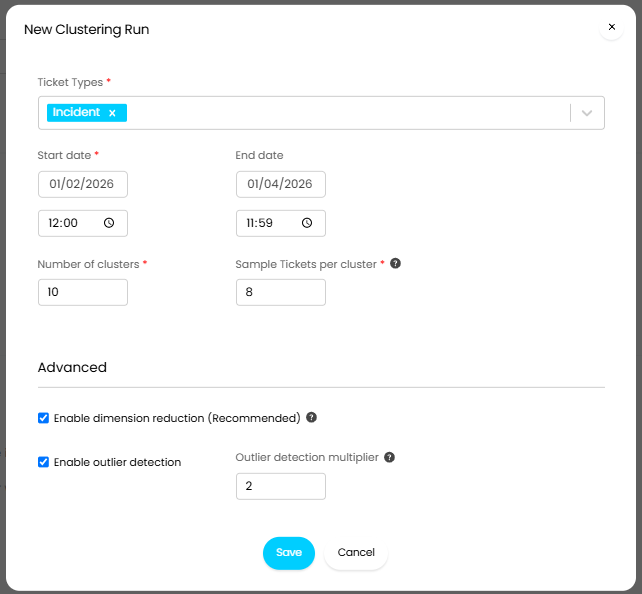 Fig 8. Creating a new Clustering Run
In this situation, I have taken the same Ticket Type as the first run and the time parameters will overlap with those of the first Run. This means that there will be Tickets that were in Clusters created from the initial Clustering Run that will now qualify for the Clusters created from the new Clustering Run.
Instead of excluding these Tickets from being included in the new Clusters, we 'archive' the initial Clusters. This means that we hold them in the database in the FaultClusterArchive table where they can be referenced with the reporting suite, but they are not used as active Clusters for matching to new Tickets and will not appear in the Cluster Matched Tickets tab on Tickets.
Note: If you run a new Clustering Run where there would be no overlap with a previous run, then archiving will not take place. For example, if my second run was on Change Requests then there would be no overlap with the first Clustering Run in Figure 2 and so none of the Clusters created from the first run would be archived.
Reporting on Clusters
Once a cluster run is complete you can use the reporting suite to report on the clusters generated. This can be useful when first establishing your clusters, as this provides you with an overview of all the clusters created. Helping you evaluate if the clusters created are representative of your ticket sample and if a higher/lower number of clusters is needed.
The following table contains cluster run data:
- Cluster
The Figure 9 example shows a report generated using data from the Cluster table.
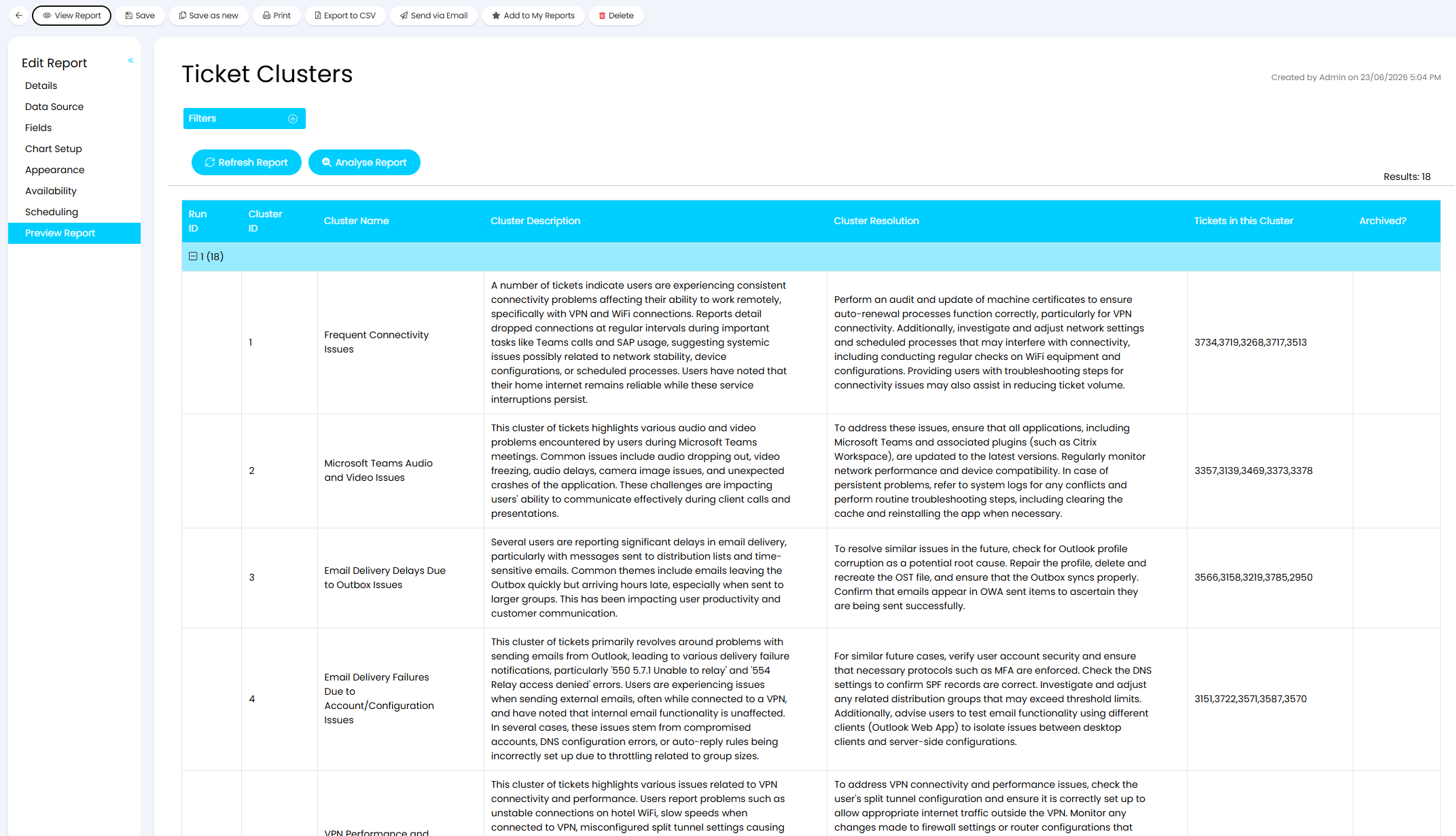
Fig 9. Report to show Clusters created
The report shown in Figure 9 was generated using the following sql:
select
CLUrunid as [Run ID],
CLUid as [Cluster ID],
CLUname as [Cluster Name],
CLUdescription as [Cluster Description],
CLUresolution as [Cluster Resolution],
CLUsampleids as [Tickets in this Cluster],
CLUarchived as [Archived?]
from cluster
The columns returned contain the following information:
CLUrunid - Contains the ID of the run that generated this cluster. ID 1 will be the first cluster run, 2 the second etc.
CLUid - The unique ID of the cluster generated.
CLUname - The name of the cluster generated. Agents will be able to see this against each ticket that belongs to a cluster.
CLUdescription - The description of the cluster generated. Agents will be able to see this against each ticket that belongs to this cluster.
CLUresolution - The AI generated resolution for tickets in this cluster. Agents will be able to see this against each ticket that belongs to this cluster.
CLUsampleids - The IDs of the tickets that are assigned to this cluster.
CLUarchived - Indicates whether the cluster is active or archived.
Additional Columns
fcaisoutlier - Indicates if the ticket is an outlier (v2.258+)
fclusterdistance - Stores the distance of this ticket from the centre of it's Cluster (v2.258+).