Live Chat in Halo
- live chat
- waittime
- agent chat
- Chat area
- Translating Live chat
- Waiting for agents
- Chat wait
- Abandoned live chat
In this guide we will cover:
- What is Live Chat in Halo?
- Starting Live chat
- The Chat Area
- Translating Live Chat
- Waiting for Live Chat Agents
- Abandoned Live Chats
- Reporting on Live Chat
- Allowing Attachments in the Live Chat
- Conversational Agents
- Triggering Webhooks From Chat
- $-LINKTOUSERACTION{ID} (v2.250+)
Configuration Settings:
Related Guides:
What is Live Chat in Halo?
Live chat allows a user to chat to an agent in real time through the Halo self-service portal. A user can start a chat in the portal, and when required, the chat can be transferred to an agent. Specified agents will be notified that an end user is waiting to chat, the agent can then join the chat from within the Halo agent app and converse with the user in real time. Live chat can be used to improve service to end users, providing an alternative to users calling or emailing in with queries.
In order to configure live chat a chat bot profile will need to be set up that is configured to start a live chat. Our article Chat Bot and Chat Profiles covers how to set up and customise chat profiles therefore we recommend reading this prior to this article to get your chat bot profiles set up already. In this article we will cover how live chat can be used and configured.
Starting Live Chat
Live chat will be started when the user has started to use a chat profile/bot in the portal, and reached a step in the chat bot profile that is configured to start a live chat.
For a step to start a live chat it will need to be type 'Action' and Action type 'Start Live chat'.
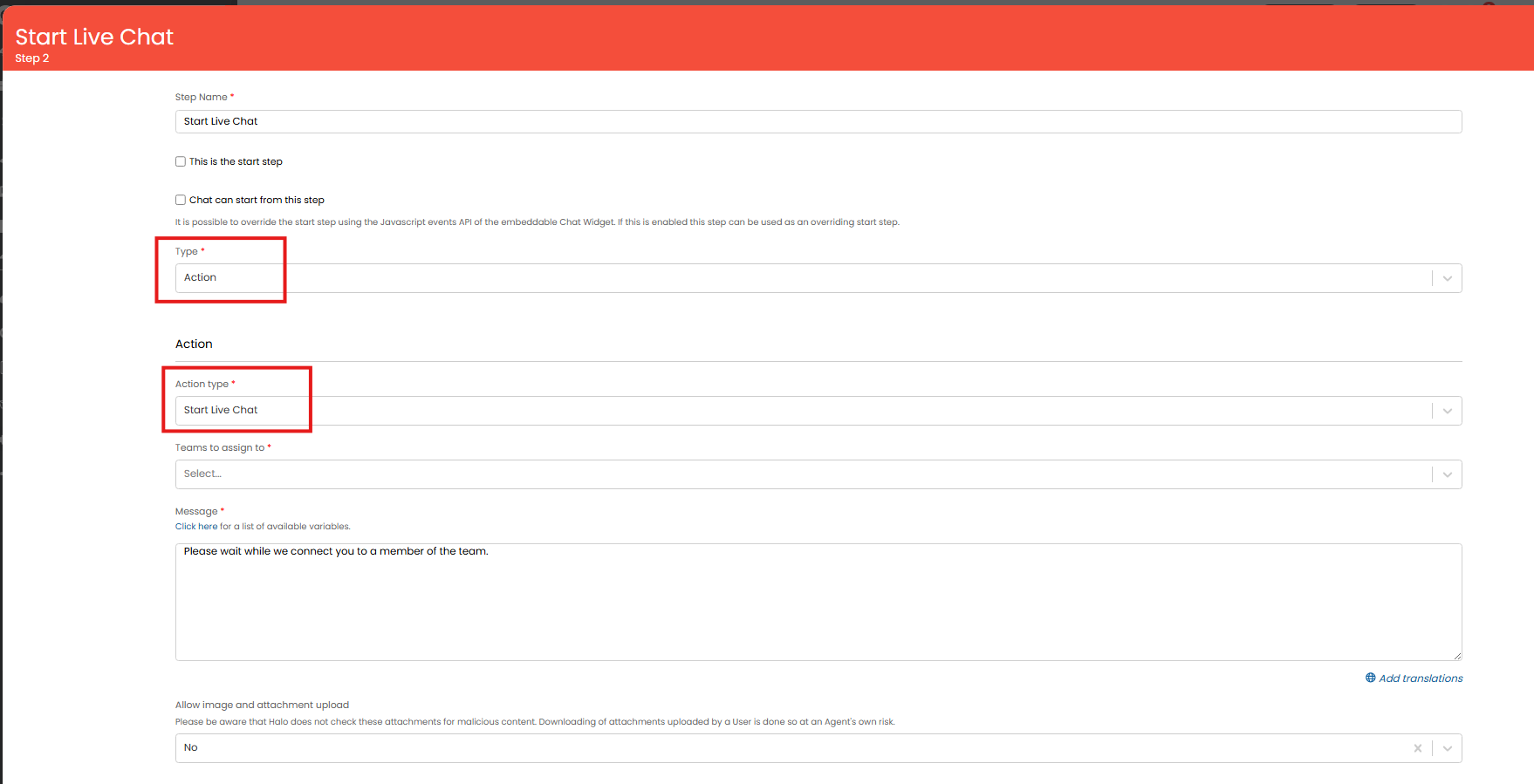
Fig 1. Chat profile step to start live chat
The way in which live chat behaves/can be accessed by agents is determined by the setting 'New live chat display' under Configuration > Chat. We will go through how the chat behaves with each option selected.
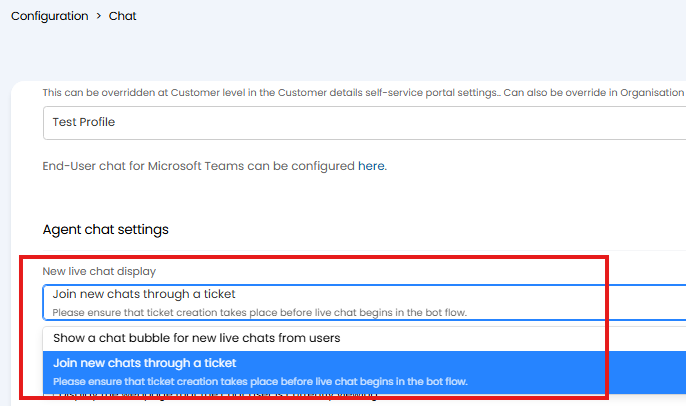
Fig 2. New live chat display setting
Note: A chat module can be enabled to assist agents in managing live chats. See the section called 'Chat area' for information on how to enable and use this area.
You can prevent multiple agents from joining the same chat by using the "Prevent multiple Agents from connecting to a live chat simultaneously" checkbox.
You can prevent Agents from joining multiple chats at once by selecting "Agents can only have one live chat session with a User open at a time" in Configuration > Chat. Setting this will also prevent Agents in a chat from receiving new chat alerts. This is useful to prevent Agents getting distracted while working on an existing chat.
Show a chat bubble for new live chats from users
With this option selected, when configuring the action on the step you will need to choose the team the live chat will be assigned to.
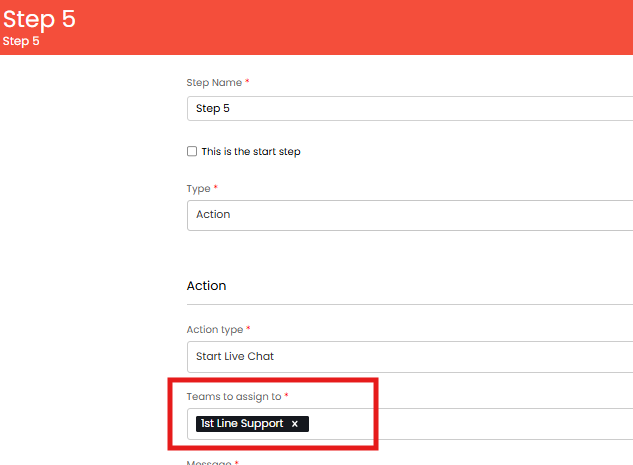
Fig 3. Teams to assign live chat to
When the live chat is started all available agents in these team(s) will have the chat icon appear on their Halo and it will shake slightly to indicate the user is waiting. Once they click on the chat icon the user will be notified the agent has 'joined' the chat and the chat will be assigned to that agent and will stop 'ringing' for other agents.
An agent is deemed as 'available for chat' depending on the status they have. Head to Configuration > Teams & Agents > Statuses > select a status. Here, you will see the setting 'Count Agent as online for Live Chat'.
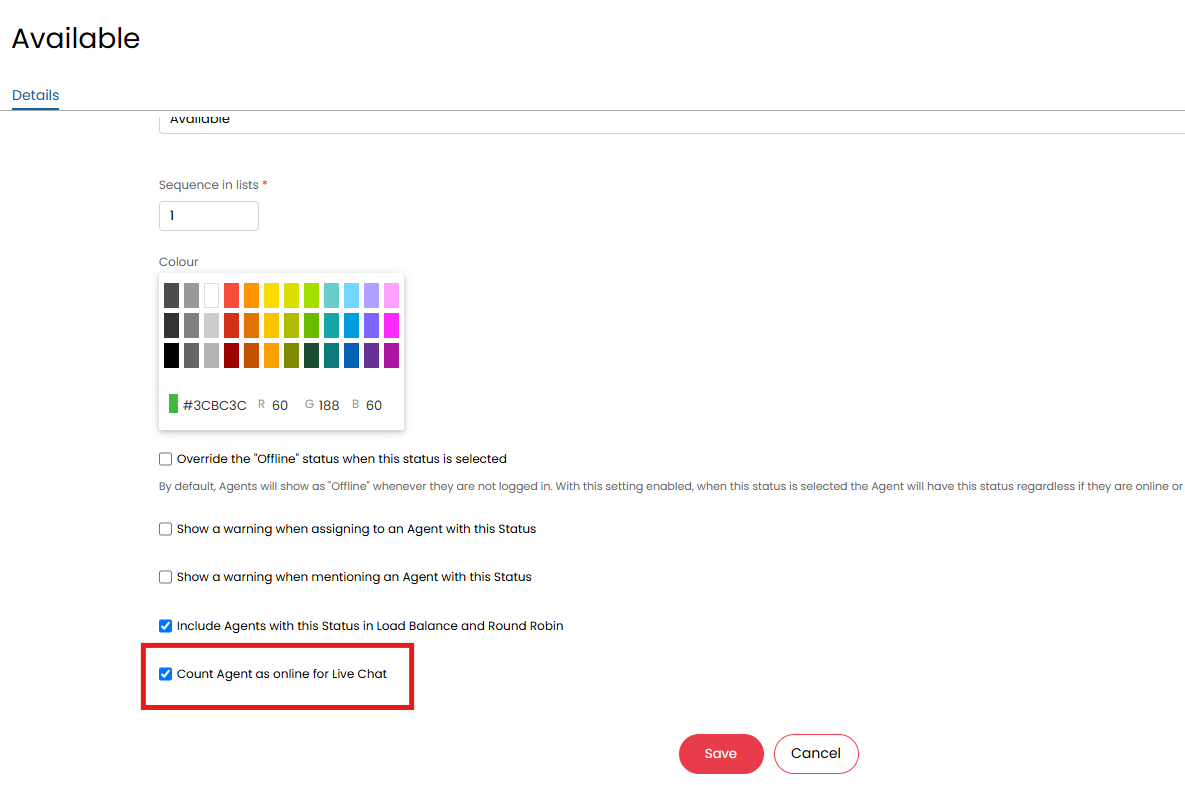
Fig 4. Setting an agent status to count the agent as available for live chat
When this is enabled, anytime an agent is in this status they will be counted as being available for live chat, so any new chats started for their team will 'ring' for them. You will need to enable this setting against each status you would like agents to be assigned live chats in. If no agents are available when the chat is started the user will need to wait until an agent is available. Only once an agent becomes available will the chat icon 'ring' for them.
Once the agent has joined the chat the agent and user can communicate within the chat screen. The agent or user can decide when to end the chat by heading into the three dots (top left) of the chat window and selecting 'End this chat'.
Join New chats through Tickets
With this option selected live chat will take place against a ticket, therefore a ticket will need to be logged before live chat can take place. When configuring the action on the step you can still set the team to assign to, however, this is not the team that will be assigned the chat, instead the team the ticket is assigned to will need to complete the chat.
When the user begins a live chat a 'chats' tab will appear within the ticket, seen in Fig 5.
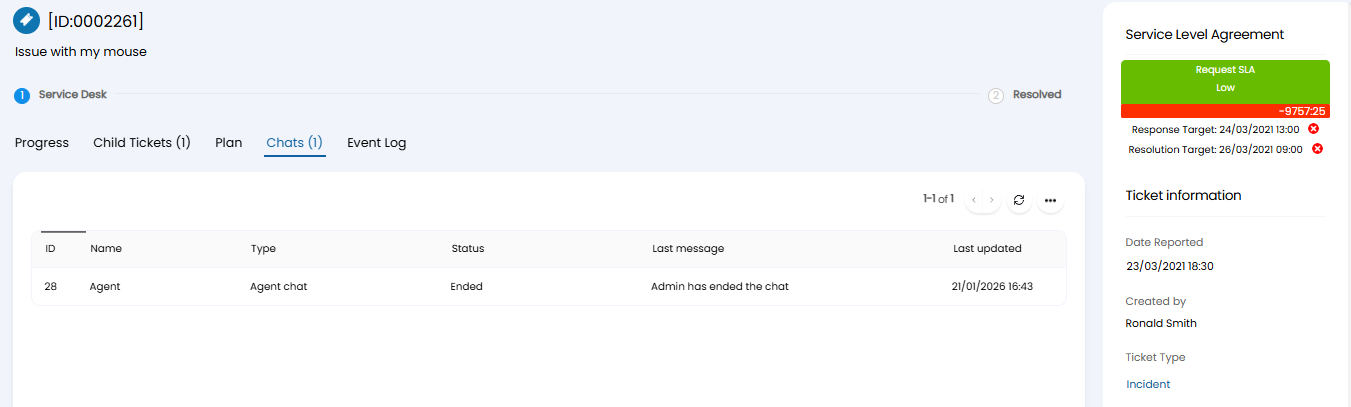
Fig 5. Live chat tab against ticket
From here, the agent can select the chat line to open up the chat window and chat with the user. By default, any agent who has access to the ticket will be able to start the chat.
When the agent or user ends the chat, the chat status will be updated to 'ended' and the chat history can be viewed anytime by selecting the chat line again.
You can enforce agents to only be able to join a live chat if they are the agent assigned to the ticket. This prevents agents who are not assigned the ticket associated to a chat completing other agents chats. Useful for ensuring equal distribution of tickets/live chats between agents.
This functionality can be enabled using the setting an additional setting 'Agent must be assigned to the linked Ticket to be able to join the Chat' found under configuration > chat. This will only appear when 'Join new chats through a ticket' is selected.
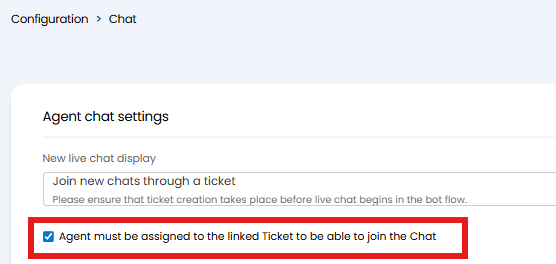
Fig 6. Setting to restrict who can join the live chat to the agent assigned to the ticket
When enabled this will apply globally to all live chats started. Therefore ensure tickets logged from chats have a consistent assignment procedure. The ticket type you set to be logged by the chat profile must have a default team and agent against it. If the ticket type is set to assign to the 'unassigned' agent in the team the ticket will need to be re-assigned to an actual agent before the agent can join the live chat.
The Chat Area
The Chat area is a module where agents can see active and historical chats, allowing them to manage chats more effectively. The chat area can be used to:
- Allow agents to join, respond to and manage all their chats within a single module/area of Halo.
- Allow agents to log and partake in chats with other agents, or with AI virtual agents.
- See team members' chats.
Enable the Chat Area
To enable the chat area head to configuration > chat > and enable 'Show the Chat area', this will add a new module called 'Chat' to the navigation menu.
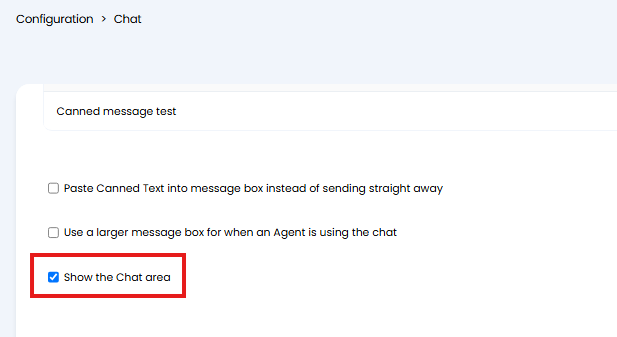
Fig 7. Enable chat area
Once you have enabled the module you will need to set agent permissions to determine which chats agents can see in the chat area. By default agents will be able to see their own conversations, as well as conversations on tickets they have access to, but you can give them access to additional conversations. To set permissions head to configuration > teams and agents > select and agent > permissions > look for 'Conversation access level' permission (this can also be set against an agent role).
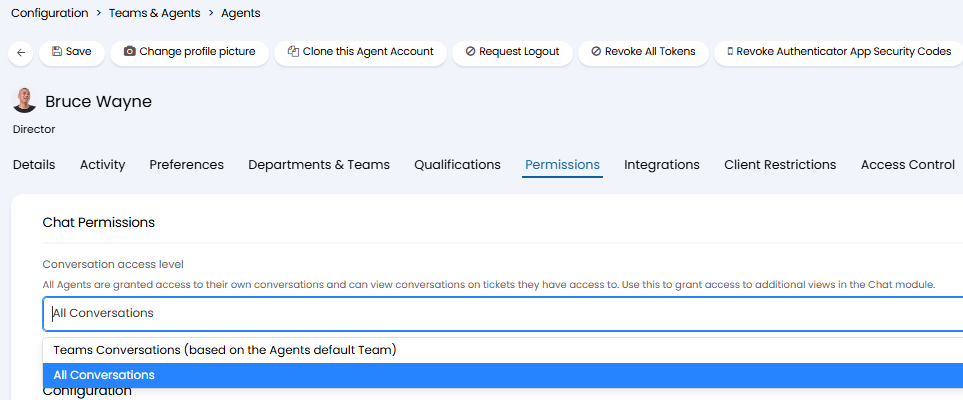
Fig 8. Conversation access level permission
All conversations - When this option is chosen the agent will be able to see all chat conversations, regardless of ticket permissions.
Teams Conversations - When this option is chosen the agent will only be able to see chat conversations assigned to their default team. That is, if the ticket the chat is against is assigned to this agent's default team, the agent will be able to see the chat. Whether they can join the chat will depend on chat configuration. If you have configured chats so that a ticket does not need to be logged for the agent to join, the team assigned to the chat will be determined by the 'Teams to assign to' field against the 'start live chat step' of the chat bot flow.
Now the chat area is set up navigate to this by selecting the module in the navigation menu.
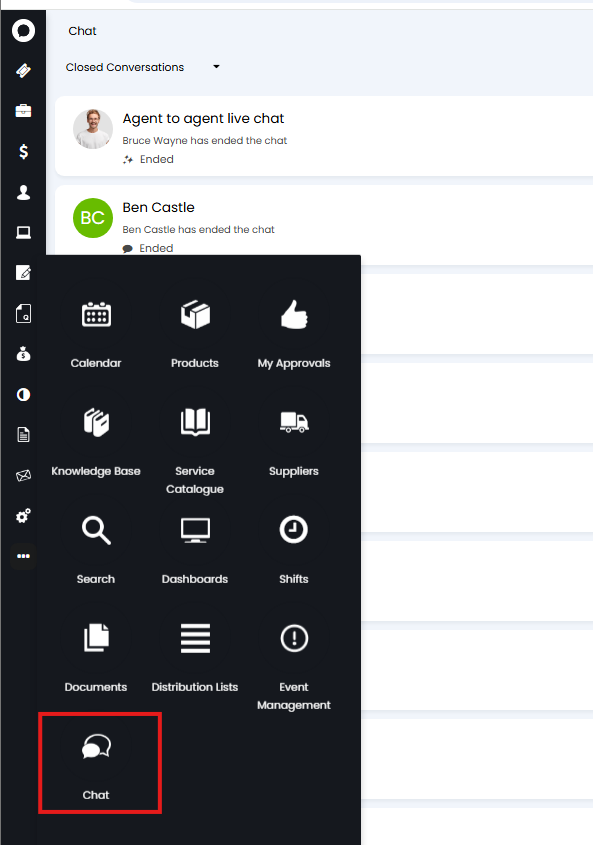
Fig 9. Chat module
When the chat area is enabled you will still be able to access chats using the bubble icons, however, these icons will not appear when you are in the chat area.
Joining chats from the Chat Area
How agents join new chats will differ depending on the 'New live chat display' setting (under configuration > chat).
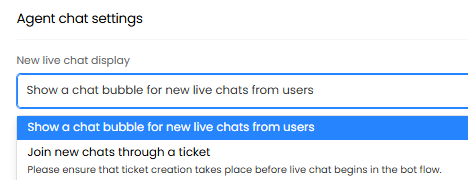
Fig 10. New live chat display setting
Show a chat bubble for new live chats from users
When this option is being used, when a user begins a live chat a new chat entry will appear at the top of the list, showing a user is waiting for an agent to chat with.
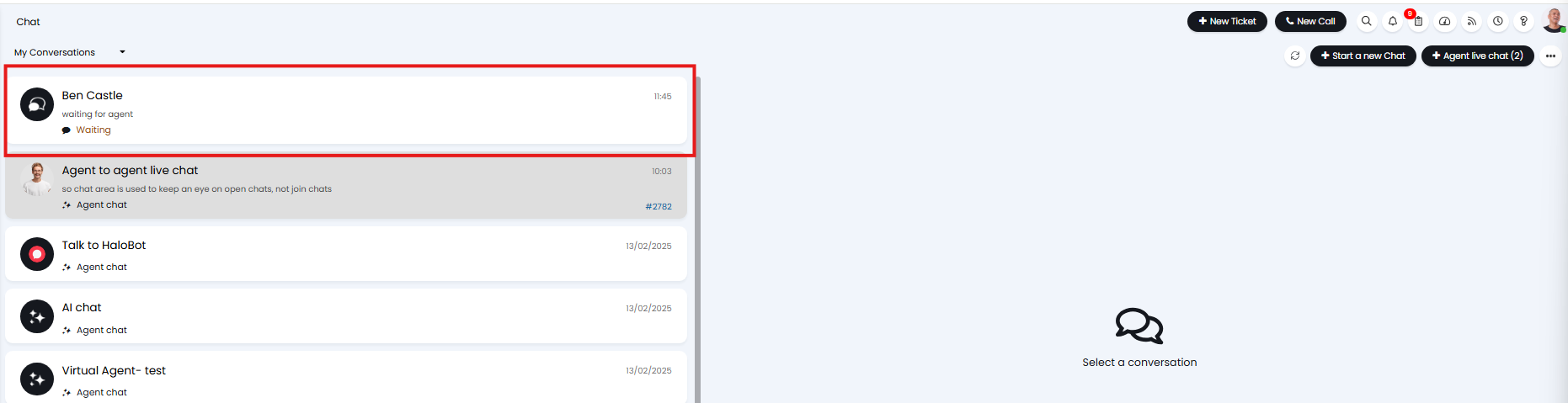
Fig 11. User awaiting chat
By selecting this conversation, the agent will join and be assigned the chat. From here they can then converse with the user.
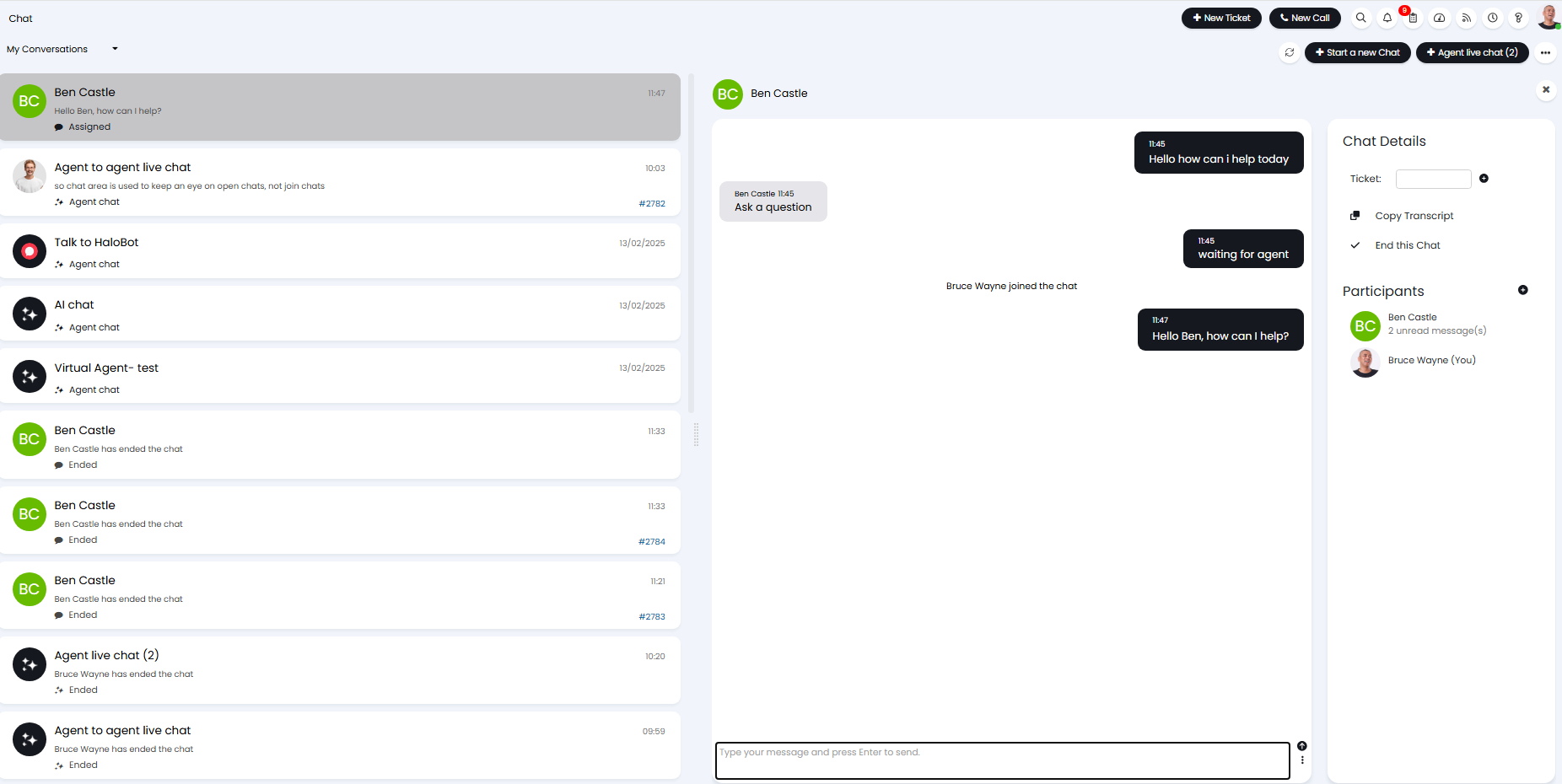
Fig 12. Chatting with user in chat area
Join new chats through a ticket
When this option is being used, agents will not be able to join new chats through the chat area. They will only be able to join chats through tickets, therefore the chat area will show all chats currently assigned to the agent/the agent's team. Agents will need to join chats through tickets, but can then use the chat area to manage the various chats they have open. The ticket ID the chat relates to will be linked in the chat details for reference, select the eye icon to open the ticket.
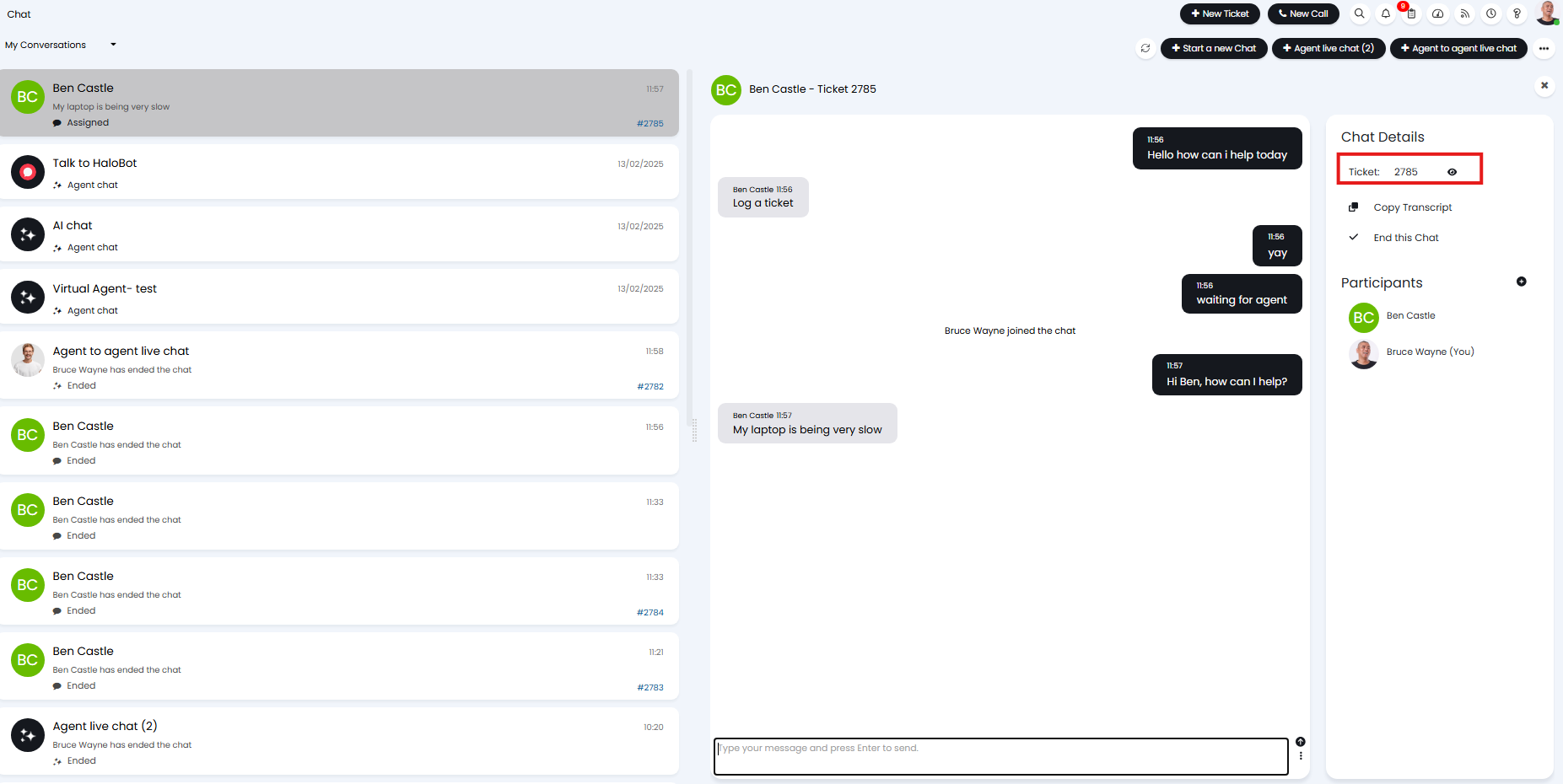
Fig 13. Chat in area with ticket link
Customising the Chat Area (v2.256+)
From v2.256+, The Chat Area can be customised to improve conversation management. Wait Timers, SLAs and Ticket Actions can be shown against a chat, allowing Agents to quickly see which Users have waited longest, reply in the right order, and keep linked tickets moving without switching screens.
Wait Timer
From v2.256+, live chats will show a wait timer against any open chats in the Chat Area. This timer resets each time a response is sent in the chat. This wait timer can be set to turn Amber and Red after a set amount of time. This is useful for visualising and prioritising the User who has been waiting longest for a response. To set the threshold for the wait time colour change, head to Configuration > Chat, and set the "Chat wait timer amber after (minutes)" and "Chat wait timer red after (minutes)" to the number of minutes you would like to elapse before the timer changes colour.
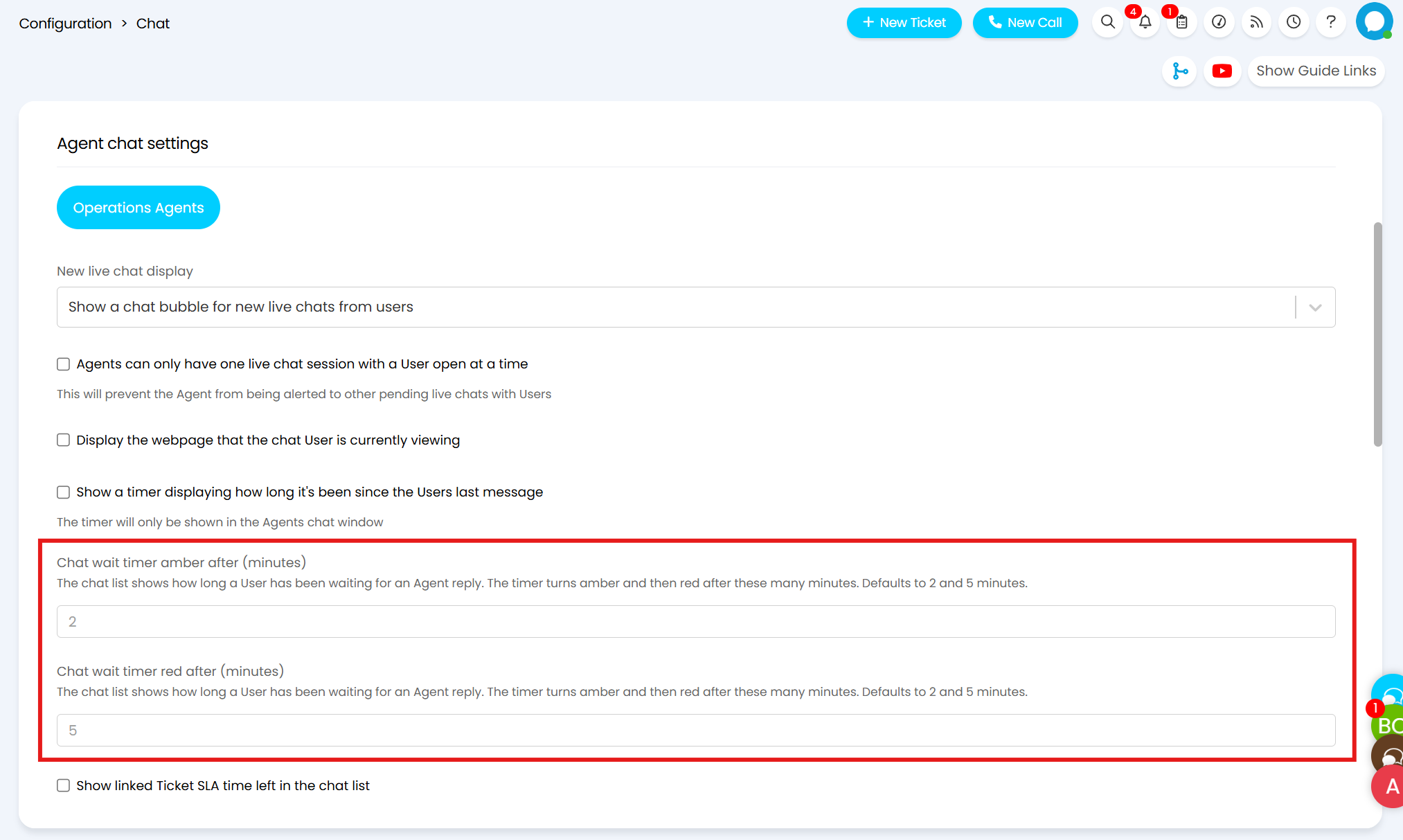
Fig 14. Wait Timer Colour change threshold
In the below example the wait timer has turned amber and red when the timer has reached 2 minutes, and 5 minutes respectively.
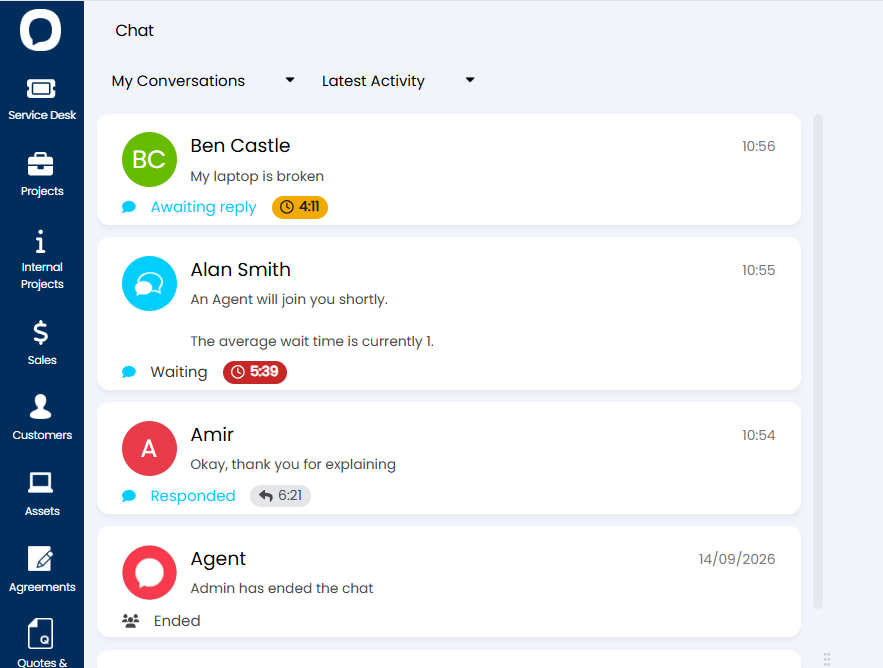
Fig 15. Wait Timers in the Chat Area
This allows the Agent to easily tell who has been waiting longest for a response, and prioritise their time accordingly.
SLA Timer & Ticket Status
When a Ticket is linked to a Chat the SLA Timer can be shown against the Chat. To enable this head to Configuration > Chat, and enable "Show linked Ticket SLA time left in the chat list". The Ticket's current status can be shown alongside the SLA by enabling "Show linked Ticket status in the chat list".
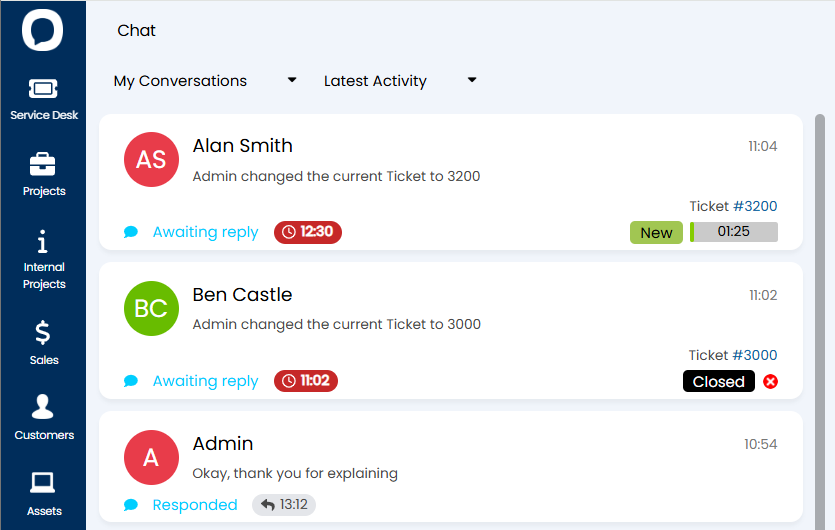
Fig 16. SLA and Ticket Status against Chats
Showing a Ticket SLA against a chat allows Agents to prioritise the chats linked to Tickets where the SLA is closed to being breached.
Logging a ticket response when an Agent sends a chat message
If "Log a ticket response when an agent sends a chat message" is enabled in Configuration > Chat, whenever an Agent sends a chat message the associated Ticket will be updated, changing the status.
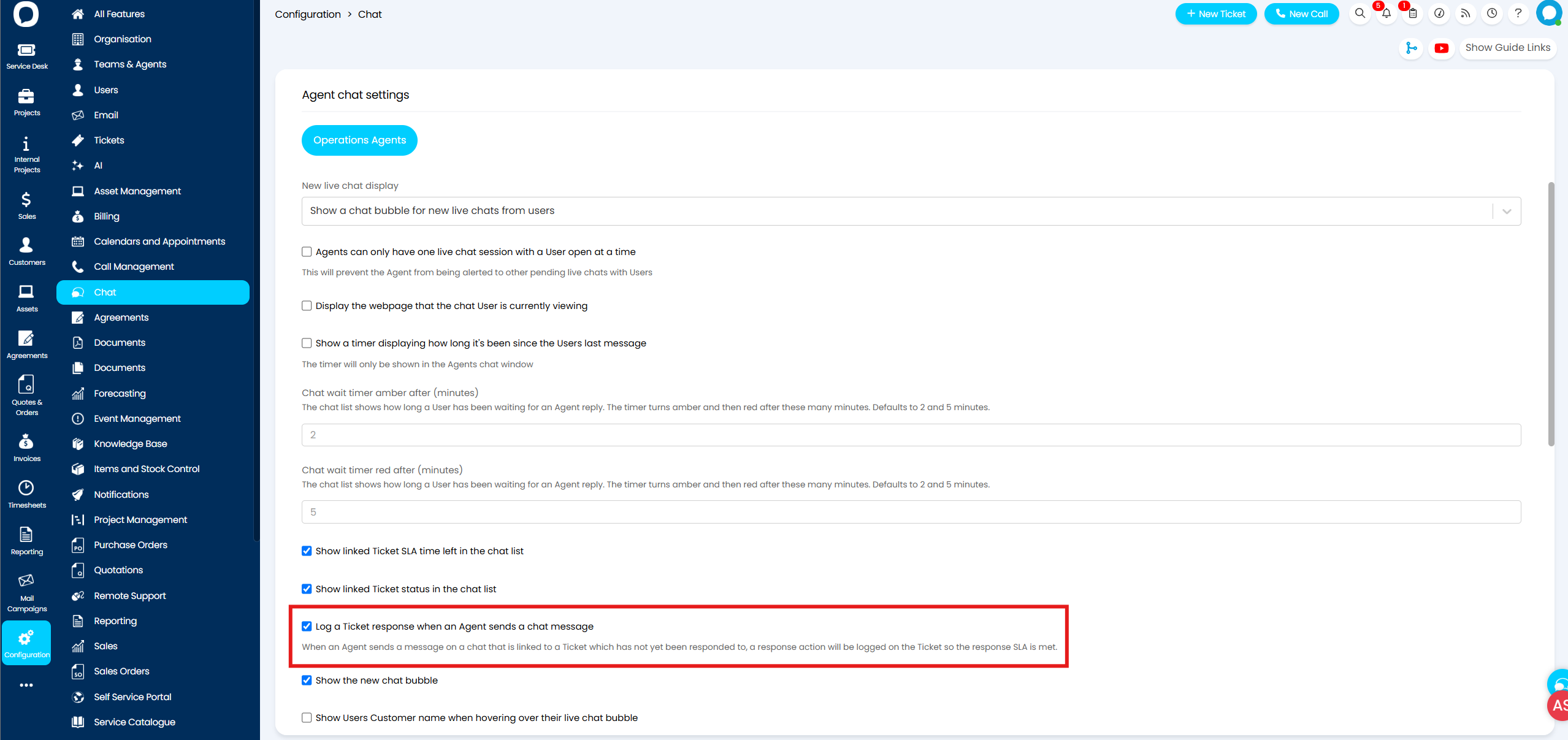
Fig 17. Log a Response when an Agent sends a chat message
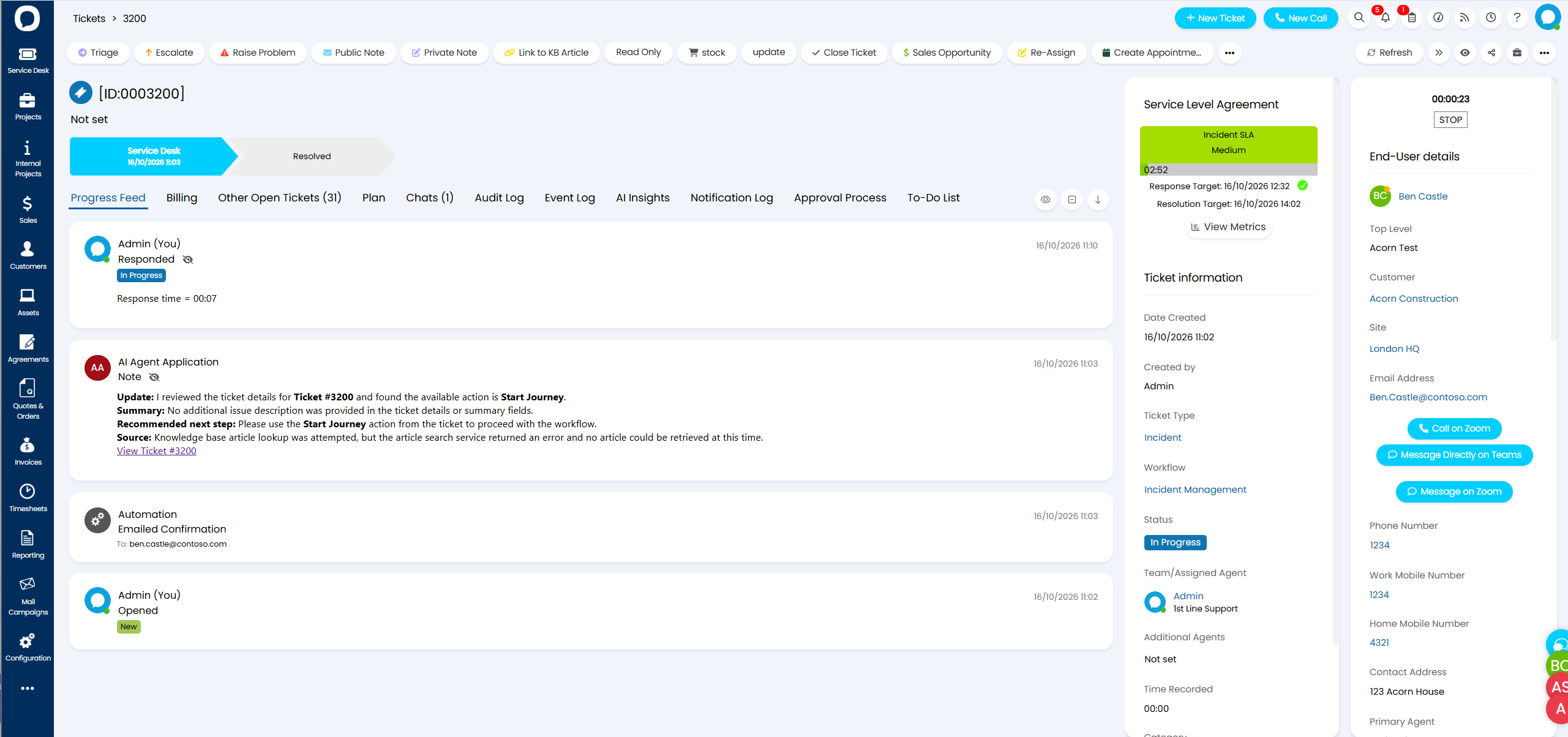
Fig 18. Status change on a Ticket when an Agent sends a chat message
When used alongside the setting "Show linked Ticket SLA time left in the chat list", Agents can easily see which Tickets are nearing their SLA targets, and prioritise these. When they respond to the chat the SLA Response target will be met, preventing SLA breaches.
Actioning a Ticket from a Chat
Tickets that are linked to a chat can be actioned directly from the Chat Area. In order to do this the relevant Action must have "Show on chat details in the chat area" enabled. This setting is found in the details tab of an Action (Configuration > Tickets > Actions).
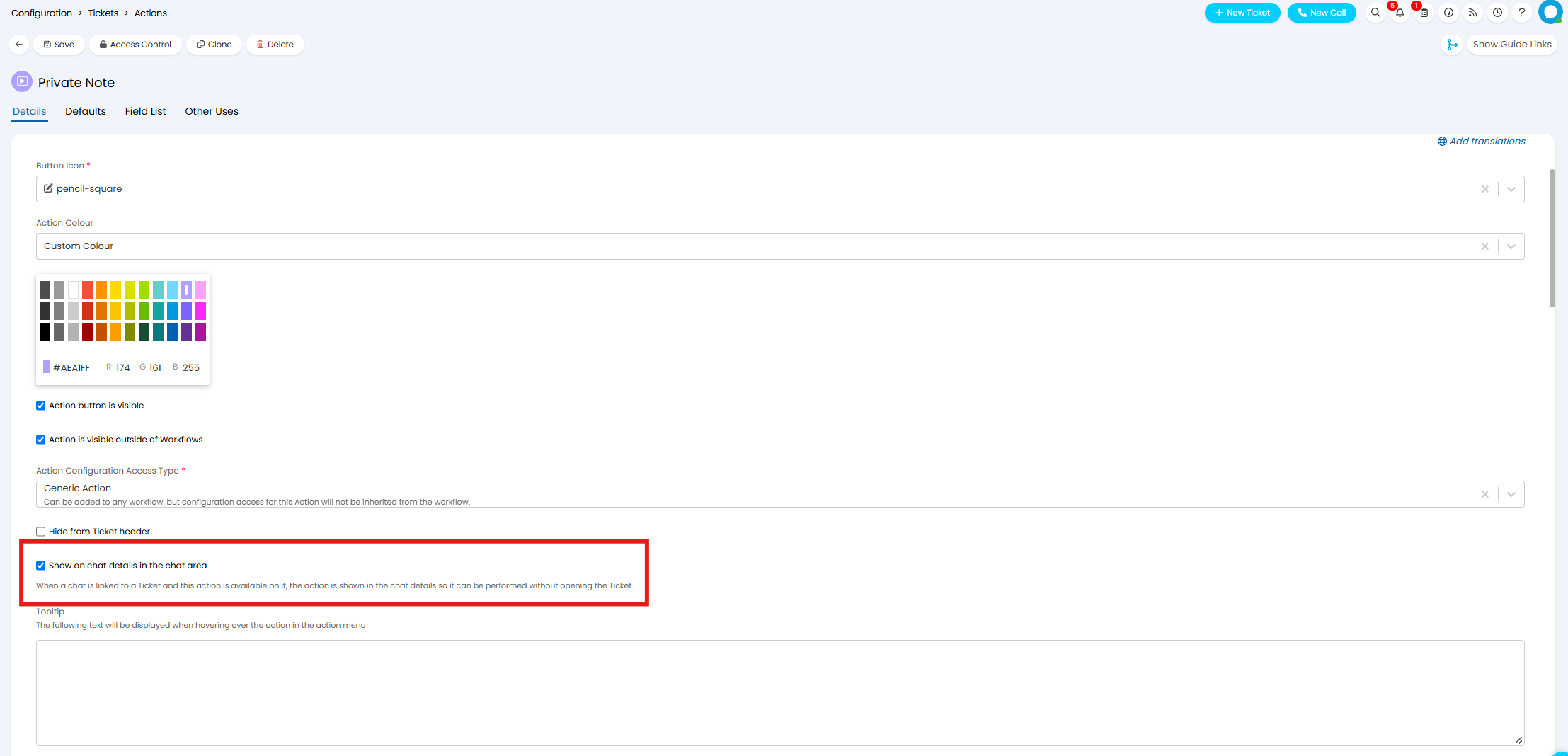
Fig 19. Showing a Ticket Action on a Chat
These Actions will show in the Chat Details if they are available on the linked ticket and relevant workflow step.
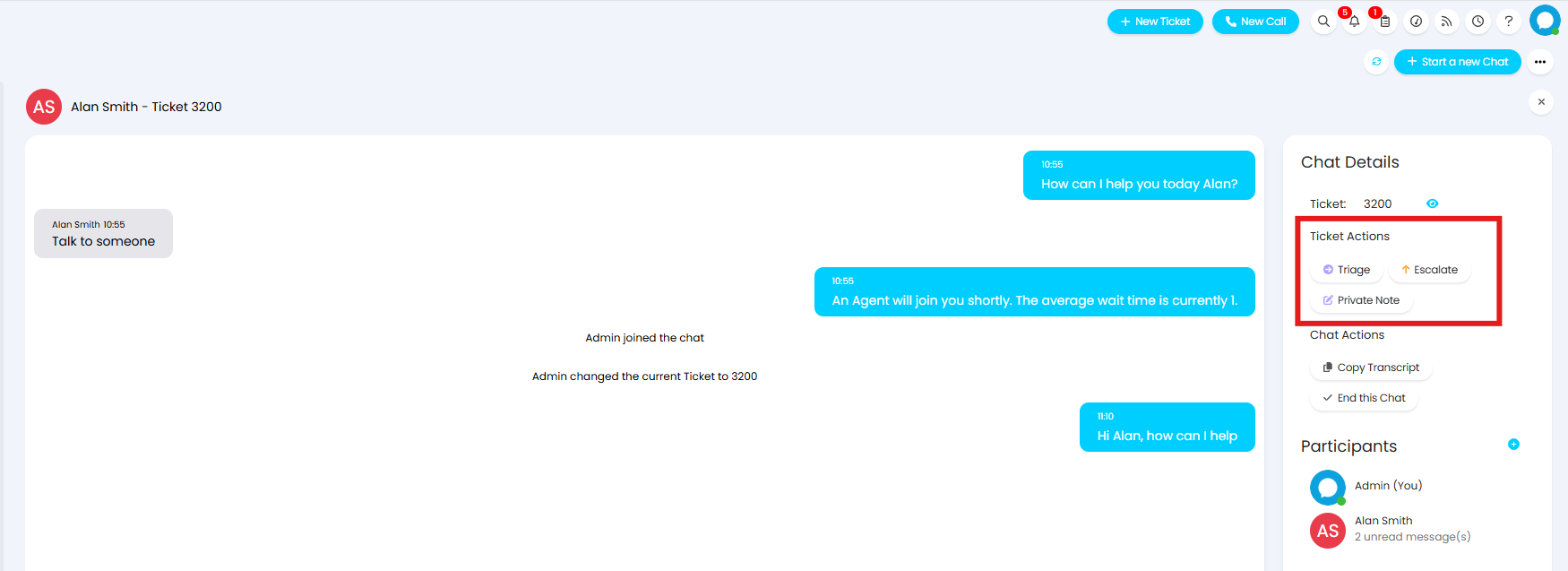
Fig 20. Ticket Actions on a chat
Using Ticket Actions from the Chat Details allows Agents to perform various Actions and make progress on a Ticket without having to leave the Chat Area.
Using the Chat Area
The chat area allows agents to manage the various chats they currently have open. The chats agents can see will depend on their permission and the team the chat is assigned to.
Start chats in Chat Area
Agents can also start new chats from the chat area. In the top right hand side of the chat area agents can start chats using the chat profiles they have access to, this provides an alternative to agents having to start chats using the bubble icons. Agent chat profiles will show here (to speak to an AI agent or search the knowledge base for example). Once an agent has started a chat this will show in their chat que.
Filtering and Ordering chats
When in the chat area agents will be able to see all the chats they are participants of (assigned to them) and, depending on permissions, all the chats assigned to agents in their team. The chats/conversations that show in the list can be filtered using the menu in the top left corner.
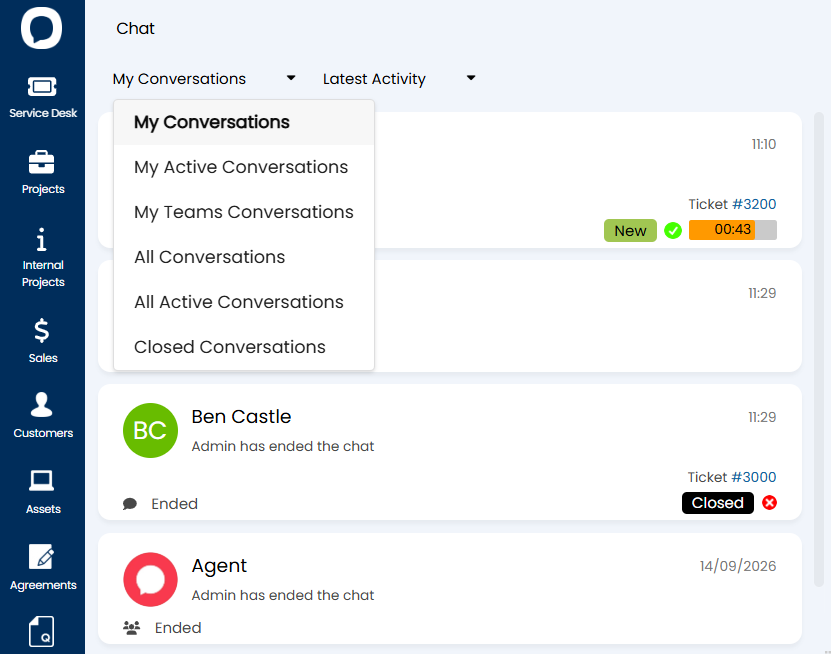
Fig 21. Filter menu
My conversations - Will show all conversations in which you are the assigned agent or a participant
My Teams conversations - Will show all conversations in which you, or someone in your (default) team is the assigned agent.
All conversations - Will show all conversations, including both active and closed.
Active Conversations - Will show all conversations that are currently active and assigned to you or someone in your team.
Closed conversations - Will show all conversations that are now closed.
My Active Conversations (v2.256+) - Will show only your own active chats, regardless of permission level.
From v2.256+, a second dropdown menu is available for ordering chats.
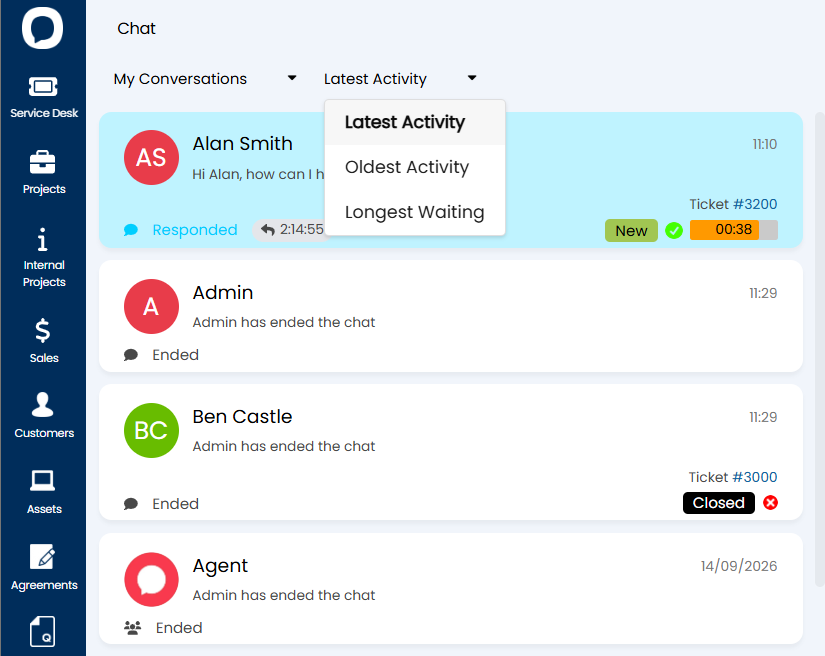
Fig 22. Ordering menu
Latest Activity - This shows chats with the most recent activity at the start of the list
Oldest Activity - This shows chats which have the least recent activity at the start of the list
Longest Waiting - This shows the chats where the User has been waiting for a response for the longest period of time at the start of the list.
Chat Canned Text
Much like Canned text for tickets, canned text can be configured for use in chats. This is pre-set text agents can use during live chat, useful for common/standard queries.
Configure canned text for chat under Configuration > Chat > Edit Canned Text > New.
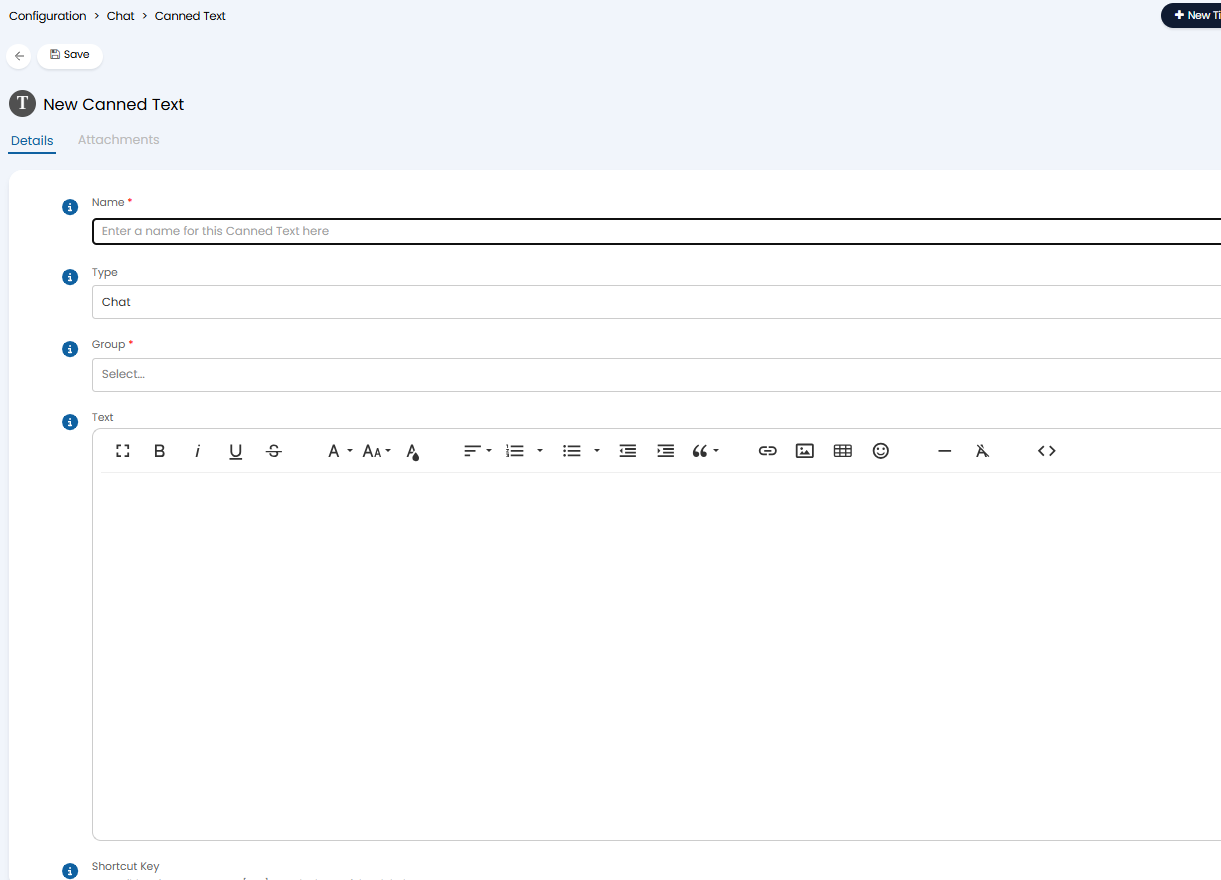
Fig 23. New Canned text
You can also create groups for Chat canned text, helping you organise the canned text entries you have. Canned text groups are setup under Configuration > Chat > Edit Canned Text > Edit Canned Text Groups.
Once created, agents can use canned text during a chat by selecting the icon of the three dots within the chat bubble/chat area.
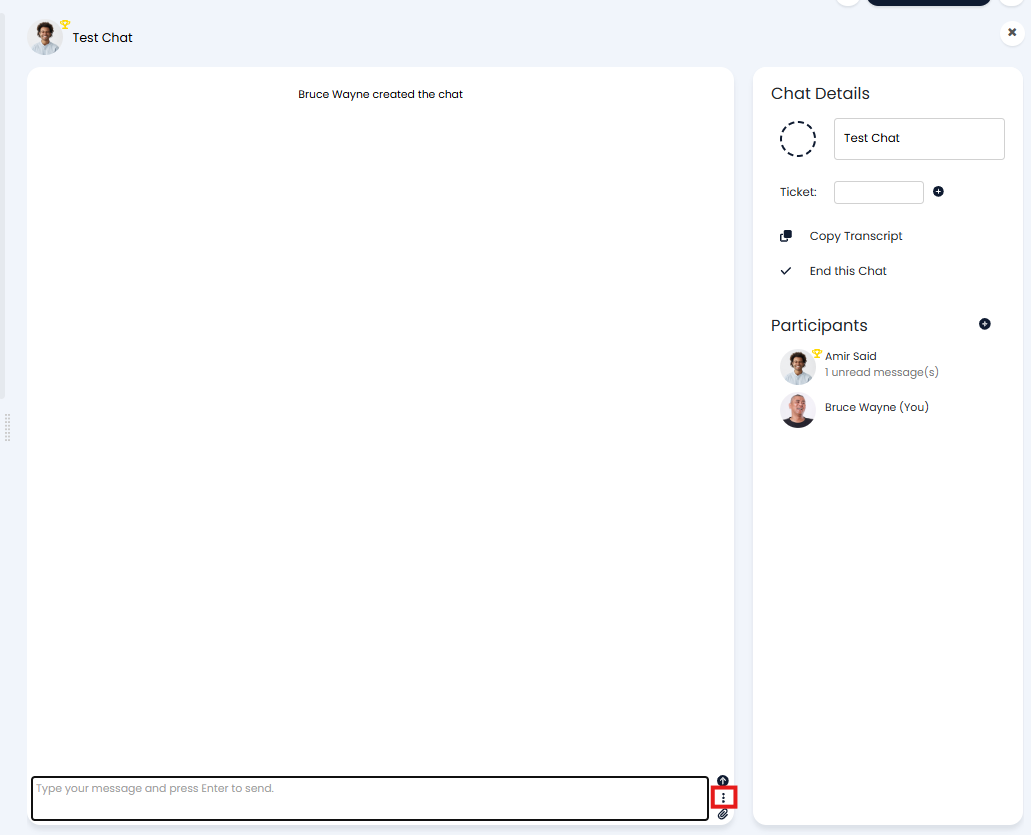
Fig 24. Use canned text in Chat
When selected, Agents can choose the canned text they would like to add into the chat. Agents will be able to search available Canned Texts and view results based on the canned text group. As soon as the Canned text is selected this will be posted into the Chat.
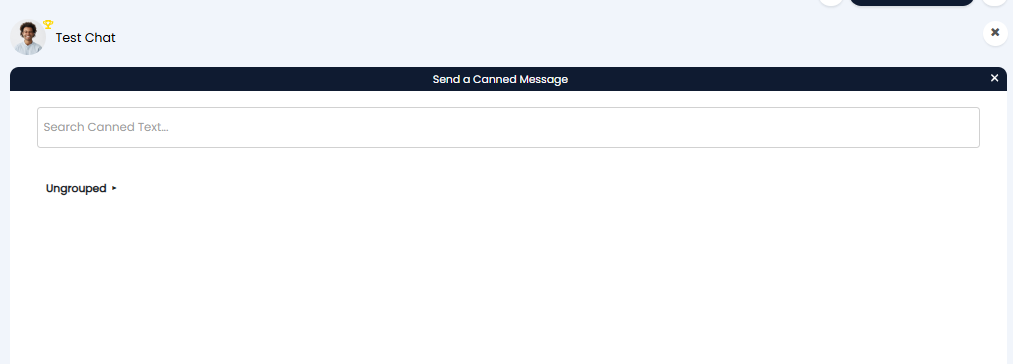
Fig 25. Searching Canned Text to add to chat
Translating Live Chat
If you have customers that use various languages you may benefit from using the Azure translator to translate live chat messages.
This requires the Azure Translator integration to be set up, against the integration is a setting 'Allow Agents to translate Live Chat messages from Users', when enabled agents will have the option to translate messages from users in the live chat. For more information on our Azure Translator integration see our guide here.
Waiting for Live Chat Agents
Live chat depends on an agent being available to chat to the user in real time. In many cases an agent may not be available right away, in which case the user will need to wait for an agent to become available.
The variable $-Waittime (without the hyphen) can be used in the chat profile to inform the user how long they the expected wait time is.
$-WAITTIME
This variable can be used in tickets, for example in an acknowledgement email and in the chat as part of a "Send a message" action. This variable will show an estimated wait time for a response/for an Agent to join a Chat based on the historical average for a set period. This can be used before or as a live chat is started to give the user an idea of how long they can expect to wait for an agent to be available for live chat.
You can set the period wait time is calculated from per chat profile, head to Configuration > Chat > Chat profiles > select a profile > 'Wait time variable settings' section.

Fig 26. Wait time variable settings
Default in minutes when there is no data to calculate from - This is the time that the variable will pull through if there is no data to calculate the average wait time from.
Period in minutes to calculate average wait time from - This is the period that is used to calculate the average wait time. For example, if set to 60, the average wait time for the last hour will be calculated.
The output of the variable will be a whole number (in minutes), if the time is less than 1, '< 1' will be returned.
Wait time calculation method
You will be able to choose how wait time is calculated using the 'Wait time calculation method' field. If 'Average queue time' is selected as the calculation method wait time will be calculated using the method outlined above.
If 'Longest current wait time in Live Chat queue' is selected the wait time will be calculated using the longest user wait time in the queue currently, that is how long a user that is currently in the queue has been waiting. If there is no one in the queue the 'Default in minutes when there is no data to calculate from' will be returned.
Show estimated wait time in a banner (v2.238+)
When enabled, this will display a banner to the User to show the estimated time before an Agent will join the chat.
Show a queue position (v2.238+)
When enabled, the User will be shown their queue position. In order to use the queue position functionality, you must first ensure that a Ticket is logged before the User starts queuing for Live chat in the Chat flow. A Listm,ust then be selected to determine the queue position. This list is used to apply filters to Tickets, with any Ticket which appears in the list being counted in the queue. Therefore, it is important ensure you filter the list to Unassigned Live Chat requests only. Please note that if the list's "use" is set to a specific Area, then those filters will also apply.
Note: Enabling the wait time or queue position banner will replace the previous "Waiting for an Agent to join" message shown when queuing for Live Chat.
User Wait Messages
Messages can also be configured to send to the user while they are waiting for an available agent. These messages will be sent at fixed intervals while users are waiting, useful to prompt the user to keep waiting. They can also be used to prompt the user to remain active on the chat so that the chat is not deemed as abandoned (if using the abandoned functionality). See the Abandoned Live chats section of this guide for more information on this.
These messages are configured per chat profile under the 'Live Chat message' settings of the chat profile.
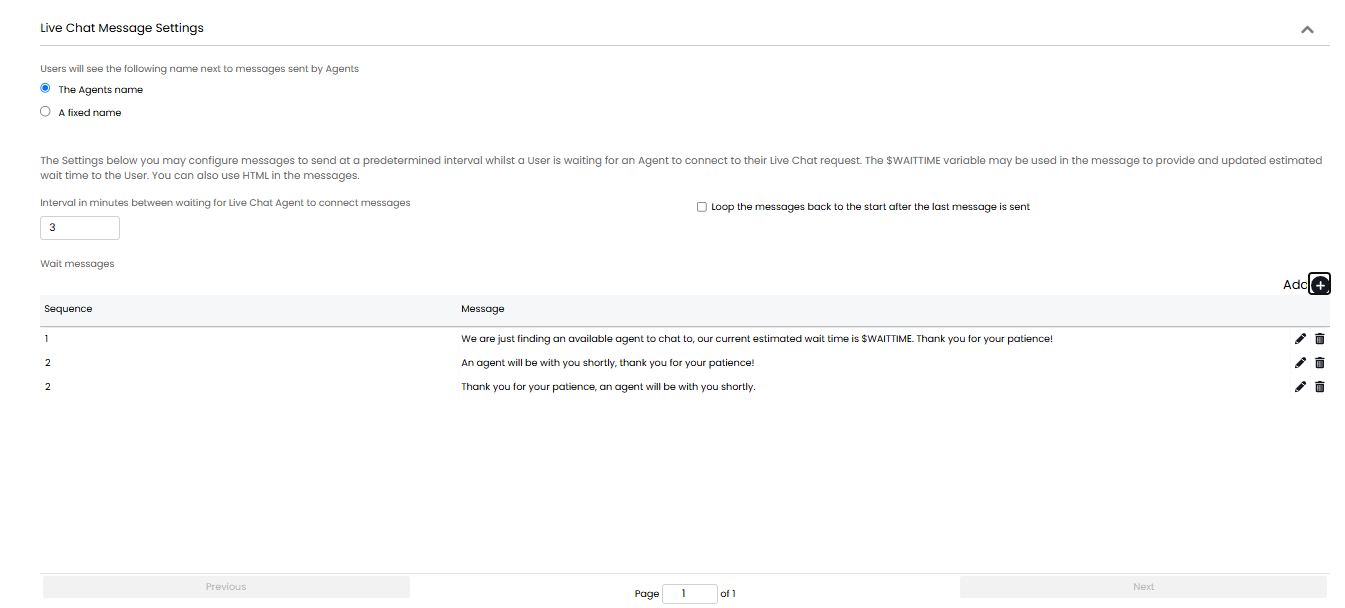
Fig 27. Live chat message configuration
Interval in minutes between waiting for Live Chat Agent to connect messages - Here you can set the interval between the messages sent in minutes.
Loop the messages back to the start after the last message is sent - If this is enabled messages will be looped. Messages will be sent in sequence every interval, when the last message in the sequence has been sent the first message in the sequence will send looping the messages back to the start. If disabled when the last message in the sequence has been sent no more messages will be sent out.
To create a message to be sent add to the 'Wait messages' table. Here you can type out the message that will be sent, or use HTML to customise how the message looks. The variable $-WAITTIME can also be used in the message.
Abandoned Live Chats
When a chat is active the chat will have the status 'Agent Chat', and when the user or agent has ended the chat it will have the status 'Ended'. If there has been no activity on the chat from the user for a set amount of time the chat will have the status 'abandoned'. Abandoned chats can be configured to end automatically and close the linked ticket automatically.
This is useful if you have periods in which your users experience considerable wait times for agents to join the live chat. Often when wait times are high users will abandon the chat, resulting in an open ticket and agents unsure if the user is still online. This functionality allows chats that have been abandoned to be identified and even automatically close the chat and/or ticket so agents do not have to close these manually.
This functionality can be enabled under configuration > chat using the setting 'Auto end live chats if User abandons chat before Agent joins'.
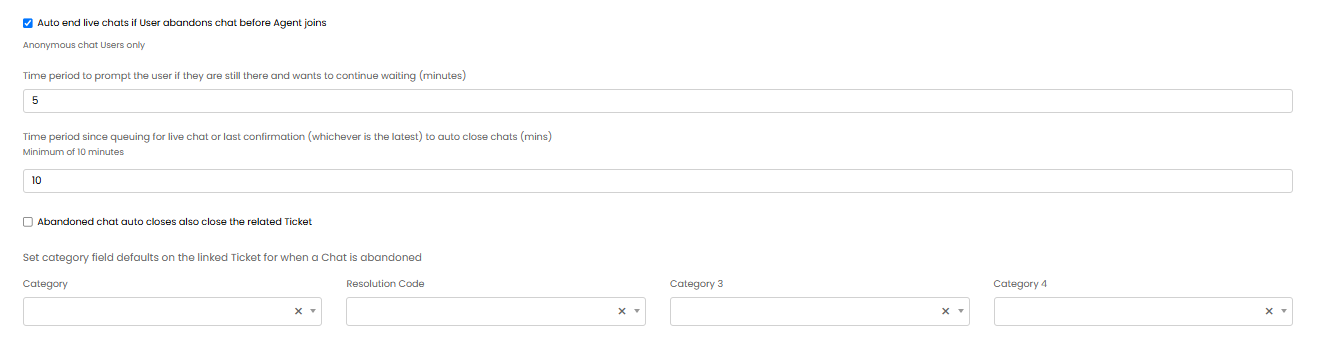
Fig 28. Abandoned chat functionality
Here you can enable live chat to be automatically ended when a user abandons a chat before an agent joins using the setting 'Auto end live chats if User abandons chat before Agent joins'. When this is enabled the live chat will be closed when the chat is deemed as abandoned. The criteria for the chat to be abandoned is configured using the settings below this.
Time period to prompt the user if they are still there and wants to continue waiting (minutes) - Here you can enter the number of minutes the user will receive a prompt after if an agent has still not joined the chat. The user will need to respond to this prompt to keep the chat active.
Time period since queuing for live chat or last confirmation (whichever is the latest) to auto close chats (mins) - Here you can enter the number of minutes a chat will close after if there is no activity on the chat. The time starts from either when the user stated the live chat, or the last message (activity) they entered into the chat. if this time period is exceeded with no activity the chat will close and be deemed 'abandoned'.
Abandoned chat auto closes also close the related Ticket - When enabled the ticket associated to the live chat will also be closed automatically when the live chat is closed.
Once a chat has an abandoned status the ticket will not be included in load balance calculations. This prevents agents being automatically assigned a ticket in which the live chat is no longer active. This is only applicable to scheduled load balancing (when load balance is scheduled using a workflow automation or ticket rule), as if the ticket is set to be load balances upon logging the ticket will already be assigned to an agent before the user abandons the chat. This prevents agents being load balanced tickets that no longer have an active chat, therefore do not require immediate action. If you do not have automatic ticket closure (for when the chat is abandoned) enabled the ticket will remain open but will not be automatically load balanced.
Set category field defaults on the linked Ticket for when a Chat is abandoned - Here you can set category values that will apply to the ticket automatically when the linked chat is abandoned. This allows you to track how many tickets are abandoned, or exclude abandoned tickets for other reports. You may wish to create a new resolution code for abandoned tickets so they are easily identifiable.
From v2.250+, Chats which have been inactive for a set number of days can be deleted. Against your Chat Profile, set the "Number of days without any update before a chat and all its messages are deleted". If you prefer not to use this functionality, set this to -1. Any Chats which are inactive for longer than the number of days set here will be deleted. This is useful d for data protection, preventing Agents from retaining or accessing unnecessary data.
Starting chat from a ticket
Users will be able to start a live chat with an agent from the ticket they are viewing in the portal, allowing them to chat about this specific ticket. When this chat is started with the agent, the agent will be able to see in the chat window which ticket the chat is for, giving them context for the query without having to confirm with the user. This functionality is enabled per ticket type, allowing you to restrict which tickets chats can be started from.
To set this up you will first need to enable the ability for chats to be started from that ticket type, configuration > tickets > ticket types > settings > 'Allow Users to start live chat from a Ticket'.
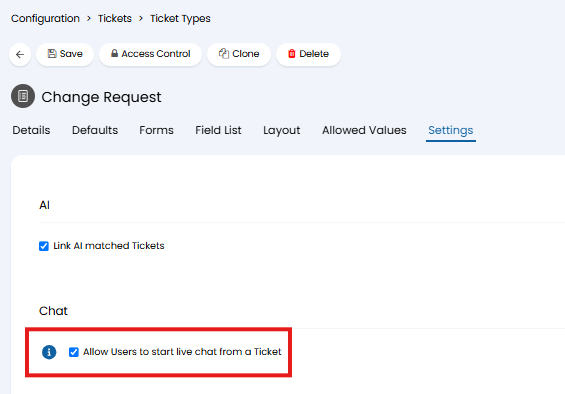
Fig 29. Allow Users to start live chat from a Ticket
Now you will need to configure the chat profile so that it includes a condition to evaluate if the chat is linked to a ticket.
Configuration > chat > chat profiles > select the profile you would like to use > bot flow. Here you will need to configure the start step of the chat to run the condition 'Chat is linked to ticket', only if this condition is met will the chat progress to the next step (starting live chat).
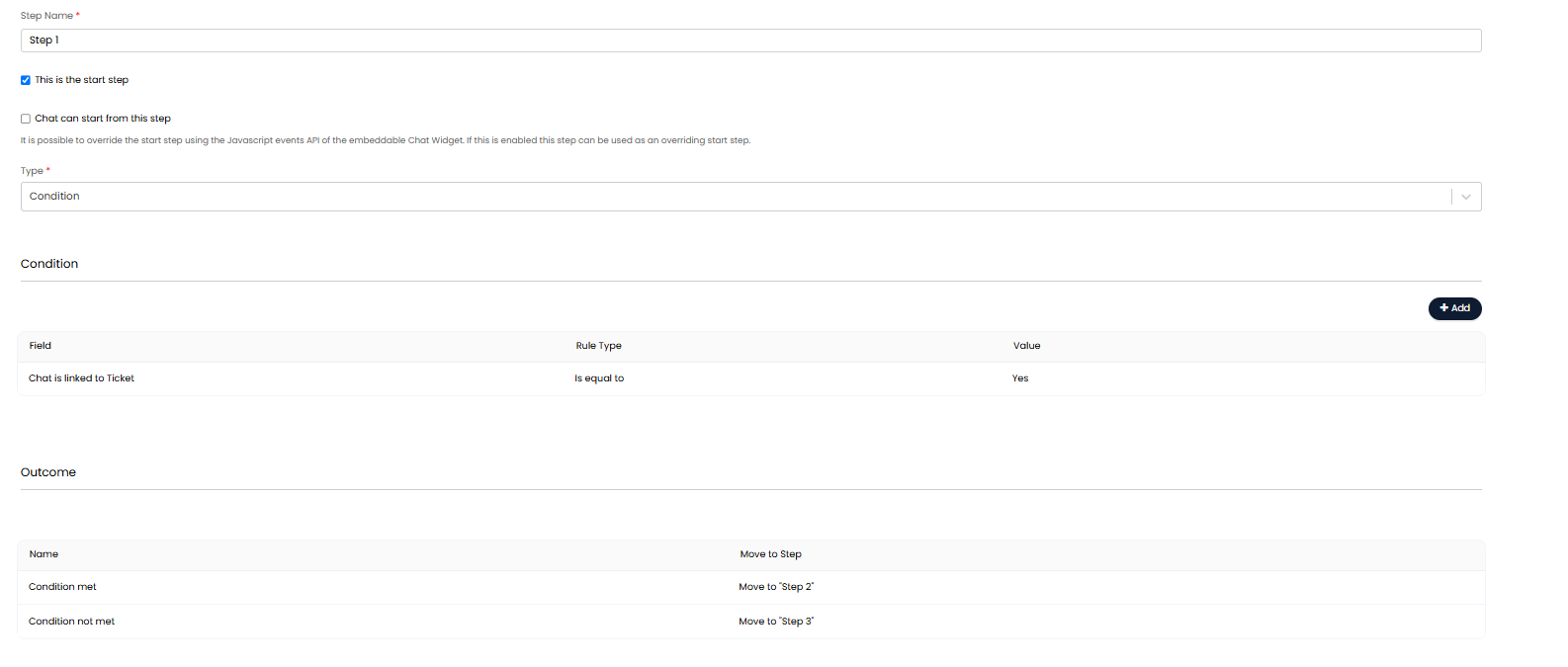
Fig 30. Evaluate if chat is linked to ticket
This must be the start step of the chat. You can then configure the following steps of the chat as you wish, a basic flow is shown in Fig 30.
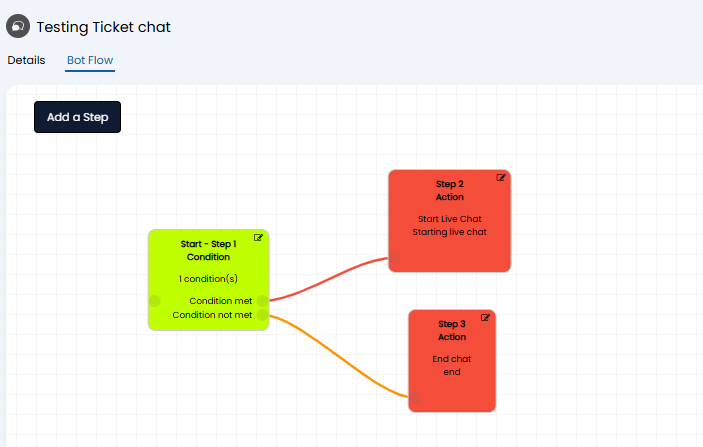
Fig 31. Start live chat if chat linked to ticket
The chat profile used for chats started from tickets in the portal will be the same chat profile used for the portal in general (only one profile can be used in the portal). Therefore, the functionality of the chat when it has not been started from a ticket will need to begin after the evaluation step. So if the chat has been started from a ticket the chat will flow one way, if it has not been started from a ticket, it will flow another. In the Fig 31 example the chat will end if not linked to a ticket.
Ensure this is the chat profile being used for the portal, now when viewing tickets in the portal (that chat has been enabled for), a 'Chat about Ticket' button will become available.
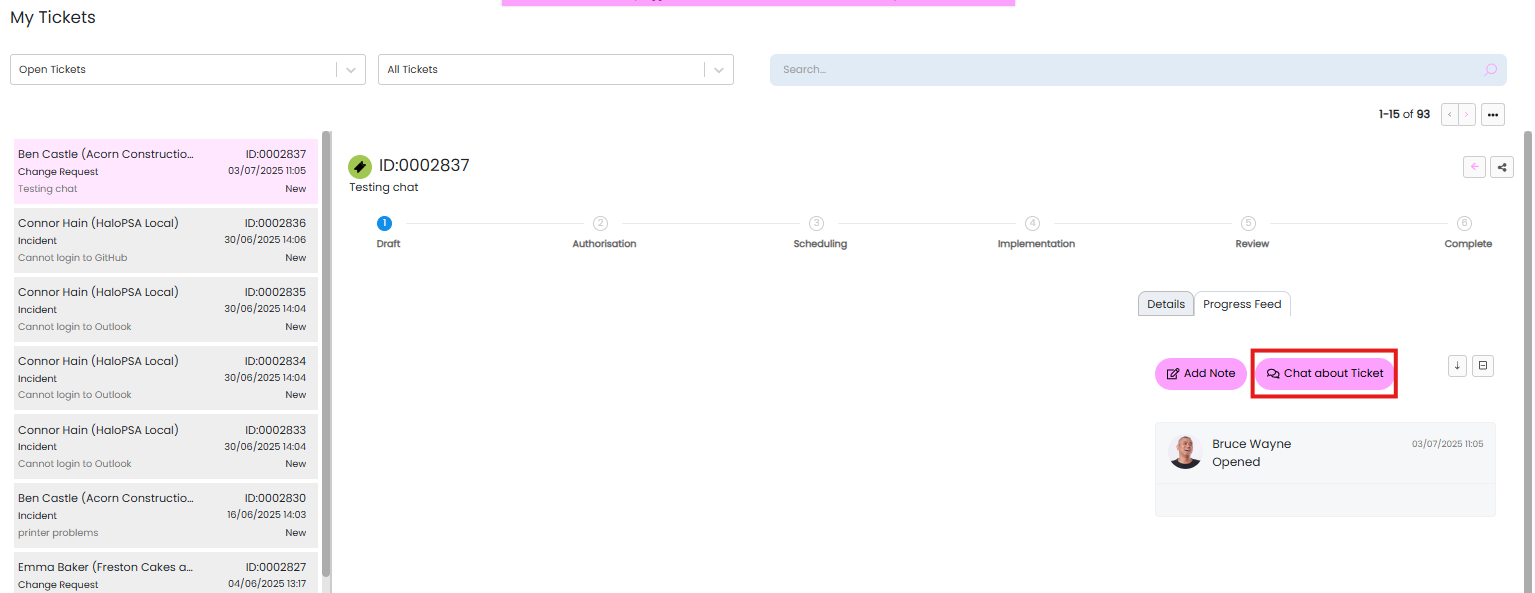
Fig 32. Chat about a ticket
Note: The location of this button against the ticket will depend on your portal setup.
When used, live chat will be started associated to this ticket. On the agent side, the chat bubble will show which ticket the chat was started from.
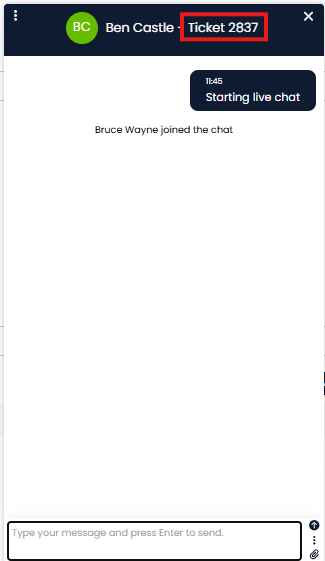
Fig 33. Agent joining chat started from ticket
To open the ticket, the agent can select the ellipsis in the top left to bring up the chat details, here will be a link to the ticket.
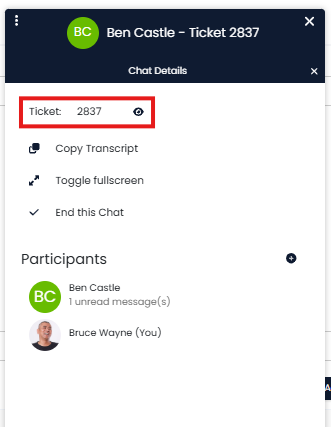
Fig 34. Chat details
Additionally, when this chat is completed, the transcript will automatically be added to this ticket.
Allowing Attachments in the Live Chat
To allow Users to add an attachment to the Live Chat edit the step of your Bot-flow which starts the Live Chat. You will see the option to "Allow image and attachment upload" for Users. This can be set to prevent, allow, or allow only logged in Users to upload attachments.
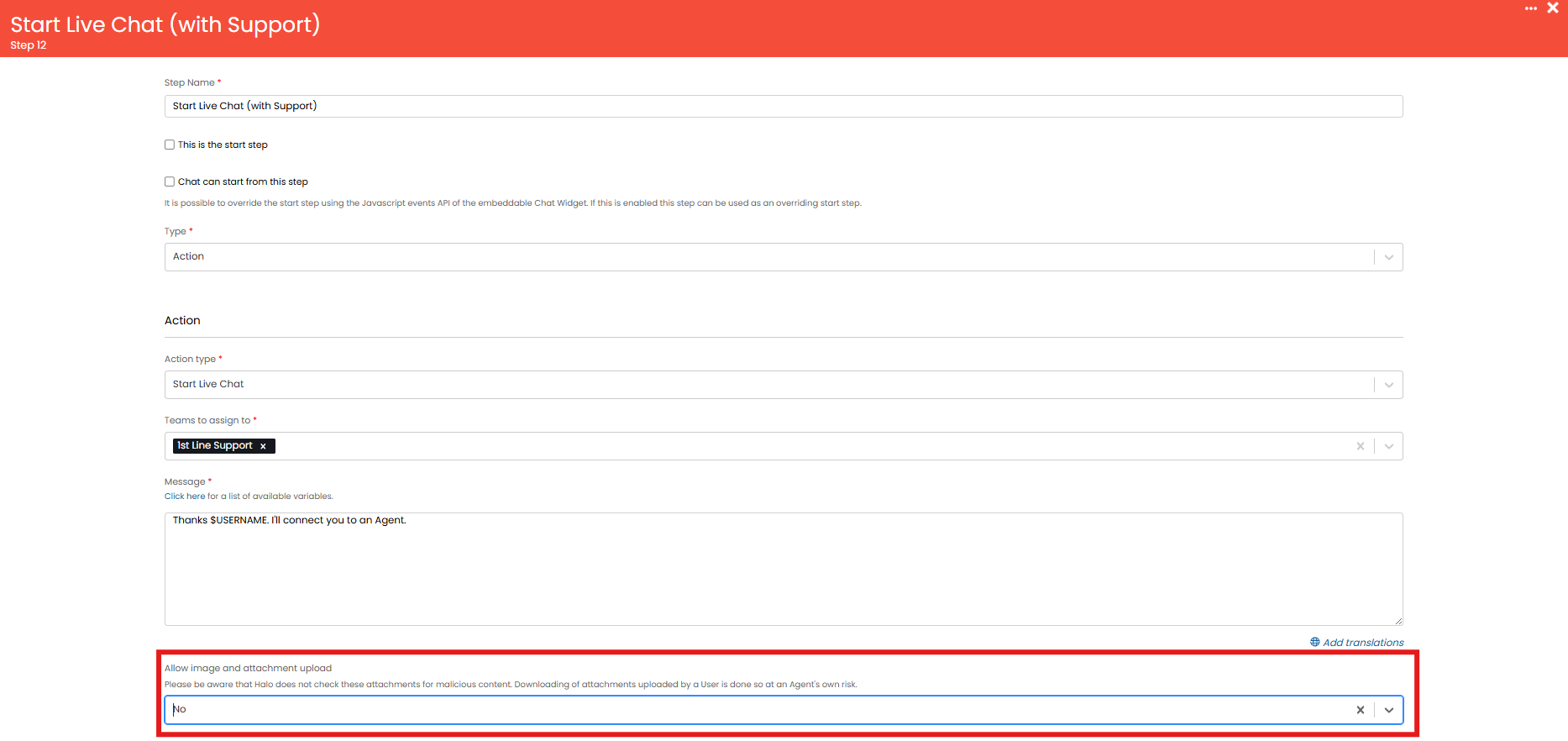
Fig 35. Allowing users to add Attachments
If this setting is set to allow Users to upload attachments, Once the Live Chat has started, Users will be able to click the paperclip icon and upload attachments.
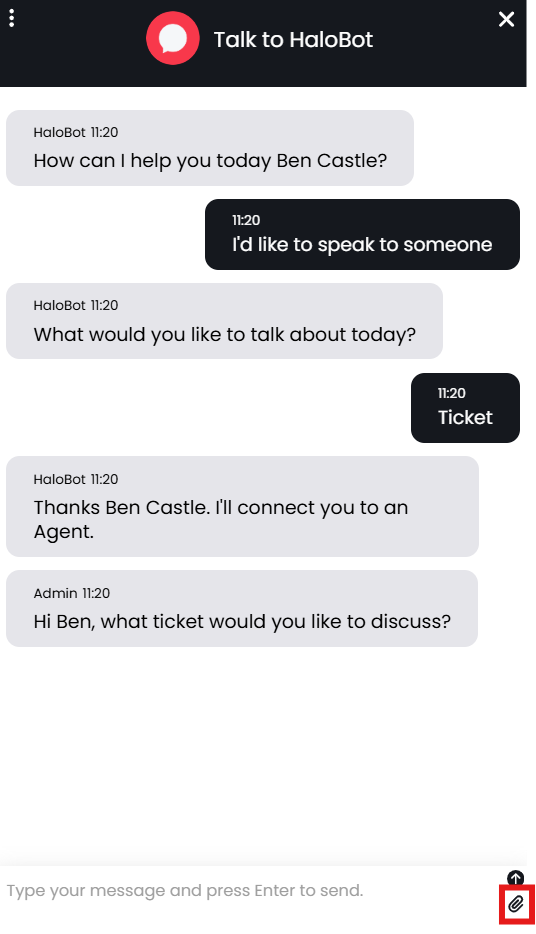
Fig 36. Adding an attachment
You can control when in the Live Chat a User can add an attachment. To do this you will need to enable "Allow Agents to override if the User is allowed to upload attachments/images" against the relevant Chat profile.
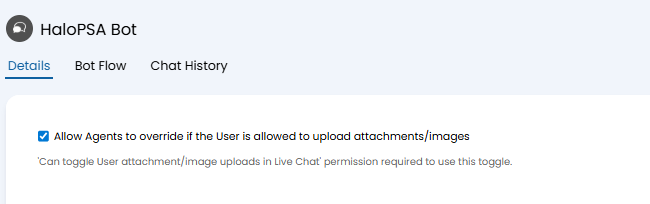
Fig 37. Allowing Agents to override if the User is allowed to upload attachments
To toggle if Users can add Attachments, Agents must be given the Chat permission "Can toggle User attachment/image uploads in Live Chat" (Configuration > Teams & Agents > Agents). Agents with this set will then be able to enable/disable adding attachments by clicking the ellipsis in the top left, and toggling the "Toggle User Attachment Uploads" option.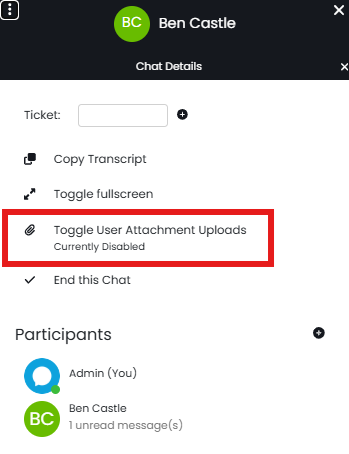
Fig 38. Toggling User Attachment Uploads
Reporting on Live Chat
Contents and statistics on live chat can be reported on to give an overview of chats that have taken place. A data source is available for download in the online repository that give a basis of this.

Fig 39. Live chat data source.
For more detailed reports, SQL can be used to pull from the following tables:
- LIVECHATHEADER: Parent table.
- LIVECHATMSG: Messages sent and received.
Additional columns have been added to the LIVECHATHEADER table to record the date the first agent joined a live chat (LCHdatetimeagentjoined), and the time in minutes the User spent queueing for an agent (LCHqueuetime). This also means when using the Wait time calculation method of Average queue time, the calculation will now be more performant.
Note: If you are using this calculation method, it will be inaccurate for a period of time after this upgrade occurs whilst new data is gathered to calculate the wait time.
Conversational Agents
Conversation Agents use AI technology to process requests from users and agents. These can be used an alternative to agent live chat, allowing users to converse with an AI model as opposed to one of your agents, saving your agents time.
For more information on Conversation Agents, how to set them up and what they can be used for, see our guide here.
Triggering Webhooks From Chat (v2.238+)
From version 2.238 it is possible to trigger Webhooks and Custom Integration Runbooks from incoming chat messages, outgoing chat messages, and system chat messages. This can then be used to integrate third party tools with Halo's Chat feature.
To create a webhook for this purpose, navigate to Configuration > Integrations > Webhooks and select the "+ New" button in the top right corner which will present you with the New Webhook screen.
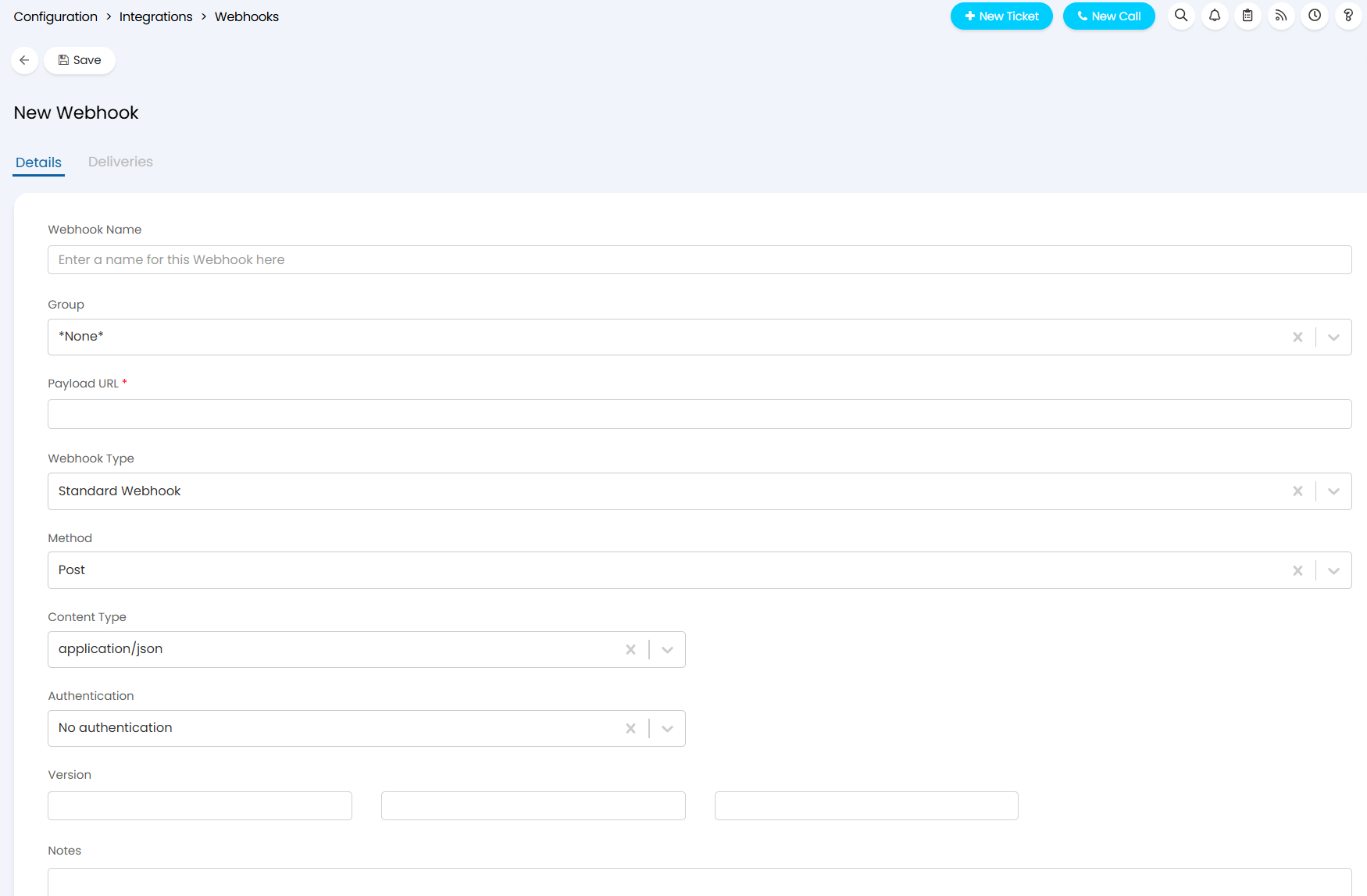
Fig 40. New Webhook screen
Give the webhook a name, a group (if relevant) and then set the payload URL. Set the webhook type, if the webhook type is set to "Standard Webhook" then you will also need to configure the Method type - Post or GET - and the authentication (if needed).
Once this section is completed, you can then configure the payload and choose the event for triggering the Webhook.
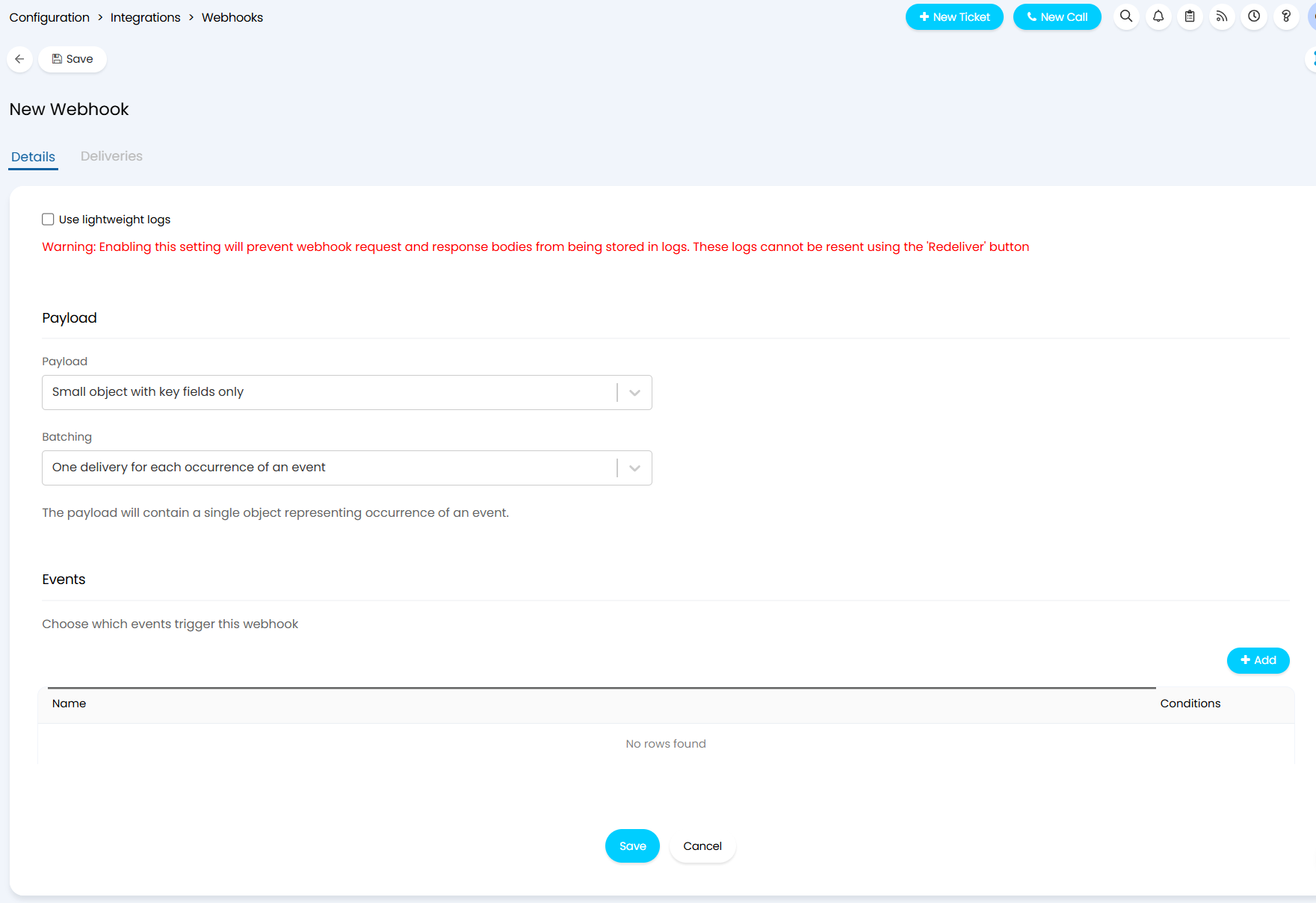
Fig 41. Payload and events section of the New Webhook screen
The payload options can be seen in Figure 33, you can choose to send a smaller object with only key information, the full object, only information of the Event, or a custom payload.
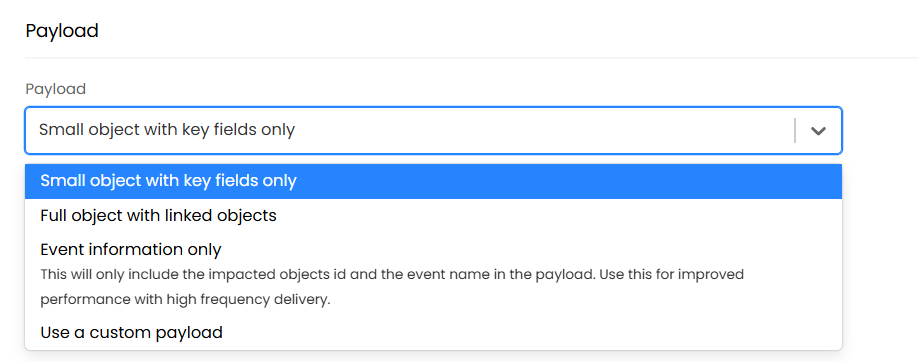
Fig 42. Payload options for a new webhook
Important: If you are triggering a webhook with a chat message, the payload will only ever use "small object with key fields only".
The Batching field allows you to determine whether there is a separate webhook delivery per event or whether multiple events will be batched into one delivery.
To add in the event for triggering the webhook, select the "+ Add" button above the events table shown in Figure x which will bring up the New Event modal screen. In the Event drop-down field of this screen, choose the "Chat Message Sent" option. Two new fields will then dynamically appear for you to choose from - "Message types to send" and "Chat Profile" (Figure 34).
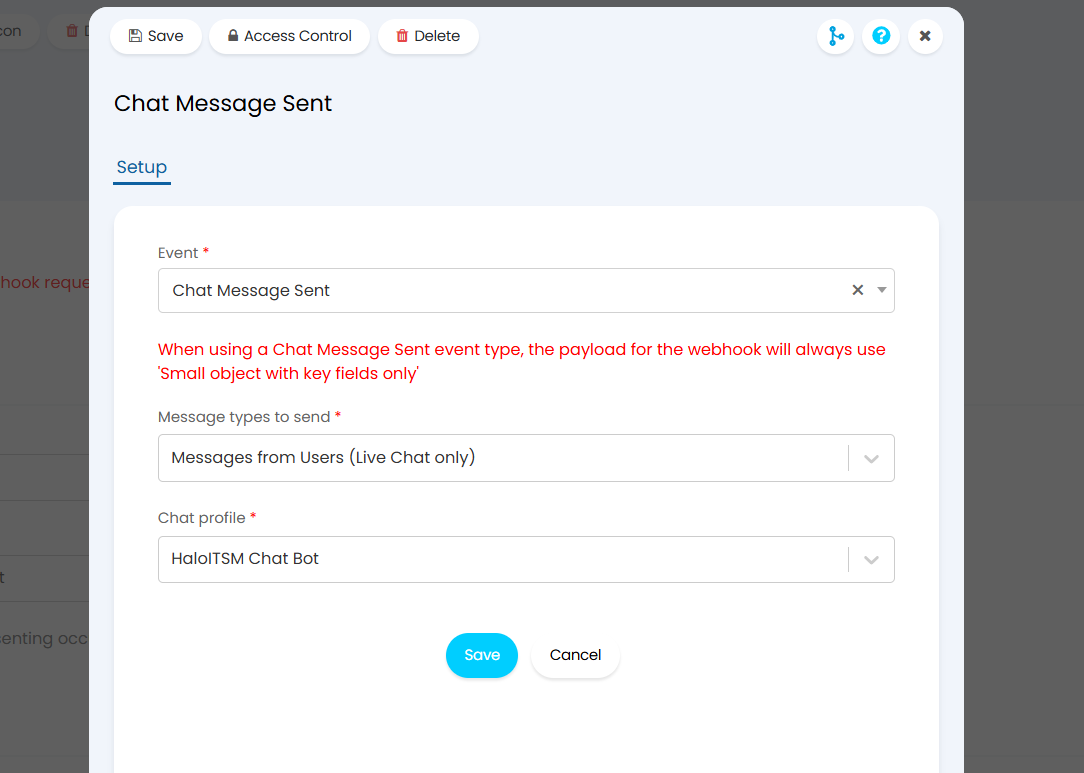
Fig 43. Configuration of the chat message event for webhooks
Message types to send: determines which chat message types can trigger the webhook - options to choose from include all messages, messages from users (either just live chat or live and bot chat), messages from agents, or system messages.
Chat profile: Determines which chat profile this webhook is relevant for (single selection).
As an example, in Figure 34 I have configured the webhook to trigger when a message is sent to a chat by a User using live chat on the HaloITSM Chat Bot chat profile.
Whenever the webhook is triggered, you can view the delivery and relevant logs in the Deliveries tab of the webhook.
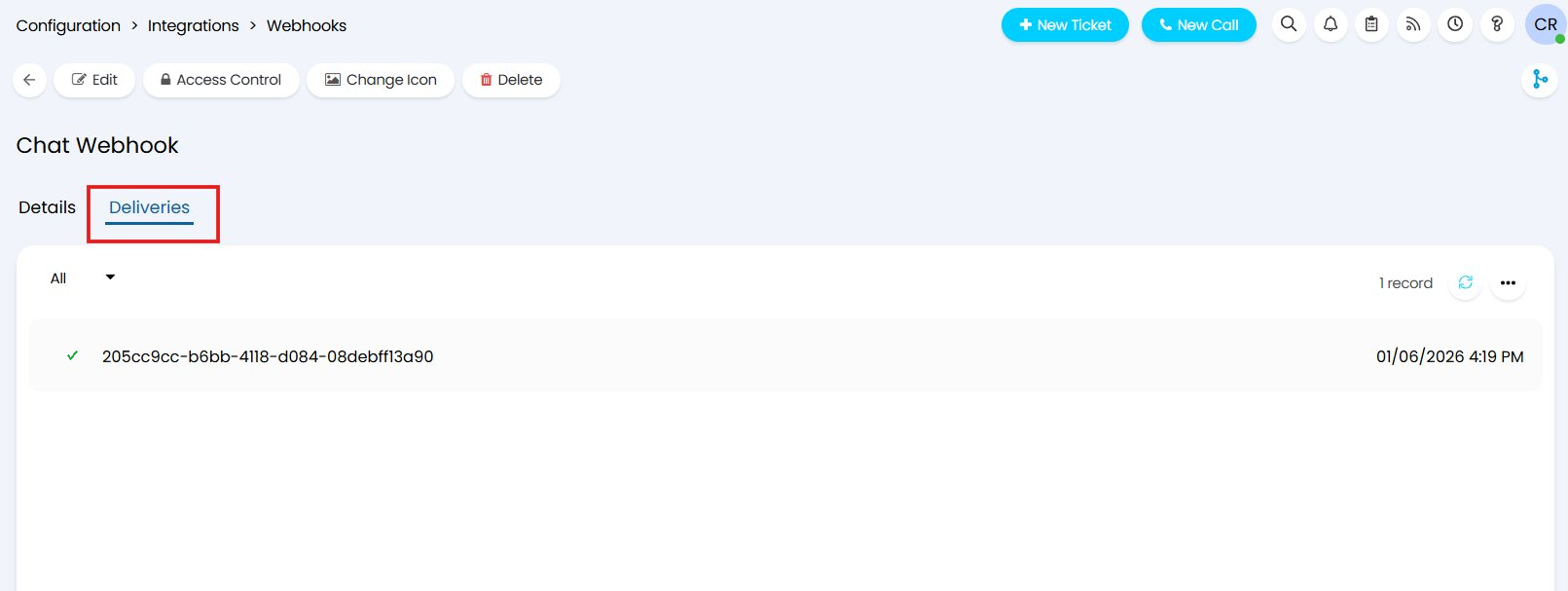
Fig 44. Deliveries tab of the webhook configuration page
$-LINKTOUSERACTION{ID} (v2.250+)
If a Chat has been linked to a Ticket the variable "$-LINKTOUSERACTION{ID}" can be used to generate a link to a chosen User Action. Replace "ID" with the ID of the relevant User Action. This Action must have the setting "Allow Users to use this action" enabled, and should be added to the relevant Workflow and/or Ticket.
When this variable is sent via live chat, the User can click to link to complete the Action. This allows additional information about a Ticket to be easily gathered.