AI Azure Translator
- Language
- Translations
- azure
- ai
- AI translate
- AI language
In this guide we will cover:
- Enabling Azure AI Translator
- Configuring Azure AI Translator
- Using Translations on a Ticket
- User Translations in the Self-Service Portal
- Translations in the Live Chat
- Language Pack AI Translations
- Action Toggles
The Azure Translator integration allows you to instantly translate notes from users or other agents into the language that you are currently viewing Halo in.
Enabling Azure AI Translator
To use this integration, you must enable the Azure Translator module from within Configuration > Integrations by clicking the '+' icon:
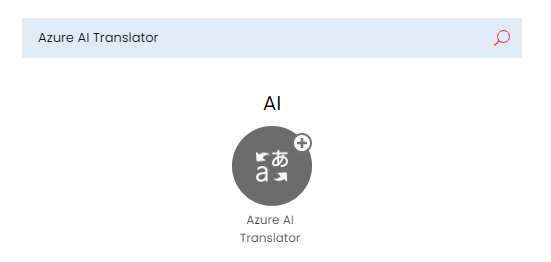
Fig 1. Enabling the module
Configuring Azure AI Translator
To configure, set up a Translator within Azure > Cognitive Services, and obtain an API Key from "Keys and Endpoints", and paste your API key in Configuration > Integrations > Azure Translator - Translator API key.
You will need to enter the correct region for your translator model, this can be found in Microsoft's documentation. For example if you were in canadacentral, it should appear the following way:
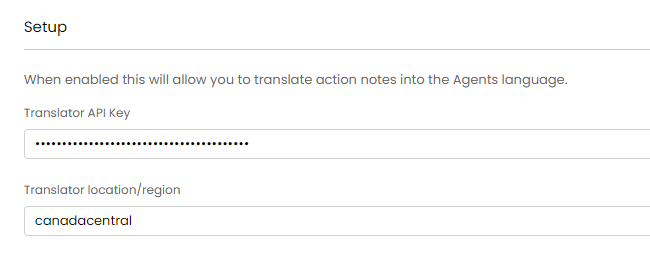
Fig 2. Adding the API key and region
Alternatively your region may need to be set to Global, which is the Halo default.
There are options to choose between translating only plain text (to reduce usage costs), or HTML (to include images and preserve the formatting in the translation). A monthly character limit can also be added here.
Using Translations on a Ticket
When active, a translate button will show for each action note. Press it to translate the note. This will auto-detect the language of the note and translate it into your current language using Azure translator.
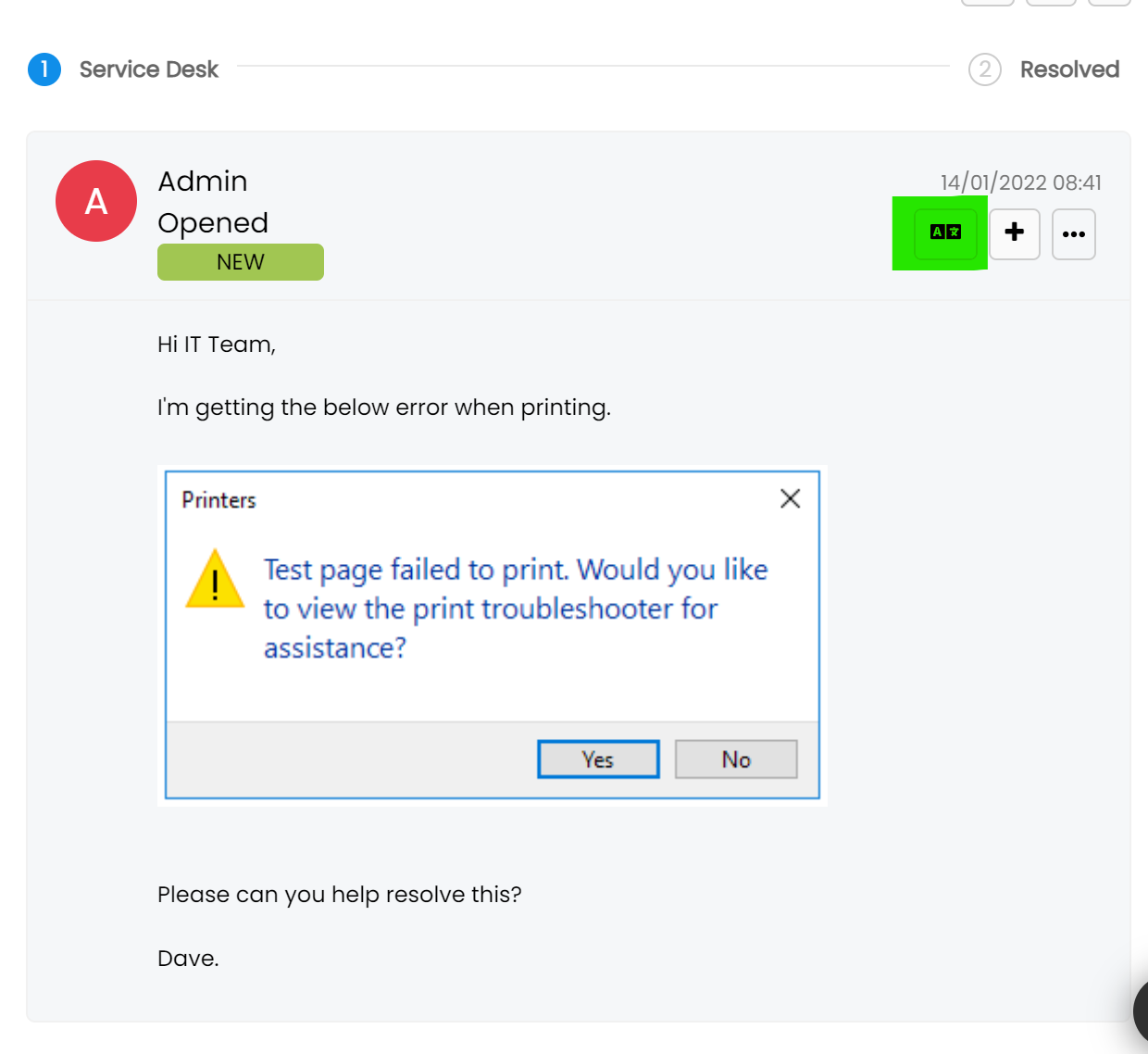
Fig 3. Untranslated ticket
The note will then be replaced with the translated version and pressing the button again will revert to the original.
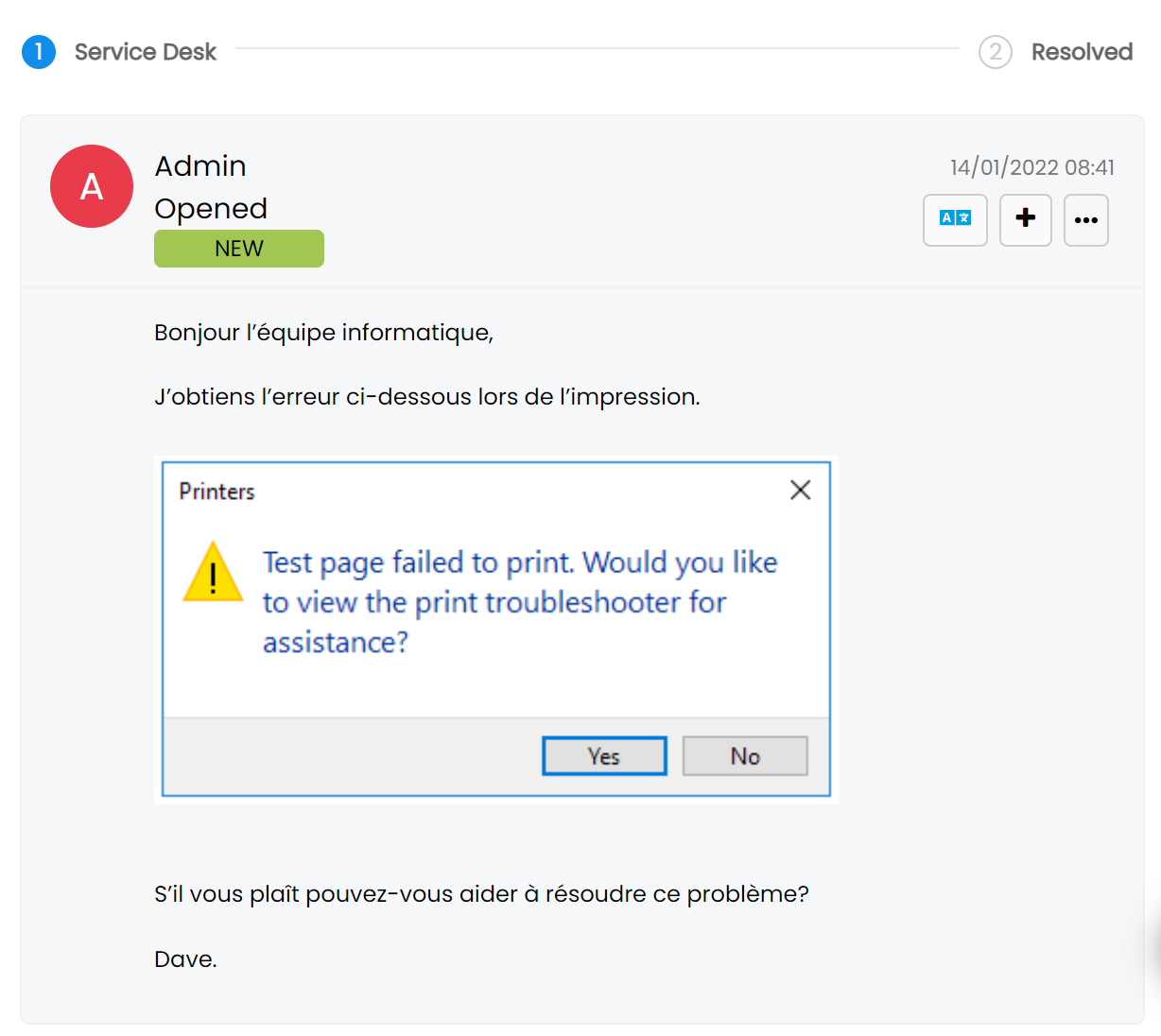
Fig 4. Translated ticket
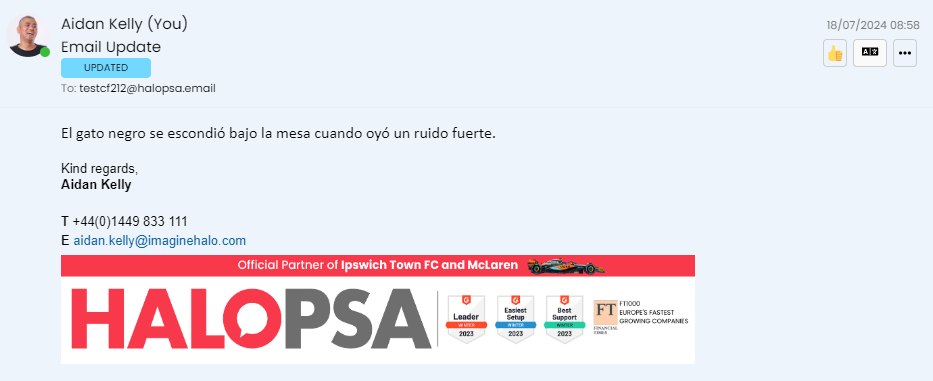
Fig 5. Automatically loading the translation
The first time the translation is made, it may take a few seconds to process, the next time you need to click the translate button it will automatically update via Halo's database:
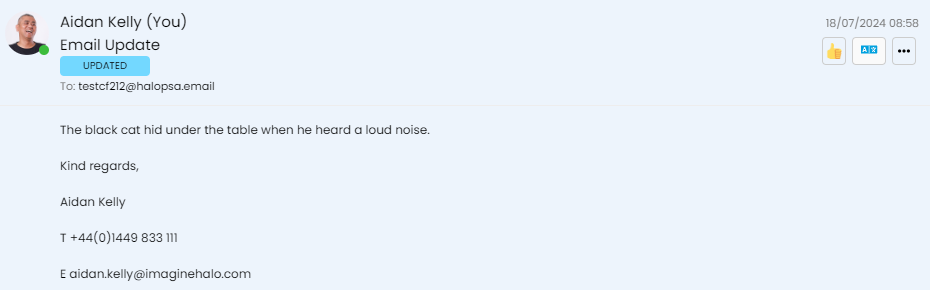
Fig 6. The same email
User Translations in the Self-Service Portal
In Configuration > Self-Service Portal, or Configuration > Integrations > Azure AI Translator, enable this checkbox.

Fig 7. Enable Users to use AI translation
This will show the "Translate"/"View Original" toggle on Actions viewable to Users in the Self-Service Portal.
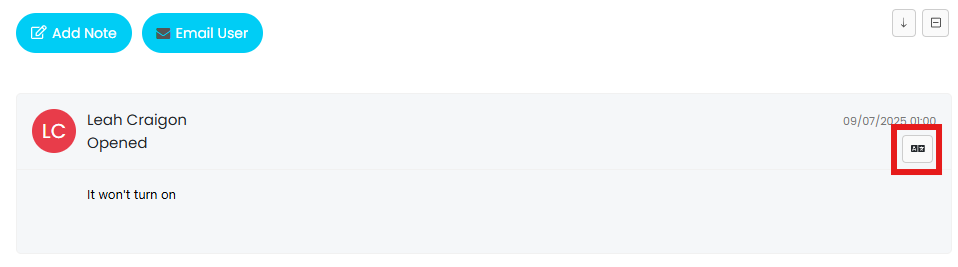
Fig 8. Translate toggle on an Action
Translations in the Live Chat
Agents can translate messages in the live chat when the "Allow Agents to translate Live Chat messages from Users" checkbox is selected. The Azure AI Translator Integration also allows Users to translate live chat messages in the portal by using the setting "Allow Users to translate Live Chat messages from Agents".
This allows two way communication with translations on either side.
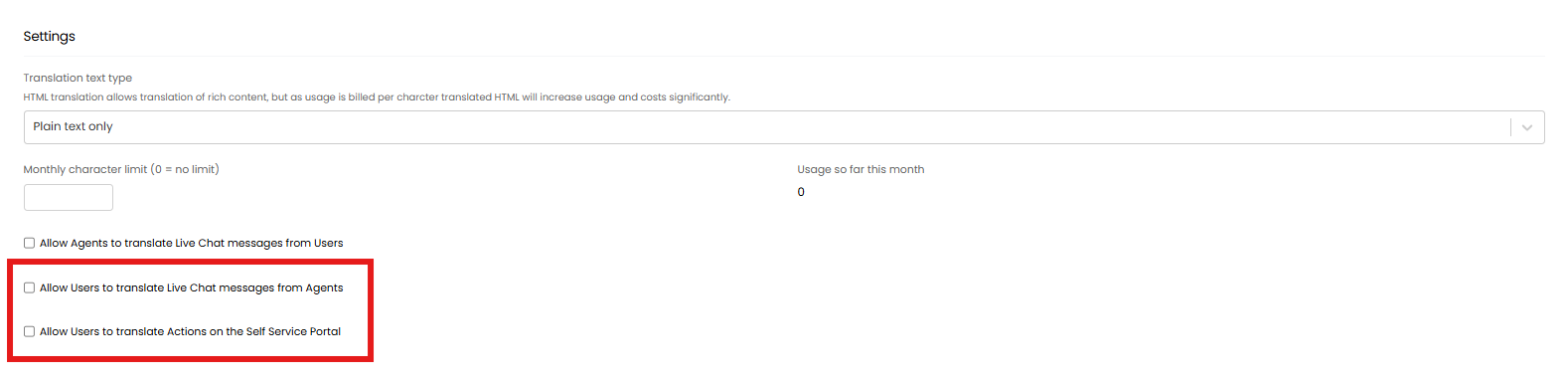
Fig 9. Translate Live Chat options
This will show a button at the bottom of the text box which translates the message.
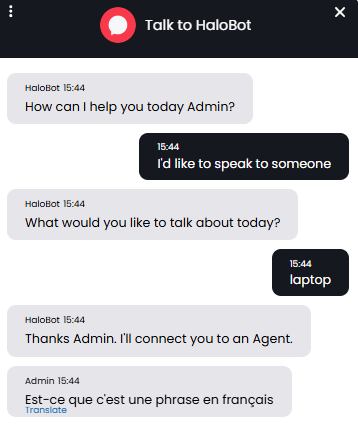
Fig 10. Translate button on a chat message
From v2.244+, you can automate these translations so that the User and/or Agent do not have to click the translate button each time. To enable this, ensure you have enbaled the above settings, and select the option "Automatically translate Live Chat messages from Users for Agents".
Note: Enabling automatic translations is likely to greatly increase your Azure AI Translator usage.
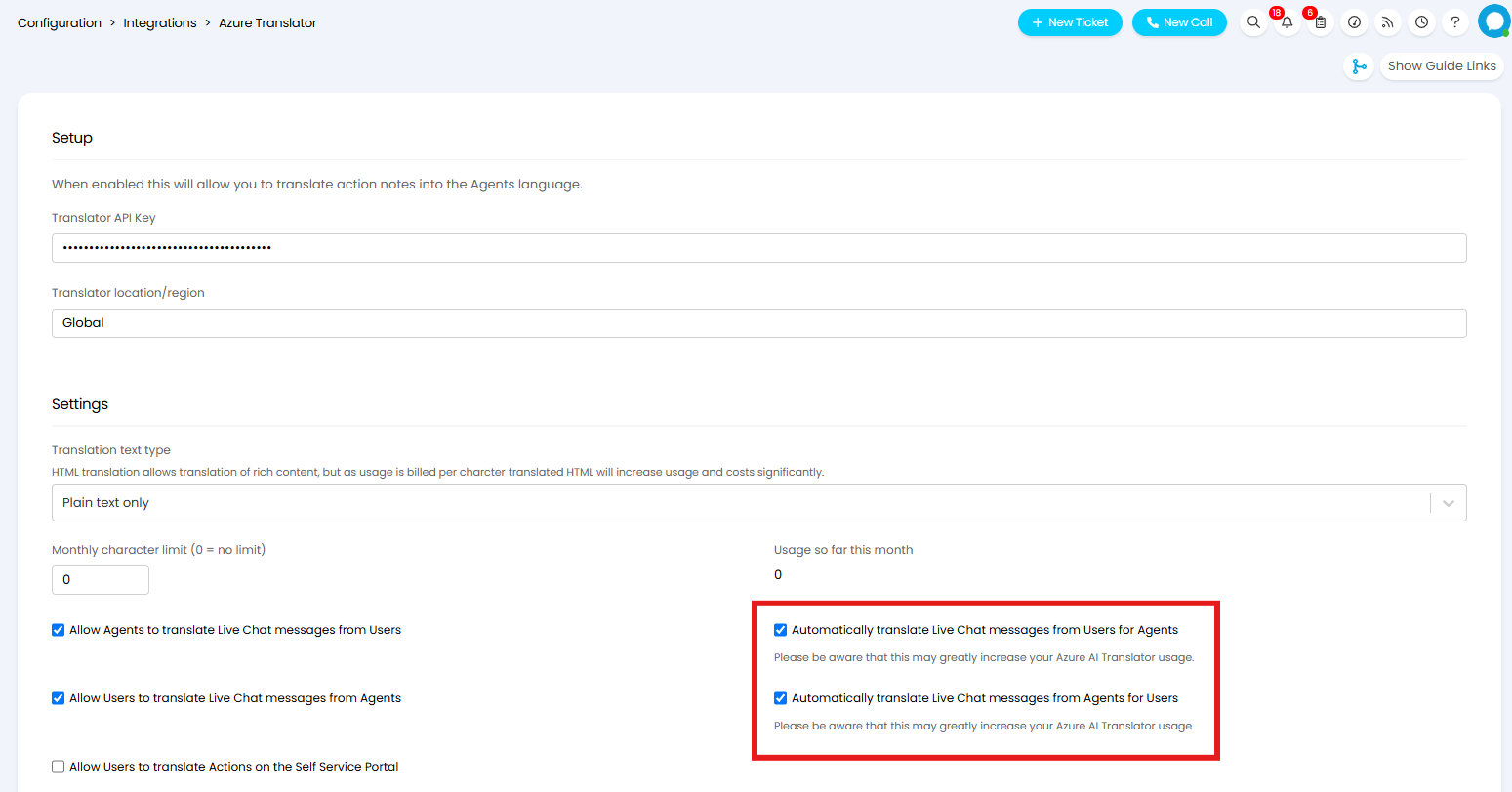
Fig 11. Translate Live Chat automatically
Language Pack AI Translations
The integration can also be used to auto-translate missing strings in a language pack.
In Configuration > Language > Customise Language, select a language to translate. Click the "AI Translate Untranslated" button.
You will see an option to use the "AI Translate Untranslated (Portal)" function to translate strings in the portal only.
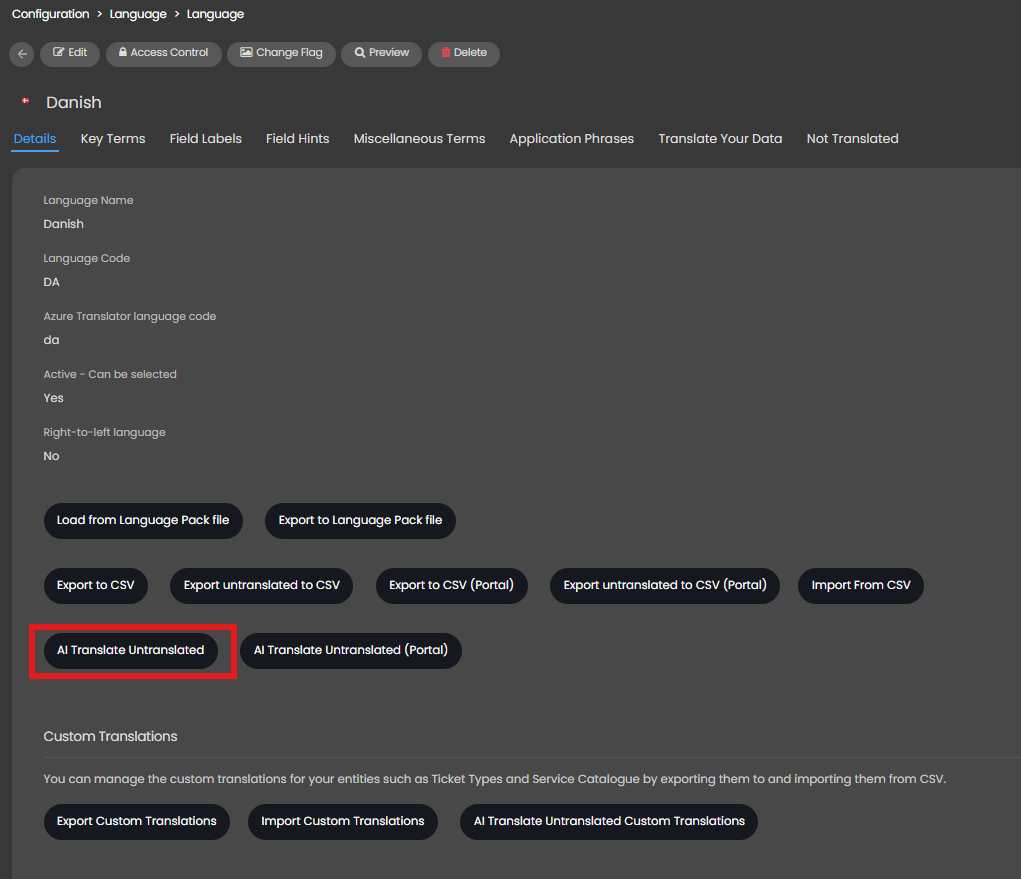
Fig 12. AI Translate Untranslated button
A loading popup will then show. This will take a while as there is a large amount of data to translate, though only non-translated strings will be translated when using this method to reduce cost of use.
Fig 13. Creating the translations
Upon completion, a CSV file will be created with the translations. Here, you can review them to make sure they are what you expect.
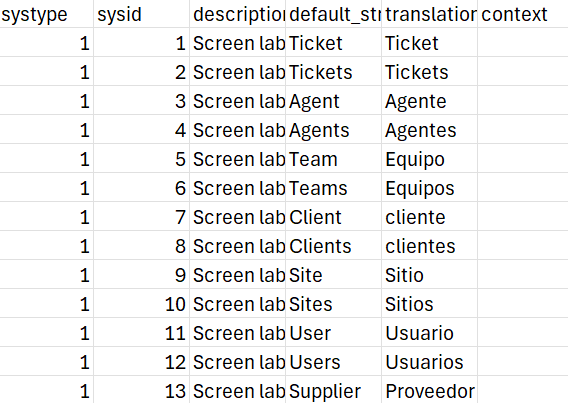
Fig 14. Translated file
After confirmation, the file with the translations can then be imported for use.
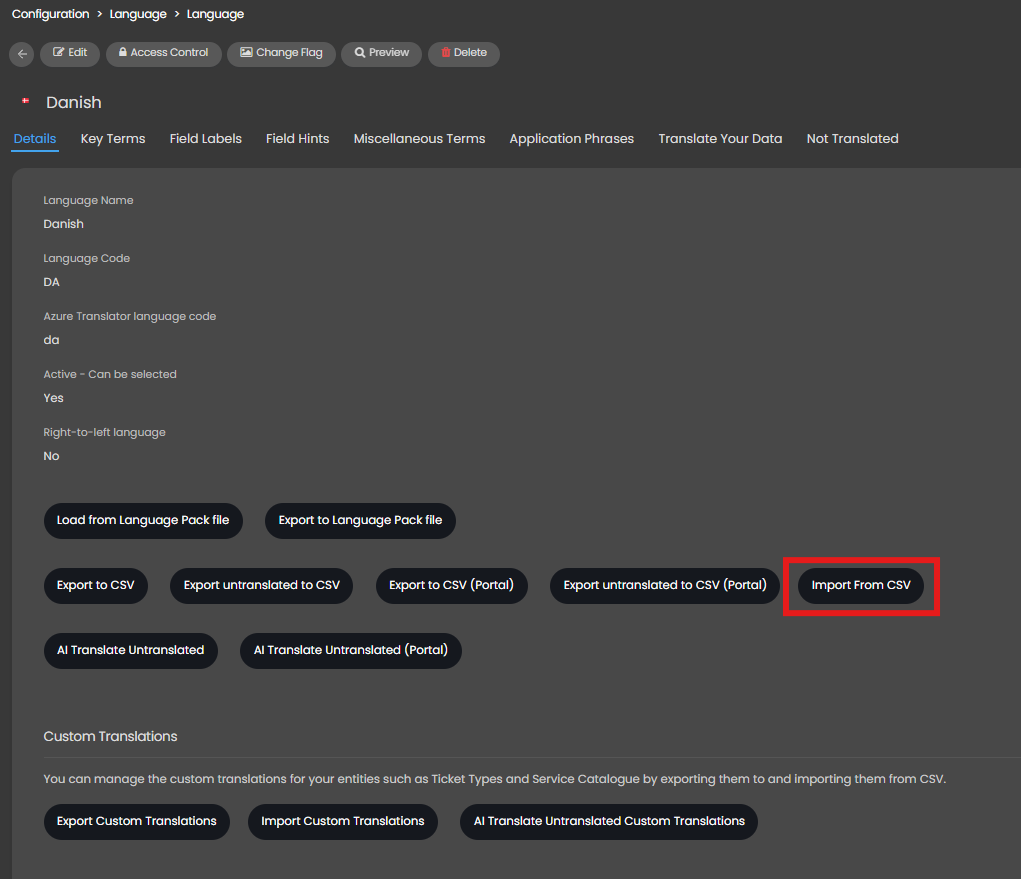
Fig 15. Import From CSV button.
Action Toggles
The translation toggle as been split into two settings and can be defaulted to be switched on. Enable "Show the "Translate (into users language)" option" in Configuration > Tickets > Actions > Details tab, then enable "Translate" in Configuration > Tickets > Actions > Defaults tab.
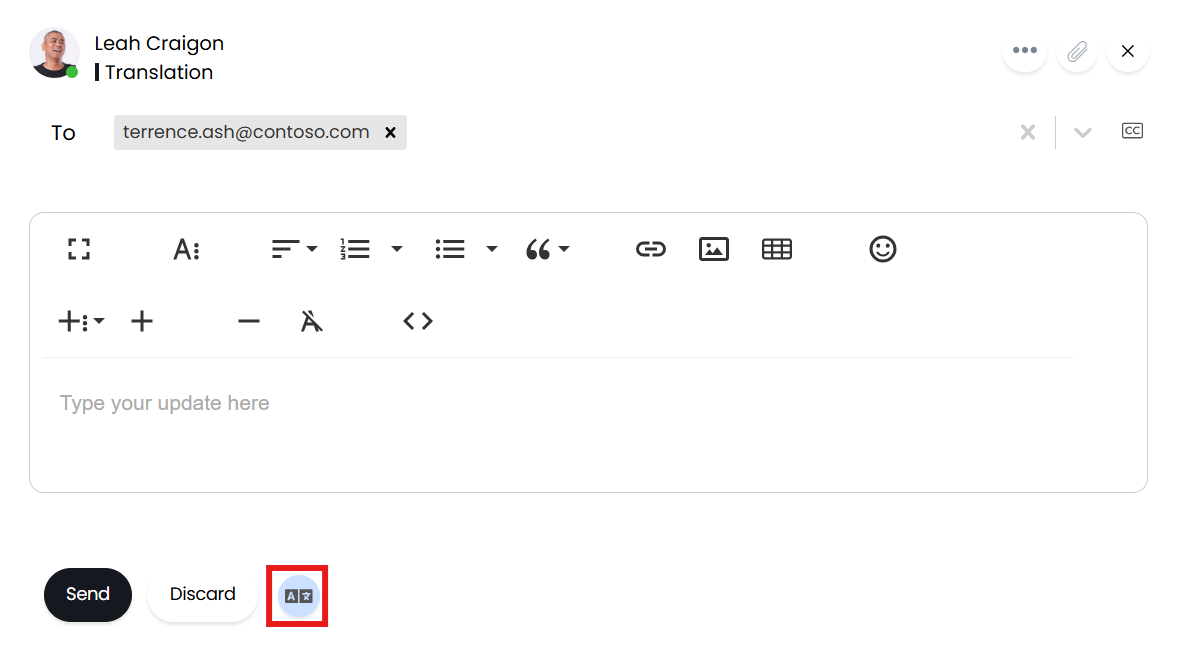
Fig 16. Translate toggle.