External MCPs Use Case: Triggering N-Central Scripts From Halo
In this guide we will cover:
- How It Works
- AI Features Used
- External MCP Server
- Process Agent
Related Guides:
This guide illustrates an example use case for the ability to connect Halo to external MCP servers.
In this example, using the N-Central MCP Server, you can trigger scripts in N-Central directly from within the Halo Chat Bot, eliminating the need for code or even for switching between applications. This is just one example of the kind of functionality that can be built for any device management tool with an available MCP server, the same pattern applies wherever an MCP connection exists.
This guide assumes an understanding of Custom Integration Runbooks, AI Agents, and the concept of an MCP server. To learn about any of these features, please do refer to the relevant guides in the "Related Guides" section above.
Although external MCP servers can be leveraged by all AI Agents, this use case utilises specifically a Process Agent.
Note: What is illustrated in this guide is an example use case, it is not a step by step configuration guide. This is not a feature that is available out of the box, please use this guide as a reference when creating your own similar process that has been adapted to fit your company's needs.
How It Works
A new CPU alert has come into Halo via the N-Able N-Central integration signaling that there is unusually high CPU usage on one of my User's devices.
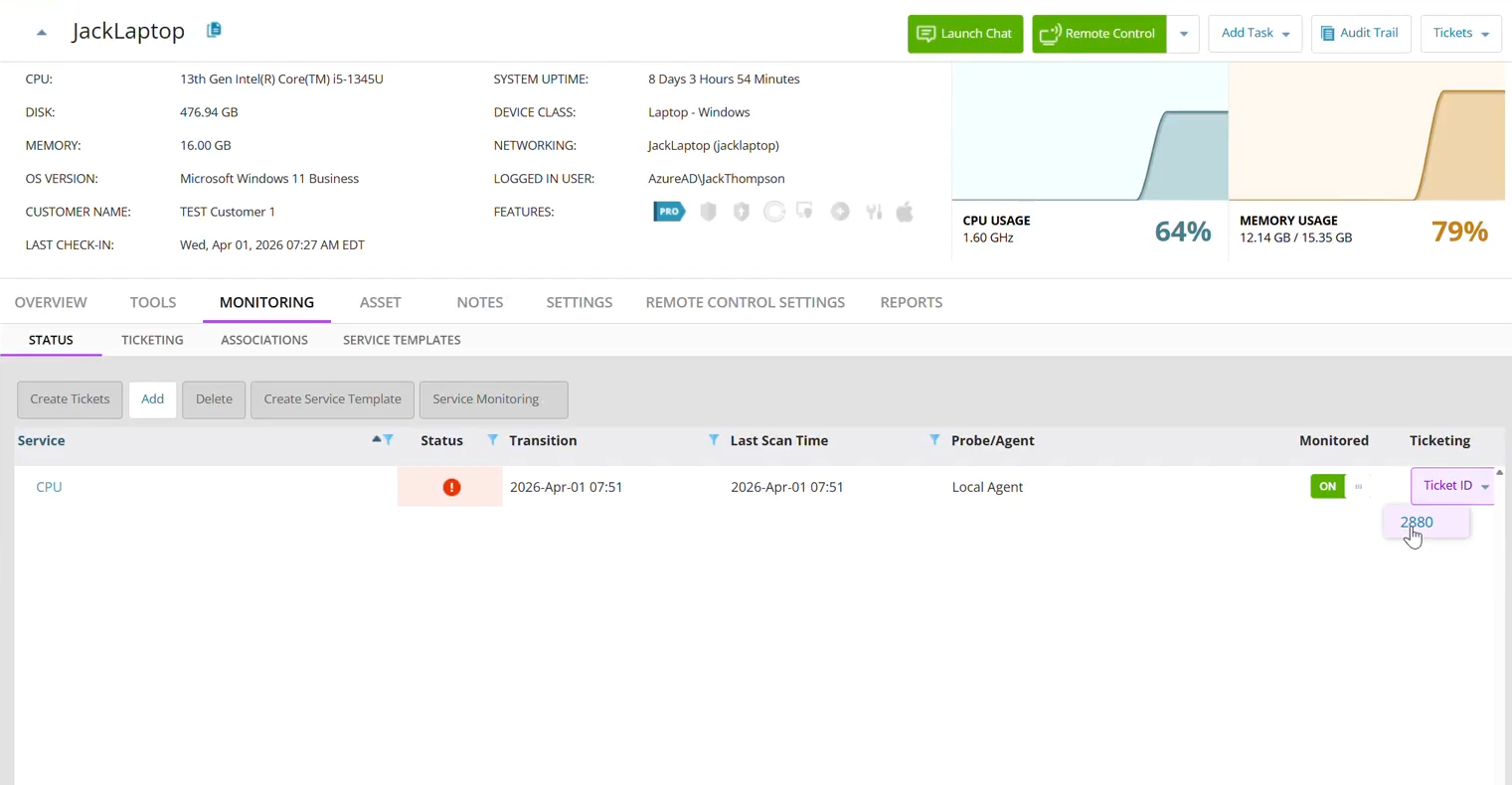
Fig 1. The alert in N-Central linking to the Ticket created in Halo
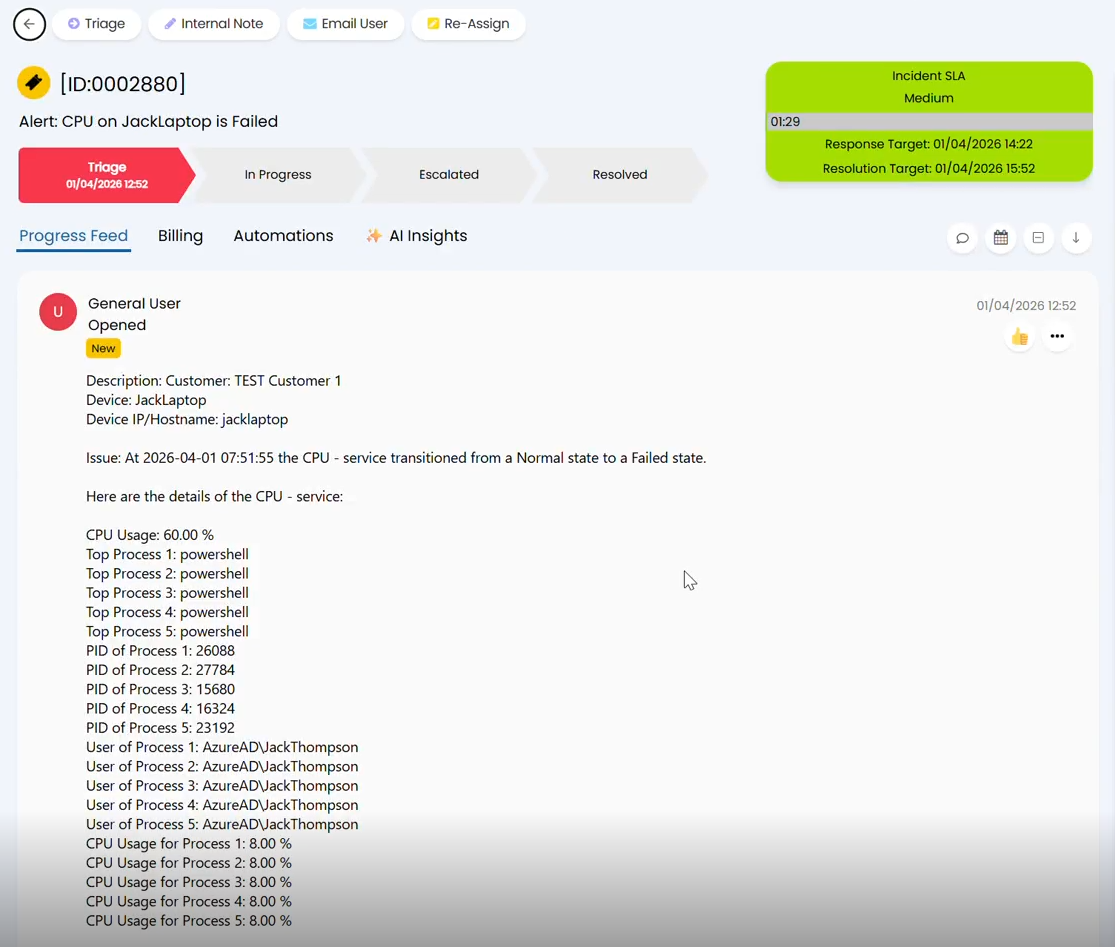
Fig 2. The alert Ticket created in Halo
I can see that there is a PowerShell process using a large amount of CPU on the device and decide that I should kill the process.
Instead of manually navigating to N-Central and running a script myself, I can now action this without even leaving the Ticket in Halo.
I select the Agent-side Chat Bot and instruct it to read the alert Ticket, run a script in N-Central to kill the PowerShell process and then add a note to the Ticket detailing the script and outcome.
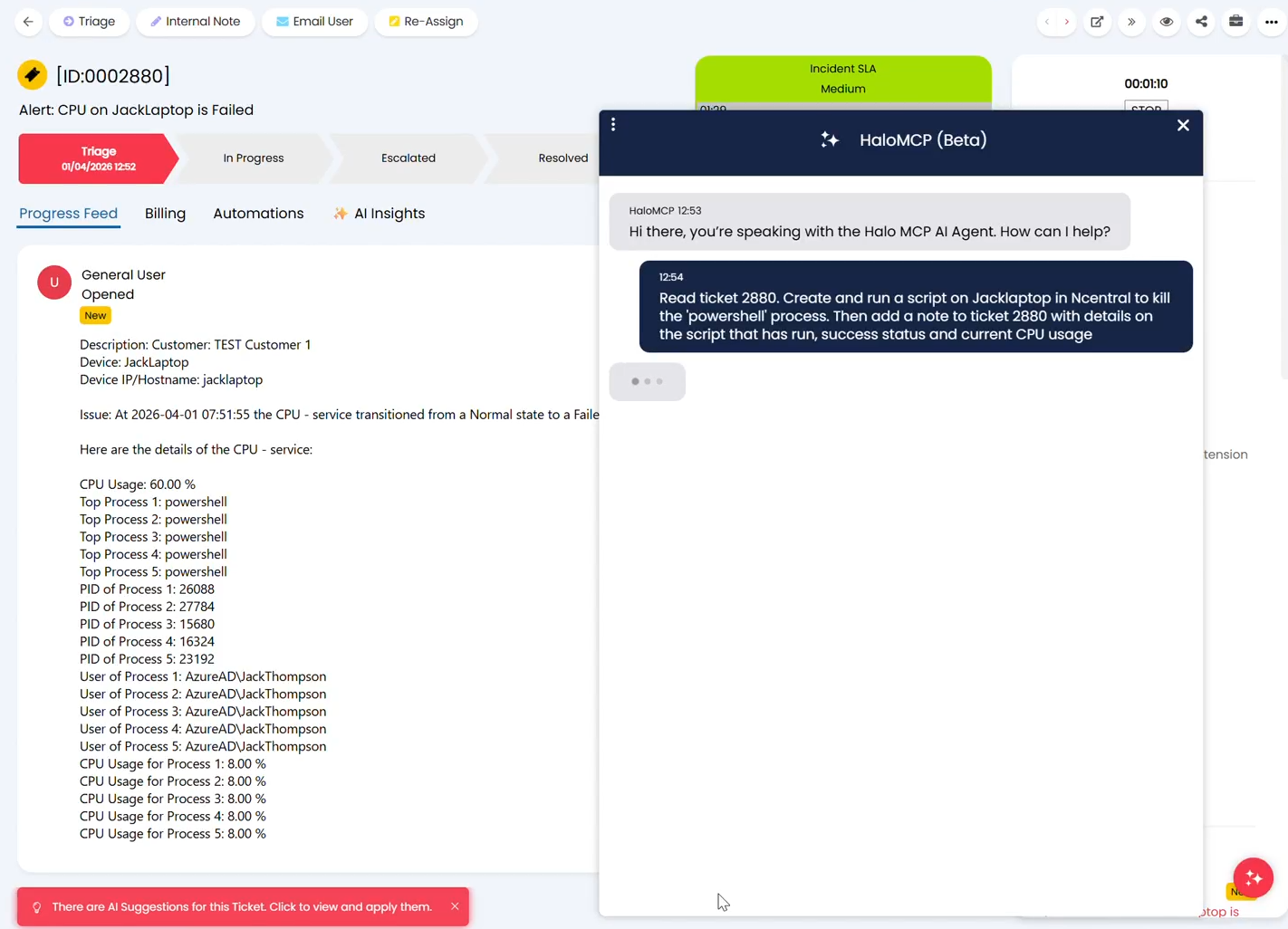
Fig 3. Instructing the Chat Bot to kill the PowerShell process on the alerting device
Once the task has been fulfilled, the Chat Bot replies confirming the outcome and confirms that the Ticket has been updated accordingly.
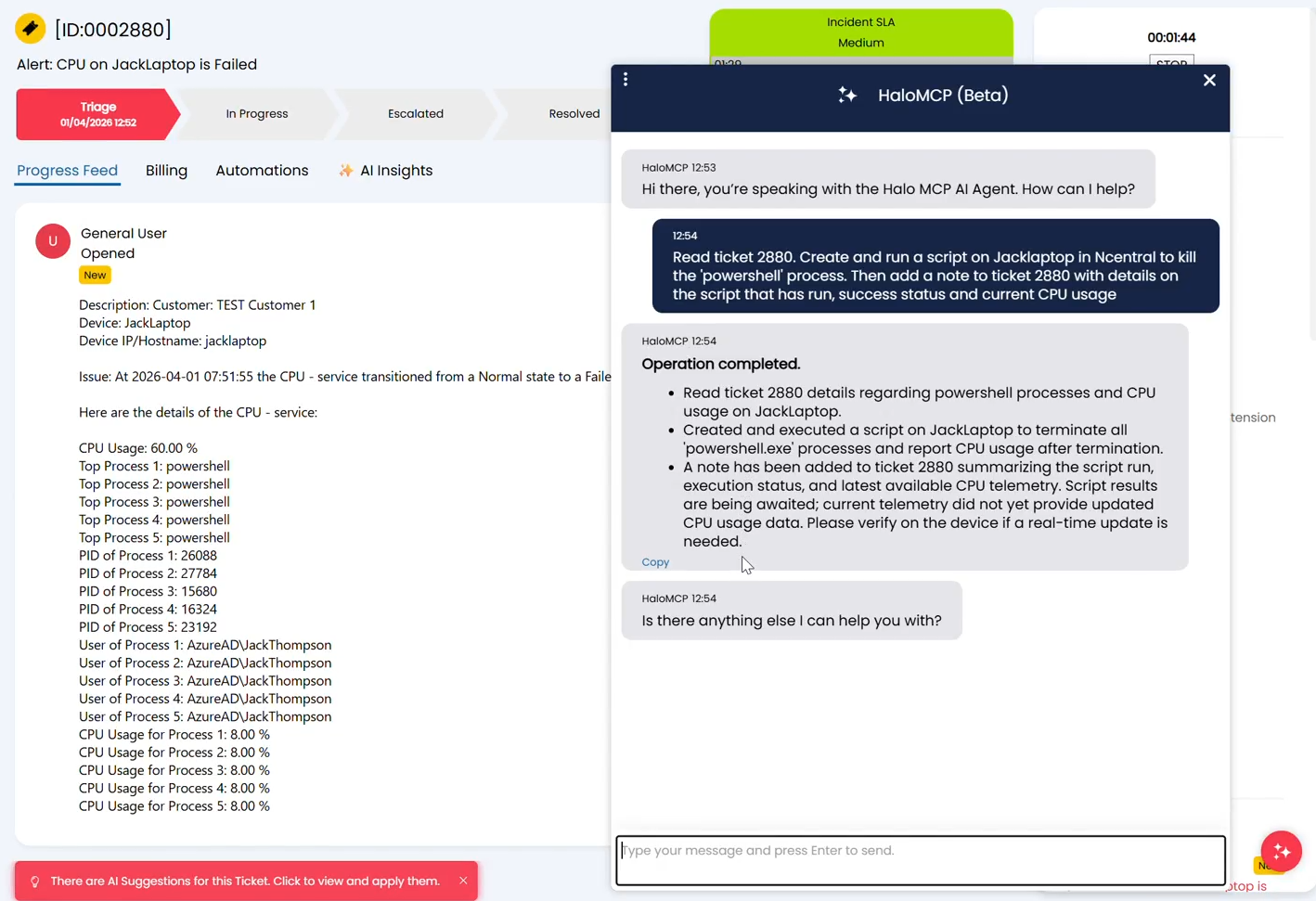
Fig 4. Once the task has been carried out, the Chat Bot will reply confirming
I can see this for myself by refreshing the Ticket and viewing the note added by the Chat Bot.
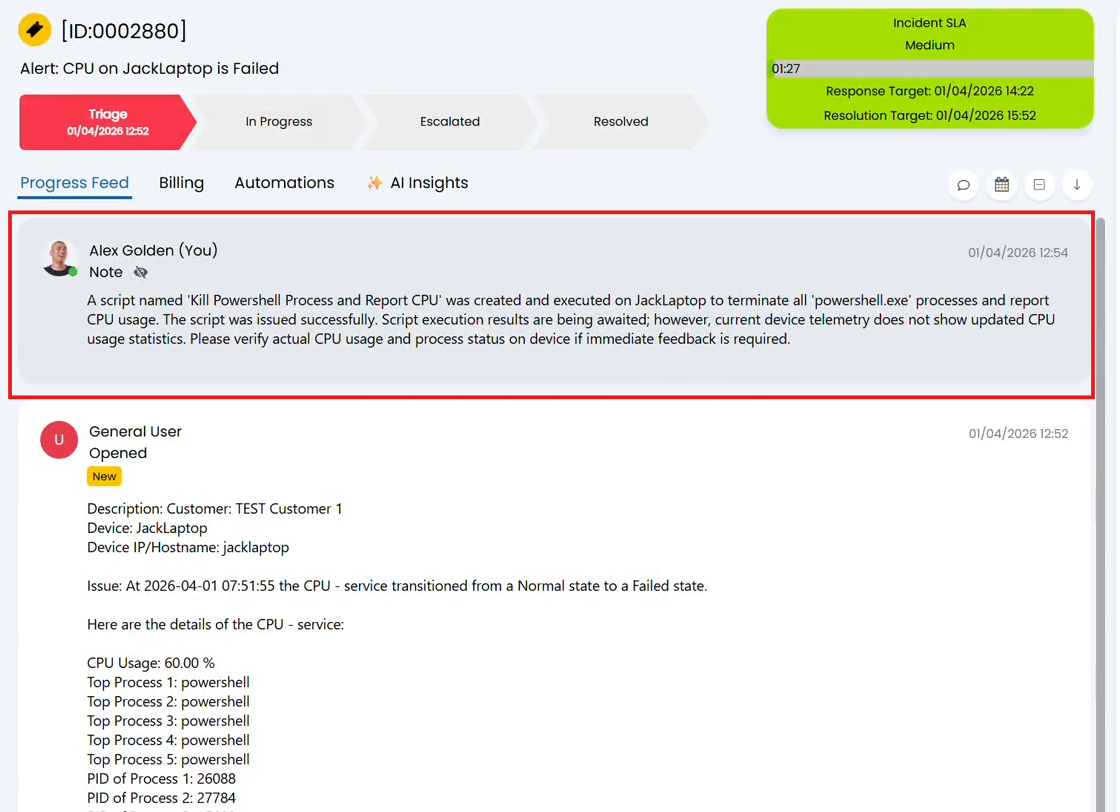
Fig 5. A note is added once the Chat Bot's task is complete
The note details that the results of the script are not yet processed and that I should verify whether the CPU usage has reduced.
I can navigate into my N-Central environment to check the script run by the Chat Bot and verify the outcome of that script.
I can see in N-Central 'Audit Trail' that the script was executed.
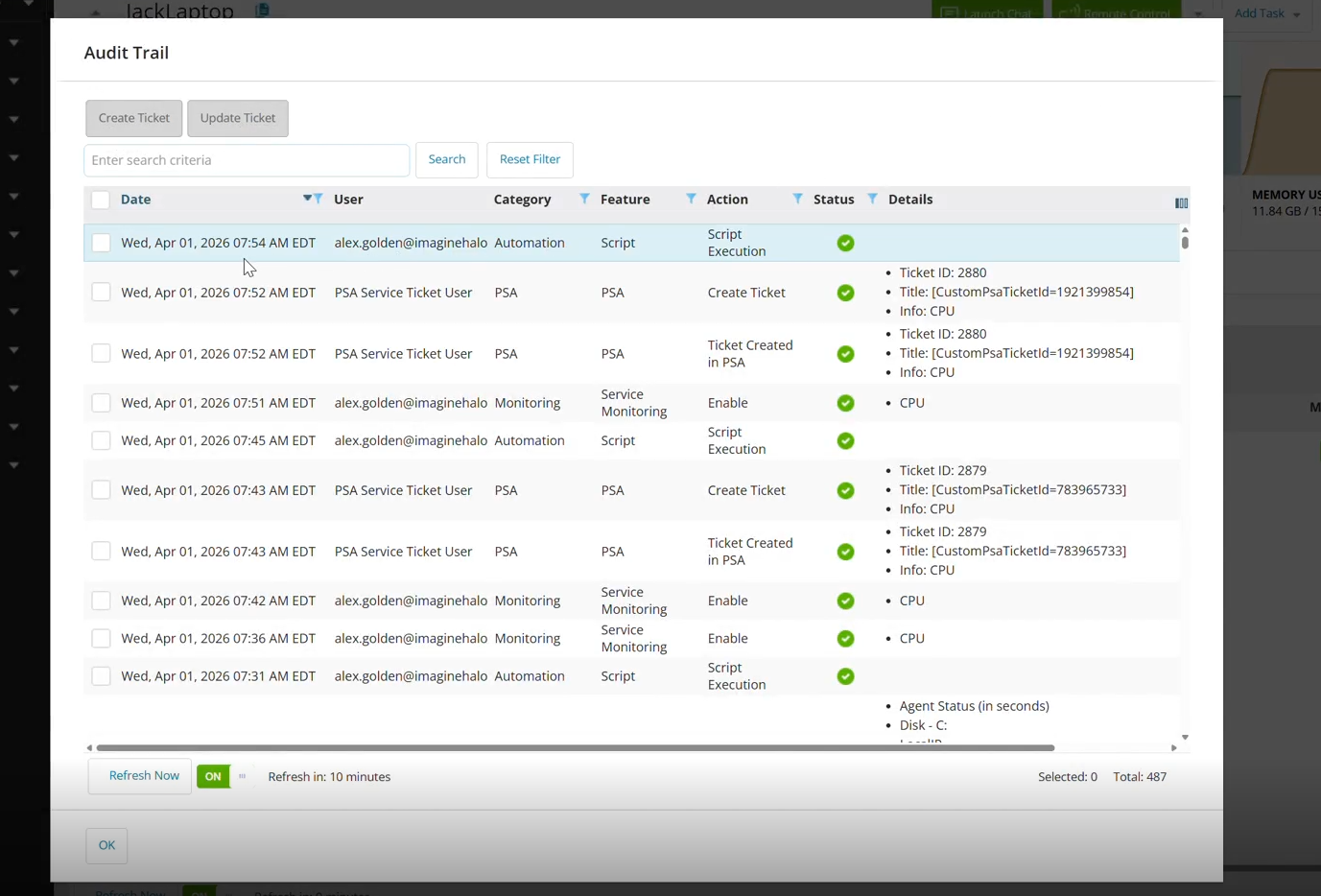
Fig 6. Any scripts run in N-Central by the HaloMCP Chat Bot are fully audited
I can verify the contents of the script that was run on the device.
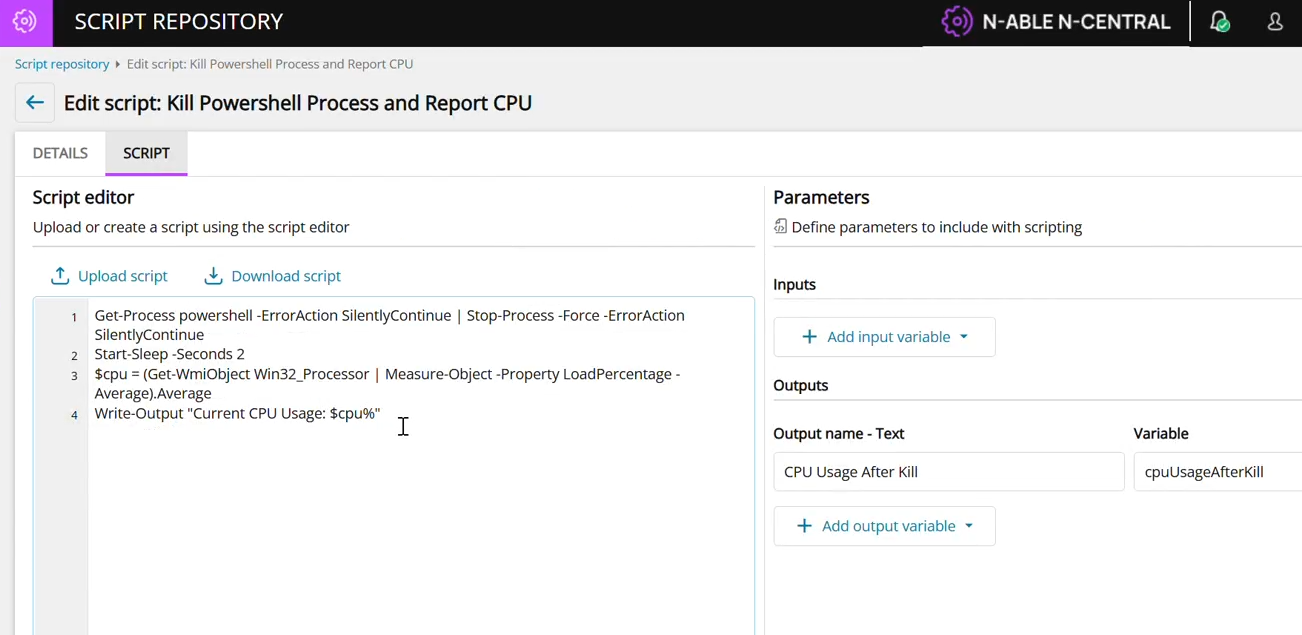
Fig 7. The script run by the Chat Bot is recorded in N-Central
I can then also verify that the CPU usage has reduced.
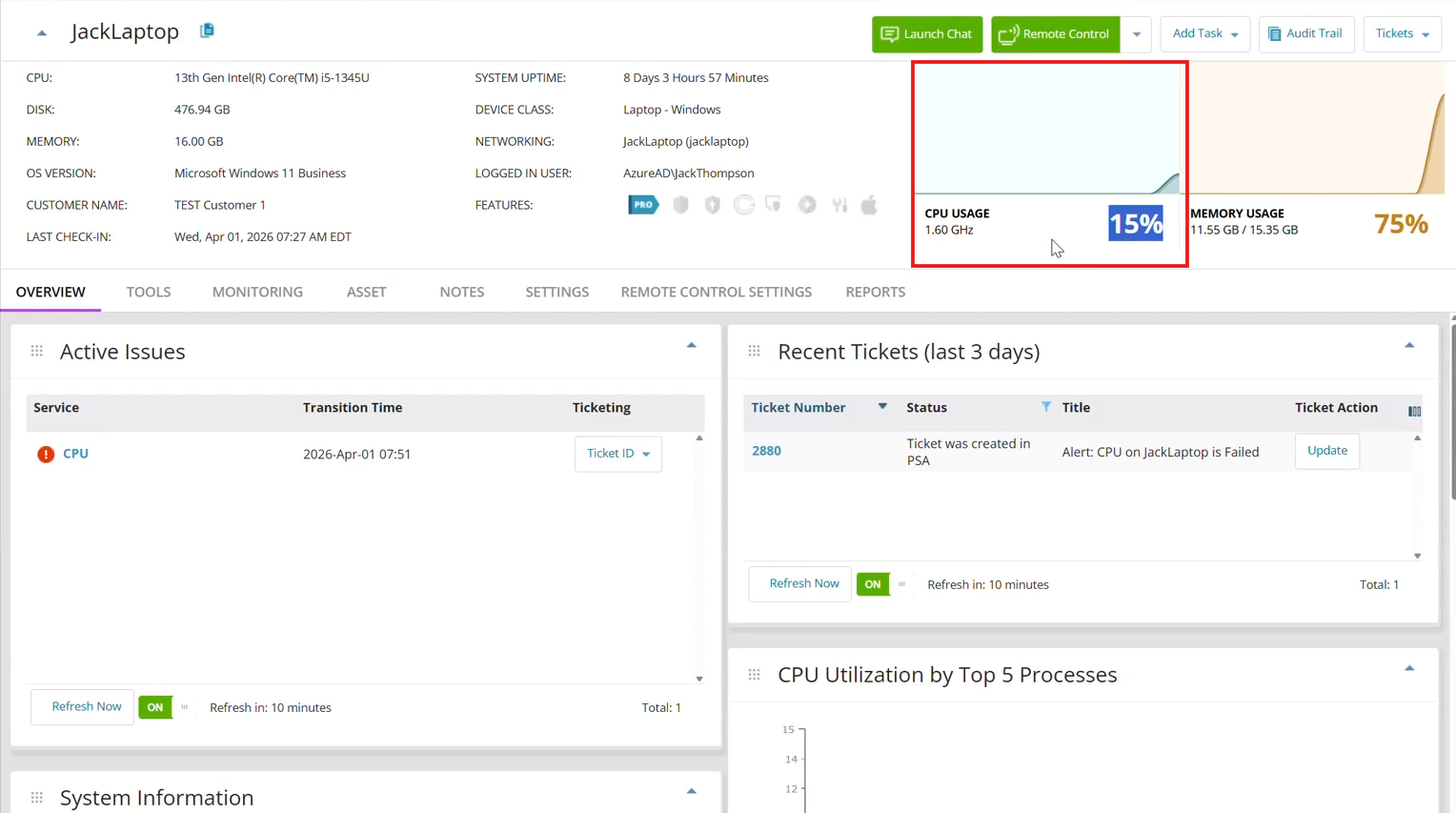
Fig 8. CPU usage reduced after script run by the HaloMCP Chat Bot
This has demonstrated that it is possible to configure hands-free N-Central script execution from within Halo, without ever having to write any code yourself or even leave the related Ticket in Halo.
This process is achieved by connecting the N-Central MCP server to the Halo environment, and giving a Process Agent access to that server to be able to execute scripts and view relevant data.
In the following section, we will explore the AI features of Halo that make this process possible.
AI Features Used
External MCP Server
For the Process Agent to be able to access the N-Central environment, and execute scripts within it, Halo must be connected to N-Central's MCP server.
To configure this, navigate to Configuration > AI > AI Agents and locate the "External MCP Servers" section of the configuration page.
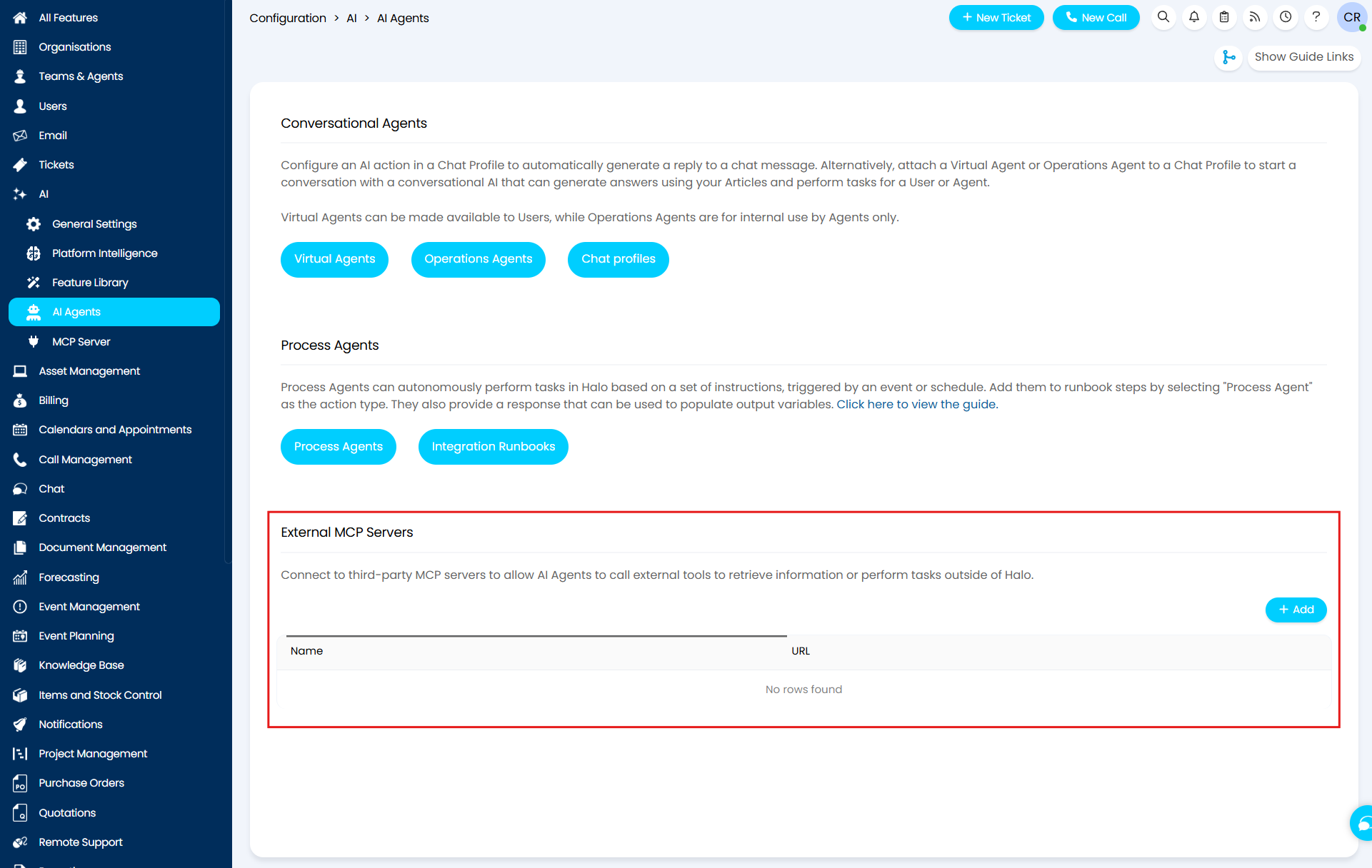
Fig 9. The External MCP Servers section of AI configuration in Halo
Select the "+ Add" button at the top right of the table to create a new MCP server connection.
Give the connection an identifiable name, enter the MCP endpoint URL, and then set the API Key with a Header Name of "Authorization". See Figure 10 for reference.
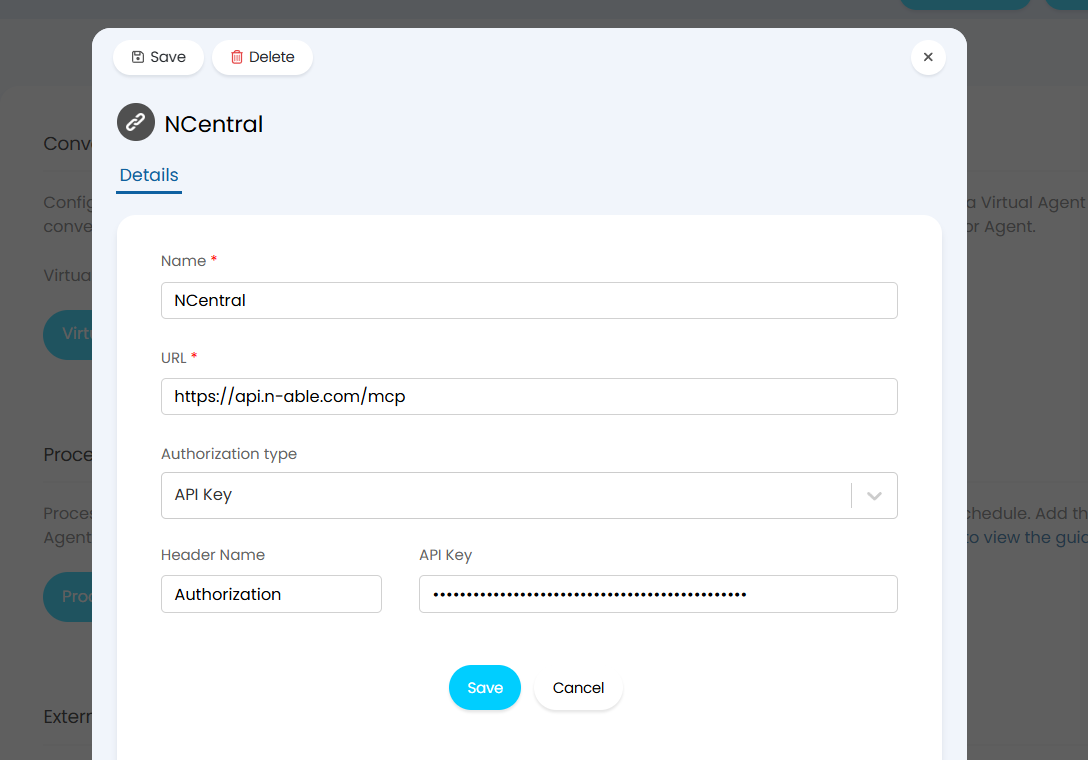
Fig 10. Connecting the N-Central MCP server to Halo
For guidance on obtaining the MCP URL and API Key, see N-Central's MCP documentation.
Select "Save" once all fields are populated. You have now completed the connection between Halo and N-Central's MCP server, this connection can be leveraged by chosen AI Agents to return data and execute scripts in N-Central from within Halo.
For more information on Halo's MCP server, see the guide on our website.
Process Agent
In this example, behind the Chat Bot, there is a specific Process Agent that has been connected to the N-Central MCP server. It is this Process Agent that is driving the tasks prompted in the chat, and it is this Process Agent that is returning the responses.
To set up a Process Agent of this type, navigate to Configuration > AI > AI Agents and locate the Process Agents section of the configuration page, select the "Process Agents" button.
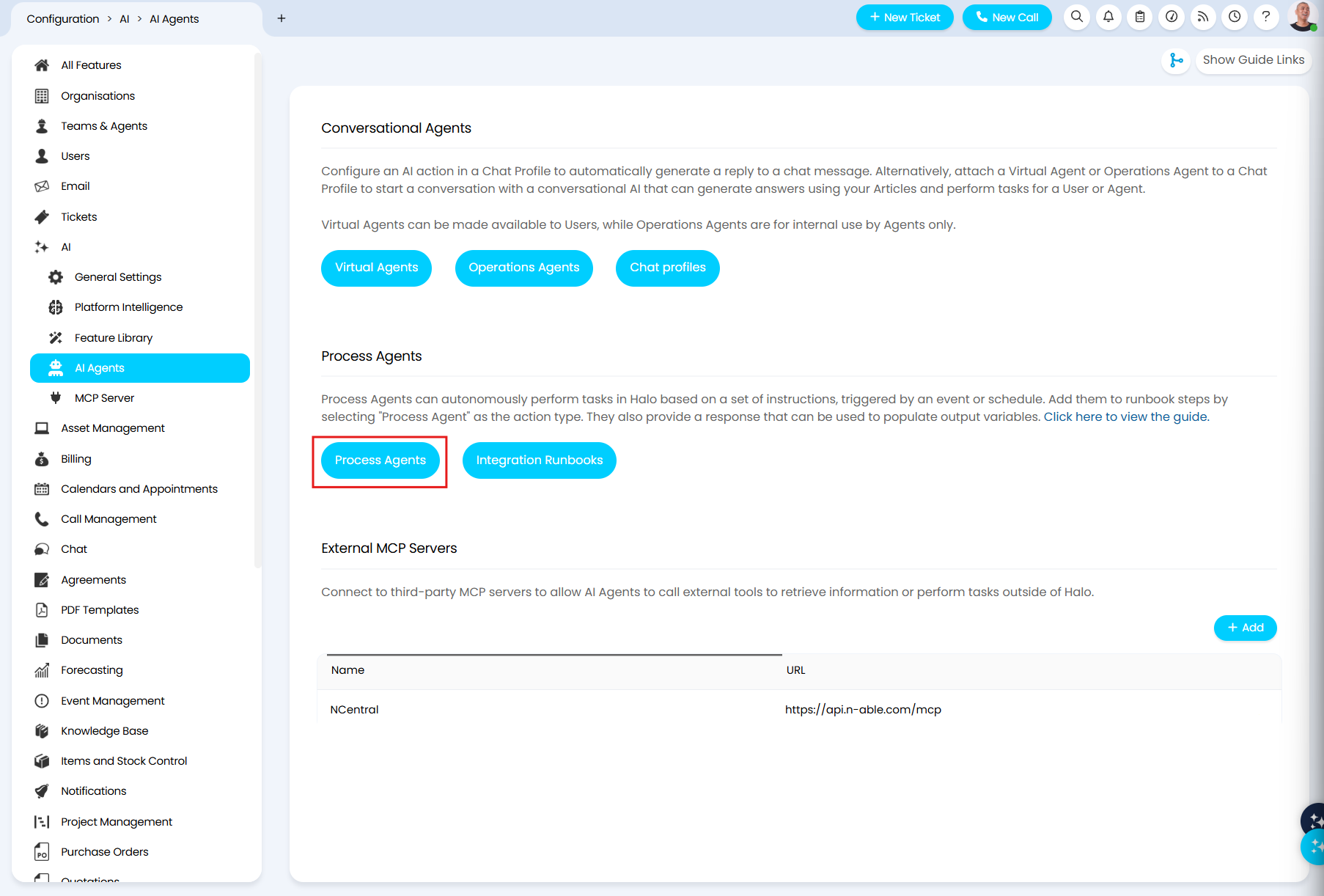
Fig 11. Navigating the AI Agent configuration area in Halo
Once in the Process Agent configuration area, select the "+ New" button in the top right to create a new Process Agent.
Give the Process Agent a name, and then configure it's AI connection (the Built-in OpenAI connection can be used here; for guidance on connection methods see the guide). Once the AI connection is configured, you can then configure the API application for the Agent's Halo connection.
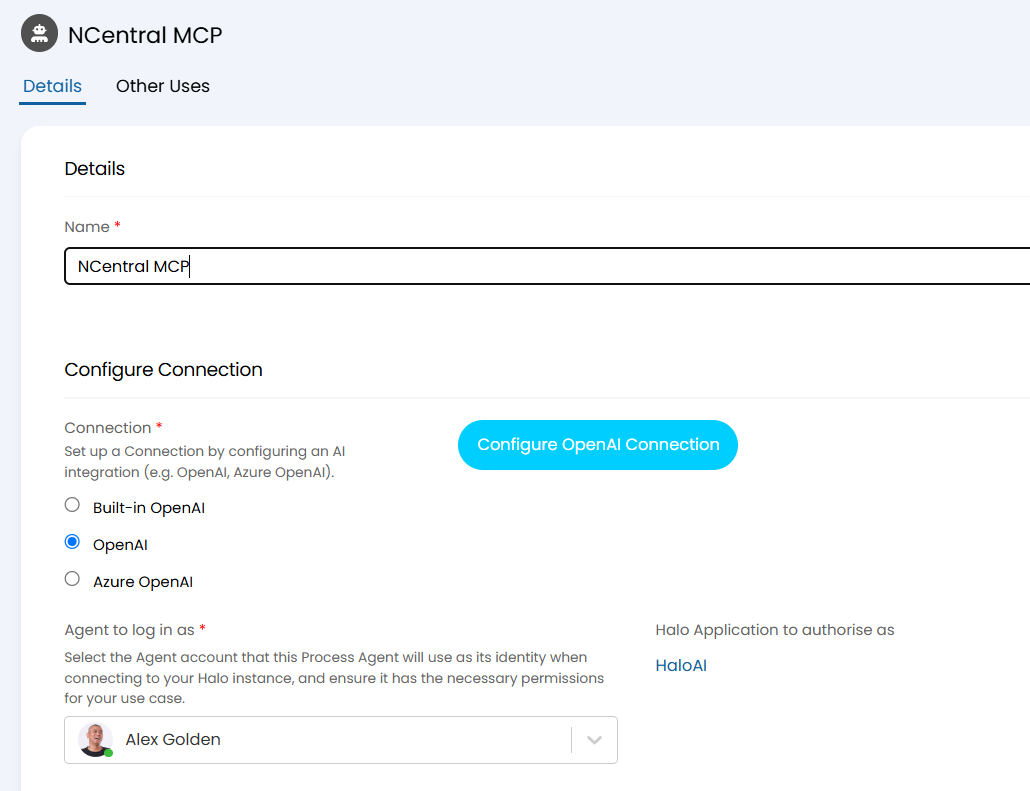
Fig 12. Configuring a Process Agent's AI and Halo connections
As demonstrated in Figure 12, the built-in OpenAI connection has been used for this example, and an API application has been selected for the Agent's connection to Halo.
The API application must have "Halo Automation Identity" as its authentication method, and in this example it has been given "all:standard" permissions. However, the permissions should be decided by your policies.
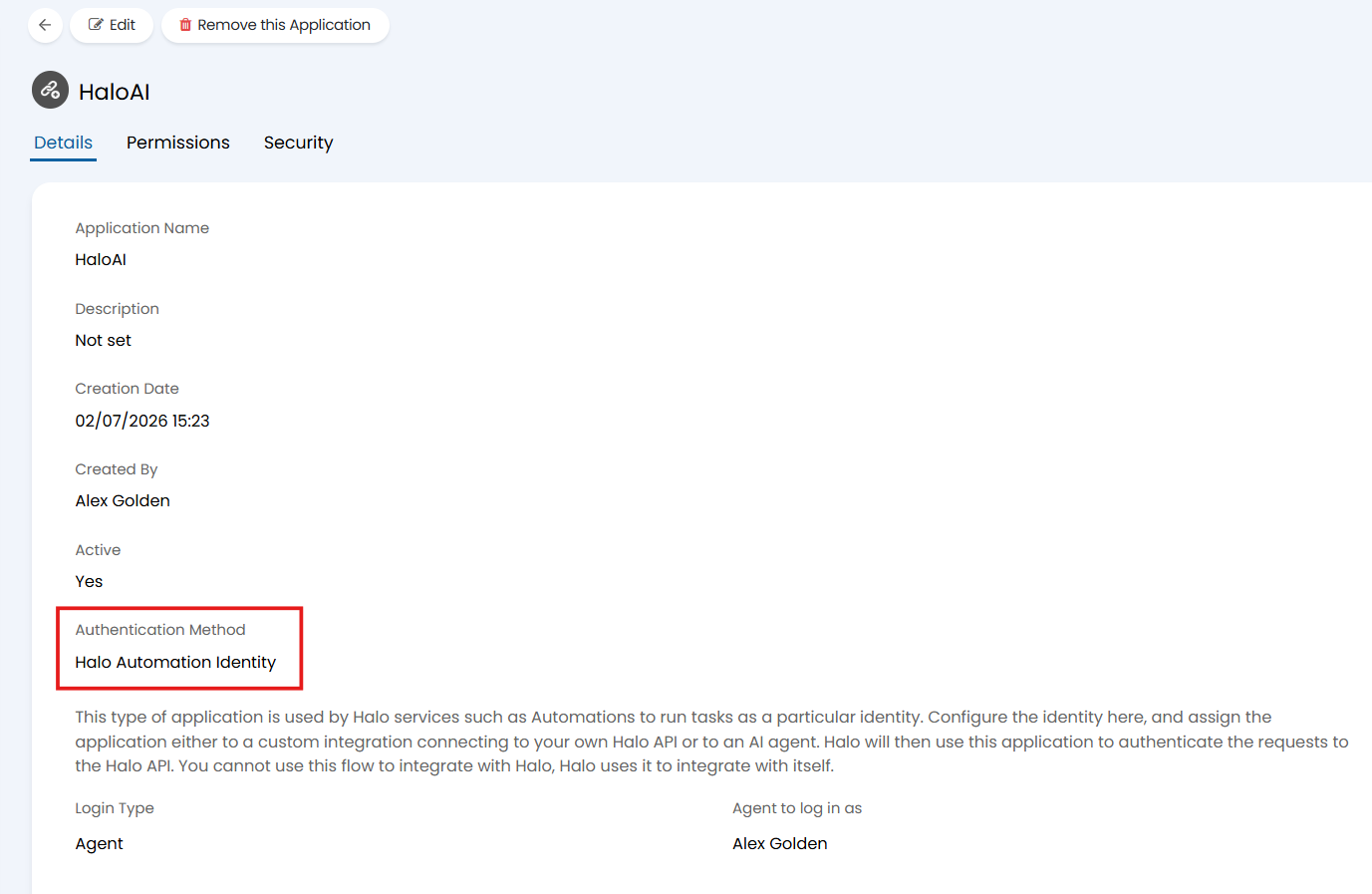
Figure 13a. Give the Agent's API application the halo automation identity authentication method
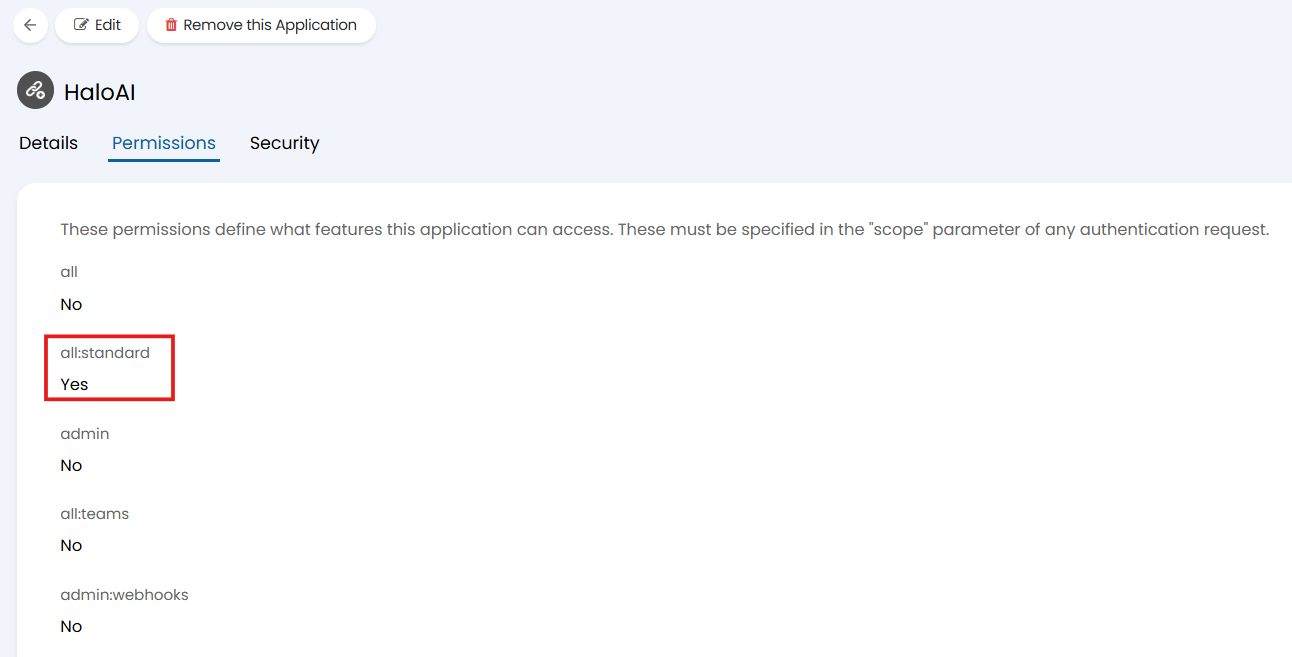
Figure 13b. All:standard permissions have been given to this example application
Note: Keep in mind that the Agent the application logs in as needs to have the correct permissions as well. The permissions of both the API Application and the Agent it will log in as should be decided by the tasks the Process Agent will be performing, and what level of access will be required to complete those tasks.
For further guidance on creating API applications, see the Creating API Applications guide.
Assistant Fields
In the instructions field, a prompt should be entered providing context on the Process Agent's purpose and the tools it should leverage when processing the request.
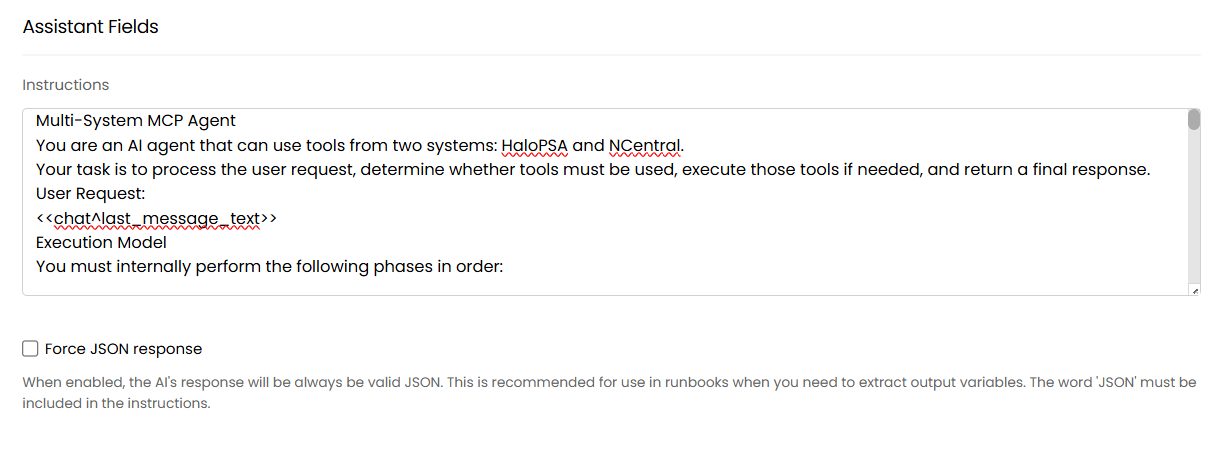
Fig 14. Enter the instructions for the Process Agent
You will find attached to this guide a set of example instructions that were used for the process demonstrated in the first part of this guide. You will need to access this guide via our portal to download the attachment.
In the example instructions, you will see that it introduces the purpose of the Agent, before outlining when it should leverage Halo tools versus when it should leverage N-Central tools. It then proceeds to explain how the Process Agent should format its response once the task is complete.
You do not need to force a JSON response for this Process Agent.
Note: The attached instructions are provided as an example. It is recommended to create your own instructions or adapt the example instructions to fit your needs and company processes.
Input Variables
In contrast to Virtual Agents that are prompted directly from the Chat, Process Agents are prompted by a runbook that has been triggered by the Chat. Due to this difference, "input variables" are required in order to provide the Process Agent with any relevant Chat messages (Virtual Agents are fed the entire Chat history by default).
As shown in Figure 15, only one Input Variable is in use for the example Process Agent:
- chat^last_message_text (string, not mandatory)
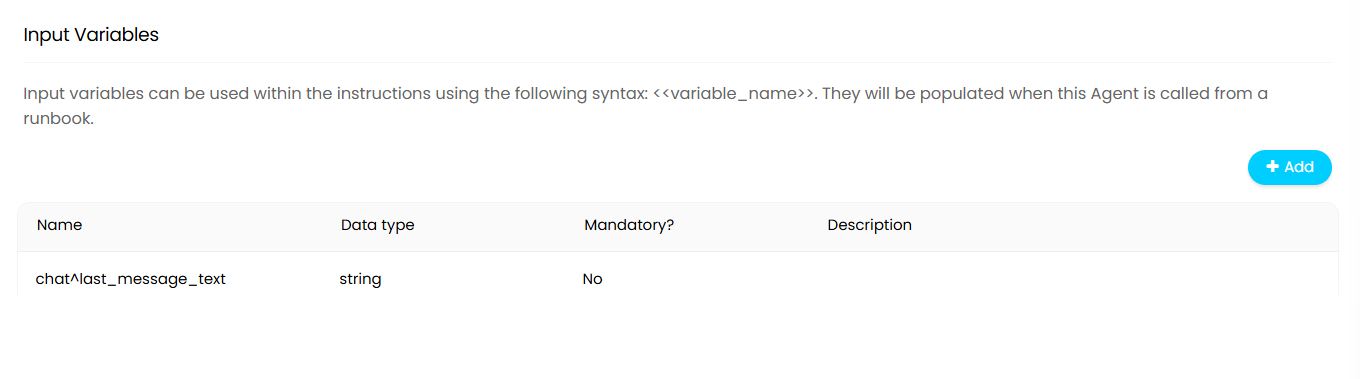
Fig 15. The input variable used for the example Process Agent
This variable is how the message from the chat is relayed to the Process Agent. When the chat triggers the runbook, which in turn triggers the Process Agent, the last message sent into the chat is extracted by the runbook and fed to the Process Agent which it triggers. How exactly this variable is populated will be covered later in this guide when we discuss the runbook that triggers the Process Agent. For more information on Input Variables, see the AI Agents guide.
Functions
No custom functions are in use for the example Process Agent, and all system functions have been enabled for it to access.
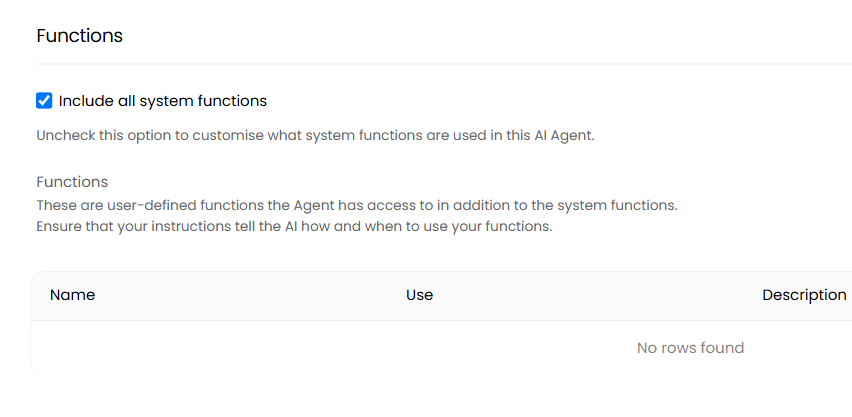
Fig 16. The functions available to the example Process Agent
These functions are available to the Process Agent via its own unique connection to the Halo MCP Server. For a list of the available functions, see the Process Agents guide.
The final point of the Process Agent configuration is to connect it to the N-Central MCP server in the "External MCP Servers" field.
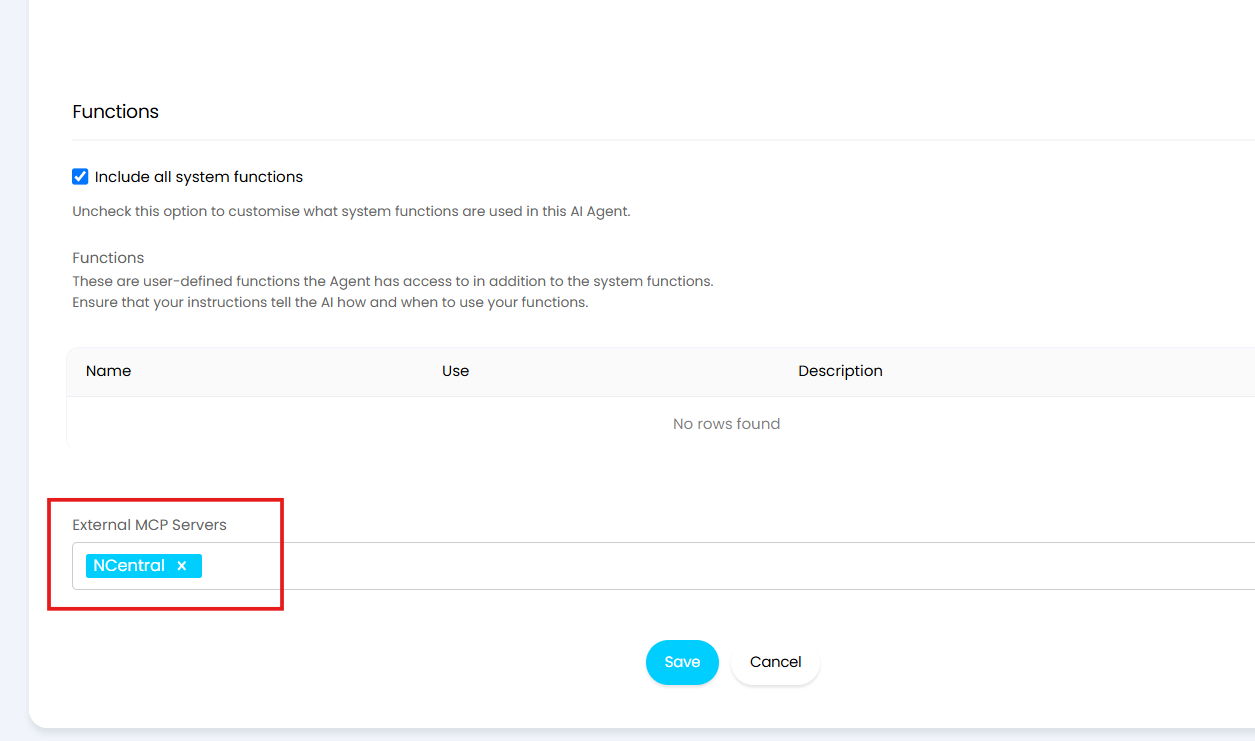
Fig 17. Setting the N-Central MCP server connection on the Process Agent
Select "Save" and your Process Agent is fully configured.
Triggering The Process Agent
To prompt the Process Agent, it will need to be triggered by a runbook, and that runbook will need to be triggered in the Chat Profile.
The runbook for triggering the Process Agent in this particular example has one runbook variable:
- final_message (string, do not persist)
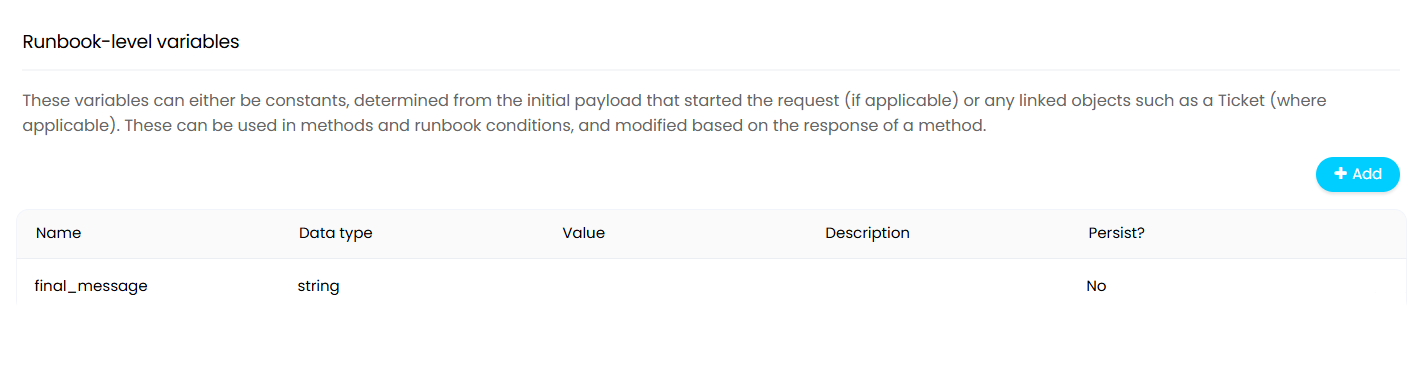
Fig 18. Runbook variables for Process Agent runbook
This variable is populated in step 1 ('Start - Combined MCP') and used in step 2 of the runbook ('Post Response to Chat') to post the AI's response back into the chat.
The runbook itself consists of a step to trigger the Process Agent and then a step to post back into the Agent chat.
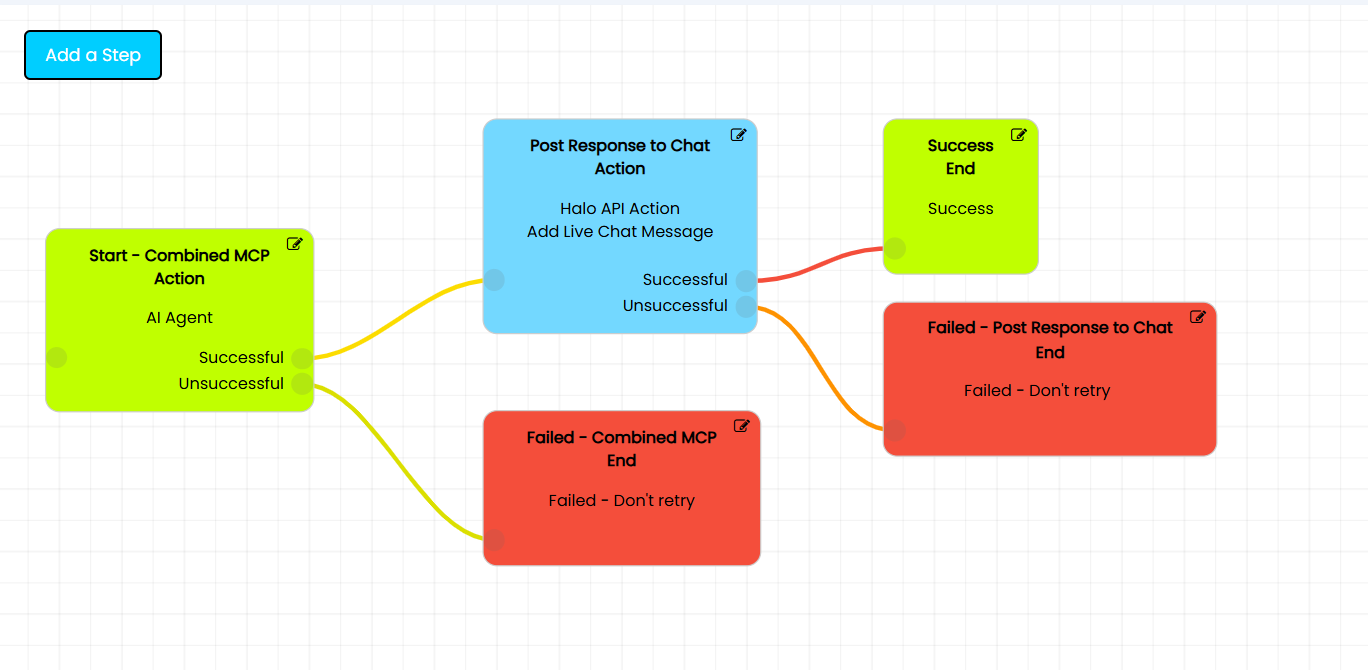
Fig 19. The runbook for triggering the Process Agent
In the first step of the runbook, where the Process Agent is being triggered, ensure that any input variables for the Process Agent are configured to populate with the correct value. As you can see in Figure 20, the input variable created earlier in Figure 15 has been configured to populate with the last message sent into the chat.
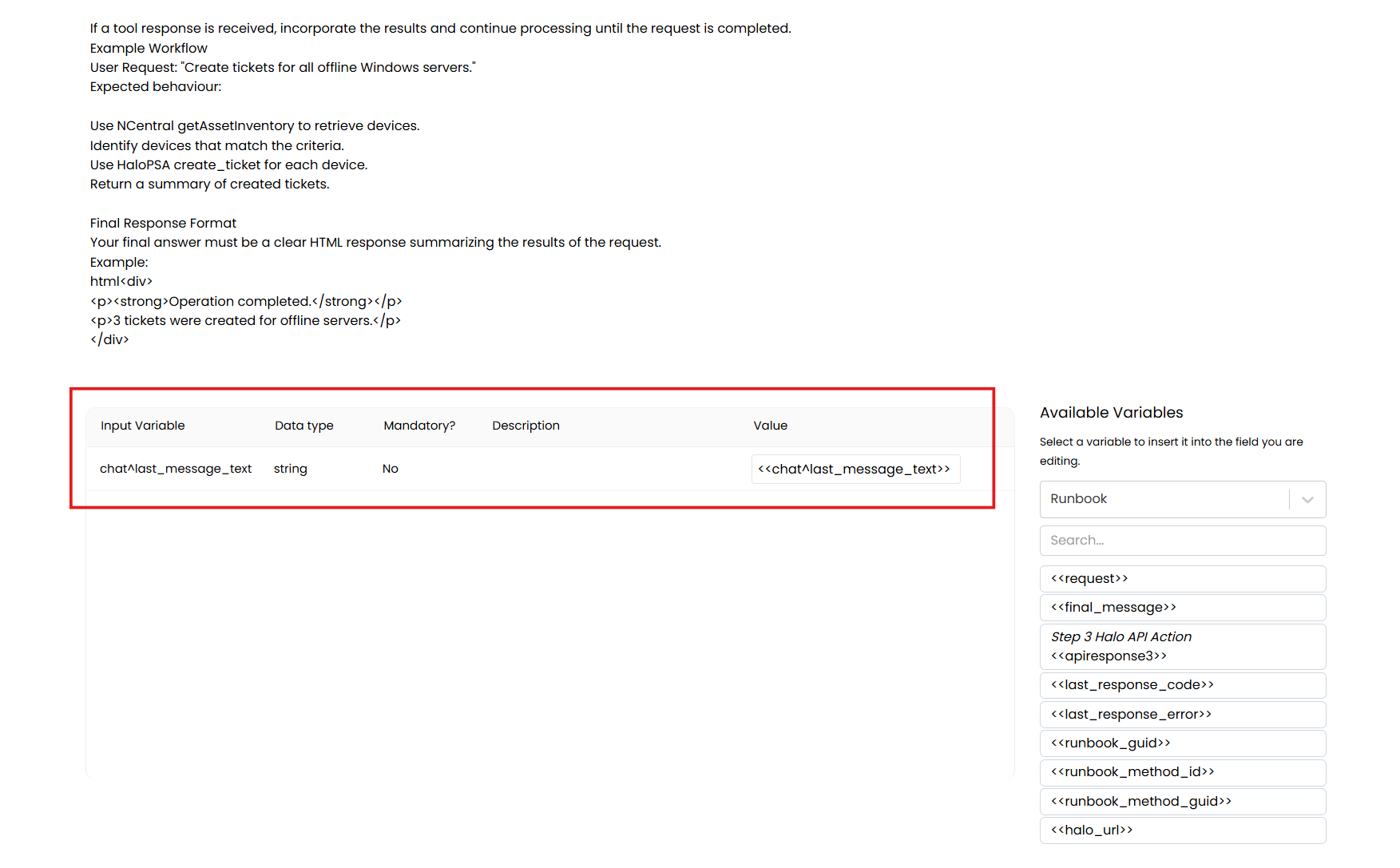
Fig 20. Setting the value for the Process Agent's input variable on the starting step of the runbook
Once the input variable values are set, also ensure that you have configured any runbook variables in the table beneath. See Figure 21 for reference.
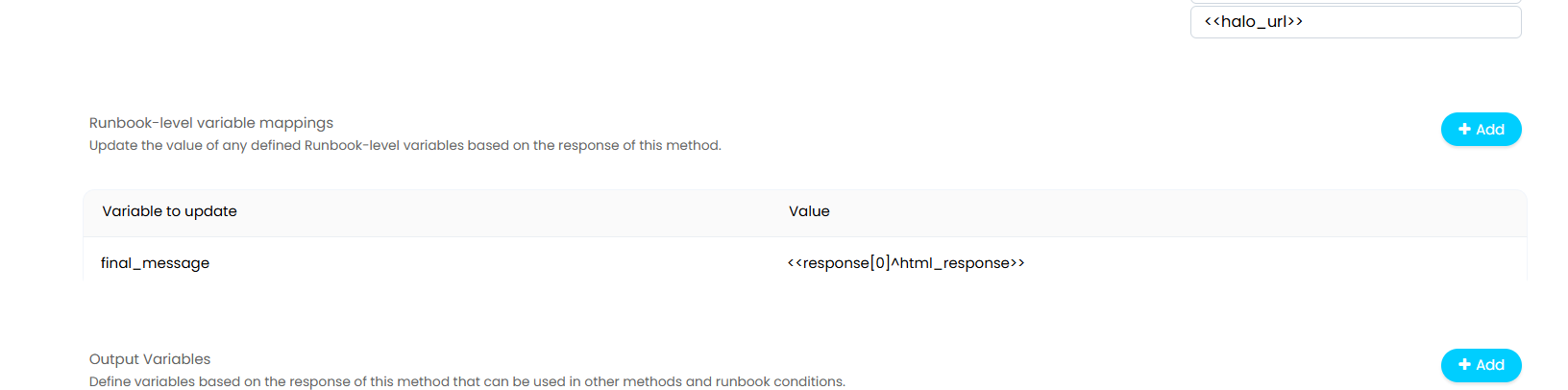
Fig 21. Setting the value for the runbook variable in the starting step of the runbook
In this example, the 'final_message' variable is configured to extract and store the AI's response. This variable is then used in the second step, to post the response to the chat.
In the second step of the runbook, there is a simple API action to update the live chat.
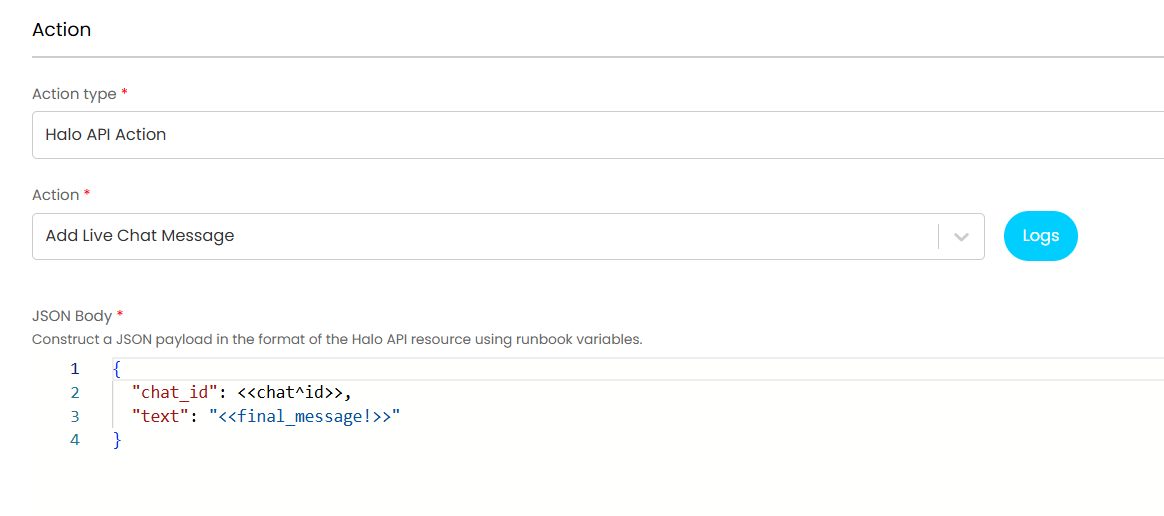
Fig 22. The API action for the second step of the runbook
Save the runbook once the configuration is complete, then set it to be triggered within the Chat Profile of the Chat Bot. How and when exactly in the Chat Profile the runbook is triggered is down to your discretion, in this particular example the chat starts > the Agent inputs an instruction > the runbook is immediately triggered to prompt the Process Agent. However, you may want to start the chat and have multiple choice options that allow for multiple paths within the chat with multiple Process Agents.
For guidance on triggering runbooks in Chat Profiles, see the Chat Bot and Chat Profiles guide.
Once the configuration is complete, you will be able to trigger hands-free N-Central scripts from within Halo.