Start to Finish: Project Dashboards
- dashboard
- project tracking
- project dashboards
In this guide we will cover:
- Tracking Projects
- Creating a Company-Wide Dashboard
- Creating an Individual Project Dashboard
- Creating a Ticket List Dashboard
- Report Examples
- Widget Formatting
Related Guides:
- Adding Dashboards to Custom Tabs
- Charts and Graphs in Reports
- How to Use Custom CSS and HTML on Halo Reports
Tracking Projects
Projects can be tracked in various ways, but one of the most useful is by using dashboards. Dashboards allow you to see the key information at a glance, and can utilise various formats of presenting your reports.
This guide will break down how to use dashboards to track projects in three different areas of the system, followed by some report examples and how to customise the format. We will also list some commonly tracked metrics you may want to consider.
- Creating a Dashboard and Adding Widgets
- Creating a Dashboard within a Ticket Tab
- Creating a Dashboard for Ticket Lists
Creating a Company-Wide Dashboard
The first dashboard is primarily for those in leadership positions to track all projects at once. This view will tend to contain a lot of charts to see a quick overview of the current projects and the tasks associated with them.
Commonly Tracked Metrics
- Number of project tasks by priority, agent, or status.
- Budget overview with number of overbudget projects.
- Number of assigned, unassigned, open or closed tasks.
- Number of open projects.
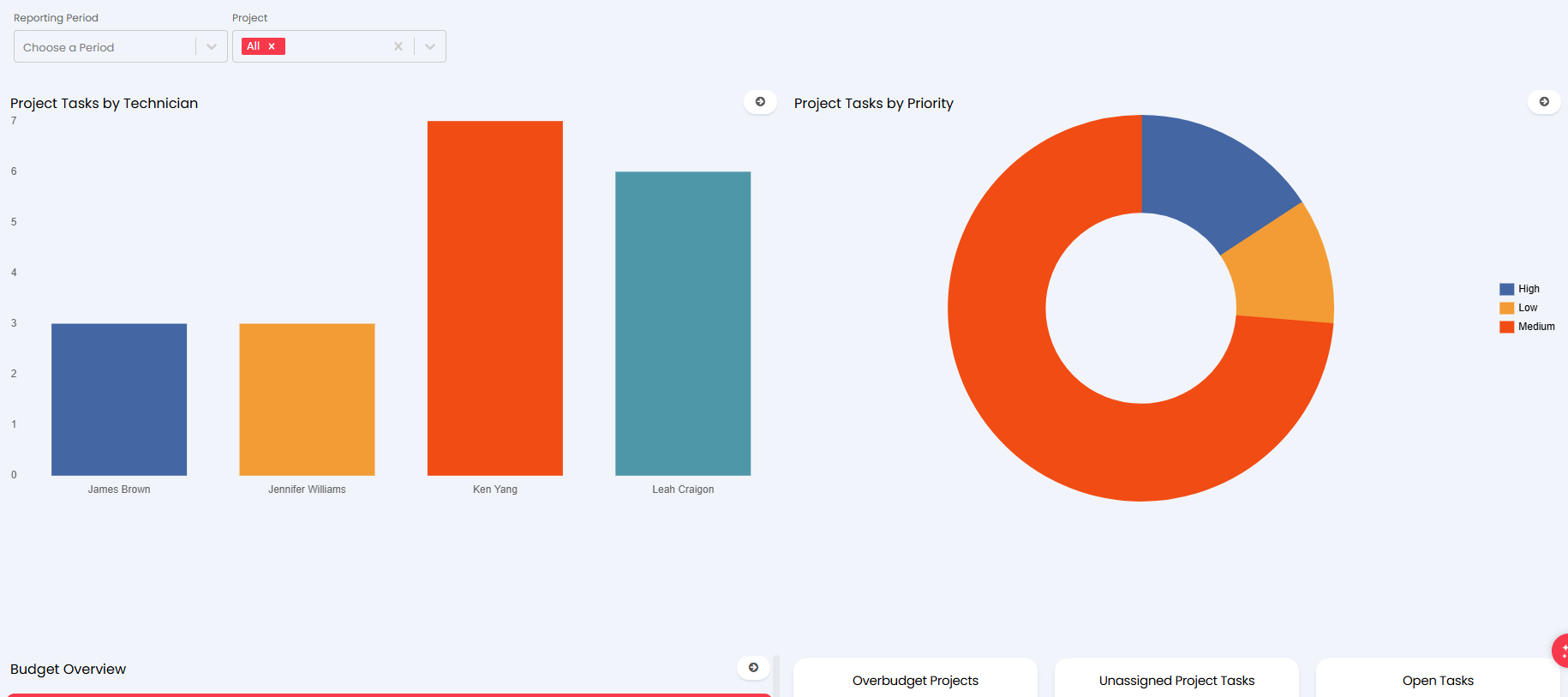
Fig 1. Global project dashboard example
Let's cover the basics of how to configure a dashboard.
In Configuration > Reporting > Dashboards, create a new dashboard. The first tab will be where you set the name and type of the dashboard. Ensure this is kept as "In-App".
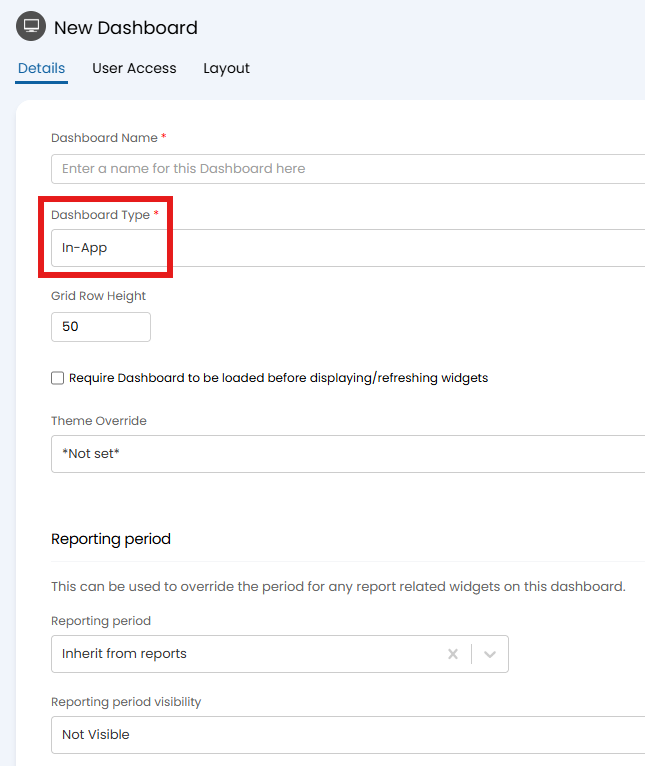
Fig 2. Creating a new dashboard
Switching to the "Layout" tab, here is where you can set the layout width ("Auto" is recommended) and add widgets. In the figure below, the three most common widget types are added.
- Report Data: (Budgets) Shows as the same table that is viewable from the report.
- Report Counter: (Closed Tasks) Shows as a number, which can be taken from counting the row records or from an average/sum of a particular column in the report.
- Report Chart: (Open Tasks by Agent) Shows a chart that can be inherited from the report, or configured within the widget from a report without one.
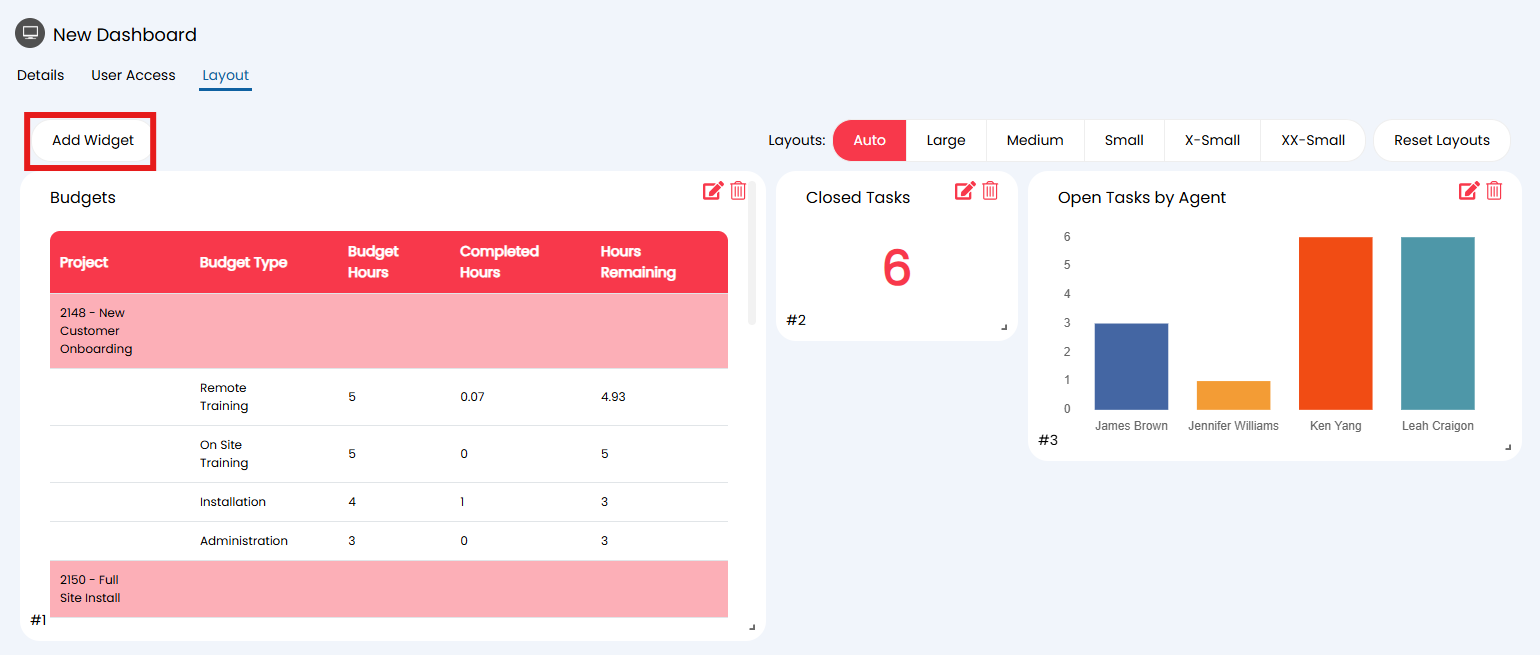
Fig 3. Widget examples
When adding or editing a widget, this is where you can set these widget types. Below is the example configuration for the "Open Tasks by Agent" widget above.
These fields are the most important ones to have set:
- Title: This text shows at the top of the widget.
- Type: Sets the widget type, i.e. counter, chart.
- Report: Choose the report for the widget to pull the data from.
Other available fields will depend on the "Type" that is selected. For example here, "Chart Configuration" shows as the widget is a "Report Chart" type.
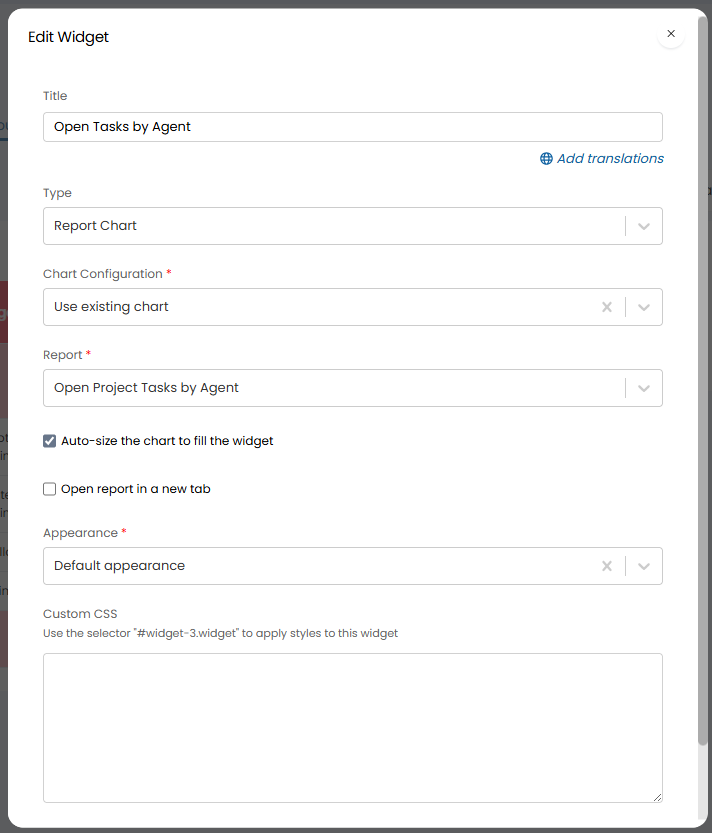
Fig 4. Configuring a widget
Creating an Individual Project Dashboard (Ticket Tab)
The second area for a dashboard is as a tab on your project ticket. This view will contain similar data to the company-wide dashboard, but filtered to the project ticket you are viewing using the "$faultid" variable in the report SQL.
Commonly Tracked Metrics
- Number of open, closed or unassigned tasks.
- Number of tasks by priority, status or agent.
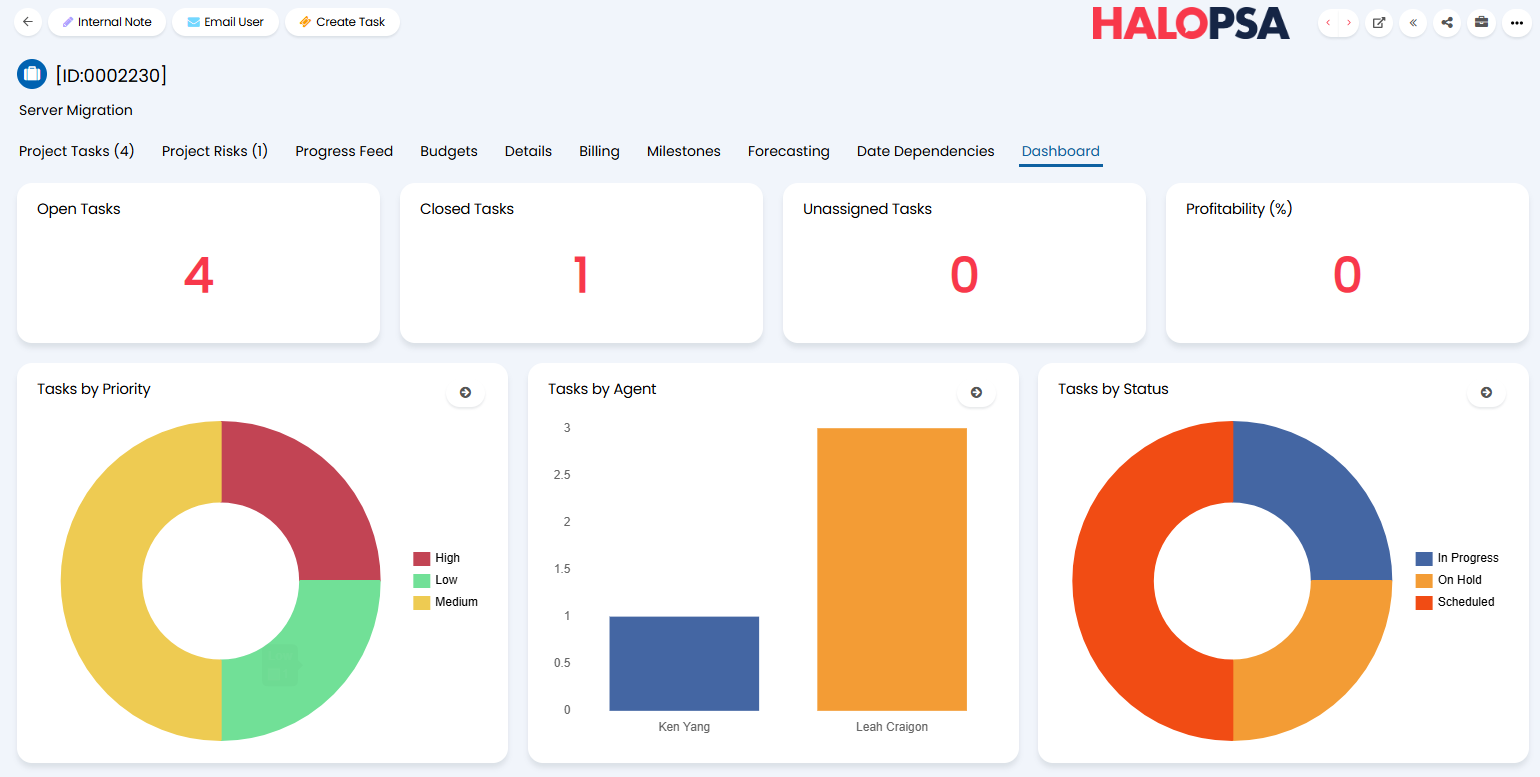
Fig 5. Project-specific dashboard example
To create a dashboard for project tickets, navigate to Configuration > Custom Objects > Custom Tab. Create a new tab, and set the type to "Dashboard". A button will then appear to configure the dashboard.
Here, you will be able to configure your dashboard widgets as before. This dashboard will not show in the configuration module for dashboards, nor the modal screen when picking a dashboard to view.
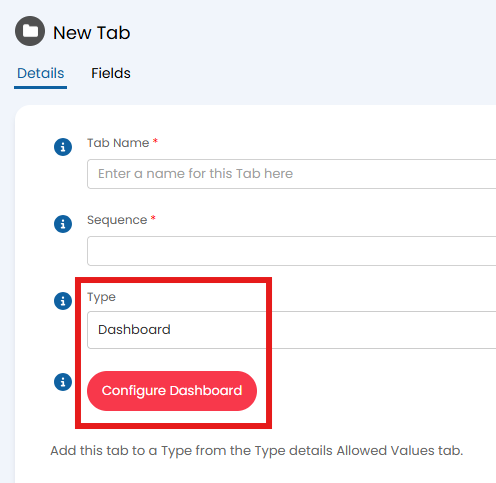
Fig 6. Creating a dashboard custom tab
After creation, go to Configuration > Tickets > Ticket Types, and select your project ticket type. In the "Allowed Values" tab, ensure "Allow all Custom Tabs" is enabled, or if disabled, that you add your custom tab in the table.
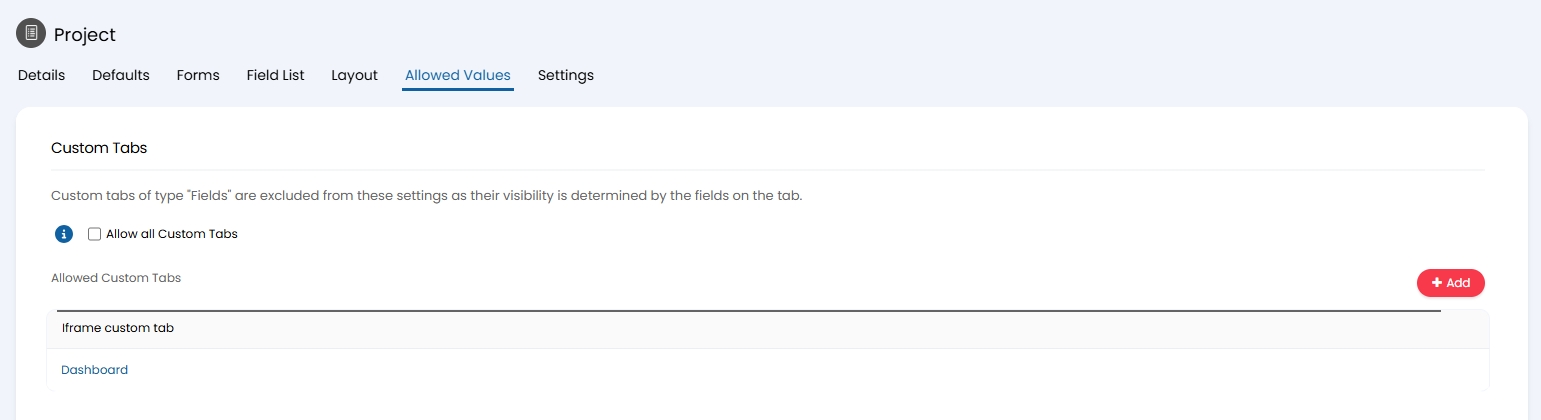
Fig 7. Adding the dashboard custom tab
Creating a Ticket List Dashboard
The final area a dashboard may be useful is within a column profile. Columns can be replaced by dashboard widgets to truly customise both the contents and appearance of your ticket lists.
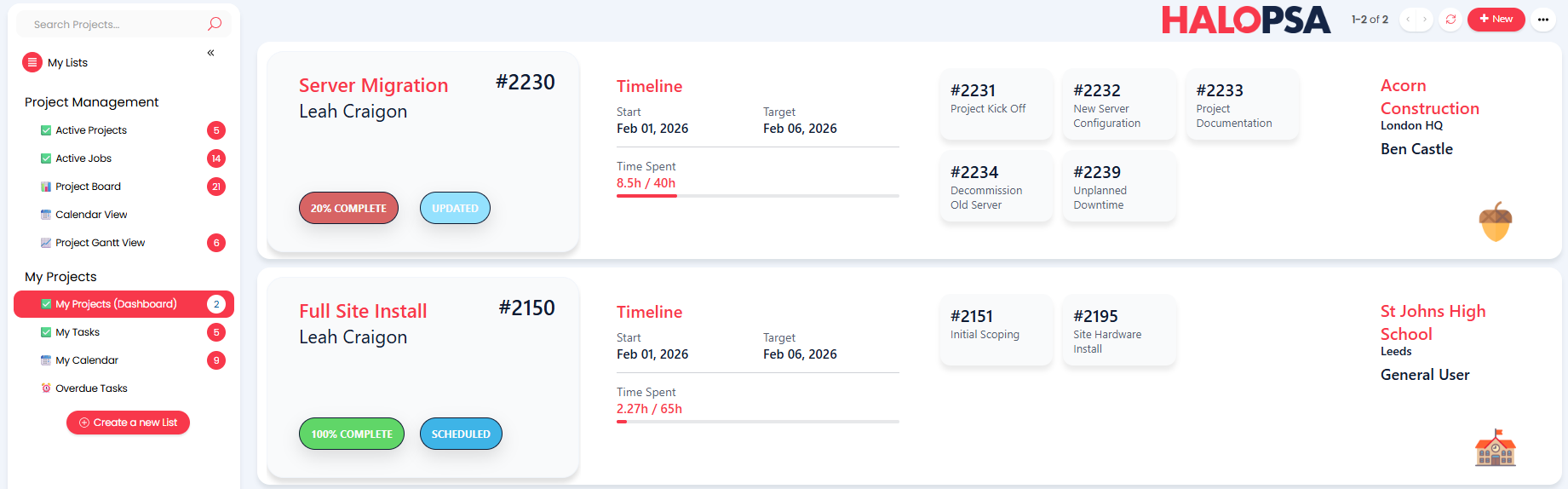
Fig 8. Column profile dashboard example
This can be done by enabling the "Use a dashboard instead of columns in table view" checkbox within the "Dashboard" dropdown of a column profile. A button will then appear to configure the dashboard.
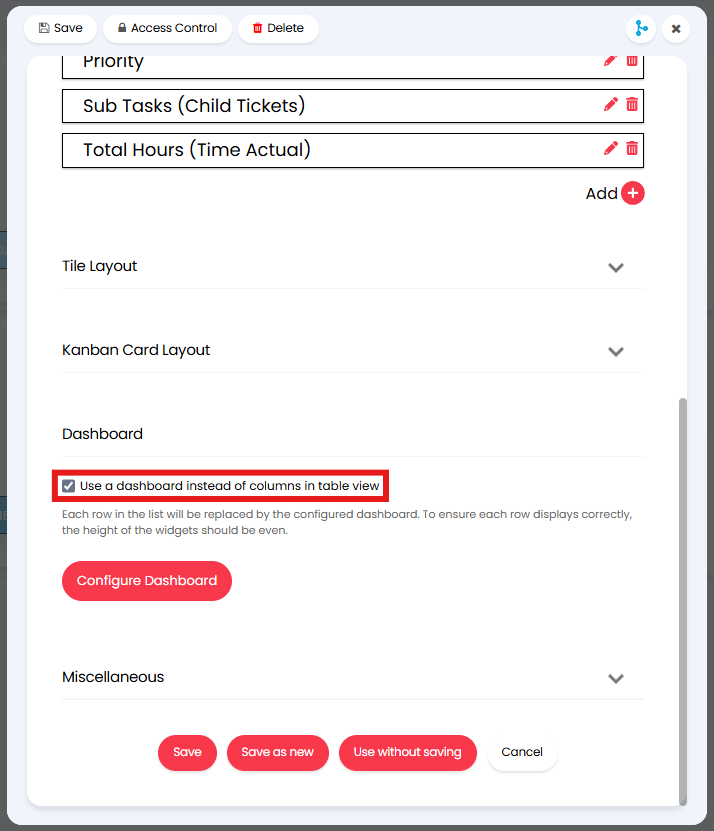
Fig 9. Creating a dashboard column profile
In the example in Fig 8, each project shows the details through four widgets. These reports and the HTML against them can be taken from trials if not in your system, or you can also contact support to help you with this.
- Ticket Card
- Timeline Card
- Tasks Card
- Client Card
We'll go through one example here to show you how this can then be customised further.
Ticket Card
Note: Edit the HEX codes in red to change the colours to correspond with your own statuses.
SELECT *,
CASE
WHEN a.[completed] BETWEEN 0 AND 20 THEN '#cc3232'
WHEN a.[completed] BETWEEN 20 AND 40 THEN '#db7b2b'
WHEN a.[completed] BETWEEN 40 AND 60 THEN '#e7b416'
WHEN a.[completed] BETWEEN 60 AND 80 THEN '#99c140'
WHEN a.[completed] BETWEEN 80 AND 100 THEN '#2dc937'
ELSE '#0f1b31'
END AS [CompleteColour]
FROM (SELECT faultid,
uname,
symptom,
Upper(tstatusdesc) AS tstatusdesc,
tcolourhex,
CASE
WHEN (SELECT Cast(Count(*) AS FLOAT)
FROM faults closed
WHERE closed.fmainprojectid = faults.faultid
OR closed.fxrefto = faults.faultid
AND fdeleted = 0) <> 0 THEN Round(Isnull((
(SELECT Cast(Count(*) AS FLOAT)
FROM faults
closed
WHERE closed.fmainprojectid = faults.faultid
OR closed.fxrefto =
faults.faultid
AND fdeleted = 0
AND status IN ( 8, 9,
20 )) / (SELECT Cast(
Count(*) AS FLOAT)
FROM faults closed
WHERE
closed.fmainprojectid = faults.faultid
OR closed.fxrefto = faults.faultid
AND fdeleted = 0) ) * 100, 0), 0)
ELSE 0
END AS [Completed]
FROM faults
JOIN uname
ON unum = assignedtoint
JOIN tstatus
ON status = tstatus
WHERE faultid = $faultid) a
Report Table HTML
<div class="ticket-card">
$REPORTROWS
</div>
<style>
.reportingsuite-report .report-table {
border: none;
}
.ticket-card {
--red: #f8384b;
--offwhite: #f9fafb;
--deep: #0f1b31;
background: var(--offwhite);
border-radius: 20px;
border: 0.5px solid #f1f5fb;
box-shadow: 0 6px 6px rgba(0, 0, 0, .12);
padding: 20px 10vw 20px 10vw;
height: 194px;
width: 79vw;
font-family: system-ui, -apple-system, Segoe UI, Roboto, Arial, sans-serif;
margin-bottom: 16px;
}
.ticket-card .card-top {
flex-wrap: wrap;
max-width: 60vw;
}
.ticket-card .ticket-no {
margin: 0;
font-size: 25px;
font-weight: 600;
color: var(--deep);
position: absolute;
right: 30px;
top: 18px;
}
.ticket-card .ticket-title {
margin: 2px 0 0;
font-size: 23px;
color: var(--red) !important;
font-weight: 625;
word-break: break-word;
overflow-wrap: anywhere;
}
.ticket-card .right {
flex-wrap: wrap;
}
.ticket-card .owner {
margin: 0;
font-size: 22px;
color: var(--deep) !important;
word-break: break-word;
overflow-wrap: anywhere;
}
.ticket-card .date {
margin: 2px 0 0;
font-size: 16px;
color: var(--deep);
opacity: .8;
word-break: break-word;
overflow-wrap: anywhere;
}
.ticket-card .chips {
display: flex;
gap: 6vw;
}
.ticket-card .chip {
padding: 10px 13px;
border-radius: 999px;
border: 0.5px solid #0f1b31;
font-size: 12px;
font-weight: 700;
white-space: nowrap;
box-shadow: 0 8px 20px rgba(0, 0, 0, .12);
}
.ticket-card .chip-dark {
color: var(--offwhite);
position: absolute;
bottom: 70px;
}
.ticket-card .chip-light {
color: var(--offwhite);
position: absolute;
bottom: 70px;
left: 180px;
}
.ticket-card .chip-red {
background: var(--red);
color: var(--red);
}
</style>
Report Table Row HTML
<div class="card-top">
<div class="left">
<h1 class="ticket-no">#$faultid</h1>
<p class="ticket-title">$symptom</p>
</div>
<div class="right">
<p class="owner">$uname</p>
</div>
</div>
<div class="chips">
<span class="chip chip-light" style="background-color:$tcolourhexBF;">$tstatusdesc</span>
<span class="chip chip-dark" style="background-color:$CompleteColourBF;">$Completed% COMPLETE</span>
</div>
Report Examples
The following reports cover the commonly mentioned metrics above. Additional examples for further detail can also be found in our online repository. We will also cover some simple changes that can customise these reports to better suit your needs.
Task Metrics
The report example here shows the ticket ID, the customer it is associated with, status, assigned agent, date logged, and priority. This can be used to track multiple of the above mentioned metrics.
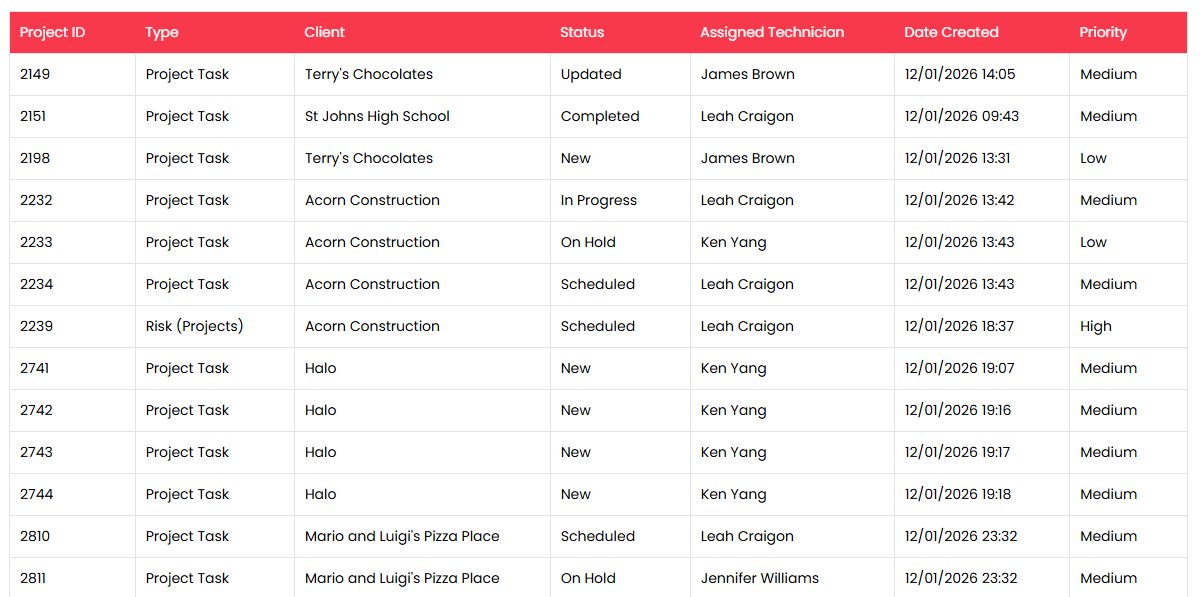
Fig 10. Project task example report
The SQL is as follows:
Note: If using for a project-specific dashboard on a custom tab, add the SQL in red at the end to filter it to just that project.
SELECT DISTINCT faultid [Project ID],
rtdesc [Type],
aareadesc [Client],
tstatusdesc [Status],
uname [Assigned Technician],
dateoccured [Date Created],
pdesc [Priority]
FROM faults
JOIN requesttype
ON requesttypenew = rtid
JOIN area
ON areaint = aarea
JOIN tstatus
ON status = tstatus
JOIN uname
ON unum = assignedtoint
JOIN policy
ON ppolicy = seriousness
WHERE rtprojecttype != 1
AND rtisproject = 1
AND status NOT IN ( 8, 9 )
AND Isnull(fdeleted, 0) = 0
AND Isnull(fmergedintofaultid, 0) = 0
AND dateoccured BETWEEN @startdate AND @enddate
AND fxrefto = $faultid
Budget Overview
The report example here covers each project, and the budget details associated with it.
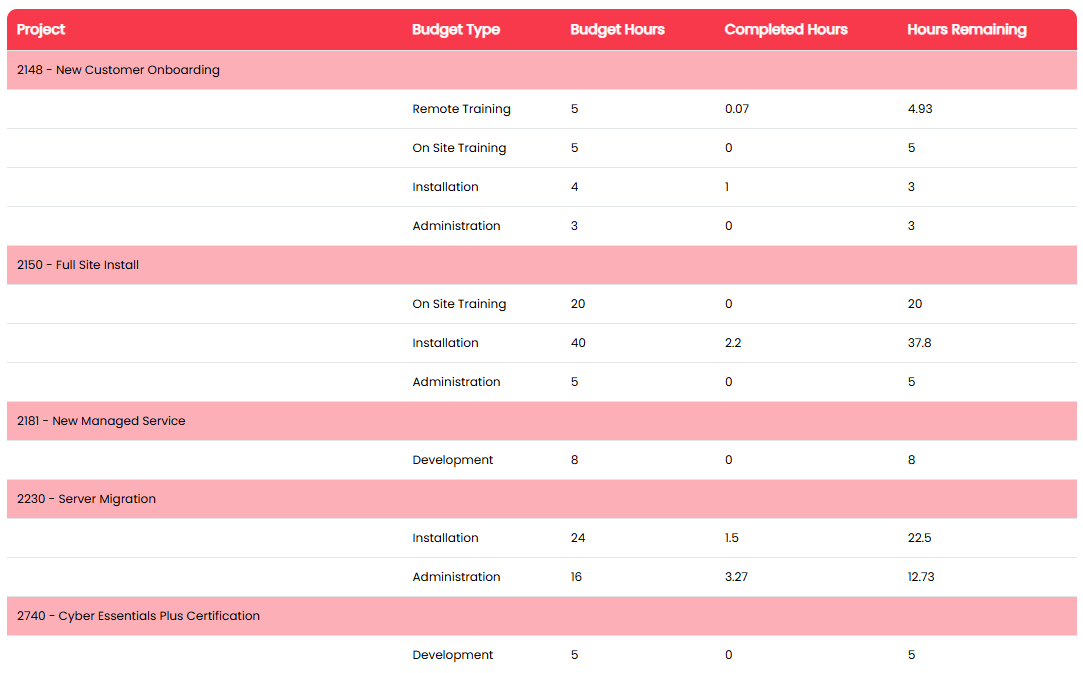
Fig 11. Budget example report
SELECT faultid [Project ID],
CONVERT(NVARCHAR(255), faultid) + ' - '
+ CONVERT(NVARCHAR(255), symptom) [Project],
btname [Budget Type],
Round(fbthours, 2) [Budget Hours],
Round(fbtactualtime, 2) [Completed Hours],
Round(( fbthours - fbtactualtime ), 2) [Hours Remaining],
tstatusdesc [Status]
FROM faults
JOIN requesttype
ON rtid = requesttypenew
JOIN faultbudget
ON fbtfaultid = faultid
JOIN budgettype
ON btid = fbtbtid
JOIN tstatus
ON status = tstatus
WHERE Isnull(fxrefto, 0) = 0
OR fxrefto NOT IN (SELECT faultid
FROM faults
JOIN requesttype
ON rtid = requesttypenew
WHERE rtprojecttype = 1)
AND status NOT IN ( 8, 9 )
AND Isnull(fdeleted, 0) = 0
AND Isnull(fmergedintofaultid, 0) = 0
You may notice after pasting the above SQL that the example here looks a little different. This is because there has been additional formatting added here.
First, we can right click on the "Project" header and group by this column.

Fig 12. Grouping a column
Next, we can add custom HTML to edit the appearance of the table. Edit the report, and navigate to the "Appearance" tab. Enable the checkbox to "Customise Table HTML", which will show multiple fields to customise.
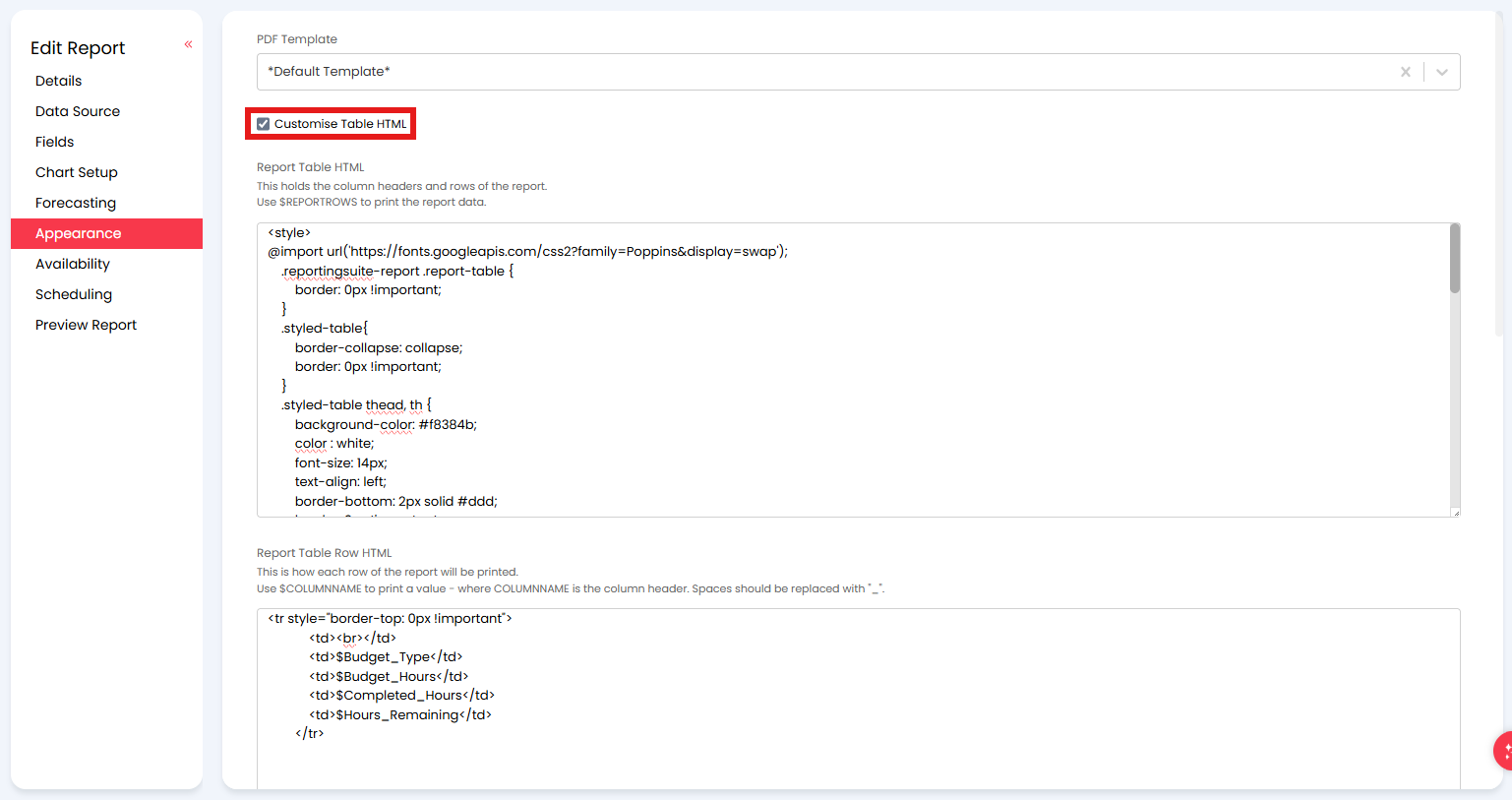
Fig 13. Customising report HTML
Report Table HTML
Note: Edit the link in red if you wish to set your own font.
<style>
@import url('https://fonts.googleapis.com/css2?family=Poppins&display=swap');
.reportingsuite-report .report-table {
border: 0px !important;
}
.styled-table{
border-collapse: collapse;
border: 0px !important;
}
.styled-table thead, th {
background-color: #f8384b;
color : white;
font-size: 14px;
text-align: left;
border-bottom: 2px solid #ddd;
border: 0px !important;
font-family: Poppins;
}
th:first-of-type {
border-top-left-radius: 10px;
border: 0px !important;
}
th:last-of-type {
border-top-right-radius: 10px;
border: 0px !important;
}
tr:last-of-type td:first-of-type {
border-bottom-left-radius: 10px;
}
tr:last-of-type td:last-of-type {
border-bottom-right-radius: 10px;
}
td {
padding: 12px;
text-align: left;
vertical-align: middle;
border-bottom: 1px solid #ddd;
font-size: 12px;
border: 0px !important;
font-family: Poppins;
}
span {
width:100%;
}
</style>
<table class="styled-table">
<thead>
<tr style="border-top: 0px !important">
<th>Project</th>
<th>Budget Type</th>
<th>Budget Hours</th>
<th>Completed Hours</th>
<th>Hours Remaining</th>
</tr>
</thead>
<tbody>
$REPORTROWS
</tbody>
</table>
Report Table Row HTML
<tr style="border-top: 0px !important">
<td><br></td>
<td>$Budget_Type</td>
<td>$Budget_Hours</td>
<td>$Completed_Hours</td>
<td>$Hours_Remaining</td>
</tr>
Report Table Group HTML
<tr style="border-top: 0px !important">
<td style = "background-color: #fcafb7;">$GROUP1HEADER</td>
<td style = "background-color: #fcafb7;><br></td>
<td style = "background-color: #fcafb7;><br></td>
<td style = "background-color: #fcafb7;><br></td>
<td style = "background-color: #fcafb7;><br></td>
<td style = "background-color: #fcafb7;><br></td>
<td style = "background-color: #fcafb7;><br></td>
<td style = "background-color: #fcafb7;><br></td>
<td style = "background-color: #fcafb7;><br></td>
</tr>
Widget Formatting
In addition to HTML, dashboard widgets can also be customised with CSS.
Where each number is highlighted in red, ensure this is set to correspond to the same widget number on your own dashboard. This number can be found by editing the widget, and it will be in the description of the "Custom CSS" field.
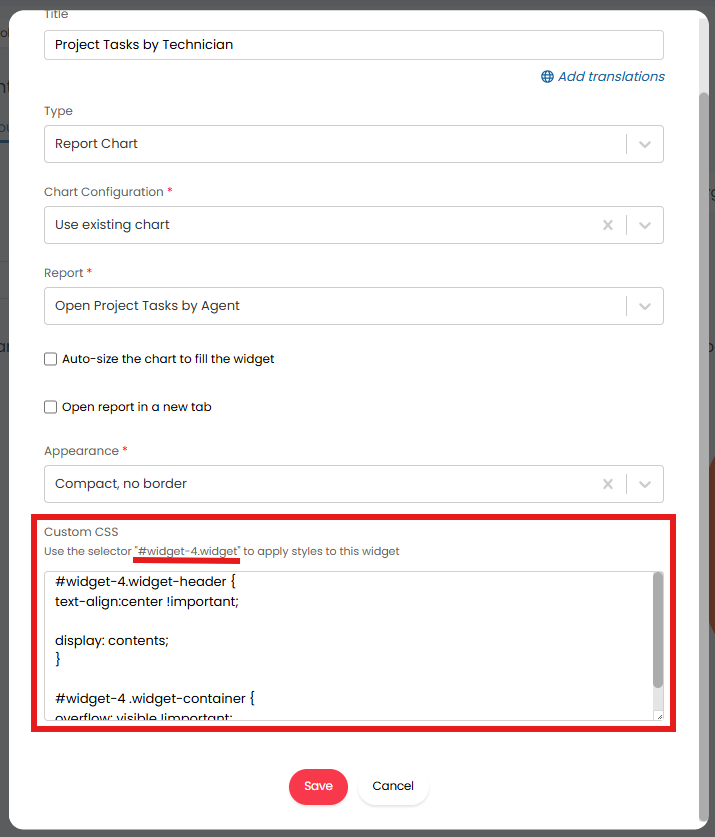
Fig 14. Finding the widget number
Table Width
This example formats the table in a "Report Data" widget type to fit the width of the widget.
#widget-4 table {
width: 100%;
border-collapse: collapse;
font-size: 12px;
border: 1px solid;
}
#widget-4 th, #widget-4 td {
border: 1px solid #ccc;
padding: 2px 4px !important;
margin: 0 !important;
text-align: left;
}
#widget-4 td {
word-wrap: break-word !important;
white-space: normal !important;
}
#widget-4 th {
font-weight: bold;
}
Percentage Counters
This example adds a percentage symbol after a "Report Counter" widget.
#widget-2 a::after {
content: '%';
}
Graph and Charts
This example will format the "Report Chart" widget type to fit the widget size.
#widget-10 canvas {
display: inline-block !important;
height: auto !important;
width: 100% !important;
border-collapse: collapse !important;
}