MCP Endpoint: Use the Chatbot to Query and Update Data in your Instance
In this guide we will cover:
- Overview
- Setup Steps for Instances Deployed before January 19 2026 (or HaloITSM, HaloCRM)
- Setup Steps required for (HaloPSA) Instances Deployed after January 19 2026
- Using the MCP Endpoint to query instance data
Related Guides:
This setup is now legacy, and has been replaced with new functionality for new HaloPSA environments. If your environment was deployed after July 1st 2026, then please refer to this guide for your OOTB setup: Using the Halo MCP AI Agent With The ChatBot (Pre-Configured Environments).
If you would like to set up the new functionality, please refer to this guide: Halo MCP AI Agent: Chat Setup Guide.
Overview
The MCP endpoint can be utilised alongside the Halo Chatbot to have OpenAI evaluate data in your Halo instance and carry out actions in your Halo. Useful for easily obtaining data and statics on your businesses performance and carrying out ad-hoc tasks quickly and efficiently. You may use this to see how your teams are performing, how much profit you have made, complete quick checks, etc. the options are endless.
This functionality is pre-built into trials of HaloPSA as of January 19 2026 but some setup is required before this can be used. You do not need your own AI connection to use this functionality if you are using this functionality on a trial instance. If you are looking to plug this into a live (production) instance you will need your own AI credentials.
- If your Instance was deployed after January 19 2026 skip to the section "Setup Steps required for (HaloPSA) Instances Deployed after January 19 2026"
If your instance was deployed before January 19 2026, or you are using one of our other products (HaloITSM, HaloCRM) this functionality will need to be built into your instance.
- If your instance was deployed after January 19 2026, start at the section "Setup Steps for Instances Deployed before January 19 2026 (or HaloITSM, HaloCRM)".
How does this work?
The runbook "HaloMCP" is plugged into the chat profile "HaloMCP", so that each time a query is entered into this chat the runbook is triggered. The runbook will send the query to OpenAI which will use the MCP endpoint to get data from your instance to answer the query. The MCP endpoint also allows OpenAI to execute actions in your Halo instance, so that if an action is requested from the chat, OpenAI can carry out this action in your instance. The runbook is triggered for each query/prompt entered into the chat.
Setup Steps for Instances Deployed before January 19 2026 (or HaloITSM, HaloCRM)
To begin you will need to create an API application, that gives access to your Halo instance.
Head to Configuration > Integrations > Halo API > View Applications > New. Here, create an application with the following configuration:
- Application Name - HaloMCP (or any appropriate name)
- Authentication Method - Client ID and Secret (Services)
- Login Type - Agent
- Agent to log in as - Choose an agent who is an Administrator
The application should look as shown in figure 1. 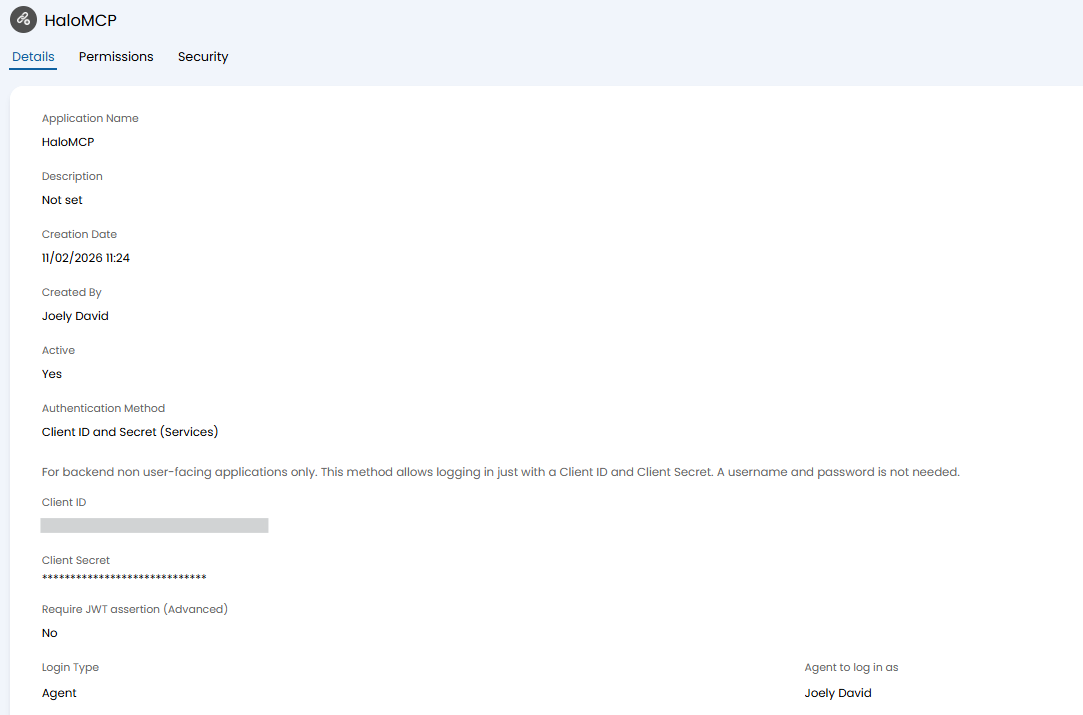
Fig 1. New API Application
Once the application is saved head to the "Permissions" tab and give the application the "all:standard" permissions only.
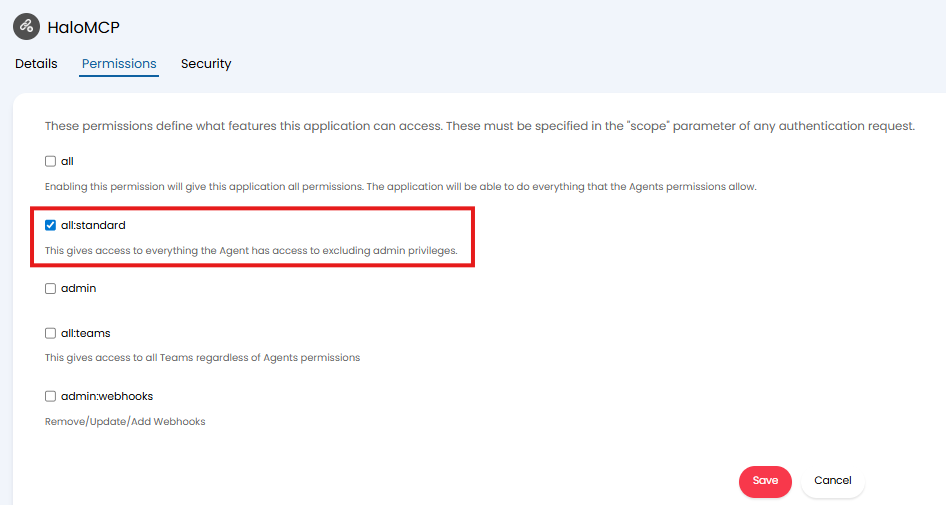
Fig 2. Give application Permissions
Before you save the application head back to the "Details" tab and use the "Generate" button to generate a secret for the application. Once generated, copy this, along with the Client ID to a clipboard.
We will now need to create the required runbook.
Create Runbook
Now you will need to create a new runbook that sends requests to the MCP server.
Head to Configuration > Integrations > Custom Integrations > Integration Runbooks > New. Give the runbook a name and save it.
Then use the "Import from JSON" button to create the runbook with pre-provided JSON. The JSON required will be attached to this guide. If you are viewing this guide on our website, you will need to head to our portal to get this attachment, here.
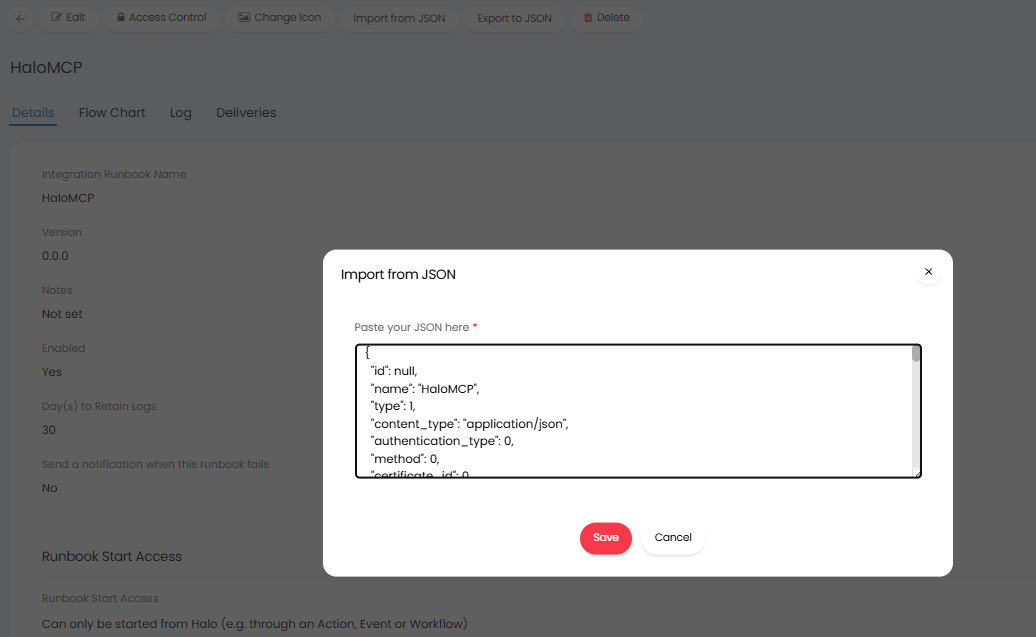
Fig 3. Import runbook from JSON
Save the runbook and head to the Flow Chart tab.
Edit the first step "Get Bearer Action".
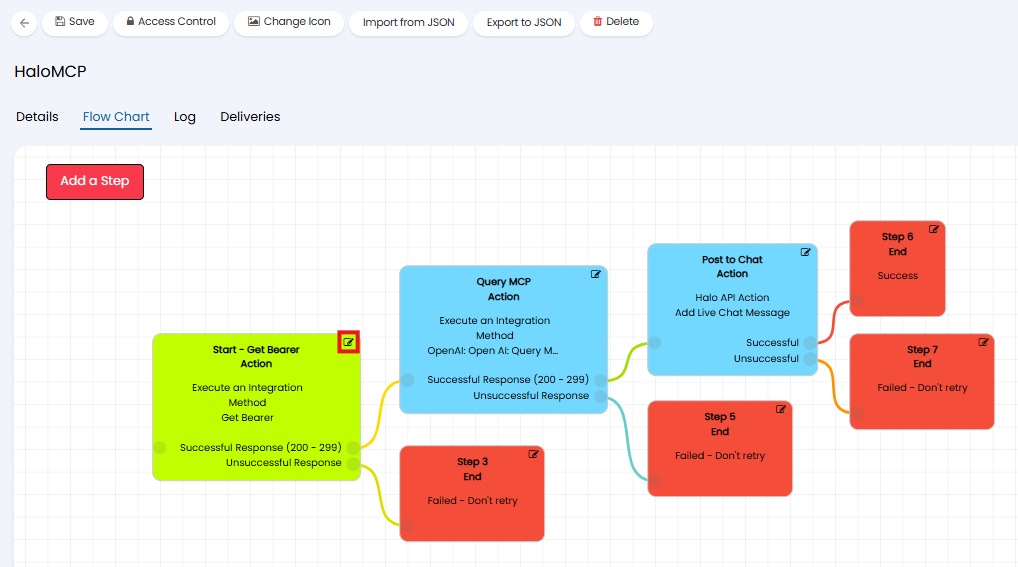
Fig 4. Edit First Step
Create a new method to obtain a bearer token for your instance. This will need to follow the setup shown in figure 5.
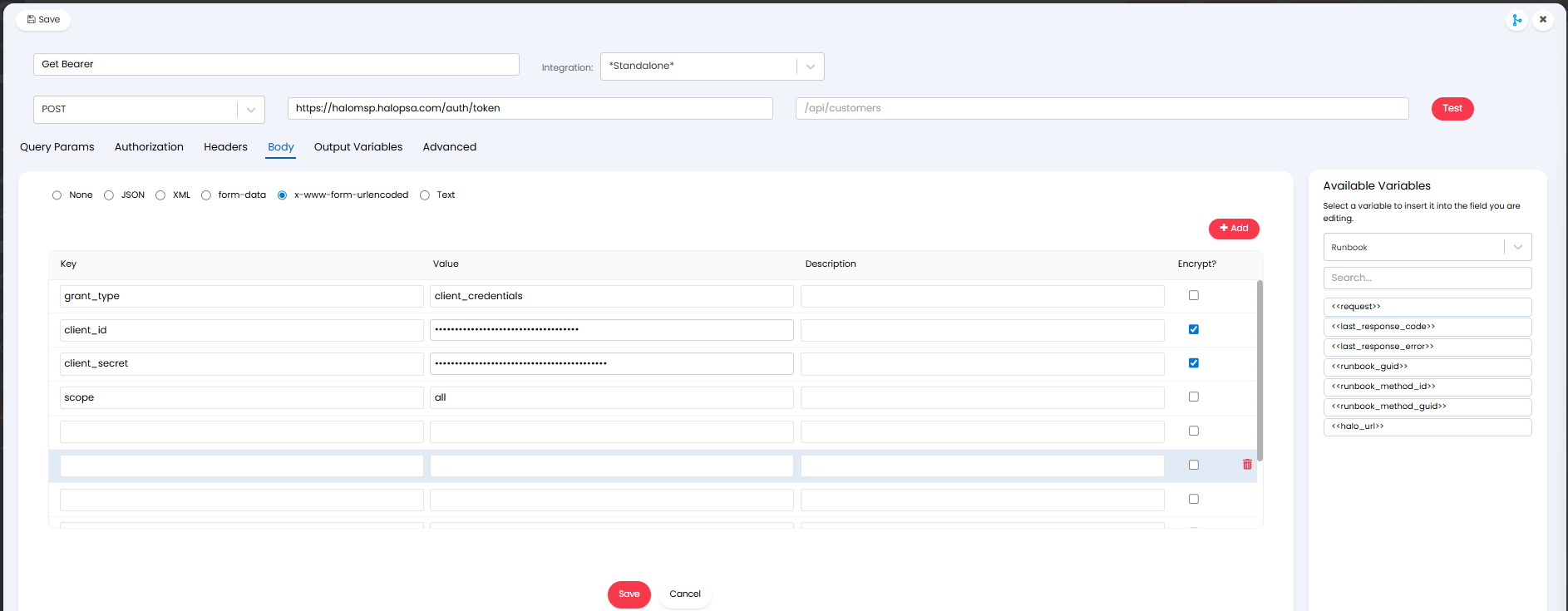
Fig 5. Method to Obtain Bearer Token
The endpoint to post this request to will need to follow the format:
You will need to add the body shown in figure 5. The value of the client id and client secret swill be taken from the API application you created earlier. Paste these in here. Ensure you also check the "Encrypt" option.
Now add an output variable for the method, to store the token retrieved. The variable will need to be configured as shown in figure 6.
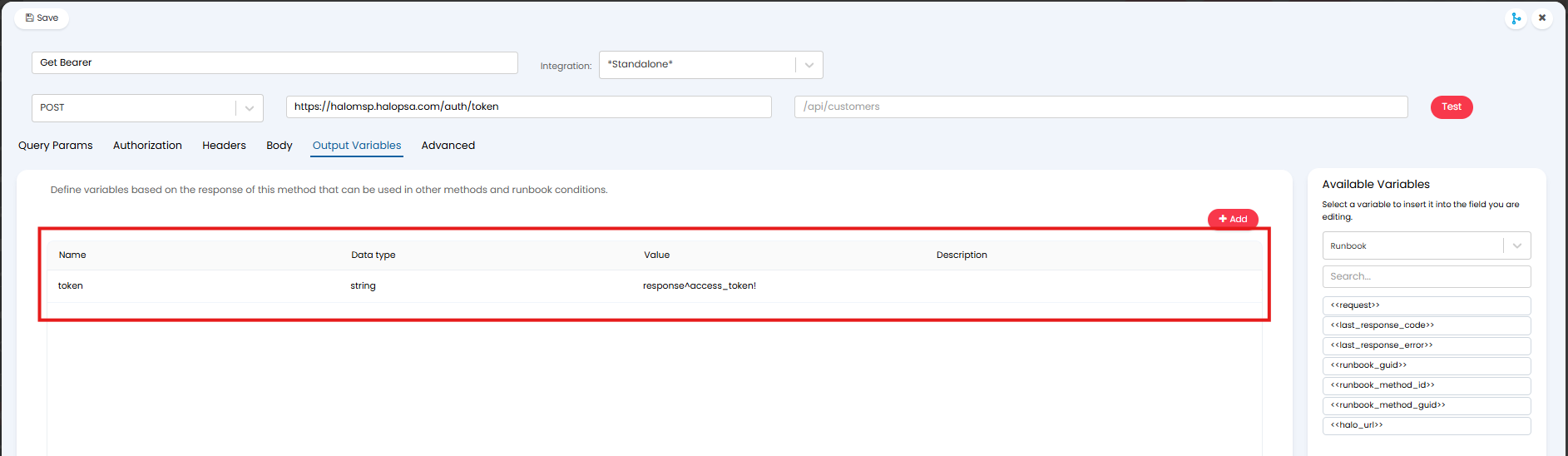
Fig 6. Output Variable to store Bearer Token
Note: Ensure the name of the variable is also the same name as shown. This name is used later on in the runbook.
Now save the method, and select the method you have just created to be used for this runbook step before saving the step.
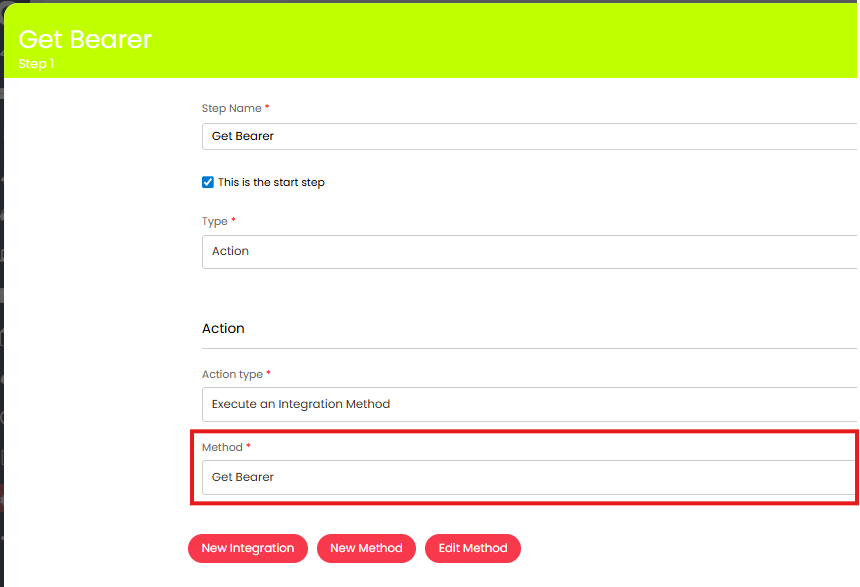
Fig 7. Select the Method to use for the Step
Now edit the step "Query MCP" and create a new method.
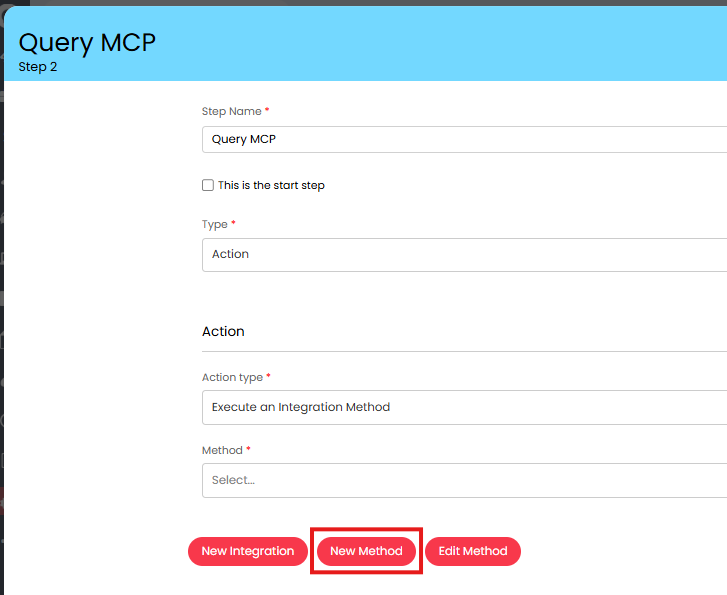
Fig 8. Create new method
Important: The method created here will differ depending on if you are using OpenAI or Azure OpenAI as your AI connection. If you are using OpenAI as your connection follow the section "Method when using OpenAI", if you are using Azure OpenAI as your connection follow the section "Method when using Azure OpenAI".
Method when using OpenAI
Pre-requisites:
- Ensure you have already configured your own OpenAI connection for your Halo instance.
Configure the method as shown in Figure 9. The method needs to complete a POST to the OpenAI responses endpoint. Ensure you also select the integration to be "OpenAI".
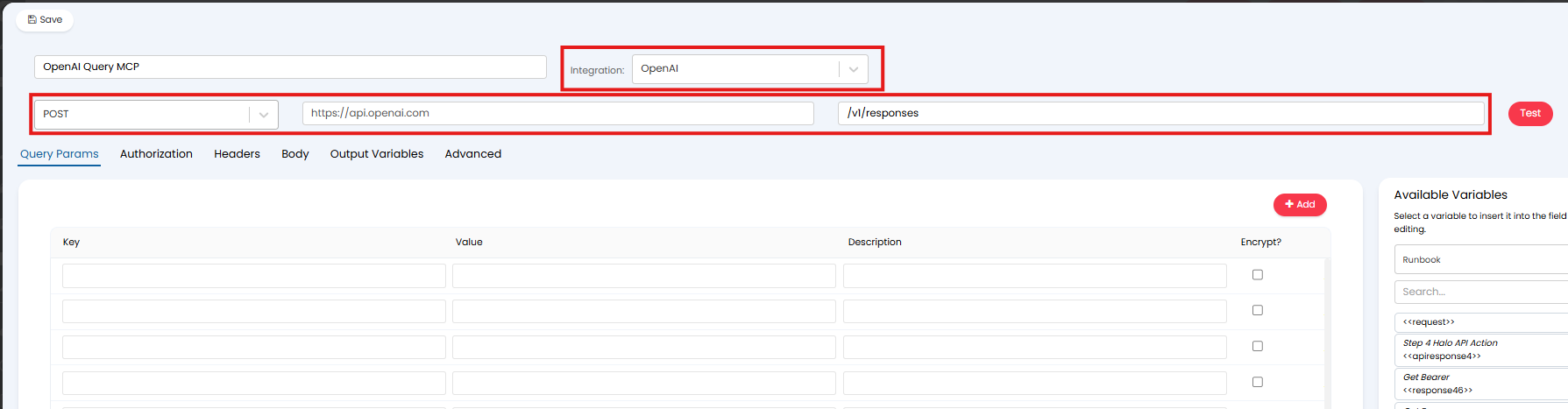
Fig 9. Method to send a request to Open AI
In the "Body" of the method paste the following JSON, replacing "YOURHALOINSTANCE with your own instance URL:
{
"model": "gpt-4.1",
"input": "<<chat^last_message_text!>>. Give any responses in formatted HTML. Do not include markup, return only the raw html. Estimate the name of the report in question based on the function name and return that in your response. If no tools match the input, respond with the knowledge at your disposal. Based on the tools you have access to, suggest follow up actions to perform in the system: log a ticket, add a note to an existing ticket, assign a ticket to me, etc.",
"tools": [
{
"type": "mcp",
"server_label": "halopsa",
"server_url": "https://YOURHALOINSTANCE.com/api/mcp",
"require_approval": "never",
"headers": {
"Authorization": "Bearer <<token!>>"
}
}
]
}
This should look as shown in Figure 10.
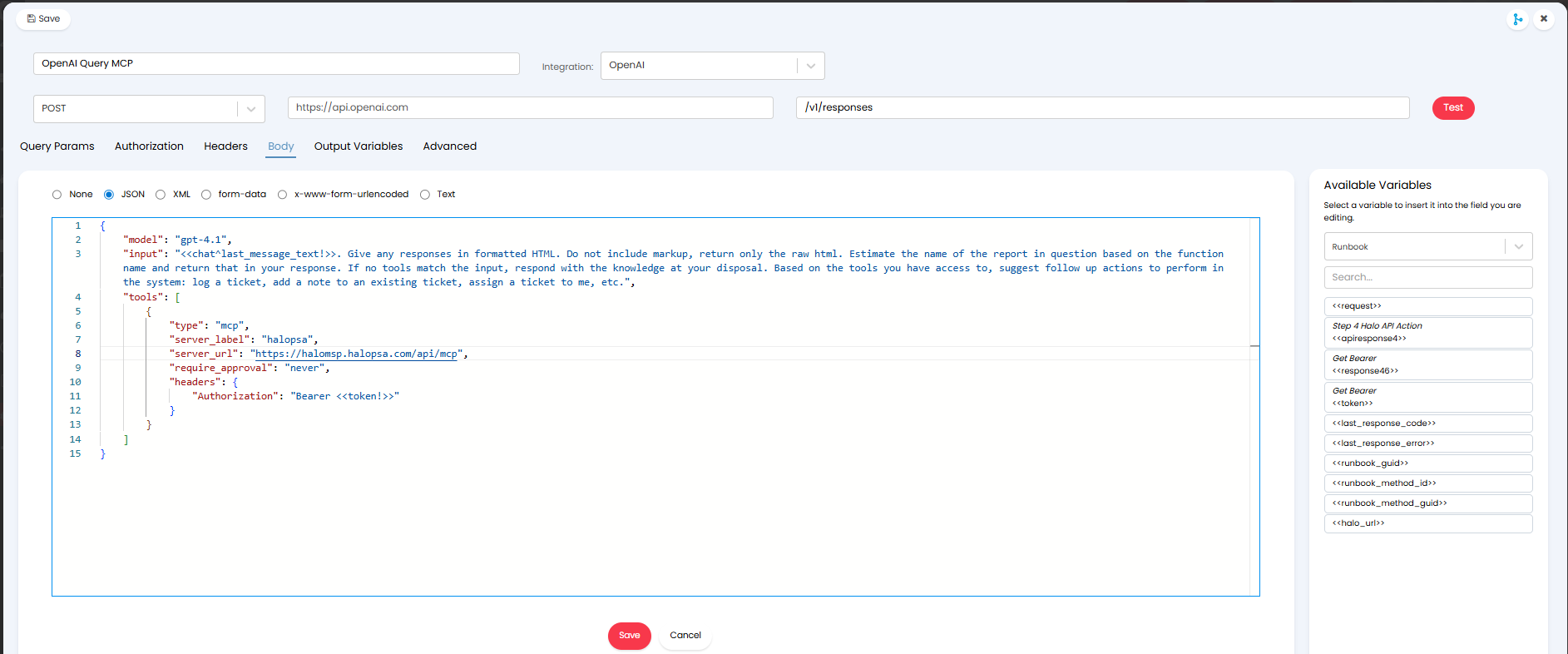
Fig 10. Body of Method for request to OpenAI
Then, in the Output Variables tab create an output variable to store the response from OpenAI. The variable should look as shown in Figure 11.
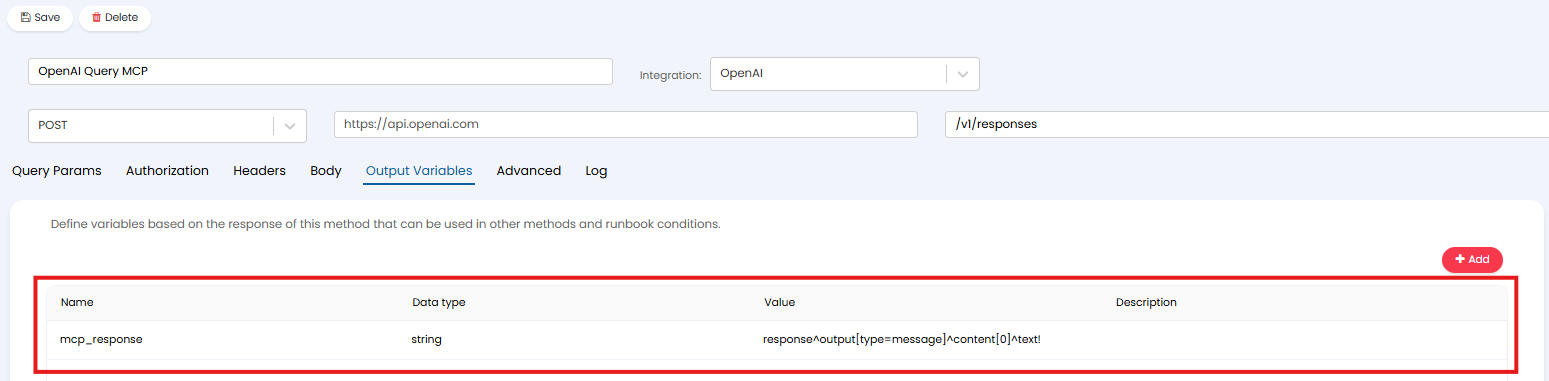
Fig 11. Variable to store OpenAI Response
The variable will have the following value:
- response^output[type=message]^content[0]^text!
Now save the method. Before saving the step ensure you select this method to be used for this runbook step.
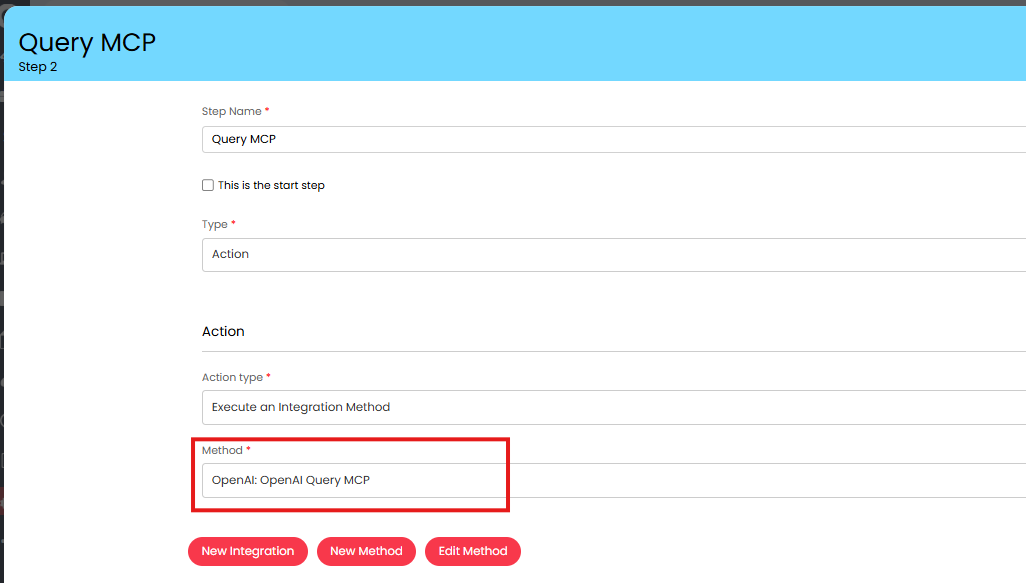
Fig 12. Select the Method to use for Step 2
Method when using Azure OpenAI
Pre-requisites:
- Ensure you have already configured your own Azure OpenAI connection for your Halo instance.
Configure the method as shown in Figure 14. The method needs to complete a POST to the Azure OpenAI responses endpoint. Ensure you also select the integration to be "Azure OpenAI".
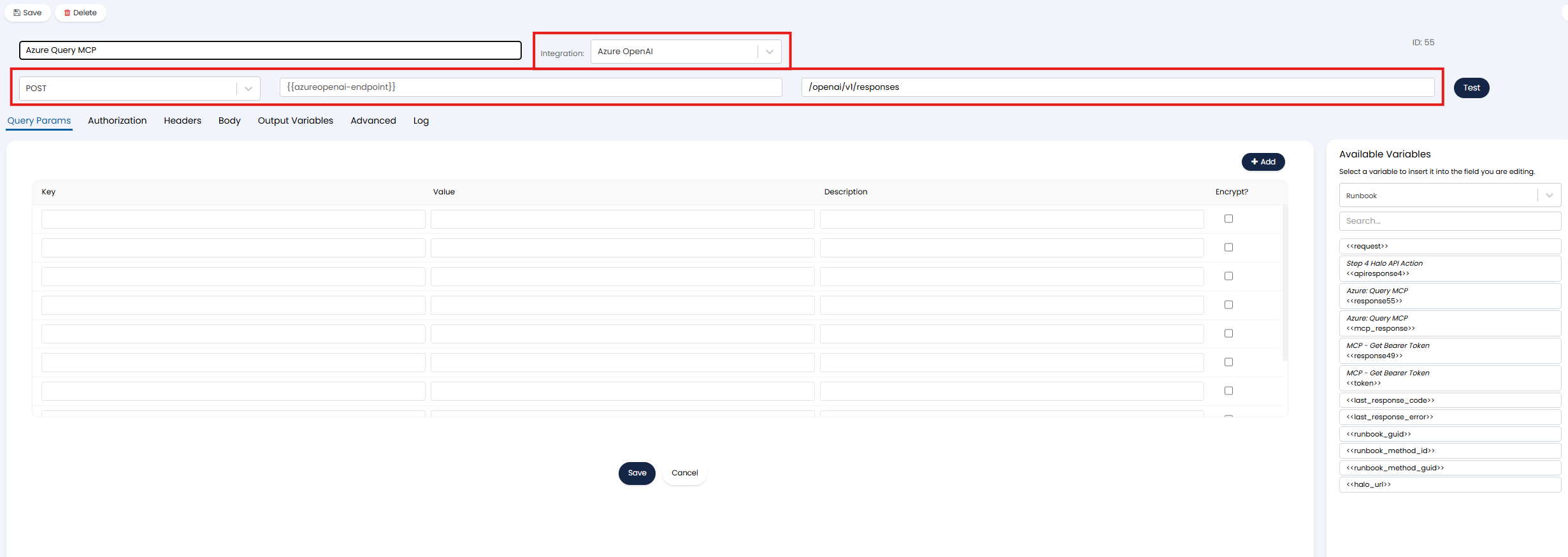
Fig 13. Method to send a request to Azure OpenAI
In the "Body" of the method paste the following JSON, replacing "YOURHALOINSTANCE with your own instance URL:
{ "model": "YOUR Default Azure OpenAI Deployment",
"input": "<<chat^last_message_text!>>. Give any responses in formatted HTML. Do not include markup, return only the raw html. Estimate the name of the report in question based on the function name and return that in your response. If no tools match the input, respond with the knowledge at your disposal. Based on the tools you have access to, suggest follow up actions to perform in the system: log a ticket, add a note to an existing ticket, assign a ticket to me, etc.",
"tools": [
{
"type": "mcp",
"server_label": "halopsa",
"server_url": "https://YOURHALOINSTANCE/api/mcp",
"require_approval": "never",
"headers": {
"Authorization": "Bearer <<token!>>"
}
}
]
}
This should look as shown in Figure 14.
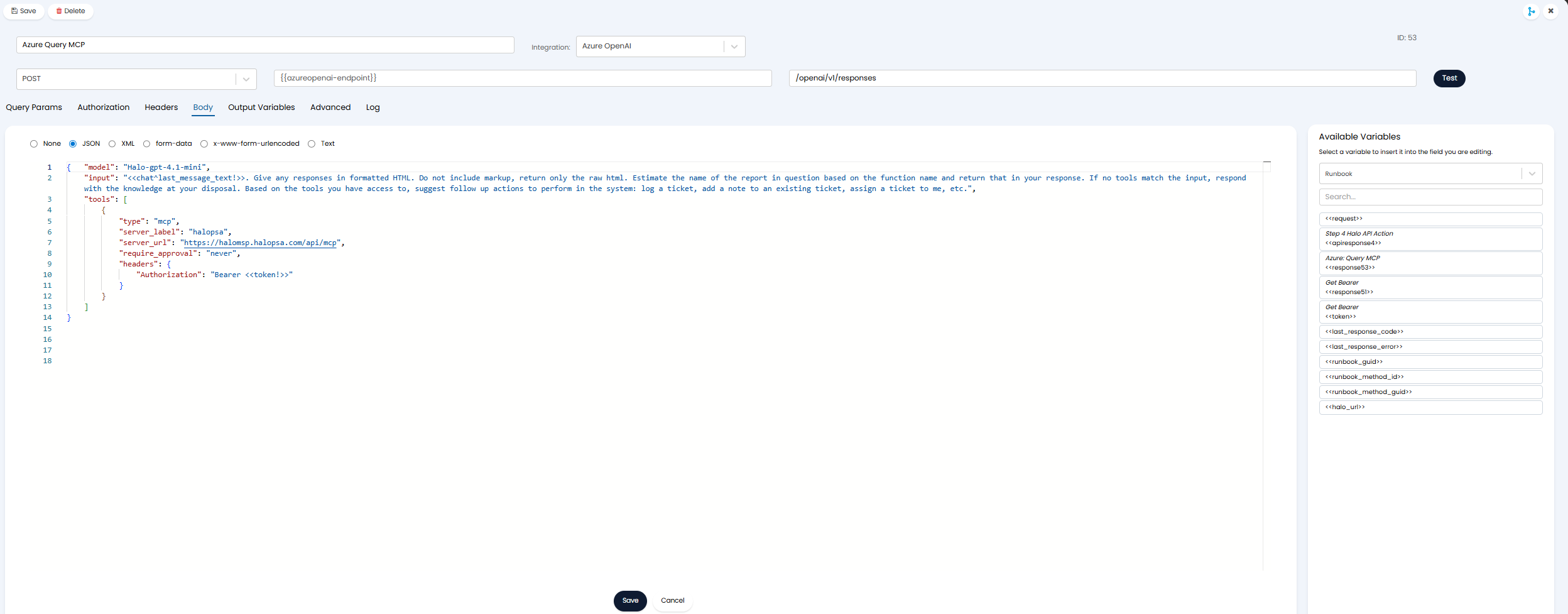
Fig 14. Body of Method for request to Azure OpenAI
Then, in the Output Variables tab create an output variable to store the response from Azure OpenAI. The variable should look as shown in Figure 15.
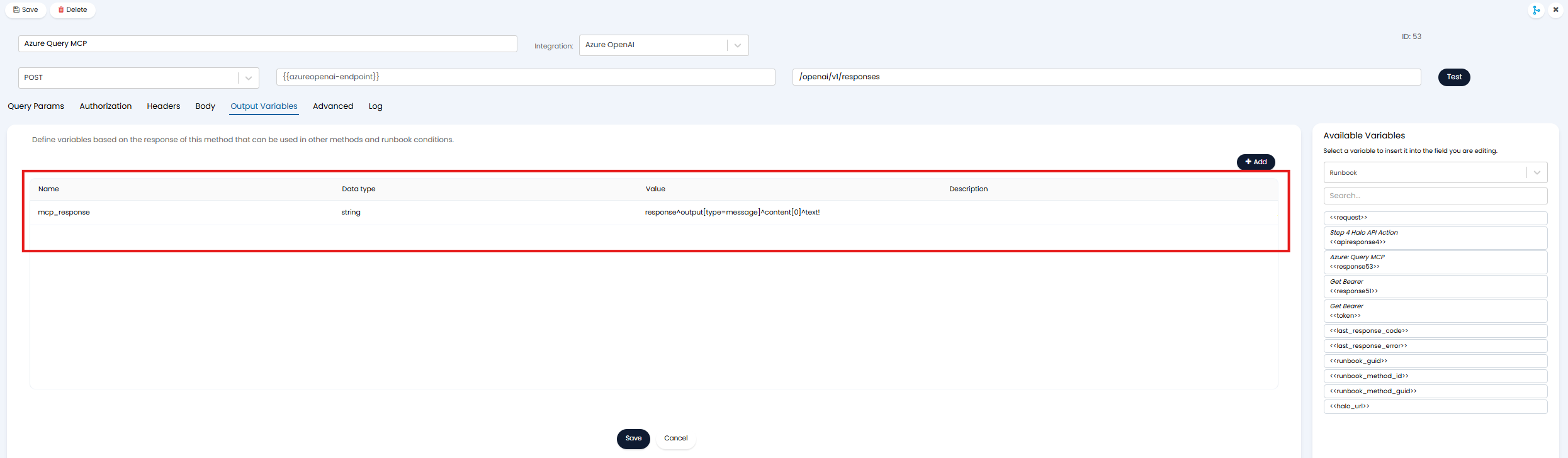
Fig 15. Variable to store OpenAI Response
The variable will have the following value:
- response^output[type=message]^content[0]^text!
Now save the method. Before saving the step ensure you select this method to be used for this runbook step.
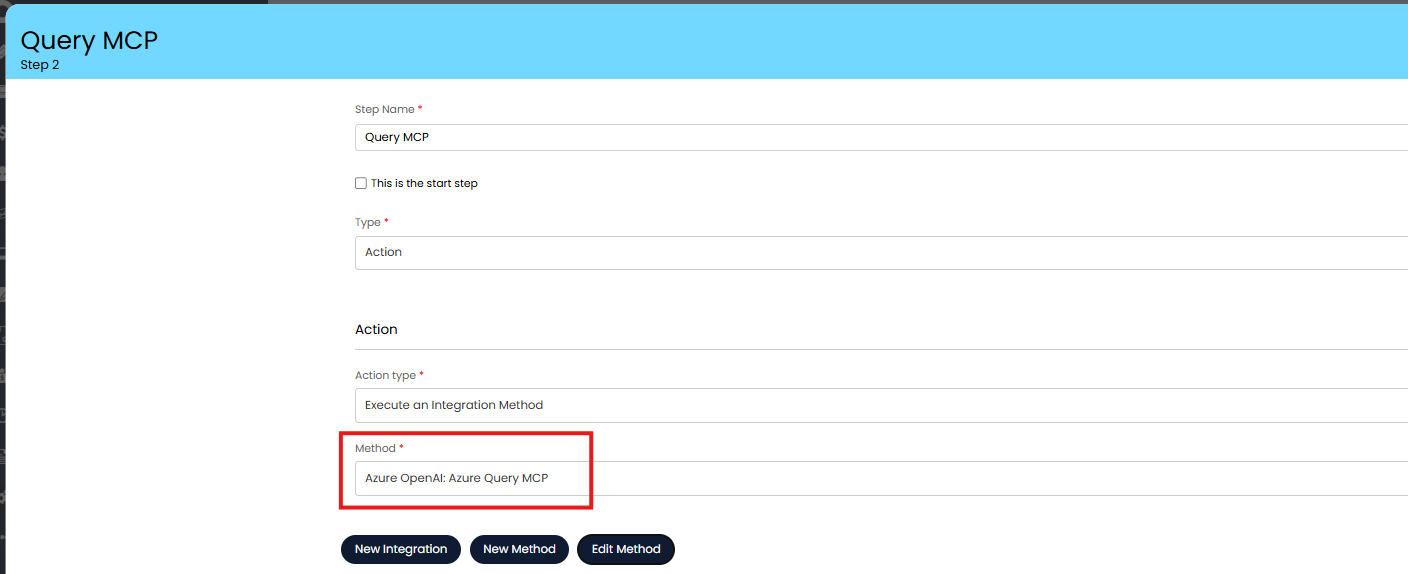
Fig 16. Select the method to use for step 2 (Azure OpenAI)
Now save the runbook as a whole.
Chatbot
Now you will need to create a new chat profile that will be used to query the endpoint.
Head to Configuration > Chat > Chat Profiles > New, give the chat profile a name and save it.
Then, use the "Import from JSON" button to create the chat profile based on given JSON. The JSON required is attached to this guide, simply paste the JSON here and save. If you are viewing this guide on the website, you will need to navigate to this guide in our portal to obtain the JSON.
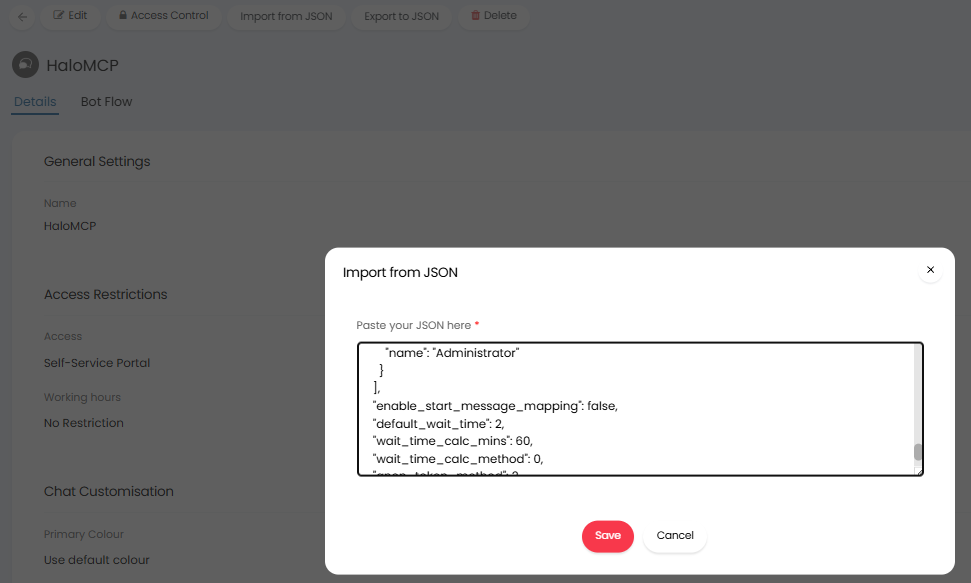
Fig 17. Import chatbot from JSON
Now, edit the step "Execute MCP Action" and in the "Runbook" field, select the runbook you just created.
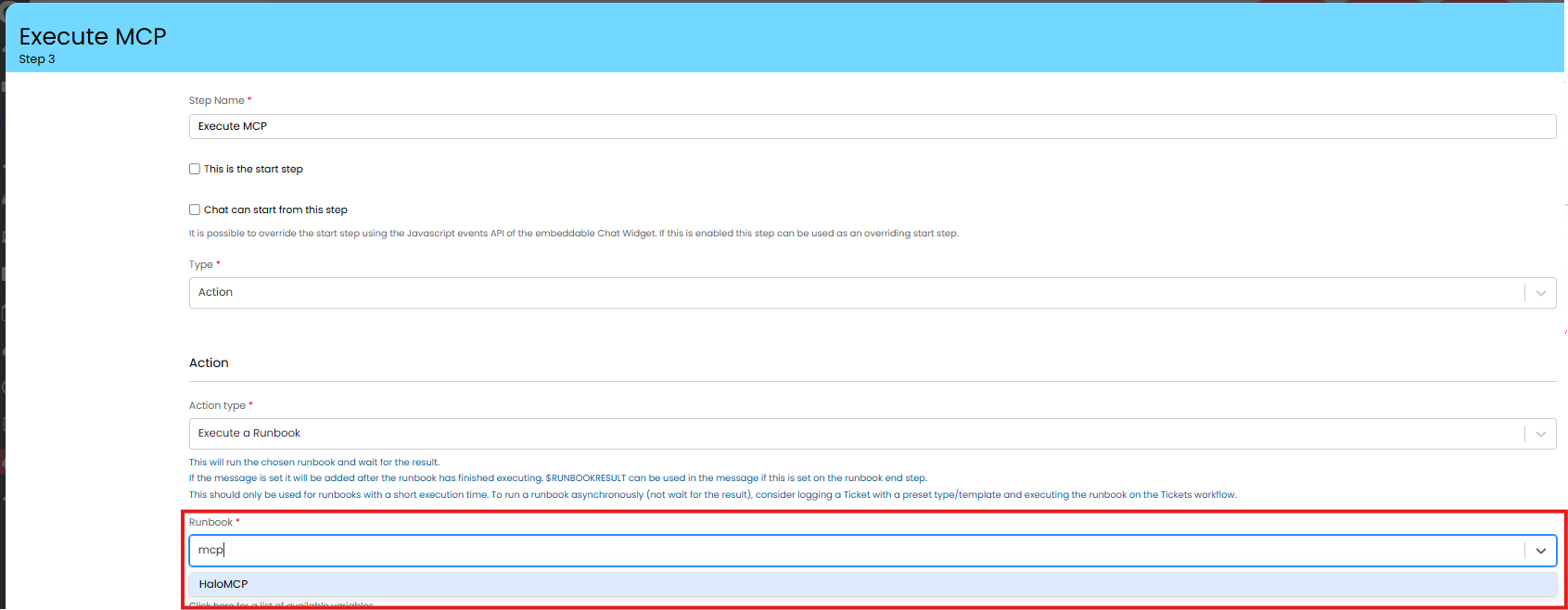
Fig 18. Select the Runbook to Execute
Save the step and the chat profile.
Configure Tools for the Endpoint
Now you have built the runbook and chat profile required for making requests to the MCP endpoint, you will need to create some additional Tools for the MCP endpoint. Tools will need to be added to allow the endpoint to access data in your instance based on chosen reports, without this step the endpoint will not to be able to obtain data about your instance.
To do this head to Configuration > AI > Remote MCP Server Section, in the "Tools" table, add a new tool.
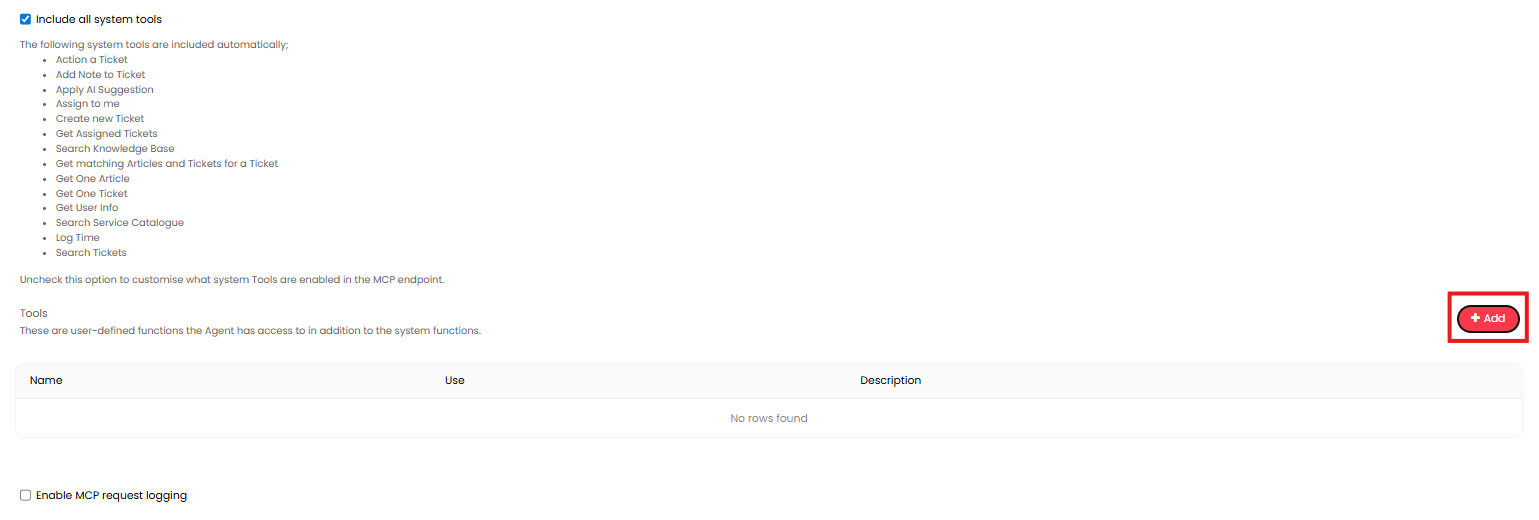
Fig 19. Add new Tool
When adding a tool you will need to give the tool a name description and use.
Name - Your chosen name for the tool. We recommend this reflects the name of the report.
Description - Should contain a description of the data the report contains. The AI model will use this determine when this report should be called.
Use - Choose "Get Report Data".
Report - Select the report who's data you would like to be available at the MCP endpoint.
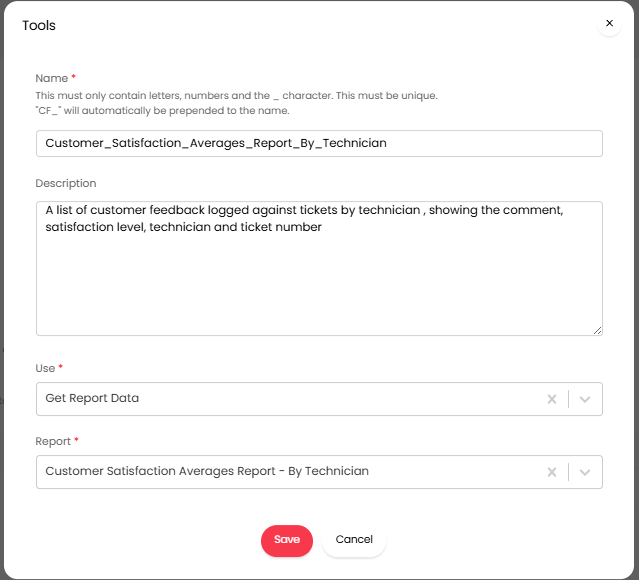
Fig 20. Custom Tool
Using the Figure 20 example, all the data that is returned by the report "Customer Satisfaction Averages Report - By Technician" will be available at the MCP endpoint. When someone requests information about customer feedback via the chat profile (created earlier), data from this report will be returned.
You will need to add a tool for each report that contains data you would like to be available at the endpoint. The more reports added, the more information the MCP endpoint will have available and more more flexible the functionality.
Note: Better results are obtained by adding lots of reports rather than few large reports containing a wide scope of data.
In trials, over 140 tools are added to make report data available at the endpoint. We recommend creating a new trial of HaloPSA and using this as a reference for the tools required. You can then re-create these tools as you see them in the trial. If any of the reports are not available in your instance you can download these from the online repository, or copy the sql across from a trial.
Once you have created all the tools setup is complete. Follow the section of this guide "Using the MCP Endpoint to Query and Update Instance Data" for information on how to use this functionality.
Setup Steps required for (HaloPSA) Instances Deployed after January 19 2026
For this to work you will need to provide API credentials to allow the runbook to access your Halo instance.
Note: Ensure the MCP endpoint is also enabled for your instance.
Create an API application
Head to Configuration > Integrations > Halo API > View Applications > New. Here, create an application with the following configuration:
- Application Name - HaloMCP (or any appropriate name)
- Authentication Method - Client ID and Secret (Services)
- Login Type - Agent
- Agent to log in as - Choose an agent who is an Administrator
The application should look as shown in Figure 21.
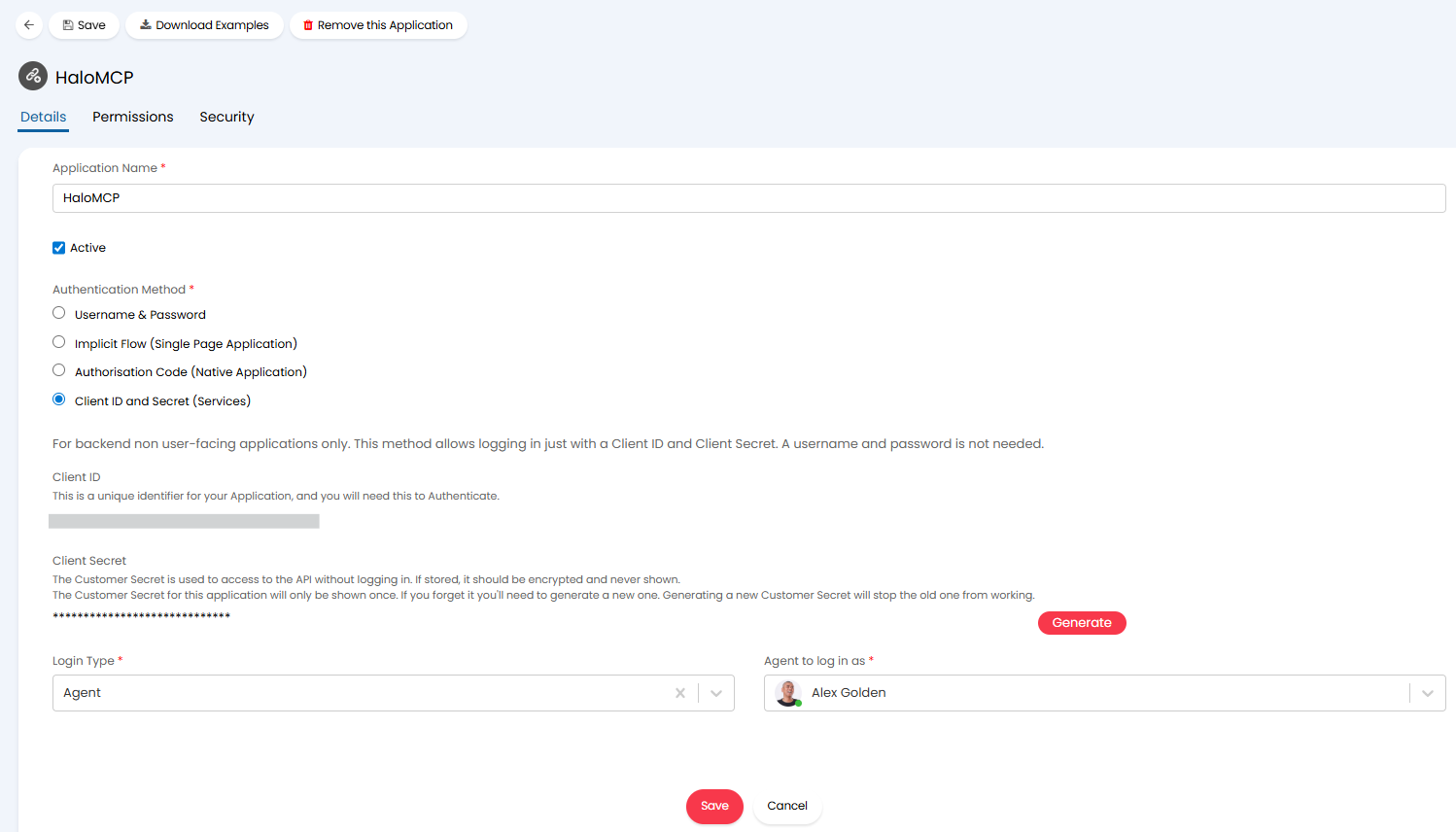
Fig 21. New API Application
Once the application is saved head to the "Permissions" tab and give the application the "all:standard" permissions only.
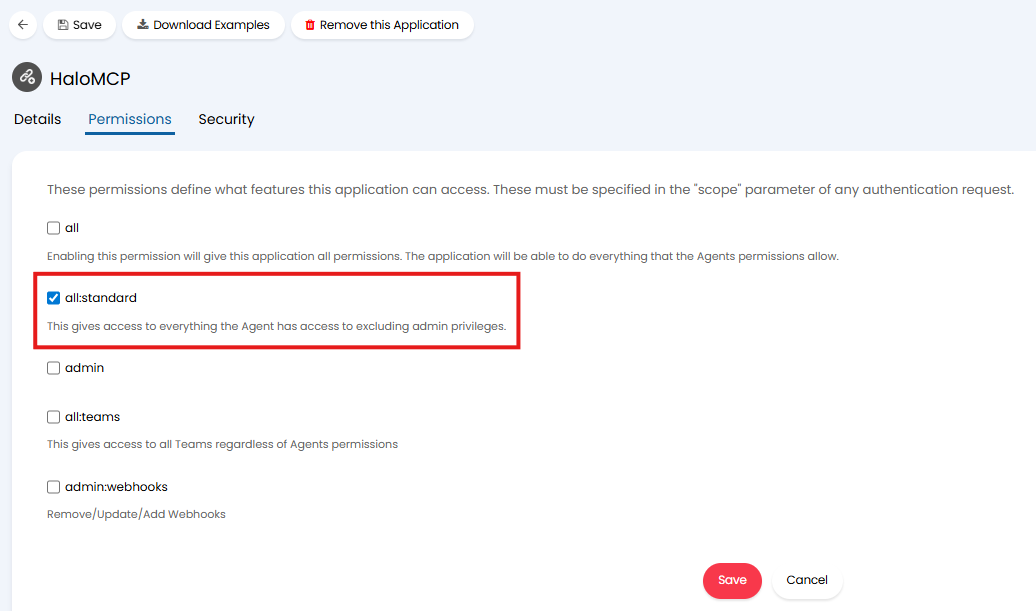
Fig 22. Give Application Permissions
Before you save the application head back to the "Details" tab and use the "Generate" button to generate a secret for the application. Once generated, copy this, along with the Client ID to a clipboard.
We will now plug these credentials into the runbook
Plug Credentials into Runbook
Head to Configuration > Integrations > Custom Integrations > Integration Runbooks > select "HaloMCP" > Flow Chart tab > Edit the page > edit the first step of the runbook.
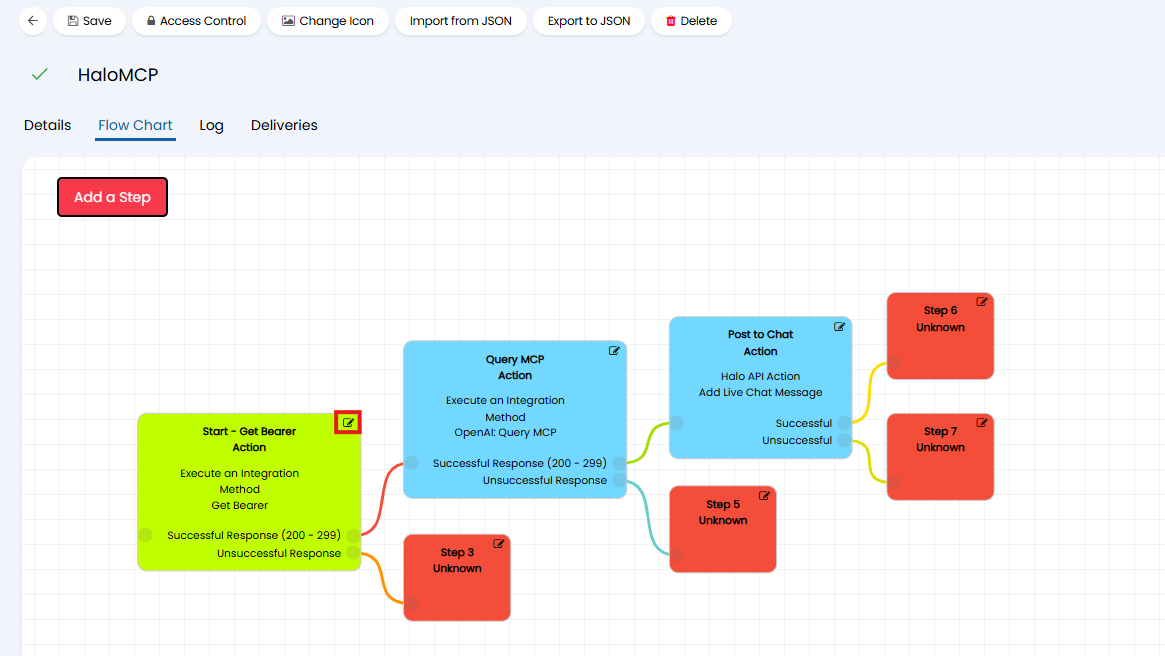
Fig 23. Edit the first step of the runbook
From here, Edit Method > Body tab, here paste the Client ID into the value for the "client_id" key and paste the secret value into the value for the "client_secret" key. Ensure you also enable encryption for these values.
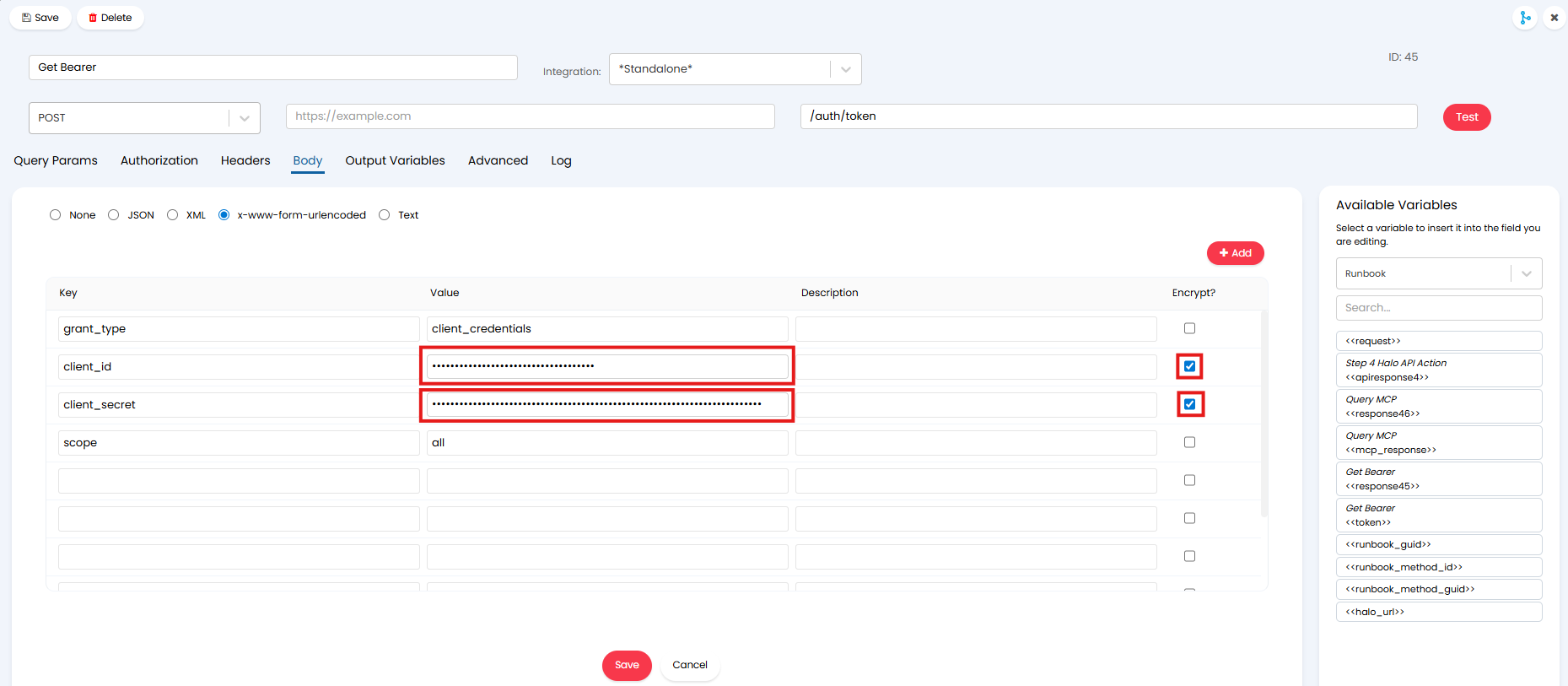
Fig 24. Paste credentials into runbook body
Then add the URL of your Halo instance into the field shown in Figure 25.
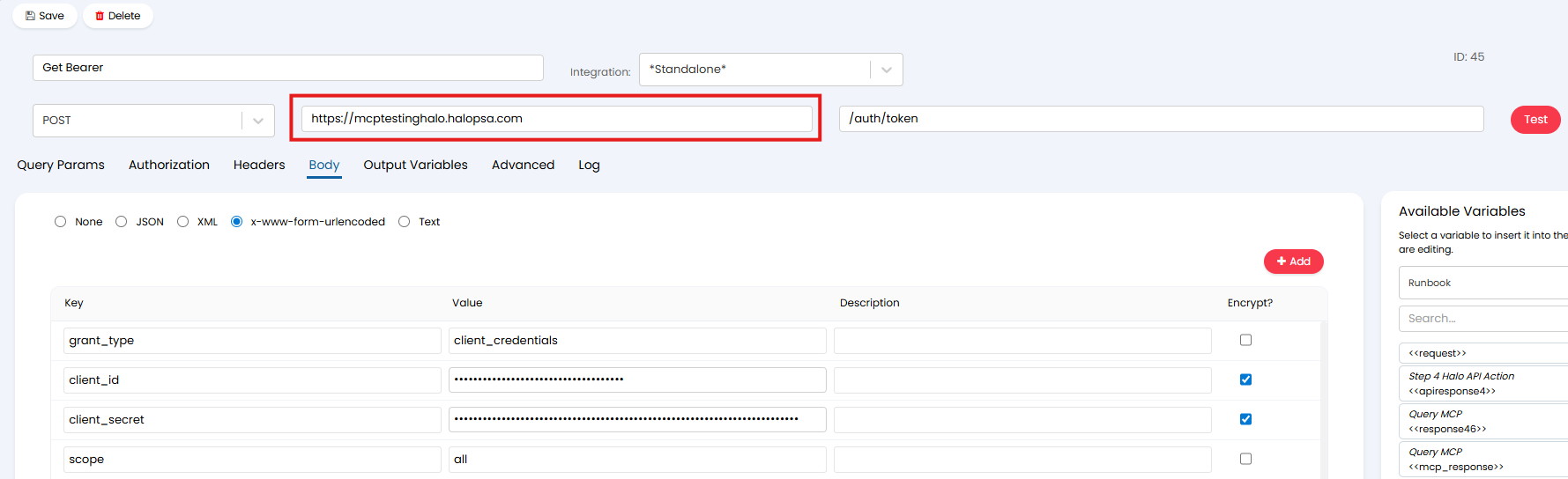
Fig 25. Add Halo own URL
Once added, ensure you save the method, then save the runbook step then save the runbook as a whole.
Now you are ready to use the functionality.
Using the MCP Endpoint to Query and Update Instance Data
The chat bot is used to query data in your instance. Two chat profiles are available for agents out of the box. You will need to use the chat profile called "HaloMCP (Beta)" for this.
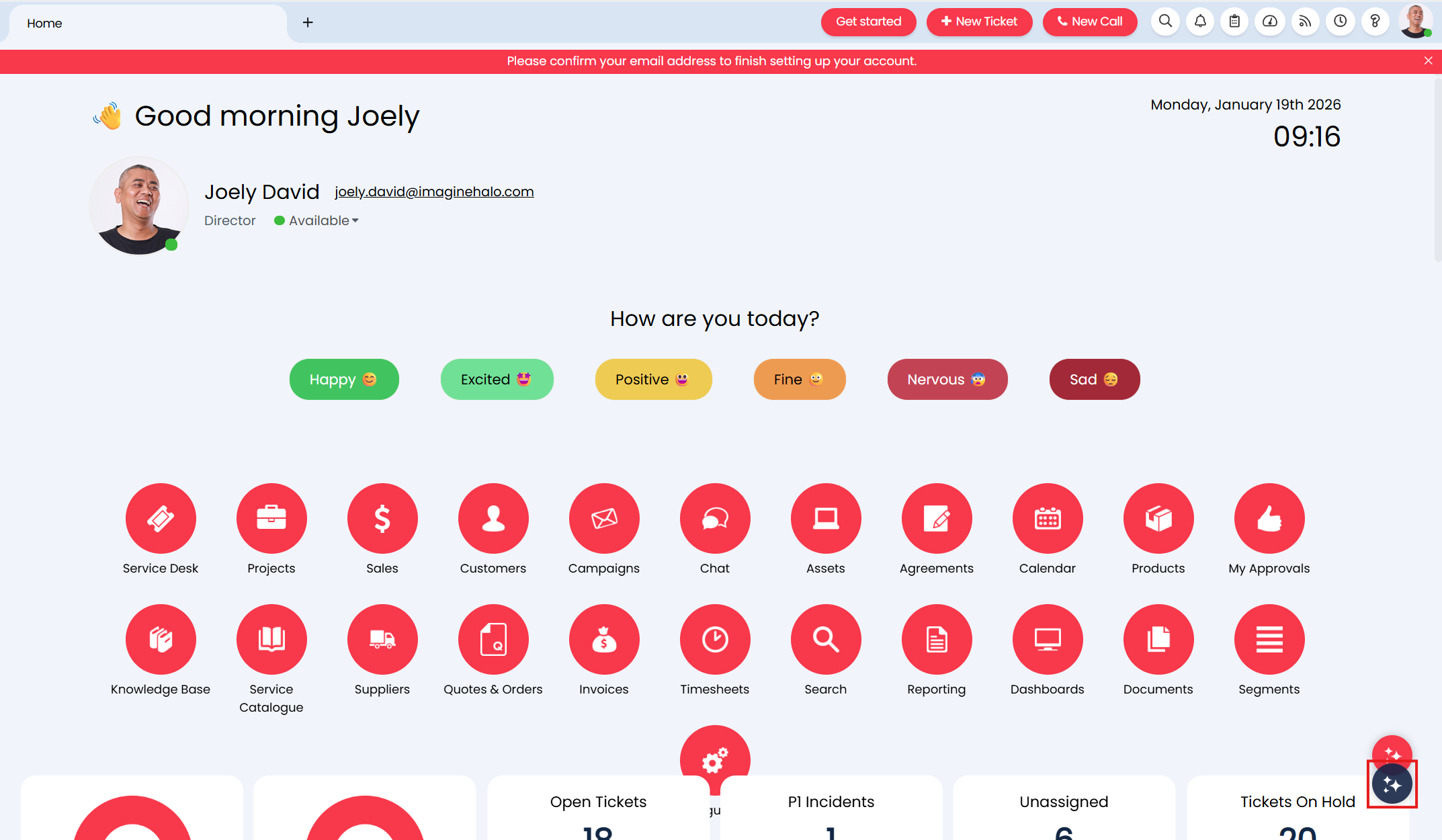
Fig 26. MCP chatbot
This chat profile is only available to administrator agents in Halo. These restrictions have been put in place as this functionality allows you to access all data in your instance regardless of your agent permissions. Therefore, only administrators should have this level of access.
The chat profile used is called "HaloMCP", therefore this is the profile that will need to be edited to change how the chat profile looks. For information on chat profile customisation checkout Chat Bot and Chat Profiles.
Start a chat by selecting the chat icon in the bottom right of the page in the Halo agent app.
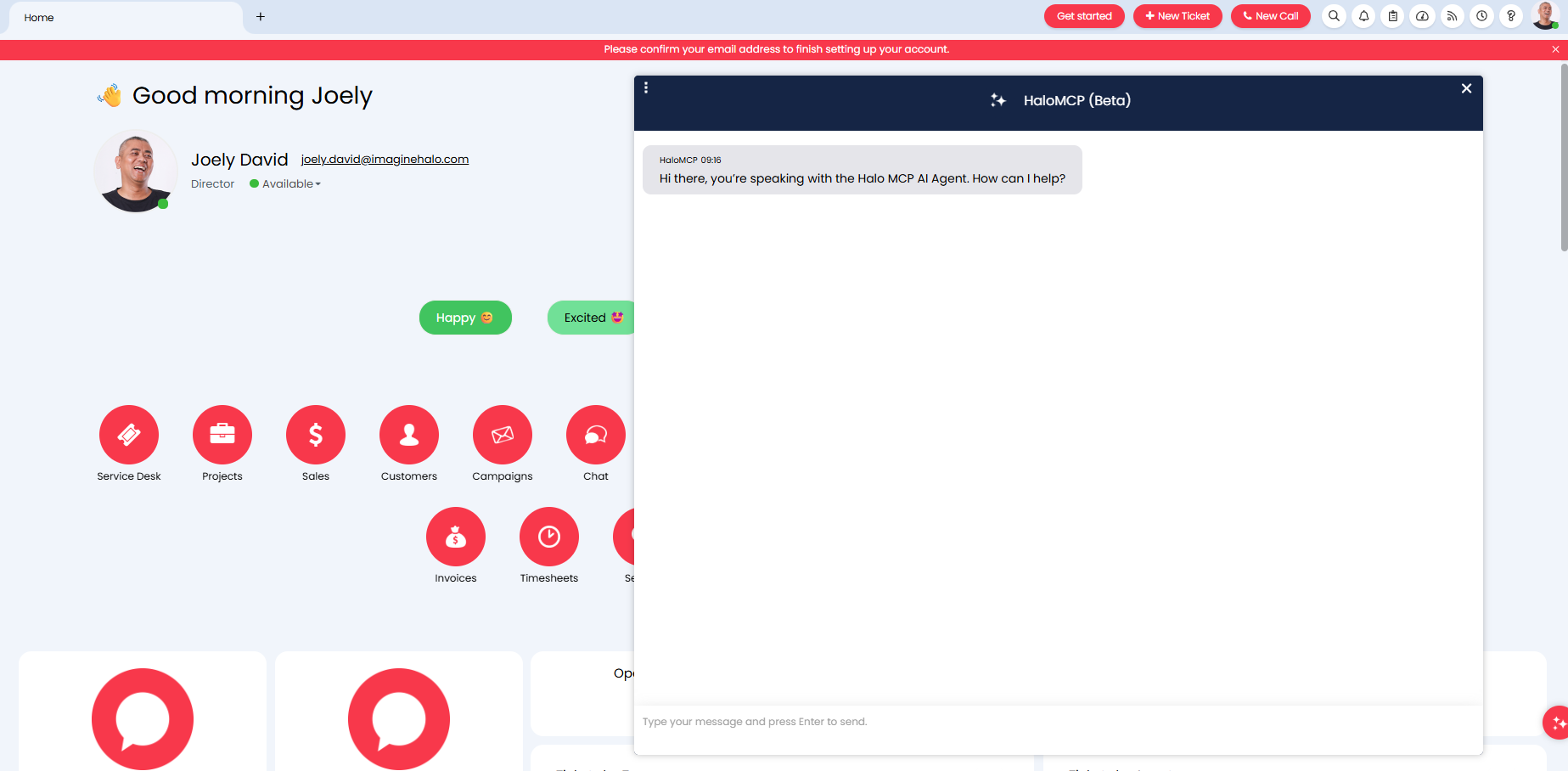
Fig 27. Start new chat
Now, simply tell the chat what data you would like to see.
In the Figure 28 example we have requested to see all customer feedback that has been logged this week.
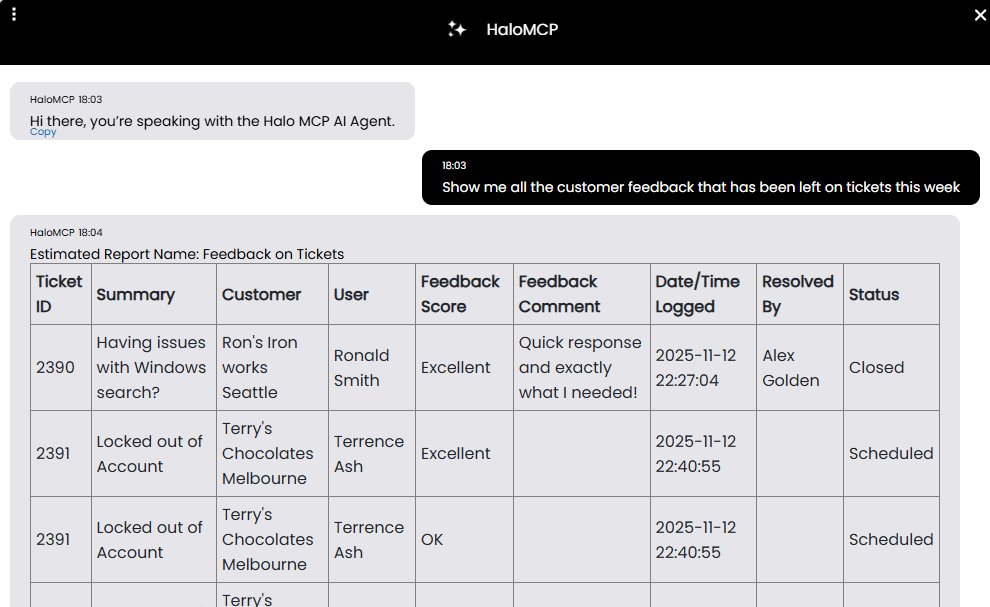
Fig 28. Using MCP endpoint to see Customer Feedback
Then we have asked AI to log a ticket for each piece of feedback scored "Poor".
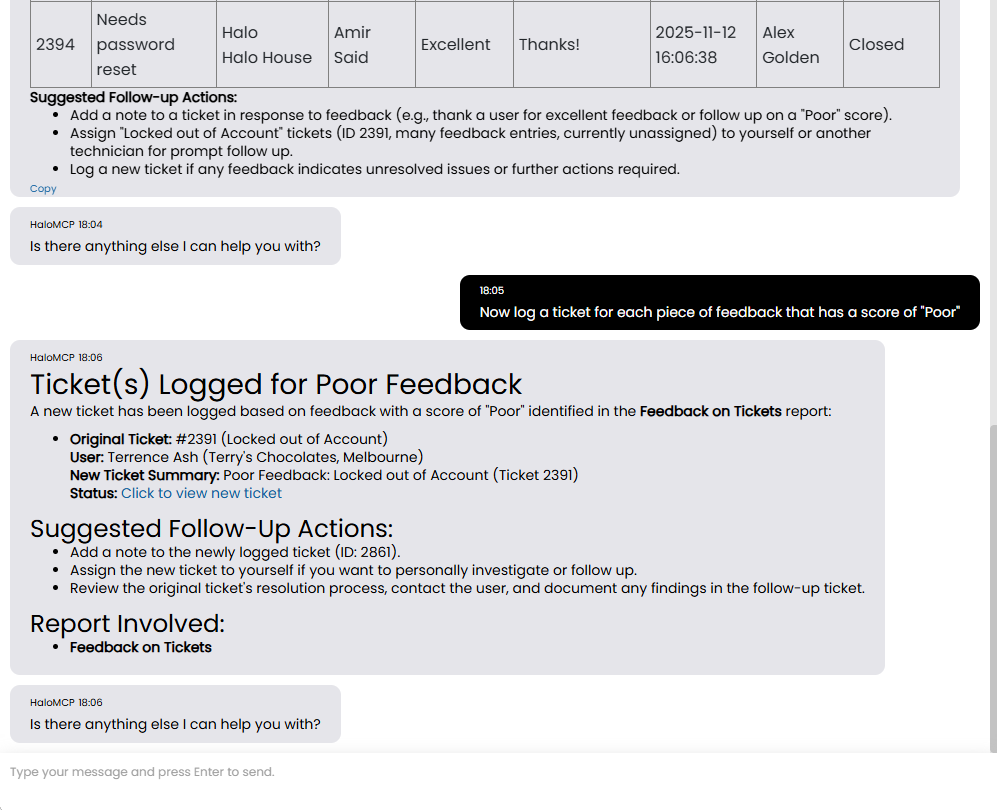
Fig 29. Ticket logged for Poor Feedback
The ticket logged looks as shown in figure 10. However, you can change elements of this ticket by giving additional information to the AI agent.
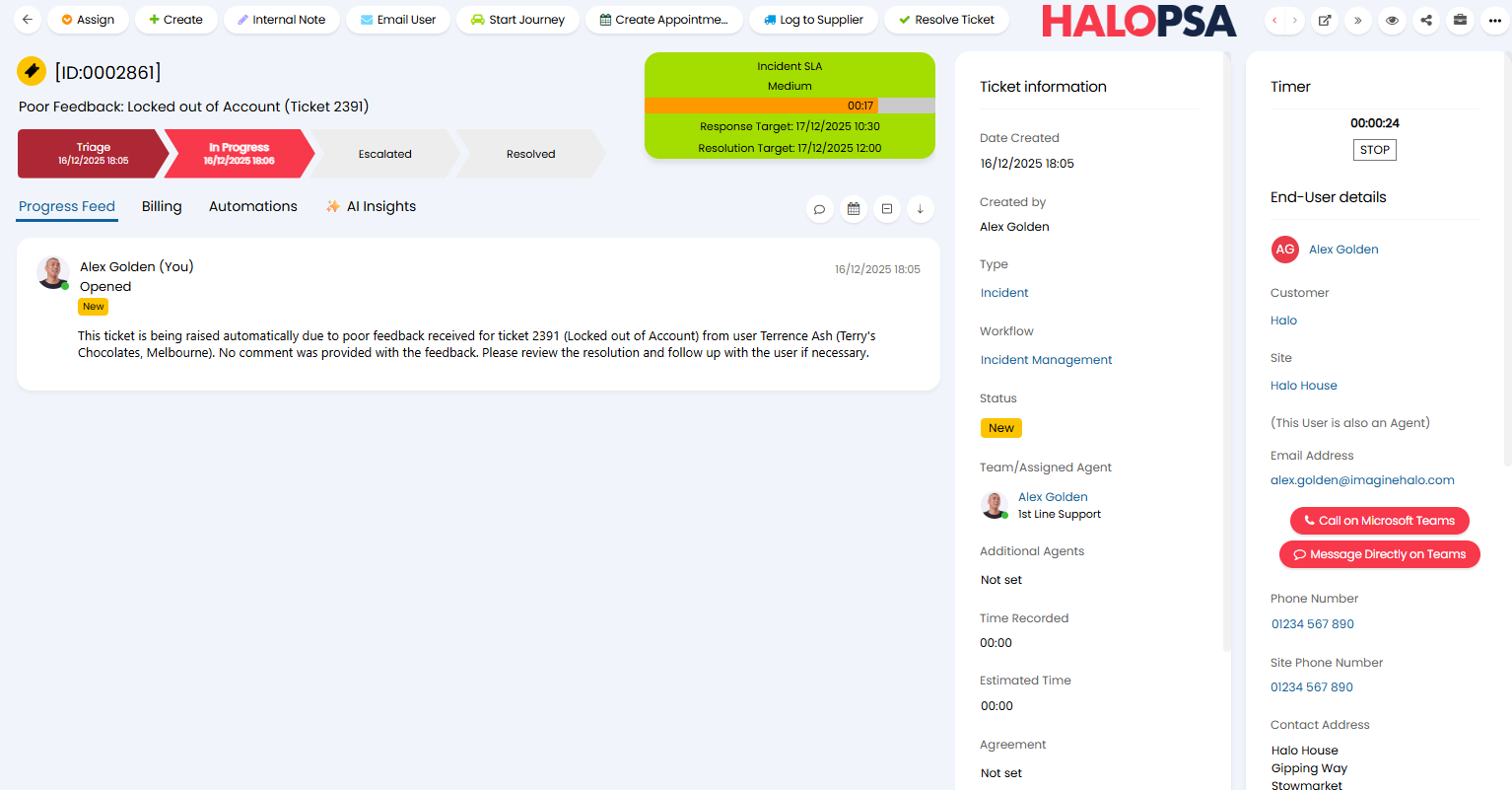
Fig 30. Ticket logged by MCP AI agent
What Data can the chat return?
The data that is available to the chat (OpenAI) is determined by the report data made available to the MCP endpoint. The MCP endpoint can obtain data from Halo reports using Tools.
Under Configuration > AI > Remote MCP Server section, you can see all the Tools configured for the MCP endpoint.
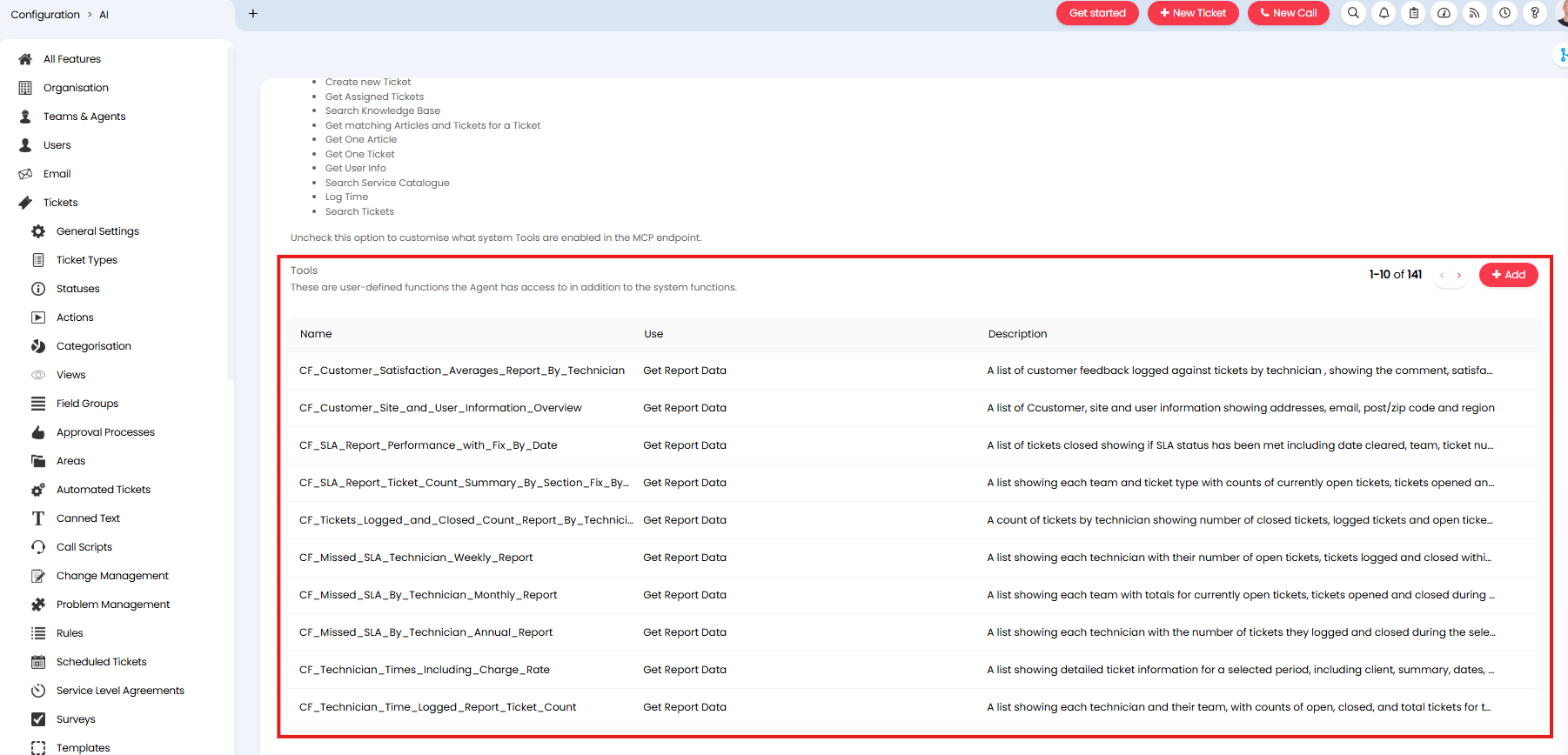
Fig 31. Custom Functions (Tools) configured for the MCP endpoint
Out of the box, various Tools have been added that allow report data from your Halo instance to be passed to the MCP endpoint. This data can be used by the MCP AI agent to answer queries.
To increase the amount of data that is available to the MCP AI agent, add a new Tool with the use "Get Report Data" and select the report you would like to provide.
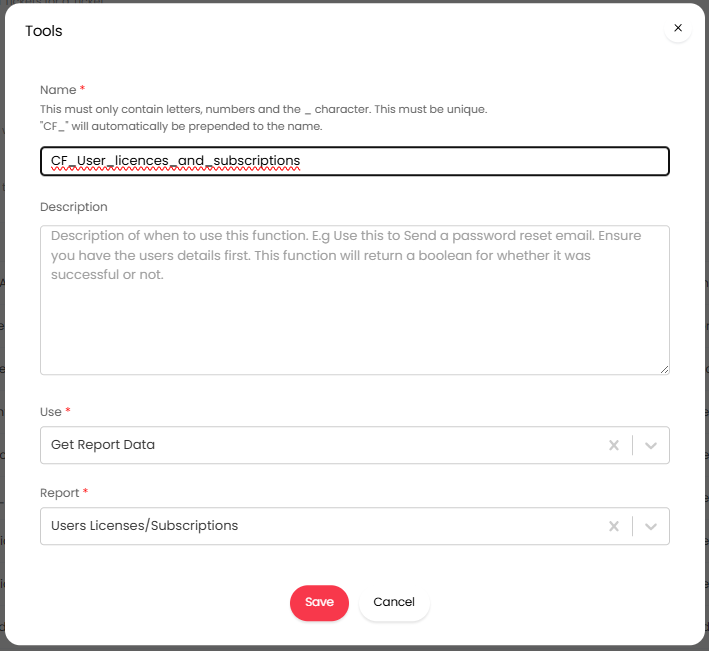
Fig 32. Add a new tool that provides additional report data
It is useful to do this if you have some custom reports that contain data you would like to be able to leverage in the MCP chatbot. However, the reports made available out of the box provide comprehensive data coverage of your instance.
What Actions can the AI A gent Complete?
The MCP AI agent can complete the following actions:
- Add Action to Ticket
- Add Note to Ticket
- Apply an AI Suggestion
- Assign a ticket to me
- Create a new Ticket
- Get Assigned Tickets
- Search Knowledge Base
- Get matching Articles and Tickets for a Ticket
- Get One Article
- Get One Ticket
- Get User Info
- Search the Service Catalogue
- Log Time
- Search Tickets
If you would like to restrict which of these actions are available you can un-check "Include all system tools" and then configure the action you would like to be available as custom tools. For more information on this see Halo MCP Server Connection.