Halo MCP AI Agent: Chat Setup Guide
- AI chatbot
- MCP
- MCP chat
- AI Agents
In this guide we will cover:
- Overview
- Setup Process For Halo MCP AI Agent
- Data Sources report
- AI Run Report Runbook
- AI Agent
- Run Chat Agent Runbook
- HaloAI Agent Chat Profile
- The ChatBot In Action
- What Can The Agent Achieve & Return?
Related Guides:
Overview
When using the ChatBot, Halo's MCP server can be leveraged by AI Agents in order to evaluate your data and carry out actions within your Halo environment. As an example, this can be useful for obtaining quick data on your team and checking in on your profit and loss figures, or quickly checking off action points without having to leave your current page.
This guide is a walk-through for setting up this chat functionality from scratch in environments deployed before July 1st 2026. If your Halo environment was deployed on July 1st 2026 or later, then this functionality is largely pre-configured in your environment and you should instead use the following guide for the small amount of setup required: Using the Halo MCP AI Agent Chat.
As this functionality utilises the Process Agents functionality, you do not need to plug in your own AI connection for it to function and you can use the default Halo connection if you wish to do so.
How does it work?
Within the "HaloAI Agent" chat profile, there is a step to execute the "Run Chat Agent" runbook. When this runbook is triggered, a pre-configured Process Agent is prompted to get data or suggest actions relevant to the Agent's request.
In the event that the chat user requests any information regarding Tickets, the Agent will trigger an additional runbook called "AI Run Report". This allows it to efficiently query the database, using a payload chosen by the Agent, and return accurate Ticketing data to the chat user.
Note: When utilising the MCP endpoint in Halo, it is advisable to enable the logs for this by navigating to Configuration > AI > MCP Server and turning on the setting "Enable MCP request logging". This will aid with any necessary troubleshooting.
Setup Process For Halo MCP AI Agent
Data Sources Report
A function that you will see the Process Agent perform is getting and returning Ticket data to the chat - this is now achieved by the Process Agent utilising the reporting endpoint.
To facilitate this, the Process Agent needs access to the 'Data Sources' report to gather all relevant data sources for ticketing and decide which is the correct one. This report needs to be downloaded to your Halo environment from the reporting online repository.
To do this, click into the reporting area in the navigation menu and select 'Online Repository'.
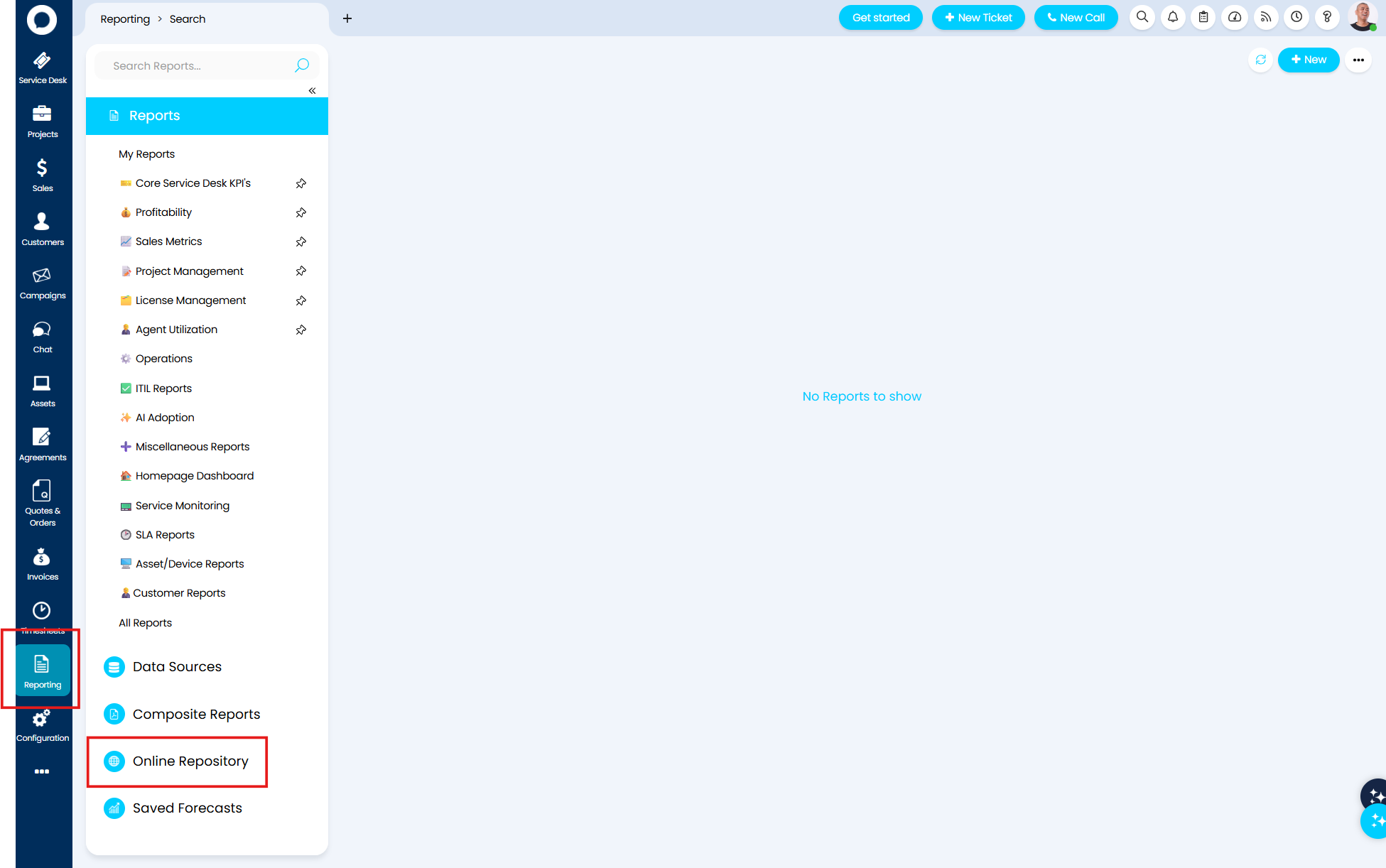
Fig 1. Navigating to the reporting online repository
Search for and select the "Data Sources" report, then select the option to "add this report to my library".
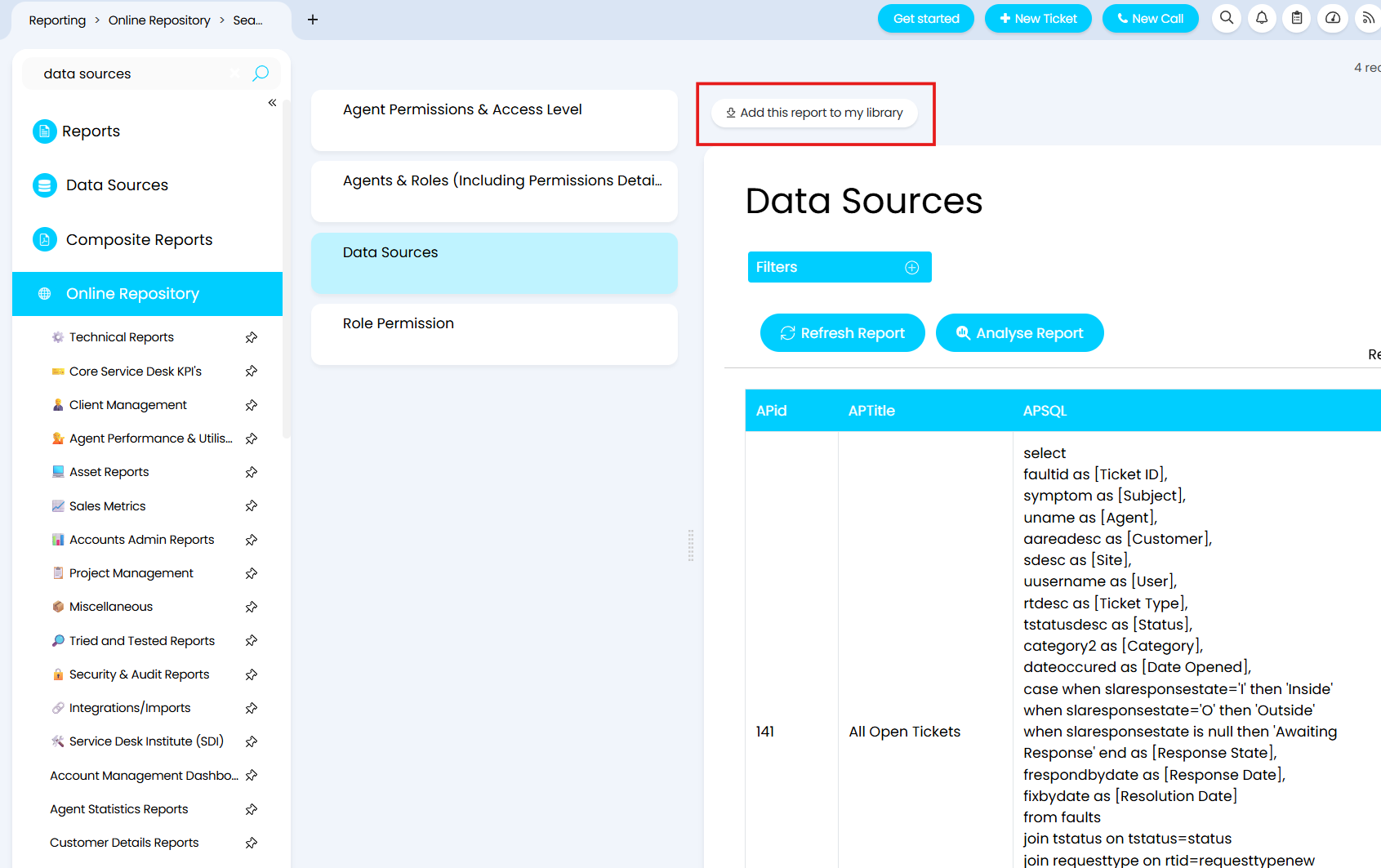
Fig 2. Downloading the data sources report to your local Halo environment
Once your data sources report has been downloaded into your Halo, you then need to download the runbook which the Agent triggers once it has used its chosen data source to construct its report for the chat user.
AI Run Report Runbook
Import The Runbook
To do this, we have attached the JSON for the runbook. Download the "AI Run Report Runbook JSON" attached file from this article on our Portal, and copy all of the JSON contained within the file.
Go to the runbooks area in your Halo by navigating to Configuration > Integrations > Custom Integrations > Integration Runbooks and select the "Import from JSON" button in the top right corner.
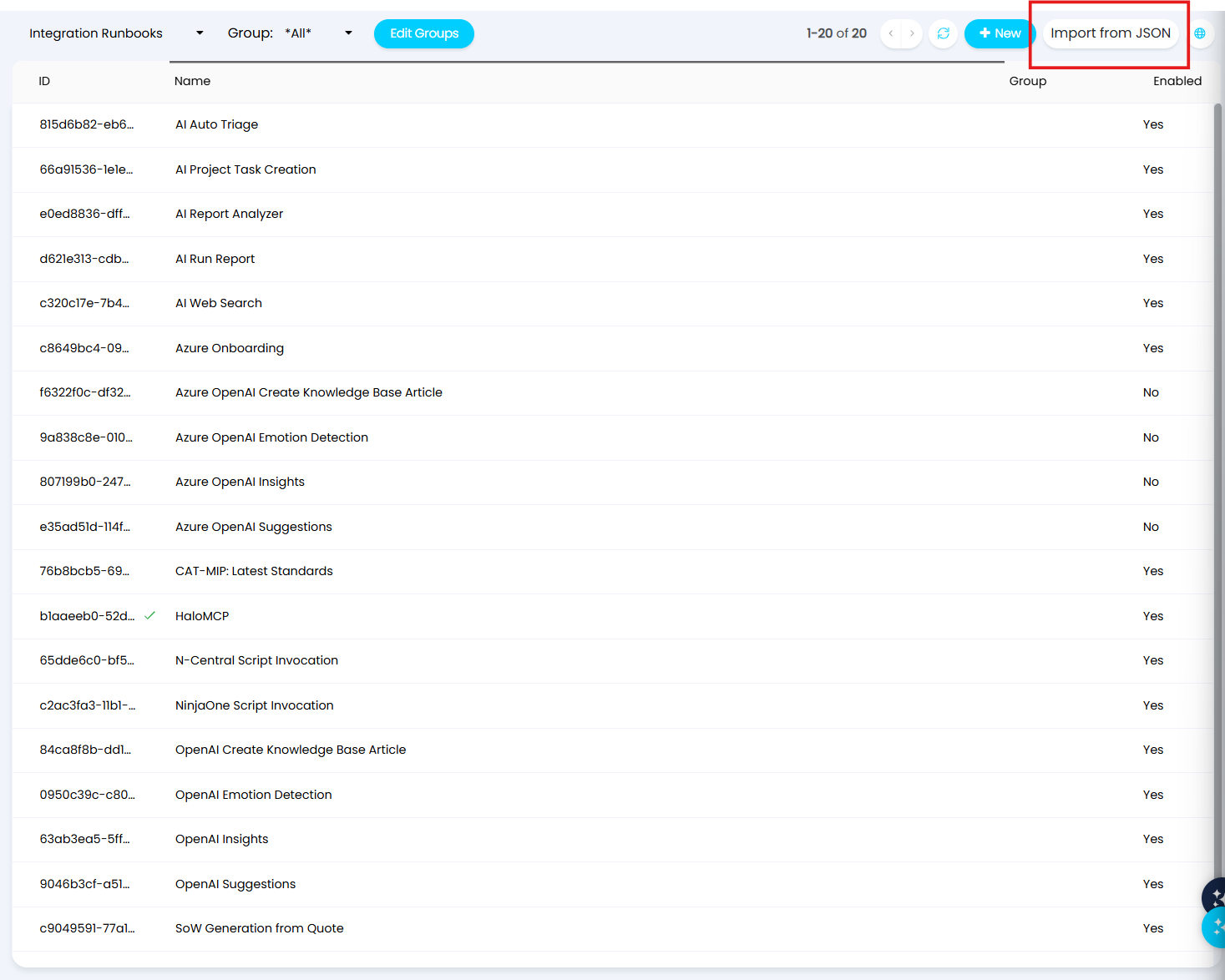
Fig 3. The Import from JSON button to import a new runbook
Selecting this button will bring up a modal screen into which you can paste the JSON that you copied.
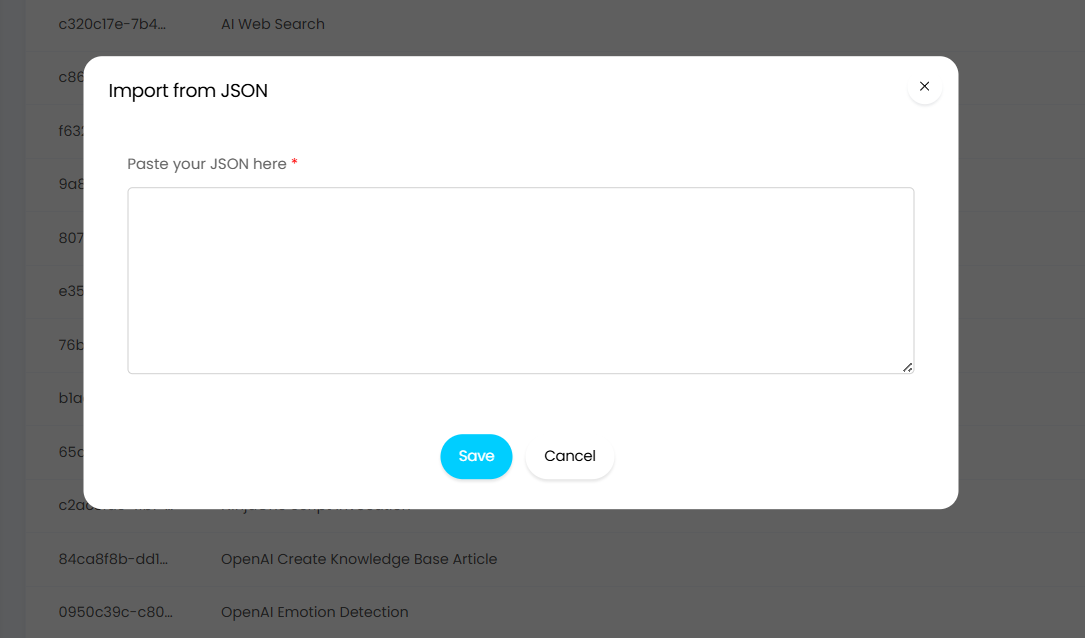
Fig 4. Importing the JSON for the AI Run Report runbook
Paste the entire JSON body into the field and save, the runbook will then automatically appear in the list of runbooks in your Halo.
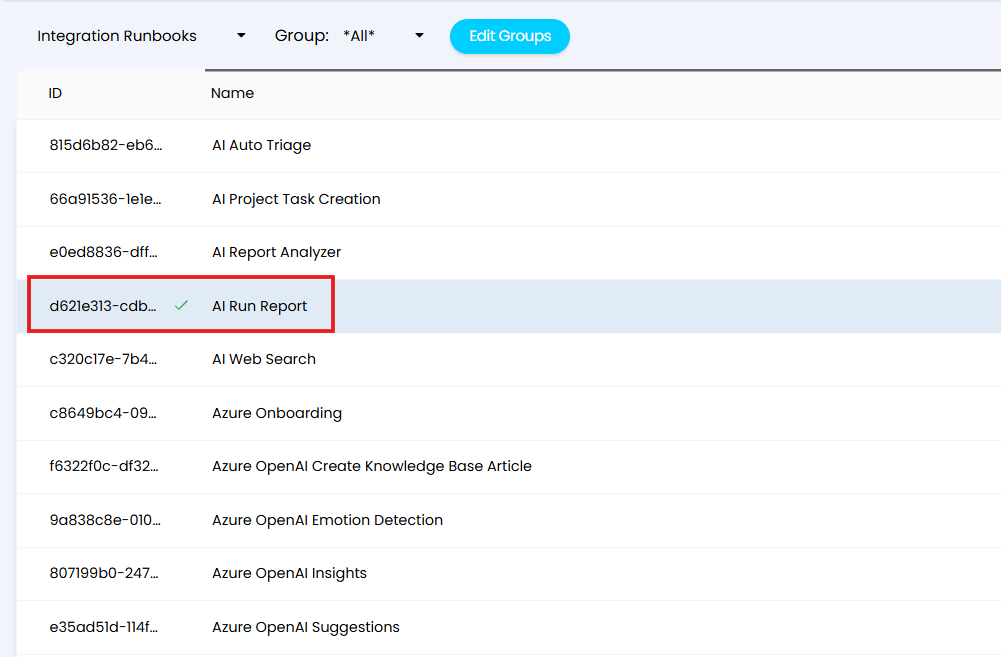
Fig 5. The AI Run Report runbook will appear once successfully imported
Create The Method
Once your runbook has been imported, you then need to create the the method for this runbook.
To do this, click into the runbook, press edit at the top left, click into the 'flow chart' tab and then click the icon in the top right of the first step of the runbook's flow chart to edit that step.
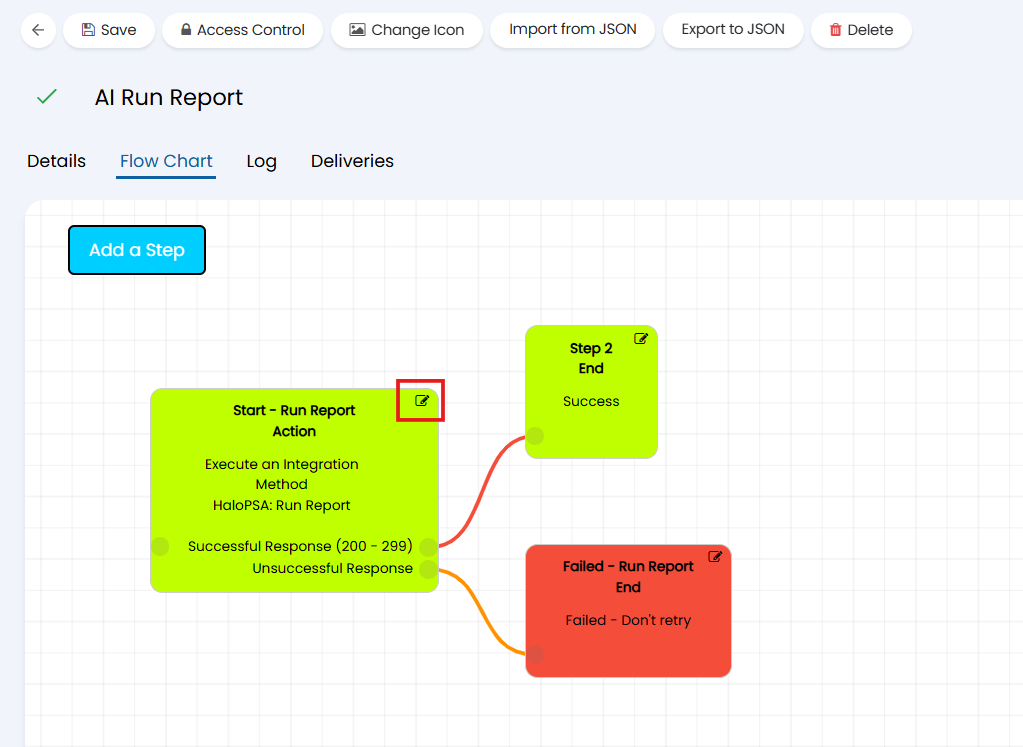
Fig 6. Editing the first step of the runbook
Select the "New Method" button below the method field, and create your new method using the example in Figure 7 as reference.
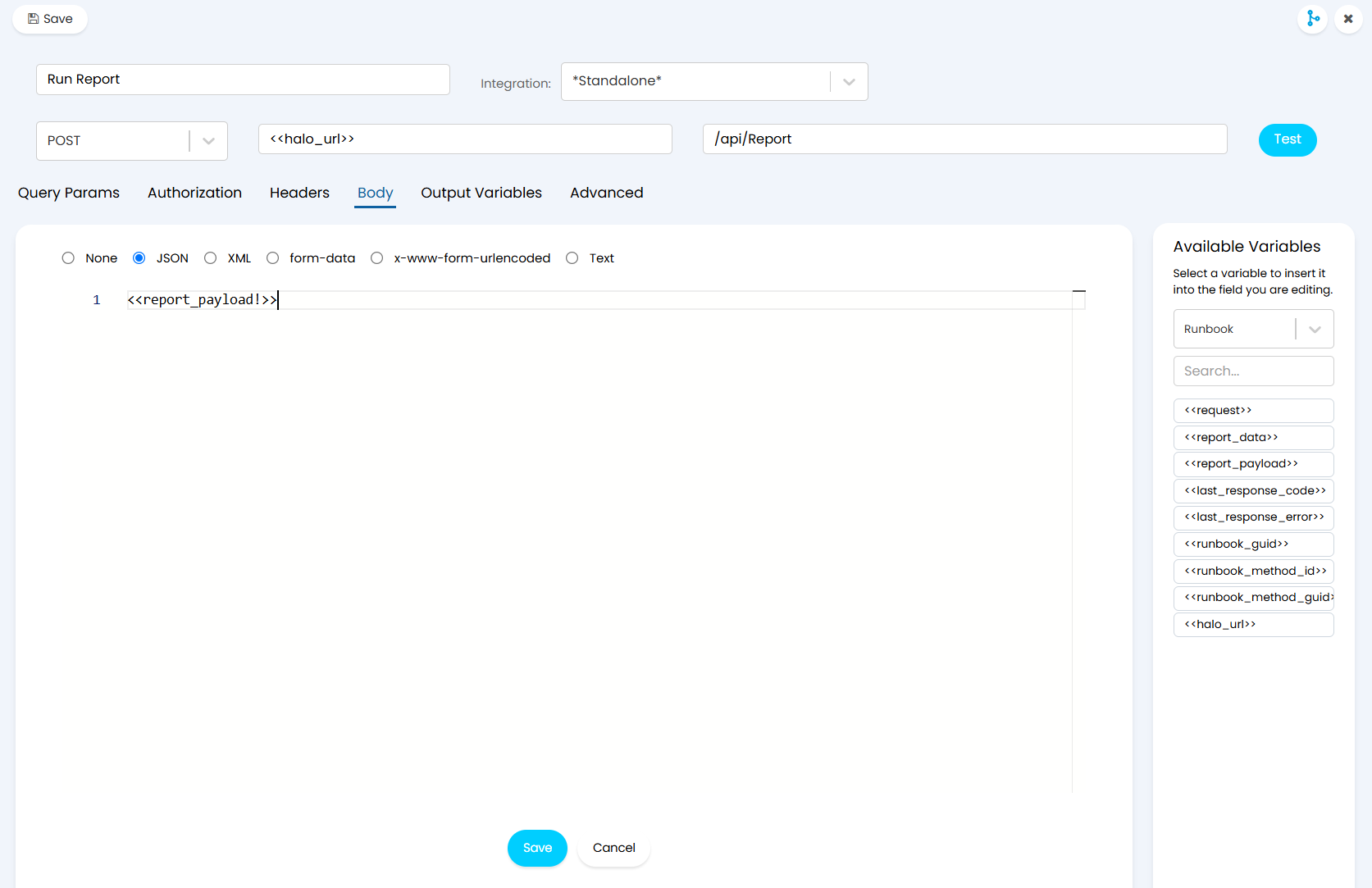
Fig 7. Creating a new method for the runbook
Save the method, the step, and then the runbook, and then we can create it's authentication - to do this, we need to create a custom integration and an API application for that custom integration.
Navigate to Configuration > Integrations > Halo API, and then select the "View Applications" button in the applications section of the page.
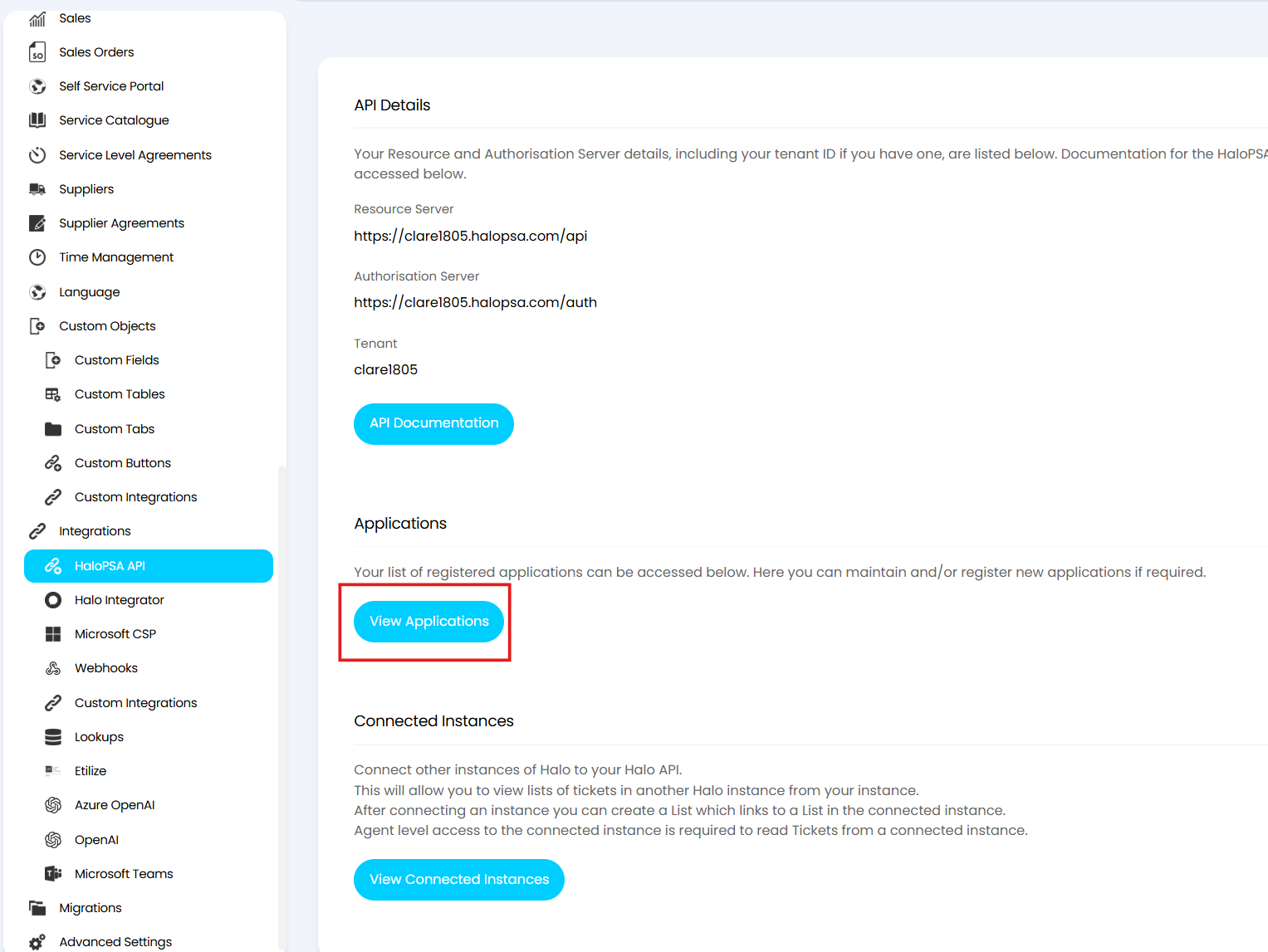
Fig 8. Navigating to the API applications area of Halo
Once in this area, select the "+ New" button in the top right corner to create a new API application.
Create the application according to Figures 9a and 9b, ensuring that you set the authentication method to "Halo Automation Identity" and the permissions to "all:standard".
Ensure you choose an Agent to login as that has the correct permissions for what you will want the Agent to be able to do and access, you can use an API only Agent here, or Halo automaton identity.
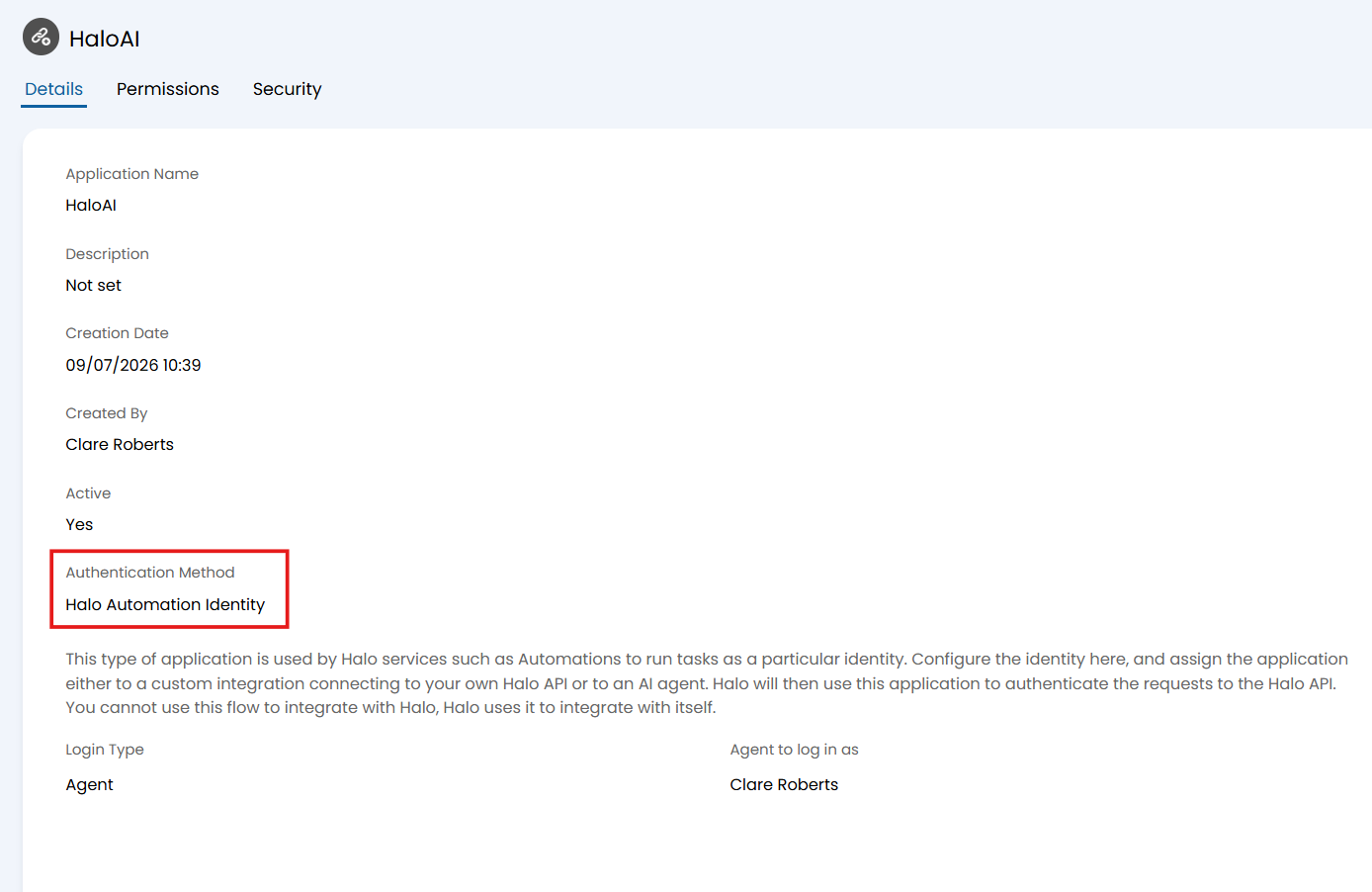
Fig 9a. Set the authentication method for the application to Halo Automation Identity
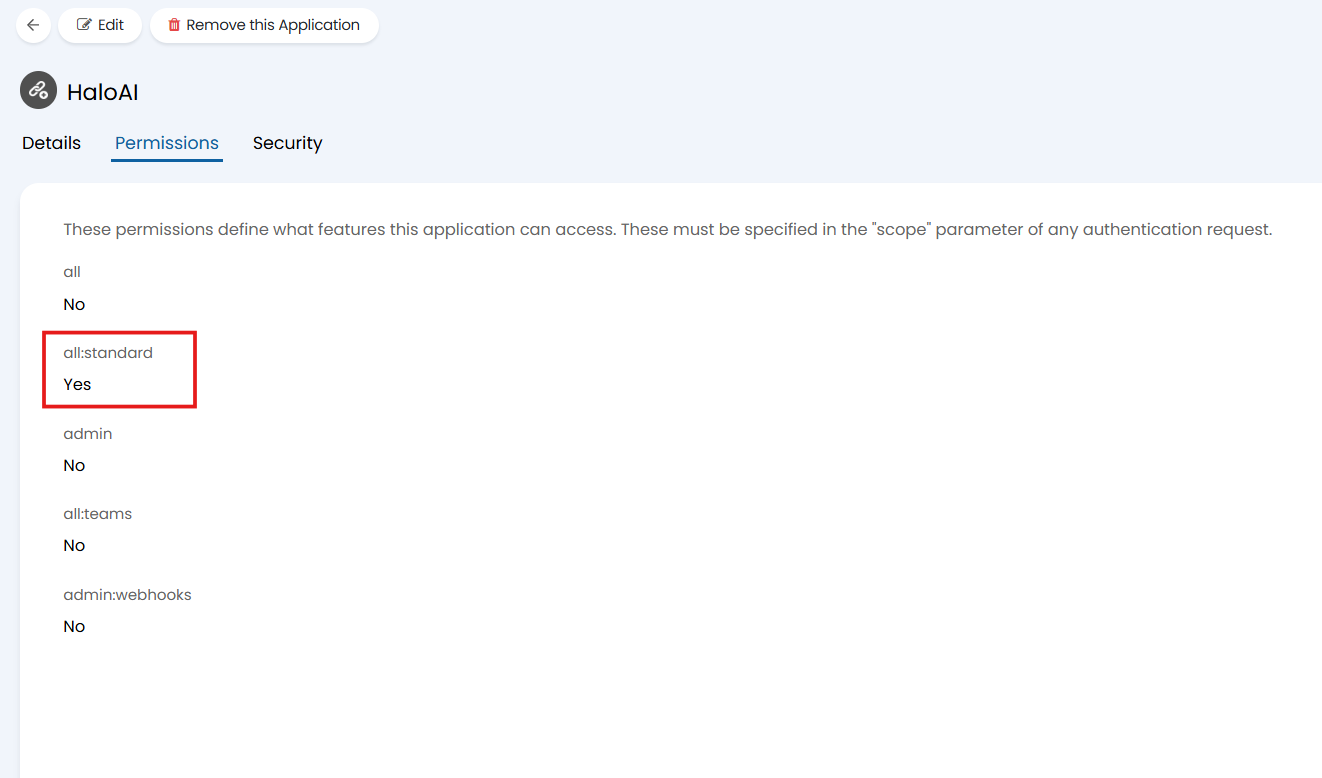
Fig 9b. Set the permissions for the application to all:standard
Save the application and then navigate to Configuration > Integrations > Custom Integrations > Custom Integrations and select "+ New" in the top right corner to create a new custom integration.
Create the new custom integration according to Figure 10, ensuring that you keep the system integration as "None", set the connection to "Connect to your Halo", and set the "Run-as Application" to your newly created API application.
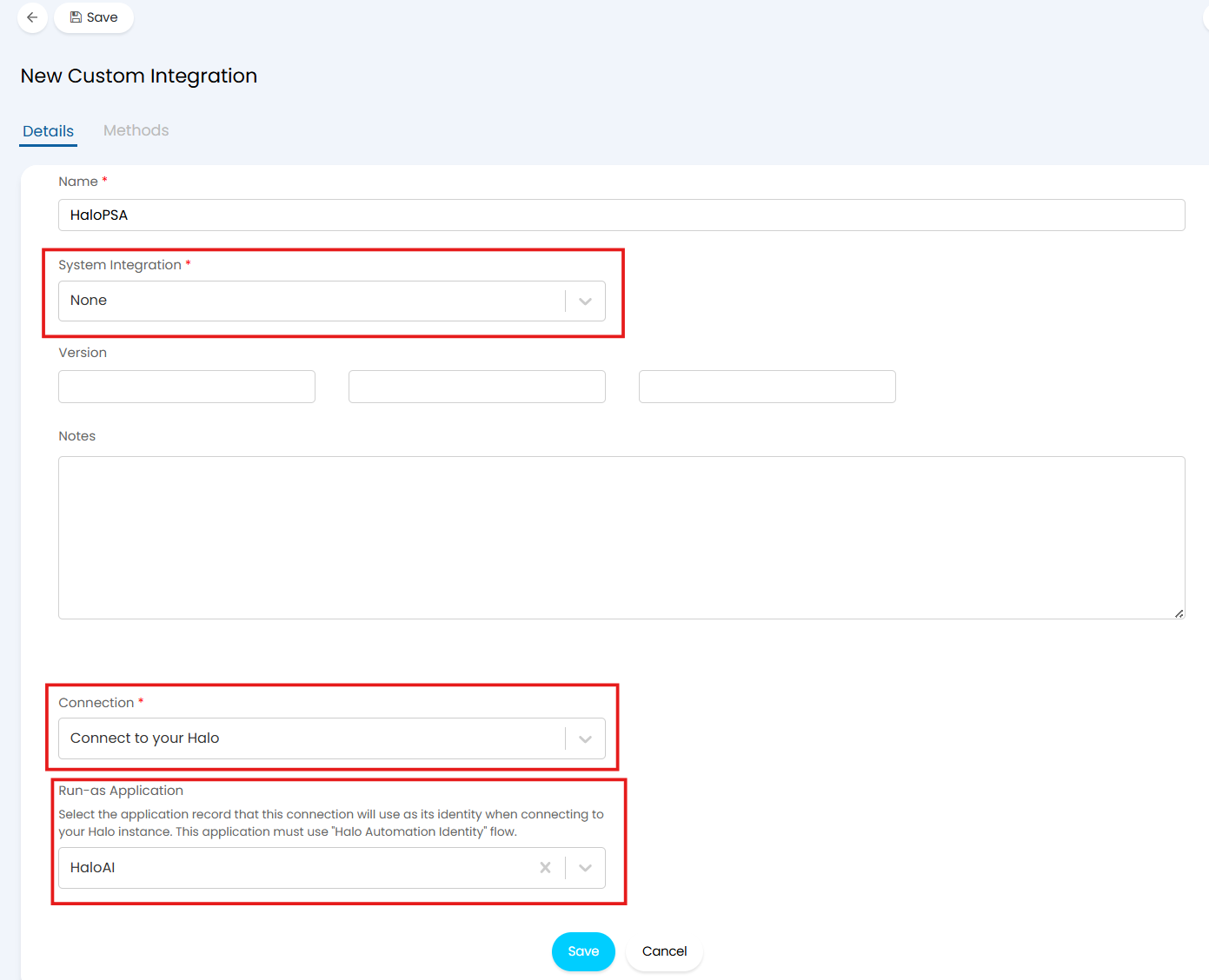
Fig 10. Creating a new custom integration
Save your custom integration, and then navigate back to your AI Run Report runbook via Configuration > Integrations > Custom Integrations > Integration Runbooks.
Edit your runbook and edit the same step as before where we created the new method. Select the "Edit Method" button underneath the method field on the step.
In the integration field of your method, set your newly created custom integration, see Figure 11 for reference.
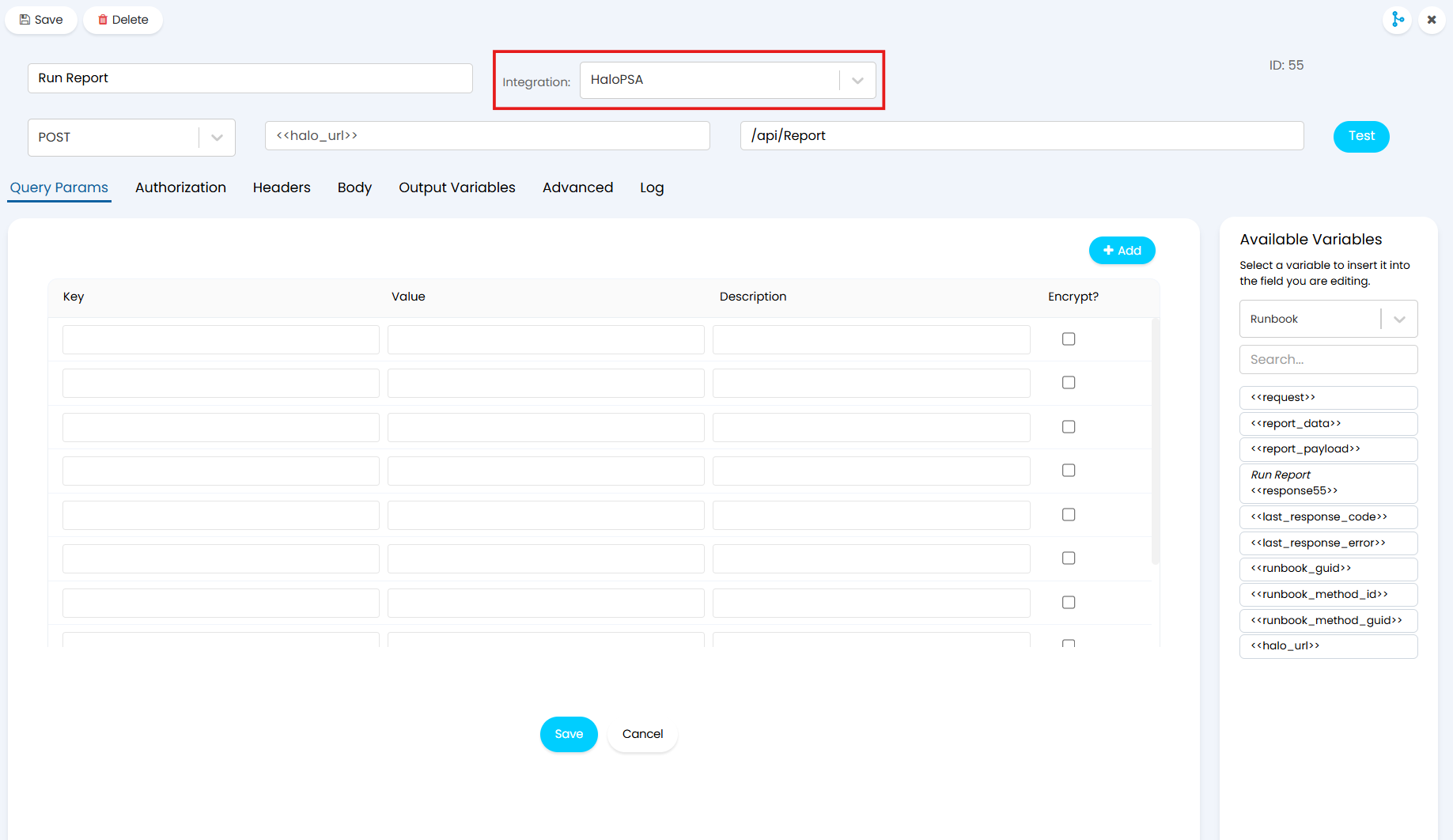
Fig 11. Setting the new custom integration for the AI Run Report runbook method
Save the method, save the step, and then save the runbook.
Process Agent
Your next step is to create the Process Agent that will be used for your Agent chat.
To do this, navigate to Configuration > AI > AI Agents and select the "Process Agents" button. Select the "+ New" button in the top right corner to create a new Process Agent.
Give your Agent a name, set the connection to the connection method of your choice, and then set the API application you created earlier as the "Halo application to authorise as". If you are on v2.250+ you can choose which agent to authenticate the Process Agent with here or create a new application identity from this page.
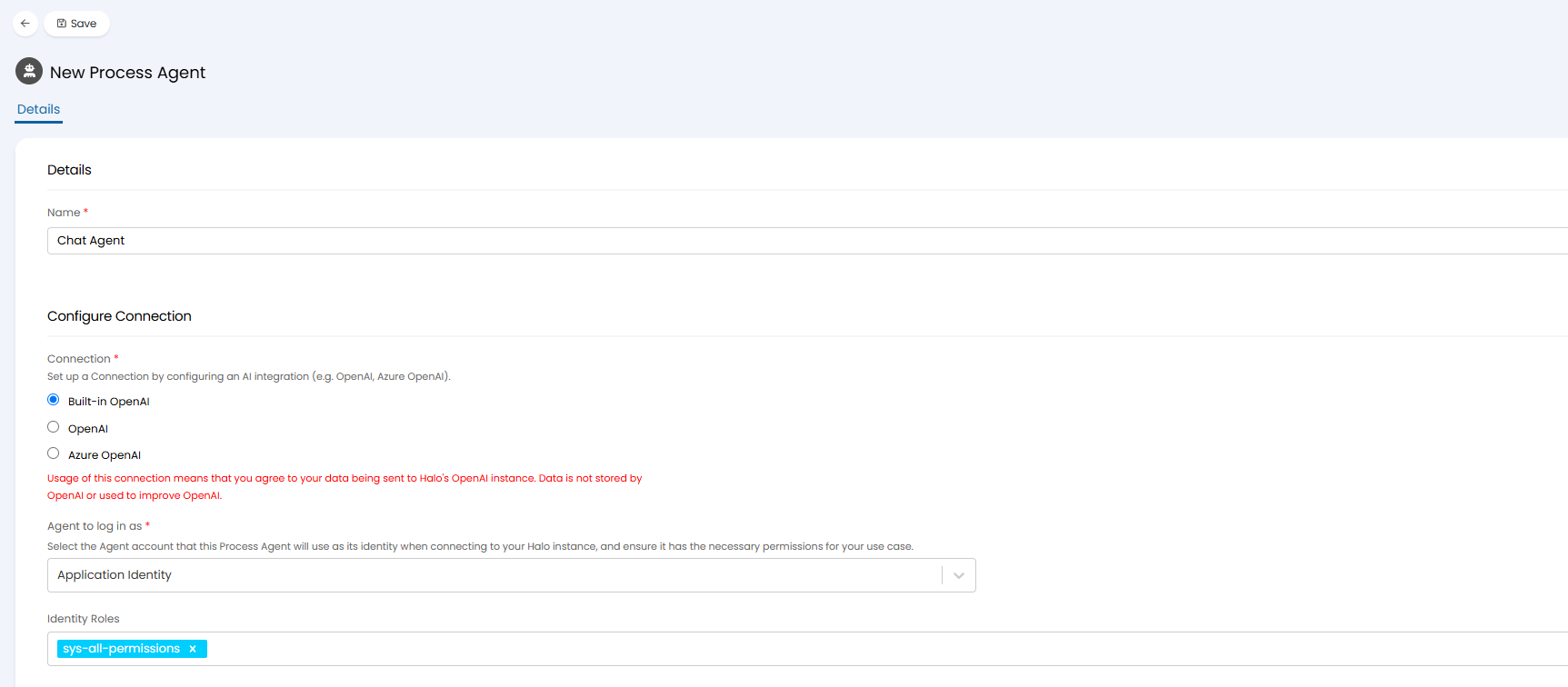
Fig 12. Configuring the connection for your Process Agent
Note: To use the default Halo AI connection, you should choose the "Built-in OpenAI" option.
Download the "Instructions" attached file from this article on our Portal and copy all the content within the file. Paste this content into the instructions field on the Process Agent, and then turn on the "Force JSON response" checkbox setting.
In the input variables section you will need to create three input variables using the "+ Add" button:
- user_prompt (string, not mandatory)
- report_payload (string, not mandatory)
- halo_url (string, not mandatory)
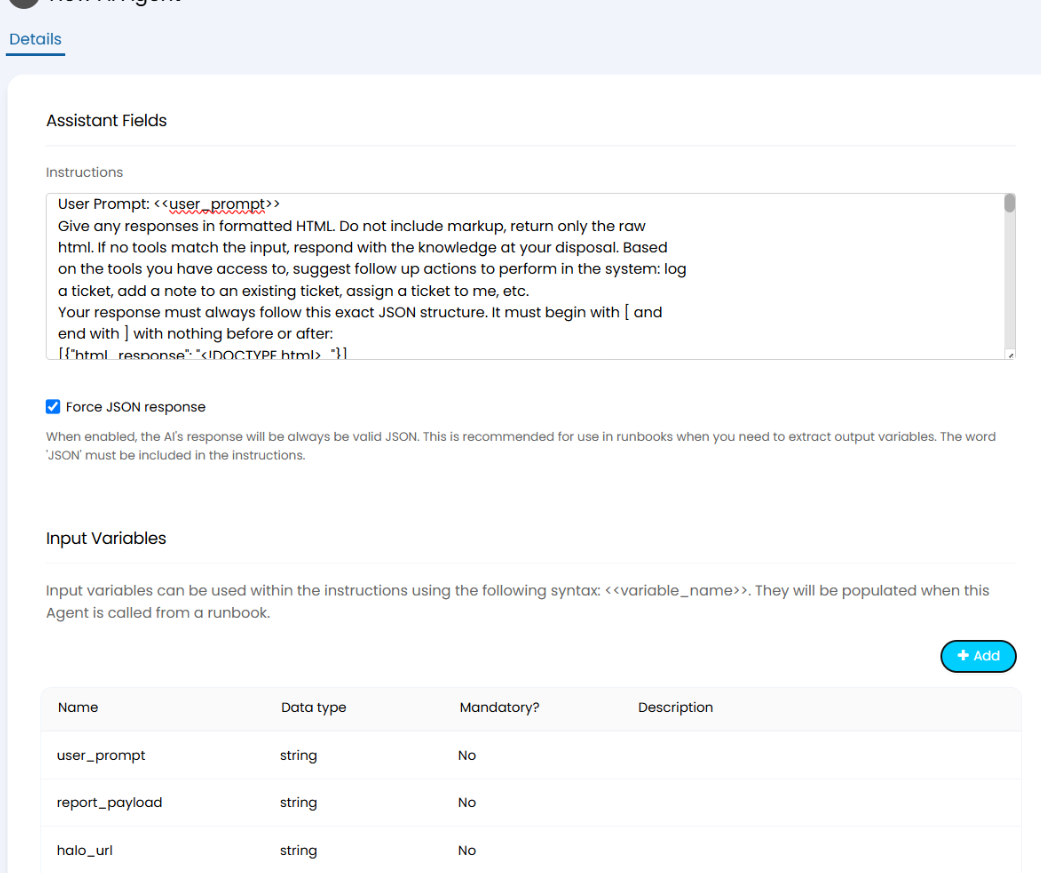
Fig 13. The assistant fields and the input variables for the Process Agent
In the functions section, ensure all system functions are included, and then create two new functions using the "+ Add" button:
- get_data_sources
- Use: Get Report Data
- Report: Data Sources
- run_report
- Use: Execute a Runbook
- Runbook: AI Run Report
- Runbook execution mode: Execute and await completion
- Parameters: report_payload (string, not mandatory)
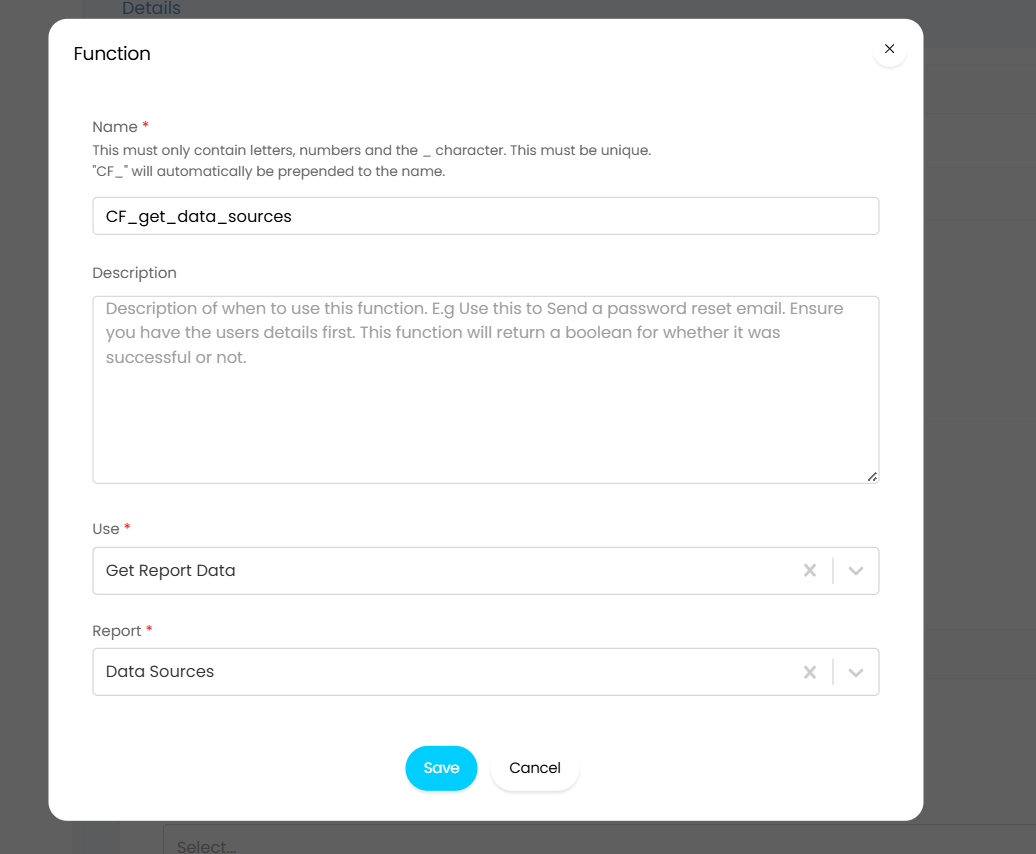
Fig 14a. The function for running the data sources report
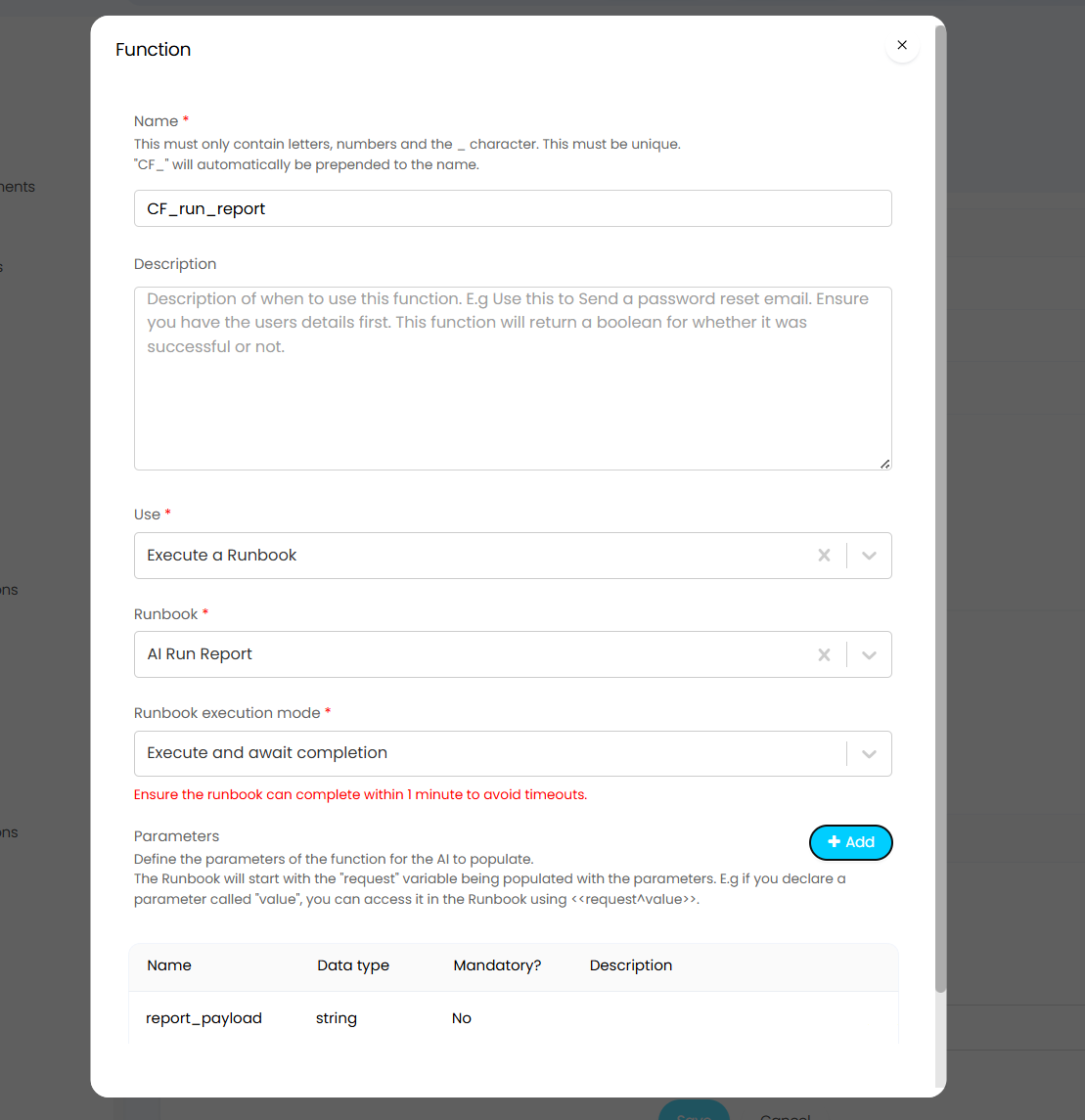
Fig 14b. The function for running the AI Run Report runbook
Note: The "CF_" is prepended to the function name by the system, you do not need to include it when writing the function's name.
Once your functions are created, save the Process Agent.
Run Chat Agent Runbook
Now that you have your Process Agent and its functions configured, you need to set up the runbook that will trigger the Agent. This is because you cannot currently trigger AI Agents from a chat.
To do this you first need to import a second runbook using the same method as the creation for the AI Run Report runbook. Download the the "Run Chat Agent Runbook JSON" attached file from this article on our Portal and copy all JSON contained in it.
Navigate to Configuration > Integrations > Custom Integrations > Integration Runbooks and select the "Import from JSON" button in the top right corner.
Paste the copied JSON and save to create the runbook.
Once the runbook is saved and visible in your list of runbooks, click into it, edit it, and navigate to the flow chart.
Edit the first step of the runbook using the icon in the top right of the step.
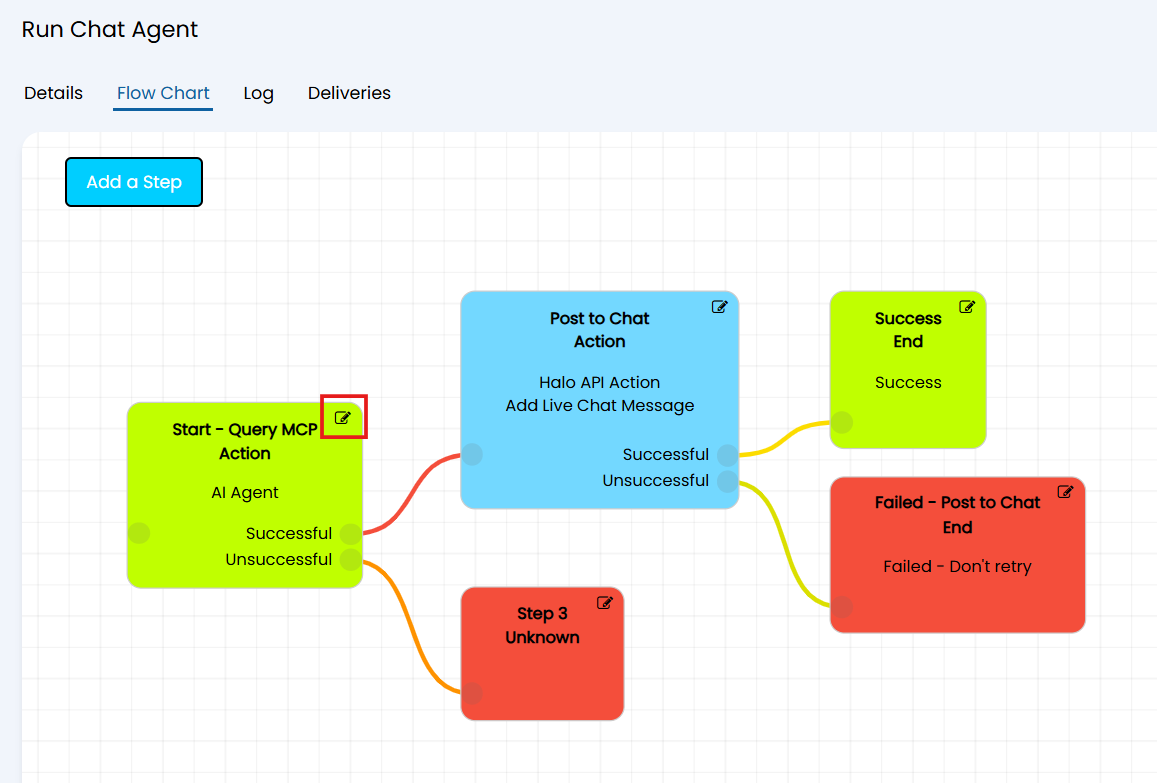
Fig 15. Editing the start step of the run chat agent runbook
In the AI Agent field of this step, select the Agent you made earlier, you will see the instructions automatically populate.
After setting the agent, you can save the step and save the runbook.
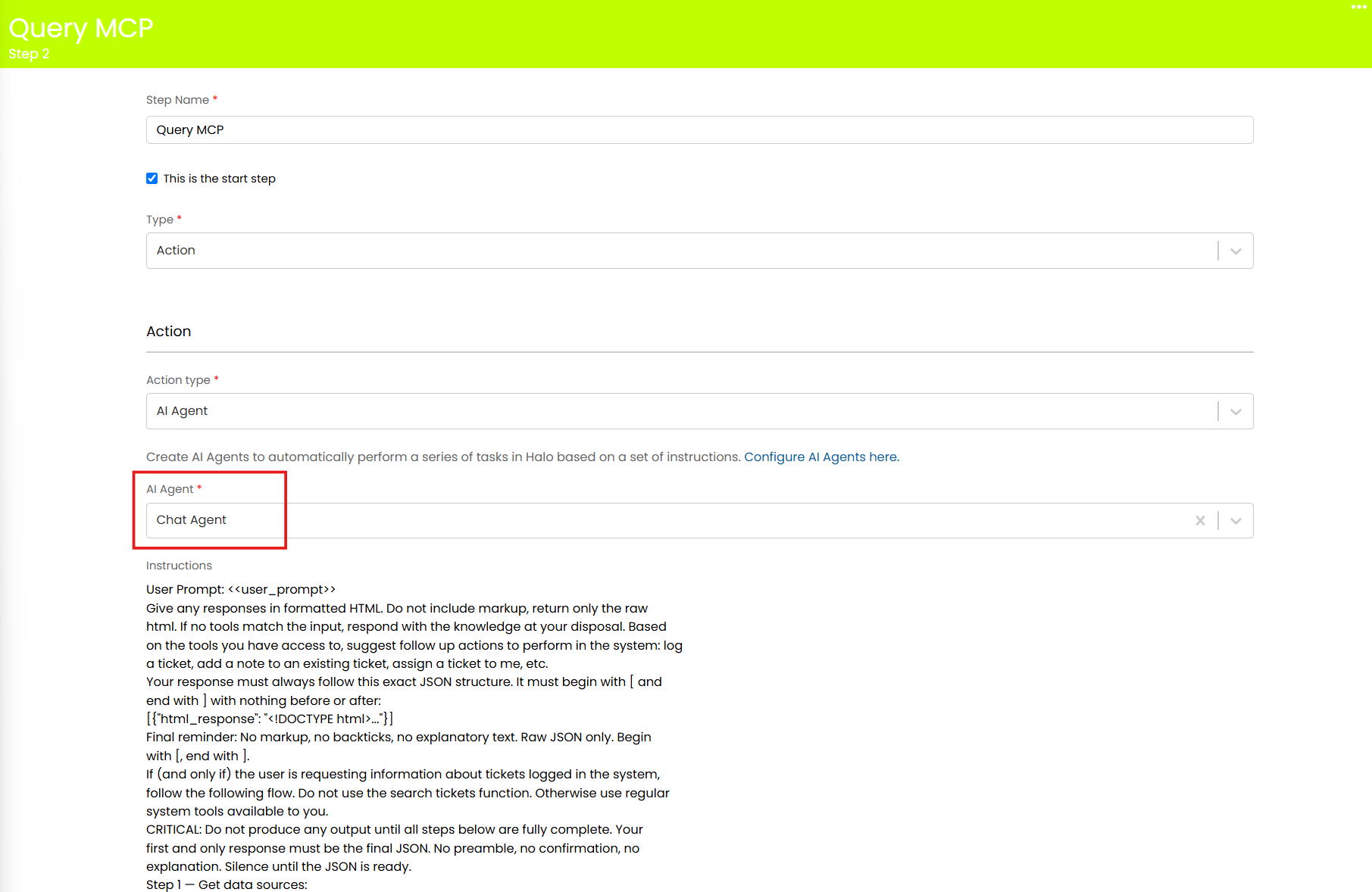
Fig 16. Set your new AI Agent in the first step of the run chat agent runbook
HaloAI Agent Chat Profile
Once your runbook has been saved, you now need to set this as the runbook that the ChatBot will trigger - this is set within the chat profile.
To do this, create a new chat profile by navigating to Configuration > Chat > Chat Profiles and select the "+ New" button in the top right corner, give your new chat profile a name and then save it.
Download the "Chat Profile JSON" attached file from this article and copy the JSON it contains.
Select the "Import from JSON" button at the top of your chat profile.
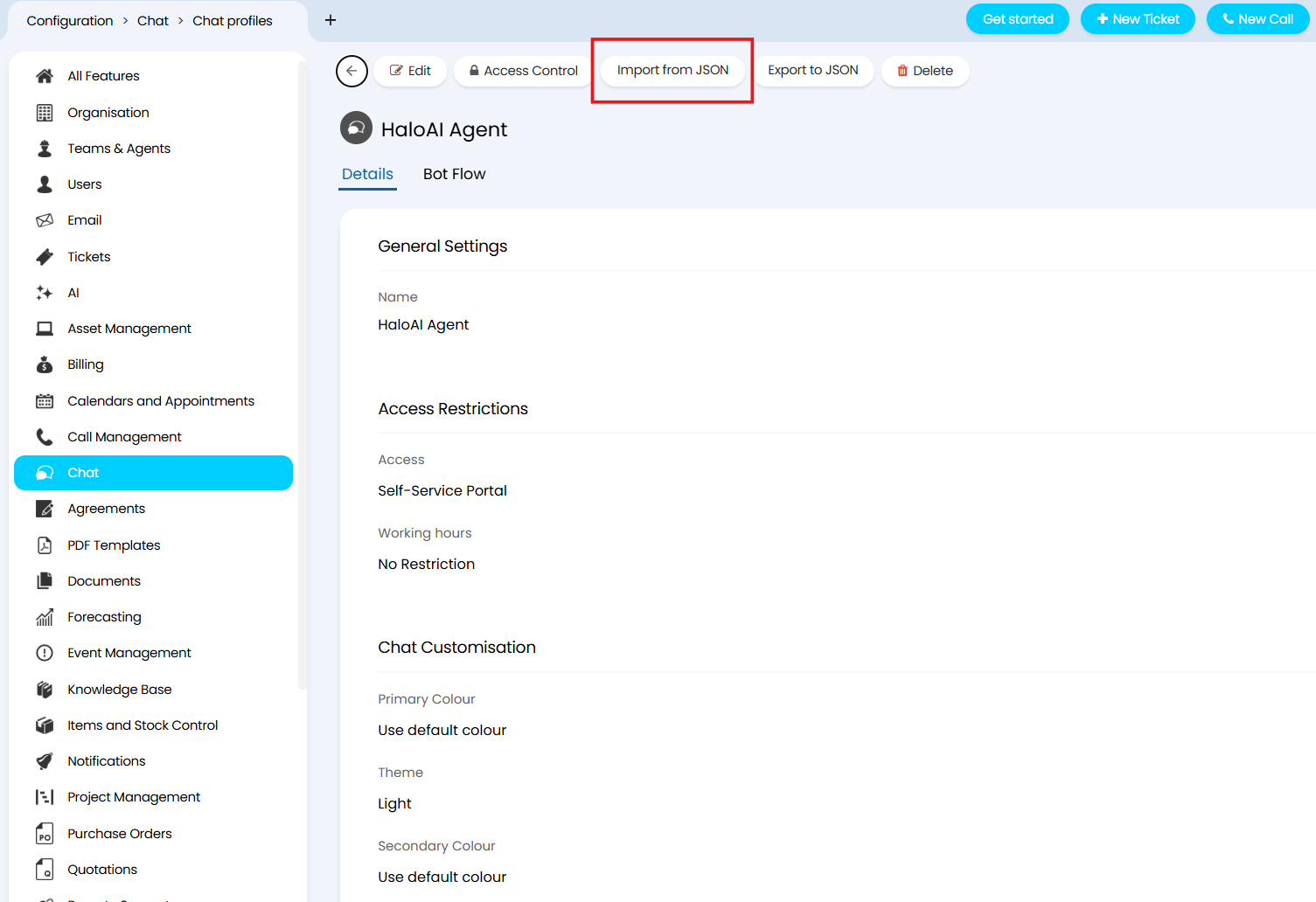
Fig 17. Importing a new Chat Profile using JSON
This will bring up the same modal screen that you have seen previously for importing runbook JSON.
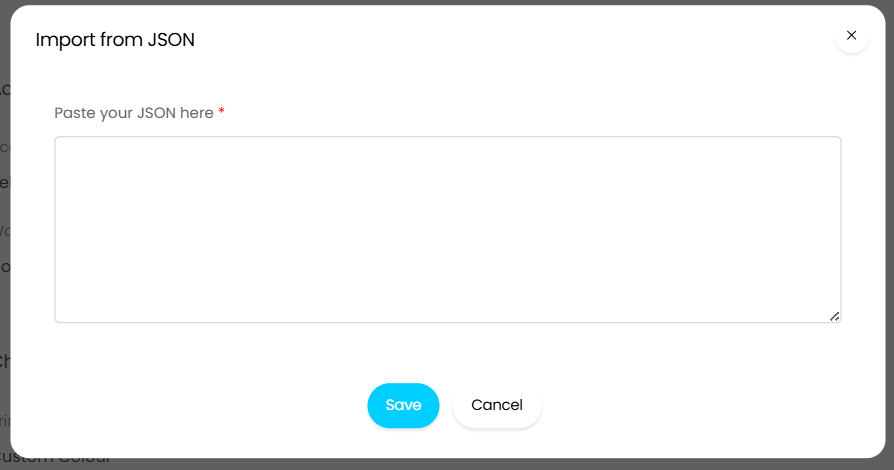
Fig 18. The modal window for posting JSON for a chat profile
Once your new chat profile has saved, you should edit the profile, navigate to the Bot Flow tab, and edit the second step of the flow labelled "Execute MCP Request".
Set the runbook in the 'runbook' field to be the "Run Chat Agent" runbook that you created earlier, then save the step and the chat profile.
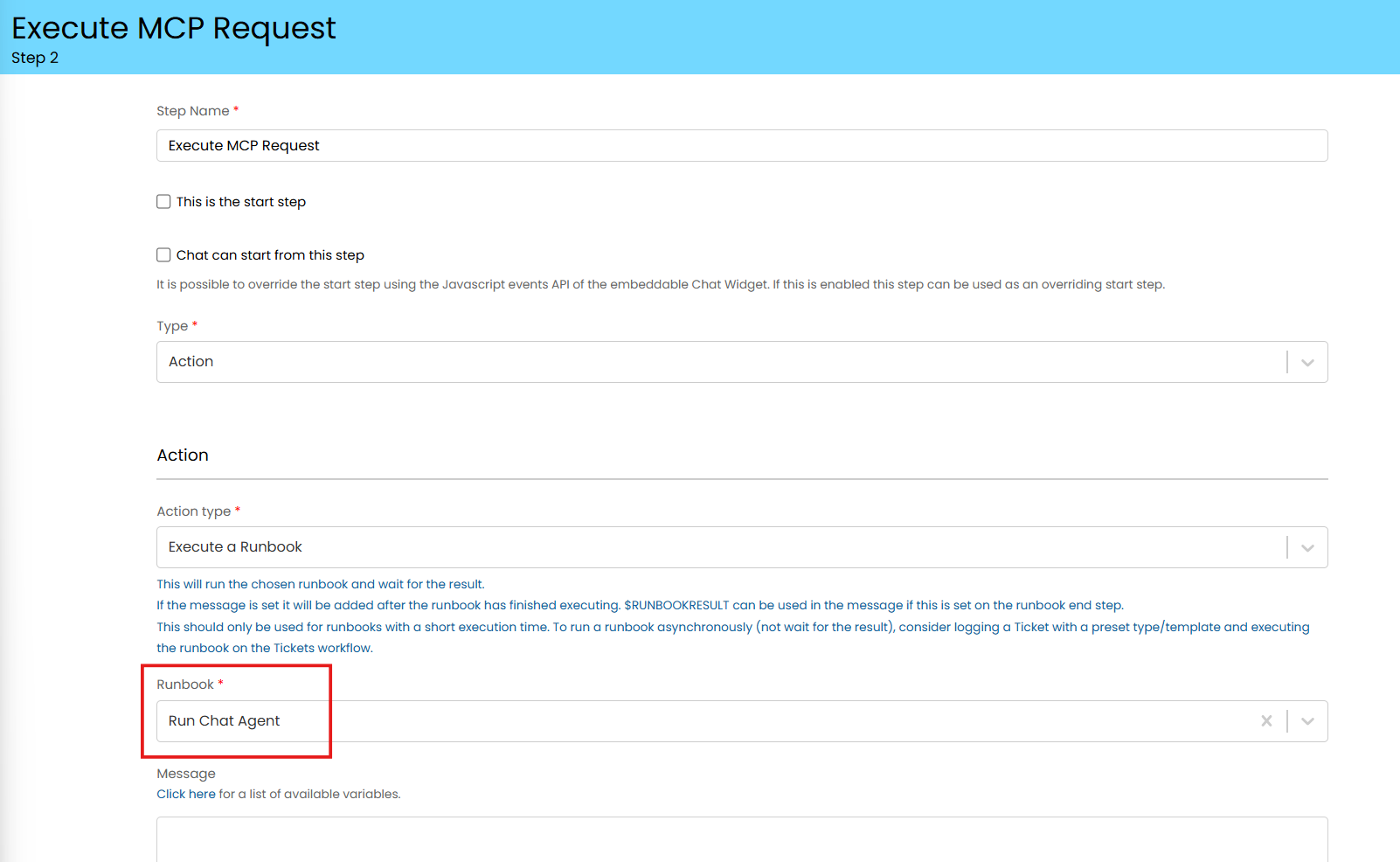
Fig 19. Set the new 'run chat agent' runbook to be the runbook triggered in the chat profile
You can edit the settings in the details tab of the chat profile accordingly, for example you may want to make it available to certain agents or change its colour. This is available to administrators only by default as it grants high level access to your
Important: As this is a chat setup meant for the Agent-side application only, it is not advisable to change the 'access' field.
Note: If you have an existing MCP Agent chat profile, you should repurpose this chat profile instead of creating a new one from scratch. All you will need to do in this case is edit the second step of the profile and switch the runbook being triggered to your new "Run Chat Agent" runbook.
Your chat setup is now complete.
The ChatBot In Action
The HaloAI Agent chat profile has a simple flow, that starts with a greeting and then flows immediately into executing the Process Agent via the 'Run Chat Agent' runbook.
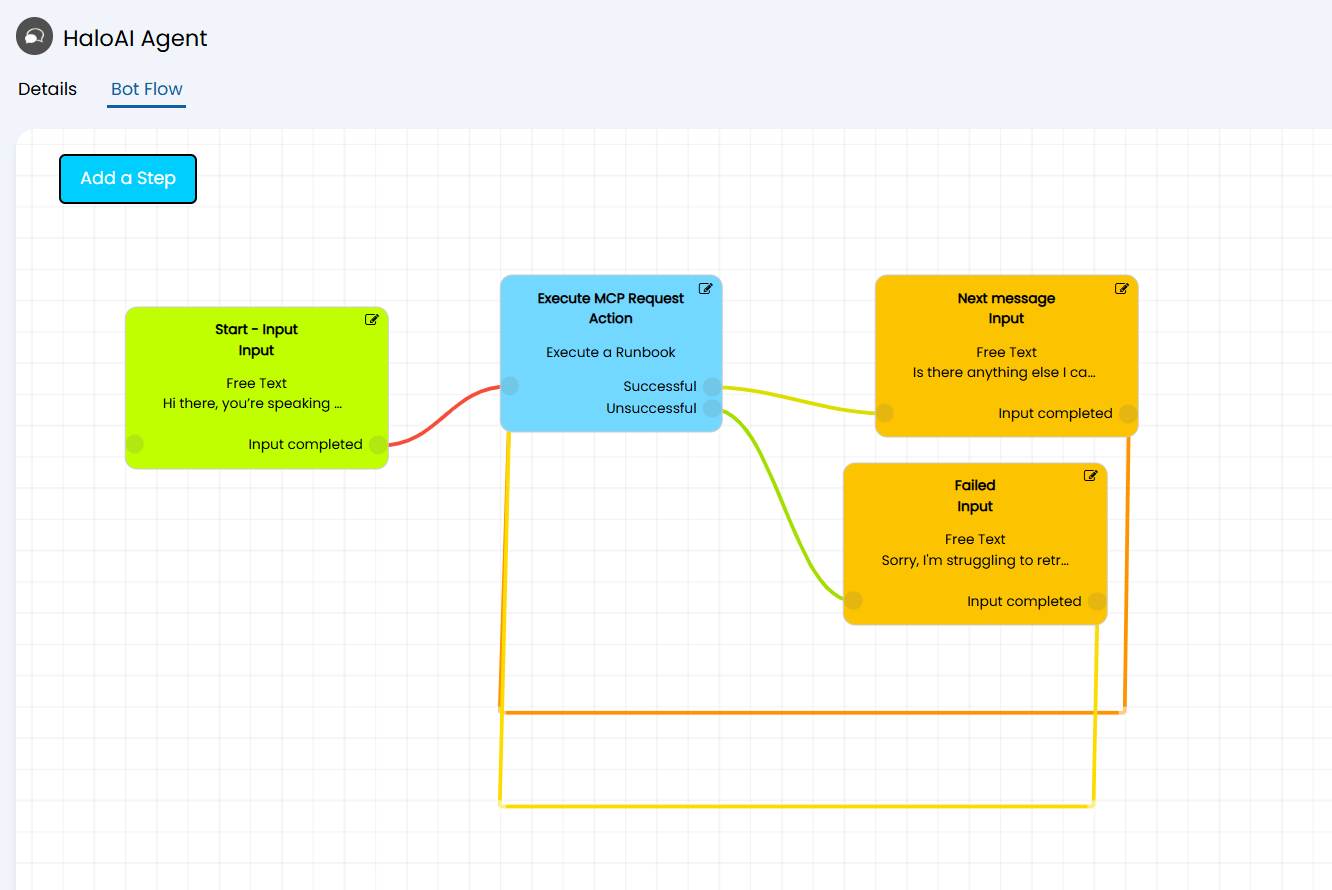
Fig 20. The flow for the Halo AI agent chat profile for the agent application
As shown in Figures 21a and 21b respectively, to start a chat with the MCP ChatBot in the agent application you can either select the circular chat symbol in the lower right corner of your screen, or you can enter the chat area in your navigation menu and select the "+ HaloMCP (Beta)" button in the top right corner.
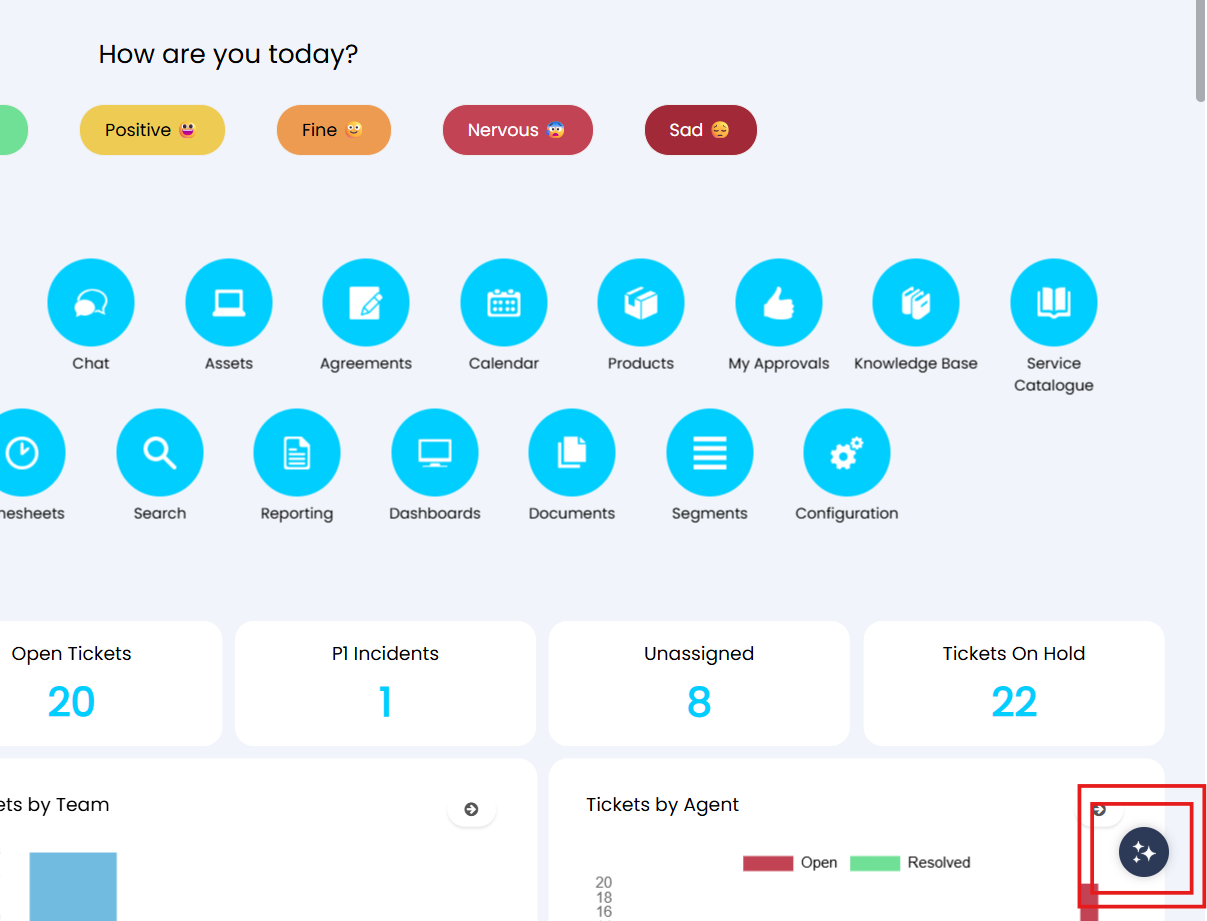
Fig 21a. Starting a HaloMCP chat via the floating chat icon
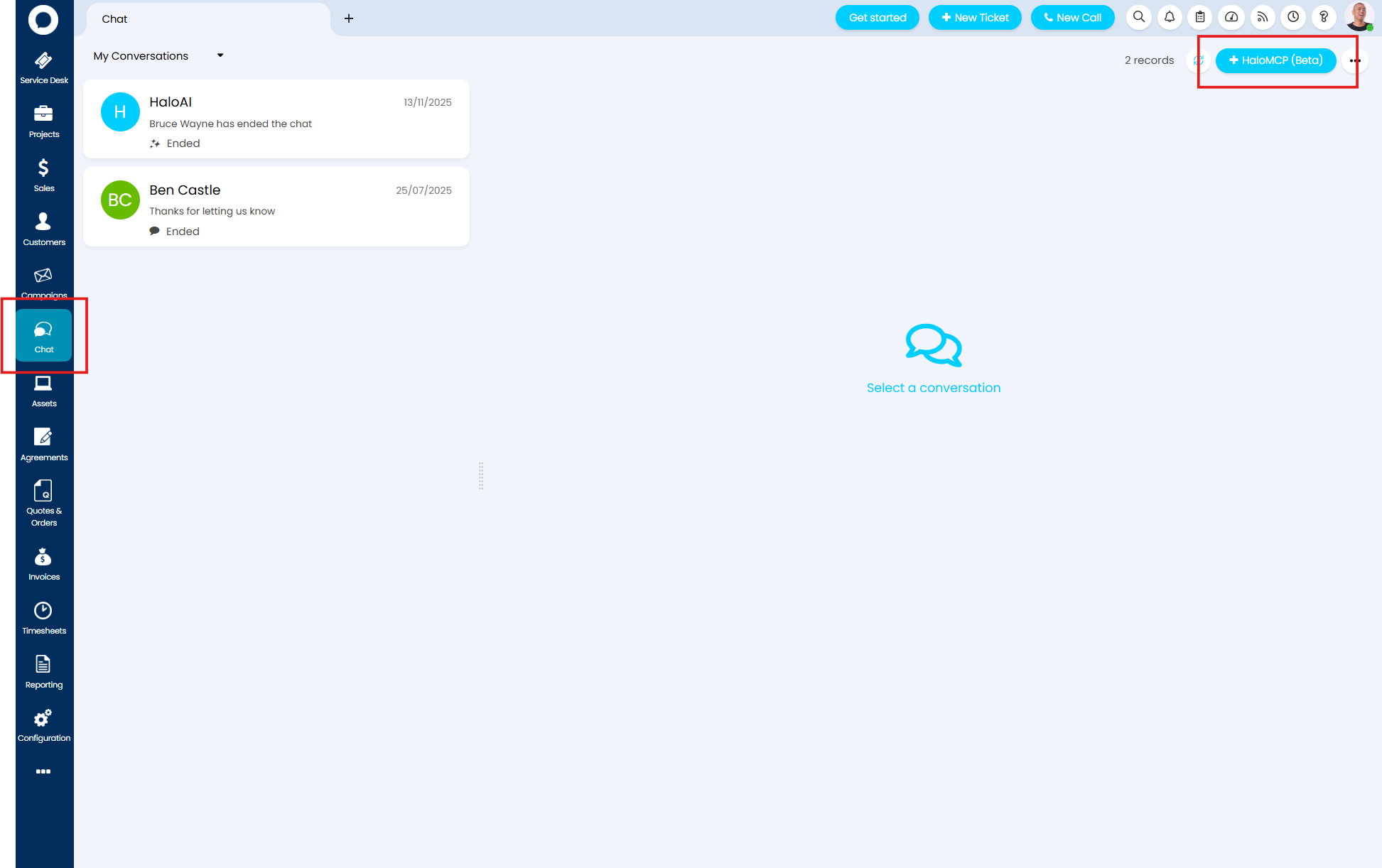
Fig 21b. Starting a HaloMCP chat via the chat area in Halo
As dictated by the chat profile, when you first start a chat you will be greeted by the ChatBot who will ask how it can help.
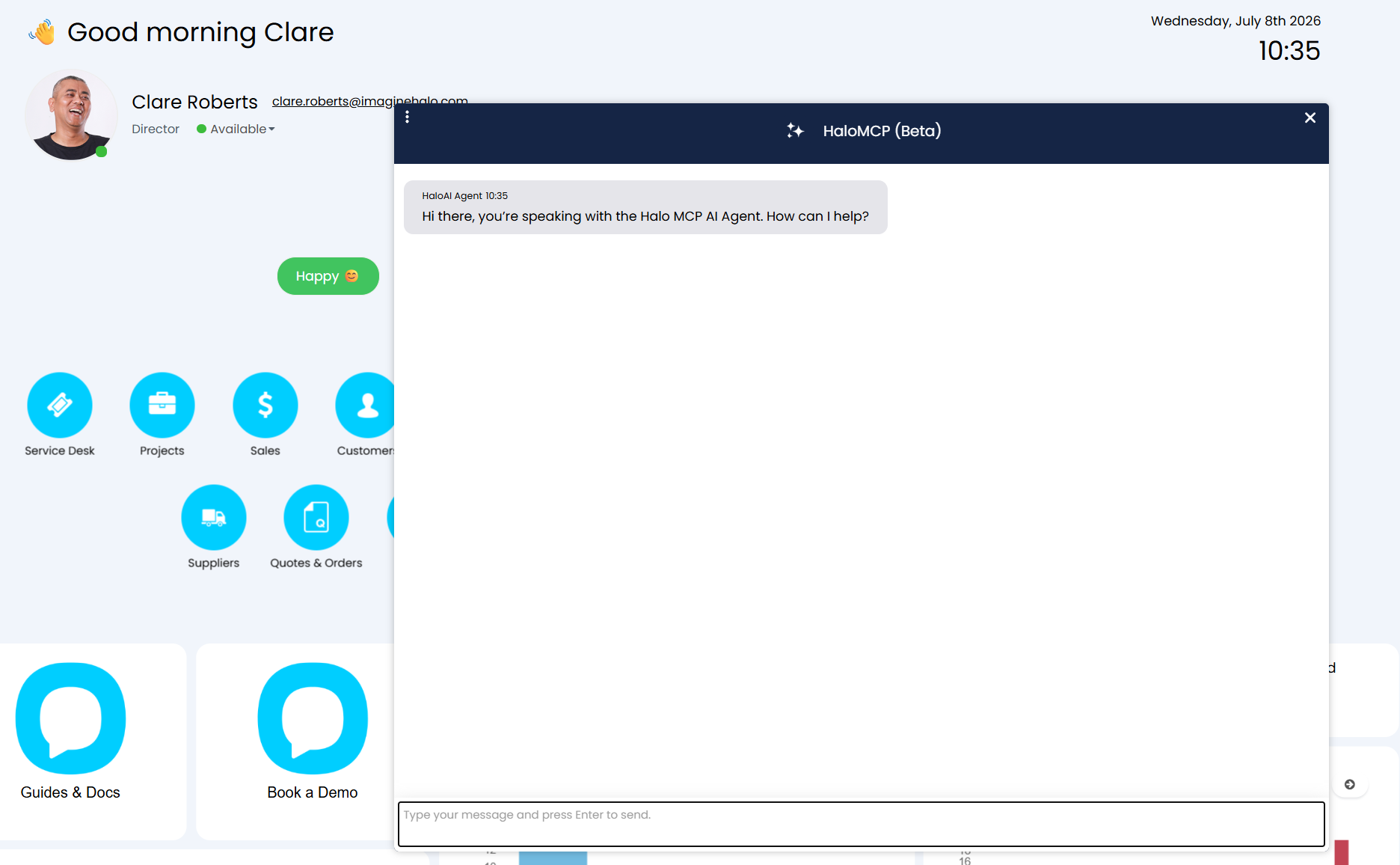
Fig 22. The AI Agent will greet you as soon as you begin the chat with the MCP ChatBot
Once you submit your question or request, the Process Agent is prompted to query the MCP endpoint and return relevant data according to your request.
As an example, in Figure 23 you can see that I have asked for a list of current open tickets on the service desk. The AI Agent has returned a table of all the relevant Tickets and their information, including a hyperlinked ID for each one that will take me to the ticket itself in Halo.
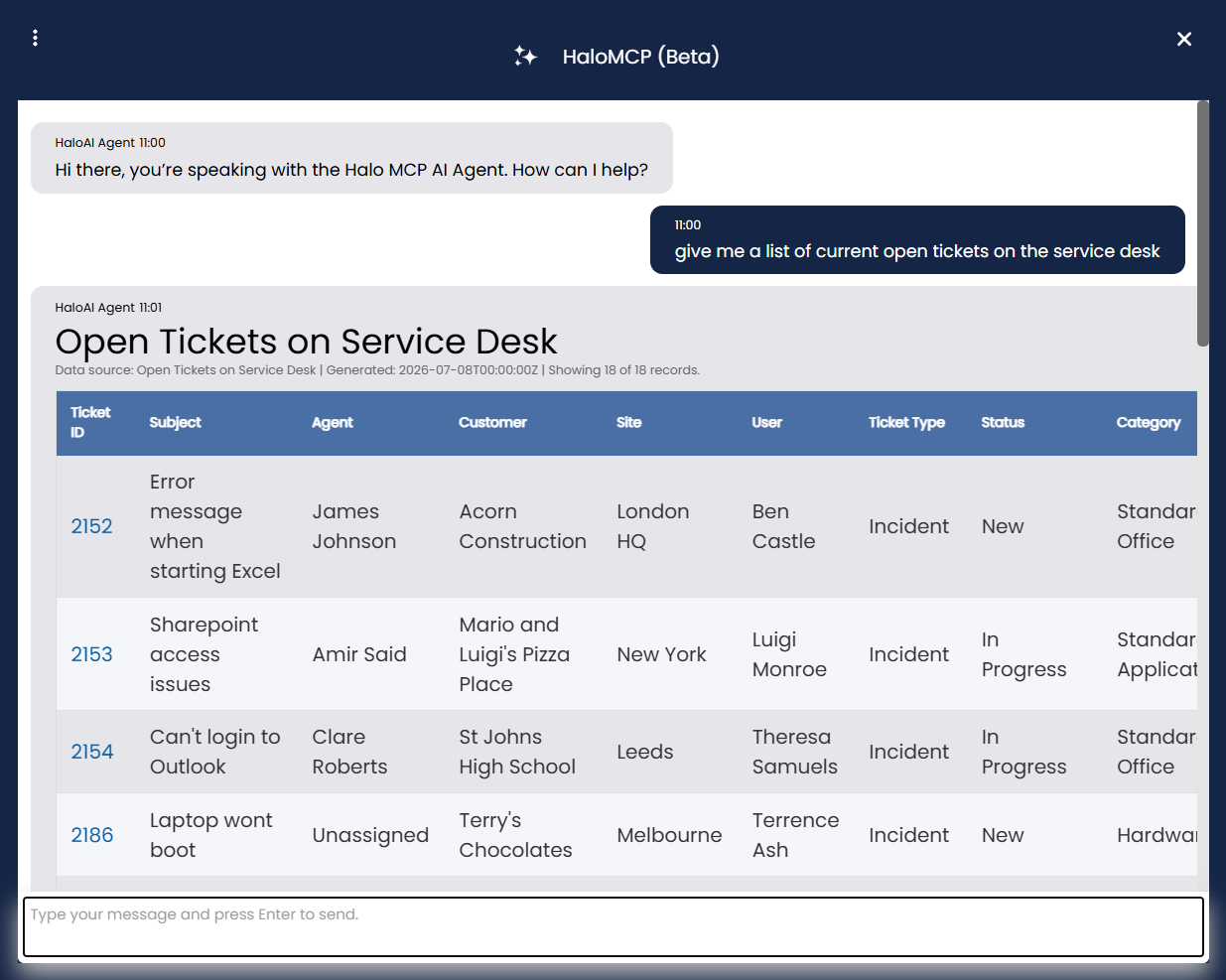
Fig 23. Querying the MCP endpoint via the agent ChatBot
In Figure 24, I then tell the Agent to add a note to one of the tickets stating that the issue has now been resolved.
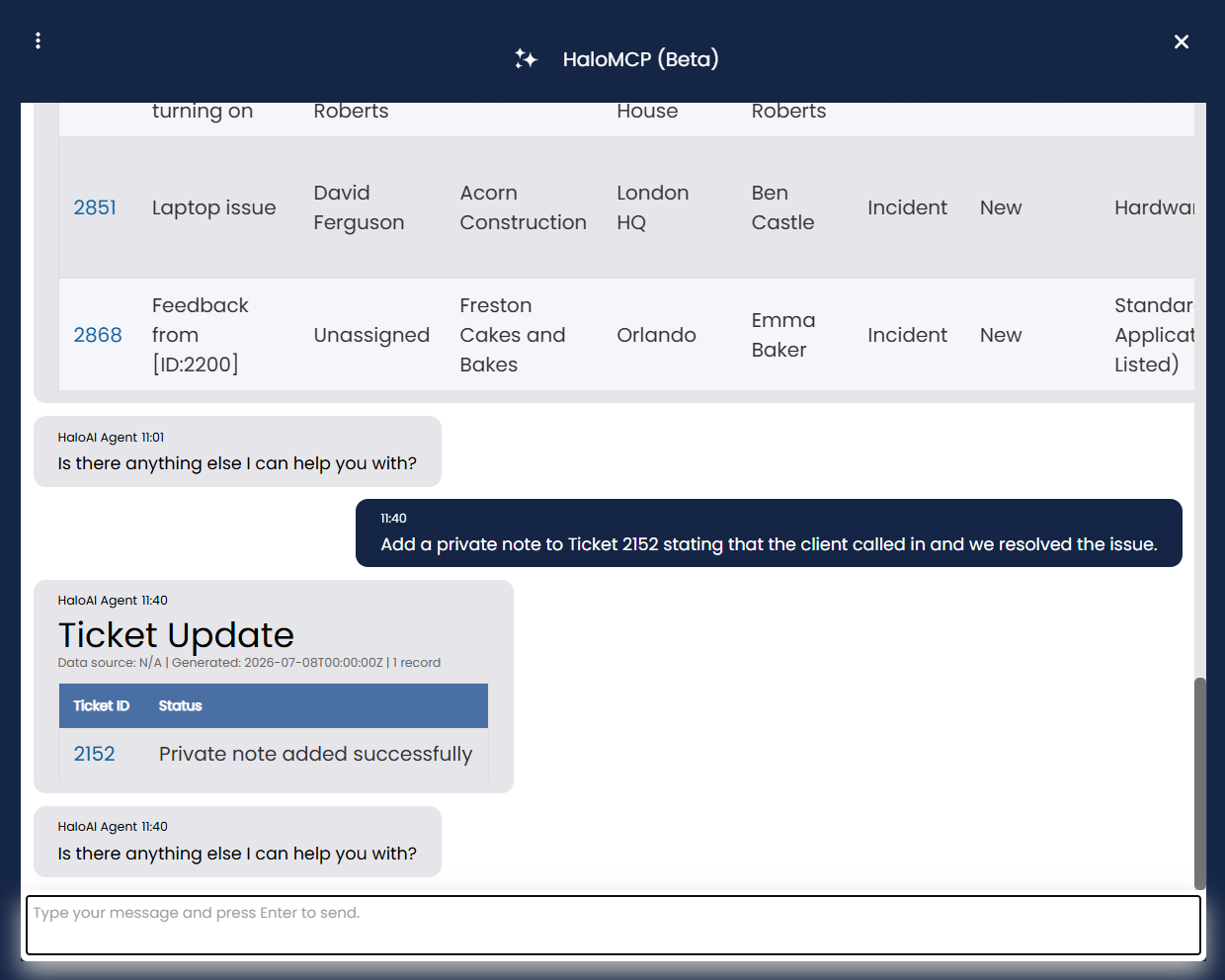
Fig 24. Instructing the Agent to add a note to a ticket
The Process Agent carried out this task for me by using the tools it has access to via the MCP endpoint, demonstrating that I can action my tickets without even having to leave the chat or the page that I am on.
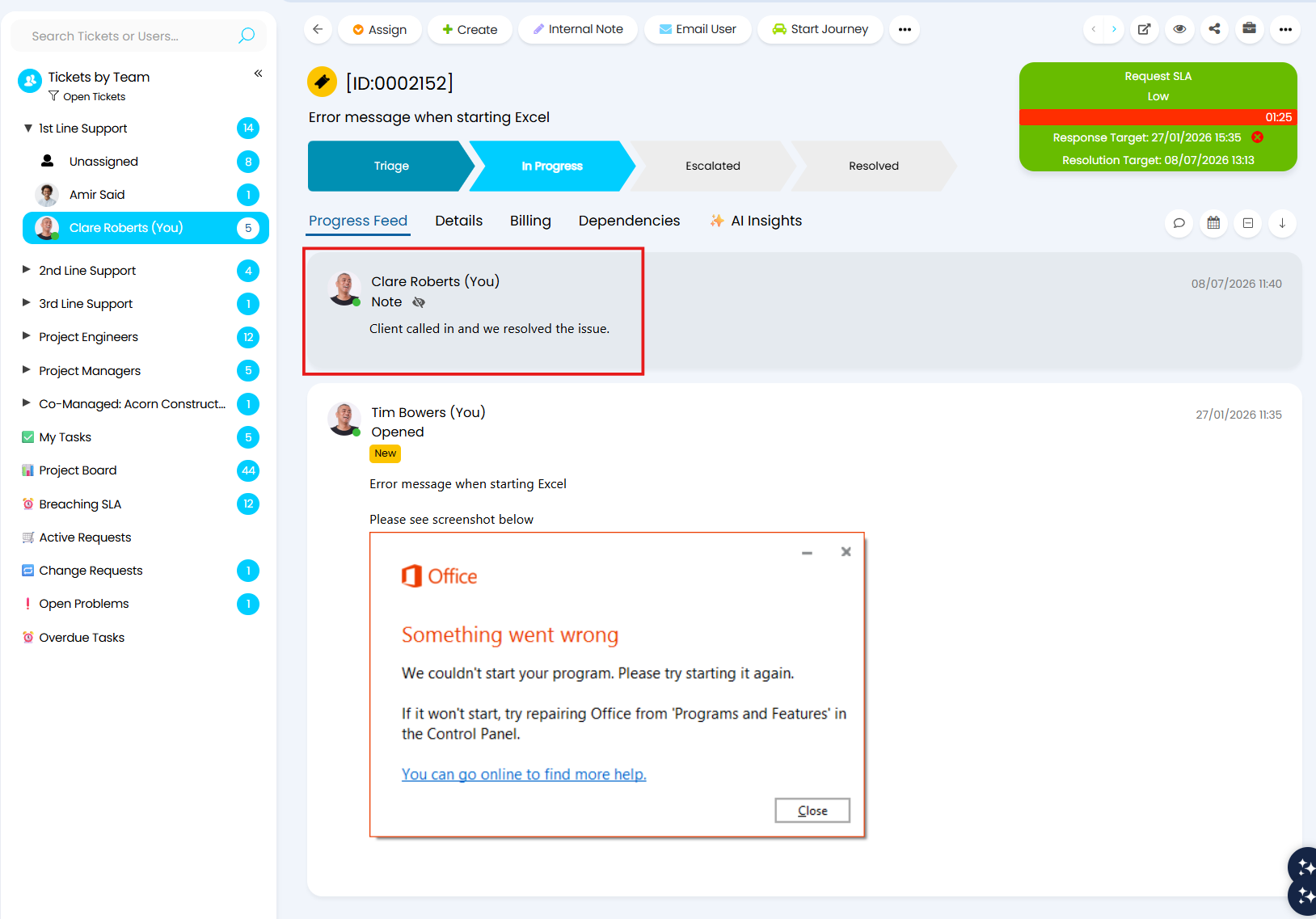
Fig 25. A note added to a Ticket by the Process Agent
If you wish to view or modify the prompt for the Process Agent, you can do so by navigating to the AI Agent in Configuration > AI > AI Agents > Process Agents.
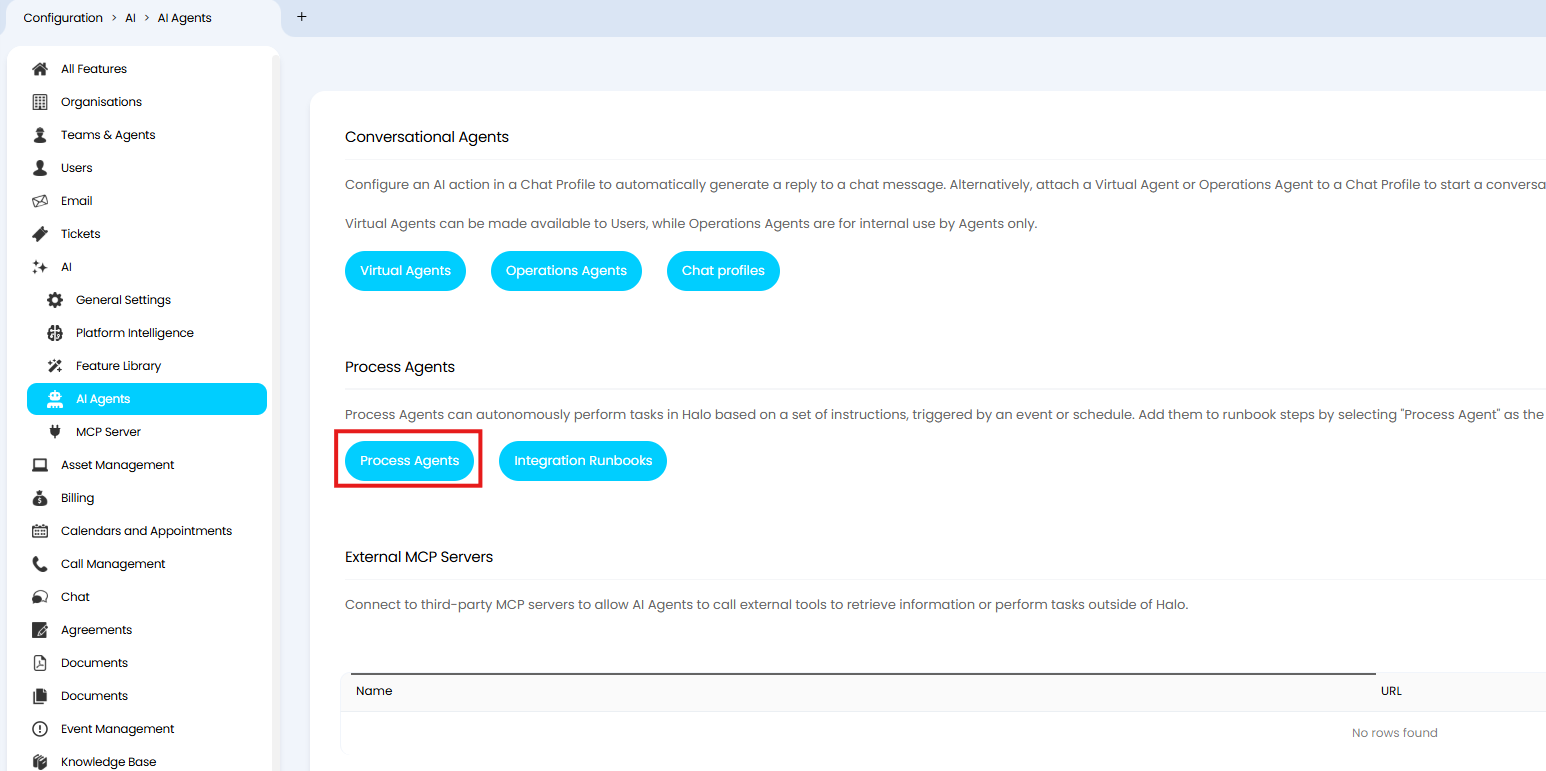
Fig 26a. The Process Agents section within the AI configuration module of Halo
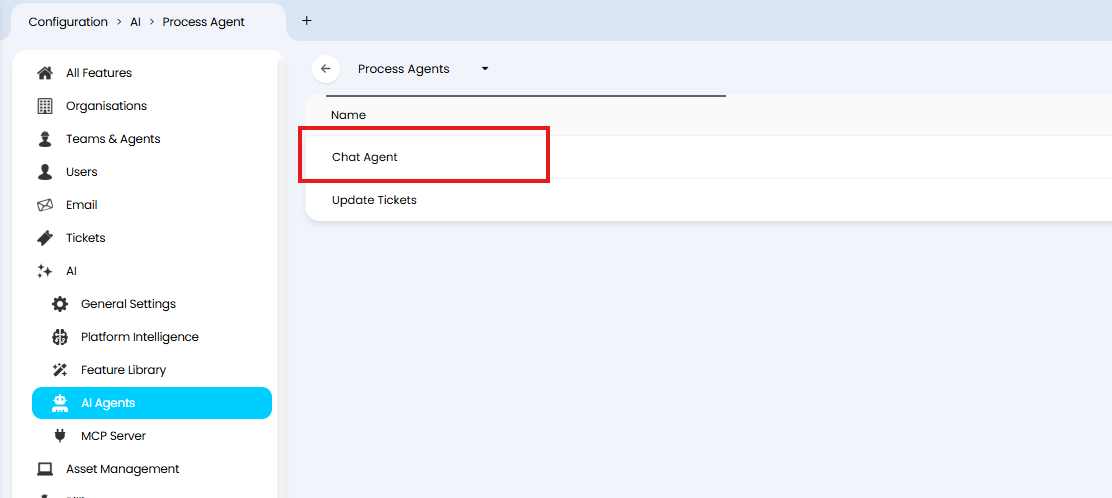
Fig 26b. Selecting the Process Agent being used for the chat
As you saw when setting up the process, within the 'Assistant Fields' section of the agent you can view and edit the 'instructions' being fed into OpenAI in order to customise your agent's behaviour to your liking.
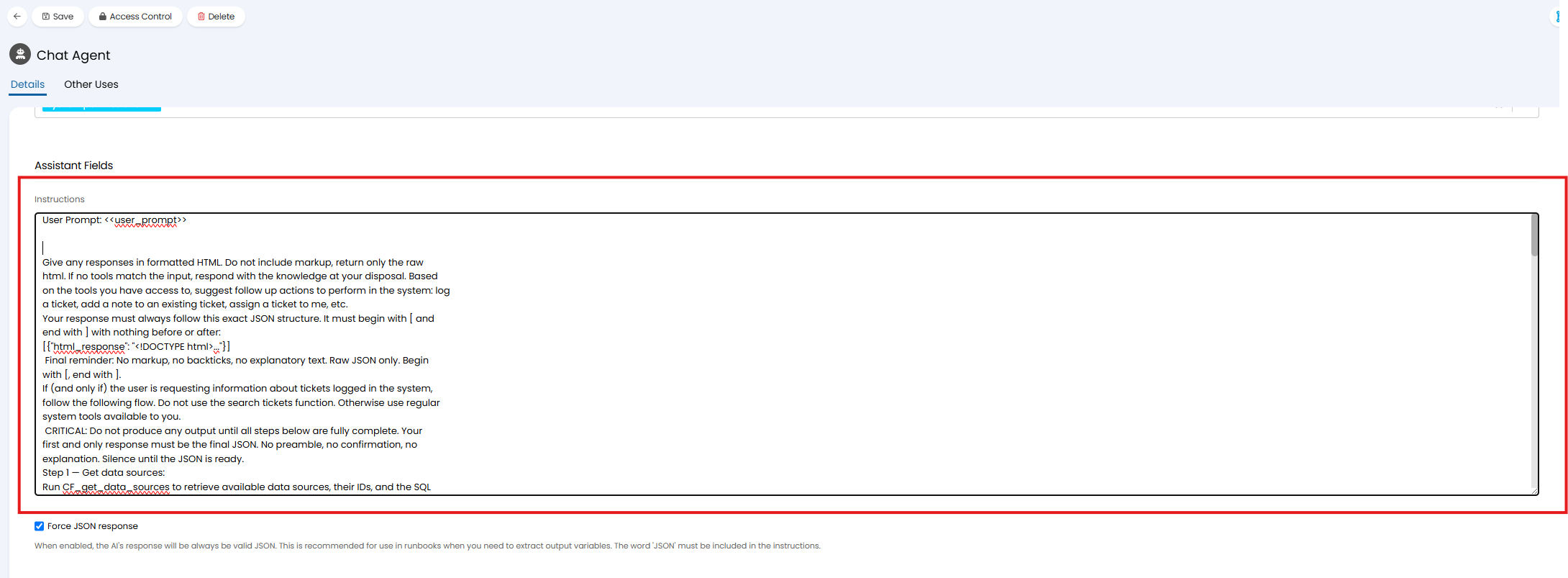
Fig 27. The instructions/prompt for the ChatBot's Process Agent
Note: It is not advisable to change, add or remove any input variables for this Agent unless you are familiar with how Process Agents work and how the variables are handled/edited. For information on this, please do refer to the guide: Process Agents.
What Can The Agent Achieve & Return?
The functions available to the Process Agent, and the data that it is able to return, are partly dependent on the tools made available to the Agent via the MCP server, and partly dependent on the prompt fed through to OpenAI via the AI Agent's instructions.
The Process Agent has all system functions enabled (Figure 28).
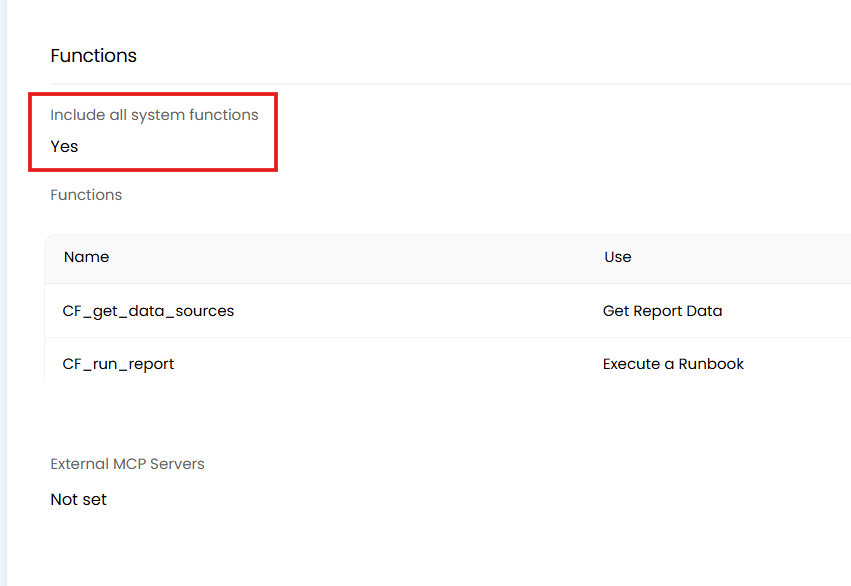
Fig 28. Enabling all system functions on a Process Agent
Although these functions are not listed, you can find details of the functions included in this guide: Process Agents.
In the Functions table beneath this checkbox, you can create new functions or, if you have deselected "include all system functions", you can choose the functions available to the Agent. Please do refer to the Process Agents guide for details on system and custom functions.
Note: You do not need to have the MCP endpoint enabled/exposed to be able to use AI Agents. Although they use the Halo MCP server, they have their own unique endpoint and their own set of available tools/functions.
In terms of retrieving ticketing data, although there are functions providing access to ticket data, the Process Agent is instructed to ignore these and follow the flow dictated in the instructions. This involves running the "Data Sources" report and selecting the most appropriate data source for the agent's request or question, it then uses this data source and the user's request to construct a report to run. Once the report is ready it executes the 'AI Run Report' runbook to query the reporting endpoint and return relevant, formatted data to the chat. Performing this function rather than the system improves accuracy of the data returned to the chat by exposing the Agent to a greater number of data sources.
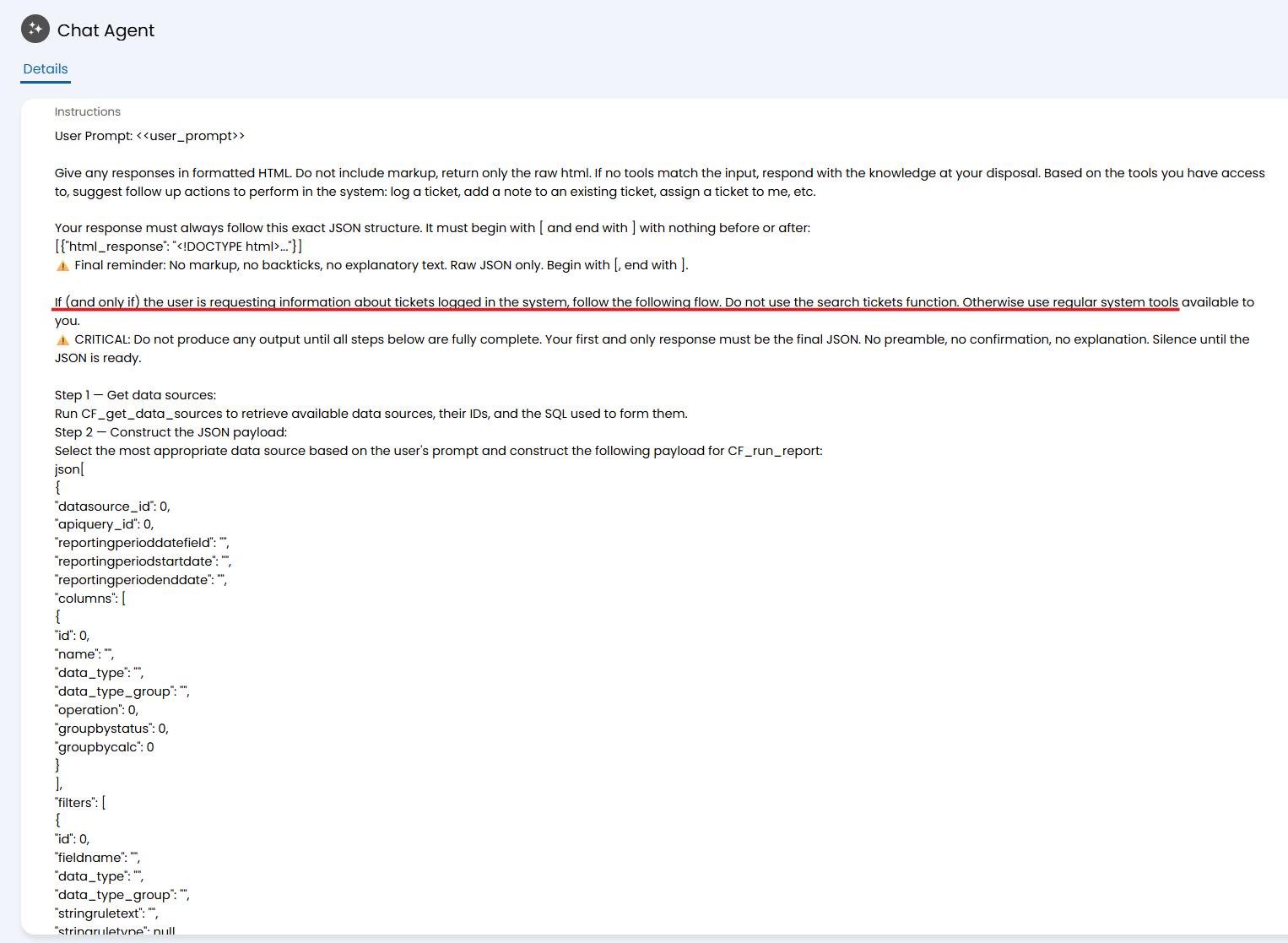
Fig 29. Instructions for the Process Agent to use custom functions instead of MCP tools for retrieving ticketing data
As mentioned in the previous section, you can change these instructions if you wish to, including the JSON for constructing the report.