Connect AI to Halo using Azure OpenAI
- indexing
- ai
- Azure OpenAI
- Embedding
In this guide we will cover:
- Video Walkthrough
- Create an AI model in Azure and connect this model to Halo
- Entering Details in Halo
You are able to connect your own Azure OpenAI deployment to Halo instead of using Halo's default AI connection. In this article we will walk you through how to configure this connection.
Video Walkthrough
The following video is by Mendy Green from Rising Tide Consulting, a HaloPSA partner, who covers how to set up the AI application in Azure.
Disclaimer: For the most up to date information please use the content in this guide instead of the video.
Create an AI model in Azure
It is important to make sure your Azure tenant is set up to support the Azure AI area, as it can be disabled. If this is the case, please contact Microsoft to get Azure AI enabled for your tenant. There are multiple models which you can deploy in the Azure AI area, for information on them please visit the Microsoft documentation: AI Models.
Create a Resource Group
Go to https://portal.azure.com and sign in with your Azure account. If you don’t have an account yet, you will need to create one first.
Then create a Resource Group, if you do not already have one:
- In the left sidebar, click Resource groups
- Select Create
- Give your resource group a name (e.g., openai-rg)
- Choose your subscription and region
- Click Review + Create, then Create
Create an Azure OpenAI Resource:
- From the Azure Portal home, click Create a resource
- Search for Azure OpenAI in the marketplace
- Select it, then click Create
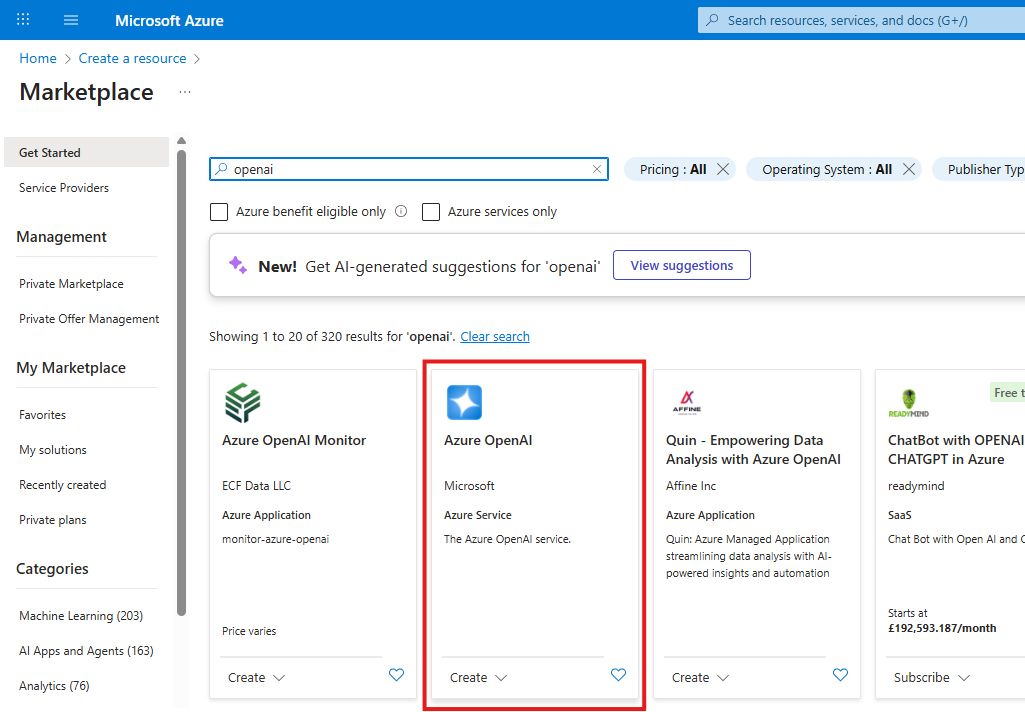
Fig 1. Create Azure OpenAI resource
Now fill in the required fields.
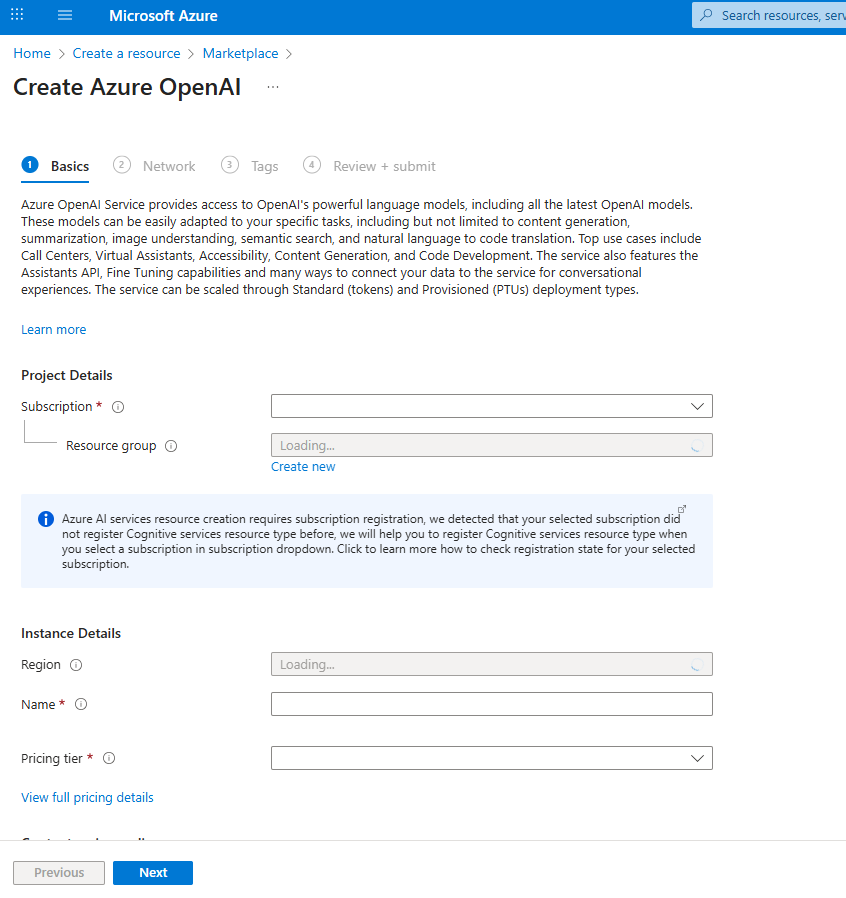
Fig 2. Complete details for Azure OpenAI resource
Subscription - Pick your Azure subscription.
Resource Group - Select the resource group you created earlier.
Region - Select a region
Name - Give your resource a unique name (e.g., openai-service).
Click Review + Create, then Create. This will provision your Azure OpenAI instance.
Create Deployments
Once your resource is created, you will need to navigate to it in the Azure Portal and create two deployments - one for your embeddings, and one for your GPT model.
Go to the Azure OpenAI Studio (sometimes called AI Foundry). Alternatively, you can go directly to https://ai.azure.com and sign in.
Deploy an Embeddings Model
- In Azure AI Foundry, open your Azure OpenAI resource
- Go to Deployments in the left sidebar
- Click + Create new deployment
- Choose Model = text-embedding-ada-002 (or another embedding model that uses 1536 dimensions)
- Enter a deployment name (e.g., embeddings-deployment)
- Click Create
Deploy a GPT Model
- Still in Deployments, click + Create new deployment again
- Choose your GPT model (e.g., gpt-35-turbo or gpt-4)
- Give it a deployment name (e.g., gpt-deployment)
- Adjust settings if needed (defaults are usually fine)
- Click Create
Retrieve Your Keys & Endpoint
- In the Azure Portal, go back to your Azure OpenAI resource.
- From the left sidebar, select Keys and Endpoint.
- Copy your Endpoint URL and API Key
- Important: Save these somewhere secure. You’ll need them when connecting your application to Azure AI.
- Enter the API version you would like to use. For information on available API versions refer to Microsoft's documentation. Be sure to check for the most recent articles from Microsoft as these are updated often.
- For the creation of custom Virtual Agents within Halo, a minimum API version of 2024-02-15-preview is required.
- The best way to find the API Key, is to go to the Azure OpenAI Studio: https://oai.azure.com/ and location the version within the model deployment.
Entering Details in Halo
Now that you have completed the Azure AI setup, you will need to establish the AI connection in Halo.
Navigate to Configuration > AI > General Settings and select the 'Own Azure OpenAI Connection' option under 'Default AI Connection', then select the 'Configure Azure OpenAI Connection' button.
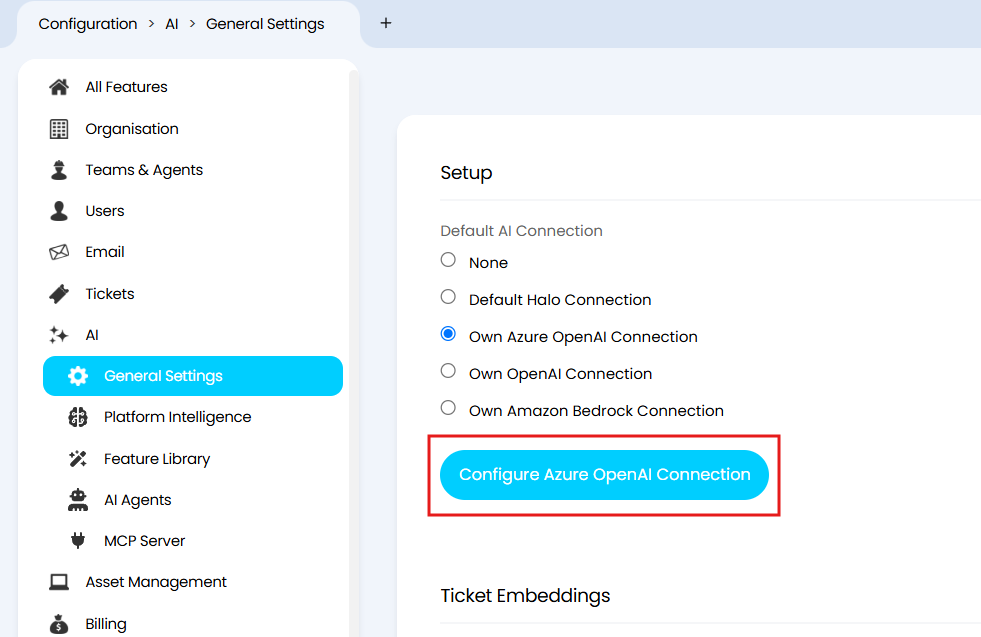
Fig 3. Configure OpenAI Connection in Halo
Enter the connection details for your deployment.
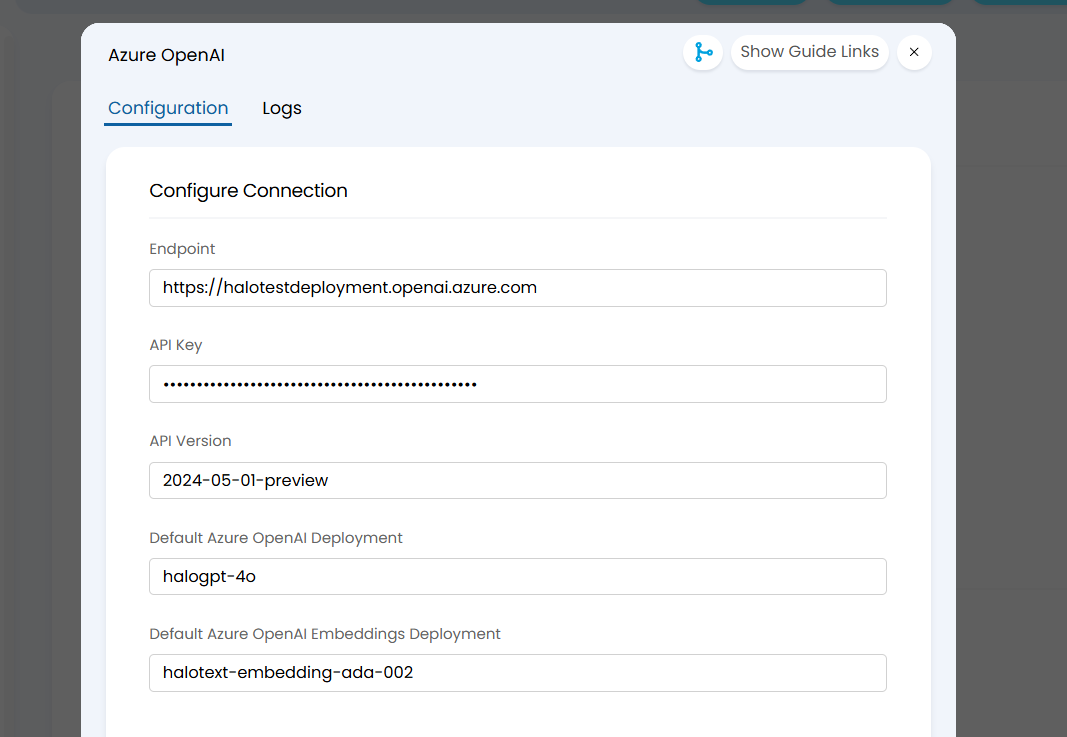
Fig 4. Example connection details for an Azure OpenAI connection
Endpoint: Enter the resource URL that you copied earlier when in your Azure OpenAI resource
API Key: Enter the API key that you copied earlier when in your Azure OpenAI resource
API Version: Enter your API version
Default Azure OpenAI Deployment - Enter your GPT deployment name here, this is the model that will perform summarisations of Ticket data
Default Azure OpenAI Embeddings Deployment - Enter your embeddings model here
Note: Your 'Default Azure OpenAI Deployment' should be the name of the deployment, not the model itself. For example, if the model is gpt-5-mini but the deployment name is demo-gpt, I would put demo-gpt in the the 'Default Azure OpenAI Deployment' field.
There are no save buttons on this modal window, but your details will save automatically once you click off the fields.