Report Data Sources
- reporting
- data source
In this guide we will cover:
- Downloading Data Sources from the Online Repository
- Using Data Sources to create Reports
- Editing Data Sources
Admin Guides:
Related Guides:
- AI Report Builder
- Charts and Graphs in Reports
- Halo In-App Dashboard
- Reports and Scheduling
- Report Builder
Downloading Data Sources from the Online Repository
Opening the "Online Repository" in the reporting suite is where a number of pre-made reports can be found, but additionally data sources that be used to easily create your own. Upon opening the repository, these will show at the top, and are indicated by a save icon in their name.
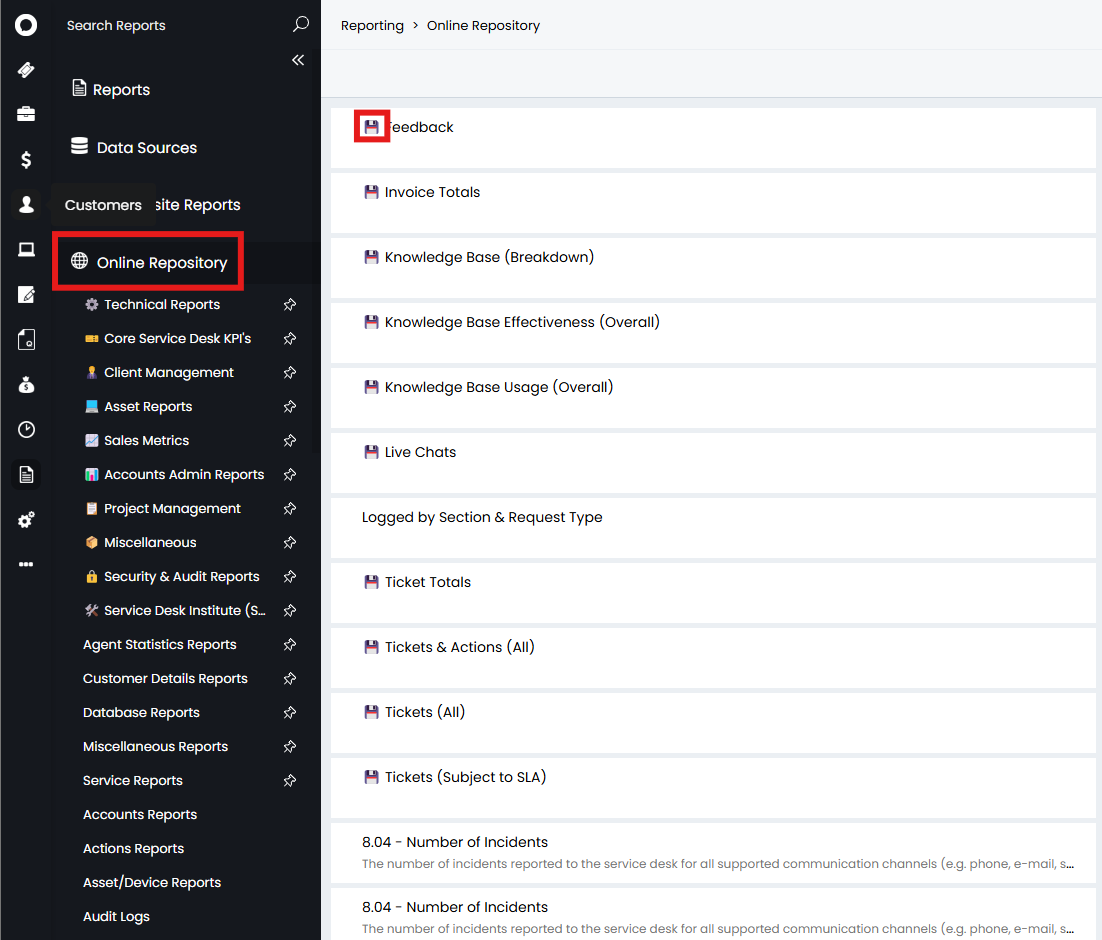
Fig 1. Data source list.
Opening one and clicking the "Save Data Source" button will save this to the "Data Sources" area.
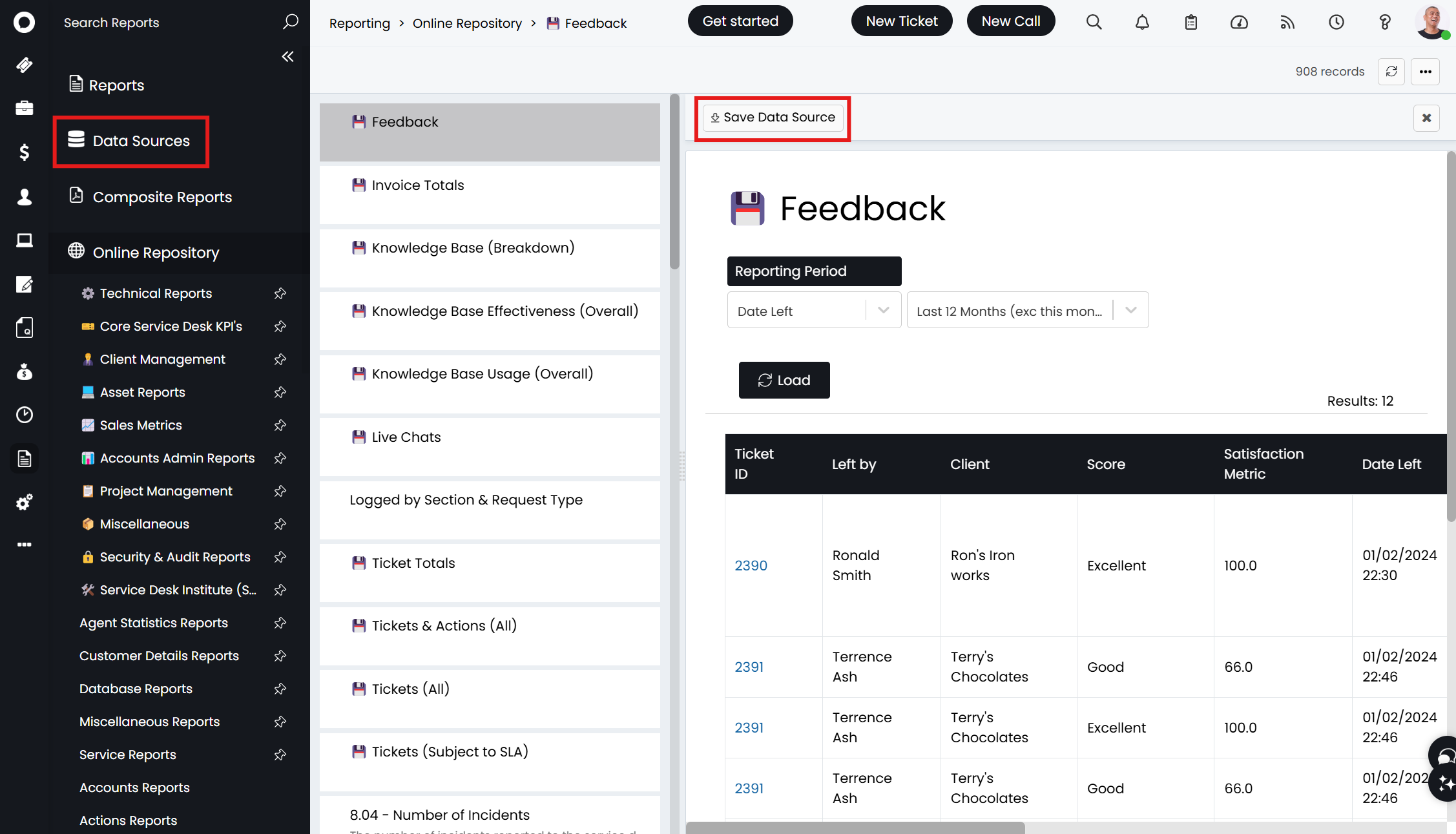
Fig 2. Saving the data source.
In the "Reports" area, you can then click "New" to create a new report as normal.
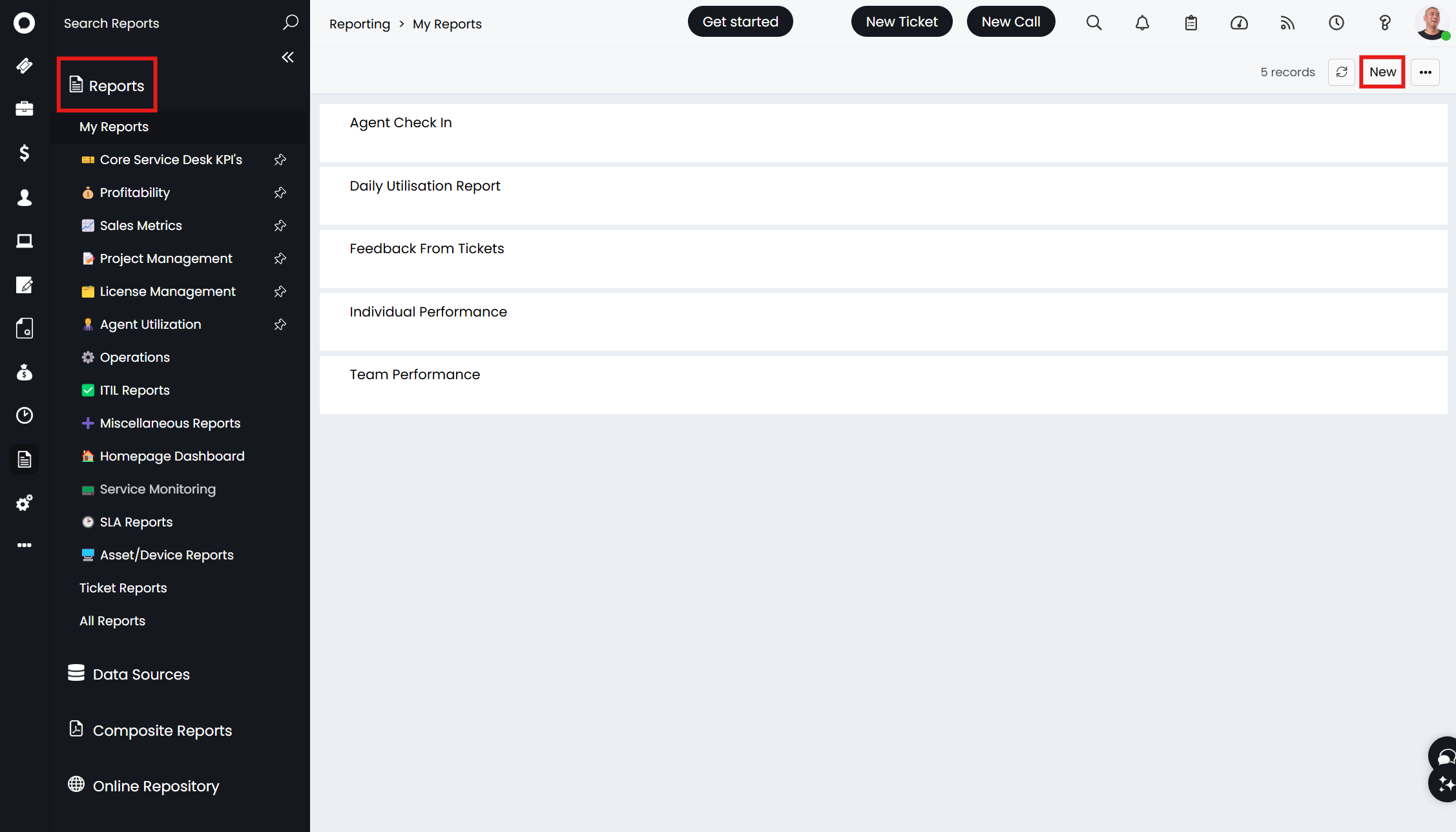
Fig 3. Creating a new report.
In the "Data Source" tab, you can select the downloaded one in the dropdown.
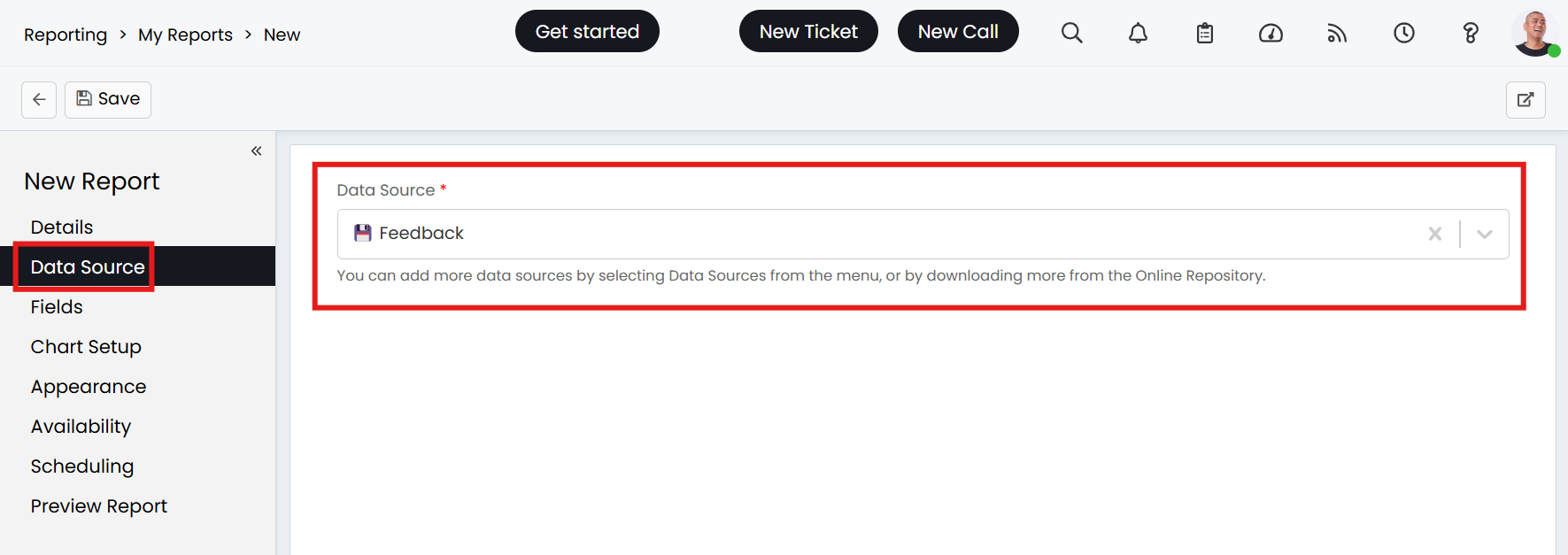
Fig 4. Selecting the new data source.
Note: From here onwards, the process works in a similar way to the query builder. It is recommended to read the "Report Builder" guide linked at the top of this one for a more in-depth explanation and how filters, etc, can be added.
In the "Fields" tab, you can then select the fields you wish to add to the report using the "Add" button.
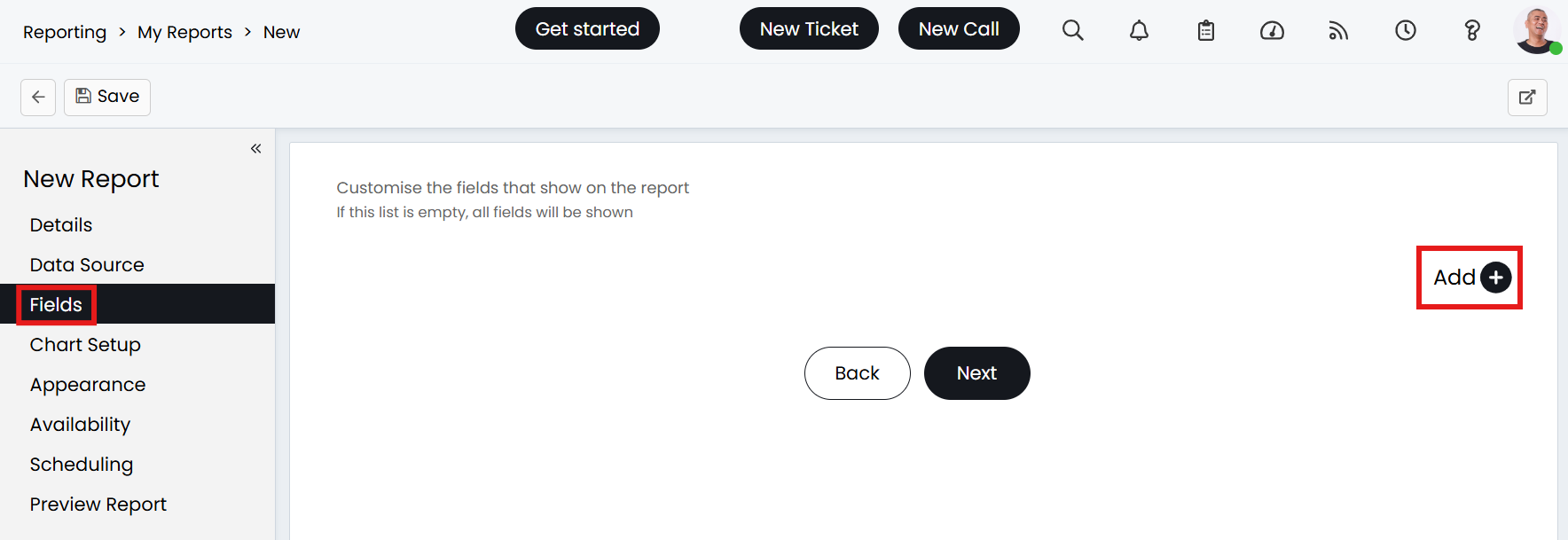
Fig 5. Fields tab.
You can then added the fields you wish to show in the report here.
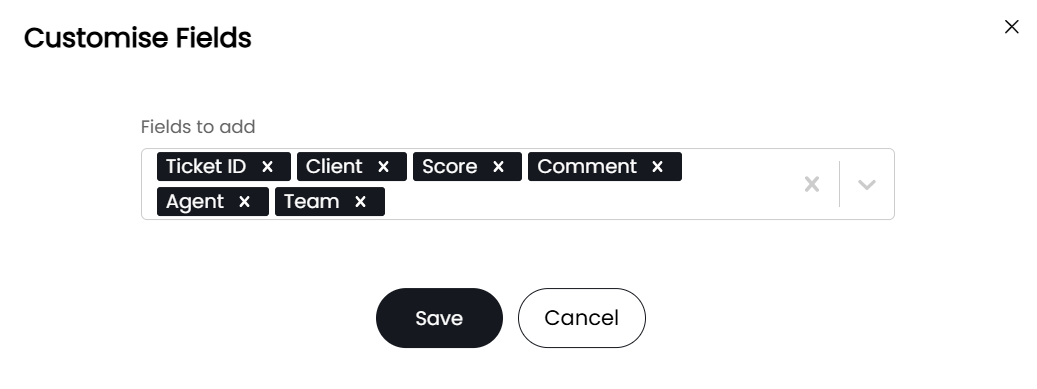
Fig 6. Selecting the fields.
Upon saving, the following screen will show. If you hover over the field, the dotted icon will appear. This allows you to drag-and-drop the fields to rearrange their order.
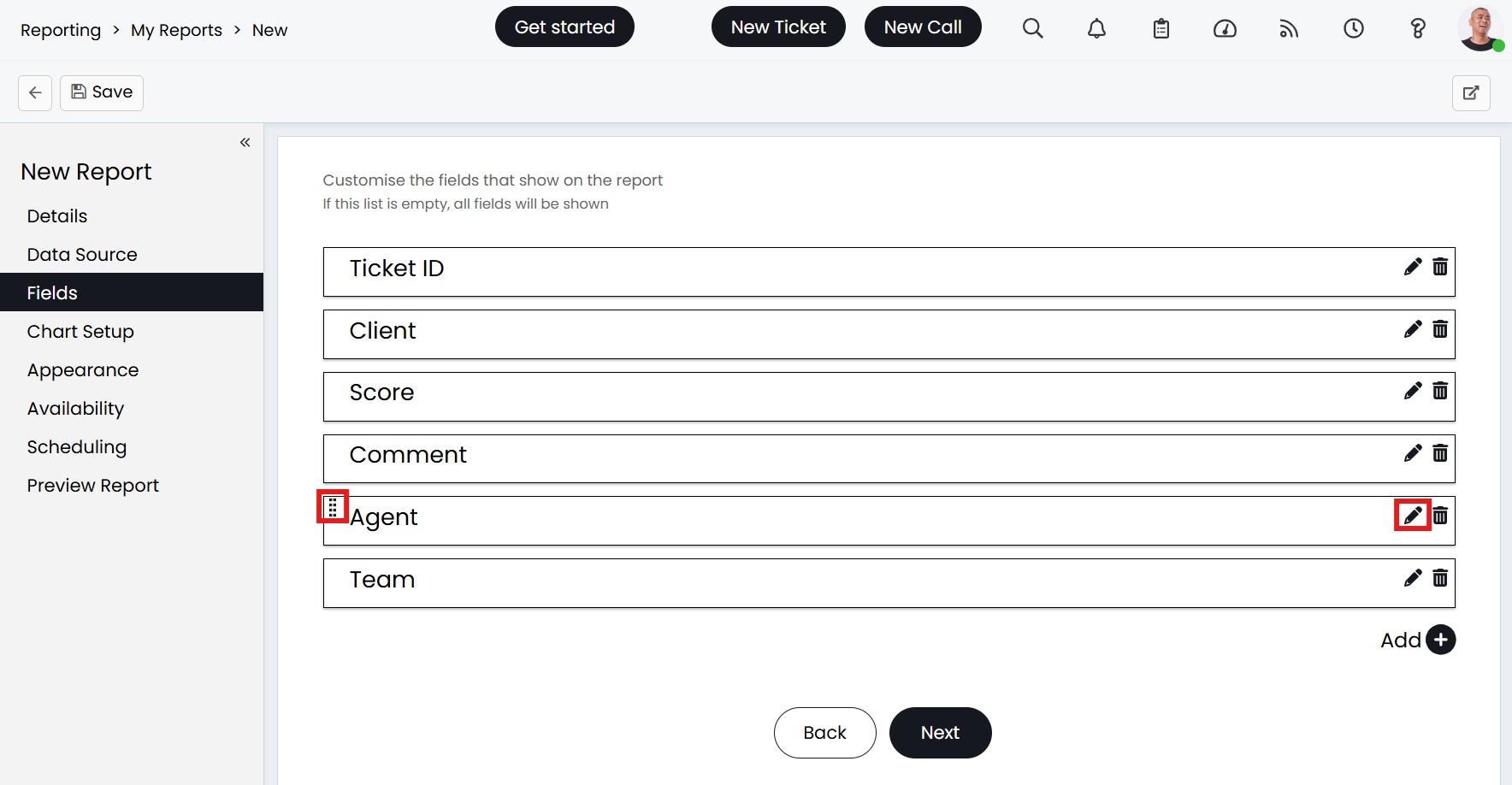
Fig 7. Changing field order.
You can also click the pencil icon to customise the fields with options to sort, group, sum, etc. The report builder guides goes through each of these uses in more detail.
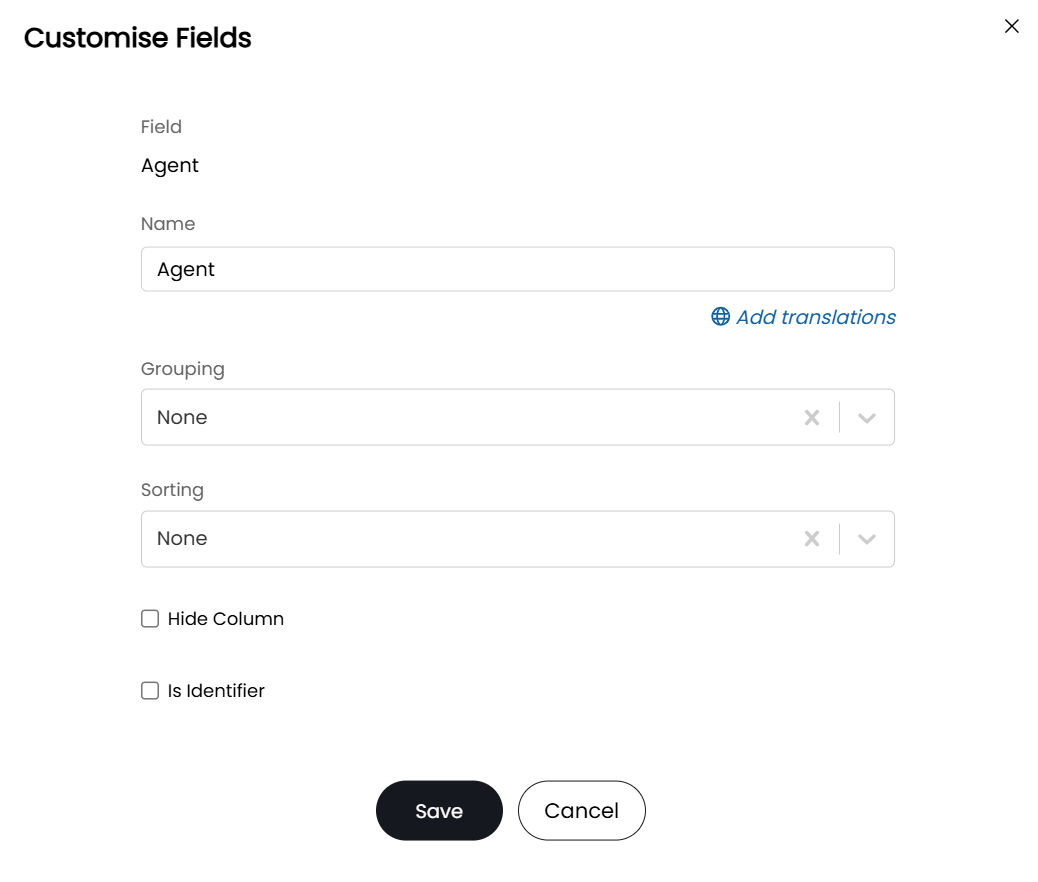
Fig 8. Customise Fields popup.
You can then "Load Report"/"Refresh Report" to see how this looks like now, and edit as required.
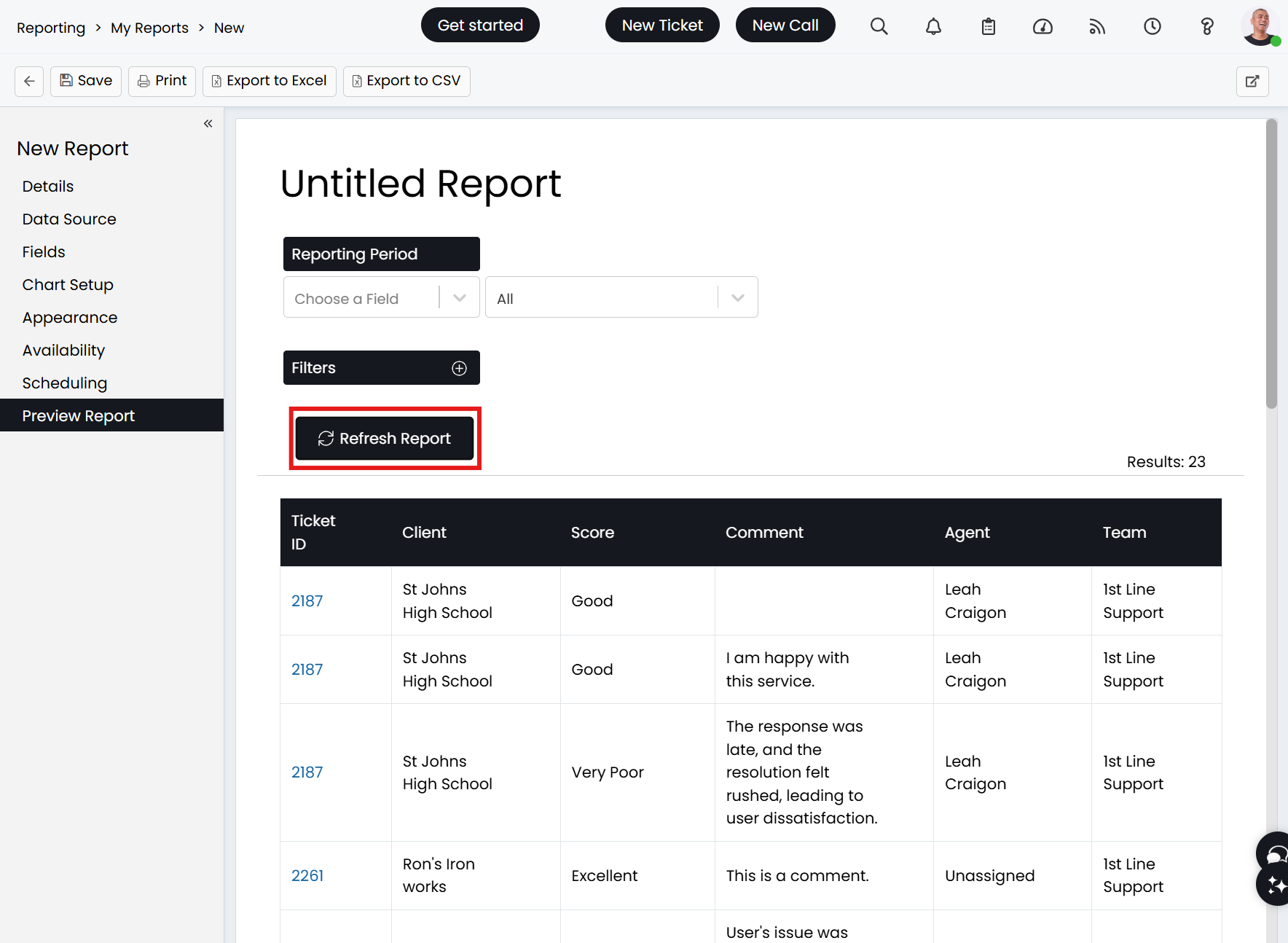
Fig 9. Loading the report.
I have decided I wish to group by report by the Agent column, so have gone back to the Fields tab to add this.
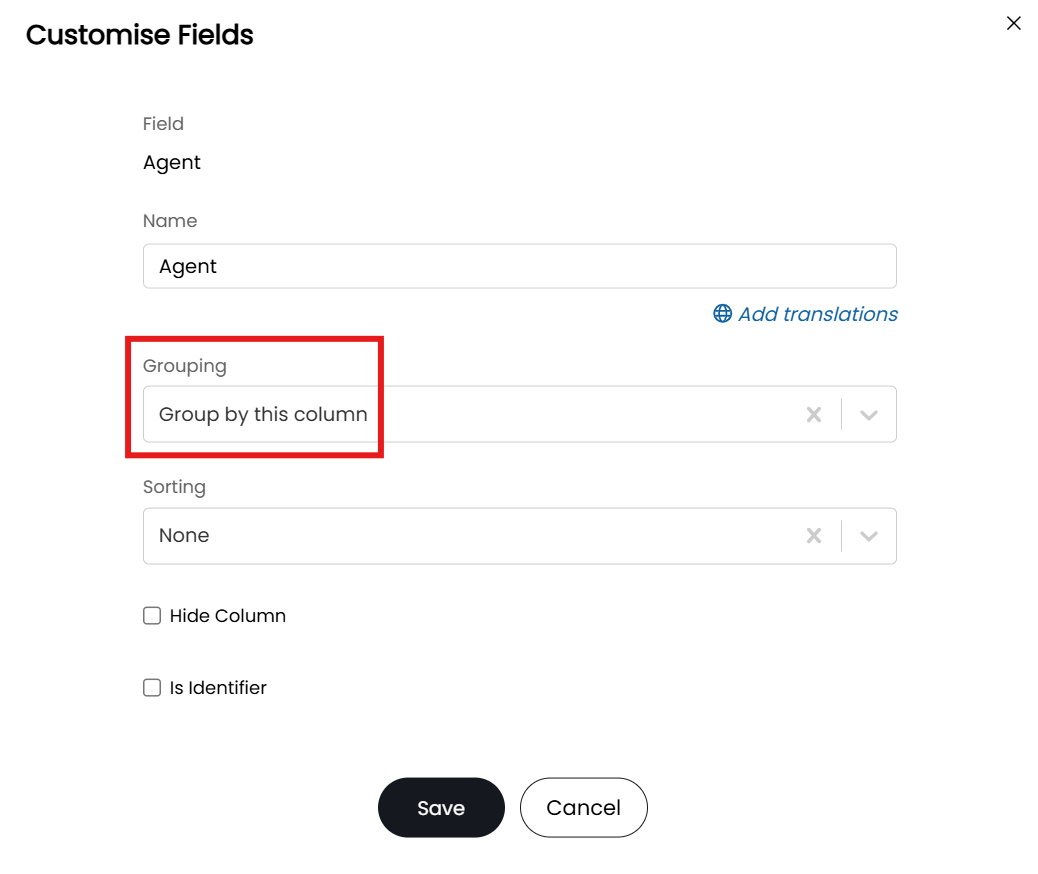
Fig 10. Grouping by the Agent column.
Upon saving that change and refreshing the report, it is now grouped by agent in expandable dropdowns.
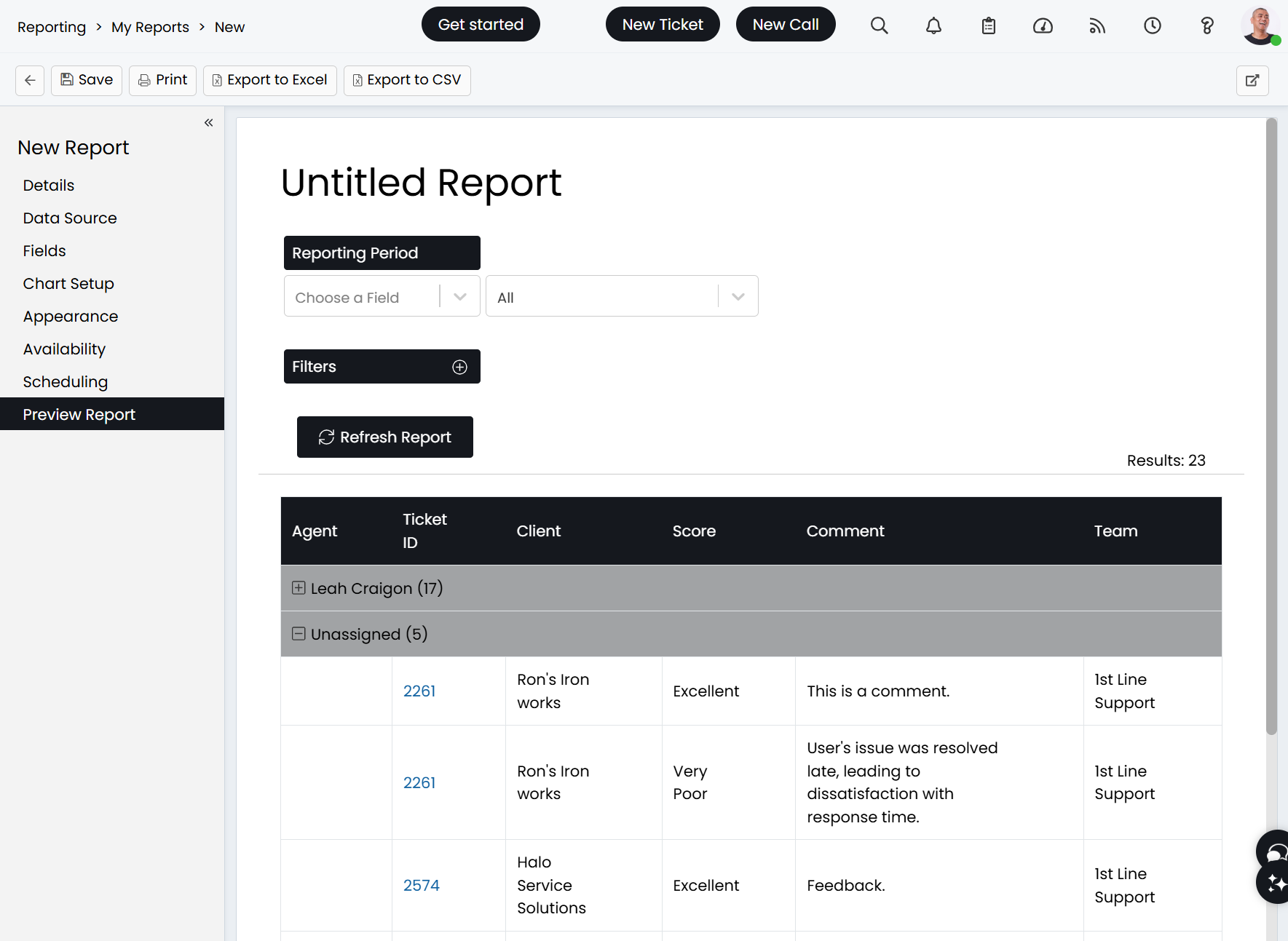
Fig 11. Report after grouping.
Editing Data Sources
Data Sources can be edited as they are presented as a large SQL Query. However, you will be faced with a warning upon doing so that this may affect reports downloaded from the Online Repository in future. The "Other Uses" tab shows when editing to show which reports will be impacted upon doing so.
In general, it is recommended to "Save as New" and create a new report instead to edit these.
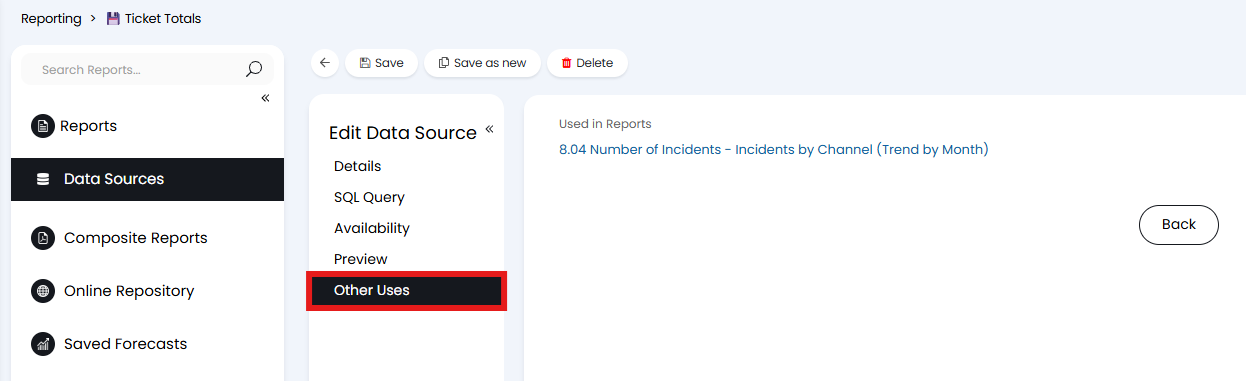
Fig 12. Where the Data Source has been used.