Mailbox Overrides
- Mailbox
- mailbox override
- mailbox hierarchy
- mailbox precendence
In this guide we will cover:
- Hierarchy Used for Mailbox Overrides
- Override Locations
- Setting Mailbox access Restrictions
- Additional Settings to Consider
Hierarchy Used for Mailbox Overrides
The mailbox that will be used when sending an email to the end user of a ticket will be determined by the following hierarchy:
- Action
- Customer (if ticket is raised manually)
- Top Level
- Team
- Mailbox Field
- Ticket Type (if ticket is raised manually)
- Department
- Global
Note: For agents in multiple teams/departments, the override comes from the team the ticket is assigned to and which department that team is under.
This hierarchy does not apply when sending emails from other areas of Halo (e.g. mail campaigns and bulk emails).
Override Locations
Action
In Configuration > Tickets > Actions, choose an action and go to the "Defaults" tab. Set the "From Address".
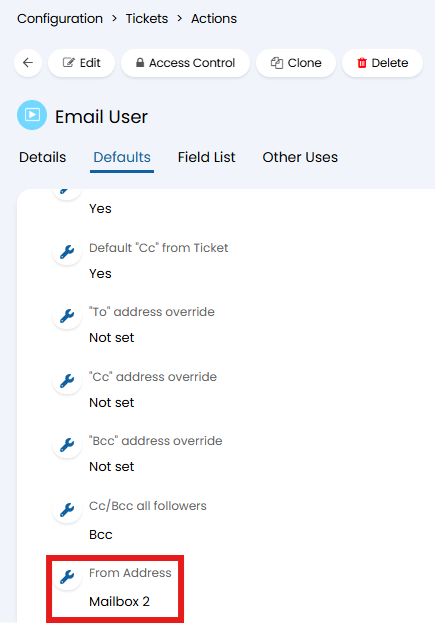
Fig 1. Action email override.
Customer (only for manually raised tickets)
In the customer profile, go to the "Settings" tab > Email Defaults. Set "Default mailbox for new Tickets raised manually".

Fig 2. Customer email override.
Top Level
In the top level area, go to either the "Details" tab or the side pane pictured here. Set "Mailbox Override".
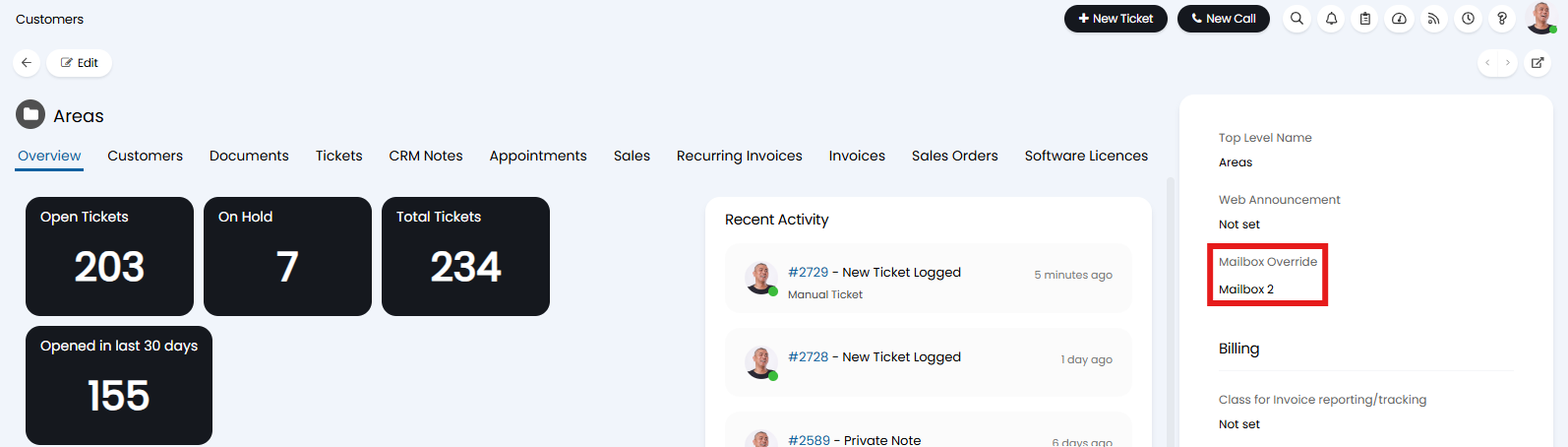
Fig 3. Top level email override.
Ticket Type ( only for manually raised tickets)
In Configuration > Tickets > Ticket Types, go to the "Defaults" tab. Set the "From Address".
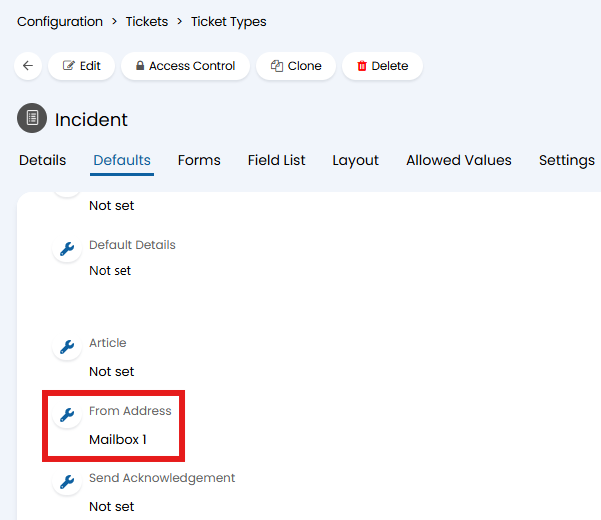
Fig 4. Ticket type email override.
Mailbox Field
A "Mailbox" field is available to add to ticket types. Agents can choose the mailbox they would like to use as the default for this ticket here. The mailbox chosen here will override the ticket type default mailbox, but can be overridden by team, top level, customer and action level defaults.
To add this field to a ticket type head to Configuration > Tickets > Ticket Type > select a ticket type > Field List tab > add the 'Mailbox' field here.
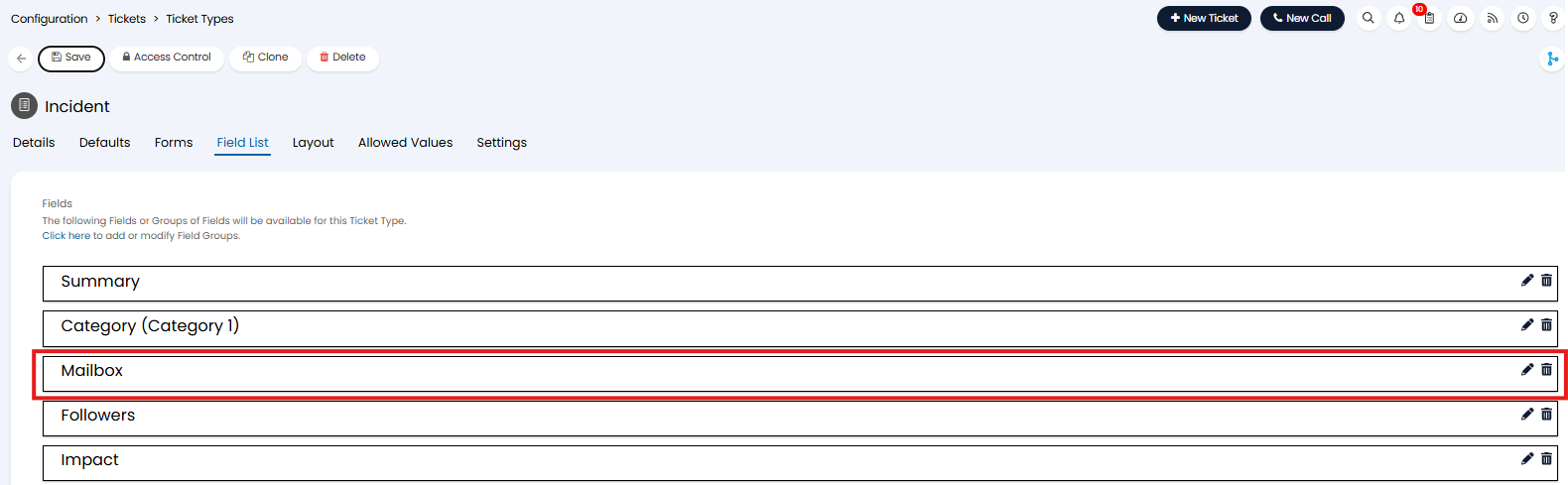
Fig 5. Mailbox field against Ticket Type.
This field can only be seen by agents. It can be set either when logging a new ticket, or in the the ticket details.
Team
In Configuration > Teams & Agents > Teams, go to the "Details" tab. Set the "Mailbox Override".
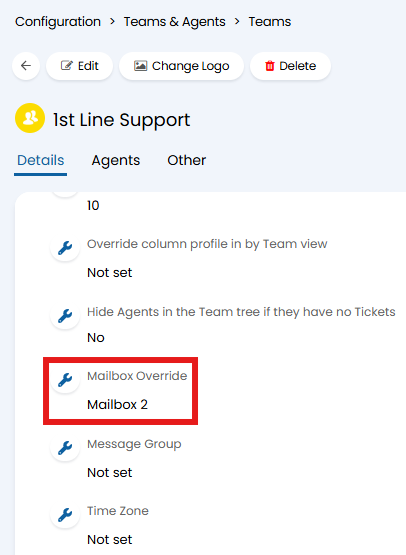
Fig 6. Team email override.
Department
In Configuration > Organisations, go to the "Departments" tab and edit a department. In the "Details" tab, set the "Mailbox Override".
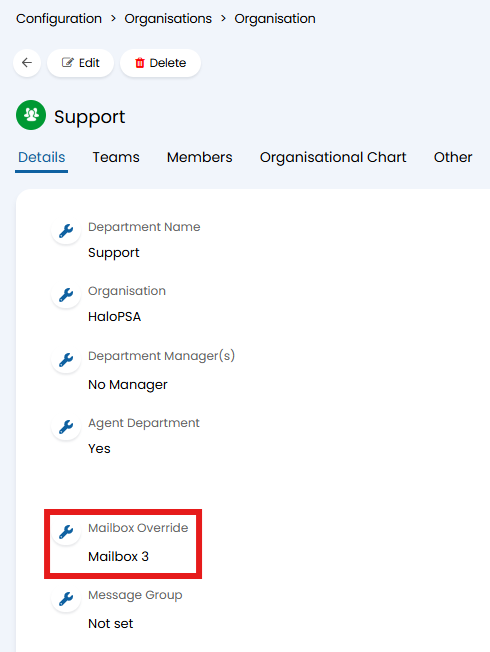
Fig 7. Department email override.
Global
In Configuration > Email > General Settings, select "Outgoing Email Defaults" and set a mailbox in the dropdown.
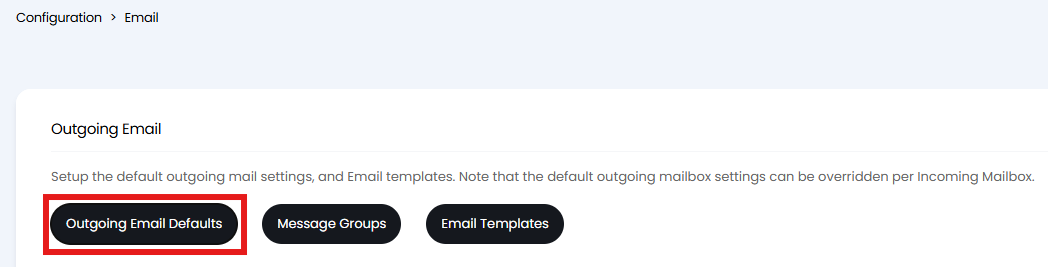
Fig 8. Global email default.
Setting Mailbox access Restrictions
As well as setting defaults and overrides, you can also restrict who has access to each mailbox. Useful if you have separate mailboxes for each team/department and would only like the respective agents to be able to use this mailbox.
Restrictions are set against the mailbox themselves under configuration > email > mailbox setup > select a mailbox > outgoing tab > see 'Sending Restrictions'.
Here you can choose how you would like to set restrictions, either by team, department or organisation. Use of the mailbox will be restricted to agents who are members of that entity. The restrictions can be set to apply to the assigned team instead of by membership. In Configuration > Email > General Settings, enable "Restrict the 'From' address options on a Ticket Action to mailboxes the assigned Team can access".
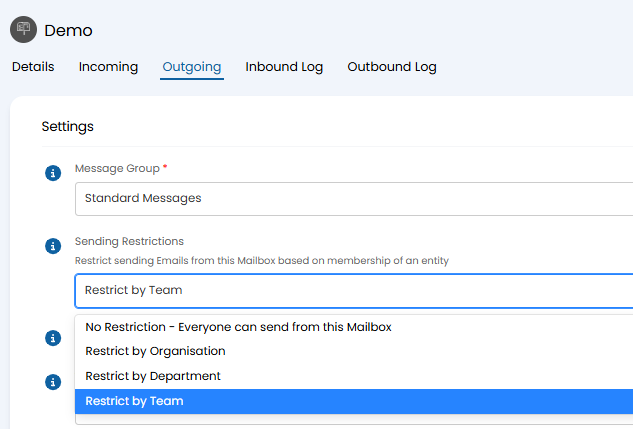
Fig 9. Restrict access to mailbox.
Additional Settings to Consider
Default Mailbox behaviour after sending Emails
Under Configuration > Tickets > General Settings, you can find the setting "Default Mailbox behaviour after sending Emails". Here you can set the default behaviour of mailboxes for tickets after an email is sent.
Note: If mailbox overrides are set at the action, customer or top level, these mailbox overrides will take precedence.
No change- Mailbox stays the same regardless of the mailbox that sent the email.
Update if there is no current default- Updates the mailbox to the outgoing mailbox used, providing the mailbox is not set elsewhere - this will only update once, for the first email action.
Update after every email from an action- Always updates when an email is sent.
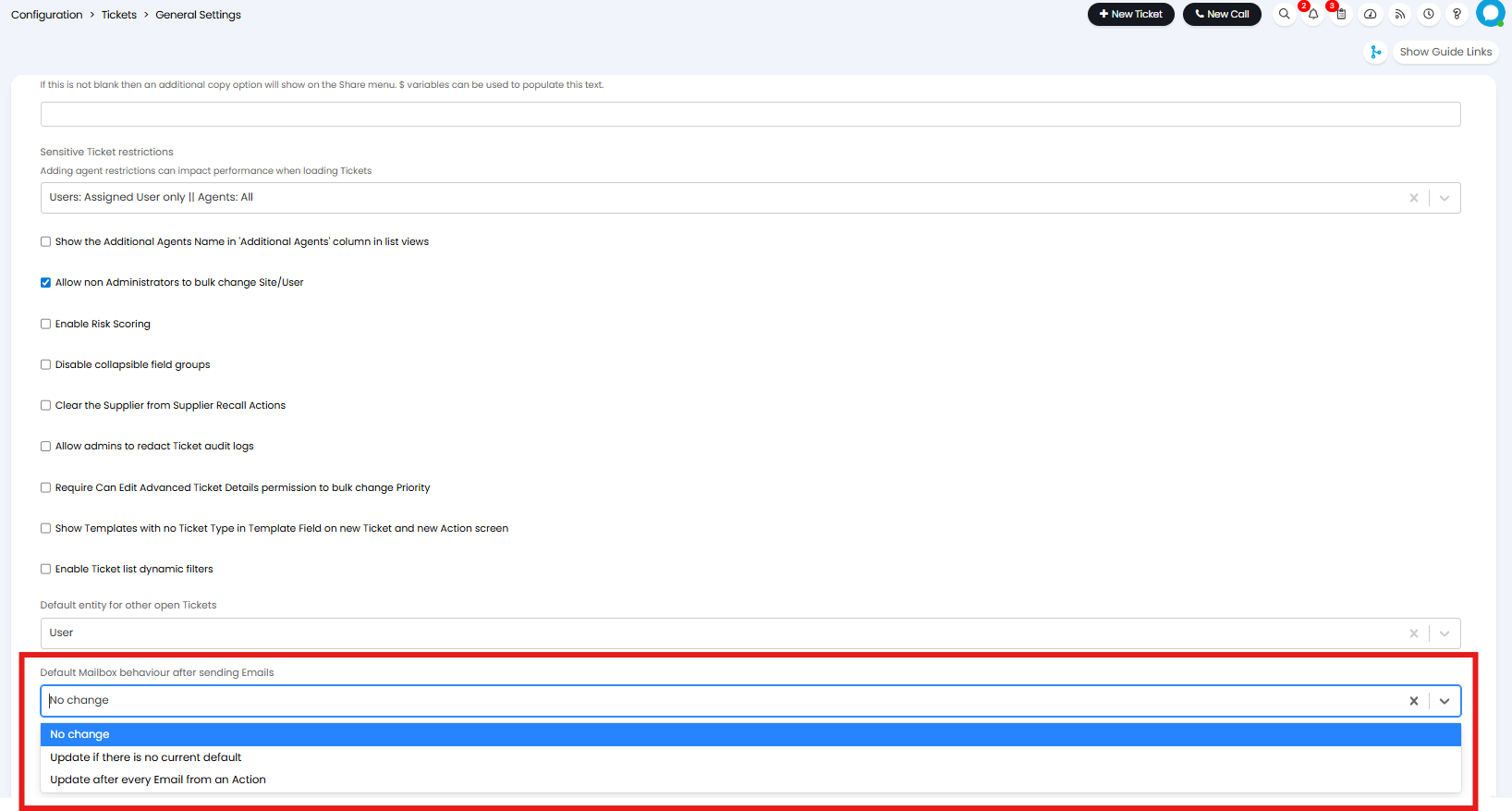
Fig 10. Default Mailbox behaviour setting.
Use the Email Address of the Agent's Default Team as the Default 'From' Address for Standalone Email Actions
Under Configuration > Email > General Settings, you can enable the setting 'Use the email address of the Agent's default Team as the default 'From' address for standalone email actions'.
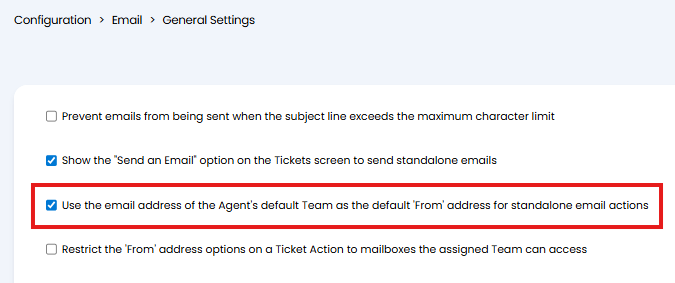
Fig 11. Use the email address of the Agent's default Team as the default 'From' address for standalone email actions.
This setting only impacts the default mailbox that is used when sending 'standalone email actions'. The ability to send 'standalone email actions' is dependent on 'Show the "Send an Email" option on the Tickets screen to send standalone emails' being enabled.
When this is enabled the mailbox set against the default team of the agent sending the email, will be used. When disabled the global default mailbox will be used.
The agent will still be able to change which mailbox the email is being sent from, this setting just sets the default.
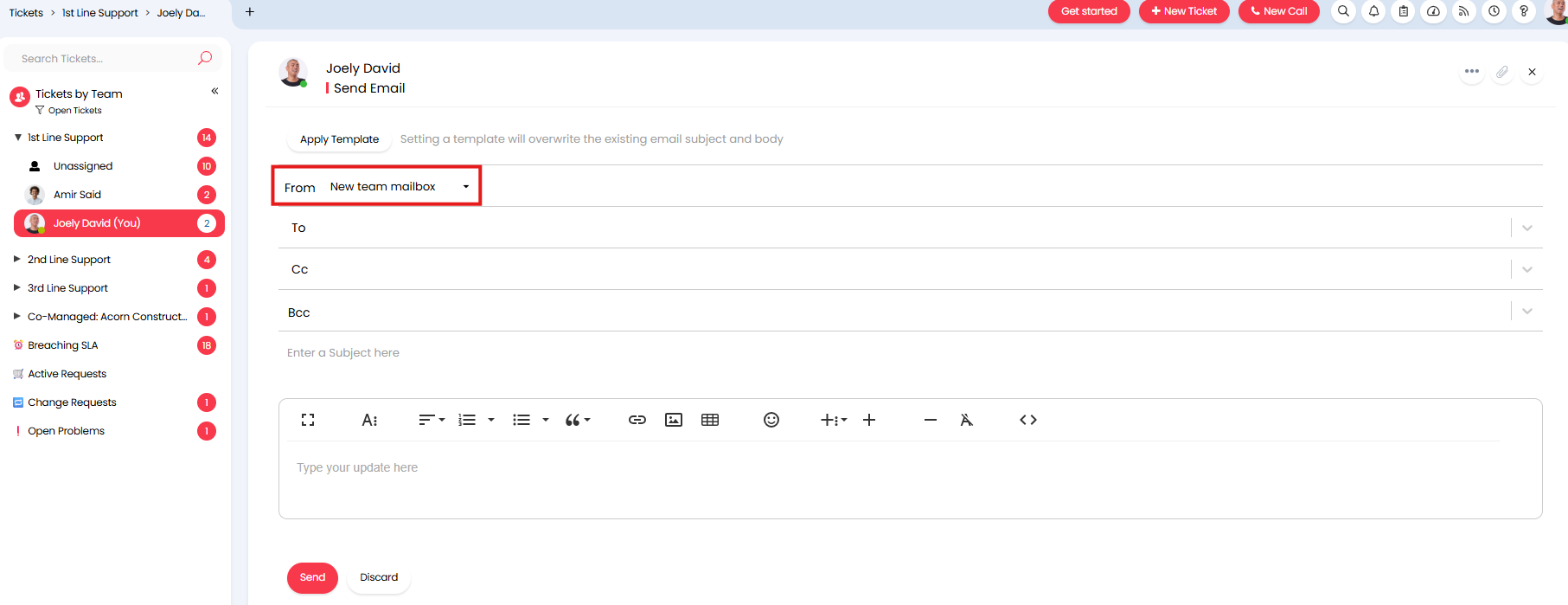
Fig 12. Sending standalone email action.