Mail Processing FAQs
- Mailbox
- emails
- forwarded email
- email processing
- mailbox processing
In this guide we will cover:
- Frequently asked questions about how emails are processed in Halo
This guide will cover a list of frequently asked questions about how mailboxes work within Halo. If you have additional questions following reading the below, please contact support to assist you.
How are emails processed by a mailbox integration?
When a mailbox is connected to Halo, Halo will ingest the emails as a Ticket or a reply to a Ticket, followed by moving the email in the original mailbox to the "Deleted" folder. Anything in the "Inbox" section will be ingested. For this reason, mailboxes must be empty when first connected; otherwise a Ticket will be created for any email sat within the inbox.
What if we want to only send out emails, not receive them as Tickets?
There are two areas in Halo where a mailbox can be configured to not create Tickets via email. Note: Users will still be able to reply to that email to the Ticket.
The first is in Configuration > Email > General Settings. If the below is enabled, no mailbox will create Tickets when emailed into, and instead the User will receive an automatic email. The Email Template for this can be customised with the dropdown underneath it.

Fig 1. Block emails from creating Tickets.
The same setting can be configured per mailbox in Configuration > Email > Mailbox Setup > choose a mailbox > Incoming tab. This can be set to use the same Template as the global one, another Template, or not to send an email.
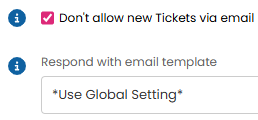
Fig 2. Blocking emails per mailbox.
How are emails linked to a Ticket?
Emails are linked to Tickets via the subject of the email. This can be matched with Ticket IDs, subject of the email, and the email address that is replying.
It is recommended to have the below enabled in Configuration > Email > General Settings to match on Ticket IDs.

Fig 3. ID matching enabled.
The Ticket ID is placed between a start and end tag to signify to Halo that this is the Ticket ID, and not another number. The default display of tickets will have [ID: {TICKETID}] in the ticket summary.

Fig 4. Email Tags.
Inbound emails will update existing Tickets if an existing Halo Ticket ID is found between these Tags in the email subject. If no ID is found, a new Ticket will be created.
If the setting in Fig 3 was disabled, the rest of the email subject could match regardless of the Ticket ID. If there were two Tickets with identical summaries but different IDs, emails would match onto one Ticket.

Fig 5. Example Ticket ID within the Tags.
If the below is enabled and the ID cannot be found in the subject of the email, Halo will search the email body for the Tags.

Fig 6. Body matching.
How are forwarded emails treated?
Forwarded emails are added to Tickets as a standard User reply, and are identified by the "FW:" header.
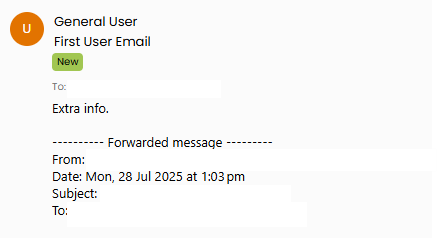
Fig 7. Message forwarded into Halo.
In Configuration > Email > General Settings, the below can be enabled. When checked, emails forwarded from agent addresses to your mailbox will ignore the forwarded email details and only consider the details of the original email, as if it was sent directly. So if the agent forwards an email from the end-user, the update on the ticket will only include the details the end-user added.

Fig 8. Enable Agent forwarding.
The log will show the address being modified to the End-User's, instead of the Agent.

Fig 9. Agent forwarding logs.
My email chain has created a duplicate Ticket. Why?
Duplicate tickets will be created if an email does not match into the existing Ticket it is intended for.
If using email start and end tags in Fig 4, ensure both sides of the Tag are around the Ticket ID and no characters are missing.
If using subject matching, ensure the entire email subject is the same as the original Ticket with no additional and/or missing characters.
If using the below settings in Configuration > Email > General Settings, ensure the email address that replied to the Ticket is within the original ticket's email recipients.

Fig 10. Reply behaviour configuration.
Automatic replies keep reopening my Tickets. How do we stop this?
By default, closed Tickets will re-open when a reply is matched to the Ticket via the methods previously mentioned (subject, ID tags, email address). Automatic replies such as OOO emails can be excluded from this through a few methods.
1) Per Ticket Type in Configuration > Tickets > Ticket Types > Settings tab, you can configure what emails on closed Tickets do. This can be set to reply with an email, which will keep the Ticket closed, or silently keep the ticket closed. If Closure Confirmation procedures are used, the same dropdown options can be set for that as well.
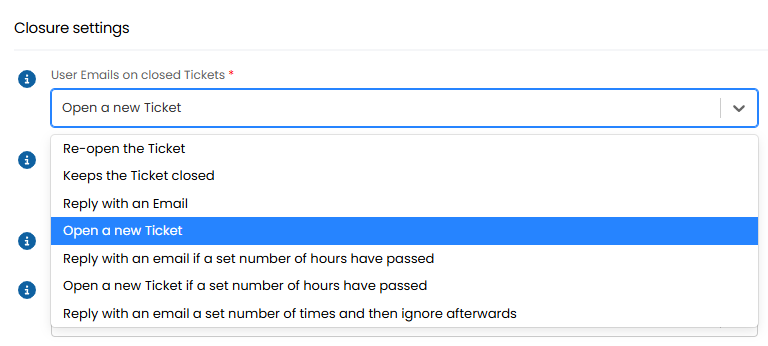
Fig 11. Closed Ticket email options.
2) In Configuration > Email > General Settings, the below settings are available. If any of these headers is detected when Halo ingests the email, the email will be ignored.
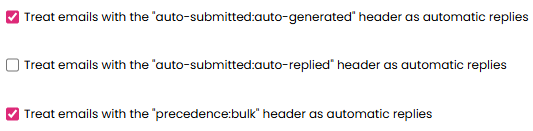
Fig 12. Automatic reply settings.
How do I stop looping when multiple support mailboxes are included in the email chain?
In Configuration > Email > General Settings, "Dynamic Email Exclusions" can be set. These are a list of email addresses to exclude from the email recipients list for a ticket. When using dynamic email lists, addresses (other than the end users) can be automatically added to the email recipients for the ticket based on addresses that are included in the ticket's correspondence (included as a To or CC address). Useful when you would like these recipients to be included in all ongoing email communication.
Dynamic email exclusions allow you to prevent specific addresses from being added to a ticket's email recipients automatically. Meaning when these addresses are used in previous correspondence for a ticket they will not automatically be added to the email recipients list of the ticket and therefore not receive automated outgoing emails. These addresses can still log and update tickets, but they will not be sent automated emails for the ticket.
It is recommended to add your Halo mailbox emails in here as well as any other ticketing/automation tools you interact with via email to mitigate the risk of continuous email loops. Other email addresses to add here would be any that have automated responses i.e. no reply mailboxes. Other automated responses (such as out of office emails) can be handled with other email settings.
If one of these addresses is the end user of the ticket, they will still be included in the email recipients list, but they will not receive new ticket acknowledgement emails.
Each email you would like to exclude must be added separately.
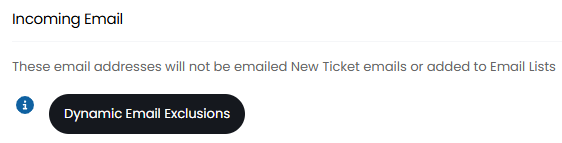
Fig 13. Email exclusions area.
Simply click the button in Fig 13, click "Add", and enter the email address to the exclusions list.

Fig 14. New Dynamic Email Exclusion
How do I know what mailbox will be used to send an email?
Halo follows an hierarchy override system, and different mailbox overrides can be set in various areas of the system.
The mailbox that will be used when sending an email to the End-User of a Ticket will be determined by the following hierarchy:
- Action
- Customer (if ticket is raised manually)
- Top Level
- Ticket Type
- Team
- Department
- Global
A full guide on the hierarchy and where to find the setting on each entity can be found here.