Related Tickets
In this guide we will cover:
- What are Related Tickets?
- Identifying Related Tickets
- Relating Tickets Manually
- Creating Related Tickets Automatically
- Actions between Related Tickets
- Transferring Values between Related Tickets
What are Related Tickets?
Related tickets are linked tickets at an equal level. Multiple tickets can be related to each other, and a ticket that has been related to one can also be related to others.
They differ from parent and child tickets. A parent ticket will have child tickets linked to it. Multiple children can be linked to a parent, but each child ticket can only have one parent. It is more of a "project" and "task" relationship, where the children are under the parent.
Identifying Related Tickets
Unlike parent and child tickets, related tickets have no indication in the ticket ID, i.e. child tickets will end in "-C" to show they are a child.
They will show in a "Related Tickets" tab on the ticket, and the behaviour of which tickets show in the "Related Tickets" tab can be customised in Configuration > Tickets > General Settings.
- Show related of related Tickets: With this option disabled, only Tickets that have been directly related to or from the Ticket will display. With this option enabled, Tickets related to directly related Tickets will also display, i.e. if Ticket A is related to Ticket B and C, then ticket C will also show as related, from within the related tickets tab of B. This can be overridden per ticket type.
- Show all related Tickets: This setting will only show if "Show related of related Tickets" and "Allow many-to-many related Ticket relationships" settings have been enabled. When enabled, all related Tickets will display. This will mean that if Ticket A is related to Ticket B and then from B the ticket relating option is used to related to Ticket C, then in the related ticket tab of A, C will also show.
- Allow many-to-many related Ticket relationships: When checked, this allows multiple tickets to be linked to one ticket, but also of those several tickets, they can also be linked to other tickets too.
The tab can also show a count of tickets if "Show related Ticket count" is enabled underneath these. Tickets can be unrelated from this tab, by right clicking the ticket in the list and selecting "Unrelate Ticket".

Fig 1. Related Tickets tab
Relating Tickets Manually
When viewing a ticket, you can link a related ticket by hovering over the three dots in the top right corner. "Relate to another Ticket" will make the ticket you are viewing the related to the others. Clicking this will bring up a screen to select the ticket(s) from a list. This feature is useful if linking support tickets that come into your helpdesk to an article draft ticket, for example if an issue is solved and the KB needs to be updated accordingly. This allows easy reference between the two, but neither ticket is dependant on the other being completed first.
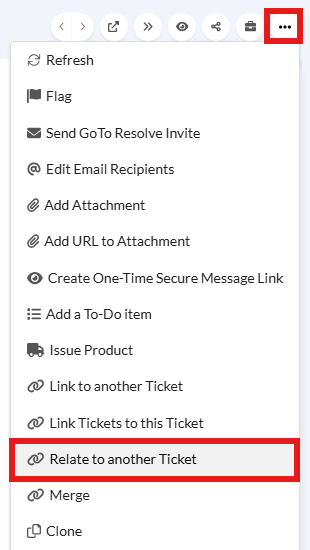
Fig 2. Relating tickets
There is also an action system use for creating a new related ticket from another. When this system use is added to an action, a popup to create a new ticket will appear upon use. A default user can be set when configuring the behaviour of this action, such as defaulting to the same user of the ticket, or the agent who is logging it.
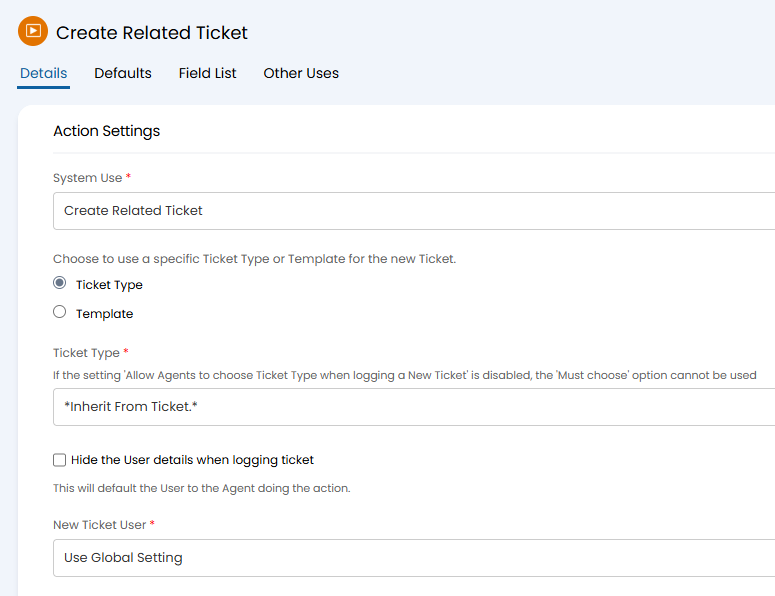
Fig 3. Action to create a related ticket
Creating Related Tickets Automatically
Automatic creation can also be done in the workflow. Using the same system use with a template, this can then be made a quick action by enabling "Is a Quick Action" a little further down. Quick actions do not show the new action screen, and are completed automatically.
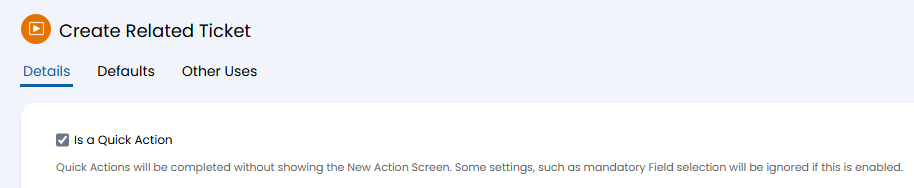
Fig 4. Quick action to create a related ticket
This can then be automated on a certain step of the workflow, and criteria can be added, such as creating the related ticket if a field is set to a certain value at that stage.
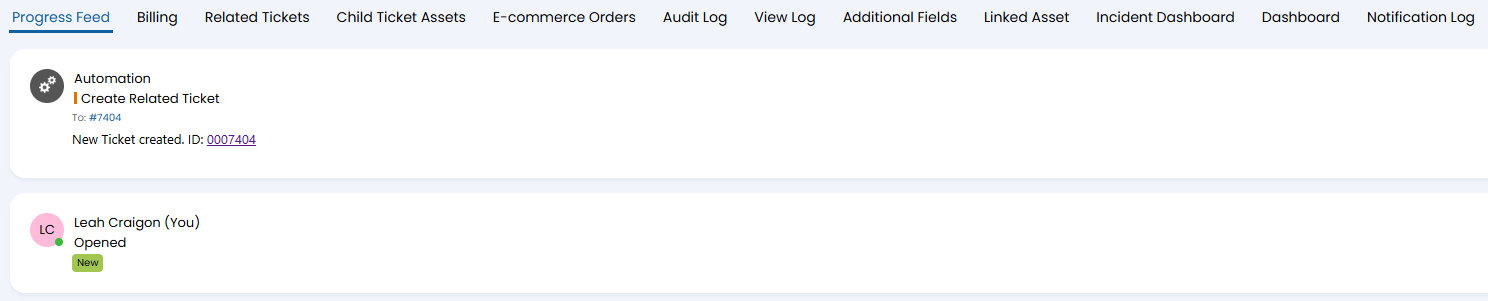
Fig 5. Automation to create a related ticket using a quick action
Actions between Related Tickets
Actions can be added and shown between parent and child tickets. Here is the system use "Add note to Related Ticket".
Note: This system use cannot be used if many-to-many ticket relationships is enabled, as the system will have no method of knowing which ticket(s) to add the note to.
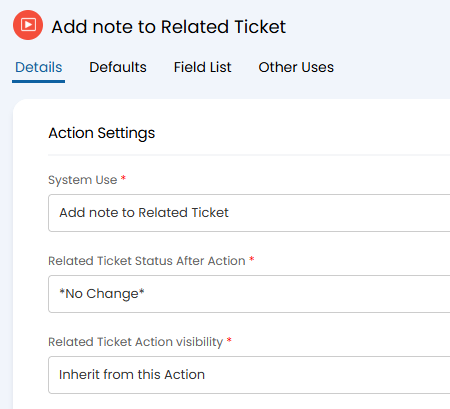
Fig 6. Action to add note to related ticket
With the "Note" field added to the field list of the action, the text entered will then also be added to the related ticket. Actions with this system use will not show if there are no tickets related to the one currently being viewed.

Fig 7. Adding note to a related ticket
Actions that have been marked as important will show on the "Related Notes" tab of the related ticket.

Fig 8. Related Notes tab
Transferring Values between Related Tickets
Attachments
Attachments can be defaulted to show between related tickets, and individual attachments can be toggled as well.
In Configuration > Tickets > Ticket Types, go to the "Settings" tab and enable "Show new attachments on related Tickets".
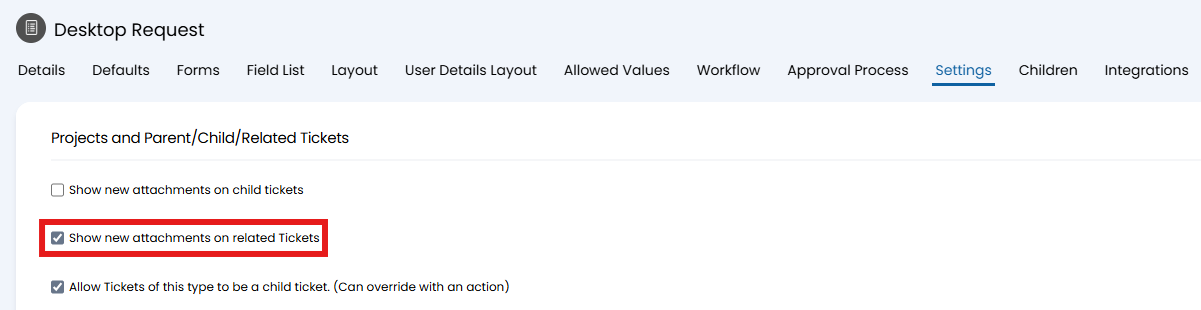
Fig 9. Showing attachments on related tickets
Category Values
Category values can be copied to related tickets. In Configuration > Tickets > Ticket Types, edit a category field in the "Field List" tab and enable "Copy values to related Tickets".
Note: This only applies when creating the new related ticket directly from that ticket.
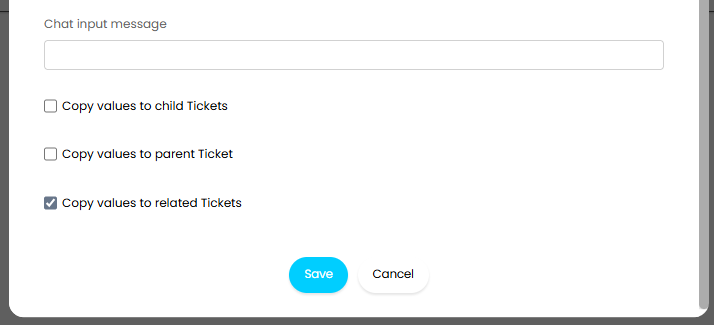
Fig 10. Copy category values
Custom Fields
Custom field values can be copied between related tickets upon initial logging (i.e. logged using the action system use). In Configuration > Custom Objects > Custom Fields, enable "Copy values to related Tickets" on the custom fields you want to transfer values for.
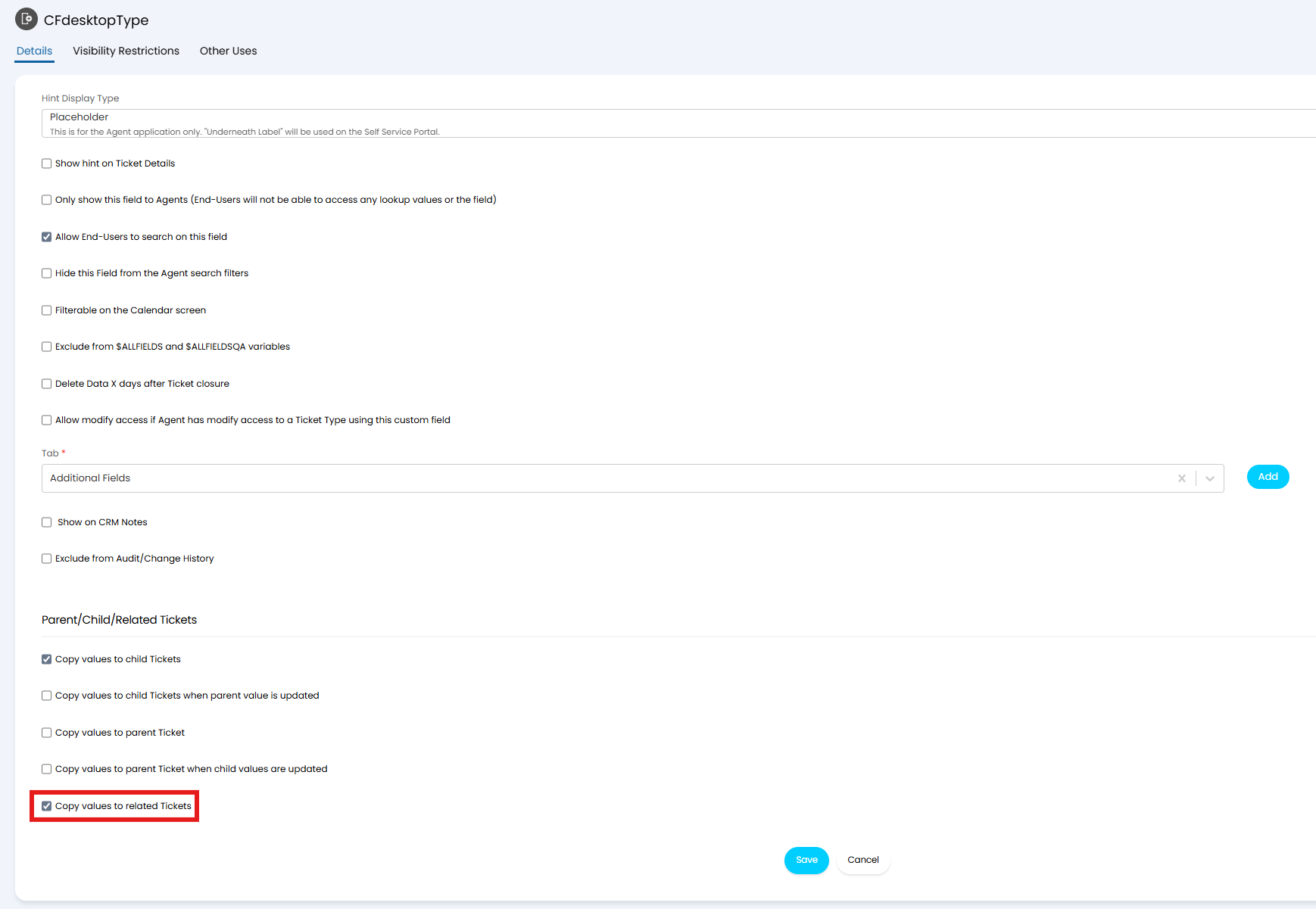
Fig 11. Copy custom field values
System Fields
Values can also be transferred between select system fields, such as "Supplier" or "Followers". In Configuration > Tickets > Ticket Types > "Field List" tab, enable "Copy values to related Tickets".
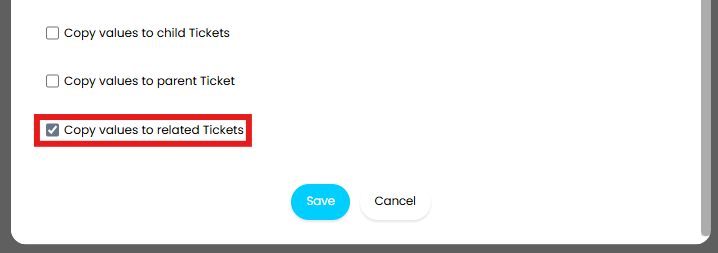
Fig 12. Copy system field values