SLA Escalation Rules and Automations
In this guide we will cover:
- What are SLA Escalation Rules?
- Configuring SLA Warning Thresholds (1st and 2nd Warnings)
- Setting Up SLA Breach Notifications
- Escalating via Workflows
- AI-Driven Automation Based on Cluster Breach Percentage
Related Guides:
What are SLA Escalation Rules?
HaloITSM allows you to configure automated escalation rules that trigger when an SLA response or resolution target is approaching or has been breached. This is achieved using a combination of native SLA Warning thresholds, Notifications, and workflow automations, with no custom development required.
The escalation lifecycle follows a three-stage model:
- 1st Warning - fires at a configured percentage of elapsed SLA time (e.g. 50%). This is your early alert, giving agents time to act before a breach.
- 2nd Warning - fires at a configurable higher percentage (e.g. 75%). This is the final escalation prompt before breach, typically used to notify a team leader or supervisor.
- Breach - fires when 100% of the SLA target time has elapsed. Automated actions such as reassignment or priority changes are typically triggered at this stage.
Configuring SLA Warning Thresholds
Before setting up notifications or automated actions, you must first define when your 1st and 2nd SLA warnings should fire.
Setting Up the 1st Warning
- Navigate to Configuration > Service Level Agreements > General Settings and scroll down to the notification section.
- Select whether you want to configure the first warning to be based on hours before the target or a percentage threshold of the SLA Targets tab.
- Set the Warning Percentage/hours. For example, entering 50 means the warning fires when 50% of the SLA target time has elapsed.
Setting Up the 2nd Warning
- Within the same interface, configure the Second SLA notification warning.
- Select whether you want to configure the second warning to be based on hours before the target or a percentage threshold of the SLA Targets tab.
- Set a higher Warning Percentage/number of hours. For example, entering 75 means the second warning fires when three-quarters of the SLA time has elapsed.
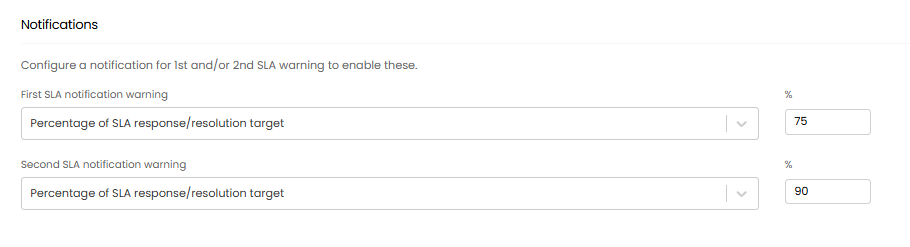
Fig 1. SLA warning threshold configuration.
Setting Up SLA Breach Notifications
With warning thresholds defined, you can create Notifications that fire based on these thresholds. A separate notification should be created for each threshold and for when the SLA is breached, so that recipients and urgency can be tailored accordingly.
- Head to Configuration > Notifications and click New in the top right-hand corner.
- Give your notification a Description, then set the notification type, delivery method and triggering event to one of the following native SLA events:
- 1st SLA Warning
- 2nd SLA Warning
- SLA Breached
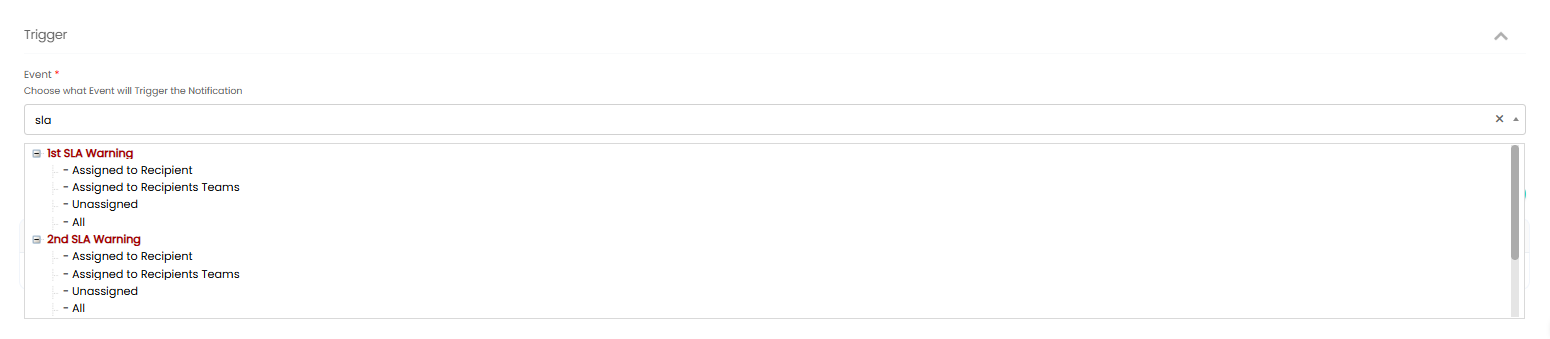
Fig 2. Notification type and triggering event setup.
- When setting the triggering event, you can also set the trigger to notify people other than the subscribed Agent:
- Assigned to Recipient: Notifies the Agent the Ticket is assigned to.
- Assigned to Recipients Teams: Notifies subscribed members of the Team the Ticket is assigned to.
- Unassigned: Notifies subscribed Agents when a Ticket is in Unassigned.
- All: Notifies subscribed Agents, regardless of who the Ticket is assigned to.
- Click Save once the notification is configured.
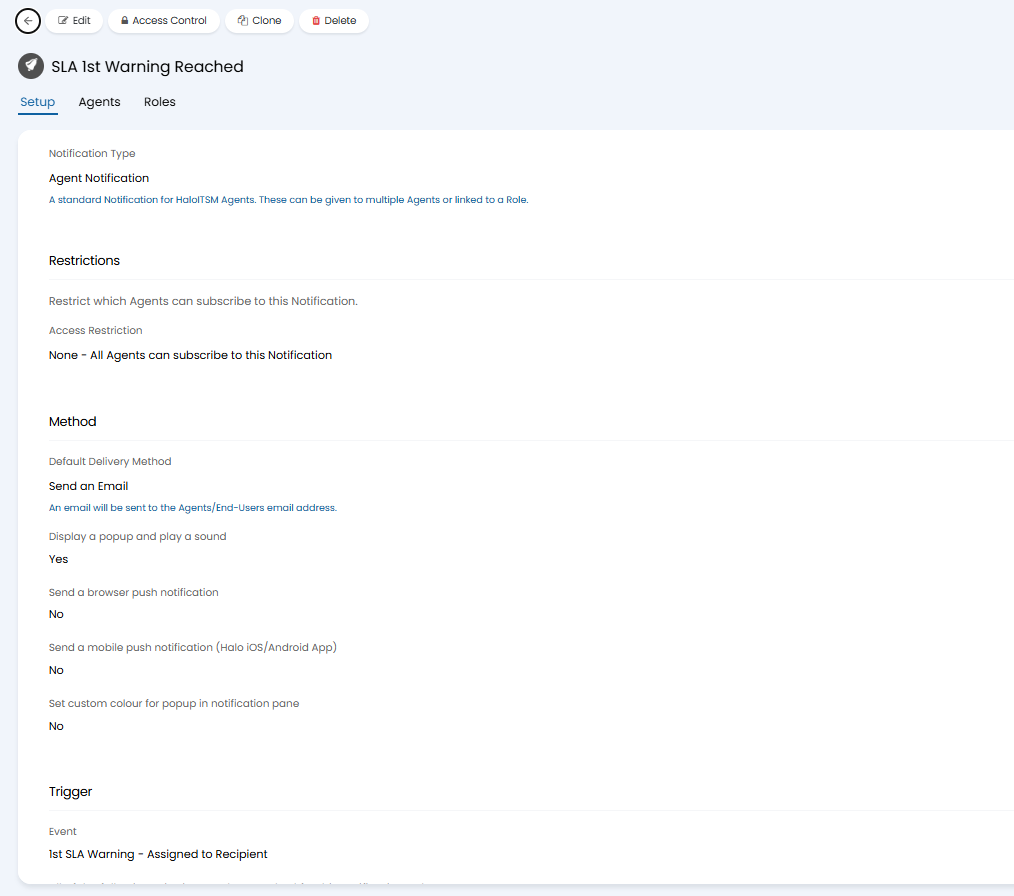
Fig 3. Notification recipient configuration.
Escalating via Workflows
HaloITSM provides a fully configurable, no-code workflow engine that enables automated SLA escalation, including reassignment to a supervisor or designated team, without any custom development. The recommended approach uses a combination of Quick Actions and logically conditioned workflow step automations.
Step 1: Create a Quick Action for Escalation or Reassignment
A Quick Action defines the escalation behaviour. For example, reassigning the ticket to a supervisor or a dedicated breach-response team. This is then referenced by the workflow automation.
- Head to Configuration > Tickets > Actions and click New.
- Configure the Action as a quick action under the details tab, allowing this action to be set up as an automation.

Fig 4. Quick action configuration toggle.
- For the context of this guide, set the action to reassign the ticket to the agent or team designated to handle escalated tickets.

Fig 5. Reassignment setting within the quick action.
- Give the Quick Action an outcome description as well as a button name and click Save.
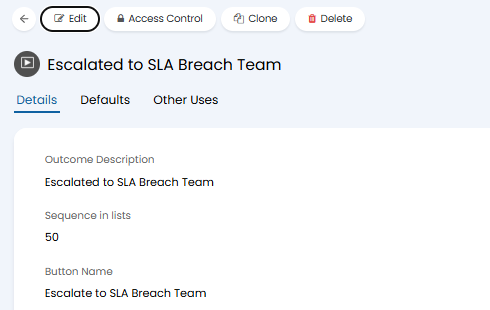
Fig 6. Outcome description and button name fields.
Step 2: Add the Automation to a Workflow Step
The Quick Action is added as an automation to the workflow. This ensures that the escalation logic remains active throughout the ticket lifecycle.
- Head to Configuration > Tickets > Workflows and open the relevant workflow, or create a new one.
- Open a workflow step and click Add to add the quick action created in Step 1.
- Add the Quick Action you created. Then configure the Conditions to evaluate prior to queuing the automation, allowing the automation to be triggered when the ticket has met any conditions at this step. The automation will take place when the condition is met on the ticket.
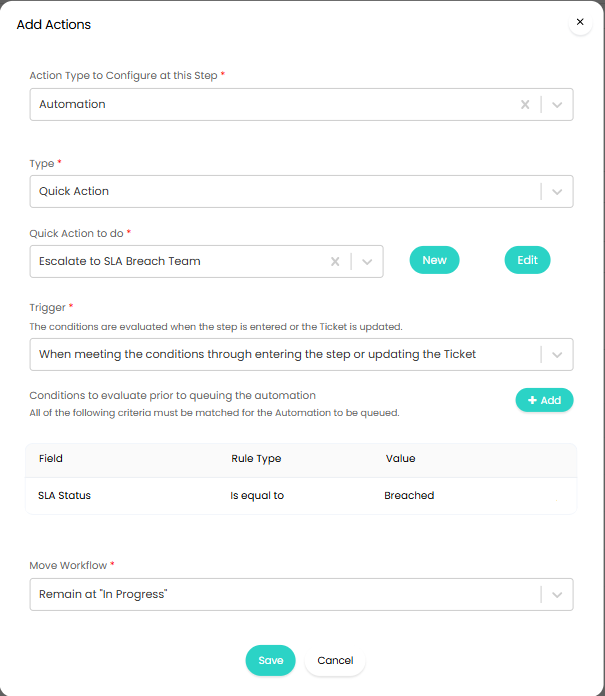
Fig 7. Adding the quick action and conditions to a workflow step.
Step 4: Assign the Workflow to the Ticket Type
- Head to Configuration > Tickets > Ticket Types and open the relevant ticket type.
- Set the Workflow field to your configured workflow and save. Any ticket of that type will then follow the workflow and its SLA escalation automations from the moment it is logged.
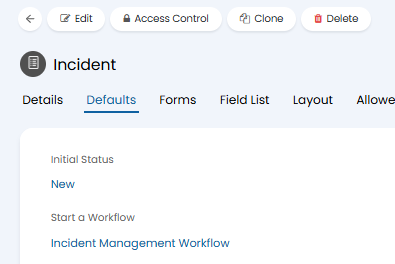
Fig 8. Setting the workflow on a ticket type.
AI-Driven Automation: Cluster Breach Percentage
In addition to per-ticket SLA rules, HaloITSM includes an AI-powered escalation capability that monitors patterns across clusters of similar tickets. Rather than reacting to individual breaches, the system can automatically trigger actions when a defined percentage of tickets within a cluster have already breached their SLA targets.
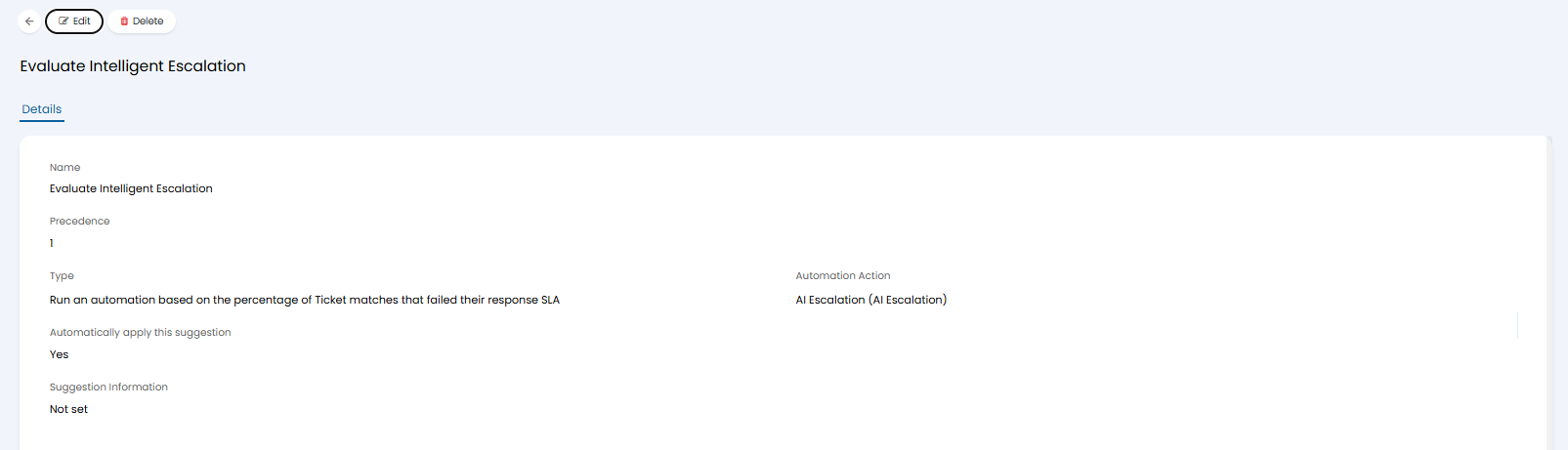
Fig 9. AI cluster breach percentage configuration.
HaloITSM's AI engine groups tickets into clusters based on shared attributes such as category, team, client, or ticket type. When the proportion of breaching or at-risk tickets within a cluster exceeds a configured threshold, the system treats this as a systemic risk and triggers an automated response. To configure this:
- Navigate to Configuration > AI > AI Suggestions.
- Define the cluster grouping criteria — this determines which tickets are analysed together (e.g. all tickets of the same type, or all tickets from a specific site).
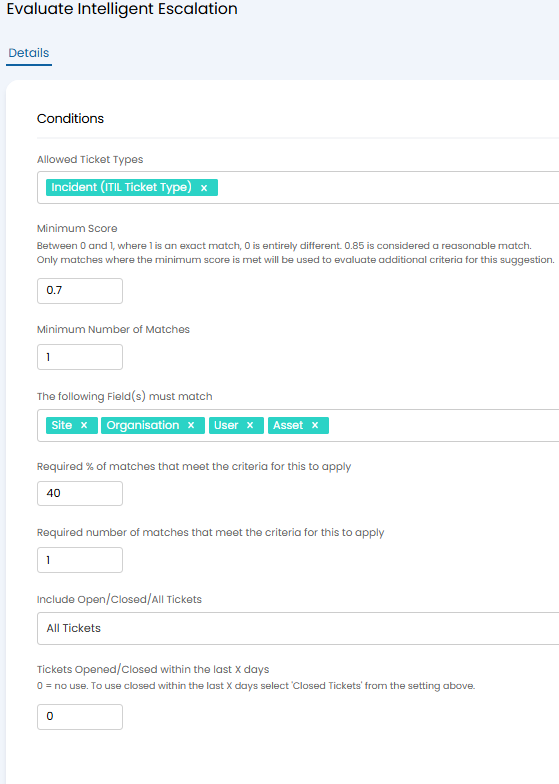
Fig 10. Cluster grouping criteria in AI Suggestions.
- Set the percentage threshold. For example, if 40% of tickets in a cluster have had their SLA target breached, the automation will fire.
- Define the automation to fire when the threshold is reached, such as sending a notification to the service manager, reassigning the affected tickets, changing priority across the cluster, or creating a linked Major Incident.
The platform's AI ticket clustering capability allows service teams to identify and respond to service degradation trends proactively, before individual breaches accumulate into a wider service failure.