Ticket View Overrides
- ticket view overrides
- column profile overrides
- filter profile overrides
- ticket view hierarchy
In this guide we will cover:
- – Hierarchy Used for View Overrides
- – Override Locations
Hierarchy Used for View Overrides
Overrides can be set in various locations to determine the view, filter profile or column profile that is used for a ticket list.
The view that will be used when viewing ticket lists will be determined by the following hierarchy:
- Team (Only for column profiles in the "by Team" view)
- Ticket Area
- Agent
- Global
Override Locations
Team (Only for column profiles in the "by Team" view)
In Configuration > Teams & Agents > Teams, go to the "Details" tab. A column profile can be chosen to use when viewing a certain team in the "Tickets by Team" view of a ticket area.
If viewing tickets for another team in that area, the team column profile override will not apply, instead following the rest of the hierarchy. It will not override the column profile for any agents in this team elsewhere in the system.
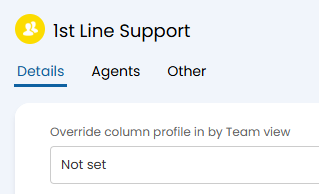
Fig 1. Tickets by Team column profile override.
Ticket Area
In Configuration > Tickets > Areas, go to the "Details" tab. Here, you can set a default view, filter profile, or column profile.
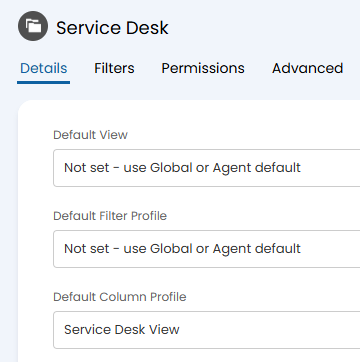
Fig 2. Ticket area view overrides.
Agent
In Configuration > Teams & Agents > Agents, go to the "Preferences" tab. Here, you can set a default view, filter profile, or column profile.
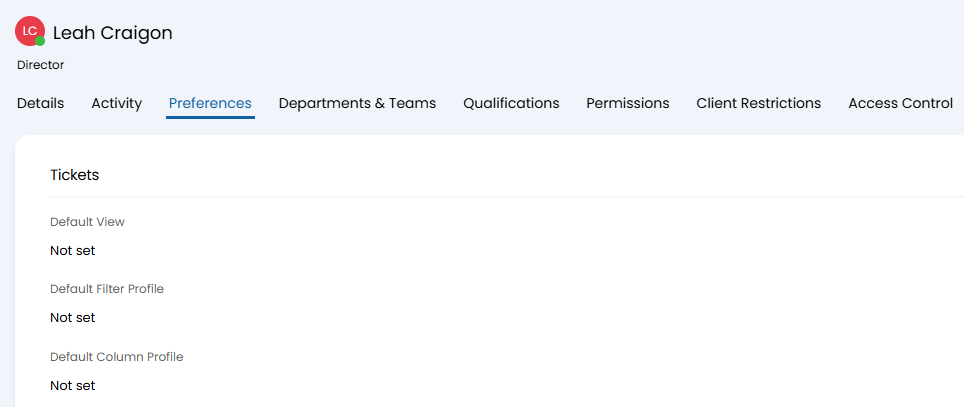
Fig 3. Agent view overrides.
Global
In Configuration > Tickets > Views, you can set a global default view, filter profile, or column profile. This value will be overridden by the previous settings, and used last in the hierarchy.
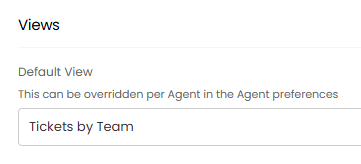
Fig 4. Global view default.
Defaults can also be set here for the filter profiles used for widgets.
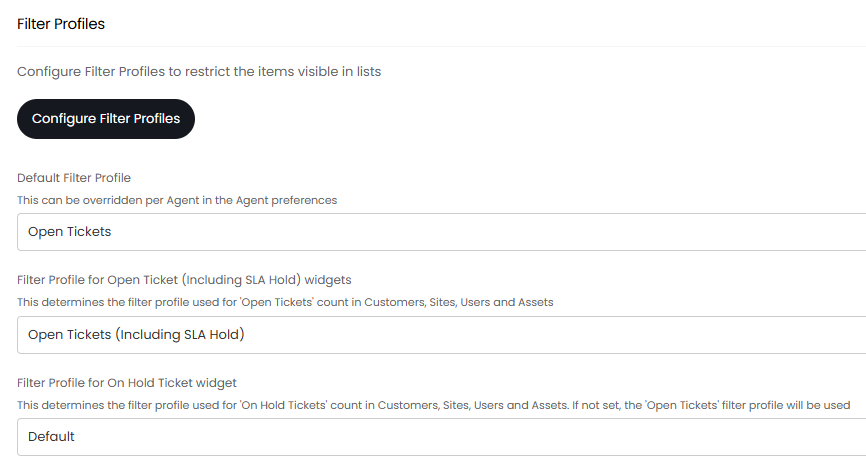
Fig 5. Global filter profile defaults.
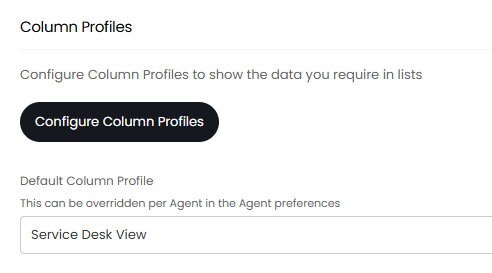
Fig 6. Global column profile default.