Restoring a DB Backup
- on-premise
- database backup
- On-prem restore
- Instance refresh On-premise
This guide will show you how to restore a database backup.
This guide only applies if you are running Halo yourself, On-Prem.
Warning
You must ensure that the database backup is using a database version the same as or older than your Halo app version. You can find the database version using the below command:
SELECT rdbversionweb FROM CONTROL;
Prerequisites
- You must have access to your database server through a DB client, typically SSMS.
- You must have a .bak backup file of your database.
Restoring the DB
- Login to SSMS with an account which has permissions to perform a restore
- Stop the Halo app in IIS
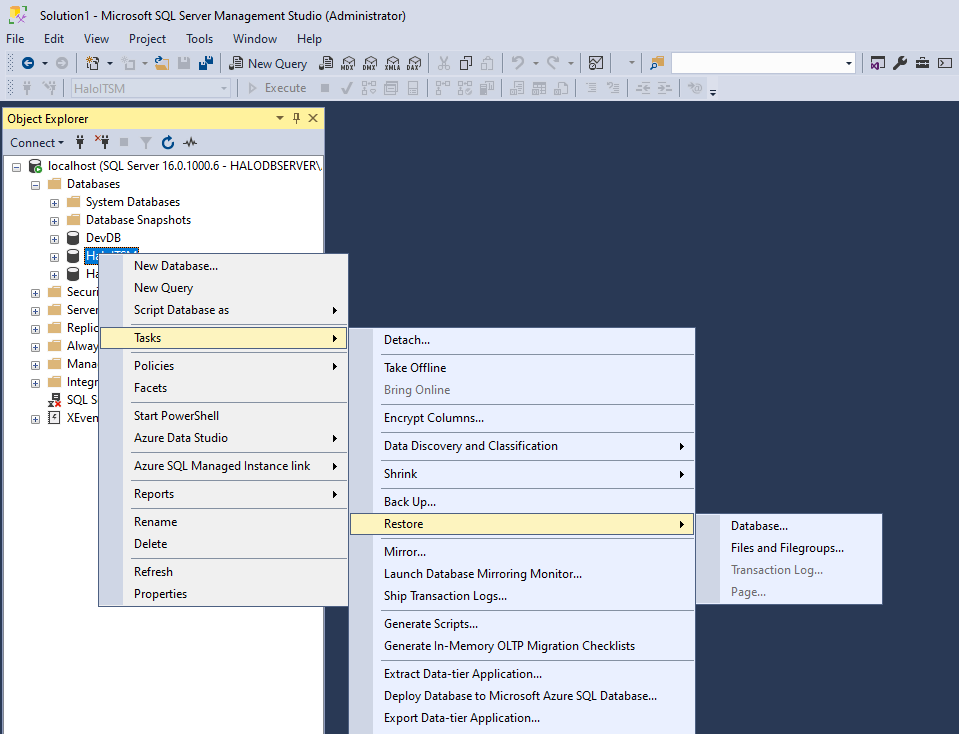
- Go to restore on the database:
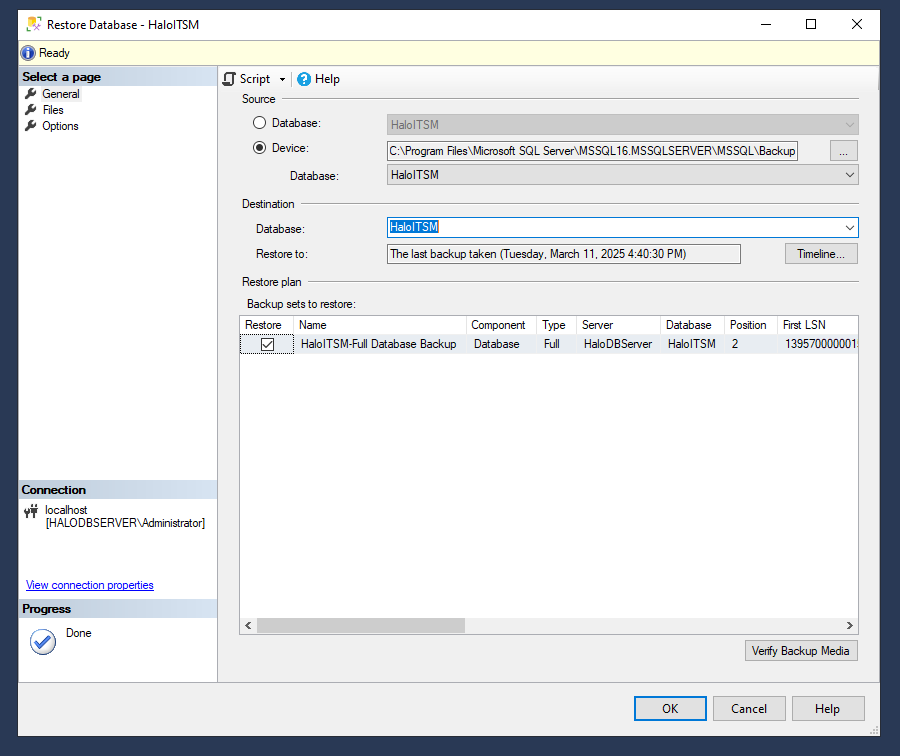
- Find the backup file and then select the database to restore to and click ok:
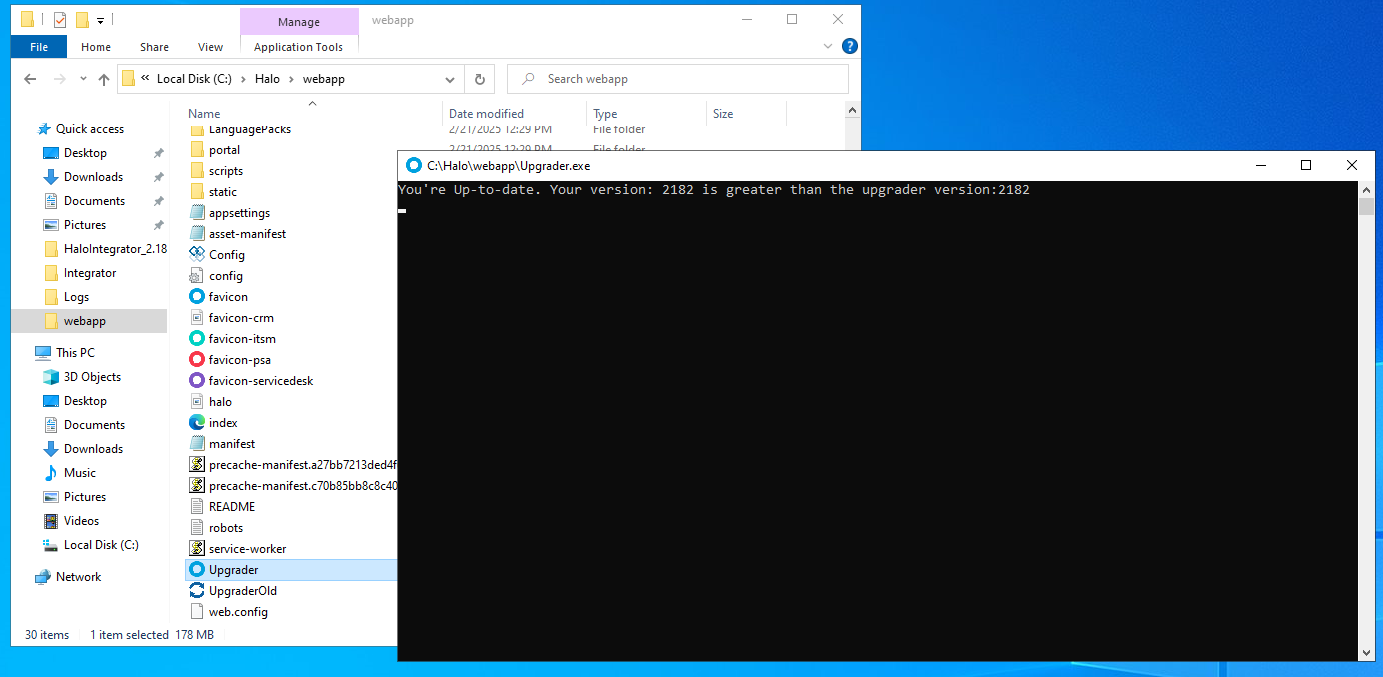
- If there is a version change between the database and the webapp, you will need to upgrade the database. This can be done by going to your Halo root directory and running the 'Upgrader.exe':
- You can now restart the site in IIS and it should load correctly
- Make sure the URL in NHD_IDENTITY_Application matches up with the url of the application
Troubleshooting
- Please ensure that your DB user still has permission to your restored database