Licences/Subscriptions Overview
- Licence
- License
- software
- Distribution
- subscription
- asset licence
- user licence
- user software
In this guide we will cover:
- The Difference Between Licences and Subscriptions
- Enabling Software Licencing
- Adding Licences/Subscriptions to Customers
- Linking Licences/Subscriptions to Assets
- Assigning Licences/Subscriptions to Users
- Automatic Billing Quantities
- Viewing Change History
- Adding Attachments
- Handling Licence & Subscription End Dates
- Viewing Distributor Invoices for a Subscription
Related Guides:
- Custom SQL Query for Licence/Subscription Count on Recurring Invoice Lines
- Managing a Recurring Invoice's Lines Quantity, Price and Cost for Subscriptions
Halo can be used to track and manage the software licences and subscriptions belonging to your clients/users/assets.
The Difference Between Licences and Subscriptions
A software licence is one that clients have directly through Microsoft and will show in your Microsoft tenant, whereas subscriptions are licences that an distributor has purchased and resold and will instead be in the subscription tenant. You may think of subscriptions like an indirect licence.
Halo integrates with the following distributors to import subscriptions, in addition to Microsoft integrations. For more information on configuring these, please refer to the integration's guide.
- ALSO Integration
- Giacom Integration
- Cloud Blue (Ingram Micro/Exertis) Integration
- TD Synnex/StreamOne Stellr Integration
- StreamOne Ion Integration
- Pax8 Integration
- Sherweb Integration
- Westcoast Cloud Integration

Fig 1. Distribution integrations
Enabling Software Licencing
Before you can begin tracking licences and subscriptions, ensure you have enabled the "Software Licencing" module. Head to Configuration > Assets and enable the module using the "+" icon, this should be enabled by default.
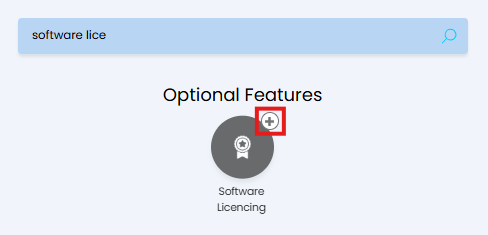
Fig 2. Enable Software Licensing module
Give Agents Permission to Manage Software Licences and Subscriptions
In order for agents to view/manage the software licences/subscriptions a client/user/asset has they will need the following permission:
- Software Licencing Access Level
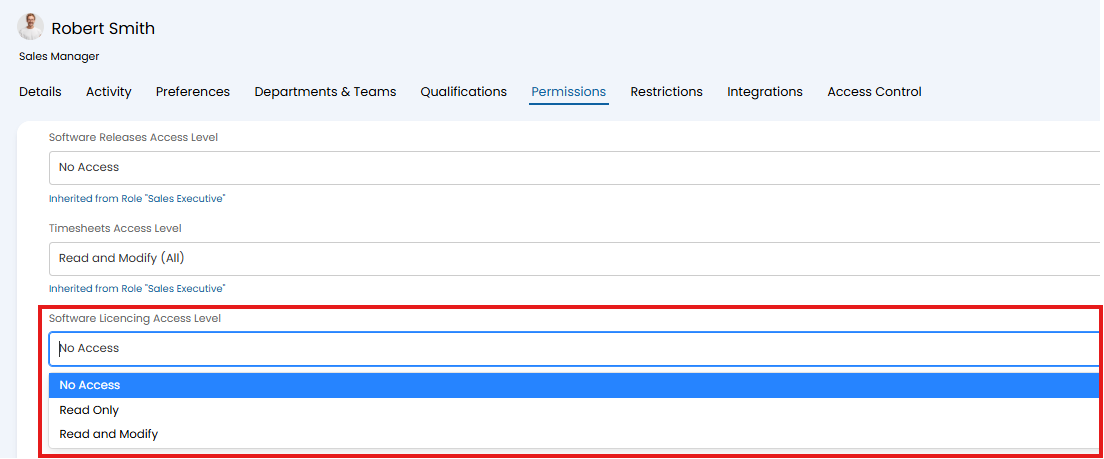
Fig 3. Software Licencing permission
Adding Licences/Subscriptions to Customers
Licences and subscriptions can be added manually or via an import through a distribution integration.
To add a licence or subscription manually, navigate to the customer you wish to assign it to. Two tabs are available here: one for licences, and one for subscriptions. On either of the tabs, click the "New" button and fill in the details. Set the name, amount, start and end date, price, etc. The count can be set as a decimal value, this is useful for allowing you to record useage based Licences and Subscriptions.
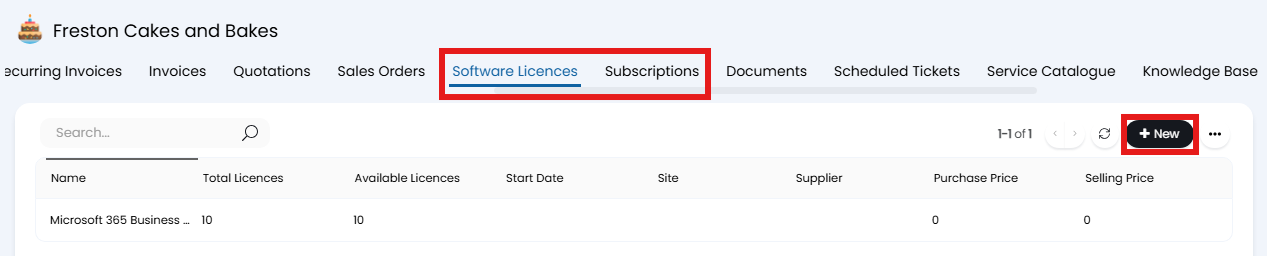
Fig 4. Software Licences and Subscriptions tabs
If a licence is imported from CSP it will only be able to be removed in the UI by an administrator. You will also not be able to edit information about the licence, except for additional data such as the install date.
Linking Licences/Subscriptions to Assets
Within an asset, licences and subscriptions can be linked in the "Software" tab, licences/subscriptions can then be billed for based on the how many of them are currently assigned to an asset (deeming them as 'in use'). A table is shown here to add the licence or subscription to keep track of how many are currently in use.
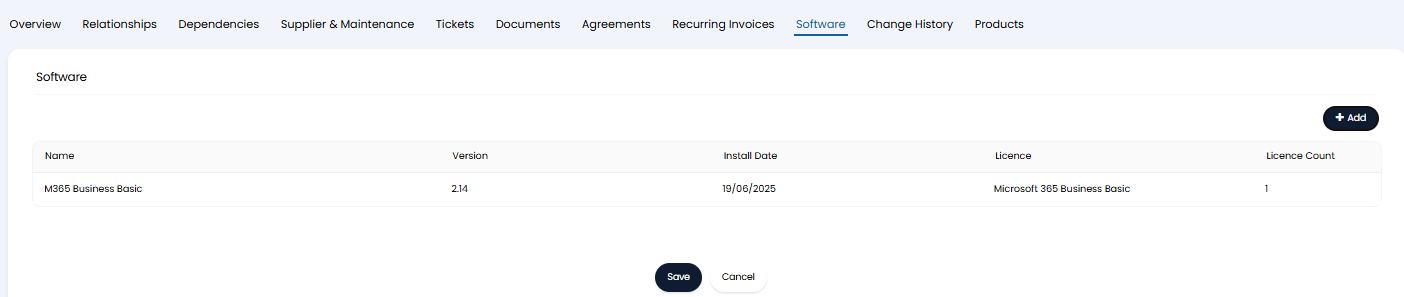
Fig 5. Software licences linked to an asset
Edit the asset, and click the "Add" button to link a license/subscription. A pop-up like below will show to choose from the available ones assigned to the customer the asset is against.
Note: If none are assigned to the customer, this field will not show dropdown options.
As seen by the brackets, it will specify if it is a software licence or a subscription.
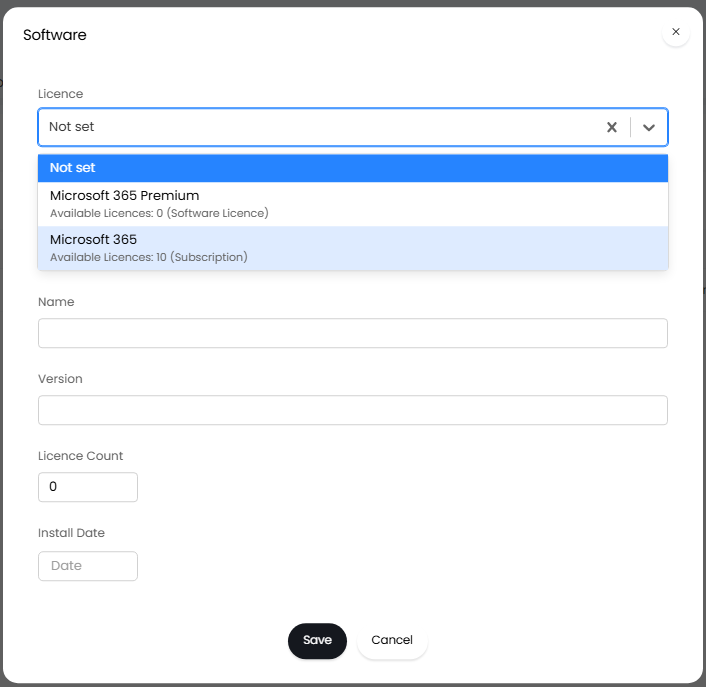
Fig 6. Popup to link licences/subscriptions to the asset
Once assigned to an asset, the available licence count against a customer will decrease, to reflect the number of licences that are actually available for use. For example, the customer has 10 licences for M365 Premium but one has been assigned to an asset, so 9 are left available.
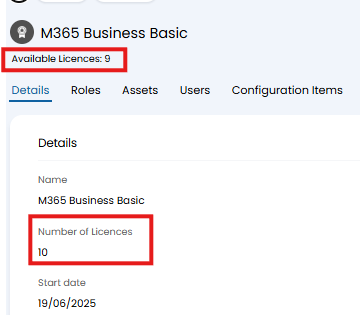
Fig 7. Available licence count
Note: This is only the case for 'licences', software subscriptions will only show total subscriptions, not the available count against the subscription profile.
The asset will then show in the "Assets" tab against the licence/subscription.
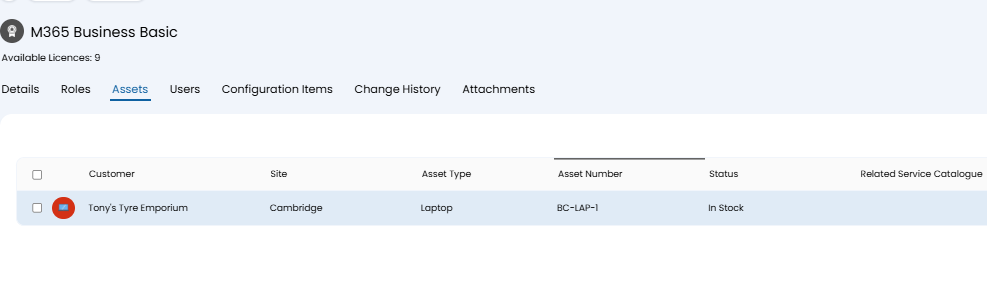
Fig 8. Asset against the licence
Assigning Licences/Subscriptions to Users
Licences/Subscriptions can be assigned to users to track who is using each licence. This also helps track with licences are actually in use, useful if you only charge for licences/subscriptions actually being used.
To assign a licence/subscription to a user, head to the "Users" tab within the licence/subscription, hit "New" and select which user to assign this licence/subscription to.
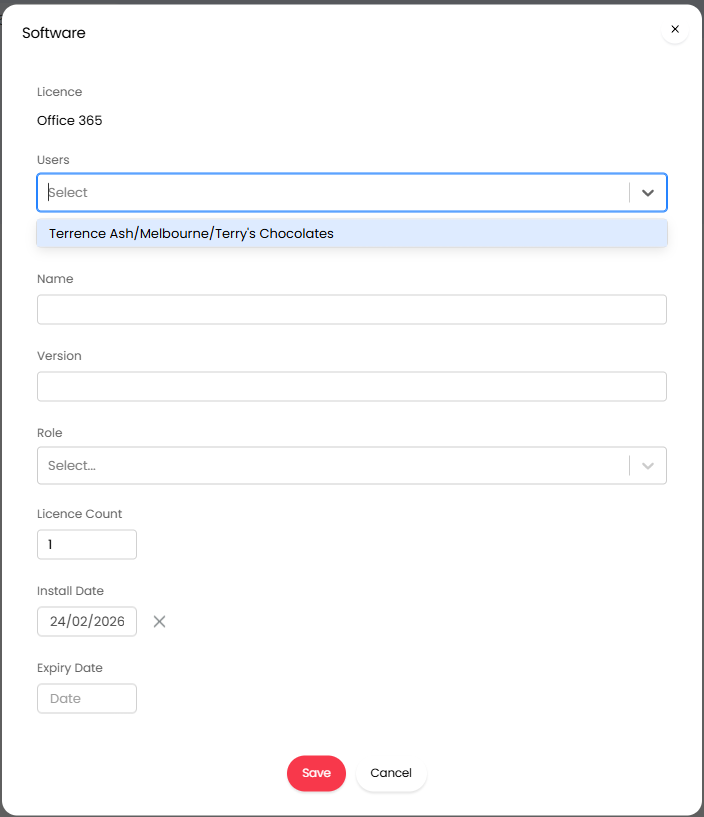
Fig 9. Assign software licence to user
Note: If the licence is assigned to a particular site, you will only be able to assign licences to users at this site.
The "Users" field is multi-select so you can select every user who should be assigned one (or more) of these licences.
Use the "Licence Count" field to choose how many licences to assign each user chosen here.
The install and expiry date can be used for reference to show when the licence/subscription is active for this user. Keep in mind the expiry date will not impact calculated quantities (on recurring invoices), even if the expiry date has passed this licence will be classed as 'in use' therefore included in quantity calculations.
Automatic Billing Quantities
Licences/subscriptions can be billed for, and you can choose to set the quantity of the line on a recurring invoice automatically from the licence/subscription count.
In Configuration > Billing > Recurring Invoices, you can enable the below checkbox.

Fig 10. Enabling quantity calculation
When enabled, you can edit a line on a recurring invoice and choose to calculate the quantity based on licence or subscription count.
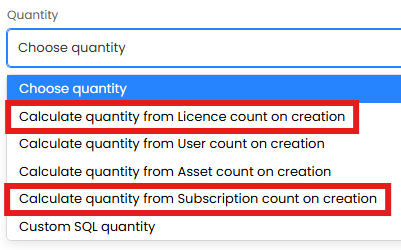
Fig 11. Calculate line quantity options
In this example, if we select "Calculate quantity from Licence count on creation" a table will appear underneath to set the quantities.

Fig 12. Licence Quantities table
Click "Add" on the right to add a quantity. In the popup, you can set a licence to link the quantity to. You can additionally set free or minimum quantities here.
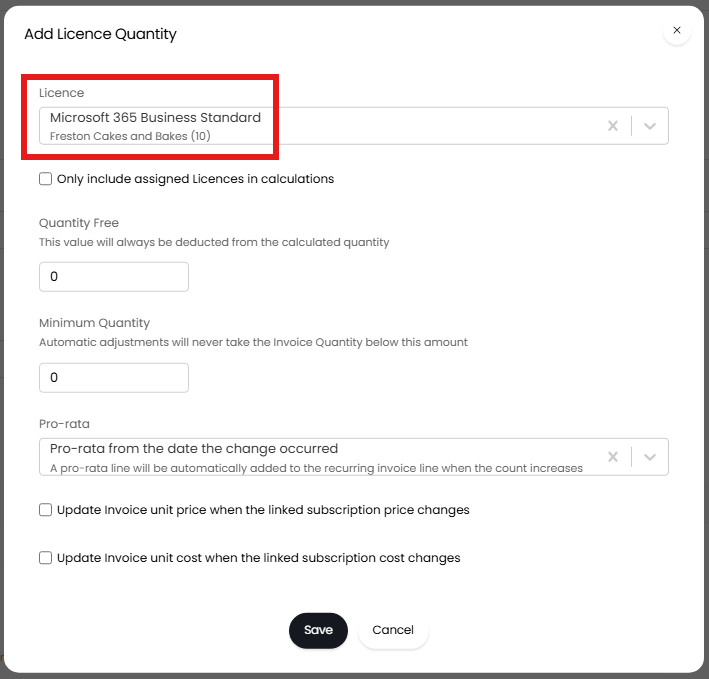
Fig 11. Setting a licence to base the quantity off
If you would like to only bill for used licences ensure you check 'Only include assigned Licences in calculations' when configuring the quantity. This will ensure only licences assigned to assets are included in the quantity.
Save the popup, save the line, and then save the recurring invoice.
Note: The quantity will show as "0" and/or not update until the recurring invoice is fully saved.
After saving, the quantity will calculate on the line.

Fig 12. Quantity automatically set on the recurring invoice
The count on the recurring invoice will also update once the count is changed on the licence/subscription the line is calculating from. If the licence count against the customer is increased to 11, the line will automatically update.

Fig 13. Quantity updating when licence count is changed
Viewing Change History
Within the licence/subscription, you can view its change history. This is helpful to see which agents/integrations changed what and when, such as when an agent increases the licence count. This can be particularly useful with the above billing method, as if a customer questions the price increase, you can show them exactly when the change was made.
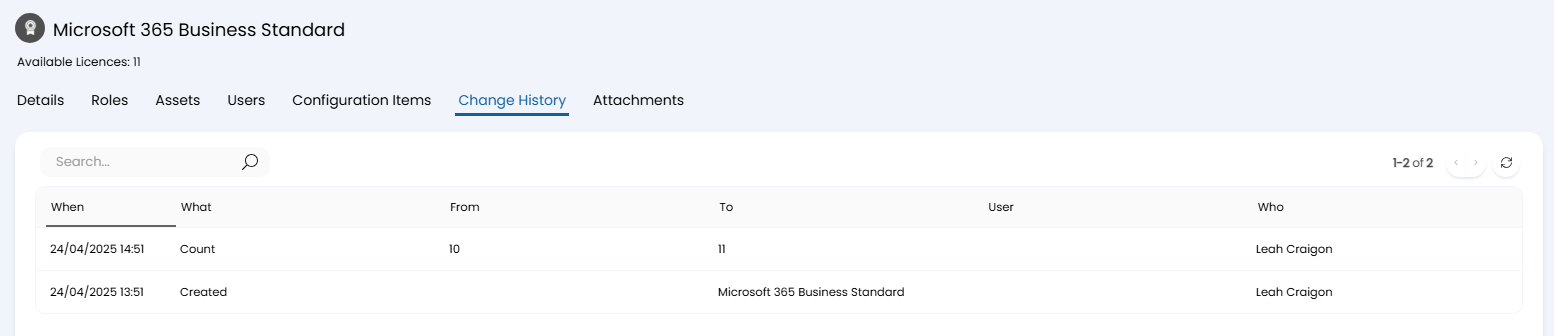
Fig 14. Change History tab
Adding Attachments
Attachments can be added to licences and subscriptions in the corresponding tab. As with other attachment areas in Halo, you can either drag-and-drop files here or click to upload.
You may wish to store a PDF of terms and conditions for example, or the contract with your distributor.

Fig 15. Attachments tab
Handling Licence & Subscription End Dates
A large part of providing Licences and Subscriptions to your Customers is also handling the expiries. As mentioned earlier in this guide, you are able to set an End Date against Licences and Subscriptions when adding them to a Customer.
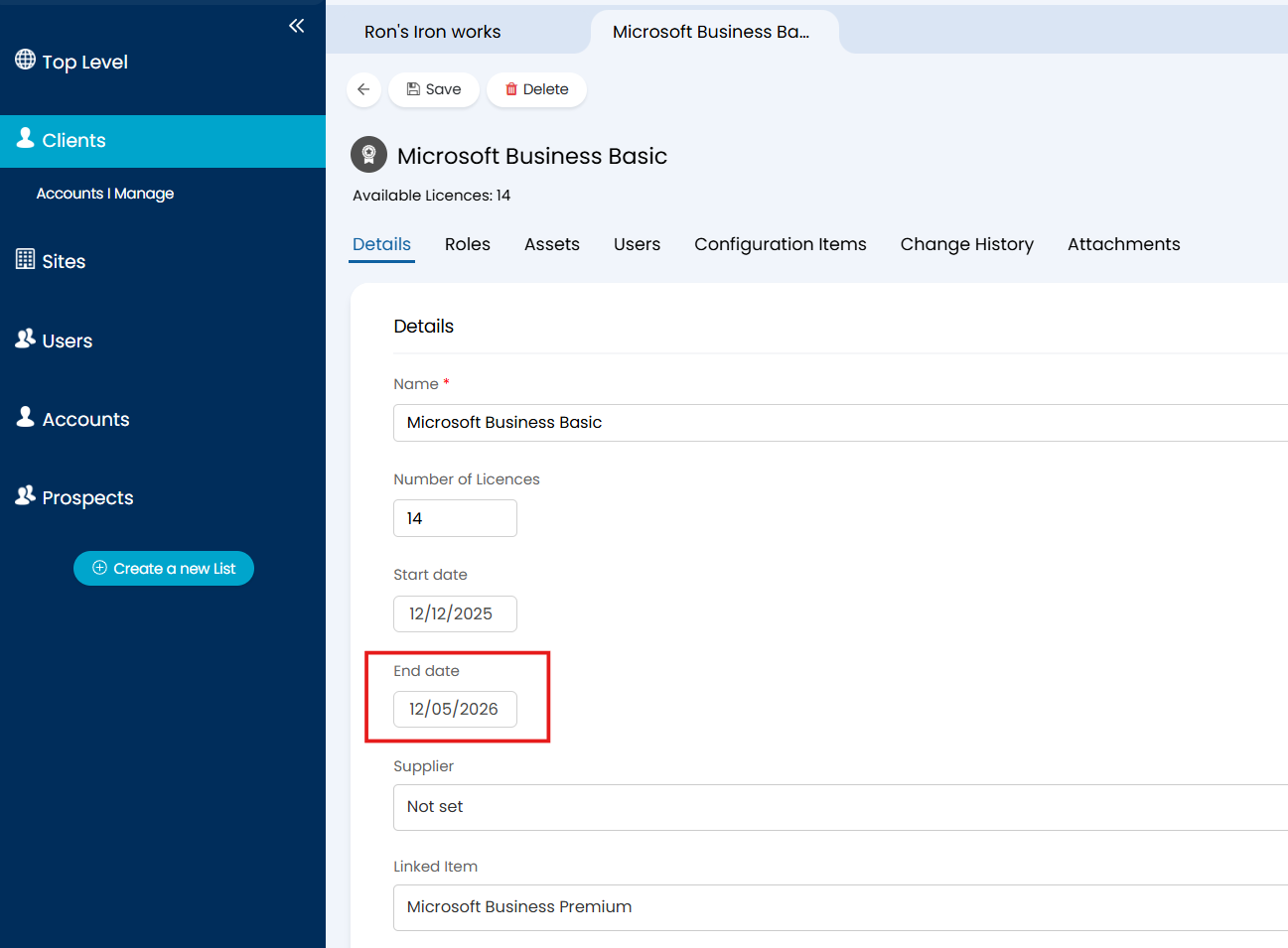
Fig 16. Setting the End Date when adding Software Licences to a Customer
This field should be used for setting the Expiry of the Licences or Subscriptions, as this field can then be used as a trigger for Automated Tickets, allowing you to have a new Ticket generate whenever an End Date field is breached for a Licence or Subscription.
Automated Tickets are essentially Ticket Templates that can be automatically triggered instead of having to be manually applied. For more information on how they work, please do visit this guide: Automated Tickets.
To create a new Automated Ticket, navigate to Configuration > Tickets > Automated Tickets and select the "+ New" button in the top right corner.
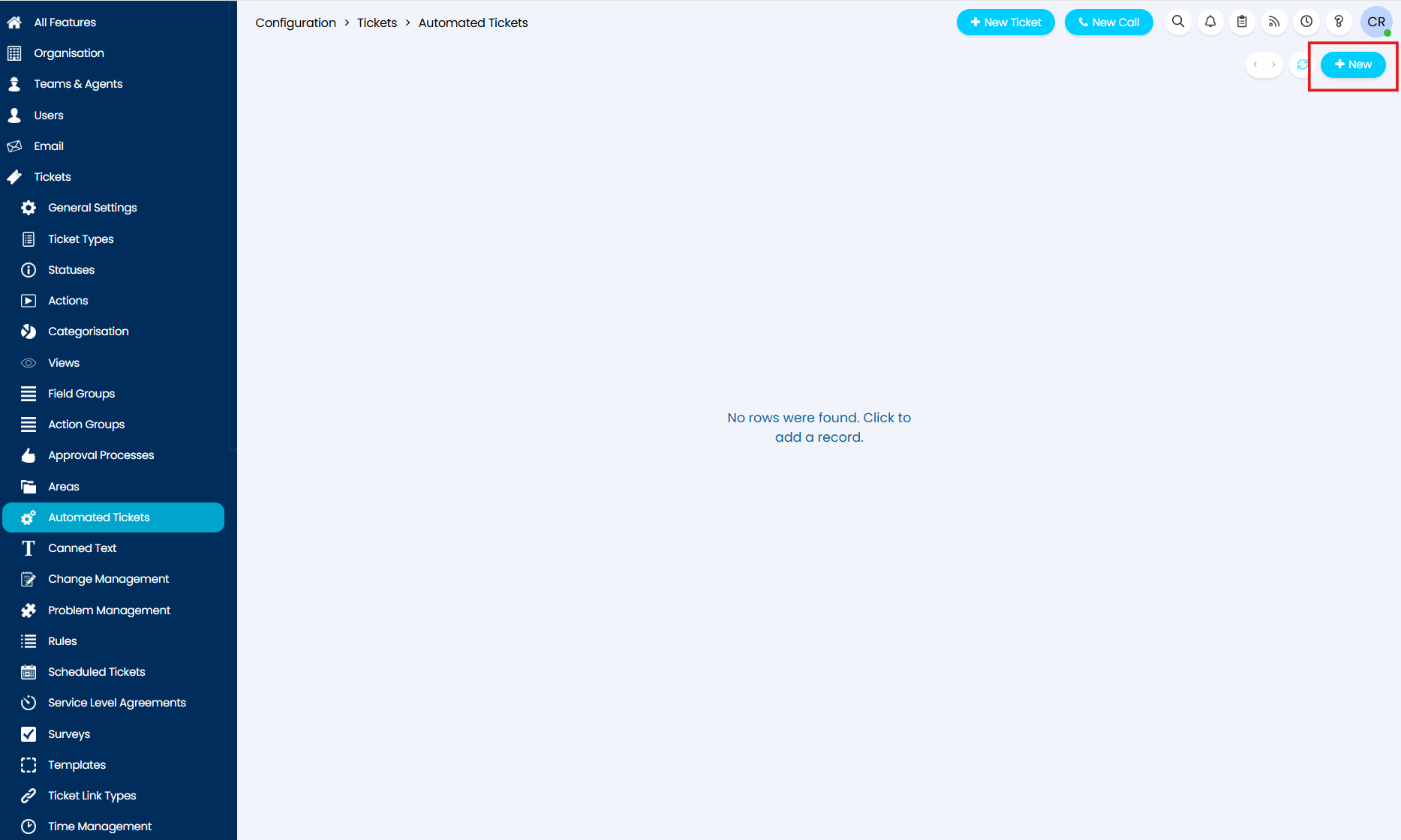
Fig 17. Creating a new Automated Ticket
Selecting this button will bring up the New Template screen on which you will have 4 configuration tabs - Details, Values, To-Do List, and Children. For details on the settings within each of these tabs, please do visit the main Automated Tickets guide.
In the Details tab of the new Automated Ticket, I have set the criteria to be that a new Ticket should generate if a Software Licence's End Date is approaching within 30 days, and that this Ticket should generate against the main contact of the Customer.
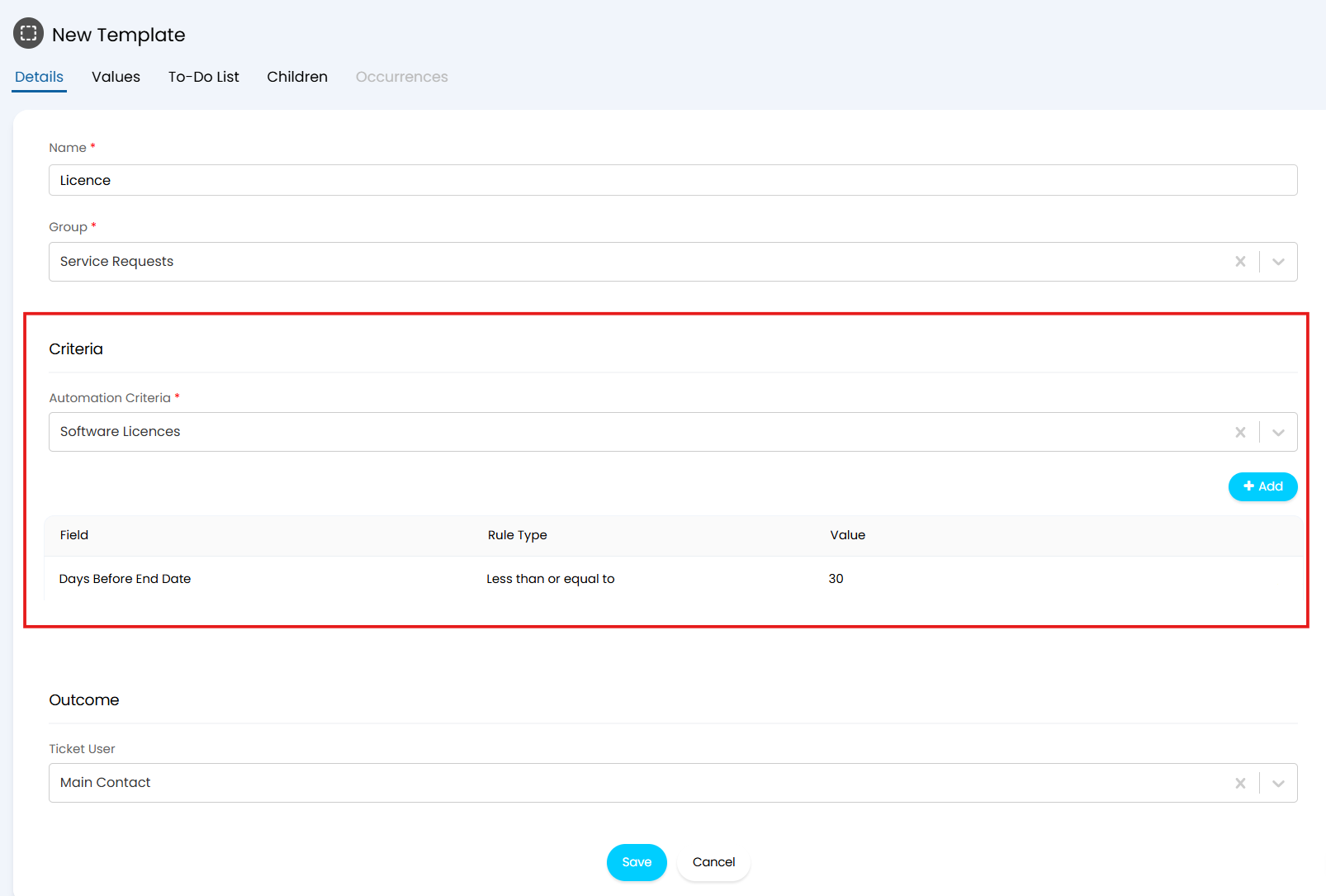
Fig 18. Configuring the trigger for an Automated Ticket
In the Values tab of the Automated Ticket, I have set the Ticket Type to be used for these expiries, and the default summary and details of any newly created Ticket - I have set these using available variables so that it will be immediately clear which Licence is expiring and for whom.
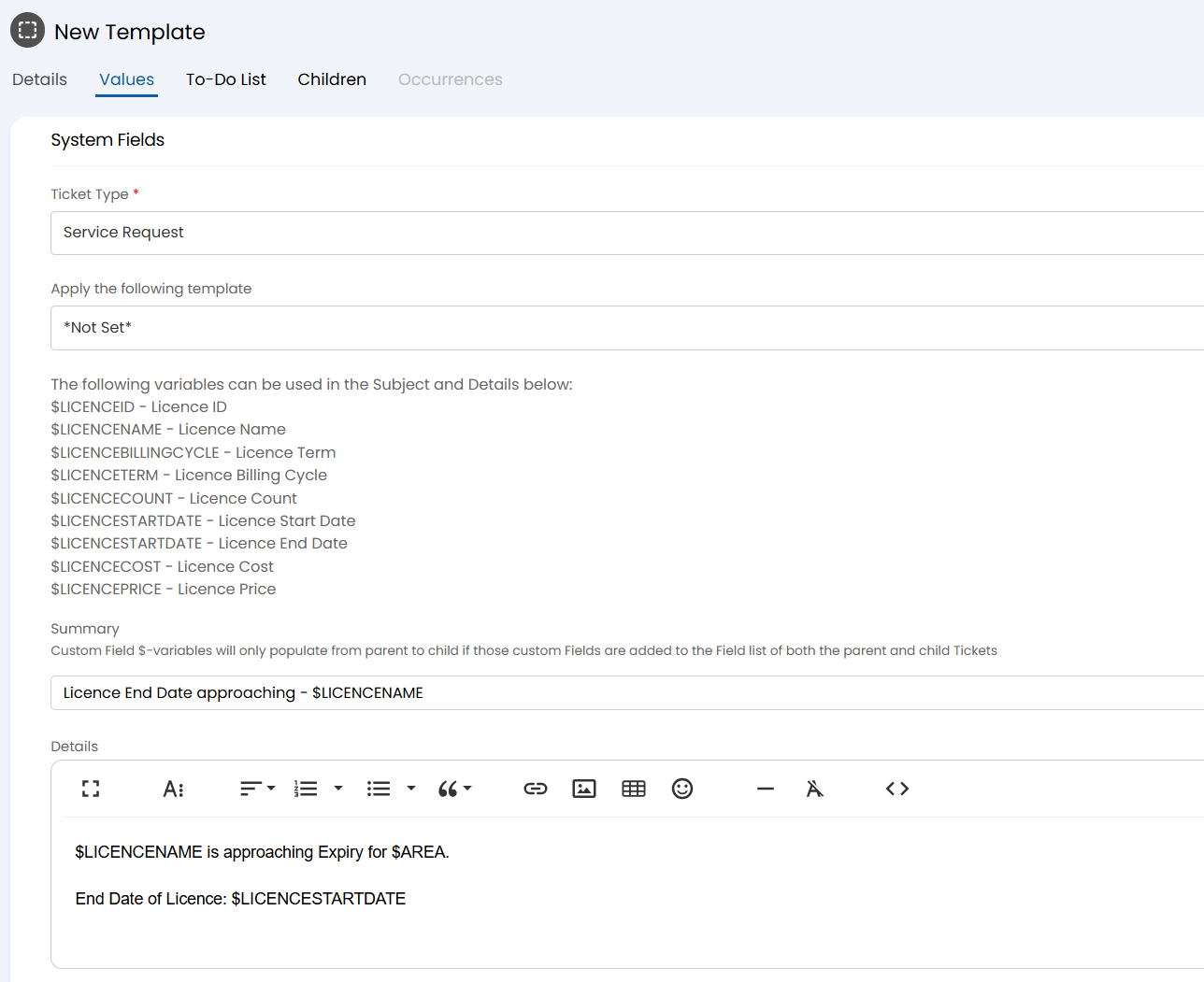
Fig 19. Configuring the Values tab of an Automated Ticket for Licence End Date
Once the new Automated Ticket is saved, it will generate a new Ticket every time the Criteria is met, you can see an example of one of these generations in Figure 20.
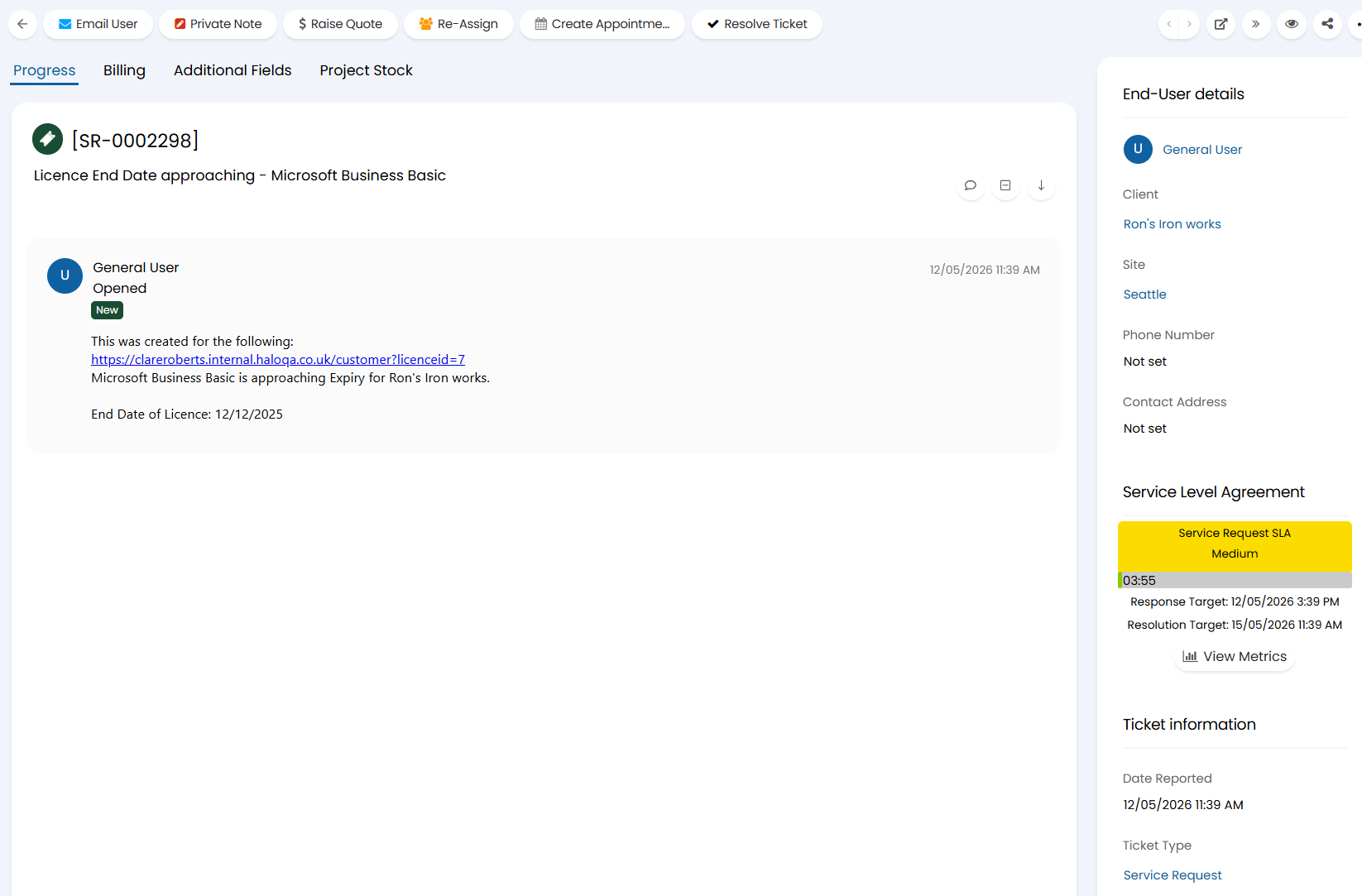
Fig 20. A new Licence Expiry Ticket generated from Automated Ticket configured in Figures
Note: You cannot trigger Automated Tickets using the 'Expiry Date' field available to set when assigning a Licence or Subscription to Assets/Users. If you are using this field instead of the 'End Date' field to store your expiries then it is advisable to track the dates using a report.
Viewing Distributor Invoices for a Subscription (v2.251+)
From v2.251+ a "Distributor Invoices" tab will be available against subscriptions that have been imported from an integration. This tab shows details of the invoice this subscription is billed against in the distributor's tool.

Fig 21. Distributor Invoice Tab
This is useful when billing for this subscription in Halo as you can use this tab to reference the invoice details for the subscription as they appear in the distributor tool and check which invoices have/have not yet been invoiced.
At present, only invoices from Pax8 can be imported, therefore this tab is only applicable to subscriptions imported from Pax8, however this functionality will be expanded to other distributor tools in future.
Note: The Pax8 module needs to be enabled for the tab to show.
For information on billing for subscriptions imported from Pax8 in Halo see our Pax8 integration guide.