Giacom Integration
In this guide we will cover:
- What is the Giacom Integration?
- Connecting Halo to Giacom
- Importing Customers
- Importing Subscriptions
- Have customers and/or subscriptions import/update automatically
- Customers Moving to Giacom from Inty (Excluding US Inty Customers)
Related Guides:
What is the Giacom Integration?
The Giacom integration allows you to import customers and subscriptions from Giacom into Halo. Both these entities can be imported automatically on a scheduled basis, allowing customer and subscription data in Halo to remain consistent with Giacom. As subscription data is being synced with Giacom subscription billing can be automated, with invoice line prices updating automatically based on the subscriptions this customer has.
Connecting Halo to Giacom
The Integration module in Halo must be enabled for the integration to be active, this can be enabled here Configuration > Integrations > *Search for Giacom* > *Click the plus sign to Enable Giacom*:
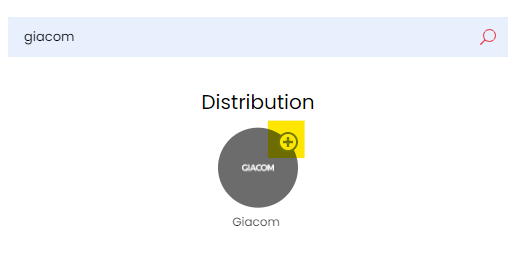
Fig 1. Enabling the Giacom module.
When enabled, click into the module to begin configuration. On the integration setup page you will an option to enter an API key, and if you are on versions 2.184+ an option to select the Giacom API Version.
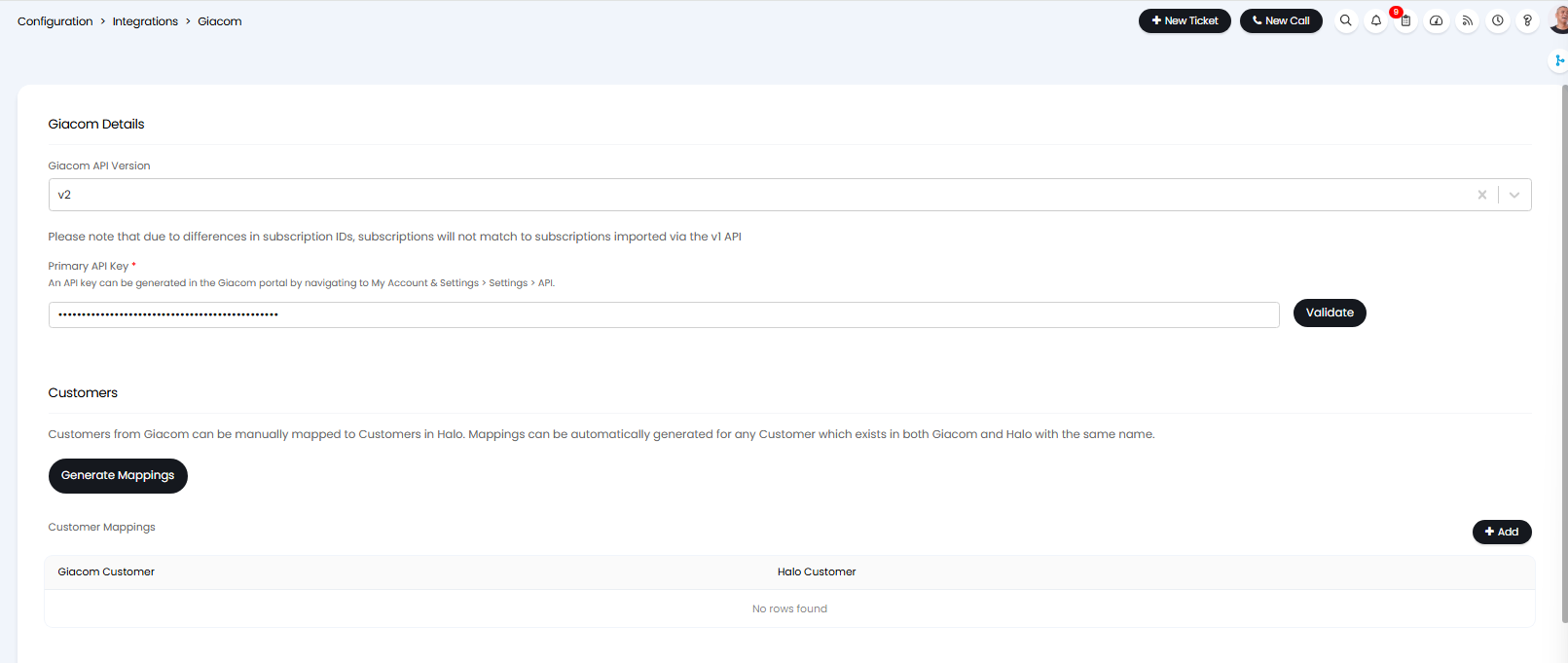
Fig 2. Giacom integration setup page
API v2
Note: Although available in this dropdown, v2 of the Giacom API is not currently available for production instances. Please use v1.

Fig 3. API version selection.
Obtain Giacom API key
Within Giacom, an API key can be generated in the Giacom portal by navigating to My Account & Settings > Settings > API.
Then enter the API Key into the Integration page on Halo.

Fig 4. Giacom API key.
Clicking the validate button is used to make sure the connection between Halo and Giacom is successful.
Importing Customers
Customers can be imported from Giacom into Halo, if you do not have customers created in your Halo instance already. If you would like all customers in Giacom to create a new customer in Halo hit the 'Import customers' button.
If you already have customers setup in your Halo instance an would like each customer to be synced to Giacom (data from Giacom customer updates the Halo customer), you will need to complete customer mappings. This will link each Halo customer to their respective customer in Giacom to ensure subscription data is imported to the correct customer in Halo.
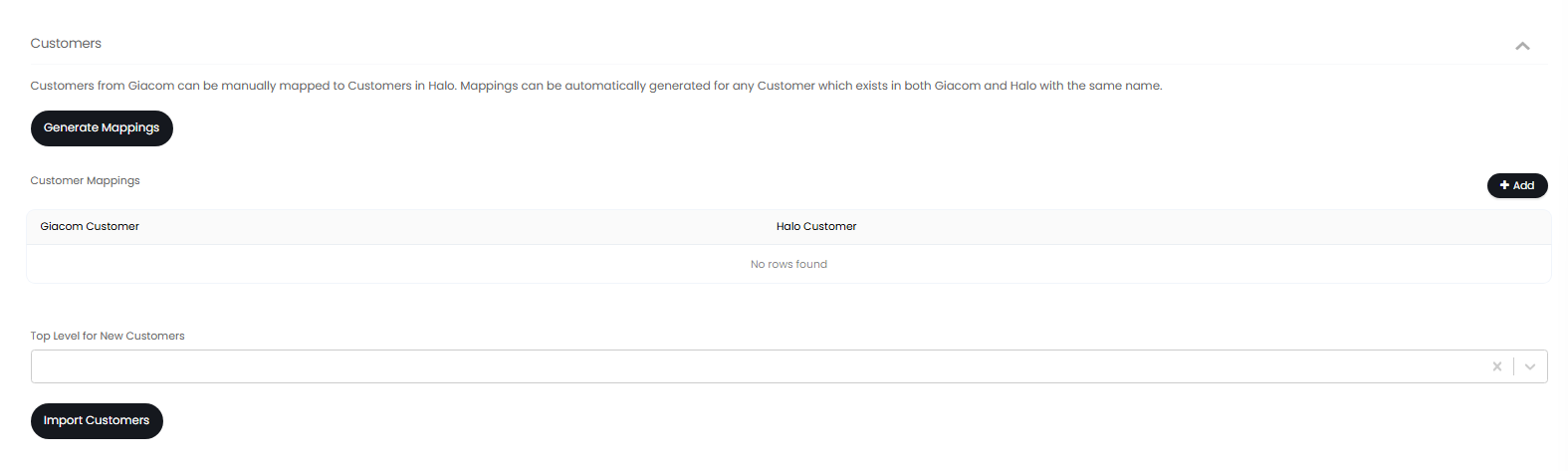
Fig 5. Customer mappings
If your customers in Halo and Giacom have the exact same name you can have mappings generated automatically using the 'generate mappings' button.
If your customers in Halo and Giacom do not have identical names you will need to set up mappings manually, add a mapping using the 'Add' button against the mappings table. Once you are happy with your mappings hit 'Import Customers' to import your customers from Giacom into Halo.
Top Level for New Customers - Here, you can choose a top level (if you are using customer top levels), if set any customers created by the integration will be created under the top level chosen here. Any customers updated (not created) by the integration will not be assigned to this top level.
Importing Subscriptions
Subscriptions can be imported from Giacom into Halo, for any customers which have been mapped to a Halo customer.
When importing subscriptions the following fields will be imported:
- Subscription quantity
- Subscription purchase price
- Start date
- End date (Only with SubscriptionsManagementReport method)
- Billing Cycle
- Term Duration (Only with SubscriptionsManagementReport method)
When using v1, you will need to select a method used to import subscriptions.
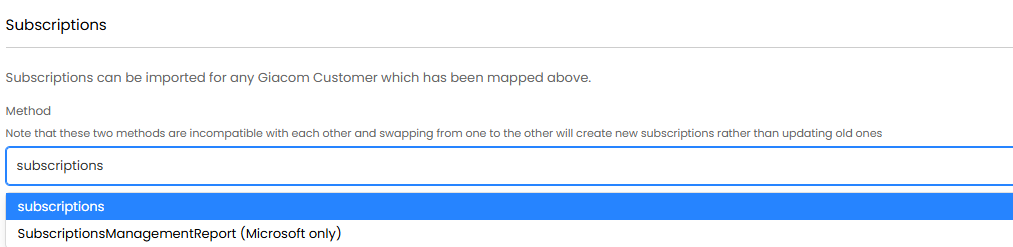
Fig 6. Subscription import method.
subscriptions - When this method is chosen all subscriptions in Giacom will be imported into Halo.
subscriptionsmanagementreport (Microsoft only) -When this method is chosen only Microsoft subscriptions will be imported into Halo.
Note: Subscription methods are not cross compatible so swapping from one to the other will create new subscriptions rather than updating old ones.
This method option is only available on older versions, on newer versions all subscriptions in Giacom will be imported into Halo.
To import subscriptions use the 'Import subscriptions' button.
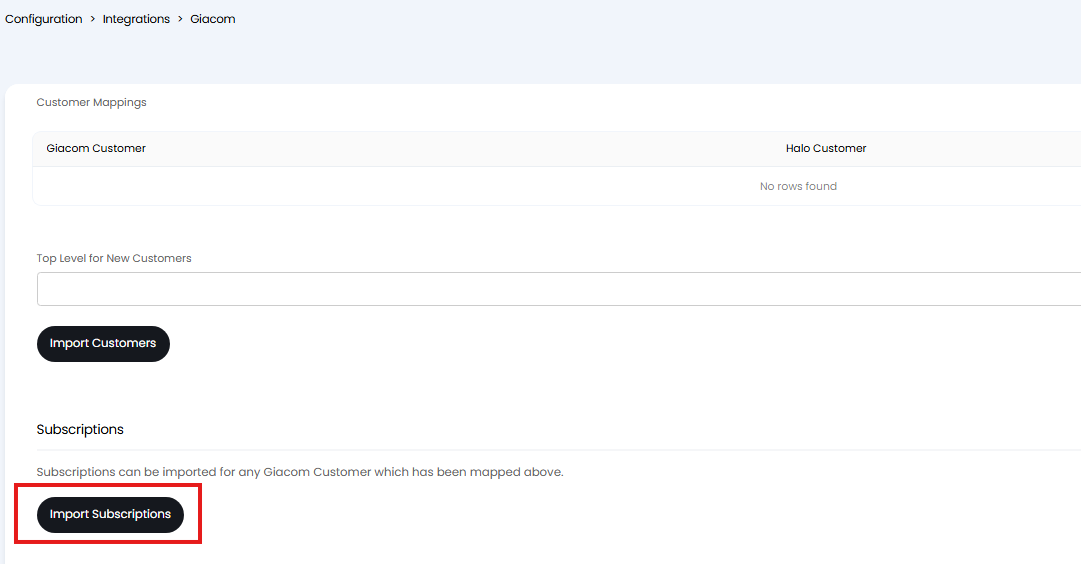
Fig 6. Import subscriptions
Have customers and/or subscriptions import/update automatically
To have customer and/or subscription data from Giacom be imported into Halo automatically on a scheduled basis, you will need to enable the Halo integrator for the integration.
The Halo integrator is enabled at the bottom of the integration page using the 'Enable the Halo Integrator for the Giacom integration' setting.
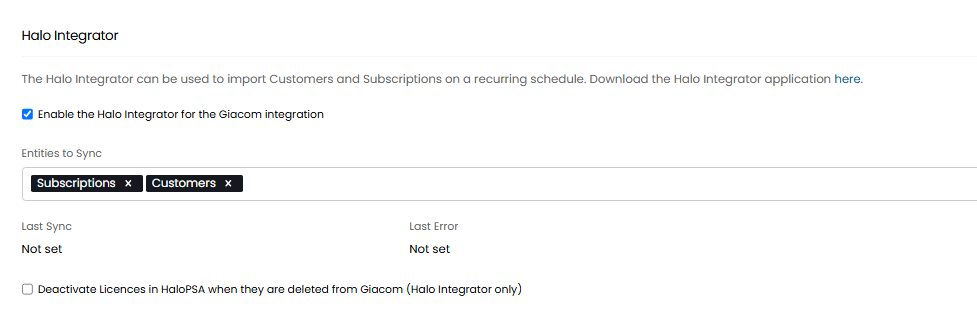
Fig 7. Entities to sync.
Once enabled, you will need to choose which entities to sync, you can choose customers and/or subscriptions.
Deactivate Licences in HaloPSA when they are deleted from Giacom (Halo Integrator only) - When this is enabled any licences that are deleted in Giacom will be made inactive in Halo when the Halo integrator next runs.
Customers Moving to Giacom from Inty (Excluding US Inty Customers)
Disclaimer:
Inty has been acquired by Giacom (Affects take place on/after the 15th of October), therefore if you have been using the Inty integration within HaloPSA you must recreate all mappings in Giacom. First you should clear out the Inty module and then disable the Inty Integration Module.
Then recreate your mappings and import your users and licenses by using the below "Giacom Setup", this will be very similar to the mappings you have set for Inty, it is worthwhile taking note of previous mappings.
To reconfigure your license subscriptions that are synced to recurring invoice lines in Halo (This will not apply if you calculate the recurring invoice line based on "user count on creation" in Halo), you will need to change the recurring invoice lines to be synced to your licenses/ subscriptions, that have now been imported and set to sync, via the Giacom integration, or if you have now synced the users from Giacom instead, the "user count on creation" quantity option on a recurring invoice line, will now be using the user sync from Giacom, which will not require any change to those specific recurring invoice lines (The quantity of users is officially based on the number of users under the specific customer which the recurring invoice relates to).
To change recurring invoice lines on all of your customers, which will now have their quantity automatically calculated based on the license quantity in Giacom. You can import licenses from Giacom, which will appear as a duplicate for each customer, the way you can make the distinguishment between the Inty licenses and Giacom licenses is by looking for the status set on the license. Inty will have a status against the license description, like so:

Fig 8. Status against licence description.
"Active" being the licenses current status. Giacom licenses will not have a status in their description, therefore when you are choosing the licenses to attach to a recurring invoice line, you can make the distinguishment through the license status.
If you are having any issues with this transition, please contact Halo Support: T +44(0)1449 833 111, Email: support@halopsa.com