TD Synnex/StreamOne Stellr Integration
- integration
- streamone
- td synnex
- streamone stellr
In this guide we will cover:
- What is the TD Synnex/StreamOne Stellr Integration?
- Connecting to StreamOne Stellr
- Customers
- Subscriptions
- Importing Quote Lines
Related Guides:
What is the TD Synnex/StreamOne Stellr Integration?
The StreamOne Stellr integration can be used to import your customers and subscriptions from StreamOne Stellr into Halo. You can also have customers licenses import on a recurring schedule via the Halo Integrator. Quote lines from StreamOne Stellr can be imported into quotes in Halo too.
Note: The name of the module for this integration in Halo will depend on the Halo version you are on. In some instances this will be called 'TD Synnex' in more recent versions it will be called 'StreamOne Stellr'. The functionality is the same, the only difference is the module name.
Connecting to StreamOne Stellr
To begin integrating with StreamOne Stellr, ensure you are enrolled on the TD Synnex ECExpress. Navigate to StreamOne Stellr from the tab at the top of page.
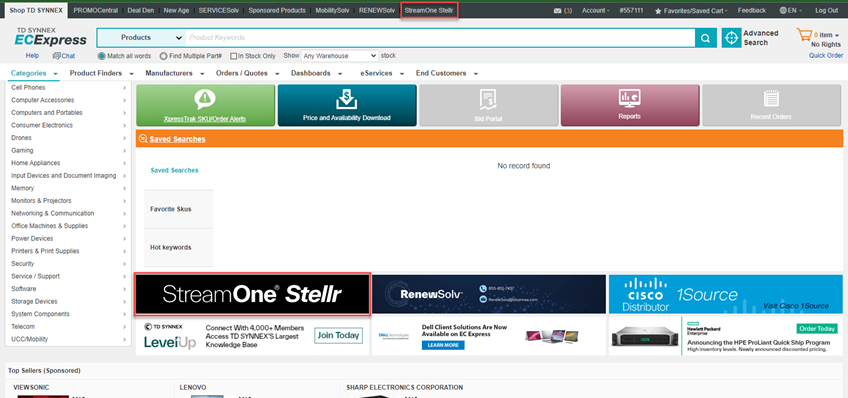
Fig 1. Navigating to StreamOne Stellr.
Here you will see the Marketplace Page. Use the "Integration" dropdown to access the "Developer APIs" page.
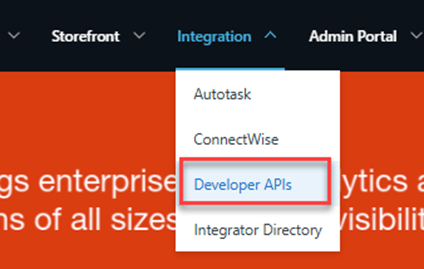
Fig 2. Selecting the Developer Resource page.
Click "Enrol to Developer Portal". Once clicked, this will then turn the button blue to say "Go to Developer Portal". Now, click this.
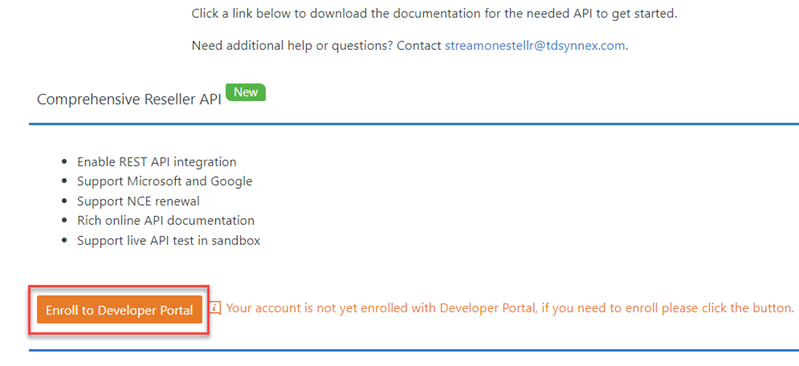
Fig 3. Enrolling on the Developer Portal.
Then click on your profile, this will take you to account settings.
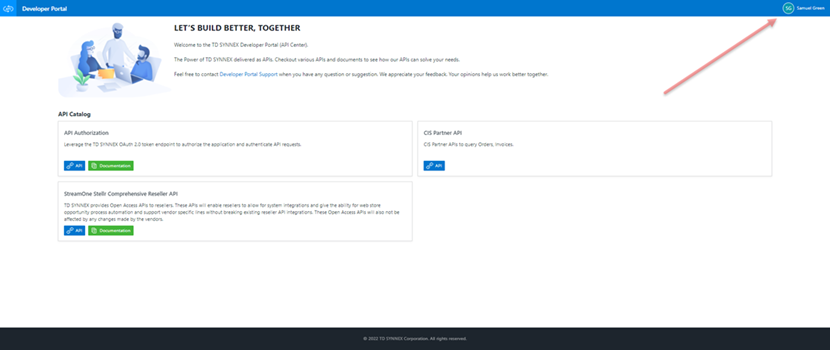
Fig 4. Selecting profile.
You can navigate to the "Applications" section and then add a new application.
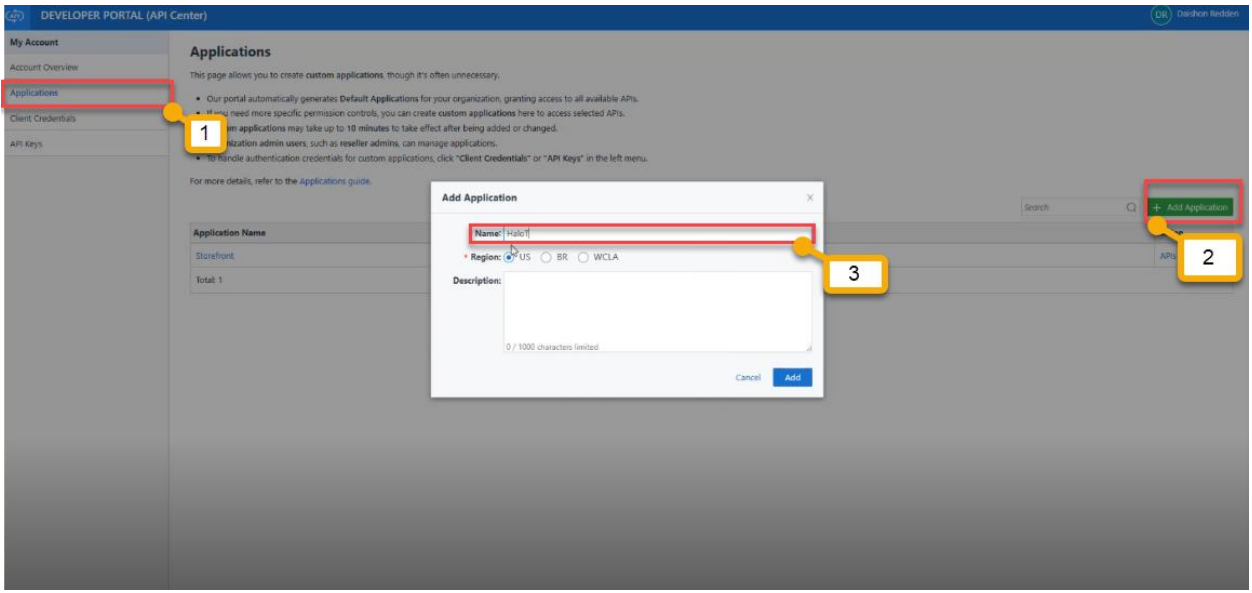
Fig 5. Adding an application.
Click on "APIs" against the application to set the specified permissions.
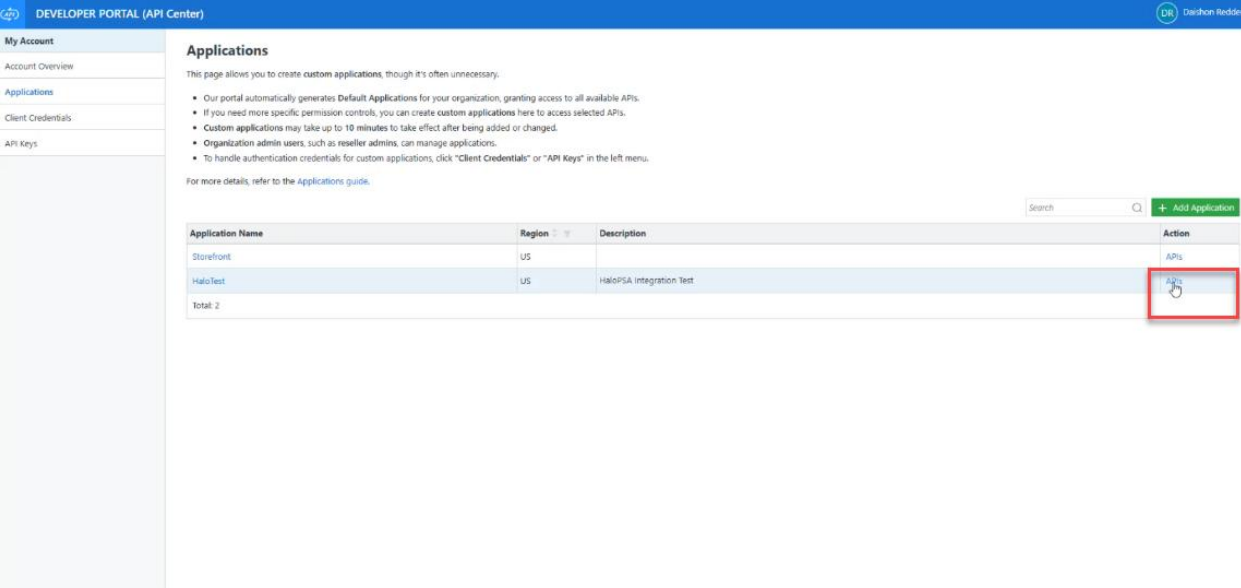
Fig 6. Adding API permissions.
Then add your desired permissions, mandatory permissions include:
- Subscriptions - Get Subscription Details
- Subscriptions - List Customers' Subscriptions
- End Customers - Get Customer Details
- End Customers - List Customers
In the below permissions I have also added "List Reseller's Subscriptions".
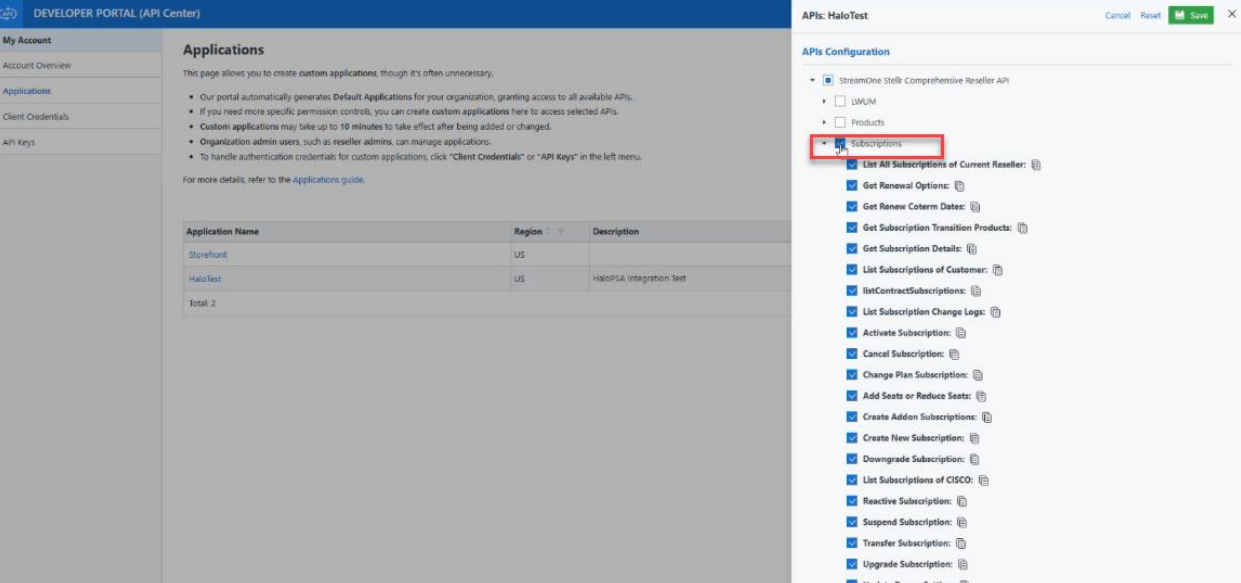
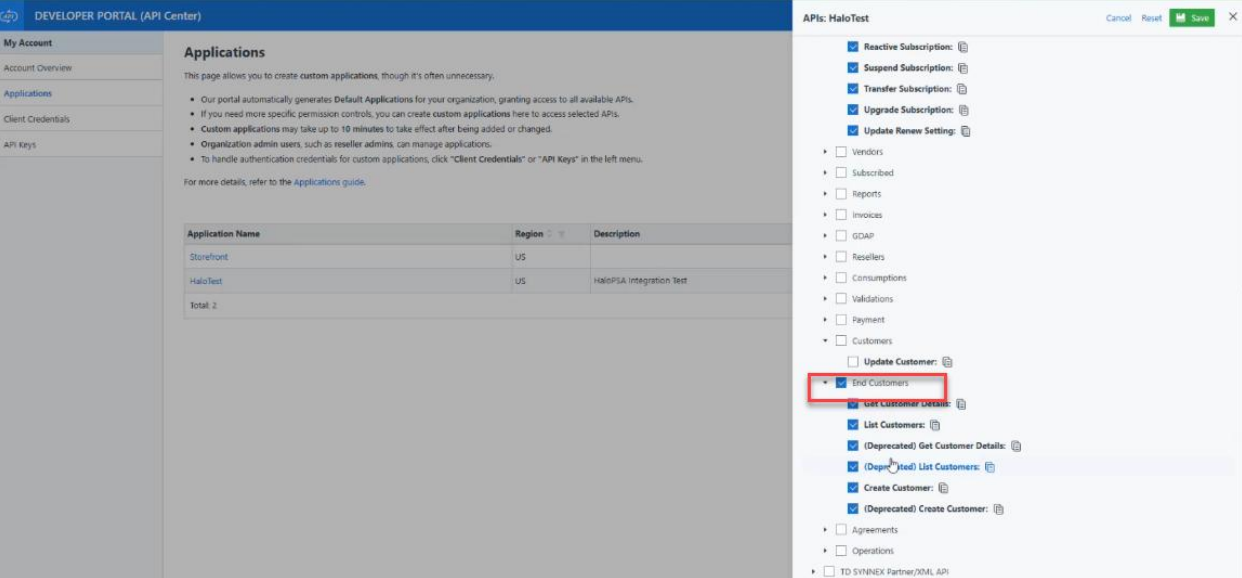
Fig 7. Permissions.
After creating the application and adding in the permissions, you can configure the integration module in Halo. To begin, enable the module in Configuration > Integrations > *Search for "Stream" and then click the "+" on the module*.
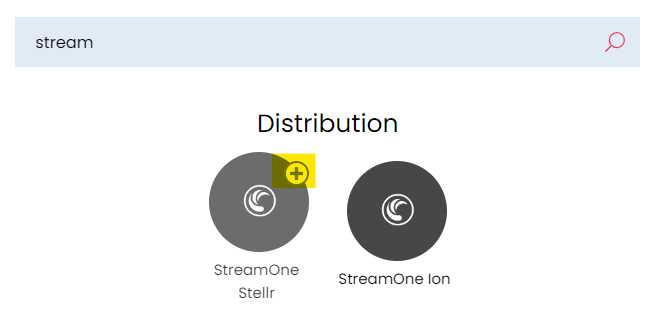
Fig 8. Enabling the module.
After clicking into the module on Halo and clicking new (top right hand side) to create a new account, the credentials from StreamOne Stellr can be entered into the integration page on Halo.
To gain access to the credentials, you can click into the User from the top right hand side of this page https://api.synnex.com/api-center/?page=project, you may have to enable the comprehensive reseller API before being able to click into the developer portal, this can take a few minutes to authorise.
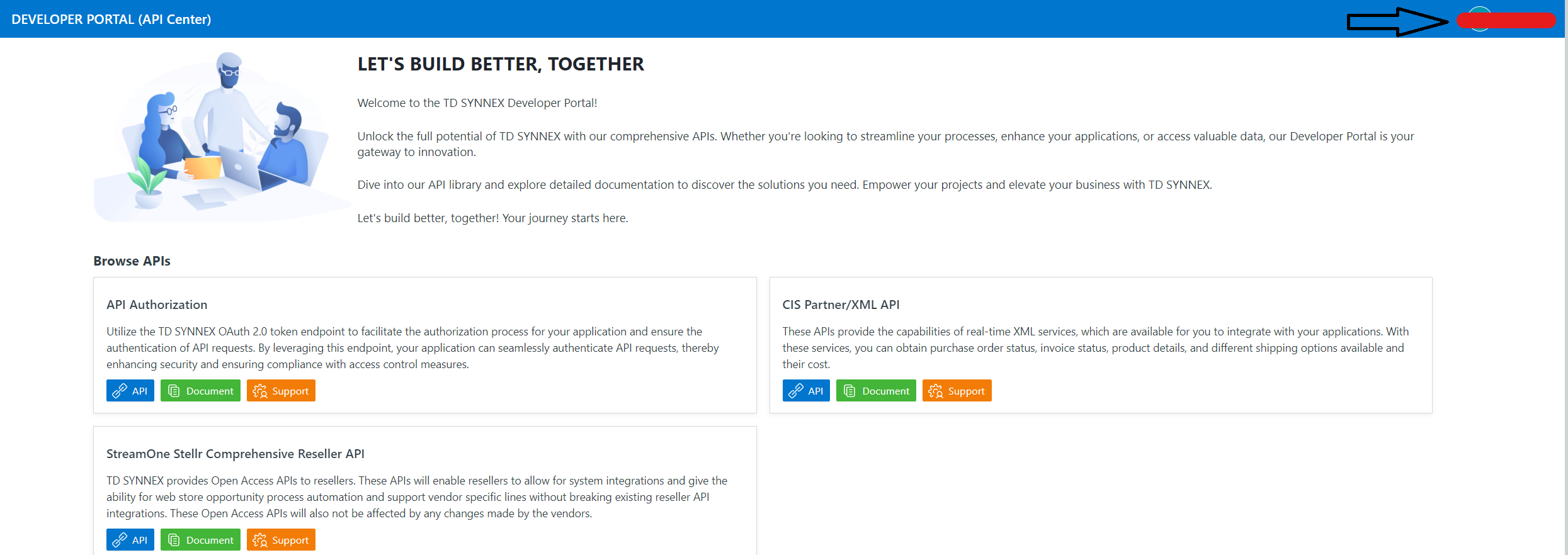
Fig 9. Clicking the username.
The Username is found in the top right hand side of the developer portal page, clicking into this will take you to the following options. You can find the credentials from the "Client Credentials" tab (left hand side).
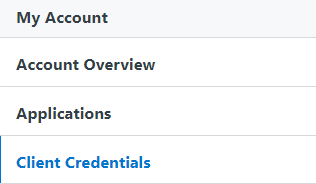
Fig 10. Client Credentials area.
The Test Configuration button on the integrations page tests whether the Halo API can connect to the StreamOne Stellr API. If successful, a modal screen will appear with the note "Test successful"
The region and application type also need to be populated, choose the region and application type based off of the region on your application in StreamOne Stellr and the credentials that you use will either be from the production or sandbox field, this can be found on the credentials tab.

Fig 11. Application and region.
Customers
Customers can be mapped and imported from StreamOne Stellr. Mappings can be set up manually through adding mappings to the table, or through the generate mapping button, mappings will only generate if the customer in Halo matches the exact name of the customer in StreamOne Stellr. Customer imports can be done through the UI or the Halo Integrator.
There are further options to choose a top level for imported customers if top levels are enabled (Configuration > Users > General Settings) and more than one top level is in use. There is also an option to update the main site address of existing customers "imported" via this integration.

Fig 12. Top level and site address option.
Subscriptions
Subscriptions can be imported for any mapped customer either manually or via the Halo Integrator.
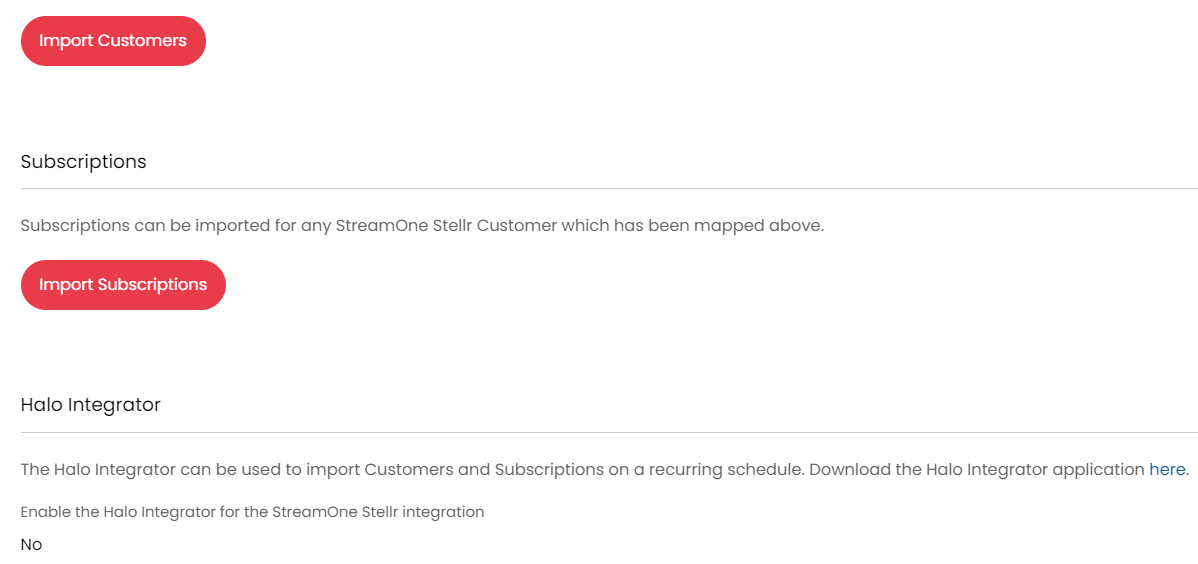
Fig 13. Subscription configuration and integrator.
Importing Quote Lines
Quote lines from quotes in TD Synnex/StreamOne Stellr can be imported and added to quotes in Halo.
Pre-requisites
- Access to the TD Synnex/ StreamOne Stellr partner API
- In order to use this functionality you must be granted access to the TD Synnex/ StreamOne Stellr partner API. You will need to email TD Synnex to obtain this access. If this access is not granted an error will return when attempting to import quotes.
- Add quotations API permission to your TD Synnex application
- The application used to authenticate connection between your Halo and TD Synnex instance will need to be given an additional API permission for obtaining quotations details. Without this permissions quote lines will fail to import.
Importing
Once the pre-requisites are met you can begin importing quote lines. Lines are imported to new quotes in in Halo. Once a quote in Halo has been created, use the 'Import ID Synnex Quote' button.
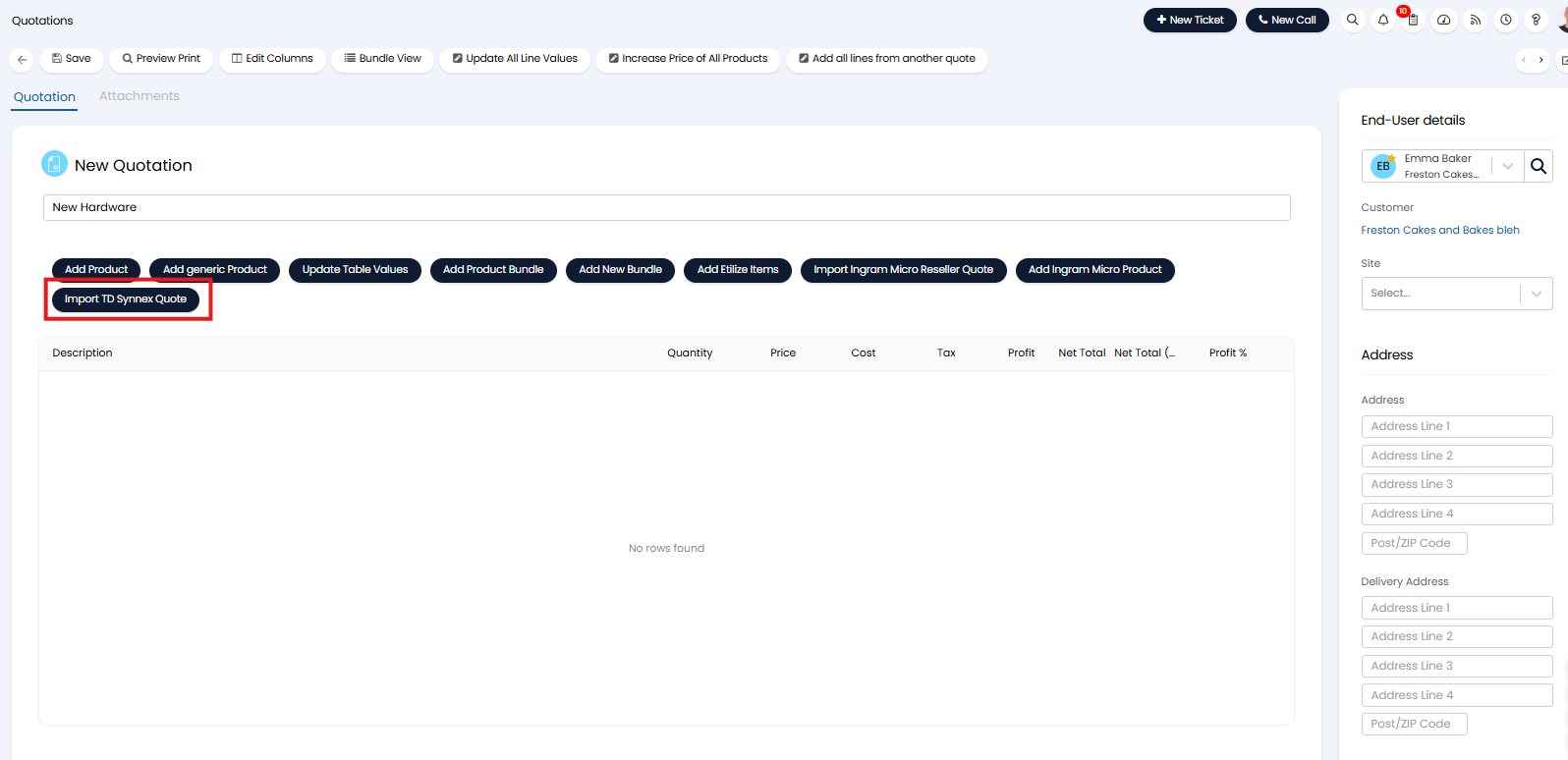
Fig 14. Import TD Synnex Quote
When used you will need to select the TD Synnex tenant and the quote number you would like to import quote lines from.
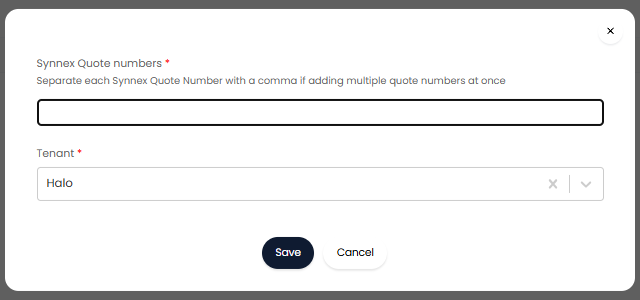
Fig 15. Quote line import selection
If you would like to import the lines from multiple quotations to this quote in Halo, you can enter a the quote number of each quote you would like to take lines from, separated with a comma.