Rhipe Integration (Crayon PRISM)
In this guide we will cover:
- What is the Rhipe Integration?
- Enabling the Rhipe Integration
- Connecting Rhipe
- Customers
- Subscriptions
- Halo Integrator
Related Guides:
What is the Rhipe Integration?
The Rhipe integration can be used to import customers and subscriptions, with the ability to sync the information over on a daily basis via the Halo Integrator.
Enabling the Rhipe Integration
You will need to enable the integration module by hovering over it and clicking the "+" icon that appears. Navigate to Configuration > Integrations > Distribution to find the Rhipe module.
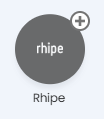
Fig 1. Enabling the Rhipe module
Connecting Rhipe
The credentials to input can be created within the PRISM Portal. Select the Customer Management menu item from the left-hand side, and click the "View" button available against your company, likely the first in this list.
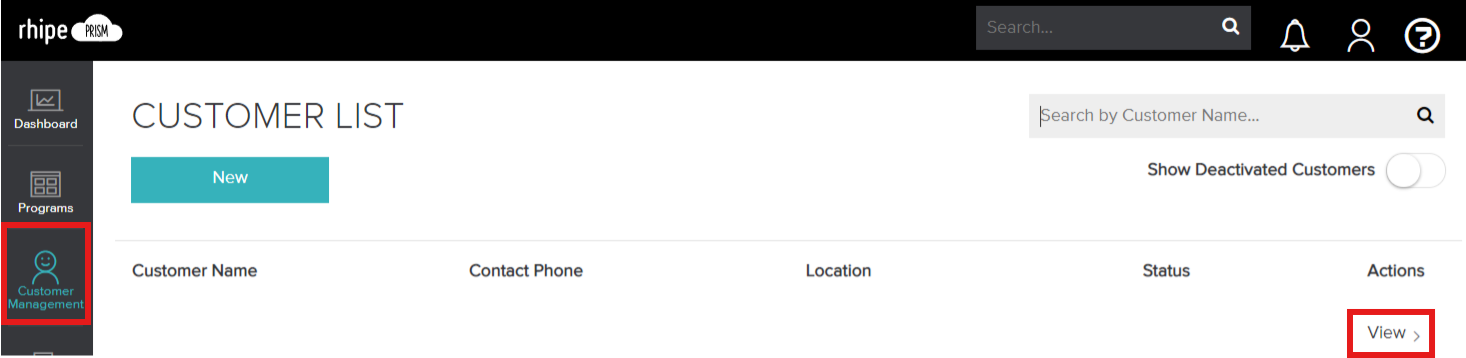
Fig 2. Selecting a Rhipe customer
On the “Customer Details” page you will see a “Manage Client Credentials” option, then clicking that will show a "Generate Client Credentials" button.

Fig 3. Creating client credentials
Take note of the Client ID and secret that is generated here.
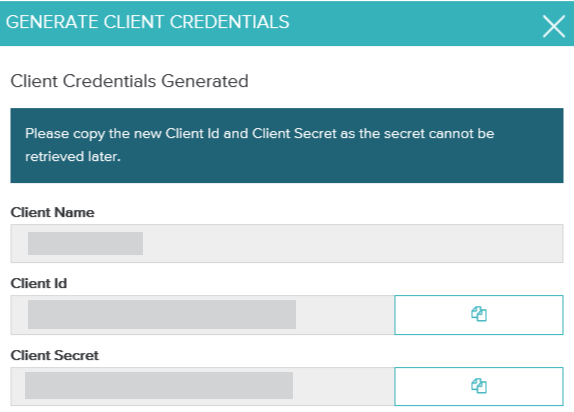
Fig 4. Generated credentials
These can then be entered into the corresponding fields within Halo.
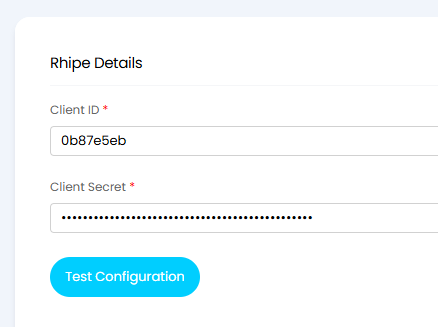
Fig 5. Entering Rhipe credentials in Halo
Click the "Test Configuration" button to verify that the integration is connected properly. If you have an error at this stage you can trouble shoot by using the developer console in your browser (Fn + F12 if on a Windows device).
Fig 6. Successful test of Rhipe configuration
Customers
The "Generate Mappings" button can be used to pull through customers in Rhipe that exist in Halo with exactly the same name. If the names do not match then no mapping will be created. In this example there was only one customer that had the same name, so only one mapping was made.

Fig 7. Generated mapping
Other mappings can be manually added, if the names do not match between Rhipe and Halo, for example with St Johns High School.

Fig 8. Manual customer mappings
Each time a customer import is done, the mappings table will update to check for any changes, i.e. if a new customer is imported with a name that does not match any customer in Halo, a new customer will be created in Halo and the mappings table will update to reflect this new mapping to the customer in Halo that has just been created.
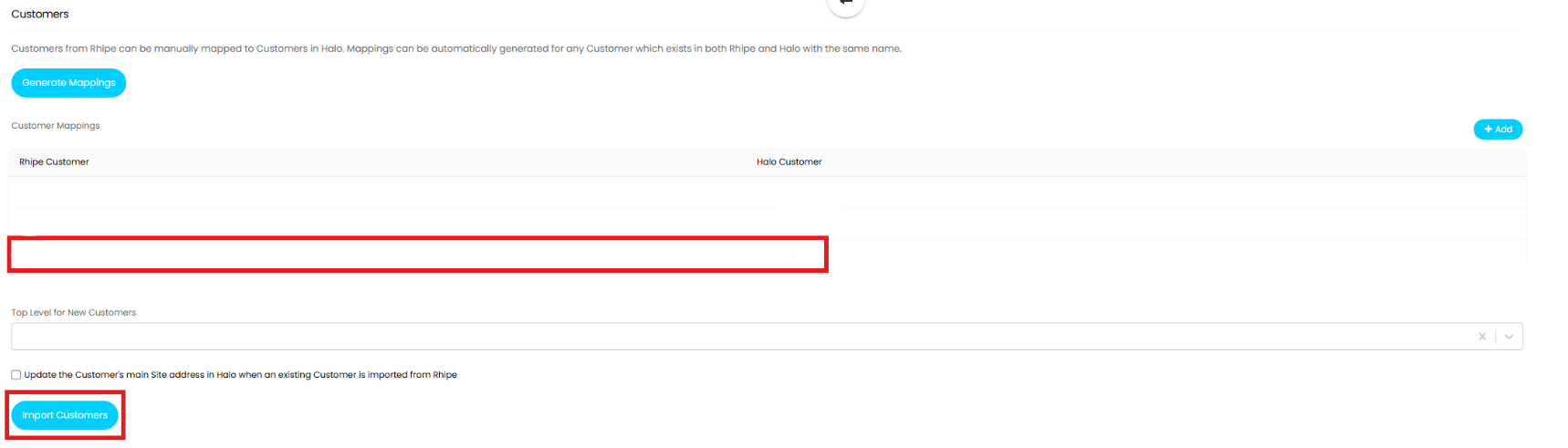
Fig 9. Automatically created mapping from an import
DD
There is also additional options here to configure the imported customers.
- Top Level for New Customers: (Enable "Show an additional level ("Top Level") for grouping Customers" in Configuration > Users > General Settings). Sets the top level any newly created customers will be assigned to.
- Update the Customer's main Site address in Halo when an existing Customer is imported from Rhipe: If the address against the customer in Rhipe is different to the address of an existing customer's main site, this will be updated with the Rhipe address.
The new customer now shows in the customer list, and will also show that they have been created by Rhipe.

Fig 10. Newly created customer
Subscriptions
The Subscriptions can then also be imported by clicking on the "Import Subscriptions" button. You can also select if you want to import all subscriptions or just a certain customer. To automatically sync quantities to a recurring invoice, check out this guide.
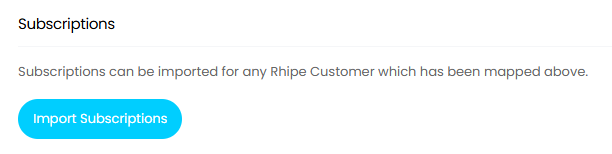
Fig 11. Import Subscriptions button
The subscription will then appear in the corresponding tab on the customer, showing Rhipe as the "Distributor".

Fig 12. Rhipe subscription on a customer
Halo Integrator
The subscriptions and/or customers can then be synced on a daily schedule. Enable the integrator, and set which entities to sync.
You can then set to deactivate subscriptions in Halo when they are deleted from Rhipe with the last checkbox.
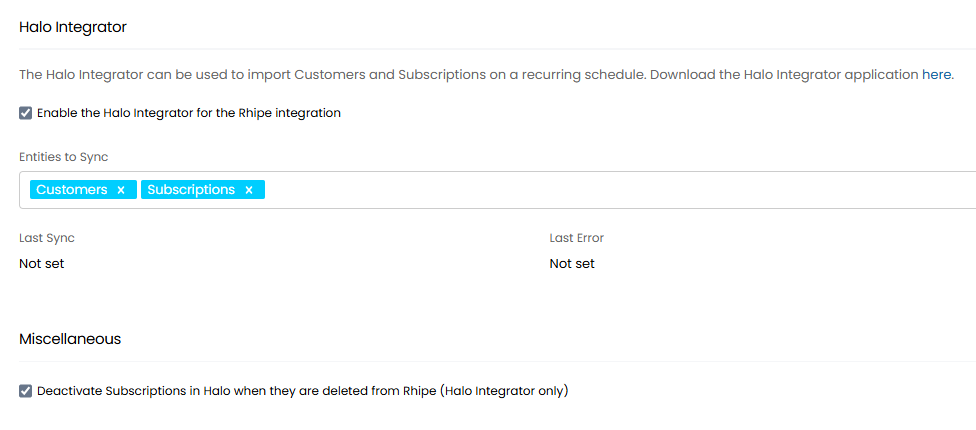
Fig 13. Halo Integrator configuration