Surveys
- survey
- feedback
In this guide we will cover:
- What are Surveys?
- Survey Custom Fields
- Configuring the Survey text variable
- Adding the Survey link to the Ticket Closed email template
- Configuring when Surveys are sent
- End-User Confirmation
Admin Guides:
Note: Any variable written in this guide is written with a hyphen between the $ sign and the word. This is so there is no replacement of them if this guide is shared through any Halo action. When used, they should be used without a hyphen (-).
What are Surveys?
Surveys can be sent when closing a Ticket, allowing you to establish Customer Satisfaction and capture precise information.
Survey Custom Fields
Survey form creation follows a similar process to Ticket form creation. We will be creating a series of Custom Fields that build out our survey, then add those fields to relevant Ticket types.
Survey fields are added/amended via Configuration > Tickets > Surveys:
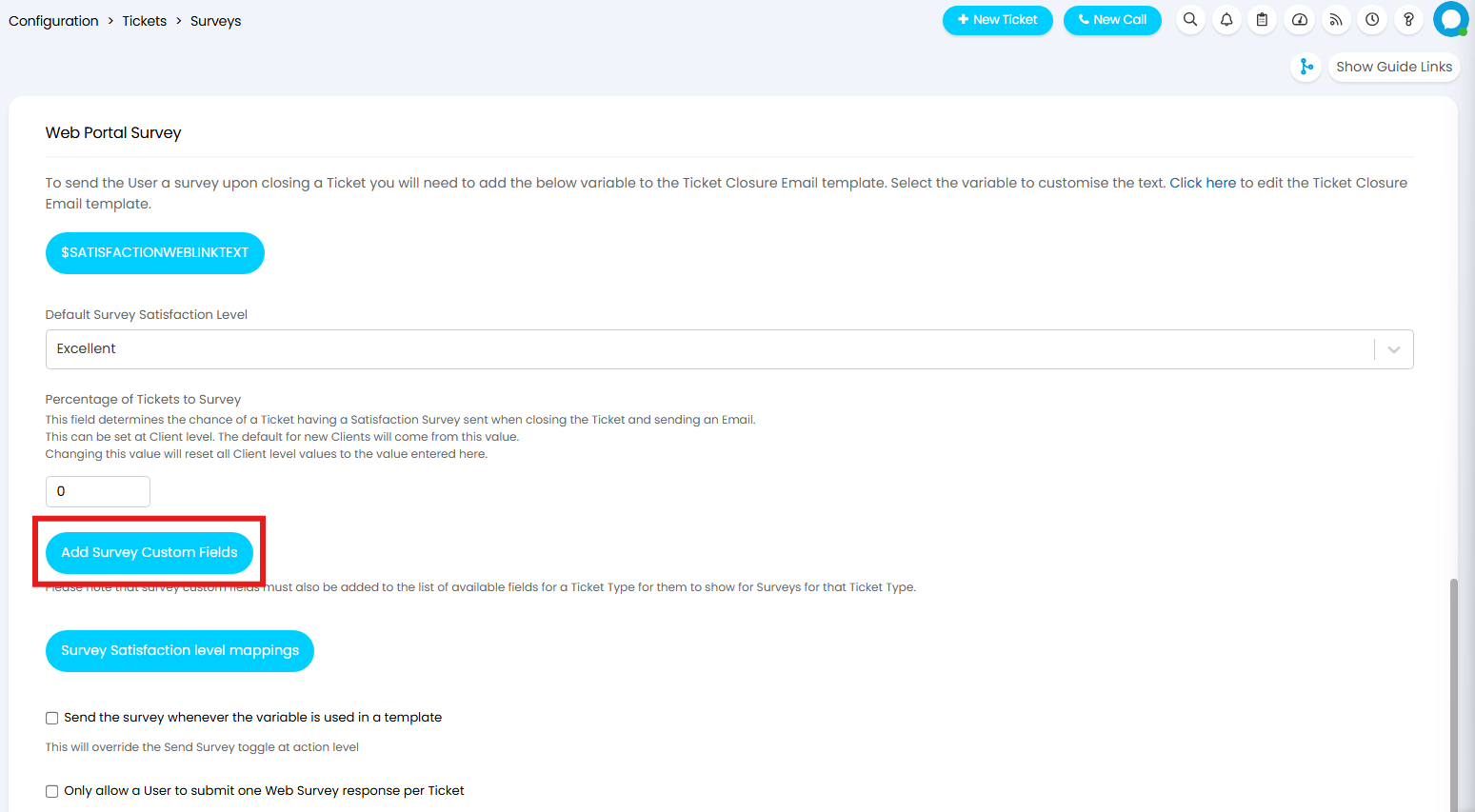 Fig 1. Adding Survey Custom Fields
The configuration of these fields follow the same logic as the creation of any other Custom Fields:
- Add your Field Name (Alphanumeric, no spaces)
- Add your Field Label (this is what the end-user will see)
- Set your Field Type (single/multiple select, checkbox etc..)
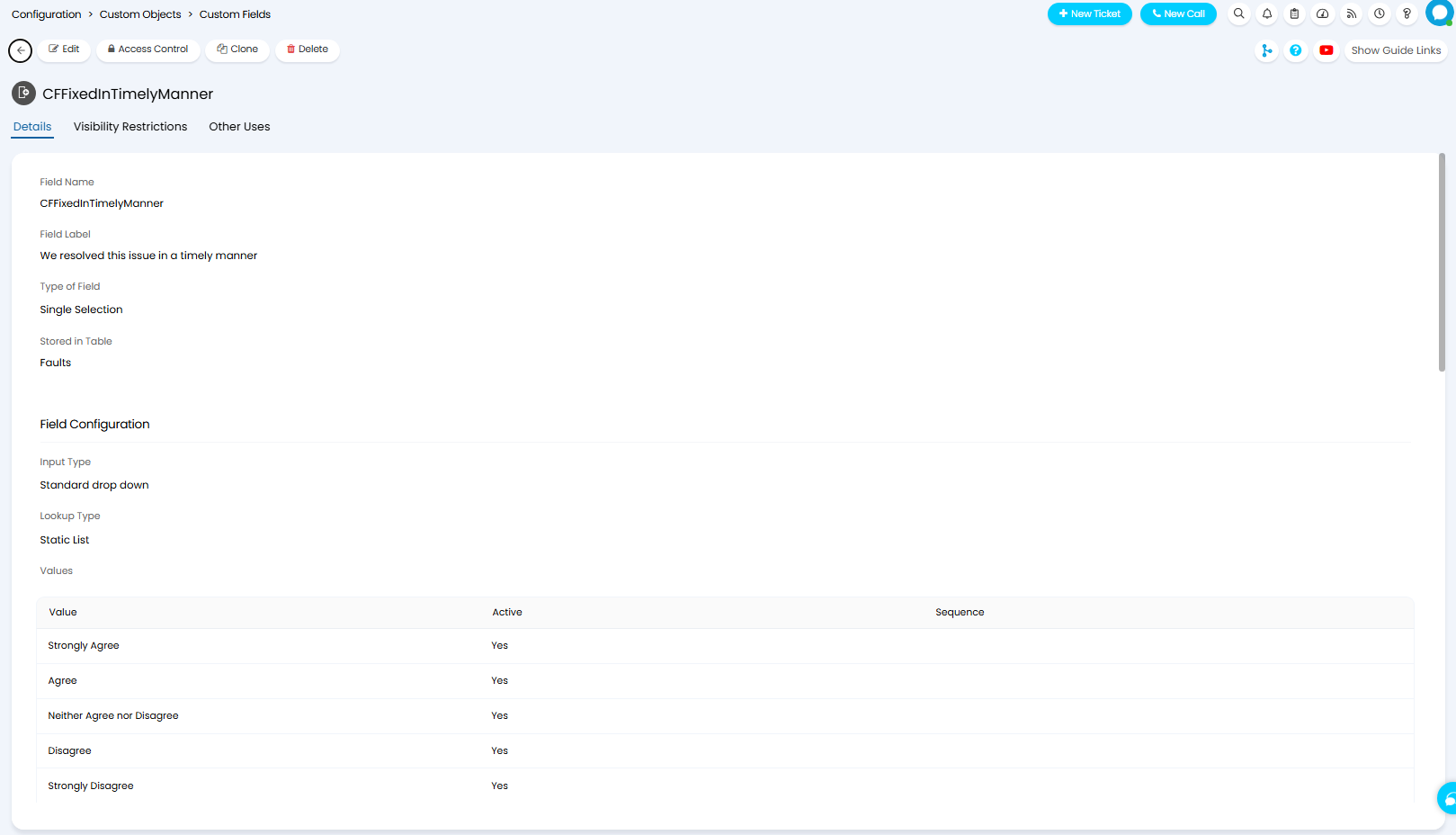 Fig 2. Survey Custom Field Configuration.
Once you have created your Survey fields, you must then ensure that these fields have been added to the Ticket Type(s) that you are tracking surveys on. These fields can also be added to Field Groups, which can then be added to the Ticket Type(s).
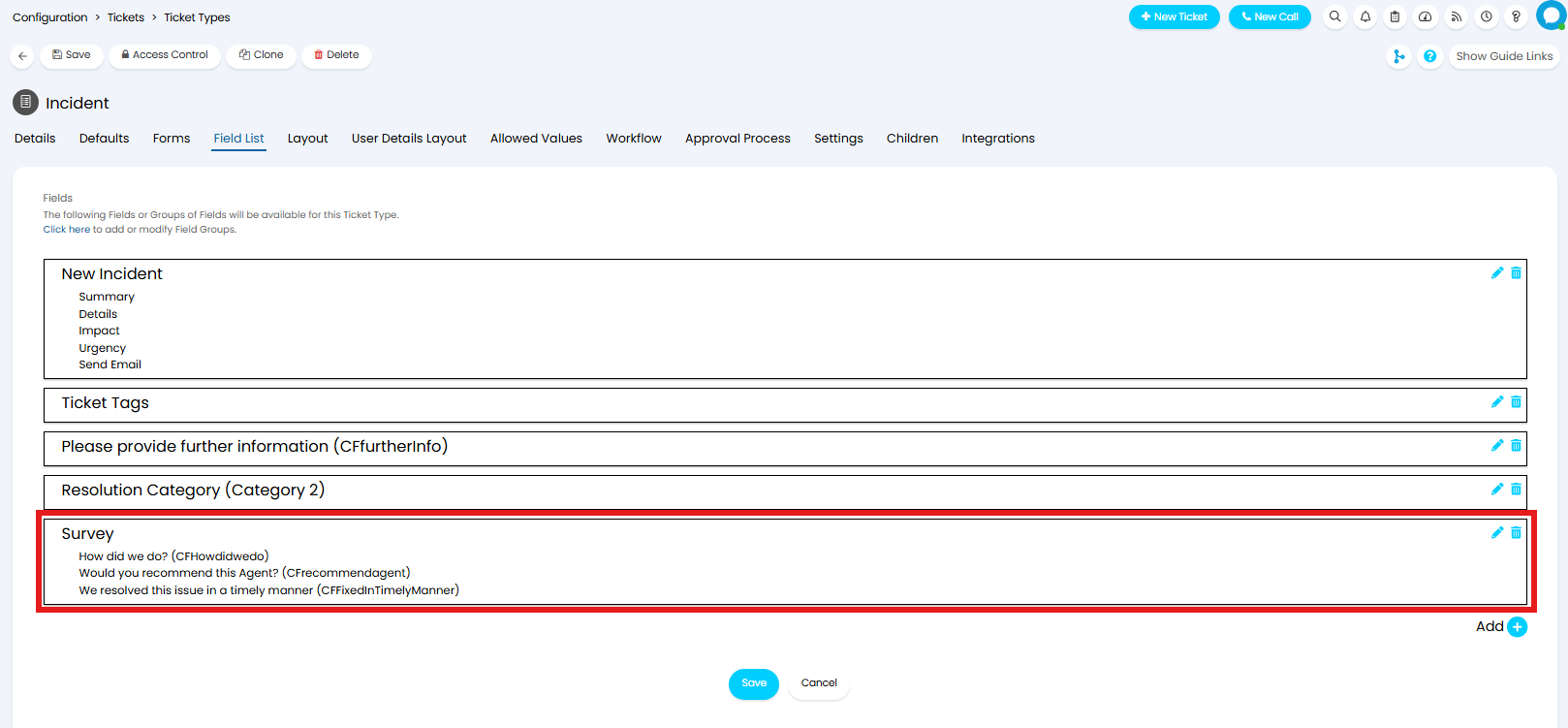
Fig 3. Survey Fields on Ticket Type
In the above example, I have created a Field Group titled 'Survey', added the Survey fields to the field group, then added the field group to the Ticket Type.
Configuring the Survey text variable
Providing a link to the Survey for the end-user is composed of two steps:
- Configuring the text for your Survey, including the link.
- Add the $-SATISFACTIONWEBLINKTEXT, configured in step 1 to the email template.
The survey link can be configured by editing the text within the $-SATISFACTIONWEBLINKTEXT button (found within Configuration > Tickets > Surveys). Add a hyperlink set to $-SATISFACTION to point the URL to https://{yourhalodomain}/portal/survey?id={Ticket ID}&key={Unique Key}. This is where the user can fill out the survey.
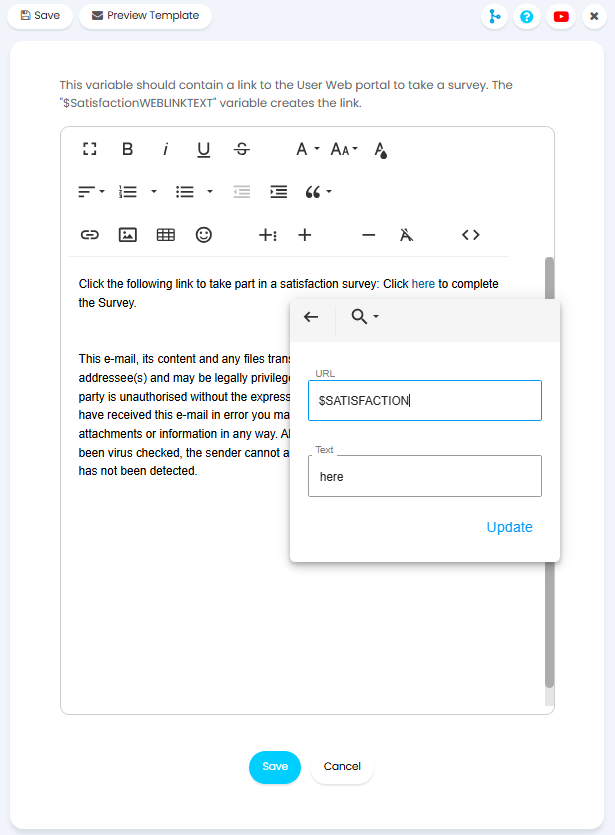
Fig 5. The satisfactionweblinktext text
Adding the Survey link to the Ticket Closed email template
When the '$-SatisfactionWebLinkText' variable is added to the Ticket Closed email template, it will be replaced with the text you configure in Fig 5. The link to the survey itself is added via using the $-satisfaction variable (This is often included within the $-SatisfactionWebLinkText variable, see Figure 5).
So, by adding $-SatisfactionWebLinkText to the Ticket Closed email template (Configuration>Email>Email Templates):
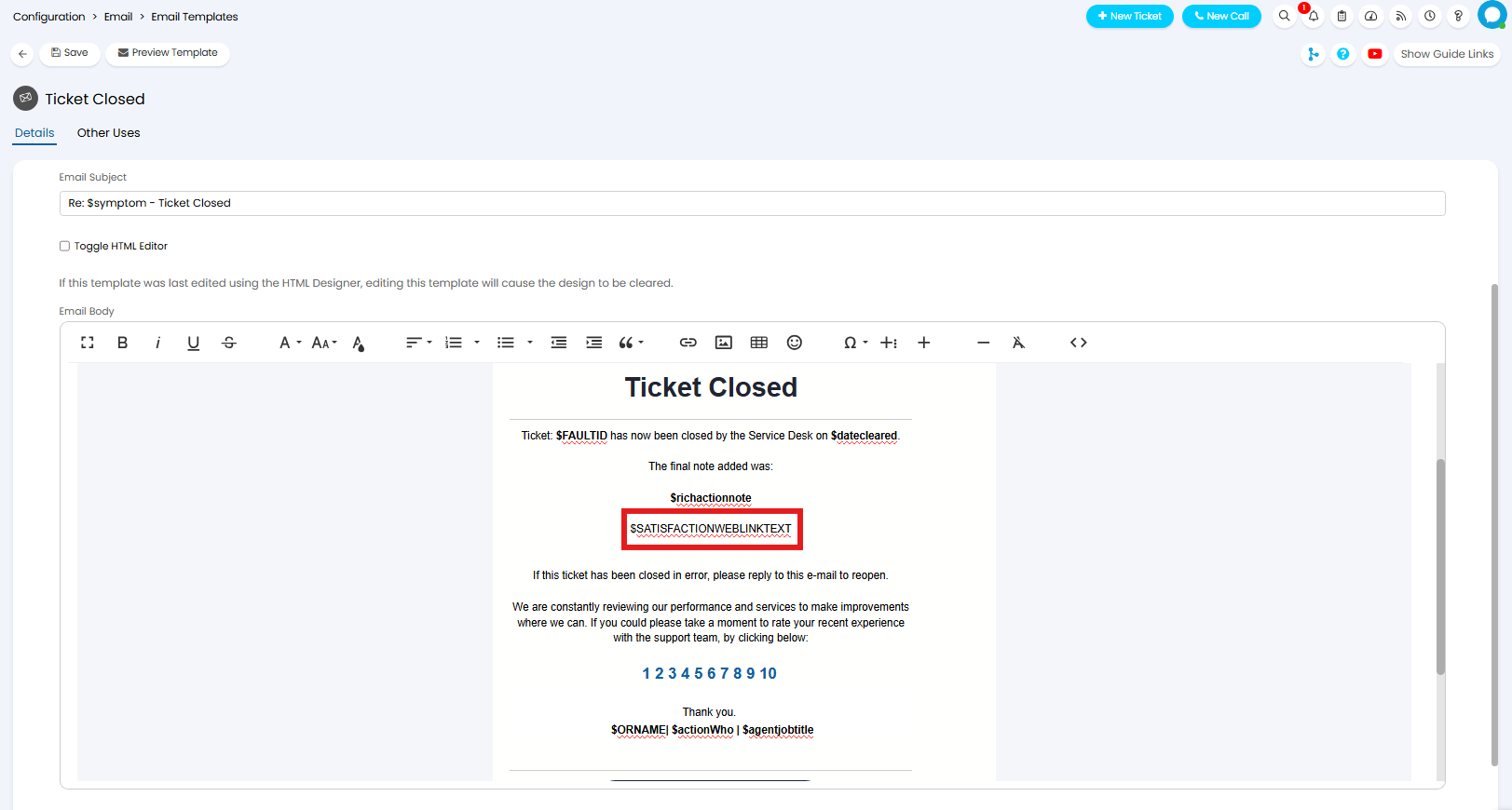 Fig 6. Adding '$-SatisfactionWebLinkText' to the Ticket Closed email template
We will find that, upon closing our Ticket, the closure email looks like:
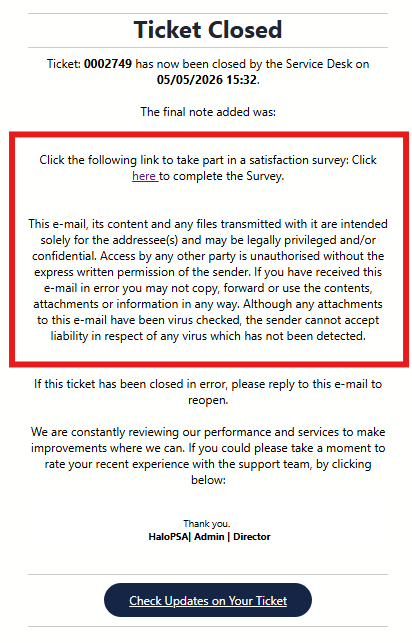 Fig 7. Closure Email
Notice how '$-SatisfactionWebLinkText' in our Ticket Closed email template has been replaced with the contents displayed in Fig 5, and our '$-Satisfaction' variable has been replaced with a link to the Self-Service Portal, where the end-user can fill out the Survey.
When an end-user clicks this link, they will see the Survey fields created in the previous step:
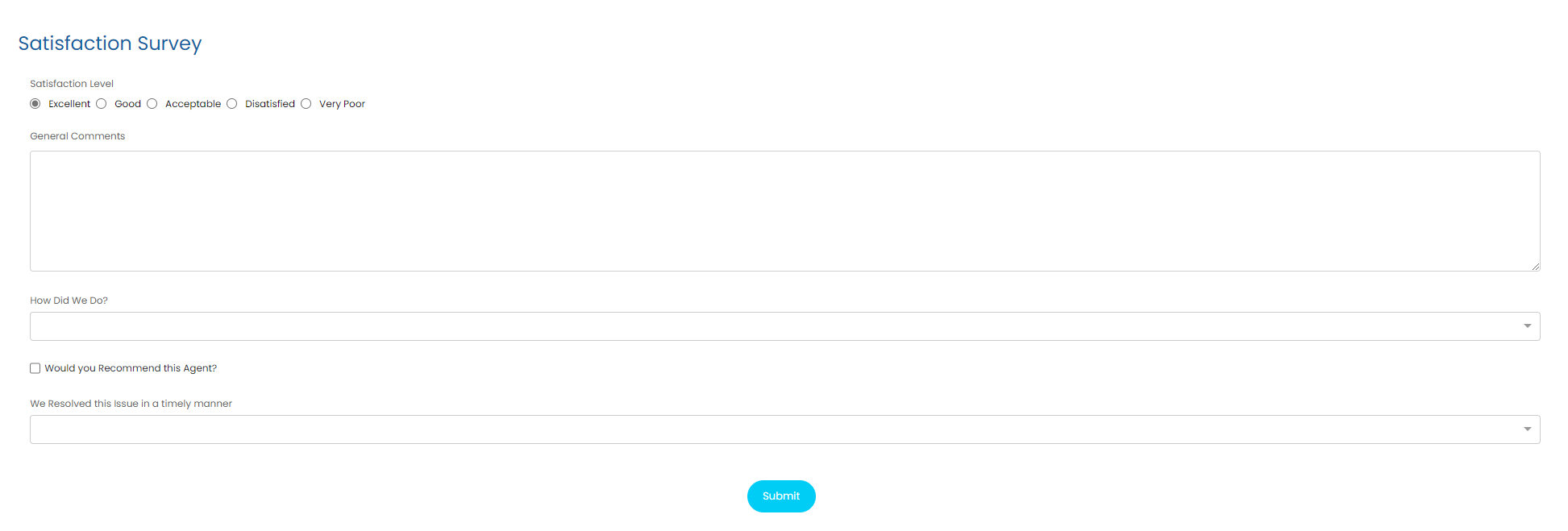 Fig 8. Satisfaction Survey, from the end-user perspective.
The above survey contains the following custom fields:
- Satisfaction Level (CFSatisfactionLevel)
- How Did We Do? (CFHowDidWeDo)
- Would you Recommend this Agent? (CFRecommendAgent)
- We Resolved this Issue in a timely manner(CFFixedInTimelyManner)
Configuring when Surveys are sent
In Configuration > Tickets > Surveys, you have an option to establish a percent of Tickets to send Surveys on:
 Fig 9. Setting Percentage of Tickets to Send Surveys on
You'll see the description of this field as per Fig 9 notes that this can also be set per Client. The per-client setting is in the Setting tab, under the 'Email Defaults' header:
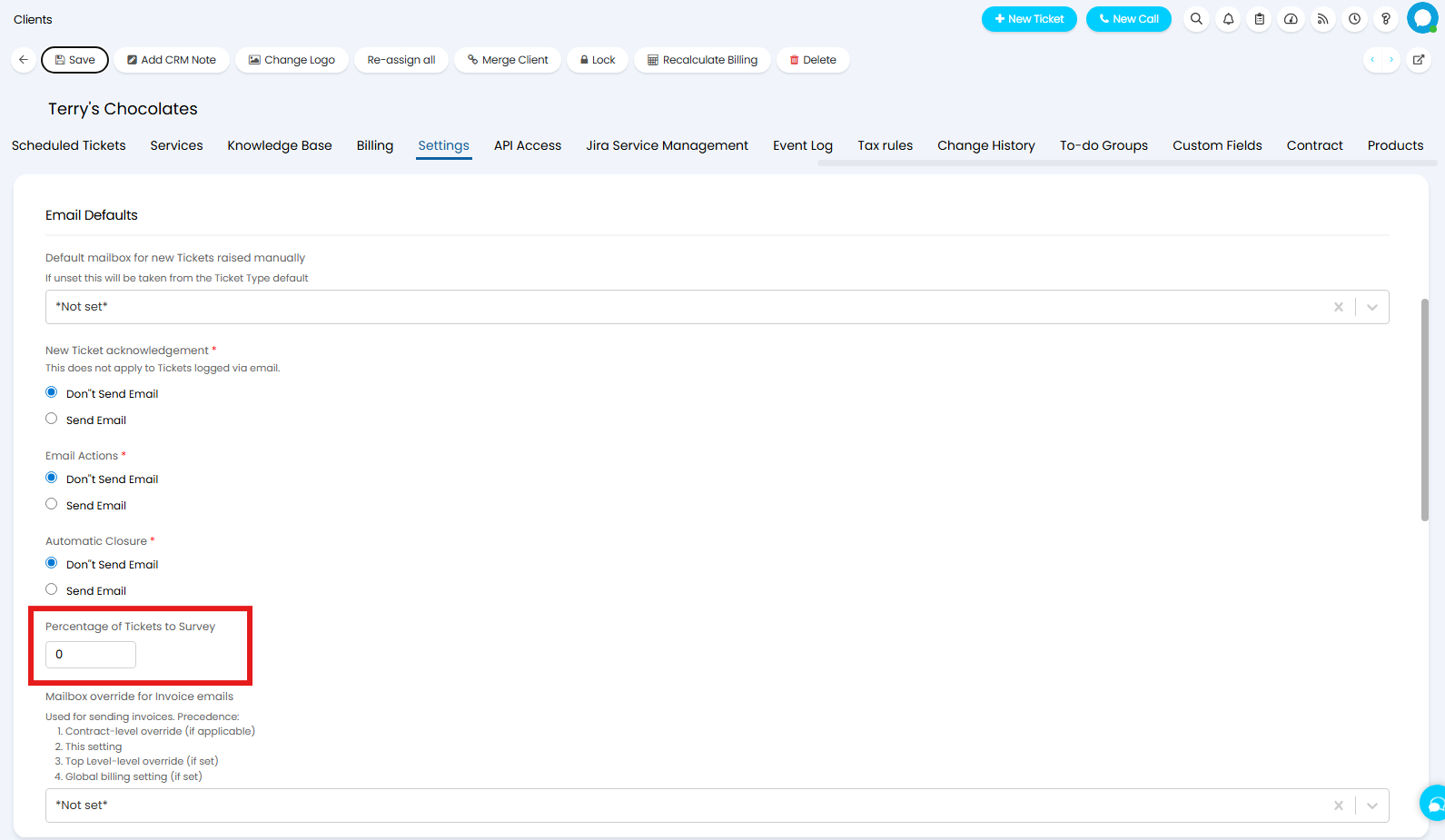 Fig 10. Client-Level Percent of Tickets to Survey
There is also an option within a Team to determine whether or not surveys are sent from Tickets closed, when the Ticket is assigned to the team in question:
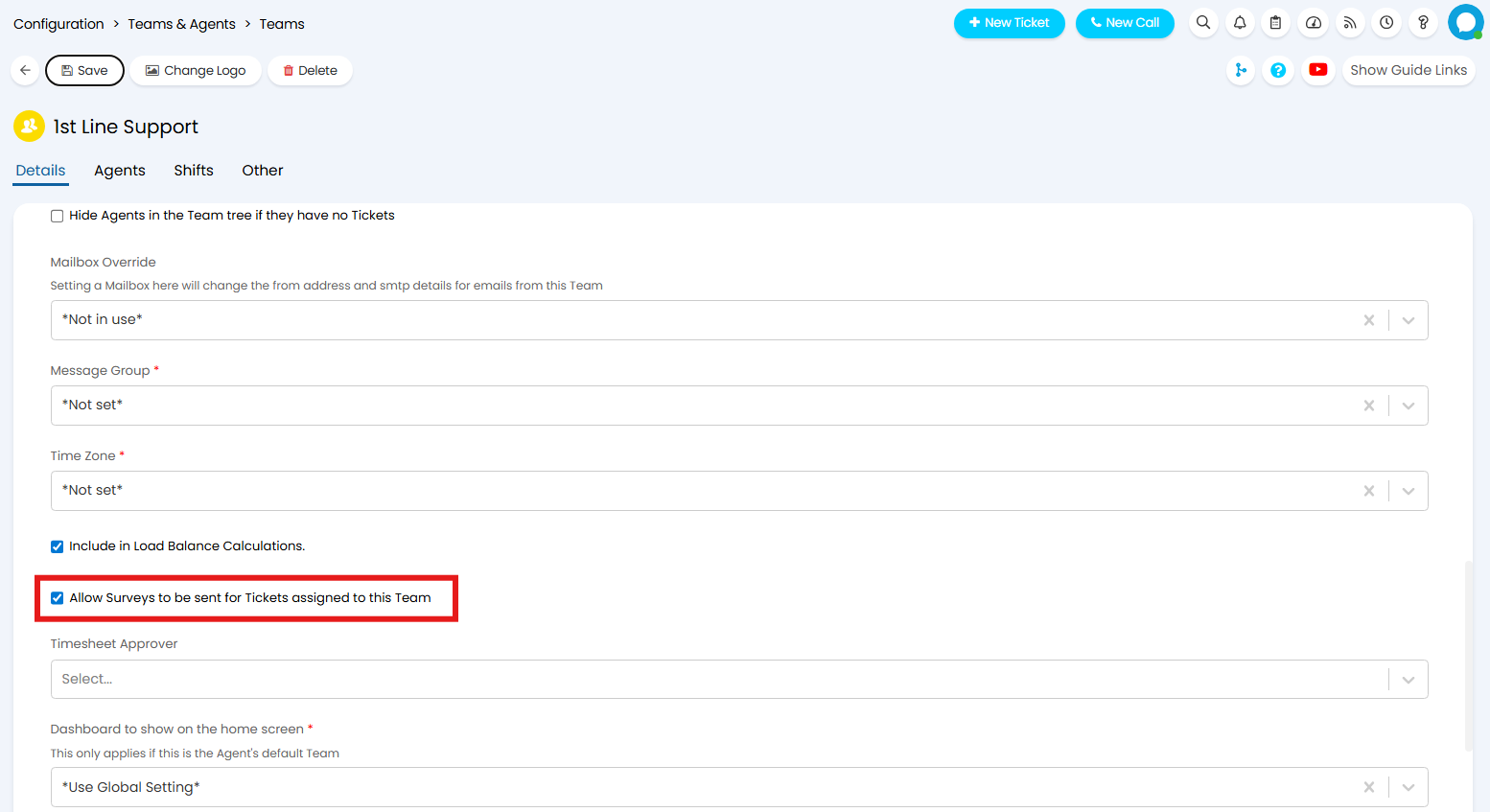 Fig 11. Team-Level option to set whether Surveys are sent
For example, you may only be concerned with sending surveys when Tickets are closed by 1st line support (allowing you to track the progress of junior staff members), but not when 2nd line support close the Ticket (as your more senior engineers, you are less concerned with tracking their progress). This would be achieved via disabling the option mentioned in Fig 10 for 2nd line support (Configuration>Teams & Agents>Teams>2nd Line).
End-User Closure Confirmation
The above assumes that you have end-user closure confirmation disabled. when End-User Closure Confirmation is enabled (via Configuration>Tickets>General), we must make use of slightly different $_variables.
You will see the variables we need to work with via Configuration>Tickets>General:

Fig 12. $-Variables to consider when enabling End-User Closure Confirmation
The changes that need to be considered when enabling End-User Closure Confirmation are as follows:
- $-SatisfactionWebLinkText will need to be replaced with $-UserConfirmSatisfactionWebLinkText
- The $-UserConfirmSatisfactionWebLinkText will need to be configured, with the link to the survey now being '$-USERCONFIRMSATISFACTION' (whereas before it was $-Satisfaction)
Configuring $-UserConfirmSatisfactionWebLinkText is done via Config>Tickets>General (Fig 12), via clicking into the button underlined in Fig 12.
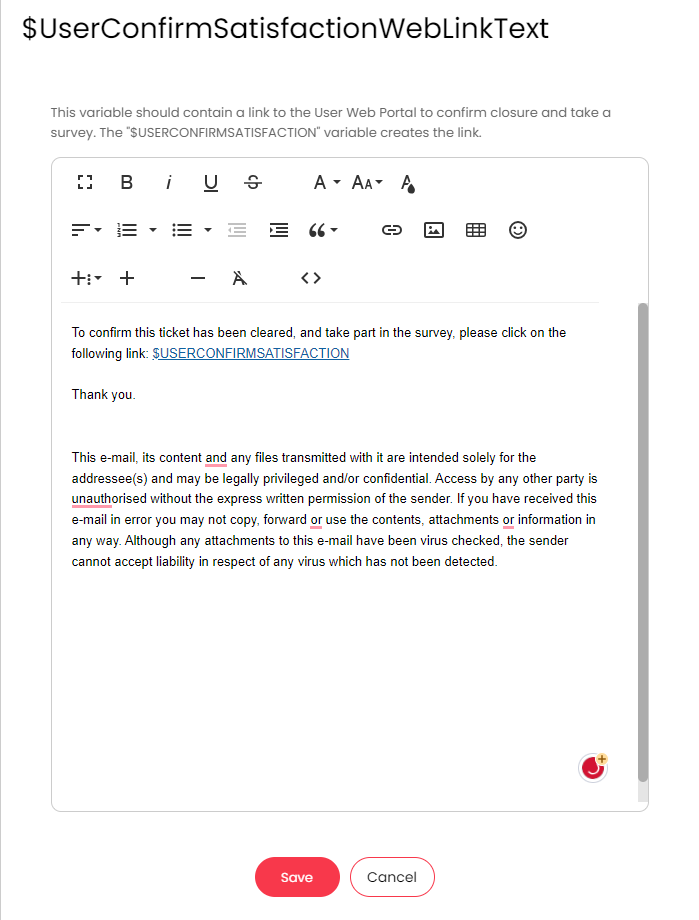
Fig 13. Configuring the text presented in $-UserConfirmSatisfactionWebLinkText
(Note how we are no longer using $-Satisfaction in this template, but using $-UserConfirmSatisfaction instead)
Then ensure your Ticket Closed email template uses $-UserConfirmSatisfactionWebLinkText (whereas before $-SatisfactionWebLinkText was used - Fig 5)
I have now enabled Closure Confirmation & replaced $-satisfactionWebLinkText with $-UserConfirmSatisfactionWebLinkText in my Ticket Closed email template, and now my closure email looks slightly different:
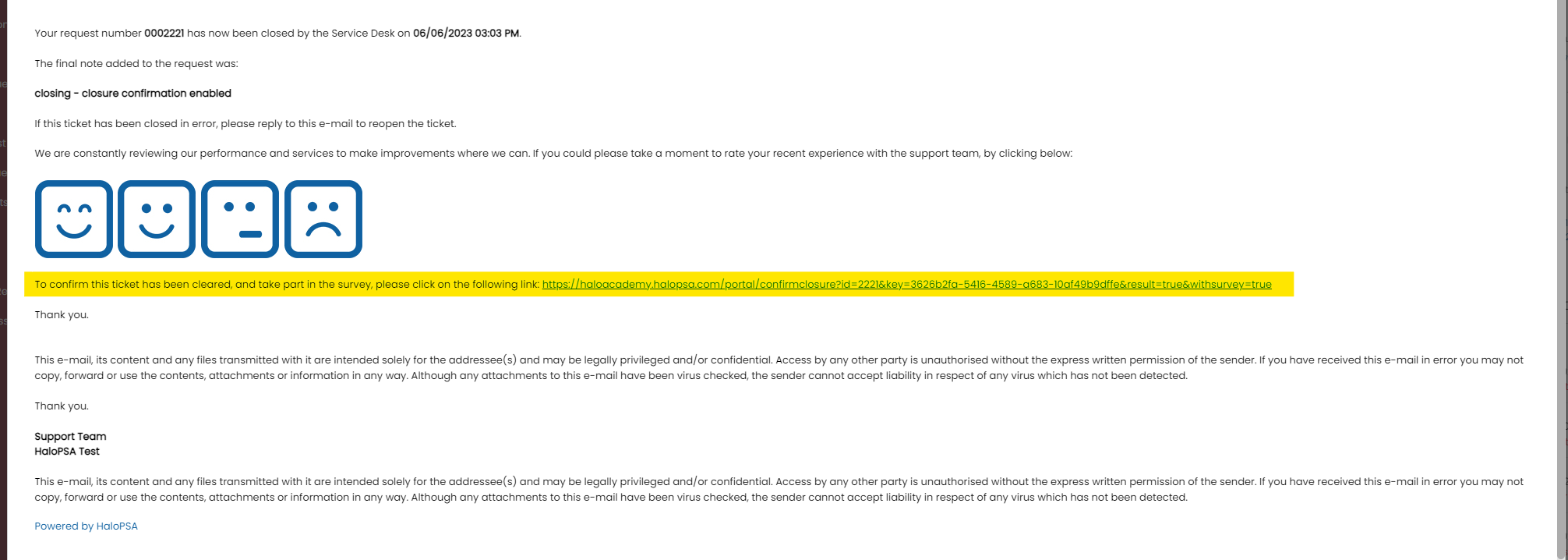 Fig 14. Ticket Closed email, when End-User Closure Confirmation is enabled
Notice the slight divergence in the emails between Fig 7 & Fig 14, reflecting the slight change in text seen between Fig 5 & Fig 13.
Now, when an end-user clicks the link, they will first be presented with a screen thanking them for confirming closure, then given the opportunity to fill out the Survey:
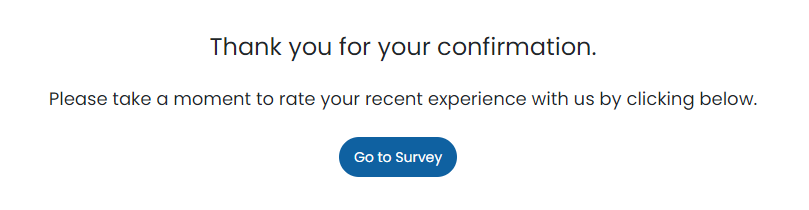 Fig 15. Self-Service Portal after end-user clicks link highlighted in fig 14.
After clicking 'Go to Survey', they will see a screen identical to Fig 8 (Granted the same custom fields have been used).