Closure Procedures (End-User Closure Confirmation)
In this guide we will cover:
- Default Closure Procedures
- Enabling End-User Closure Confirmation Procedures
- Closure Settings on Ticket Type
- Email Templates
- Configuring the Worked Example
- Additional Features per Ticket Type
-Closure Confirmation Procedures for Project tickets
Default Closure Procedures
Within Halo, the standard practice for closing tickets, is that the end-user will communicate to the agent that the resolution they have received is correct and then the agent will communicate to the user that their ticket has been closed, with the end-user being able to respond to the closure email.
This will instantly place the ticket into a closed state when the agent uses the "Resolve Ticket" action and it can normally be re-opened by an end-user via an email sent into the ticket. If the following setting "Emails on closed Tickets" is set to "Keep Ticket Closed", this will mean that emails from users into closed tickets will result in the ticket staying closed:
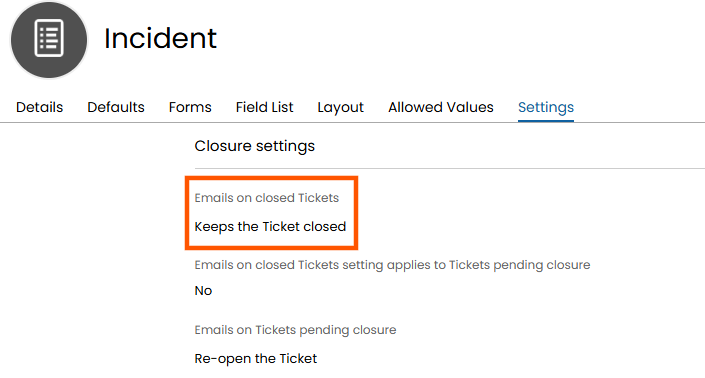
Fig 1. Closure Procedures on the Settings Tab of a Ticket Type
When closure confirmation is enabled the "Pending Closure" settings shown in Fig 1 will also apply, and when using the action "Resolve Ticket" the status of the ticket will go to "Resolved" instead of "Closed" which is a pending closure status that will only apply to that action if the end-user closure confirmation checkbox has been enabled.
Example
The following example will cover where the desired behaviour is for the ticket to re-open when the ticket is in the pending closure state but stay closed after the actual closure of the ticket, which is triggered after a set number of hours have passed with no response from the end-user.
Enabling End-User Closure Confirmation Procedures
To enable end-user closure procedures navigate to Configuration > Tickets > General Settings. For a full list of ticket general settings along with descriptions check out this system settings guide on Tickets General Settings.
With this enabled, when a Ticket is closed it will go to a Pending Closure Status (Status: Resolved). The End-User will then need to confirm that the Ticket is ok to close. Reminder emails will be sent on a recurring schedule defined by the set number of hours inputted to the "Number of hours between reminder emails" box:
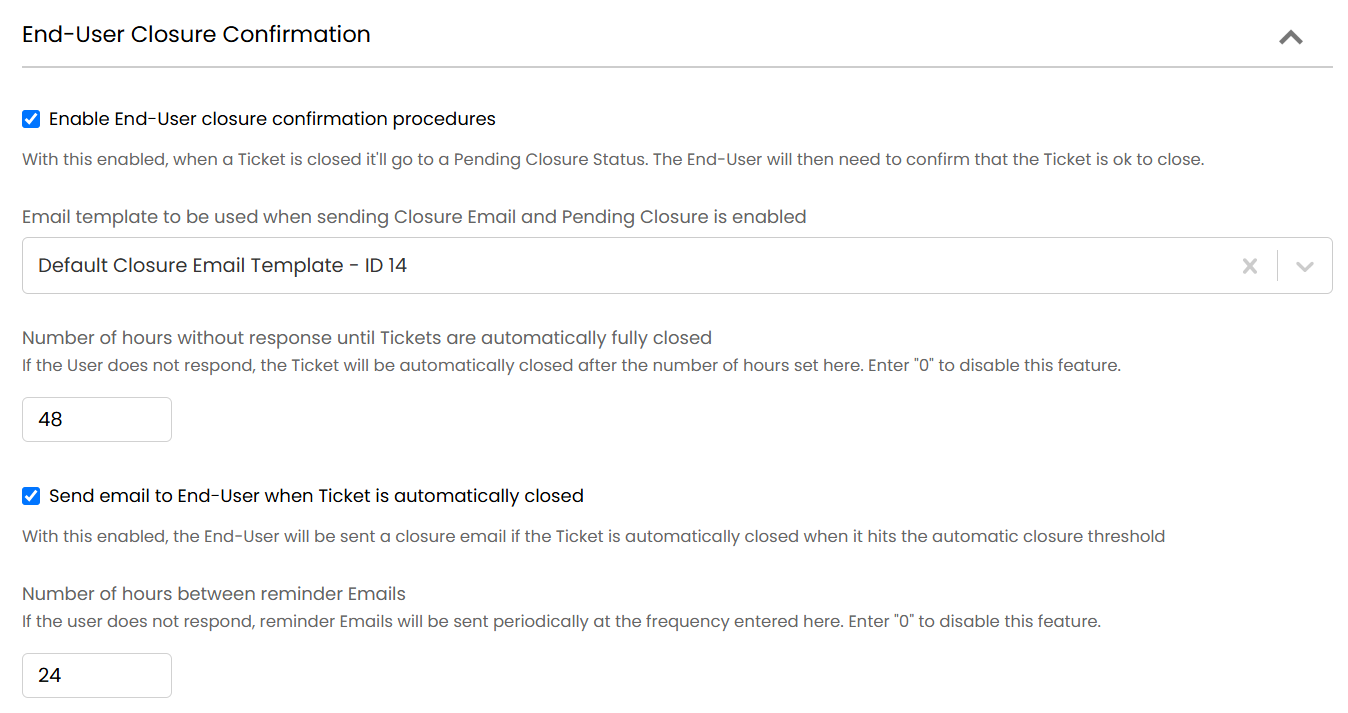
Fig 2. Closure Procedure Settings
You will see from the above screenshot that the frequency of closure reminders, along with the duration of time before the ticket automatically closes, is fully configurable. If you would like to disable the closure reminders/automatic closure functionality, simply set the duration to '0'.
If there are workdays being used against the SLA's you have configured (Configuration > Service Level Agreements > Service Level Agreements > *Click onto an SLA*):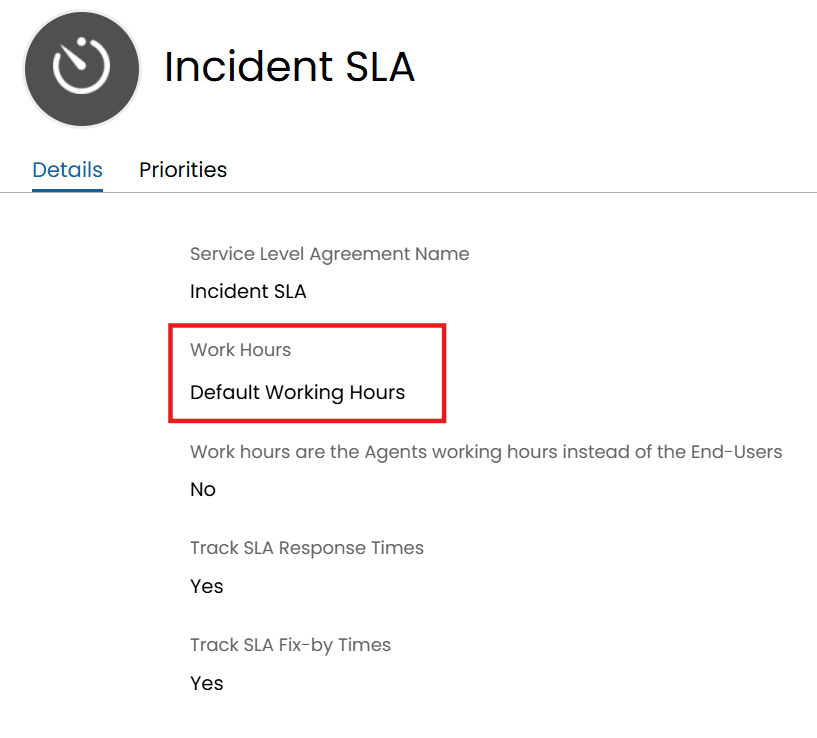
Fig 3. Work Days Against an SLA (Workdays are created within Configuration>Teams & Agents>Workdays)
Then the frequency in hours will correlate to hours in the workday, i.e. if your agents work from 09:00 - 18:00 then 9 hours in the frequency of reminder emails would equal to an entire workday, and it will account for weekends as well. This means if a closure email is scheduled to go out 9 hours later, those 9 hours are only counted towards during work hours.
Beneath these settings are options to further configure the end-user closure confirmation emails; this includes the option to use the "$-ConfirmClosureWithFeedback" variable, which will prompt end-users to provide feedback in order to close the ticket. Surveys can also be sent out on the ticket closure email template, and can be configured by clicking on the relevant button found at the bottom of the screenshot above (For more information on Surveys, check out this guide: Surveys).
Closure Settings on Ticket Type
Closure Settings Can also be configured Per Ticket Type:
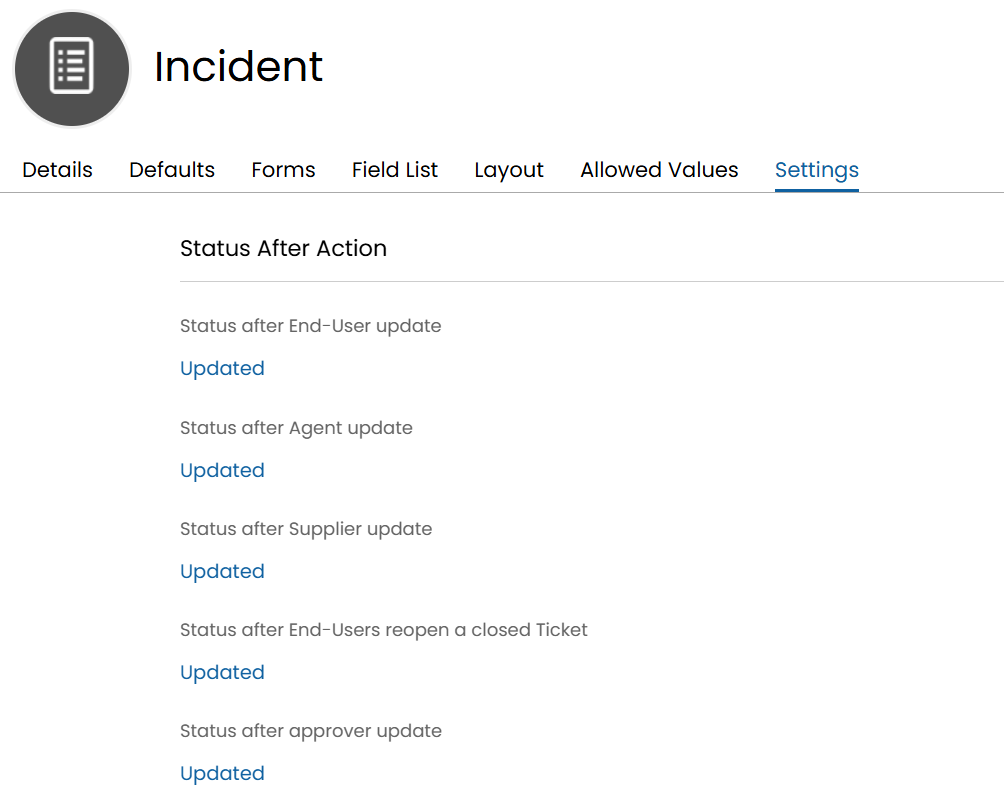
Fig 4. Status after end-users reopen a closed ticket
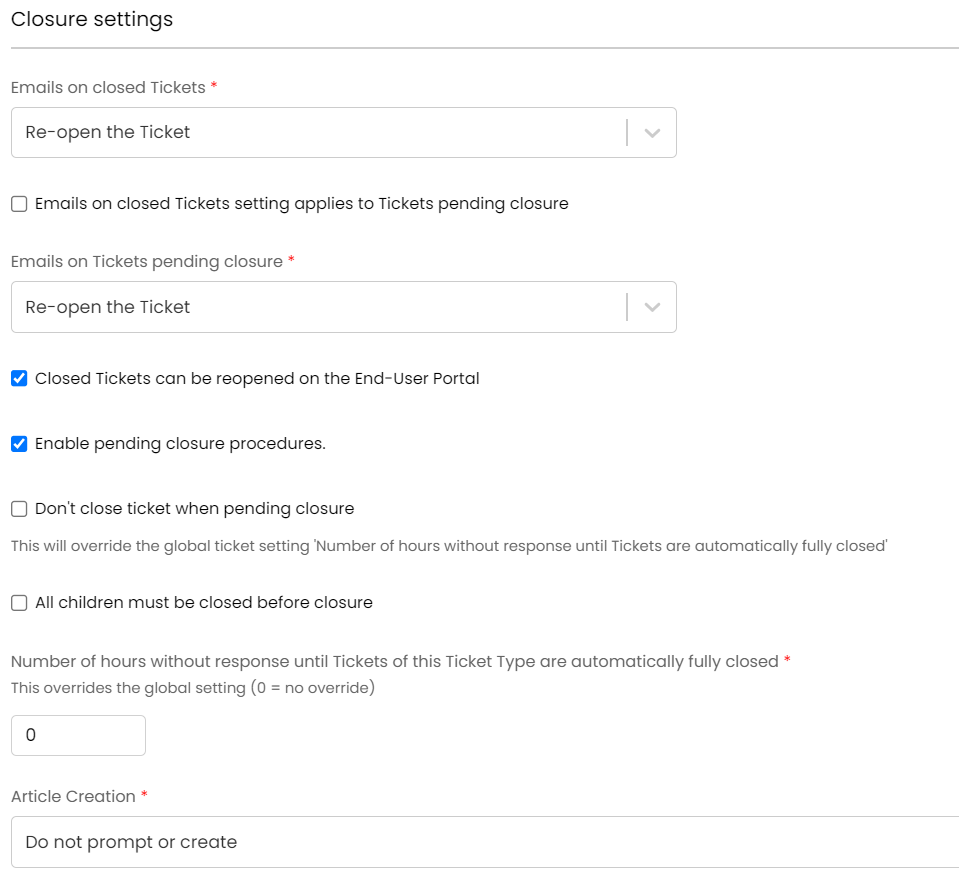
Fig 5. Closure Settings on Ticket Types
If the "Emails on Closed Tickets" is set to "Re-open the ticket" then the status set on the field shown in Fig 4 will be the status that the updated ticket goes to.
The outcome of the End User Closure Confirmation can be used to direct the Workflow. To do this, add the action type "End-User Closure Outcome" on the relevant step of the Workflow. You can then set which step of the workflow you would like to move to depending on the End-User Closure Result. This allows the Workflow to move back a step if the User rejects the confirmation. For more information see the guide on Workflows.
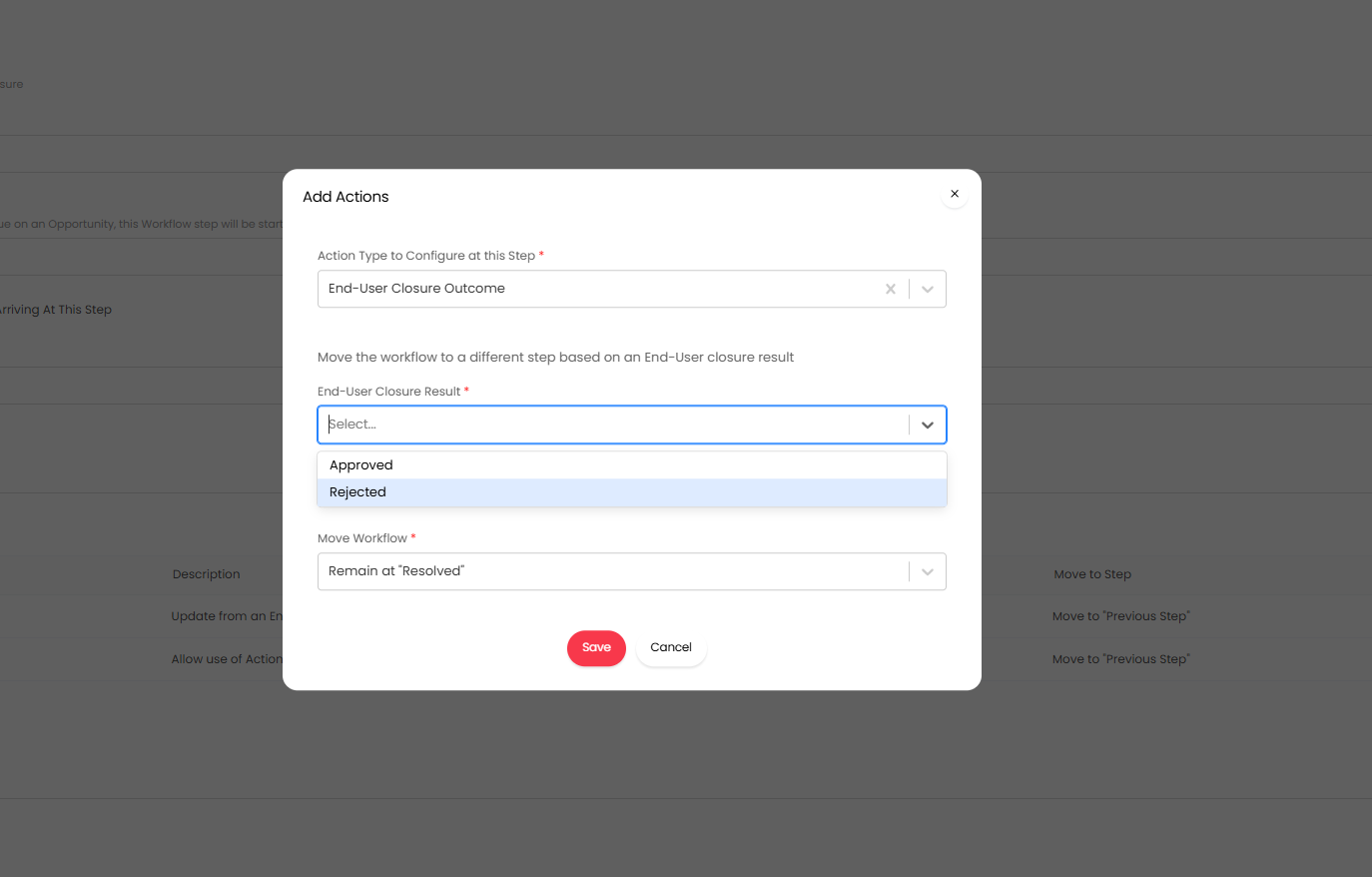
Fig 6. Closure Settings on a Workflow
Email Templates
The email templates associated to the "Closure Reminder" template for end-user closure confirmation is found in Configuration > Email > Email Templates:
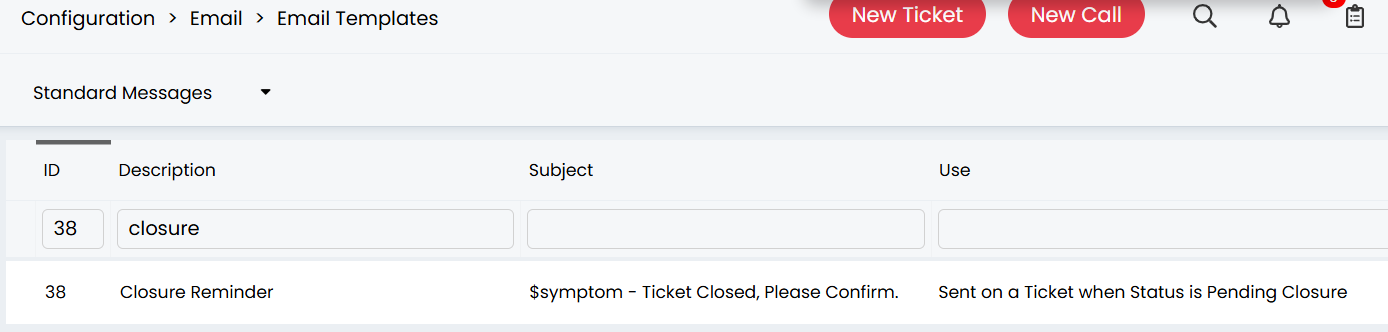 Fig 7. Closure Reminder Email Template
The actual default closure reminder template:
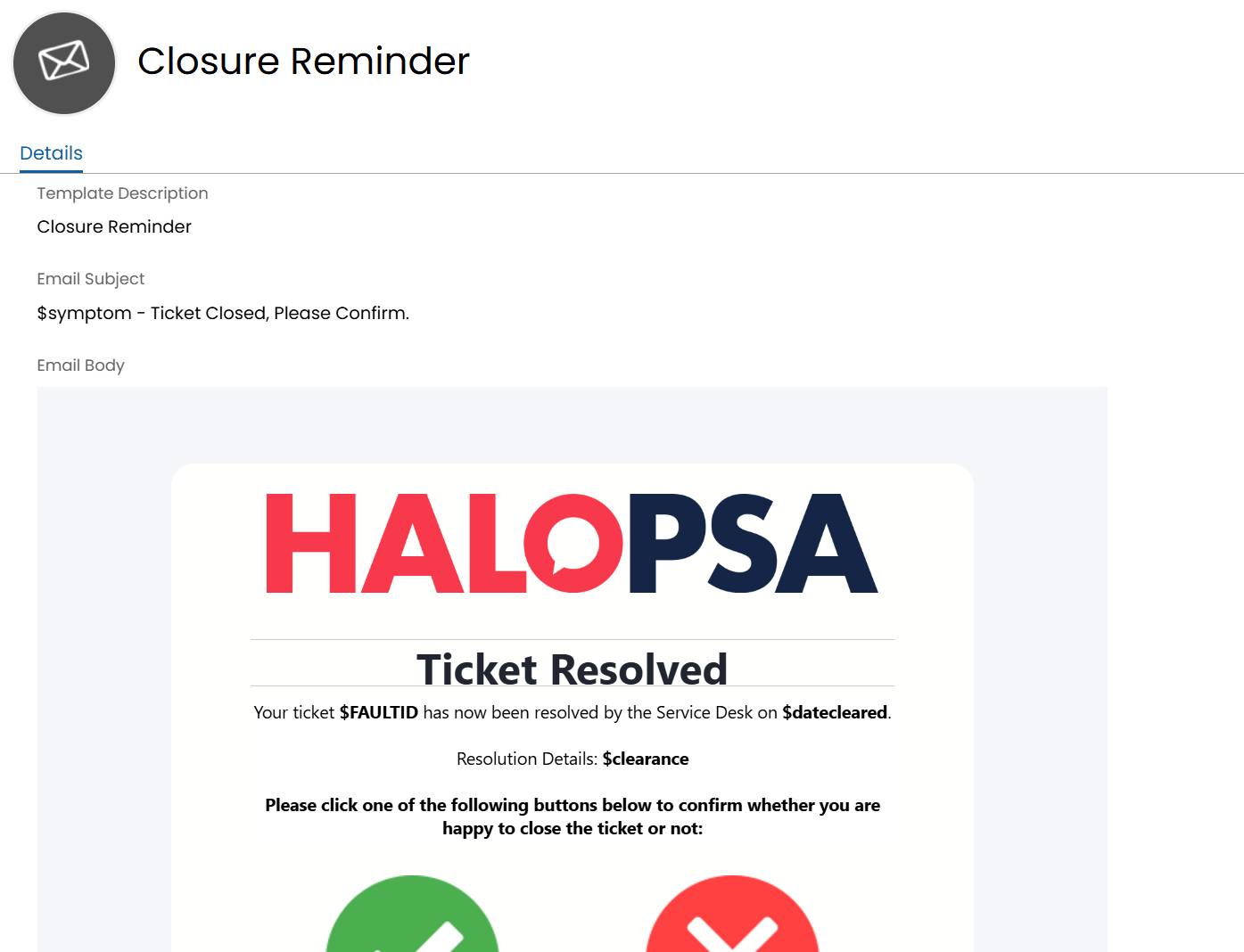 Fig 8. The Default Closure Reminder Template
The ticket closure email template can be set in the dropdown as shown in Figure 2, this can be a custom created templated, that will work across all message groups.
Configuring the Worked Example
To set the closure confirmation so that the ticket will not re-open when fully closed, but will when in pending state. We must do the following:
- Enable end-user closure confirmation
- Set the email template for ticket closure (This can be the default closure template, or a custom template that you create)
- Add to the number of hours before automatic closure of the ticket i.e. 30 hours where a workday is 08:00 - 18:00 (10 hours) so 3 full workdays until automated ticket closure
- Tick on the checkbox "Send email to End-User when Ticket is automatically closed" which will use the email template set above
- Set the reminder emails to every i.e. 10 hours
- Within the ticket type you are configuring this for, set the "Emails on closed Tickets" to "Keeps the Ticket closed"
- Within the ticket type you are configuring this for, set the "Emails on Tickets pending closure" to "Re-open the Ticket"
- "Status after End-Users reopen a closed Ticket" - This setting will not apply, as the closed ticket is configured to not re-open from end-user updates. The emails back into a closed ticket will still show on the ticket, but the status will still be closed.
Additional Features per Ticket Type
Within the Closure settings dropdown of a ticket type, there are many options to choose from on the settings "Emails on closed Tickets" and "Emails on Tickets pending closure".
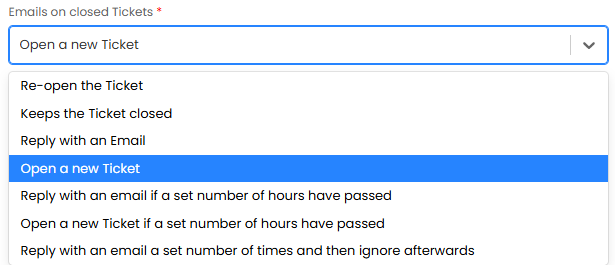
Fig 9. Dropdown options for Tickets Closed or Tickets Pending Closure
"Emails on closed Tickets" has been split into "User Emails on closed Tickets" and "Agent Emails on closed Tickets" to be able to configure different behaviours for each.
- Re-open the Ticket - Ticket will reopen with the status set on the ticket type ("Status after End-Users reopen a closed Ticket").
- Keeps the Ticket closed - Ticket will remain closed.
- Reply with an Email - Ticket will remain closed and an email template sent.
- Open a new Ticket - Ticket will remain closed and a new ticket will be opened.
- Reply with an email if a set number of hours have passed - Ticket will reopen if before the set number of hours, but remain closed and send an email template if after.
- Open a new Ticket if a set number of hours have passed - Ticket will reopen if before the set number of hours, but remain closed and create a new ticket if after.
- Reply with an email a set number of times and then ignore afterwards - Ticket will remain closed and an email template will be sent a certain number of times.
You can configure whether the "Reply with an Email" options send the email to either just the user who replied to the closed ticket, or everyone in the ticket's email list. Within the ticket type > Settings tab, enable "Email replies on closed or pending closure Tickets will only send to the sender" to have this only send to the email that replied to the ticket.
Emails set to open a new ticket will also automatically link the previously closed one as a related ticket. Note: If using "many-to-many" Ticket relationships, the "Related to" section will not show.
The user email and the closure email it is in reply to will be added as the first action of the ticket, showing it came from the previous ticket ID, and relating the two tickets.
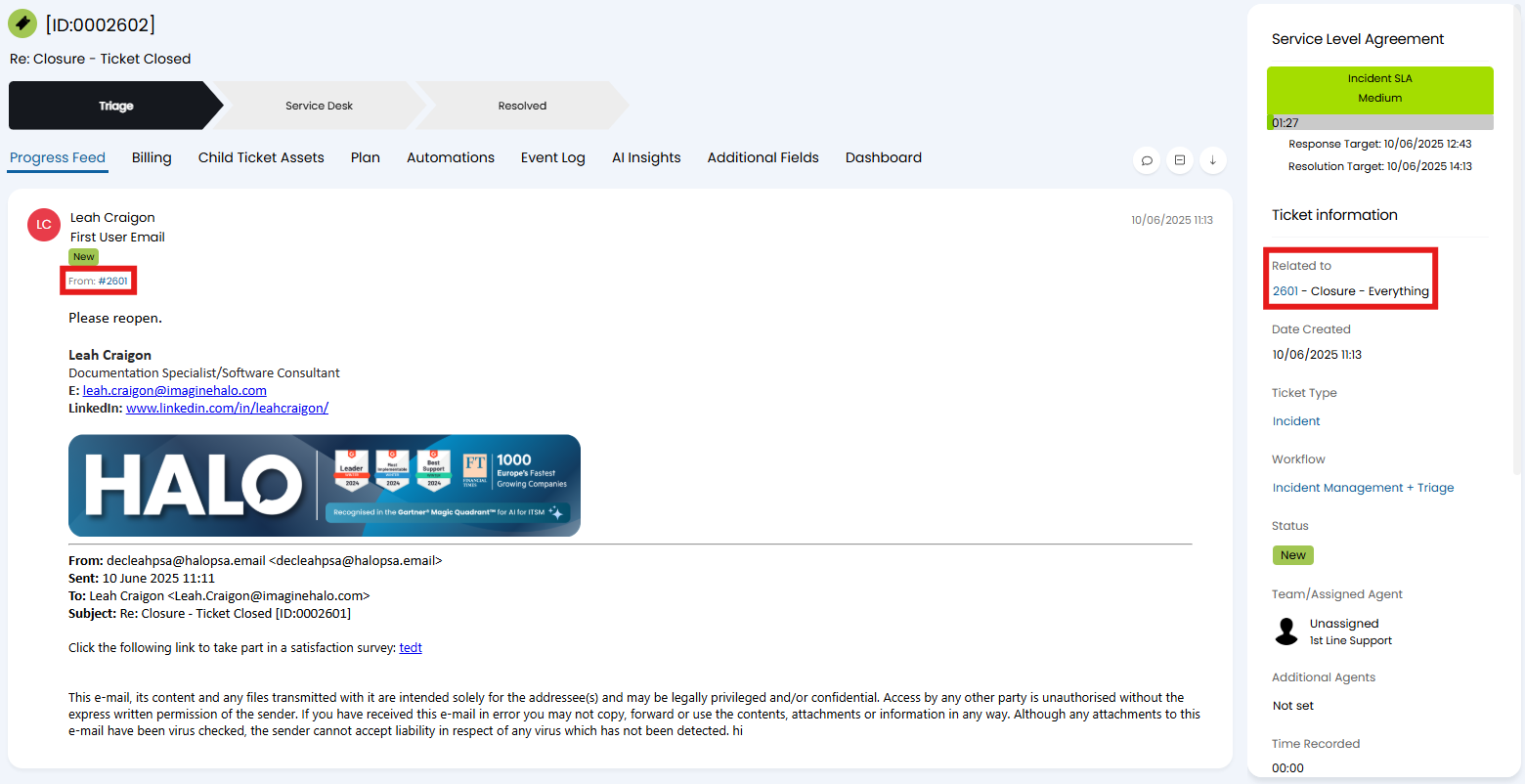
Fig 10. Opening a new ticket from a closed ticket.
The same settings exist for the "Emails on Tickets pending closure" dropdown. When "Open a new Ticket if a set number of hours have passed" is used, the number of hours can be specified here:
Fig 11. Option for Open a new Ticket if a set number of hours have passed
If the checkbox "Emails on closed Tickets setting applies to Tickets pending closure" is enabled, then the settings configured for emails on closed tickets will also apply to tickets pending closure. Any option shown in Fig 8 that pertains to sending an email, will give the choice of email template to use:
Fig 12. "Reply with an Email" Option for Closed Tickets
From v2.238+, "User Emails on closed Tickets with open child Tickets" can be set to determine the behaviour when a user emails on a closed ticket has open child tickets. This includes the option to route the update to any open child tickets while keeping the parent ticket closed. If the parent has no open child tickets, the update is added using the existing "Updates on closed tickets" setting on the parent instead.
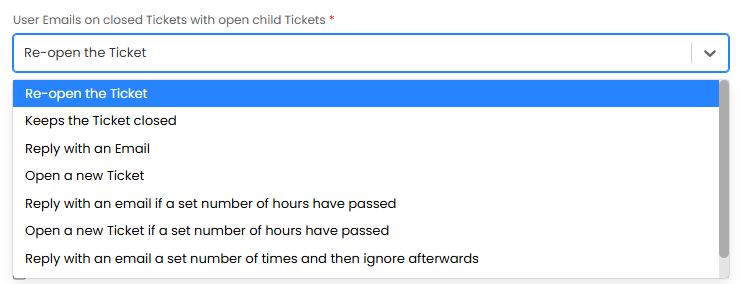
Fig13. "User Emails on closed Tickets with open child Tickets" Option for Closed Tickets
Closure Confirmation Procedures for Project tickets
Closure confirmation for project tickets will function in the same way as closure confirmation for other tickets, using the same setup under Configuration > Tickets > General Settings. But this must be enabled separately for project tickets.
Enabling Closure Confirmation for project tickets
To enable this functionality, head to Configuration > Project Management > General Settings and enable 'Enable End-User Closure Confirmation for Projects'.
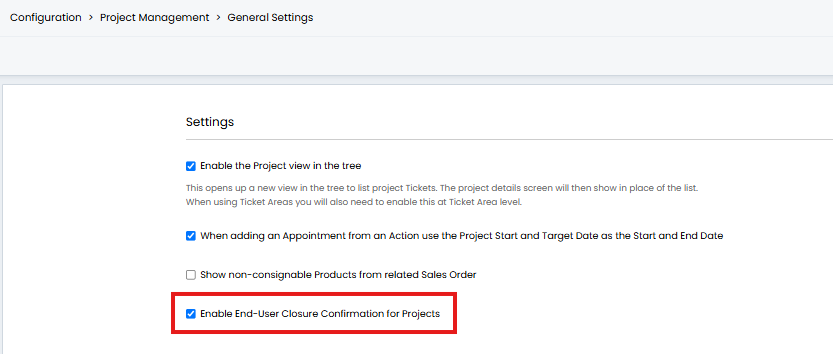
Fig 14. Enable End-User Closure Confirmation for Projects
Once enabled you will need to enable closure confirmation for each of your project ticket types. To do this head to Configuration > Tickets > Ticket Types > select a ticket type used for projects > Settings tab and enable 'Enable pending closure procedures'.
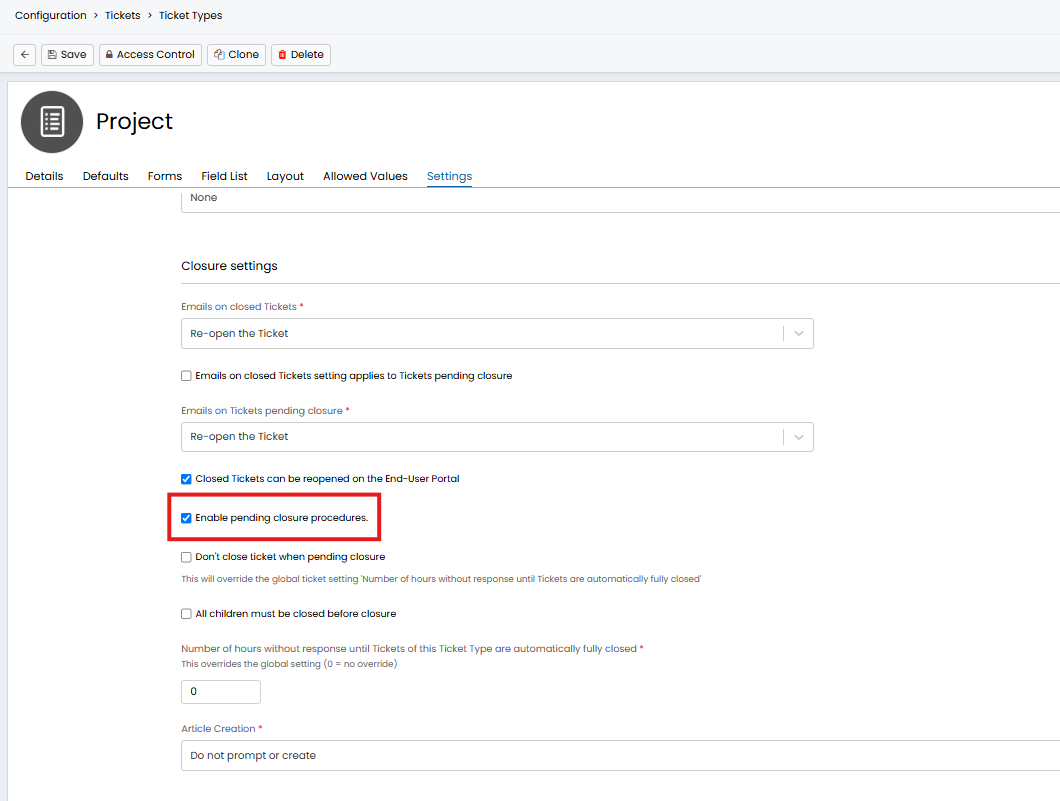
Fig 15. Enable pending closure against ticket type
Note: If the global setting in figure 11 is not enabled you will not be able to enable pending closure procedures against project ticket types.
Once this is enabled closure confirmation procedures will take place for this project ticket type in line with the closure confirmation settings you have configured in tickets > general settings. For example the same interval between reminder emails and the same email template for reminder emails will be used.
However, some of the closure confirmation settings can be overridden against the project ticket type.
You should note that, if you have the setting on in Configuration > Tickets > General Settings to "not close Ticket with SLA procedures when open Appointments, Tasks and To-do items exist", the Ticket will fail to close automatically.
If the Ticket fails to close due to the above mentioned setting, an action will add to the Ticket stating the reason for automatic closure failure:

Fig 16. The action that will add to the Ticket if automatic closure fails due to outstanding Appointments, Tasks or To-do items