Basic AI Project Task Creation
In this guide we will cover:
- What is AI Project Task Creation?
- Setting up AI Project Task Creation
- Using AI Project Task Creation
What is AI Project Task Creation?
AI can be used to automatically generate the tasks for a project based on the statement of work (SoW). Saving you from manually creating the tasks required for a project, or manually setting the tasks that need to be made against the project template.
Halo offers two solutions for generating project tasks using AI, this guide covers the basic method in which to do this.
The basic method is an easy and straightforward way to have project tasks generate based on your SoW, however this requires the SoW to be set against your project template. Tasks are created under the same ticket that contains the SoW, therefore this option is not compatible with processes in which your statement of work is set/added to opportunities. The SoW must be set against your project ticket.
If you would like project tasks created based on the SoW set on the opportunity, or would like to customise this functionality, use our Advanced AI Project Task creation method (guide here). The advanced method uses integration runbooks therefore is much more flexible in the behaviour that can be achieved, but a knowledge of runbooks is required.
Setting up AI Project Task Creation
Disable Advanced Project Task Creation
To begin, ensure you have disabled the runbook used for advanced project task creation. Found under Configuration > Custom Integrations > Integration Runbooks > select "AI Project Task Creation" > Edit this runbook > uncheck "Enabled".
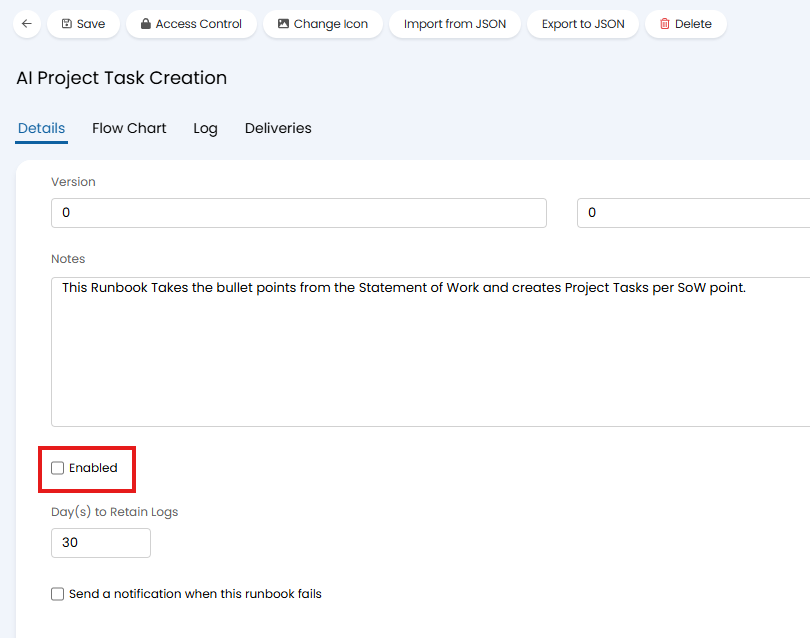
Fig 1. Disable AI Project Task Creation Runbook
Disabling this ensures you do not have two task creation methods running at the same time, potentially overriding each other.
Set AI Connection
Ensure you have chosen an AI Connection method for your instance. This functionality is compatible with our Default Halo connection, meaning you do not need your own AI connection/credentials to use this.
Enable AI Project Task Creation
To enable AI project task creation, head to Configuration > AI > Feature Library > Statement of Work section. Enable the functionality by setting the "Custom Field to Extract Statement of Work" - you should choose the field that contains your statement of work. The field chosen here must meet the following criteria:
- Must be a rich text field
- Must be added to the field list for each of your project ticket types
Note: Some instances may have a statement of work field available OOTB, called "Statement of Work" which can be used here.
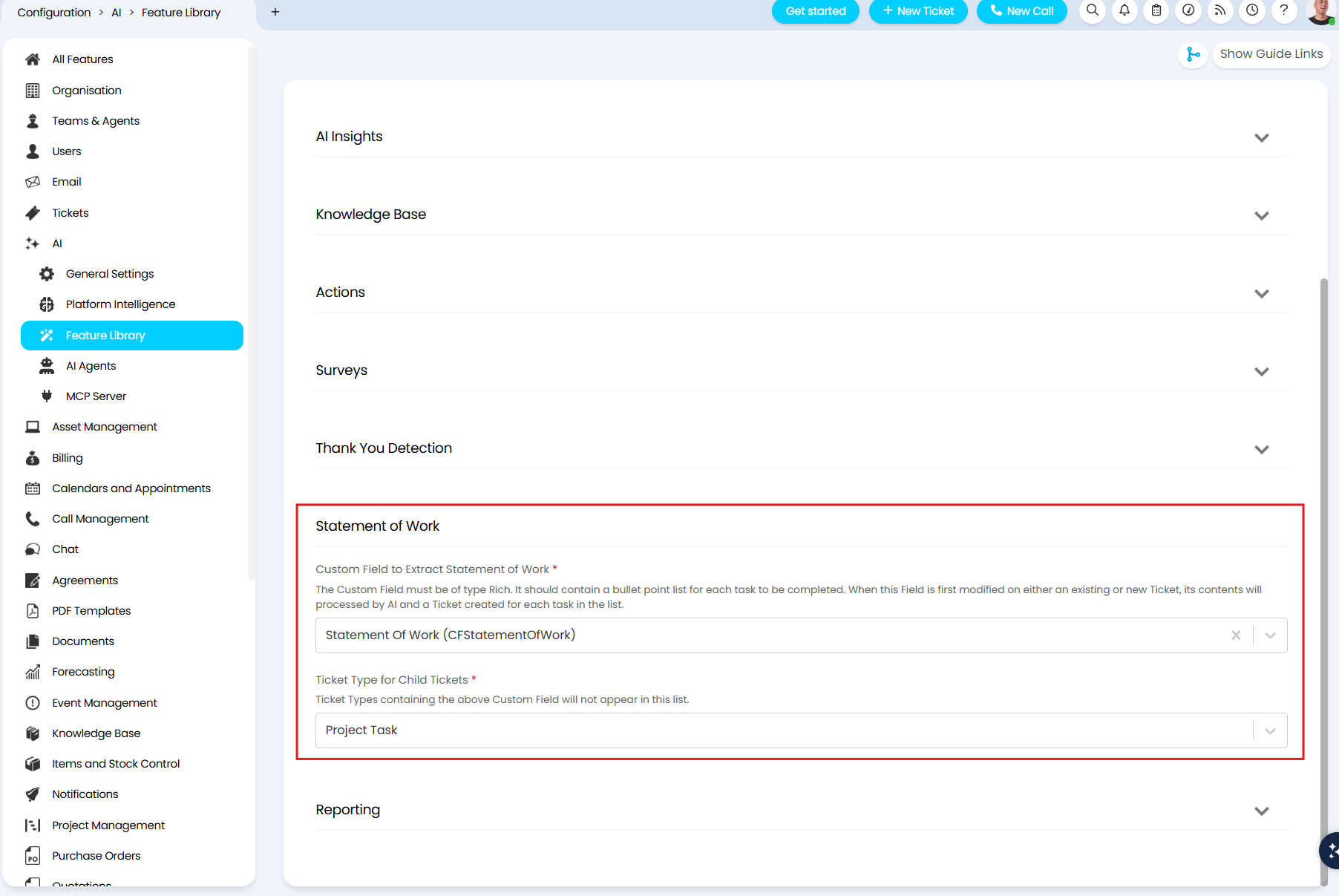
Fig 2. The configuration fields for AI project task creation
Once your SOW field has been set, use the "Ticket Type for Child Tickets" field to choose the ticket type of the tasks that are created.
Using AI Project Task Creation
Populate the SoW against each of your Project Templates
In order to have the project tasks created automatically when the project is generated, you will need to ensure the SoW is populated against your project templates.
This is populated under Configuration > Tickets > Templates > select a template > Values tab.
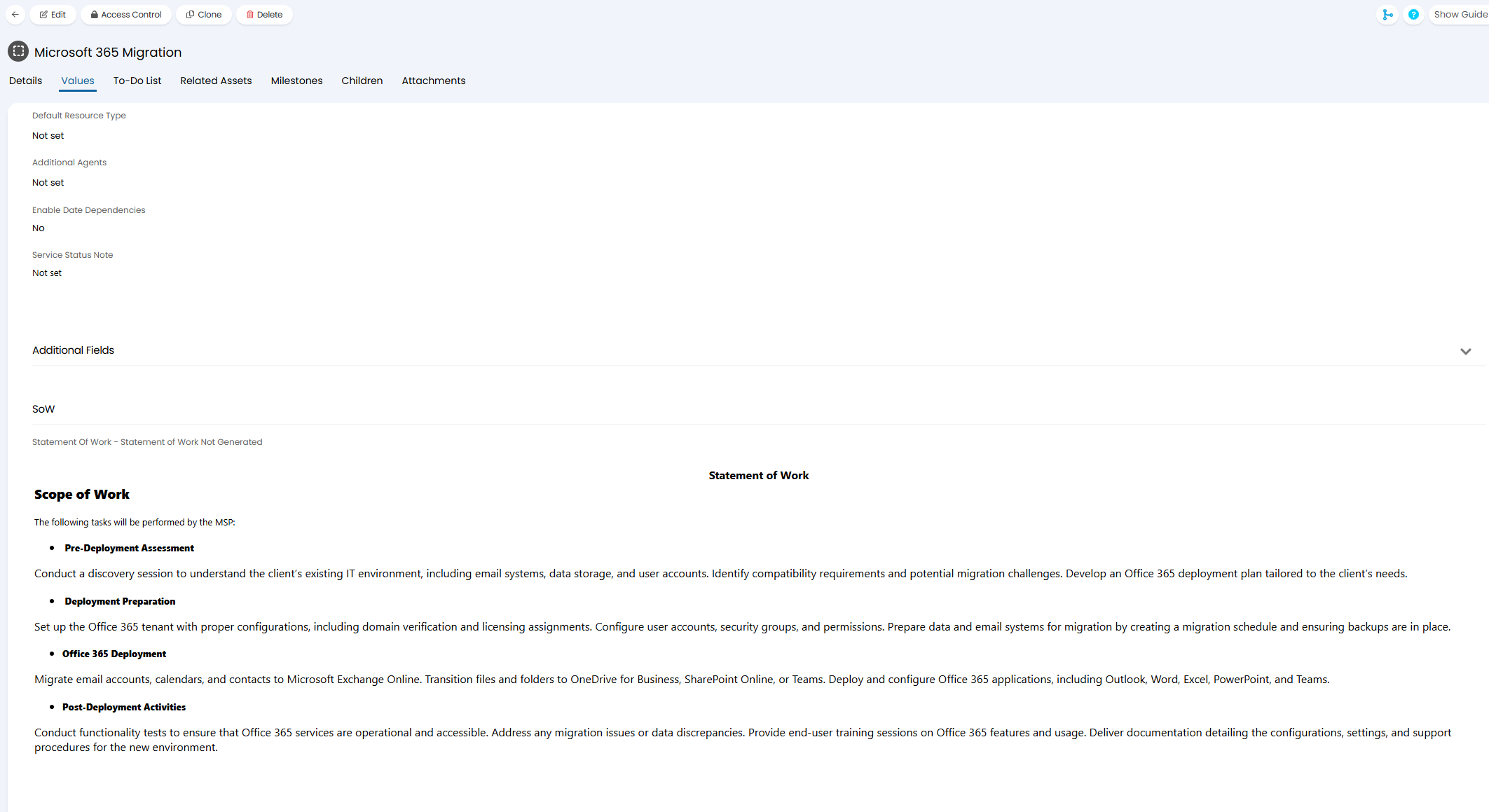
Fig 3. Statement of Work for Project
The SoW must be formatted in a bullet pointed list. A task will be created for each bullet point.
Now, when this template is used to create a project a task will be created for each of the bulleted points in the SoW. Making project templates easier to manage as when the SoW changes for a type of project, you only need to edit the SoW and the next time the project is created tasks will create in line with this. Rather than needing to adjust both the SoW and children of the template.
Tasks Created
Once this template is used to create a project, the project tasks will generate automatically after a seconds. This will apply both when applying a template manually and when creating a project from a sales order.
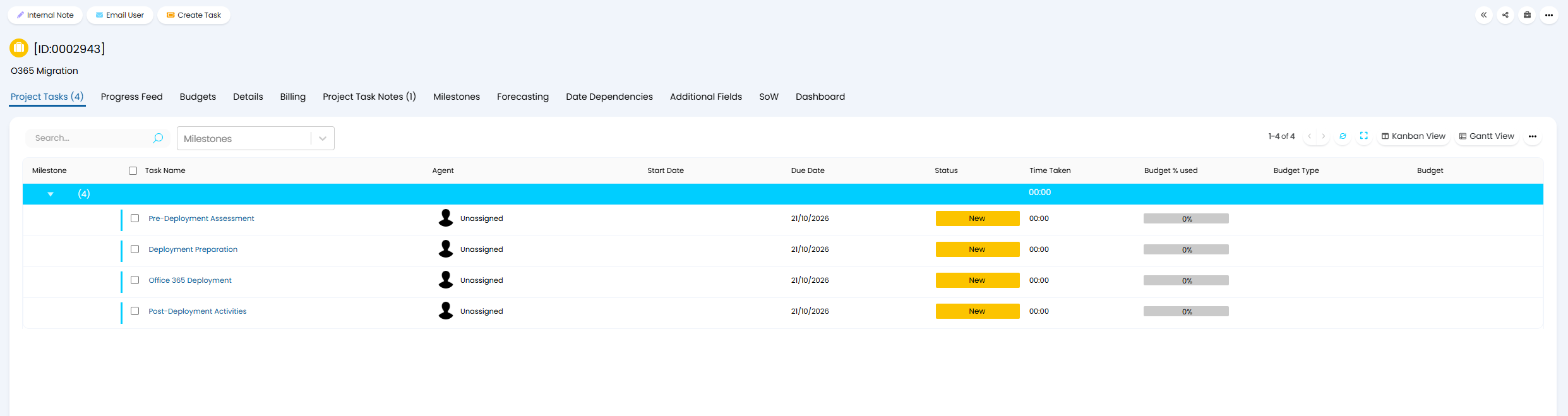
Fig 4. Project Tasks Creation based on SoW
The tasks themselves will contain any additional information from that point on the SoW. Their end user will be the same as the end user of the parent ticket.
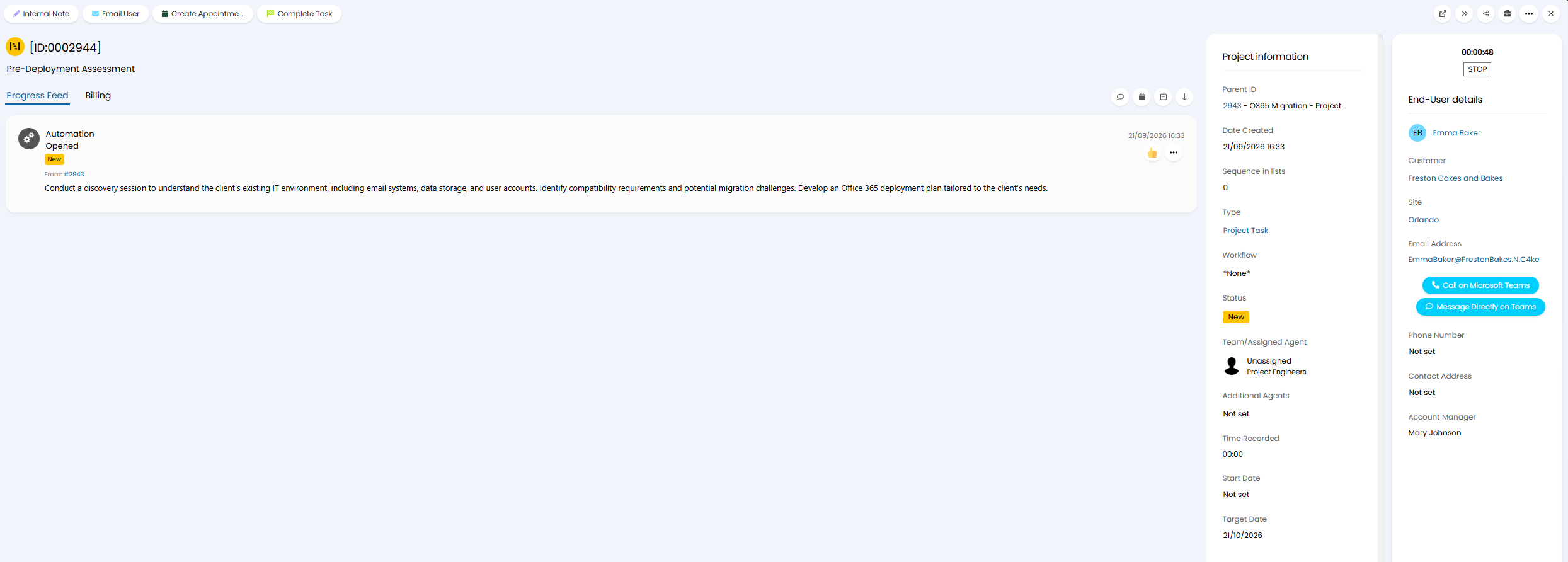
Fig 5. Task Created