Automated Statement of Work Generation
- SoW generation
- statement of work
- automatic SoW
In this guide we will cover:
- How to automate SoW creation
- Customise SoW Generation
The statement of work against your opportunity tickets can be generated automatically based on the services you are quoting the customer for. When quoting customers for products that each have their own statements of work, these statements of work can be combined into a single SoW that can be given to the customer as part of the quote. This allows you to have statements of work generate automatically, changing dynamically based on the products and services you are quoting the customer for.
This is an alternative to setting the SoW against the opportunity template, then adjusting the SoW based on the specific services being quoted. By setting the SoW against each service product, then having each SoW combined automatically, no adjustments need to be made as the SoW will cover all the service products being quoted.
If the opportunity is for a project, you can then have the project tasks for the project be generated/created automatically based on the SoW. This uses AI to evaluate the SoW for the project, then create project tasks based on this. For information on generating project tasks using AI see our guide here.
The functionality outlined in this guide works using runbooks that are available in instances of HaloPSA that were created after January 2025. If your Halo instance was created/deployed before this, or you are using a different Halo product (ITSM, CRM, CSM), you can use the guide here to set up this functionality in your instance or contact our support team for information on having this functionality set up in your Halo instance.
How to automate SoW creation
Raise an opportunity ticket in your instance. This opportunity will need to be using the out-of-the-box workflow 'Opportunity Management with SoW Generation', this will not be assigned to the opportunity ticket by default so you will need to change this manually.
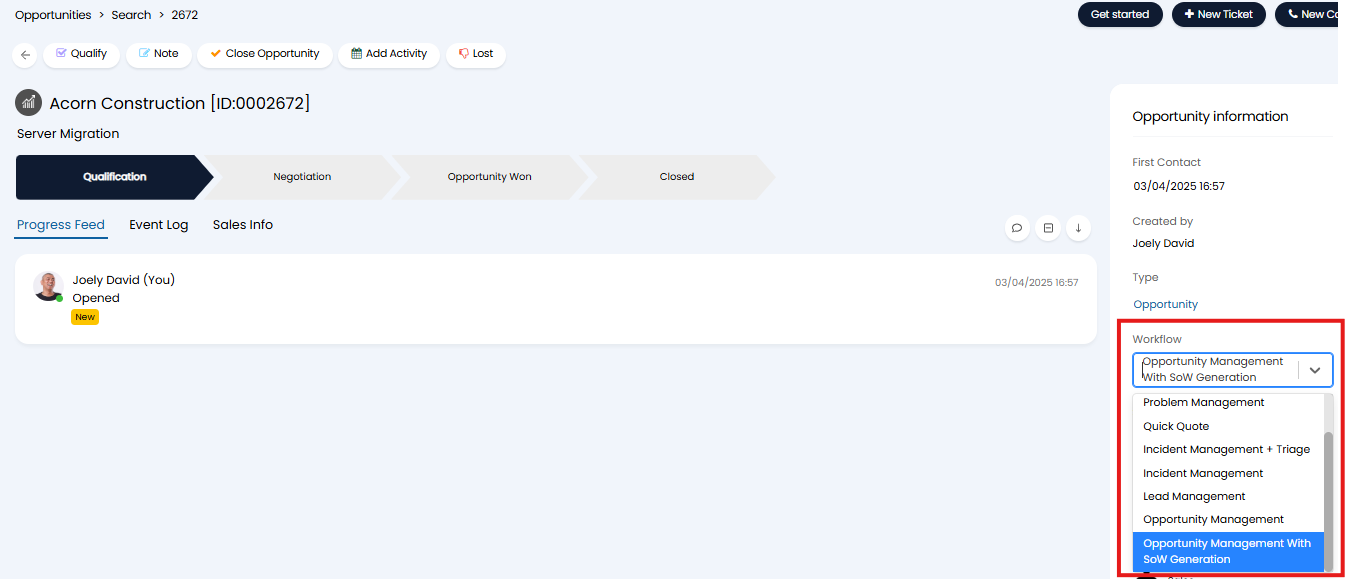
Fig 1. Opportunity workflow
If you have already configured an opportunity workflow in your instance and you would like to use this workflow instead of the out-of-the-box workflow, you will need to add the action 'Generate SoW' to your workflow. This action will need to be added to a workflow step that follows the generation of a quote.
Raise a quote against the opportunity ticket, containing all the products/services required. Ensure the service product being quoted has a statement of work against it.
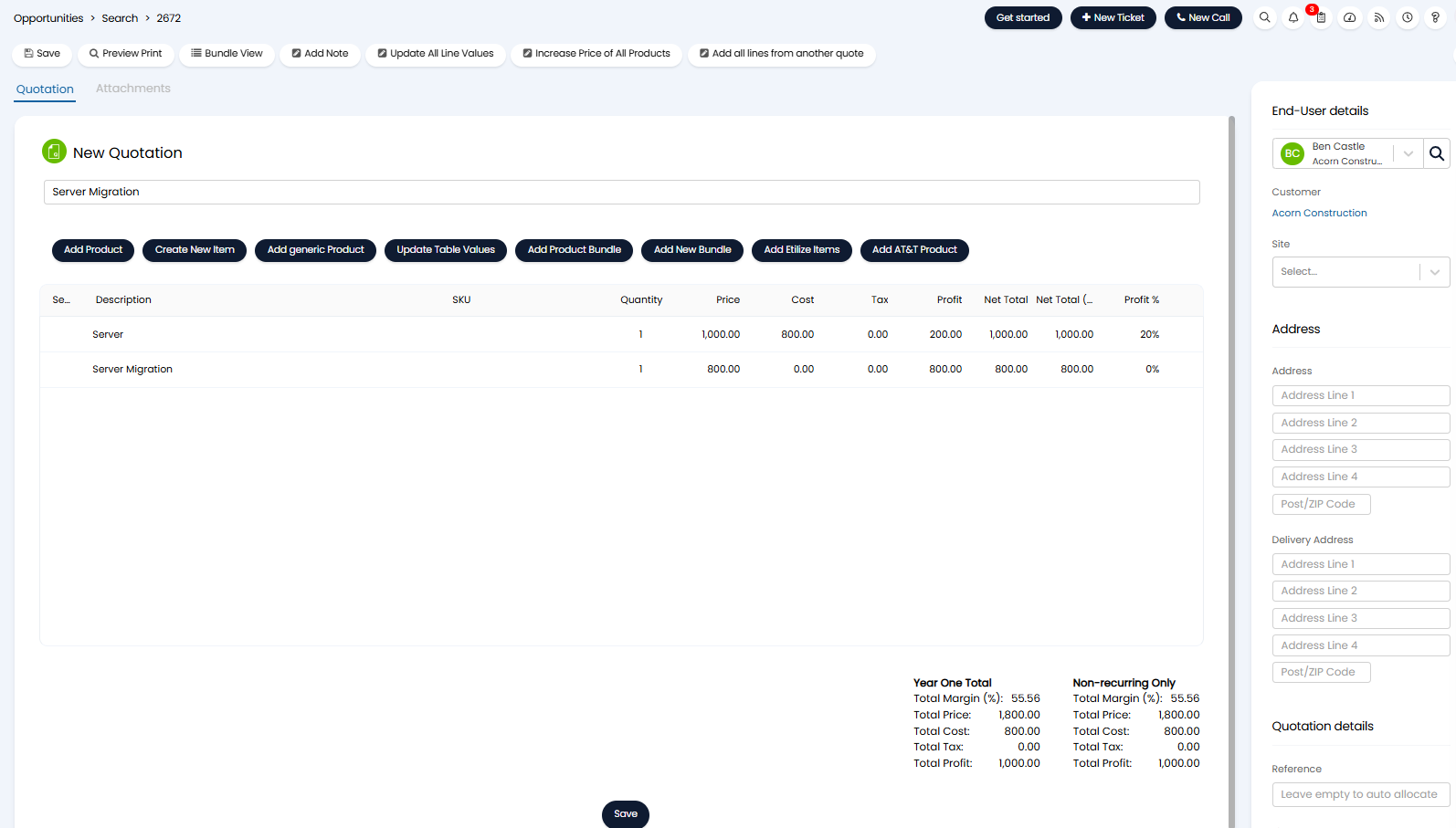
Fig 2. Quotation raised
In the figure 2 example the product 'Server Migration' has a SoW against it as it is a service to implement, with terms, however the 'Server' product does not as it is just a hardware item.
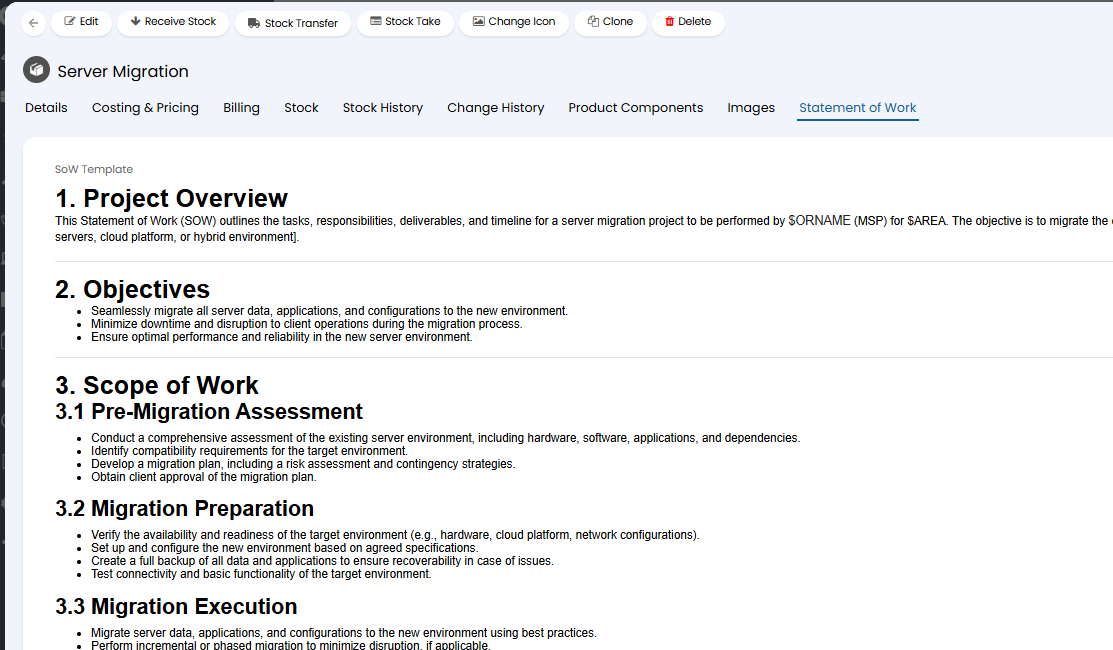
Fig 3. Statement of work against product
Once the quote is saved head back to the opportunity ticket. Now you can use the action 'Generate SoW' on the opportunity ticket. This action will create a statement of work for the opportunity based on SoWs against the product(s) on the quote that you just created.
When using the action select the quote you just created in the 'Primary Quote' field. The 'Project Task Creation Method' field is used to determine how project tasks on future project tickets linked to this quote, are created. It will not impact the SoW being generated here, but will impact how project tickets are created, if you are quoting for a project, see the section of this article 'AI project task creation' for more information on this.
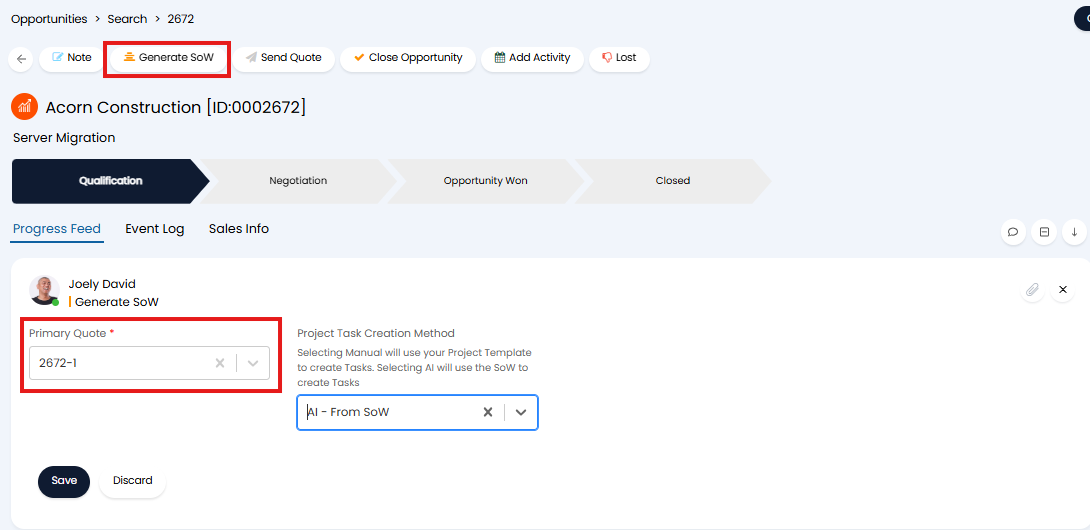
Fig 4. Use Generate SoW action
Once the action is saved you will see an automation run against the ticket in the progress feed. Then in the 'SoW' tab you will see your newly generated SoW, this will contain the SoW set against the item(s) on the quote. If there were multiple items on the quote with SoWs (multiple services) the SoW field against the opportunity will contain the SoW for each product, this will be separated out per product so the customer can see which product/service the SoW related to.
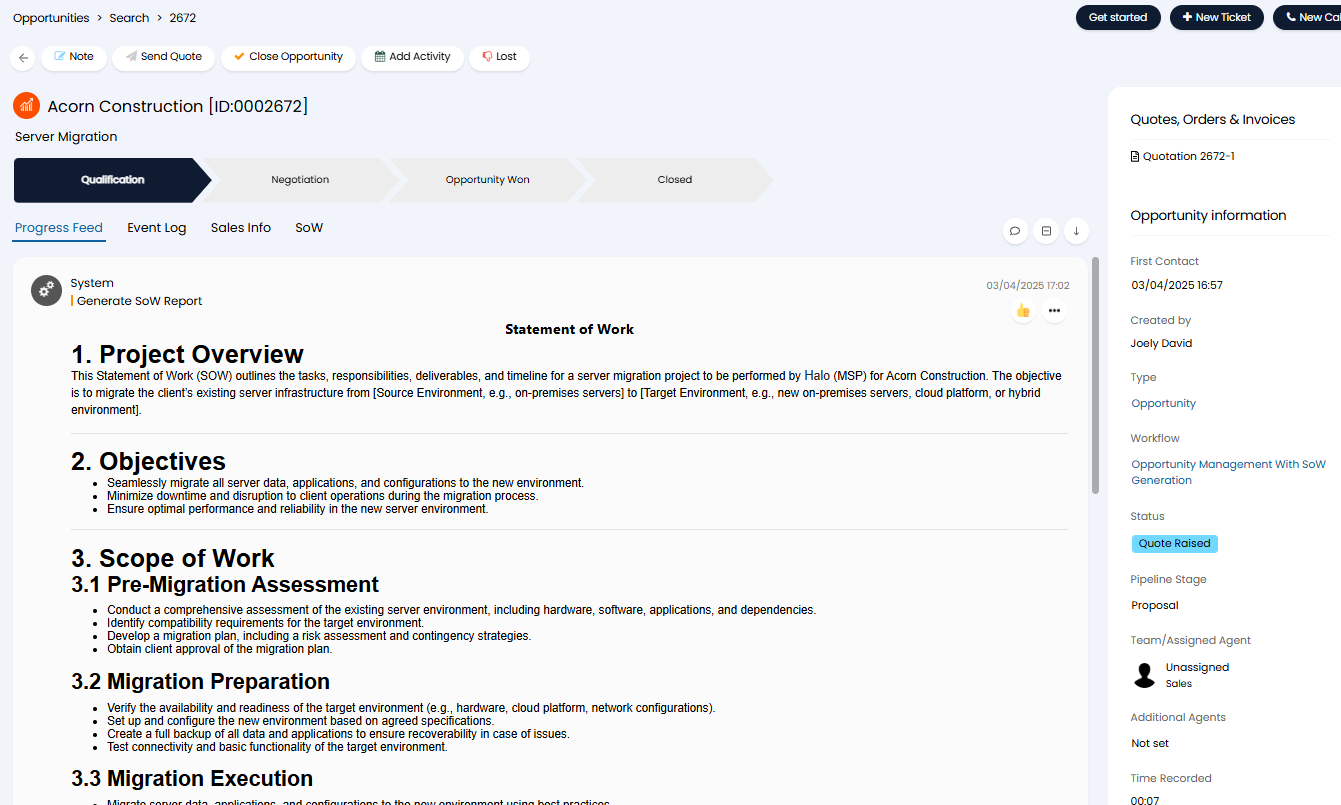
Fig 5. Generated SoW against opportunity ticket
Note: The SoW will follow the formatting of the SoW against each product so ensure your SoWs have consistent formatting.
From here you can make changes to the statement of work if required.
Now when you send the quote off to the customer to be approved this SoW will be visible to this customer.
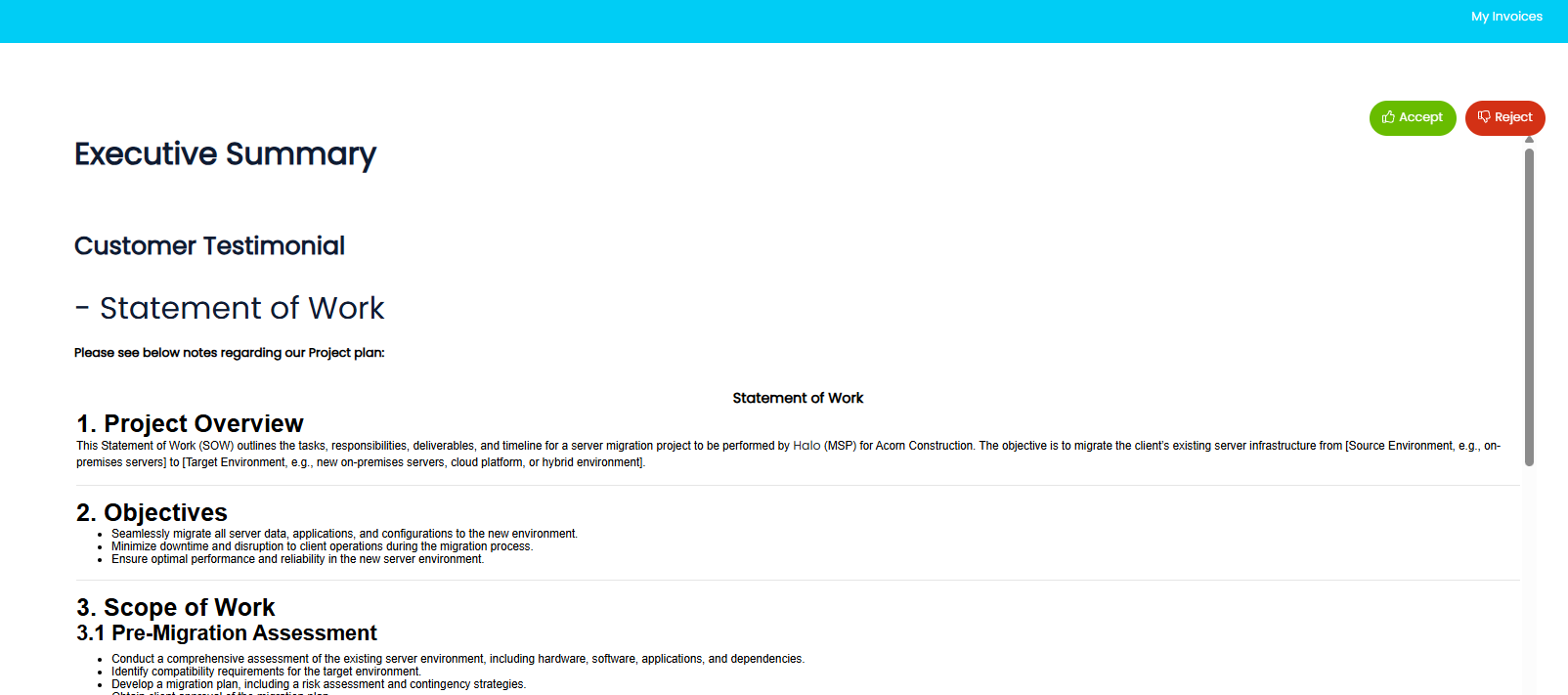
Fig 6. SoW against quote in portal
This allows you to have a more dynamic and automated way of generating your statement of work. Storing and pulling the SoW from a product saves you having to input the SoW manually against an opportunity, or create multiple opportunity templates with different SoWs.
From here the statement of work can be used, in conjunction with AI to generate project tasks for the project that has been quoted for. For information on using the SoW to generate project tasks using AI see our guide here.
Customise SoW Generation
For information on how the functionality outlined in this guide can be customised, see our guide here.