Cc and Bcc Email Configuration
- cc
- bcc
In this guide we will cover:
- Configuration that adds Cc to an Email
- Configuration that adds Bcc to an Email
Emails sent from Halo can draw Cc or Bcc addresses from various areas in the system. This guide covers the most commonly used.
Emails from a Ticket
The following configuration options can add a Cc or Bcc into emails sent from a ticket.
End-User of the Ticket
In Configuration > Email > General Settings, enable "Use Dynamic Email Lists". If enabled, the emails in the To/Cc/Bcc throughout the ticket will be defaulted automatically when sending an email.
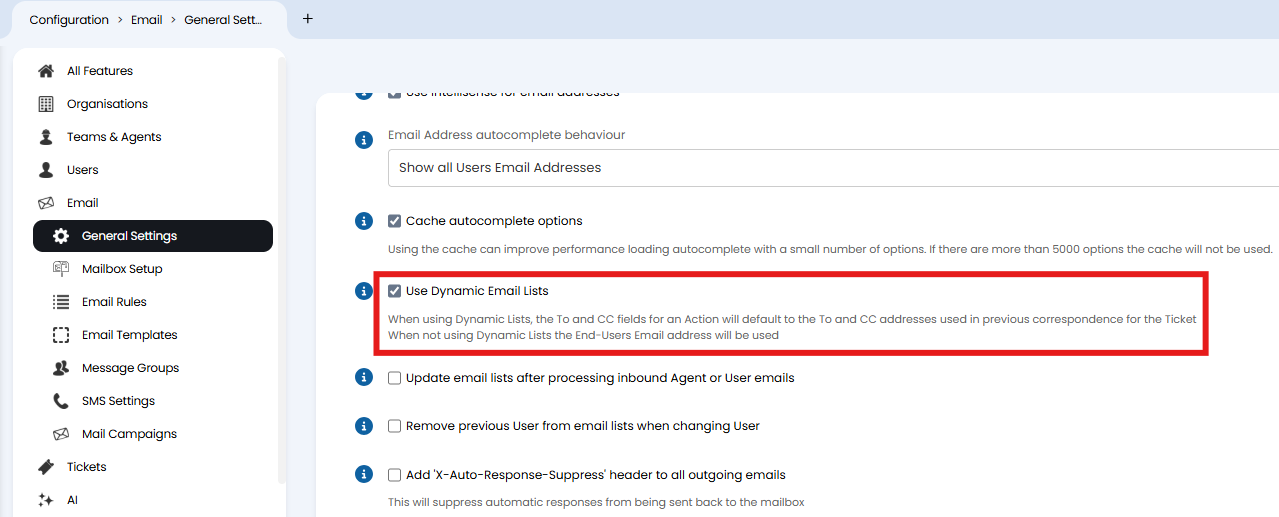
Fig 1. Dynamic email list option
Followers
In Configuration > Tickets > Ticket Types, the "Followers" field can be added to the "Field List" tab.
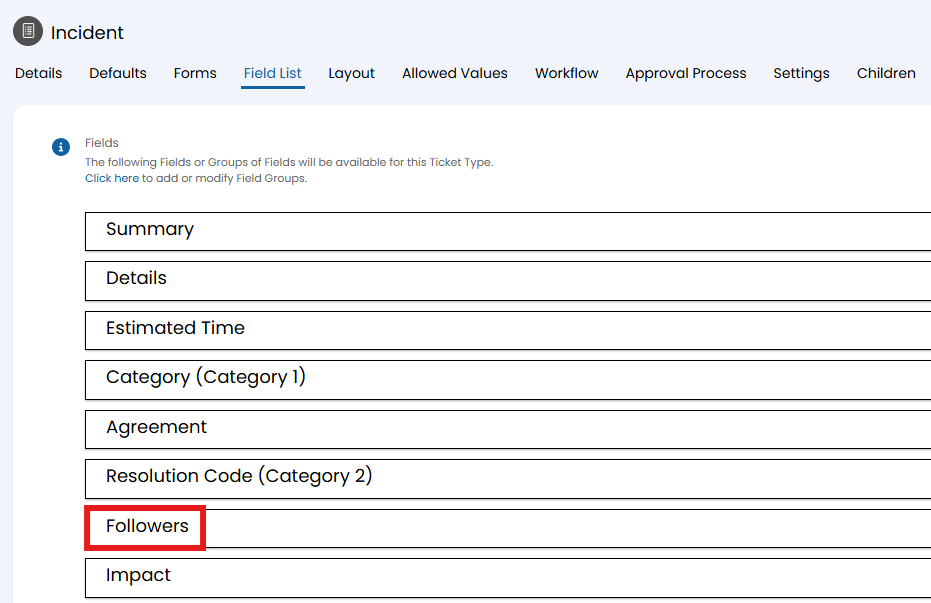
Fig 2. Followers field on a ticket type.
Followers will be Bcc'd into emails on tickets they are following, unless "Do Not Send Follower Emails" is enabled in Configuration > Notifications > General Settings. Note: This option can be overridden on an action, covered further down this guide.
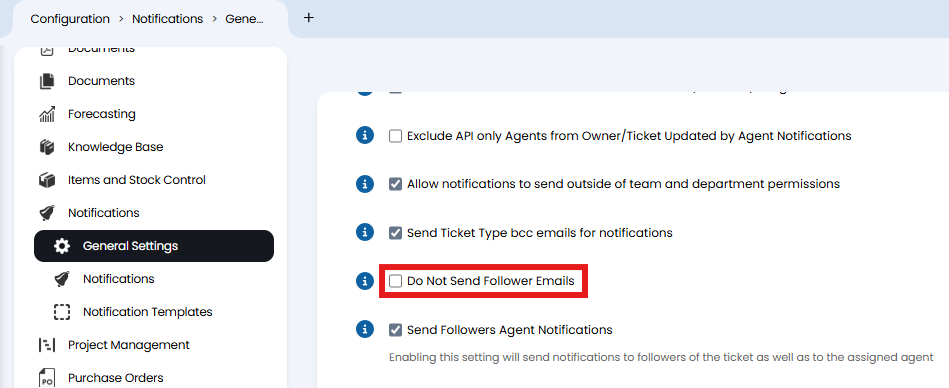
Fig 3. Disabling follower emails
Ticket Type
In Configuration > Tickets > Ticket Types > Settings tab, there is an option to "Always Bcc". Email addresses entered here will be Bcc'd into all emails for this ticket type. When entering multiple email addresses, use "\;" to separate them.
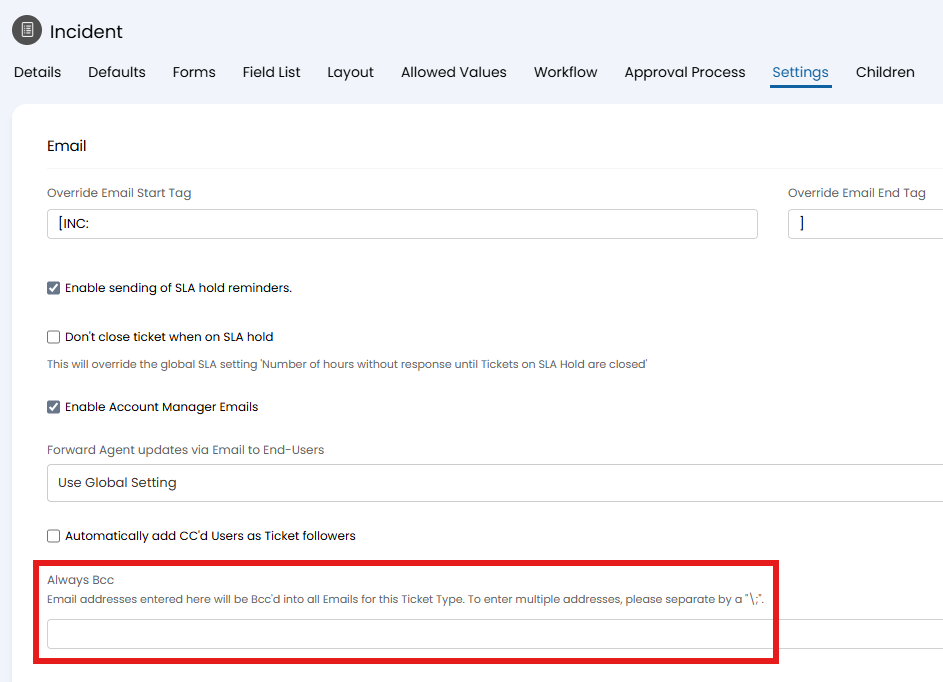
Fig 4. Always Bcc option on a ticket type
Actions
In Configuration > Tickets > Actions > Defaults tab, various Cc and Bcc options can be set.
- Default "Cc" from Ticket: When checked, the email "Cc:" field will be inherited from the Ticket's previous email.
- "Cc" address override: Any emails entered in this field (for multiple, separate these with a comma) will be set as a default for the "Cc:" field.
- "Bcc" address override: Any emails entered in this field (for multiple, separate these with a comma) will be set as a default for the "Bcc:" field.
- Cc/Bcc all followers: Any followers of the ticket will either be Cc or Bcc'd in the email. Note: If "Do Not Send Follower Emails" is enabled in Configuration > Notifications > General Settings, this option will send an email still.
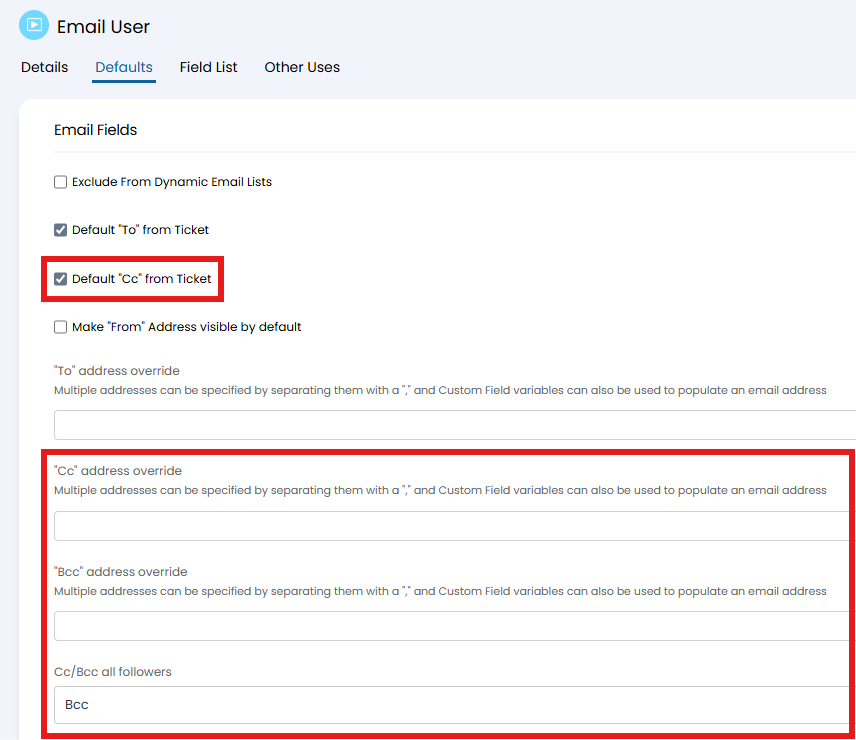
Fig 5. Cc and Bcc options on an action
Ticket Templates
In Configuration > Tickets > Templates > Values tab, set the "Email Cc List". Any Emails selected here will be added to the email Cc list of any tickets created from this template.
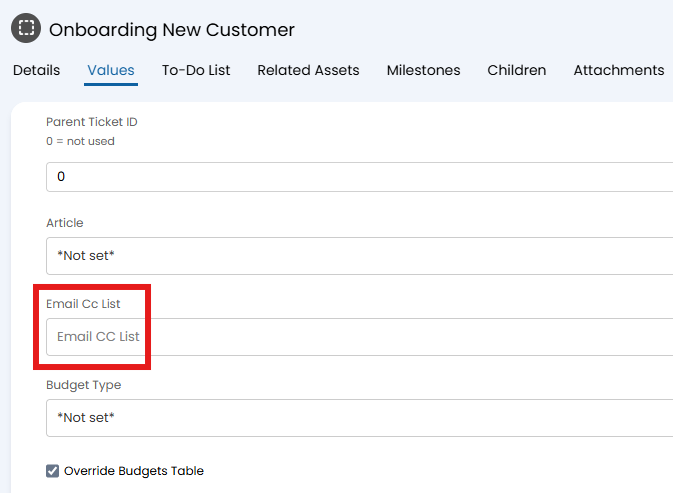
Fig 6. Email Cc List option on a ticket template
Customer Profile
Account Managers will be Bcc'd into the closure email, as well as receiving separate email notifications for logging, re-assigning, etc.
In Configuration > Users > General Settings, "Enable Account Manager emails".
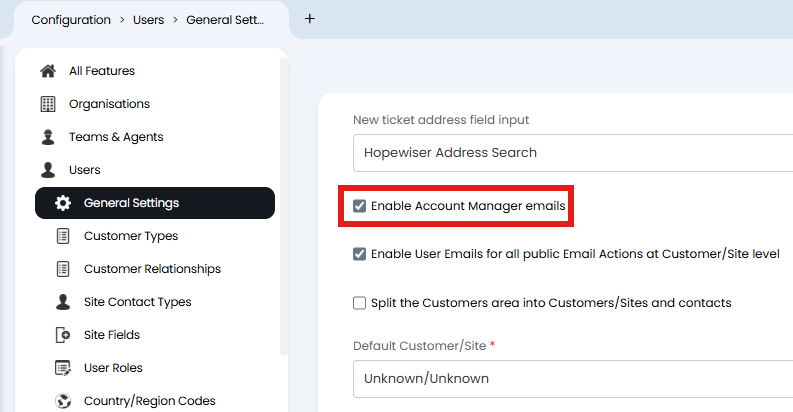
Fig 7. Enable Account Manager emails option
The field can be overridden by the setting of the same name in Configuration > Tickets > Ticket Types > Settings tab.
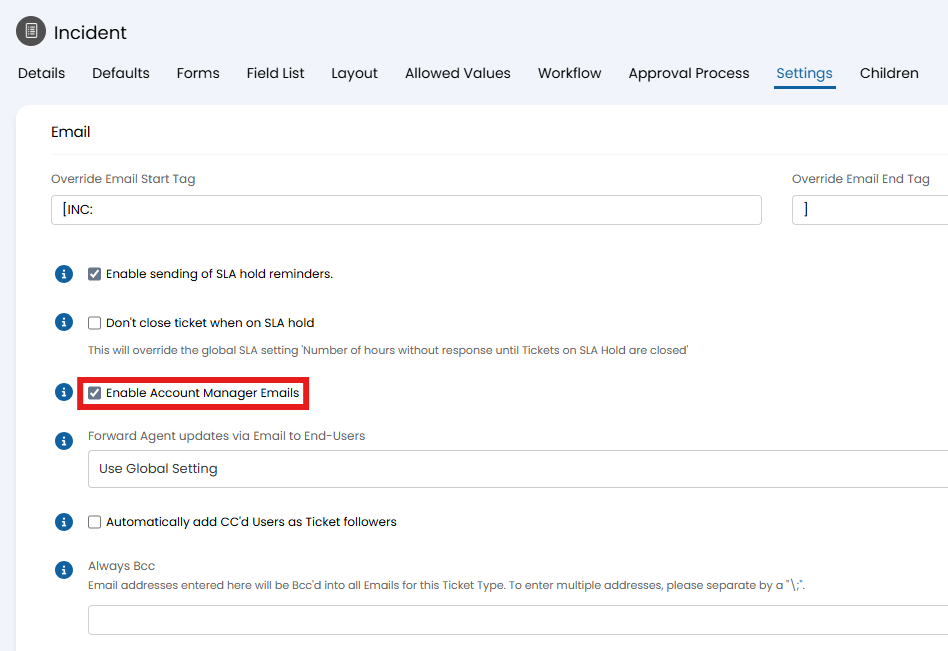
Fig 8. Enable Account Manager emails on a ticket type
An Account Manager can be set per customer within the "Details" tab or pane > Assigning and Account Manager dropdown.
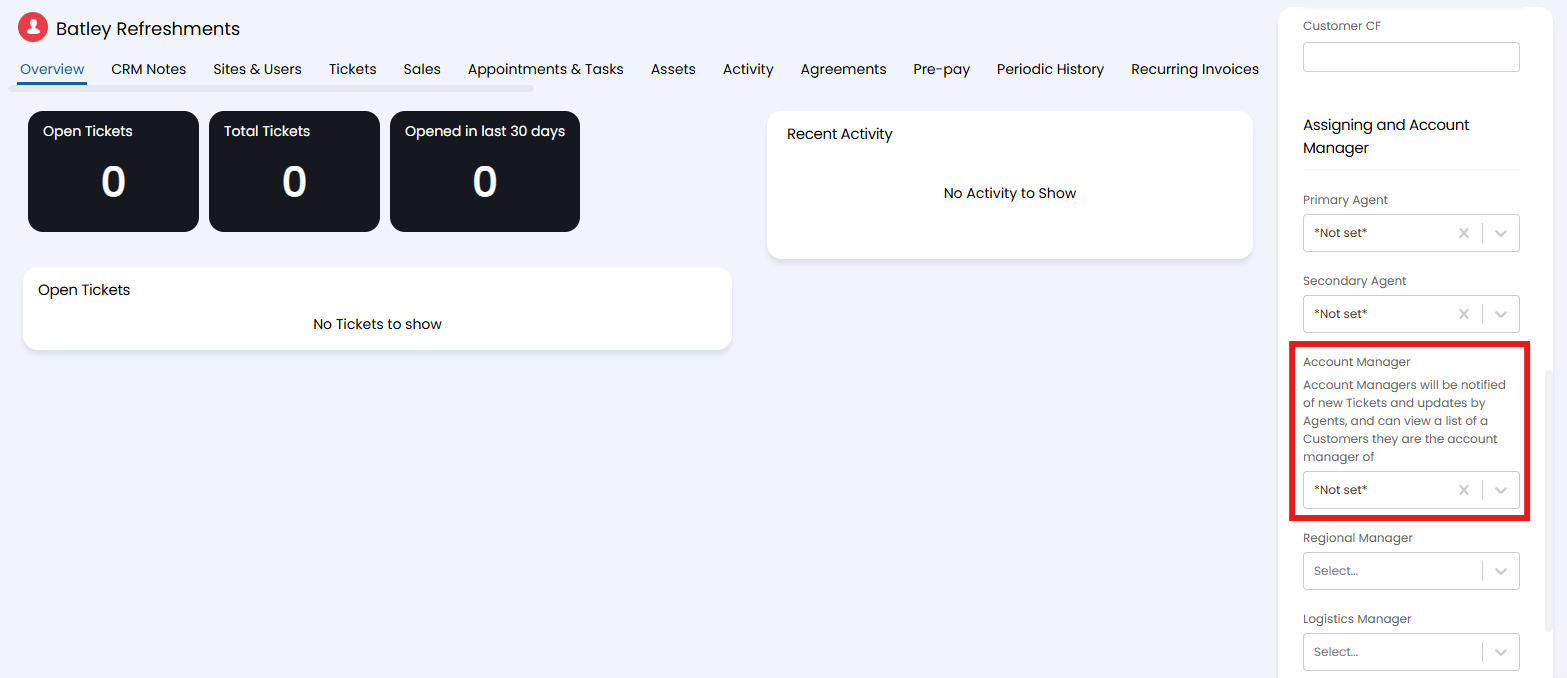
Fig 9. Account Manager on a customer
User Profile
In Configuration > Users > General Settings, turn on "Enable User Emails for all public Email Actions at Customer/Site level".
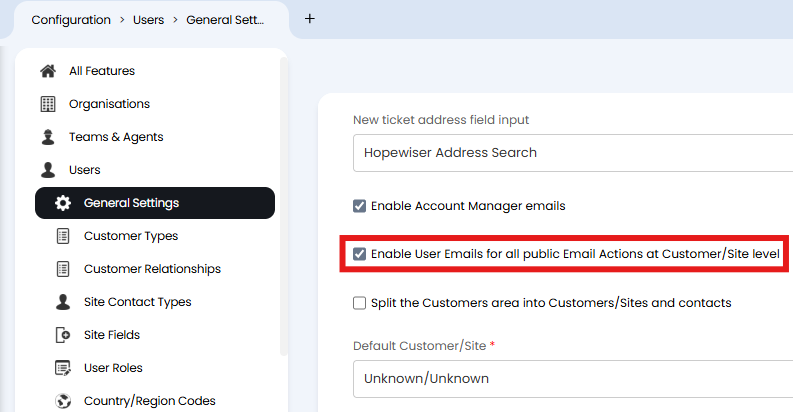
Fig 10. Public email actions at Customer/Site level global option
This will then show two additional options on a user's profile > Preferences tab > "Customer Level Notifications" or "Site Level Notifications" dropdowns.
- Send this User an Email for all public email Actions at Customer level: This user's email will be Cc'd into any public email on a ticket within that customer.
- Send this User an Email for all public email Actions at Site level: This user's email will be Cc'd into any public email on a ticket within that site.
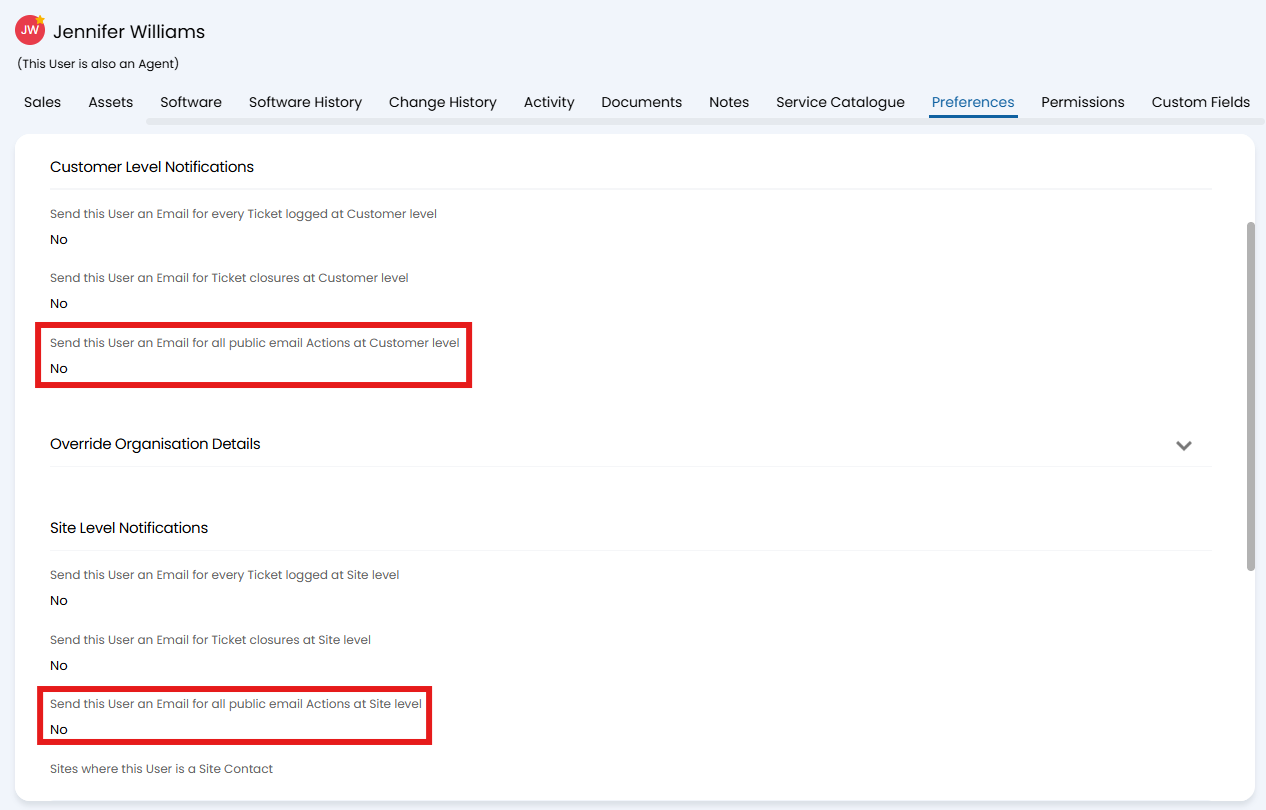
Fig 11. Enabling public action emails at user level
Approval Processes
Users who are part of an approval process but have delegated the approval will be added to the Cc of the approval emails. This is enabled from the user profile > Preferences tab > Approval Processes dropdown > "Approval delegation activated". An option will show to "Do not CC original approver during delegation" to disable this behaviour.
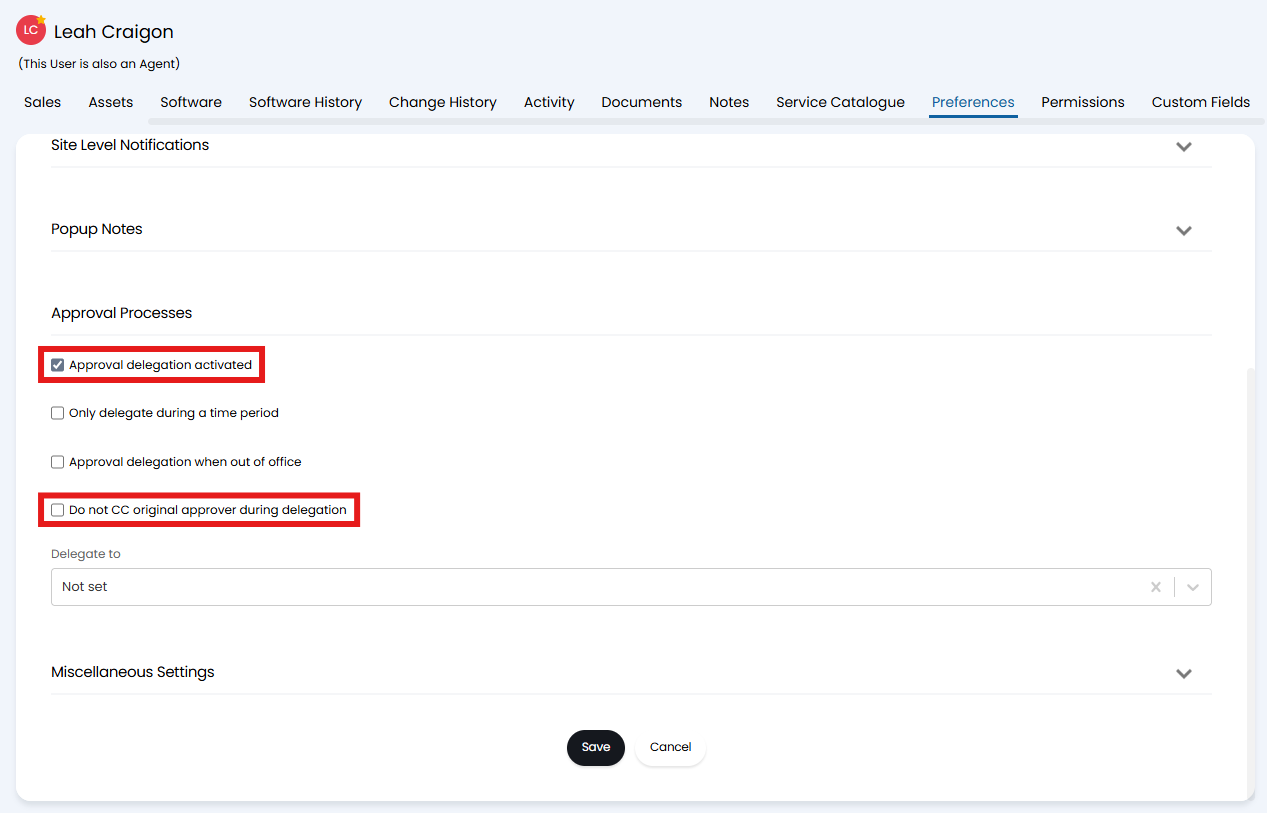
Fig 12. Approval emails on an user
Emails from Invoices
The following configuration options can add a Cc or Bcc into emails sent from an invoice.
In Configuration > Billing > General Settings, set the "Add this email address to invoice email BCC" option. All invoices emailed from Halo will then copy the address in to the Bcc field.
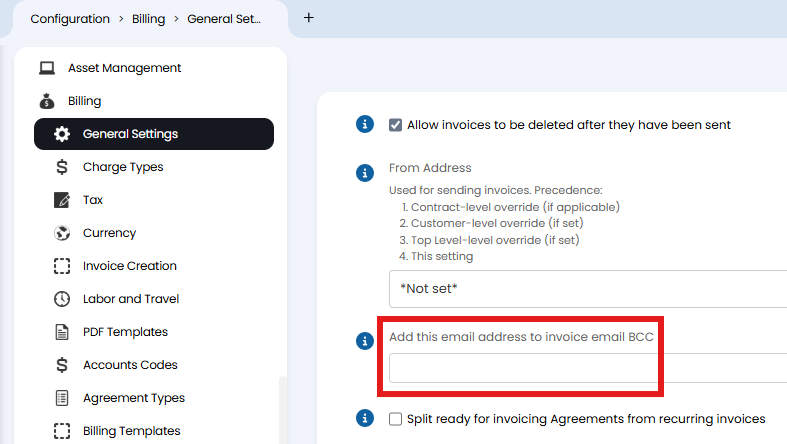
Fig 13. Invoice email Bcc option
Emails from Purchase Orders
The following configuration options can add a Cc or Bcc into emails sent from a purchase order.
In Configuration > Purchase Orders, you can set the "Purchase Order CC address" or "Purchase Order BCC address" for Cc or Bcc respectively. The address(es) entered here will be defaulted on all purchase order emails.
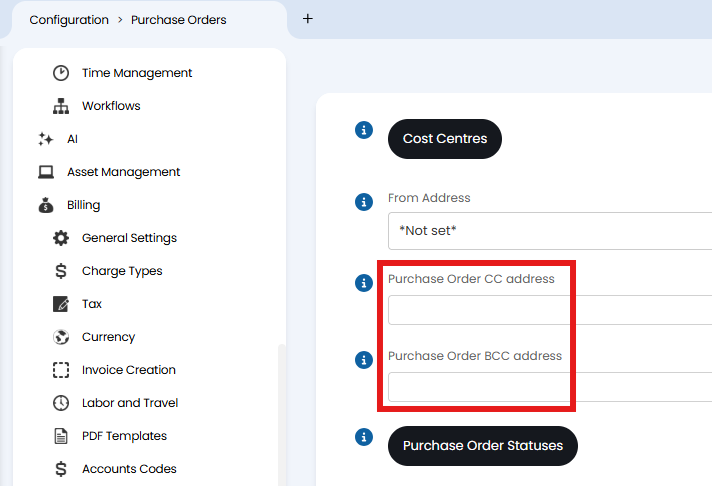
Fig 14. Purchase order Cc and Bcc options