Account Managers
- primary agent
- user management
- customer management
- customer success
- account manager
In this guide we will cover:
- Setting Account Manager Types
- Functionality Available per Account Manager Type
Related Guides:
Setting Account Manager Types
Multiple types of Account Manager field can be set against a client's profile. Within the "Details" tab, open the "Assigning and Account Manager" dropdown to see the list and options.
The following Account Manager types can be set against the client, and each base use-case is outlined alongside it.
- Primary Agent: The main point of contact handling day-to-day issues directly.
- Secondary Agent: A backup or supporting agent who assists the Primary Agent and steps in when they're unavailable.
- Account Manager: Nurtures the existing relationship with the client.
- Regional Manager: Leads a regional team, and can provide escalation support.
- Logistics Manager: Coordinates the operational and delivery processes.
- Sales Representative: Focuses on identifying upsell opportunities within existing accounts.
- Account Owner: Holds ultimate responsibility for the client success, and the final escalation point for major decisions.
- CXM Lead: Leads the client experience and drives changes that improve satisfaction and retention.
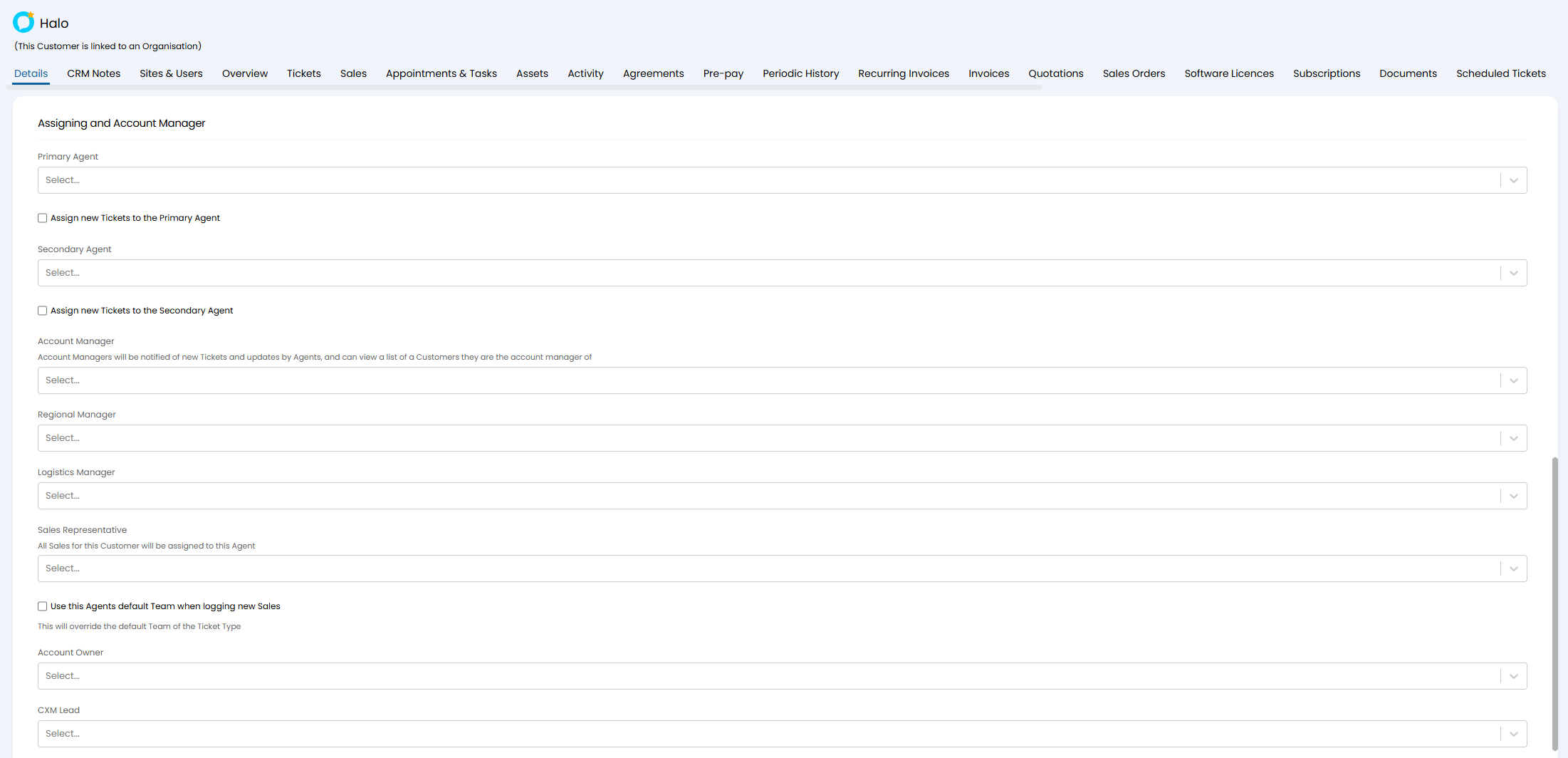
Fig 1. Account Manager fields on a client
If you can only see "Primary Agent", "Secondary Agent" and "Account Manager", go to Configuration > Users > General Settings, and ensure "Show additional agent assigning options in Customer settings tab" is enabled.
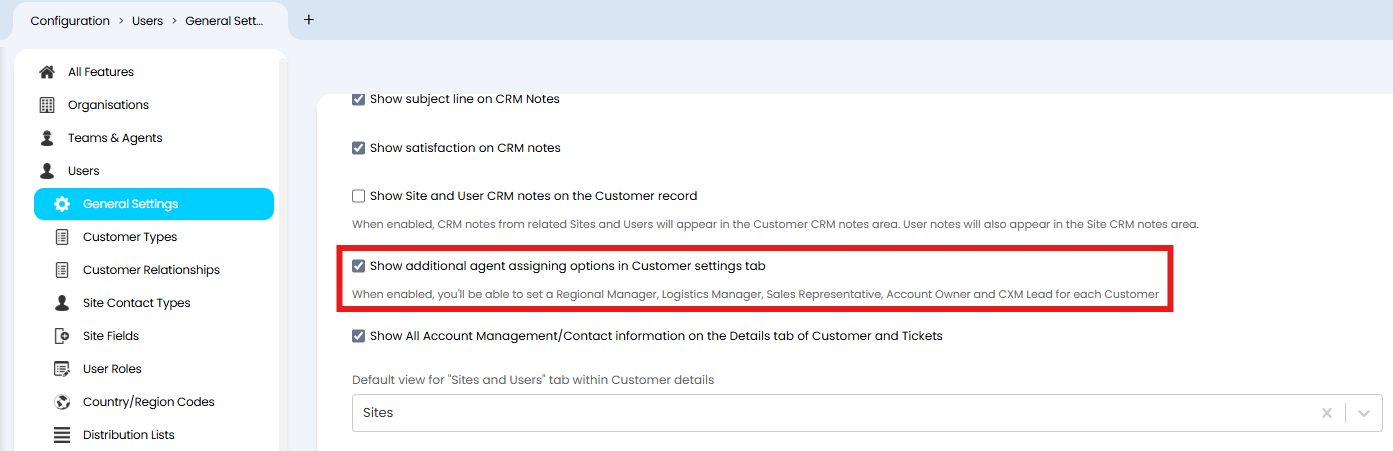
Fig 2. Enabling rest of the Account Manager types
Functionality Available per Account Manager Type
Due to their varied roles, each of these Account Manager options have different functionality available to them. The table below sets out the differences.
| Functionality | Primary Agent | Secondary Agent | Account Manager | Regional Manager | Logistics Manager | Sales Representative | Account Owner | CXM Lead |
| Can be shown in the user details on tickets | ✓ | ✓ | ✓ | ✓ | ✓ | ✓ | ✓ | ✓ |
| Can be automatically assigned all tickets | ✓ | ✓ | ❌ | ❌ | ❌ | ✓ (Sales Only) | ❌ | ❌ |
| Can be set as the default agent on ticket rules | ✓ | ✓ | ✓ | ✓ | ✓ | ✓ | ✓ | ✓ |
| Can be set as the default agent on ticket types | ✓ | ✓ | ✓ | ❌ | ❌ | ❌ | ❌ | ❌ |
| Can be set as the default agent on ticket templates, scheduled tickets or automated tickets | ✓ | ✓ | ✓ | ❌ | ❌ | ❌ | ❌ | ❌ |
| Can be set as the default agent on actions | ❌ | ❌ | ✓ | ❌ | ❌ | ❌ | ❌ | ❌ |
| Can be automatically added as an additional agent on tickets | ✓ | ✓ | ✓ | ❌ | ❌ | ❌ | ❌ | ❌ |
| Can be used as filter criteria in ticket lists or filter profiles | ✓ | ✓ | ✓ | ❌ | ❌ | ❌ | ❌ | ❌ |
| Can be added as a column to ticket column profiles | ❌ | ❌ | ✓ | ❌ | ❌ | ❌ | ❌ | ❌ |
| Can be added as a column to client column profiles | ✓ | ✓ | ✓ | ❌ | ❌ | ❌ | ✓ | ❌ |
| Can be notified for new tickets logged | ❌ | ❌ | ✓ | ❌ | ❌ | ❌ | ❌ | ❌ |
| Can be notified for agent updates on tickets | ❌ | ❌ | ✓ | ❌ | ❌ | ❌ | ❌ | ❌ |
| Can be used as an activity feed view | ❌ | ❌ | ✓ | ❌ | ❌ | ❌ | ❌ | ❌ |
| Can be used as filter criteria for dynamic distribution lists | ✓ | ✓ | ✓ | ❌ | ❌ | ❌ | ❌ | ❌ |
| Can be used to filter the "Ready for Invoicing" screen | ❌ | ❌ | ✓ | ❌ | ❌ | ❌ | ✓ | ❌ |
| Can be hidden from client screen layout profiles | ✓ | ✓ | ✓ | ❌ | ❌ | ❌ | ❌ | ❌ |
Show in the "End-User Details" section on a Ticket
Agents can be show in the "End-User Details" section on a Ticket if they are one of the Account Manager types on the client that the user is against.
Navigate to Configuration > Users > General Settings, and enable "Show All Account Management/Contact information on the Details tab of Customer and Tickets".
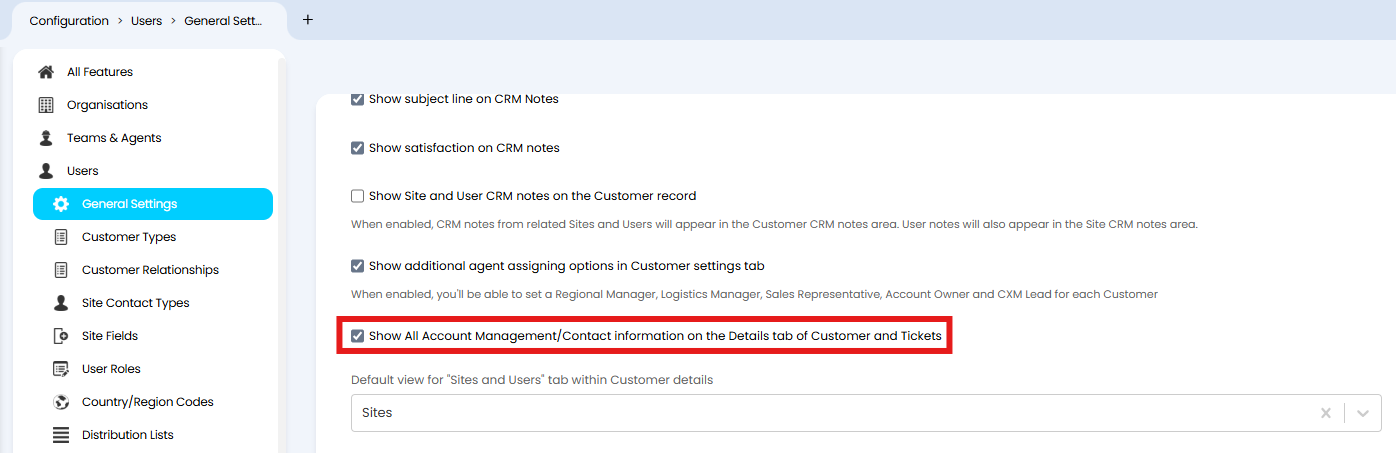
Fig 3. Showing Account Manager information on tickets
When viewing a ticket against that client, you will see any of the assigned Account Manager types in the "End-User Details" section.
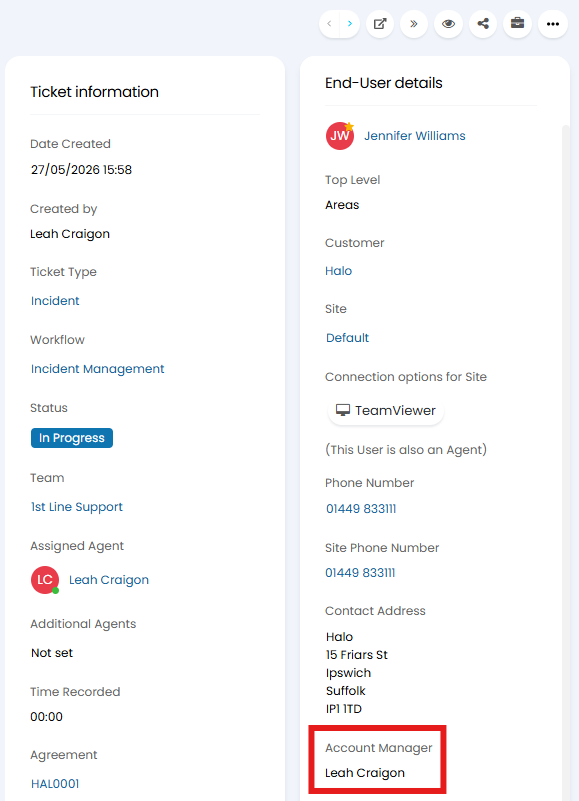
Fig 4. Account Manager on a ticket
Automatically Assign All Tickets
Agents can be automatically assigned all tickets from a certain client.
Ensure either the "Sales Representative" field is set, or "Assign new Tickets to the Primary/Secondary Agent" is enabled. This is found on the Details tab of the client, in the same "Assigning and Account Manager" dropdown.
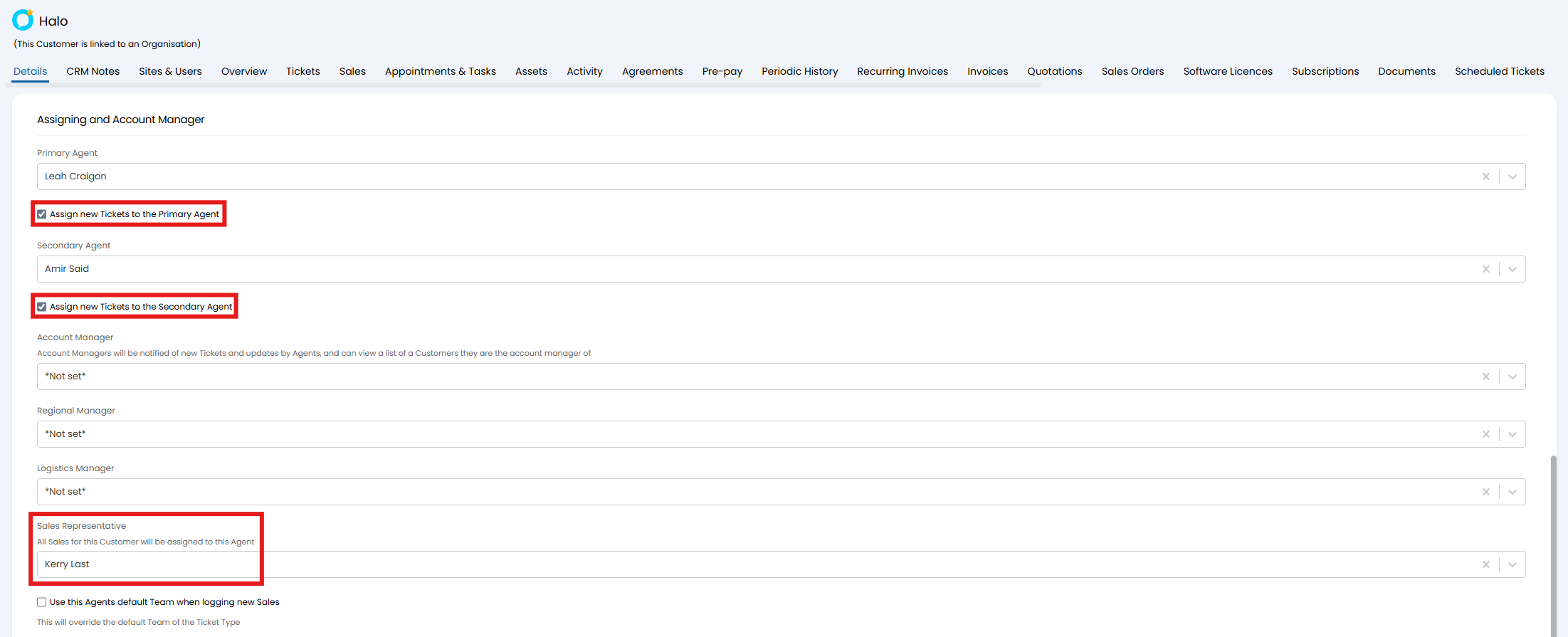
Fig 5. Setting all tickets to be assigned to certain Account Manager types
Assign from a Ticket Rule
Agents can be set as the default assigned agent from a ticket rule outcome.
Navigate to Configuration > Tickets > Rules. In the "Outcome" section, set the "Agent" field.
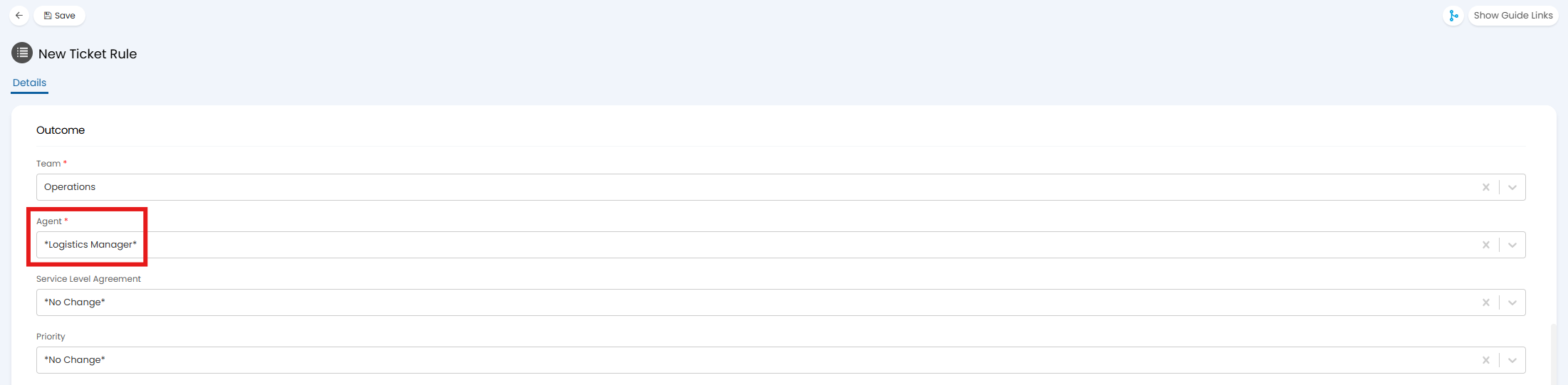
Fig 6. Assigning from a ticket rule
Assign from a Ticket Type
Agents can be set as the default assigned agent from a ticket type.
Navigate to Configuration > Tickets > Ticket Types. In the "Defaults" tab, set the "Agent" field.
Note: If you have any ticket rules or templates that apply after, the defaults here will be overwritten.
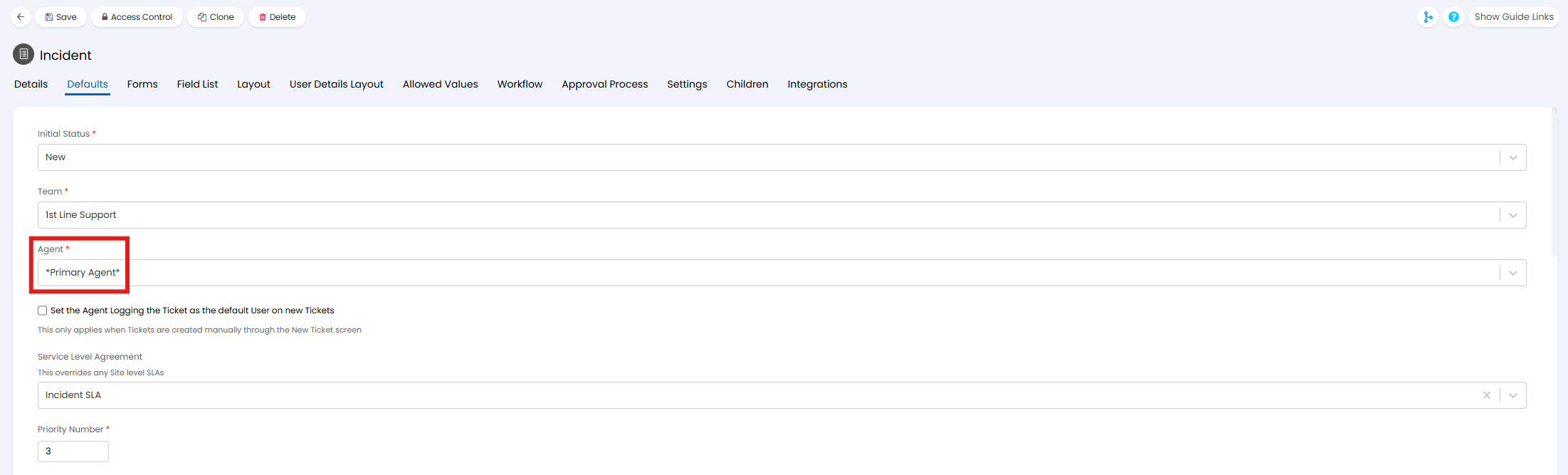
Fig 7. Assigning from a ticket type default
Assign from a Template, Scheduled Ticket or Automated Ticket
Agents can be set as the default agent against a ticket template, scheduled ticket, or automated ticket.
Navigate to:
- Configuration > Tickets > Templates,
- Configuration > Tickets > Scheduled Tickets, or
- Configuration > Tickets > Automated Tickets
In the "Values" tab, set the "Agent" field.
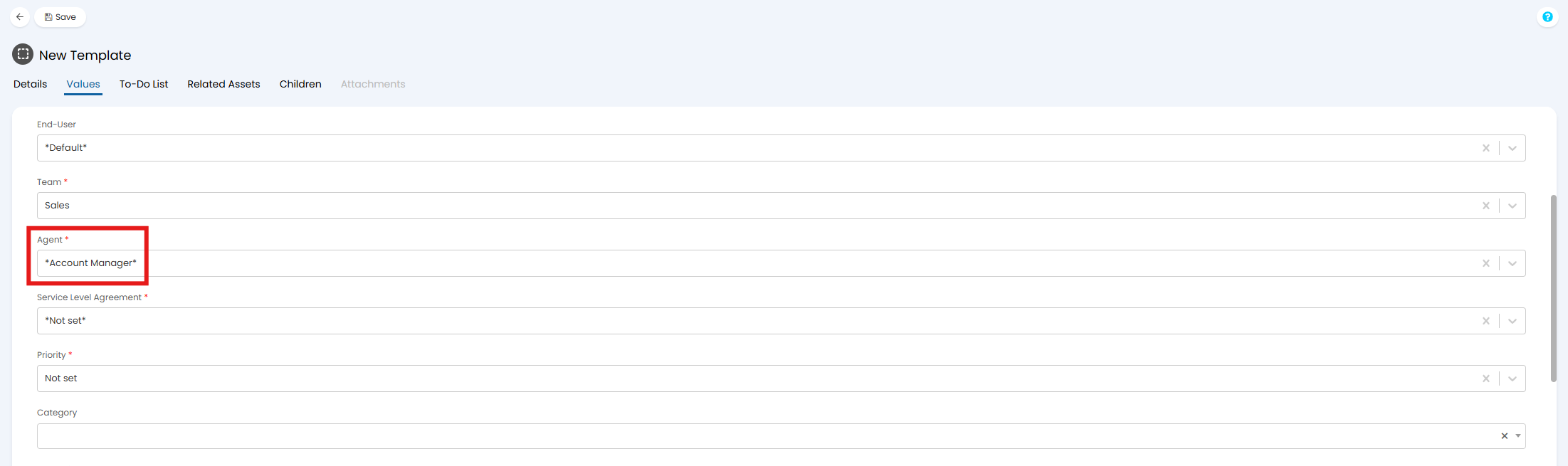
Fig 8. Assigning from a template
Assign from an Action
Agents can be reassigned tickets from the default agent set against an action (but not within the "Agent" dropdown on an action manually).
Navigate to Configuration > Tickets > Actions. In the "Outcome" section, set the "Agent" field.
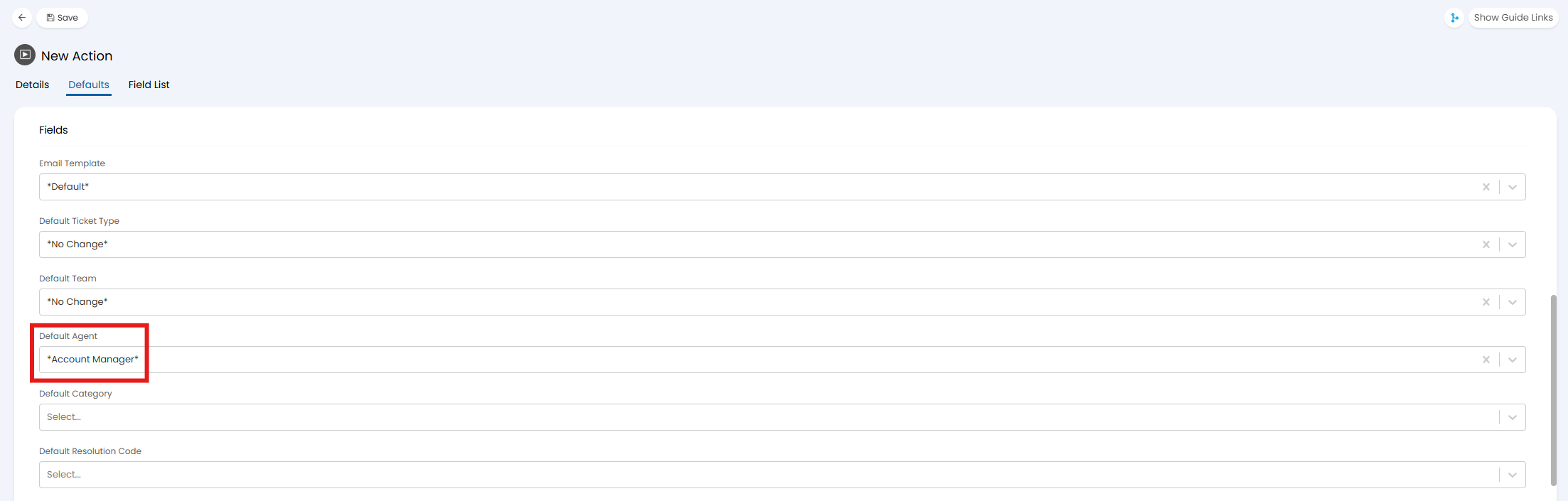
Fig 9. Assigning from an action
Automatically add as an Additional Agent
Agents can be automatically added as an additional agents on tickets logged against that client.
Navigate to Configuration > Tickets > General Settings, and ensure "Show an option to multi-select additional Agents on Tickets" enabled. Further down, this will then show the option to add agents as additional agents automatically.
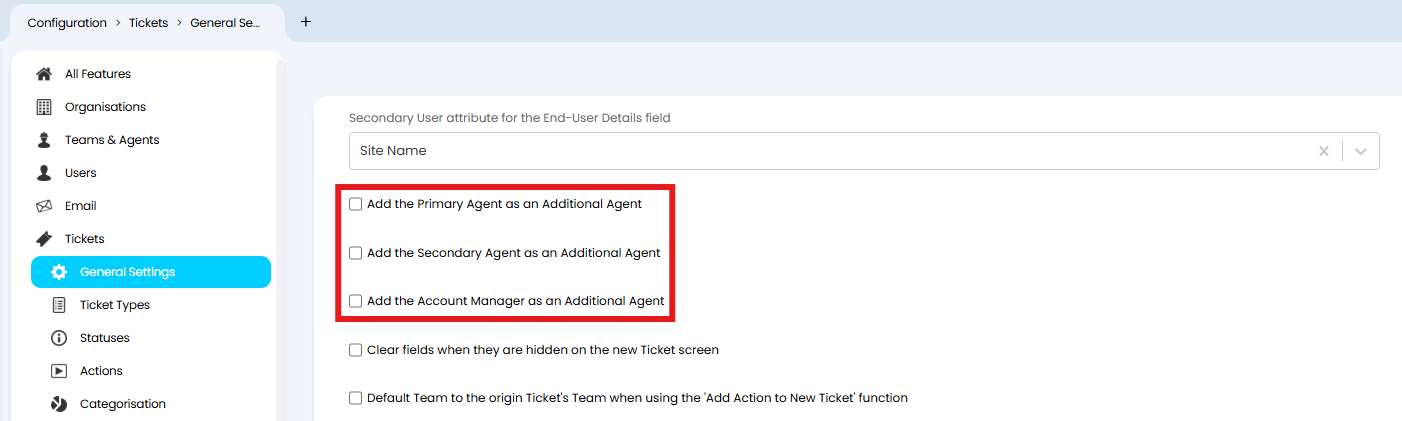
Fig 10. Adding additional agents automatically
Notify of new Tickets logged and Agent Updates
Agents can be automatically CC'd on agent actions that send an email, and they will also receive the same "New Ticket Logged" acknowledgement email when a user under that client logs a ticket.
Navigate to Configuration > Users > General Settings, and ensure "Enable Account Manager emails" is checked.
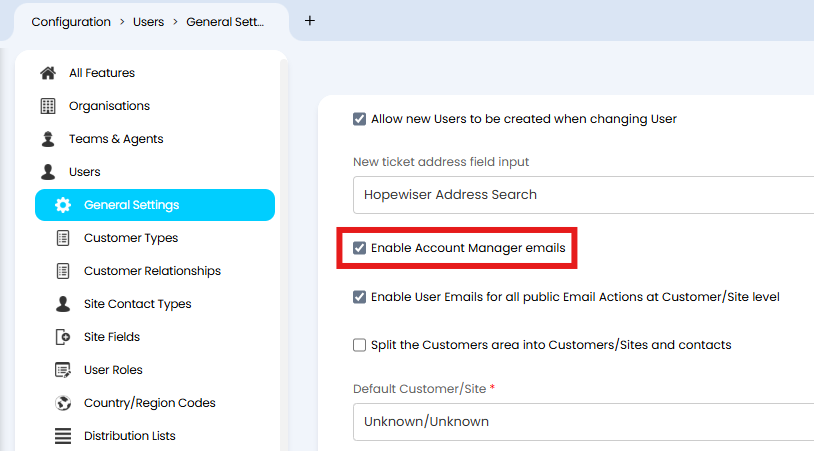
Fig 11. Enabling Account Manager notification emails
A setting of the same name is also on the "Settings" tab of a ticket type, which if disabled, can override the global option above.
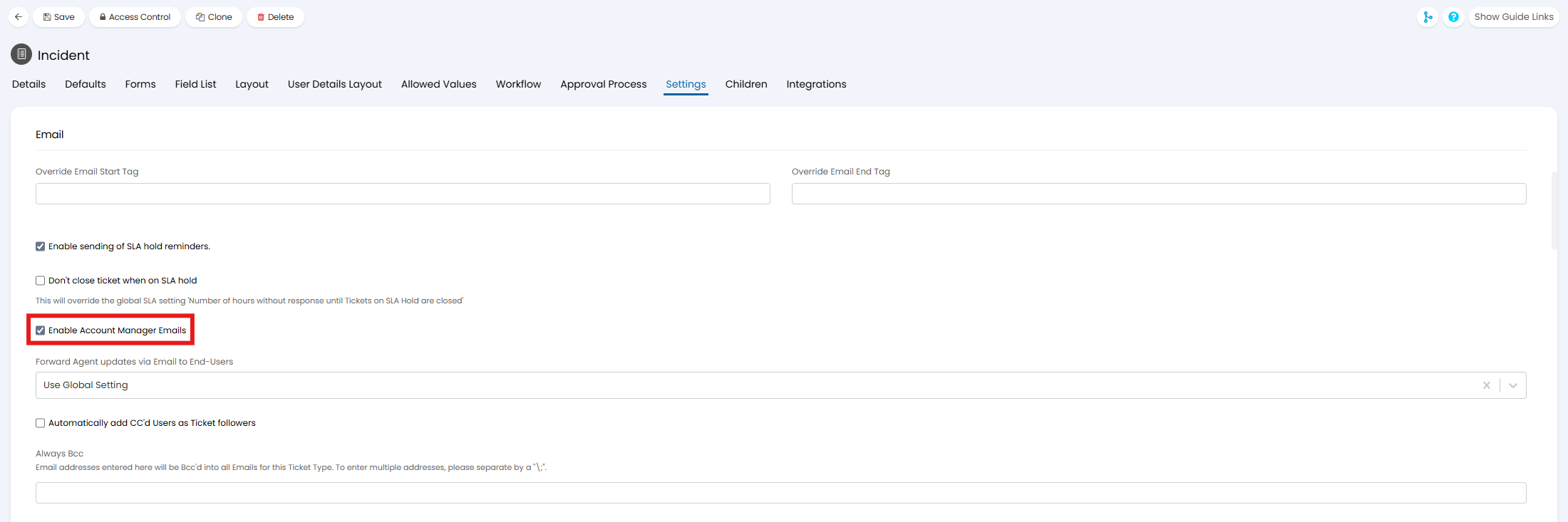
Fig 12. Account Manager email override per ticket type
Setting Activity Feed View
Agents who are an "Account Manager" can view the activity against any client they are set against from the "Feed" side pane.
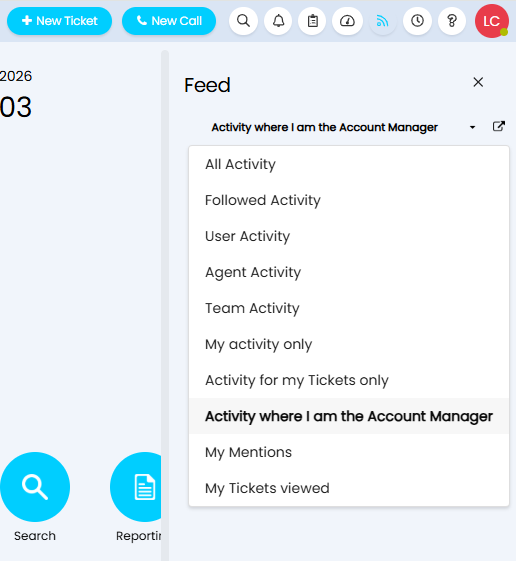
Fig 13. Account Manager view option
This view can also be set as a default against the agent's profile, in the "Preferences" tab > "Tickets" dropdown.
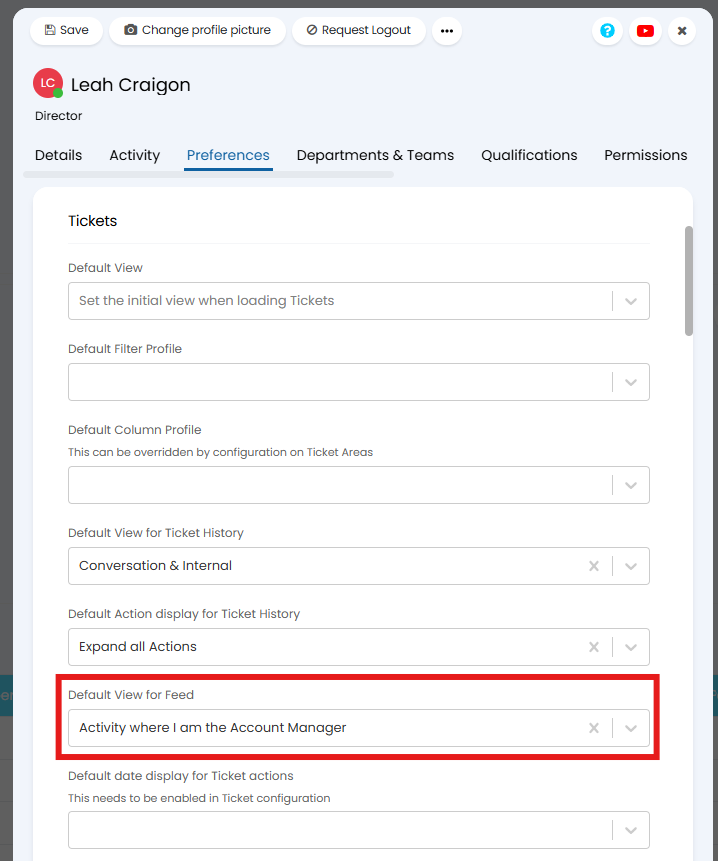
Fig 14. Setting a default view for the activity feed
In a similar way, "Accounts I Manage" is also available as a ticket list or filter profile criteria, and will show a list of tickets where the logged-in agent is set as the "Account Manager" on that client.
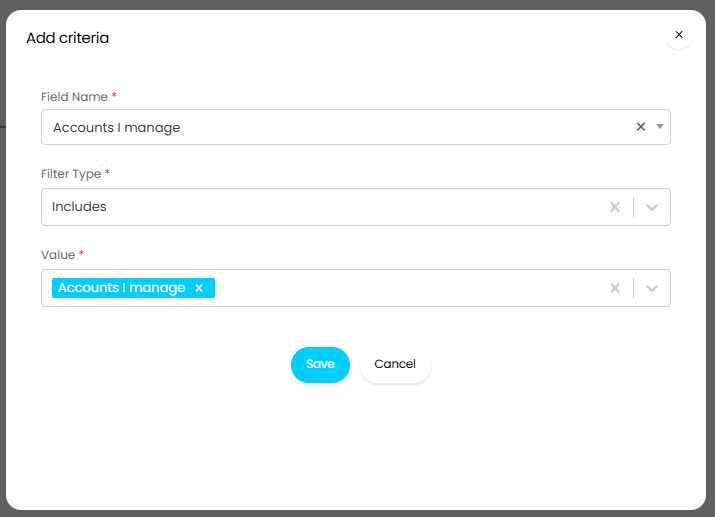
Fig 15. Accounts I manage filter
Filter the "Ready For Invoicing" Screen
Agents can be used to filter views on the "Ready For Invoicing" screen, based on if the client has a certain "Account Manager" or "Account Owner" set.
Note: If using the regular Invoice filters (set in the dropdown above "Account Manager"), these will have the same options as filtering ticket lists. These are configured in Configuration > Billing > Labor and Travel > "Awaiting Review/Invoice Filters".
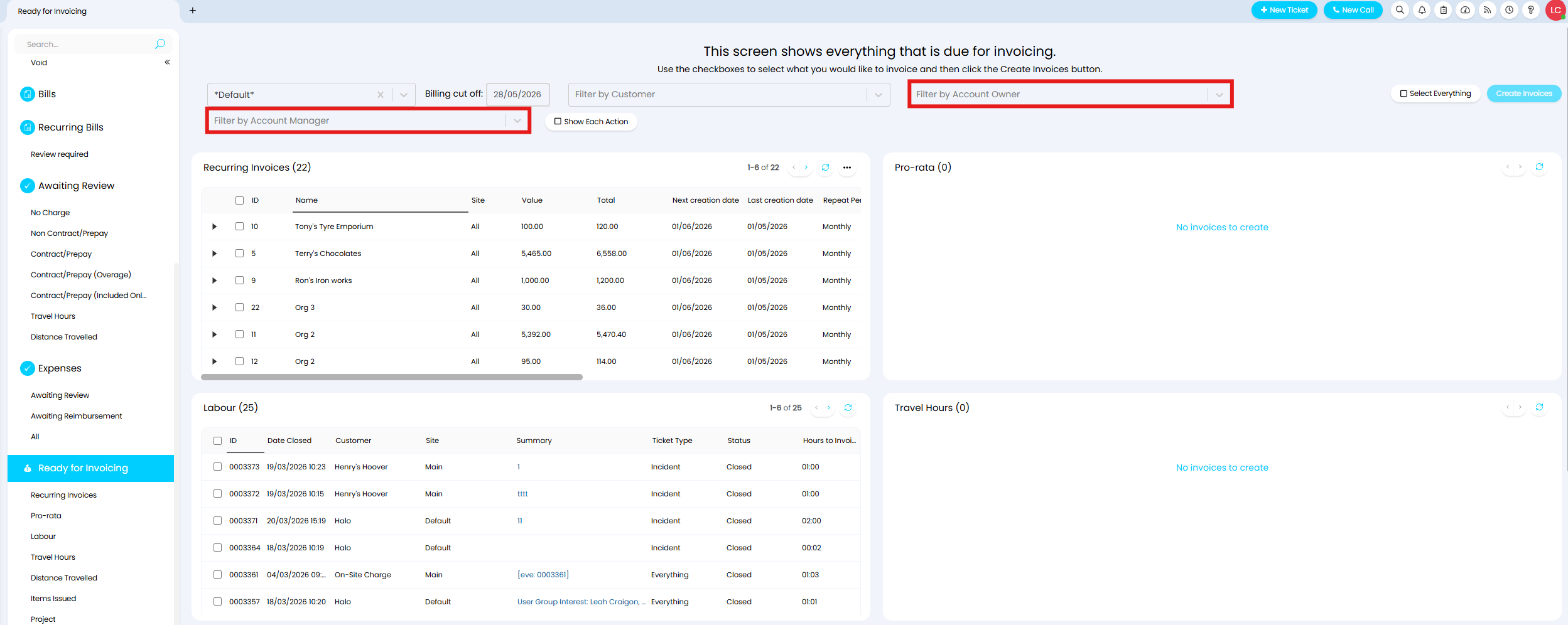
Fig 16. Filtering ready for invoicing