AI Acknowledgement Emails
In this guide we will cover:
- Using AI to Generate Acknowledgement Emails
- Adding an AI response to a template
Related Guides:
Using AI to Generate Acknowledgement Emails
AI can be used to send out acknowledgement emails when a ticket is logged. This can be set per ticket type.
To use this function you will first need to enable "Create acknowledgement emails in the background using an Automation" in Configuration > Email > General Settings.
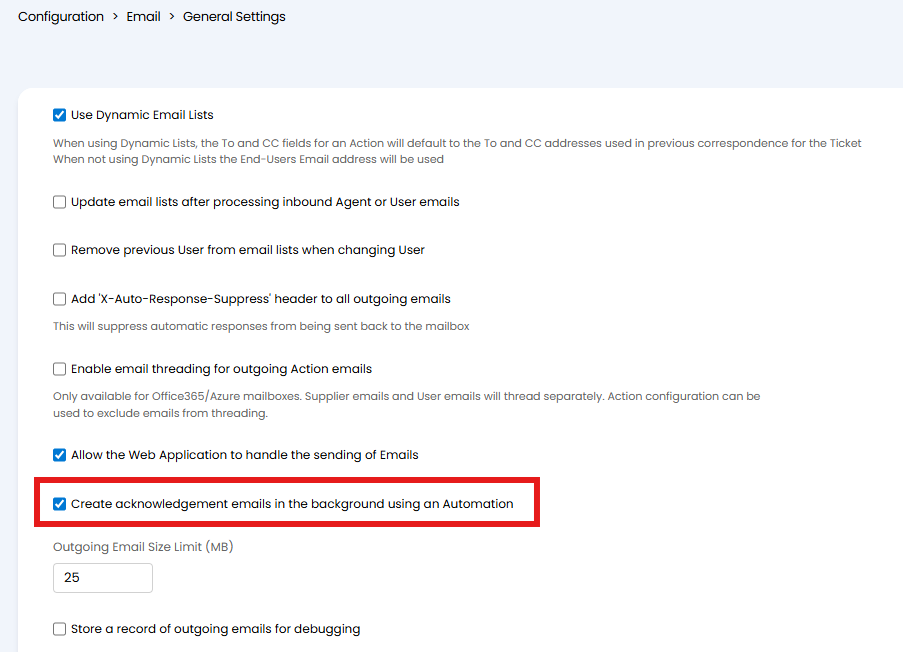
Fig 1. Allowing the creation of acknowledgement emails in the background using an Automation.
Against each ticket type you can now switch on "Use AI Acknowledgement Emails". This is found under the "Defaults" tab of the ticket type. Once this is selected the "AI prompt" and "AI Acknowledgement Email Template" will show. Here you can write your prompt from the AI and set the template to send. You are able to use Ticket dollar variables in your prompt to pull values such as the Ticket ID. You will be able to also set "AI Instructions (System prompt)". These set rules for the AI's persona and behaviour ensuring these are consist in your AI's response.
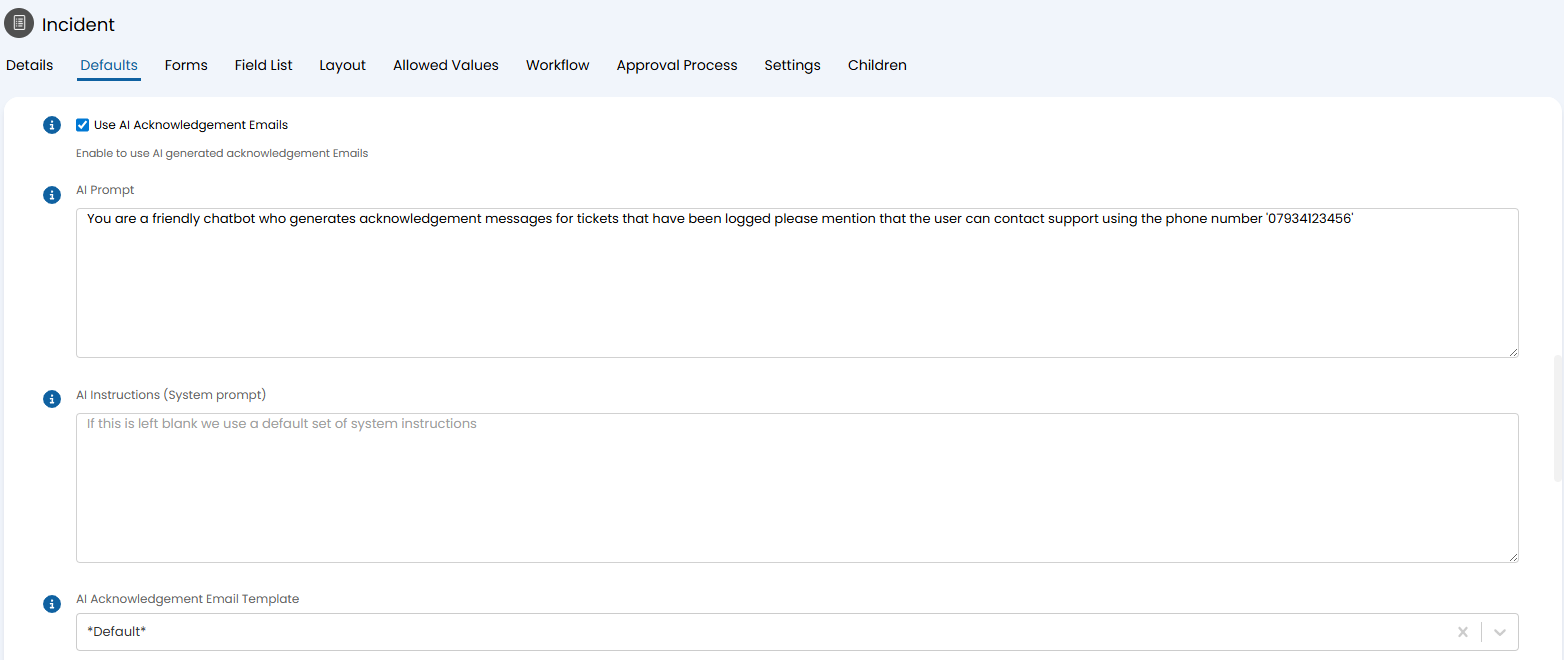
Fig 2. Setting AI Acknowledgement Emails per ticket type
Note: The default template here is the New Ticket Logged template. This does not natively contain the variable required to pull this information. You will need to either add the $-AIACKNOWLEDGEMENT variable to this template or create a new custom template as outlined below.
Adding an AI response to a template
In Configuration > Email > Email Templates, you can create a new custom template which contains the variable $-AIACKNOWLEDGEMENT. This variable will pull the AI response which will replace the variable in the template. The template you create here should be the one set under the "AI Acknowledgement Email Template" on the ticket type.
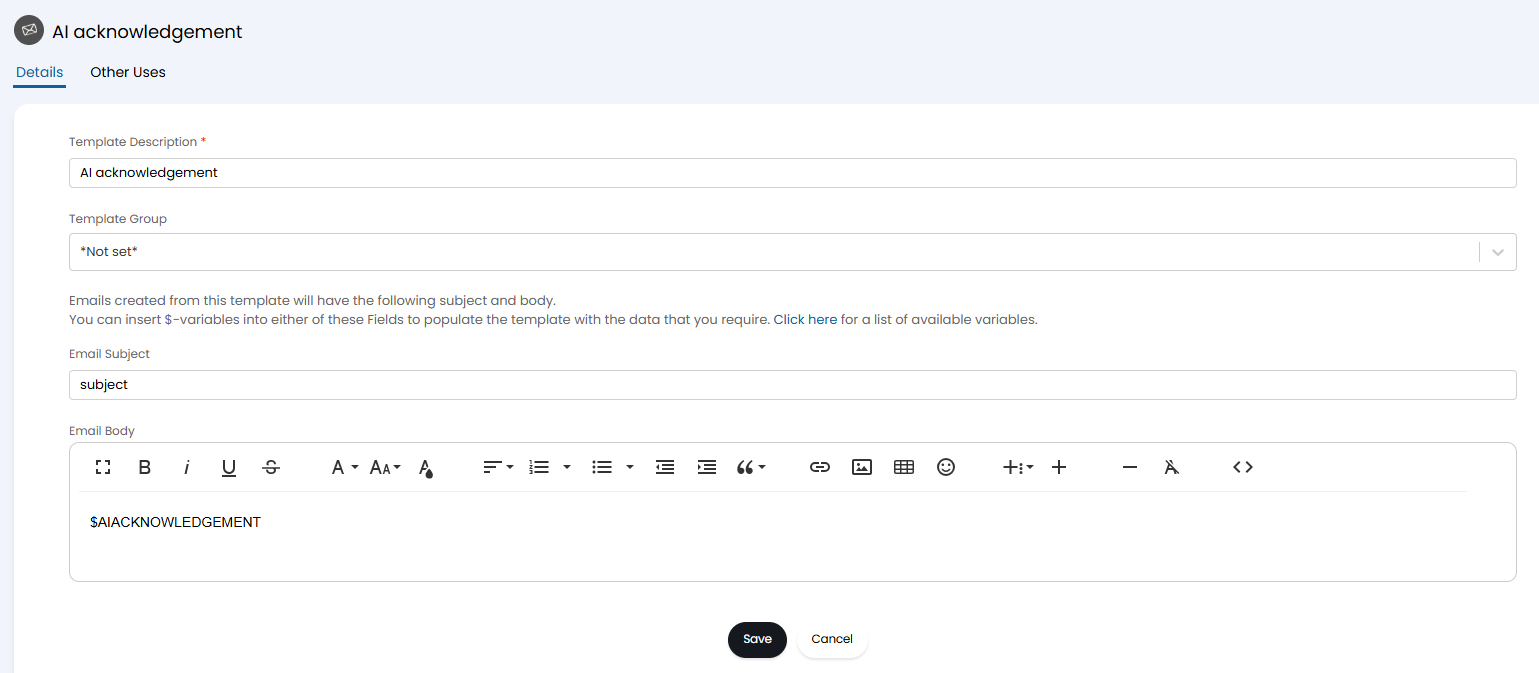 Fig 3. Creating an email template for AI Acknowledgement.