Boost Ticket Processing using AI
- automatic response
- improve agent response
- preview response
- thank you detection
- automatic AI response
In this guide we will cover:
- Use AI to Generate automatic user responses
- Sending AI generated responses automatically
- Improve Agent responses with AI
- Previewing responses
-Thank you detection
Related Guides:
AI can be used to enhance the responses written by agents to improve spelling, vocabulary, tone, etc. and even generate an automatic response based on the details of the ticket.
Note: You can use any AI connection for this feature, including the default Halo connection.
Generate automatic user response
Actions can be configured to leverage AI to generate a response to be sent to the user. This can be used to provide a more personal/tailored response to the user to confirm their ticket has been logged. Information/resources can also be sent to the user to assist them with their request/issue.
To configure this, head to Configuration > Tickets > Actions > create new or edit an existing action, ensure the action you have chosen or have created is configured to send an email to the user. Now under the AI section of the details tab set the 'Operations' field to be 'Generate User response'. Once chosen you will need to enter your 'Azure OpenAI Deployment' if you are using your own AI connection, and a prompt in the 'System Message' field for the AI model to use to generate a response.
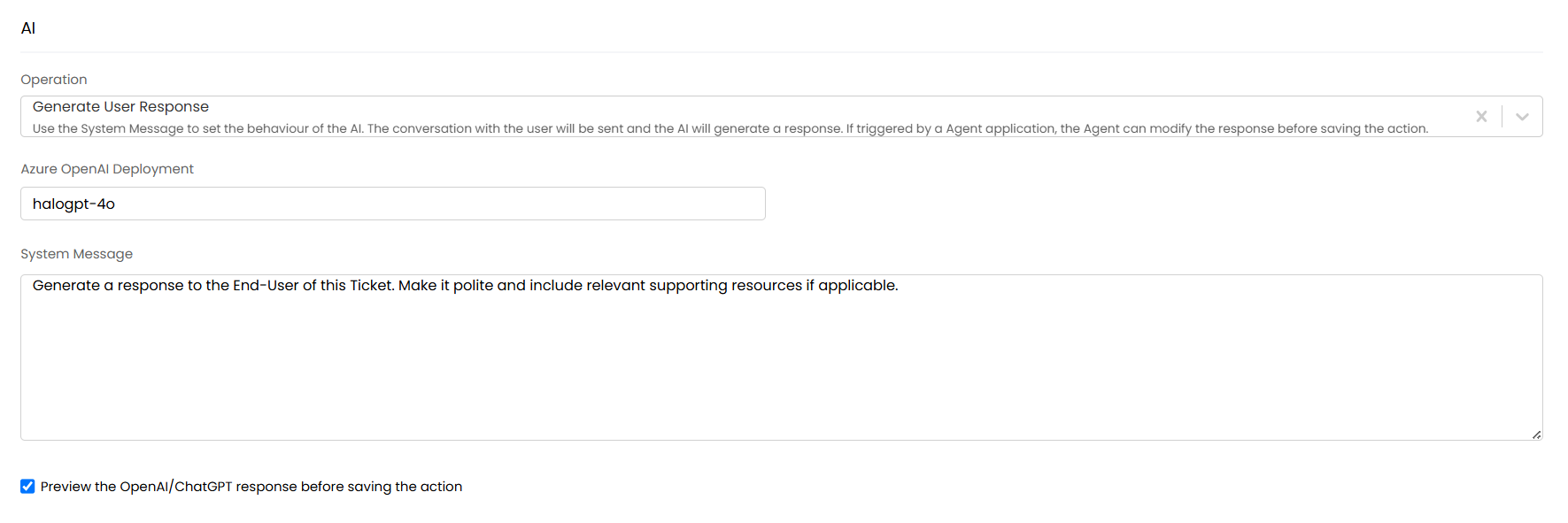
Fig 1. AI action configuration
Dollar variables can be included in the system message field too. This allows you to provide details of matched articles to assist the AI in writing an answer, you may find the following variables particularly useful:
- $-BESTARTICLEMATCHES - Can be used to show a table of AI matched articles.
- $-BESTARTICLEMATCHESJSON - Can be used to show the AI matched articles and the content of the articles in JSON format.
If using '$BESTARTICLEMATCHESJSON' you will need to specify in the prompt that you are giving data in JSON format but the response needs to be generated on HTML. For example the following prompt will allow the AI to attempt to answer the ticket using the details of the matched knowledge base articles:
You will be given a conversation between an Agent and a User on a service desk ticket. The user may be asking for help, or have an issue. The following JSON is an array of matched knowledge base articles regarding the topic, where title is the name of the article, description is the content of the article, and the resolution contains details on the resolution where applicable. Please read these and write a response to the user in HTML format using the articles provided. Do not answer in Markdown.
$-BESTARTICLEMATCHESJSON
Note: Consistent use of large articles here may result in OpenAI rate limits being breached or additional cost in OpenAI.
We recommend also enabling 'Preview the OpenAI response before saving the action' if you would like to preview the AI generated response before sending the email to the user.
Send auto-generated responses automatically
For even more automation you can have AI generate a response to the user and create a workflow automation to have this send out to the user automatically when they have logged a ticket. This allows you send a response that is more tailored than a standard acknowledgement email would be.
To do this configure an automated response action as shown above, however you will need to set this to be a quick action (see figure 5) and disable 'Preview the OpenAI response before saving the action'.
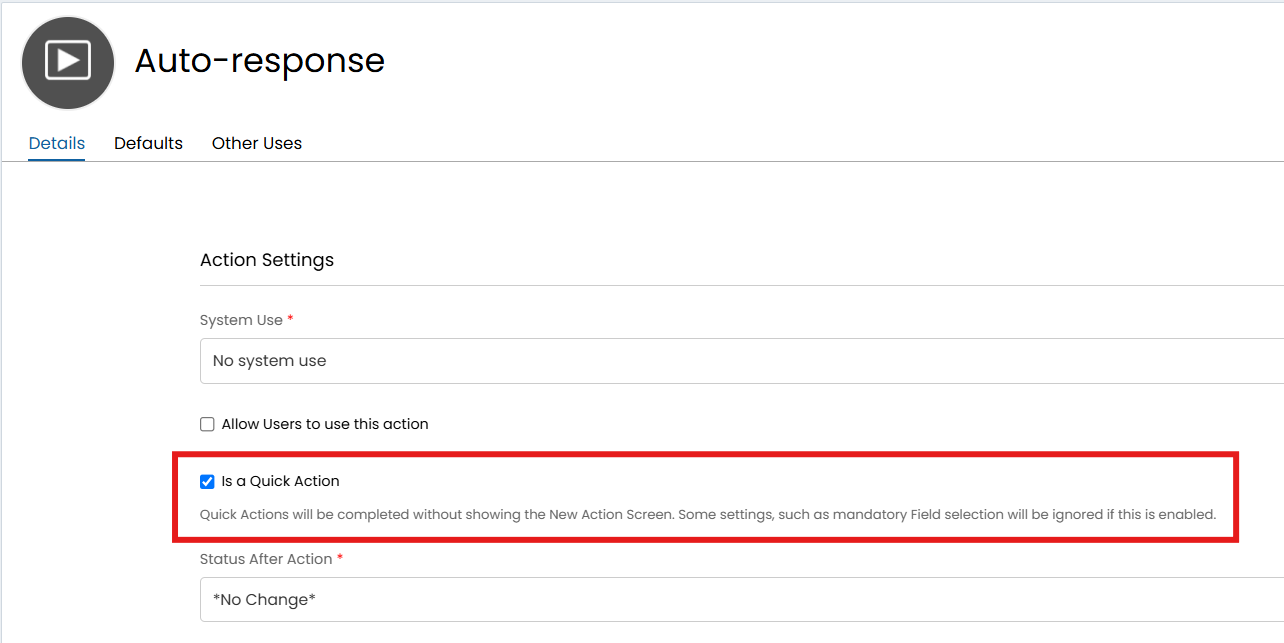
Fig 2. Quick action setting
Now edit the workflow you would like the automation to take place on, in the example here I will add the automation to my incident management workflow. Create a new step on your workflow and add an automation to the actions table that completes your 'auto-response' action when the ticket is at this step (shown in figure 6).
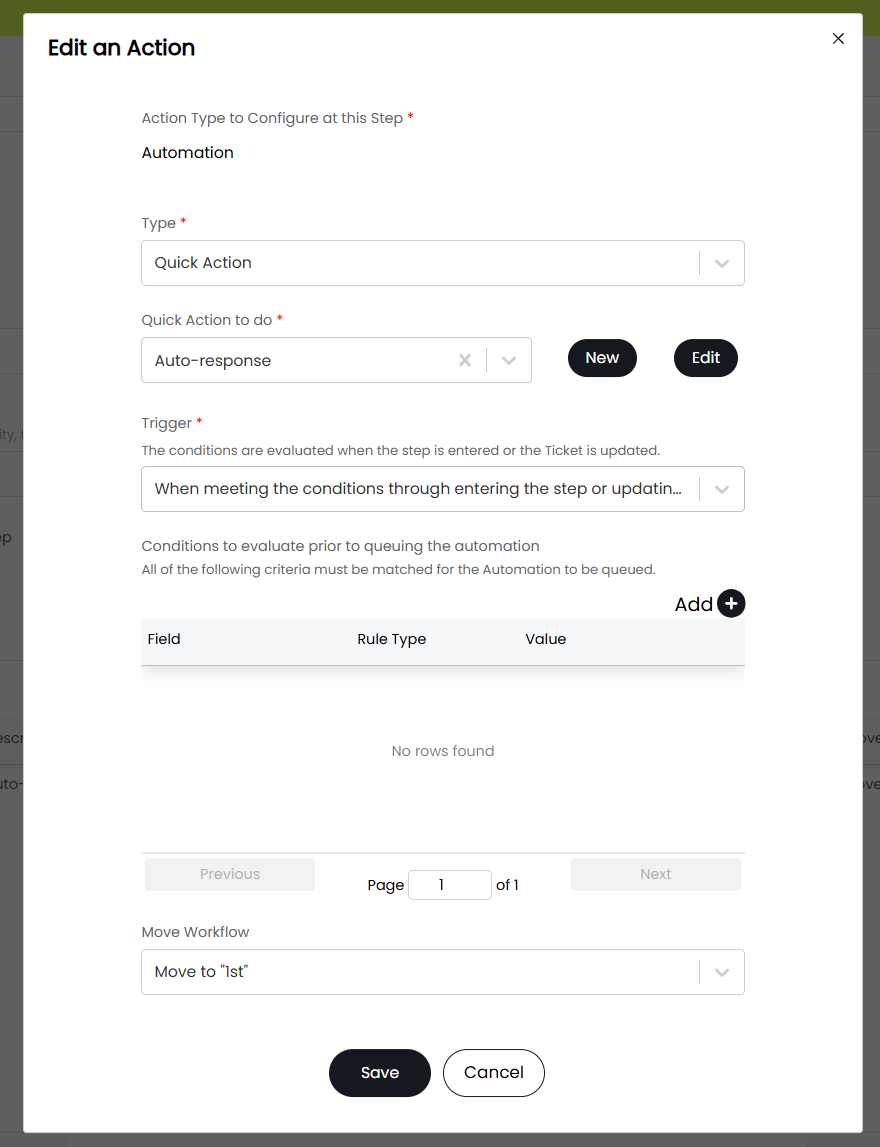
Fig 3. Workflow automation to send auto-response
Set the automation to move the ticket to the next step of the workflow when it is complete.
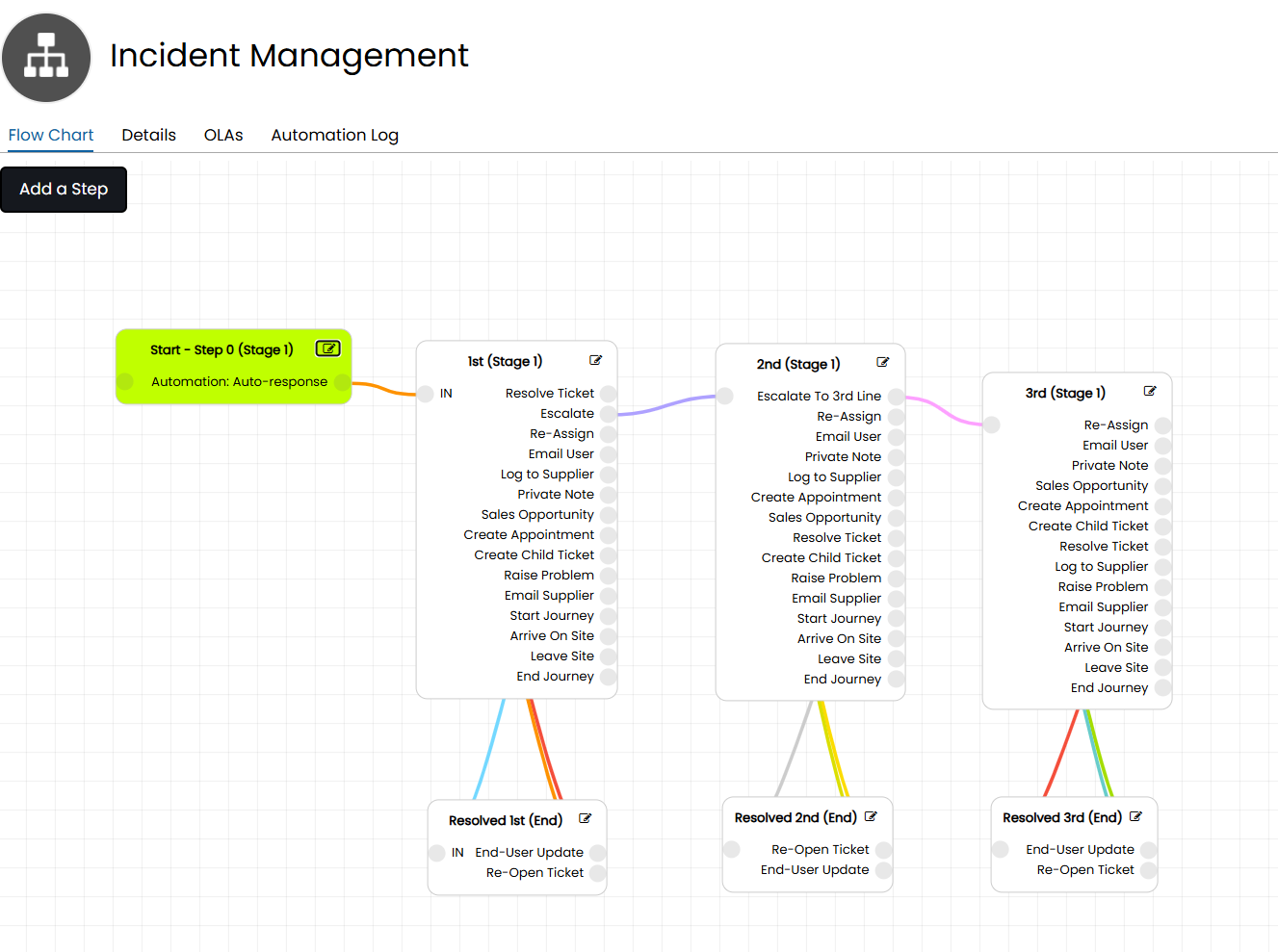
Fig 4. Workflow with automation to send an automatic response to user
In my figure 4 example I have set the automation to be the starting step of the workflow, this will ensure when the ticket is logged the automated response will be sent then the ticket will progress into the following stages of the workflow as usual.
In this example I am using the auto-response to send a response to all users when their ticket is logged, however you can add additional restrictions to this, such as only sending the automation when the ticket is logged from the portal. You could also have the automation run at a different stage of the workflow, such as when the ticket needs to be escalated. For more information on configuring workflows (and other automations) see our guide on workflows.
Note: If using an automation to send out an AI generated response this will not be able to be previewed by the agent before being sent. We only recommend using this functionality if you are happy with the reliability of your AI generated responses.
Improve Agent responses
AI can be used to improve agent responses to users, such as correcting spelling and grammar and making language more concise/user friendly.
Each action will need to be configured to allow AI to make these improvements. Head to Configuration > Tickets > Actions > edit an action (such as email user) > see AI section under Details tab. Set the 'Operation' field to be 'Improve agent note'.
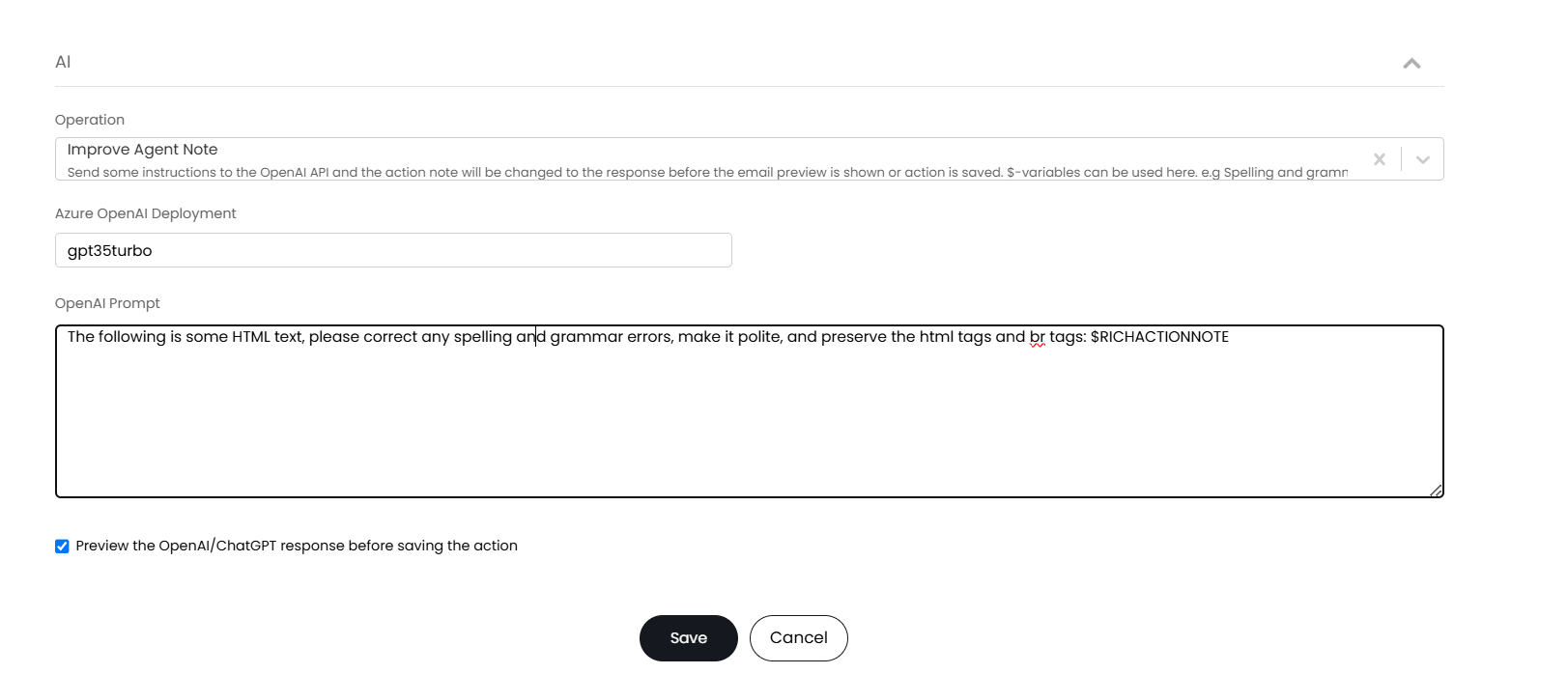
Fig 5. Improve agent note action configuration
Now you will need to enter your 'Azure OpenAI Deployment' and enter a prompt for what improvements the AI model should make. The dollar variable for each field against this action that you would like the improvements to be made to should be added into the prompt. In the figure 8 example I would like the text entered into the 'Note' field on the action to be improved, the variable for this field is $-RICHACTIONNOTE, therefore this variable has been given in the AI prompt. Rich text fields use HTML therefore variables for these fields will be passed to the AI model in HTML format, this will need to be specified to the AI prompt to ensure the formatting of the field remains after improvements are made.
If you are not using rich text fields you do not need to specify that the field is in a HTML format in the prompt. The associated variable for each ticket field can be found at https://YOURHALODOMAIN.halopsa.com/variables.
Now when completing the note action against the field an 'Improve agent note' option will appear.
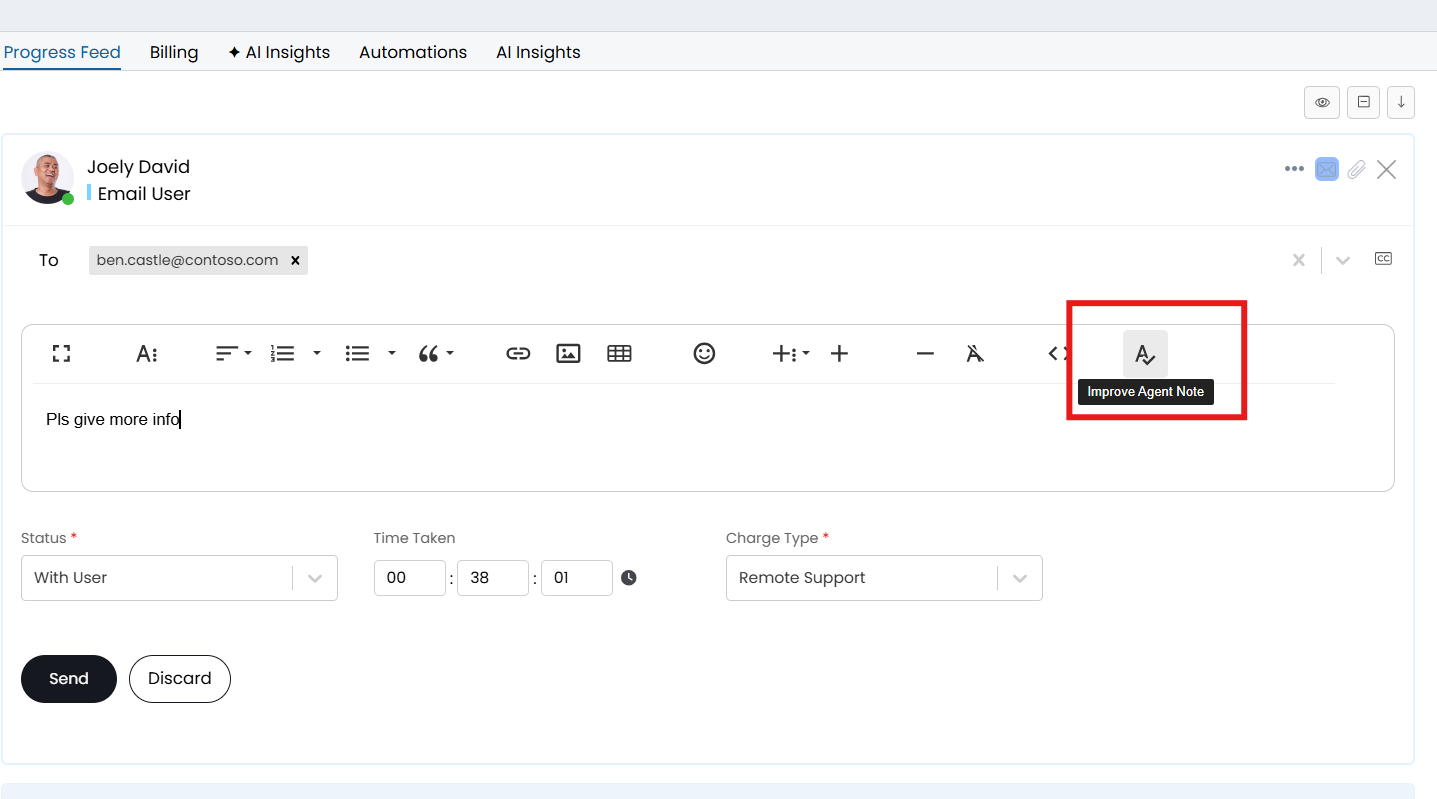
Fig 6. Improve agent note button
When selected the text in the rich text box will be improved, shown in figure 7.
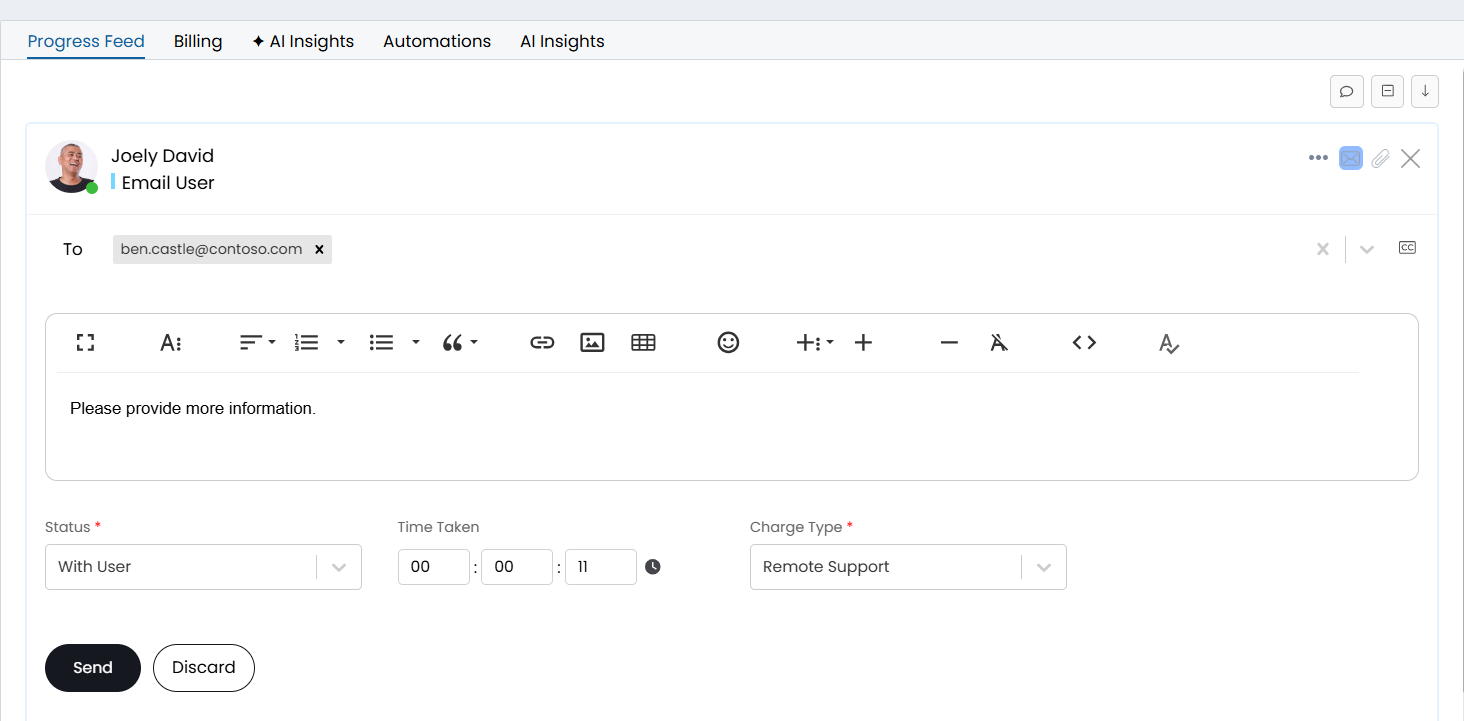
Fig 7. AI improved response
Note: Improvements to other (non rich text) fields will be visible on the preview screen. The preview screen will appear once the action is saved, you will then need to save it again on the preview screen for it to send.
Previewing responses
Ensure you have the setting highlighted in figure 9 enabled if you would like to be able to preview responses before they are sent to a user. Found under Configuration > Email > General Settings.
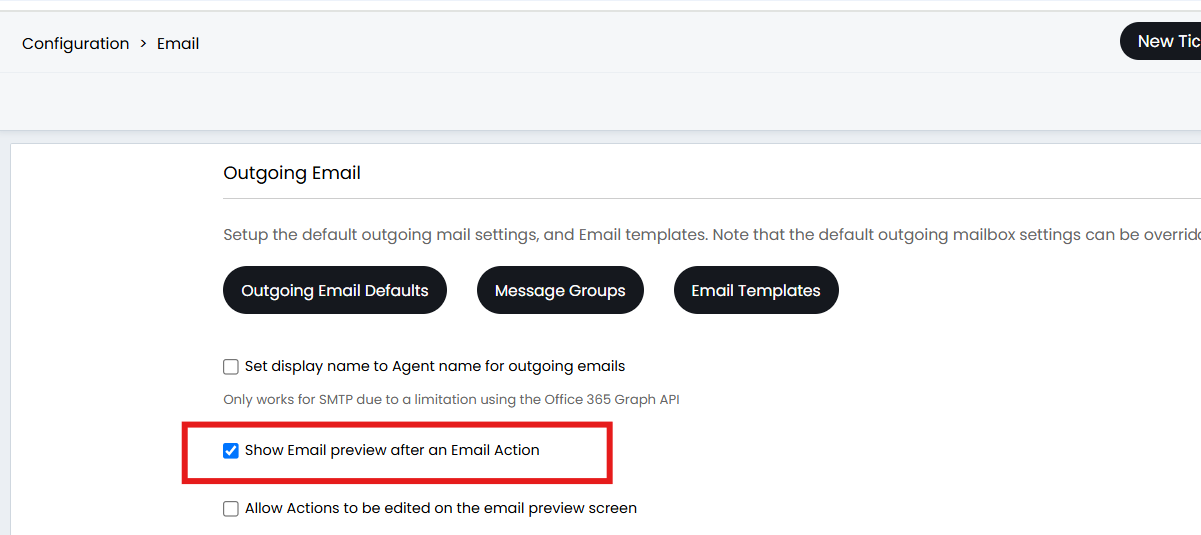
Fig 8. Show email preview setting
Thank you detection
AI can be used to detect whether a user update on a closed ticket should re-open the ticket, or if the user is just thanking the agent.
Prerequisites
- Incoming service must be enabled (configuration > advanced settings)
To enable this functionality head to configuration > AI > Feature Library > Thank You Detection section and 'Enable AI 'Thank you' email detection on closed/pending closure Tickets'.
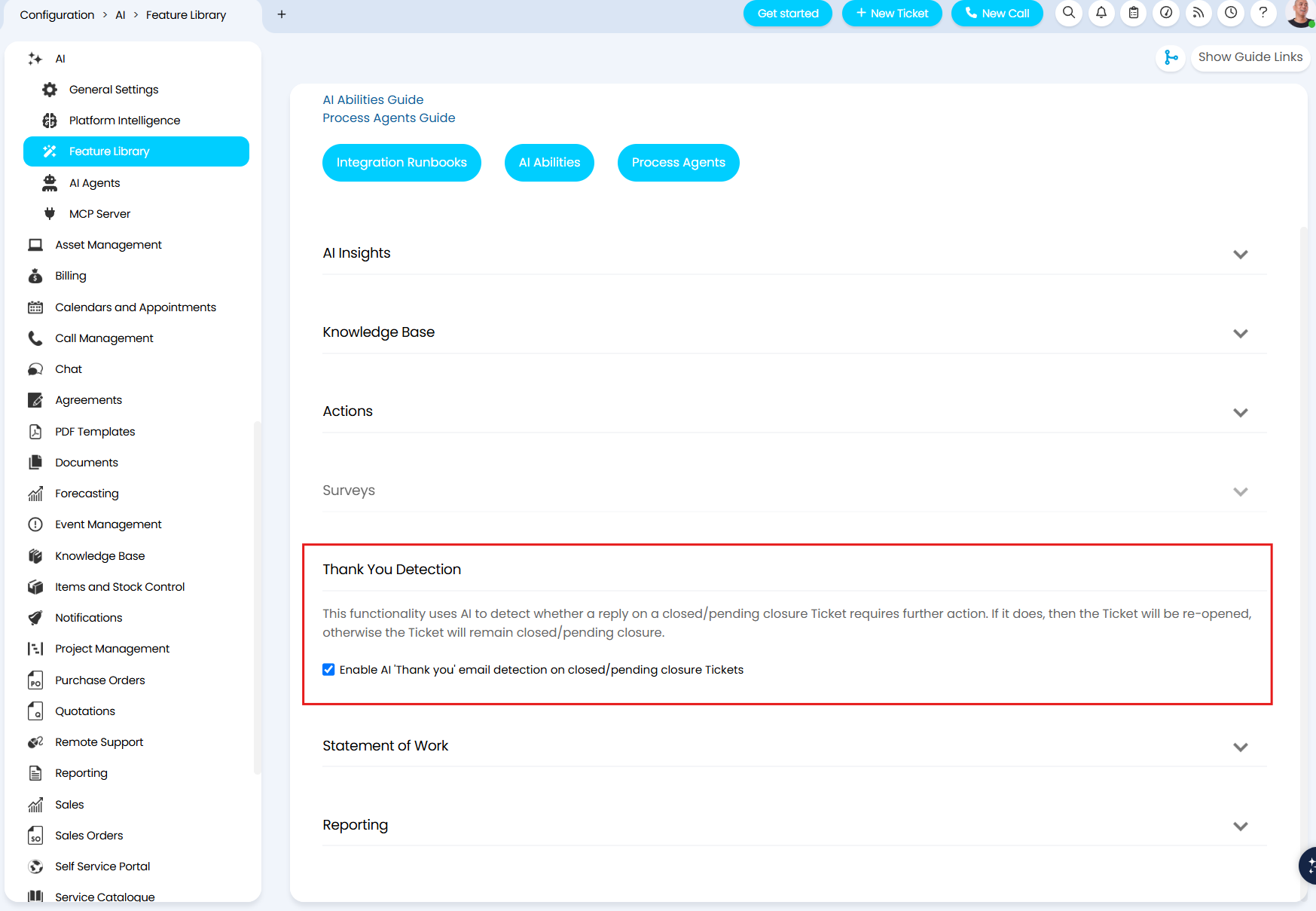
Fig 9. Enable AI 'Thank you' email detection on closed/pending closure Tickets setting
This will override the ticket type settings shown in Figure 10 that control incoming email behaviour on closed tickets.
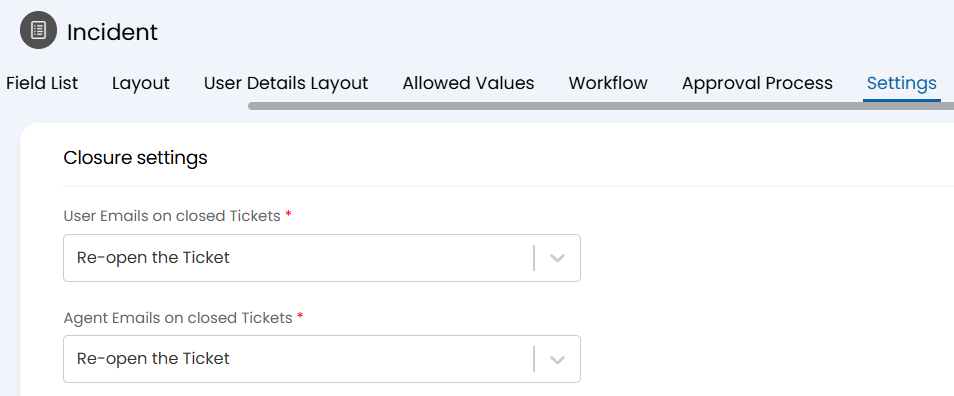
Fig 10. Ticket type closure settings
Once enabled, any incoming email from users to a ticket that has a closed status will be evaluated by AI to determine if further action is required on the ticket or if the user is just saying thank you. If the AI model determines that no further action is required, then the ticket's status will not be updated. If the AI model determines further action is required, then the ticket status will then be updated in line with the ticket type settings (Figure 11).