Barracuda RMM
In this guide we will cover:
- What is the Barracuda Integration?
- Connecting to Barracuda RMM
- Import Customers/Sites
- Import Assets
- Automatically import Assets/sites on a schedule
- Sync Alerts
What is the Barracuda RMM Integration?
This integration allows you to import customers/sites and assets from Barracuda RMM into Halo. Allowing you to manage your devices from your Halo instance. Barracuda alerts can also be integrated with Halo, allowing a ticket in Halo to be logged automatically when an alert is raised in Barracuda. Additionally, when the alert in Barracuda, or ticket in Halo is resolved/closed this will close/resolve the ticket/alert in the other application. This allows agents to manage and monitor alerts from your Halo instance.
Connecting to Barracuda RMM
First head to configuration > integrations and enable the Barracuda RMM integration module using the '+' icon.
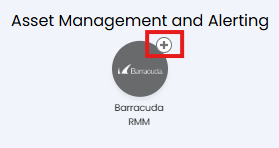
Fig 1. Enable integration module
Once enabled, click into the module to begin configuration.
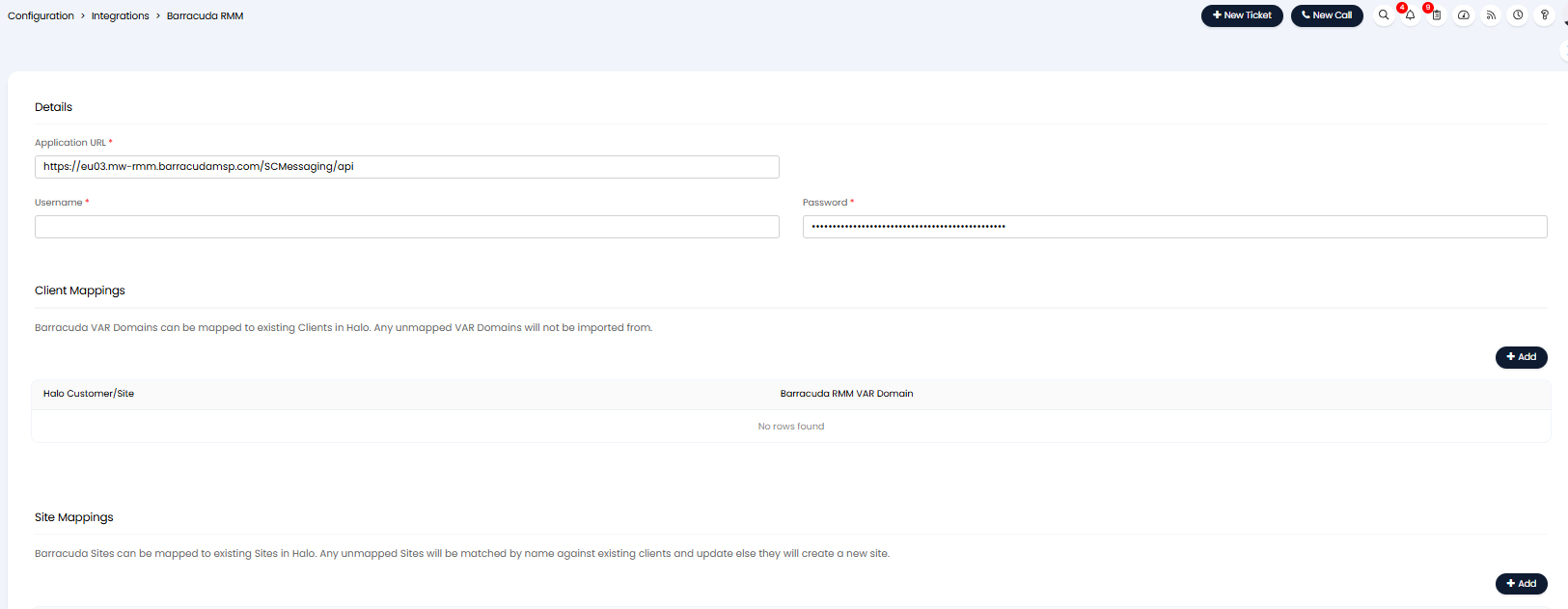
Fig 2. Barracuda integration setup page
In order to connect your Halo instance to Barracuda RMM you will need to adjust the Barracuda application URL so it is in line with your region as well as enter the username and password of a user in your Barracuda instance. The user details entered are used to authenticate the connection and give permissions, therefore ensue the user authenticating the connection has administrator access within your Barracuda instance.
Import Customers/Sites
To start you will need to map each Barracuda VAR Domain you have to a Customer/site in Halo.

Fig 3. Map VAR Domain to Halo customer
When mapping you will have the option to map the VAR domain to *ALL* clients in Halo, or to a chosen customer. If all your customers devices are managed within a single VAR domain map this domain to *ALL*. If a Var domain pertains to a specific customer, you will need to map this to the respective customer in Halo. To map to a specific customer you will need to begin typing the name of the customer in Halo.
Once you have completed these mappings, you will need to map each Barracuda site to a Halo site. Site mappings are used to associate each site in Barracuda to the correct site in Halo.

Fig 4. Site mappings table
To create a mapping add to the mappings table, you will first need to choose the Halo customer the mapping is for. Then you will need to select a site under this customer and enter the Barracuda RMM Site GUID. This will ensure when devices are imported each asset that is created will be created under the correct site in Halo, in line with the site it is in in Barracuda.
Once mappings are complete, begin the import using the 'Import Sites' button.
Import Assets
Before assets can be imported from barracuda RMM you will need to set the default site and asset type for assets, as well as the matching field.
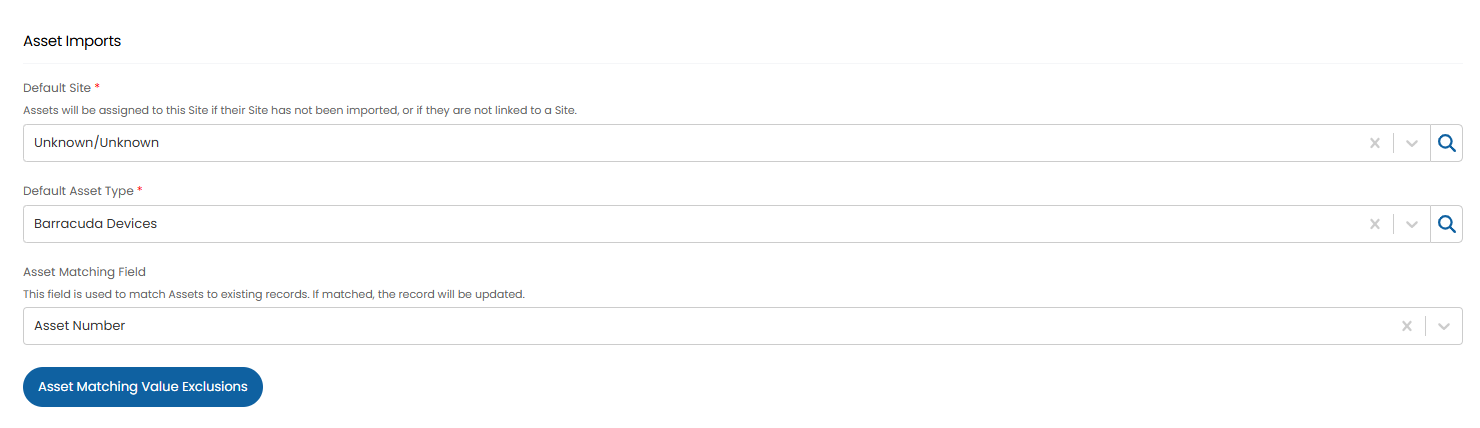
Fig 5. Asset import configuration
Default Site: Here, choose the site in Halo assets will be created under by default. Assets will only be created under this site if they are from a site in Barracuda that is not mapped to a Halo site.
Default Asset Type: Here, choose the Halo asset type devices imported from Barracuda will be created as. All assets imported from Barracuda will have this asset type.
Asset Matching Field: Here, choose the Halo field used to match assets to existing records. When an import is completed this field will be checked, if an asset has data in this field that matches an existing asset in Halo, this asset will be updated rather than a new one created. The unique identifier of your asset should be used here.
Asset Matching Value Exclusions: Here you can set assets to not be matched using the matching field if the matching field contains a certain value. For example, if two assets have the matching field set to be 'None' they would match even though they are separate assets. By adding the value 'none' to the matching value exclusions list you can ensure the assets are matched using their Barracuda ID instead. (Assets will only be populated with a Barracuda ID if they have been created by Barracuda).
Asset Field Mappings
Now you can map Halo asset fields to Barracuda fields, this will allow asset data to be brought across from Barracuda into Halo. Only data in mapped fields will be brought across, so ensure you map all fields that contain data you would like in Halo.
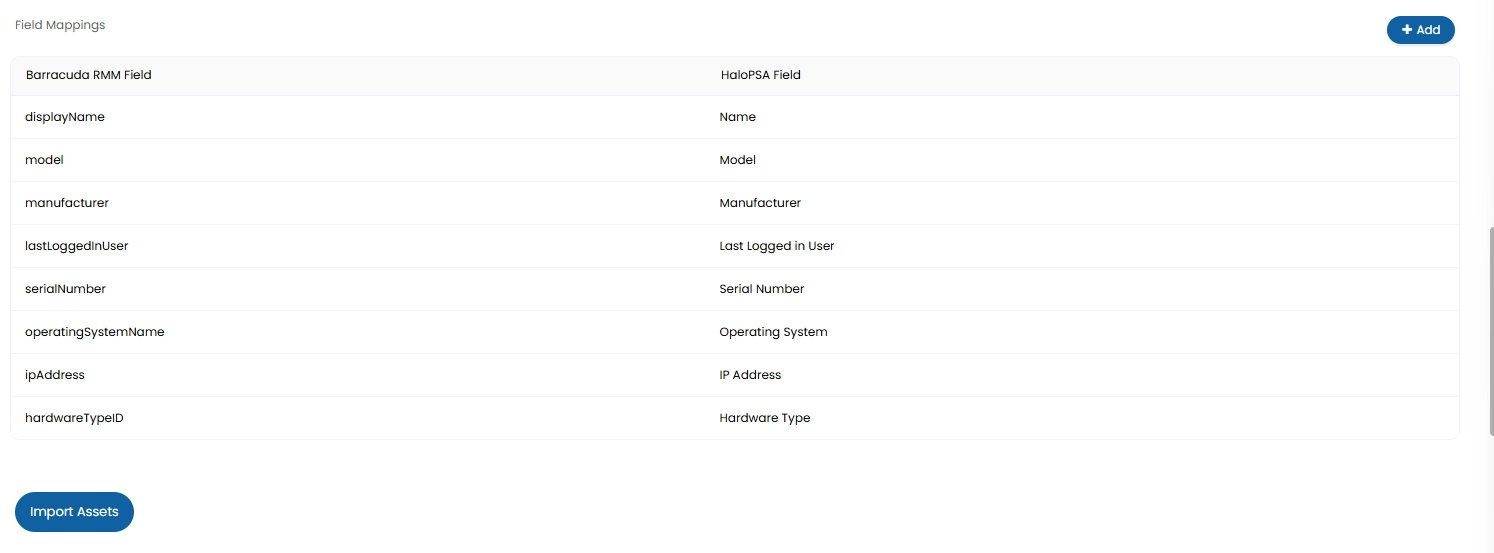
Fig 6. Asset field mappings
Create a mapping by adding to the field mapping table.
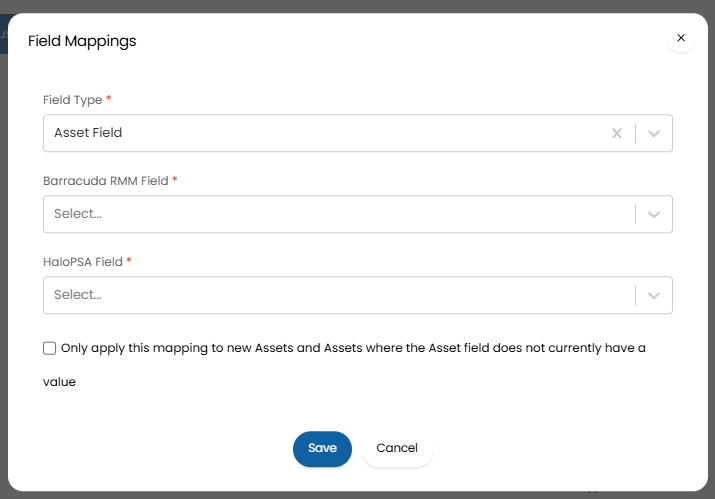
Fig 7. New field mapping
Field Type - This will be the type of Halo field the data will be imported into. See our guide on Asset Fields if you are unsure on the difference between asset fields and custom fields in Halo.
Only apply this mapping to new Assets and Assets where the Asset field does not currently have a value - When this is enabled if the Halo field already has data within it, different to the data in the mapped Barracuda field, the field data will not change. Fields will only be populated when they contain no data or when new assets are being created.
Ensure you have mapped a Barracuda field to the field you are using as the matching field for your assets.
Once you have completed these mappings you can import assets using the 'Import Assets' button.
Automatically import Assets/sites on a schedule
To have any changes made to devices and/or sites in barracuda automatically sync over to Halo, you will need to enable the Halo integrator for the integration. This is done under the 'Halo integrator' section of the setup page.
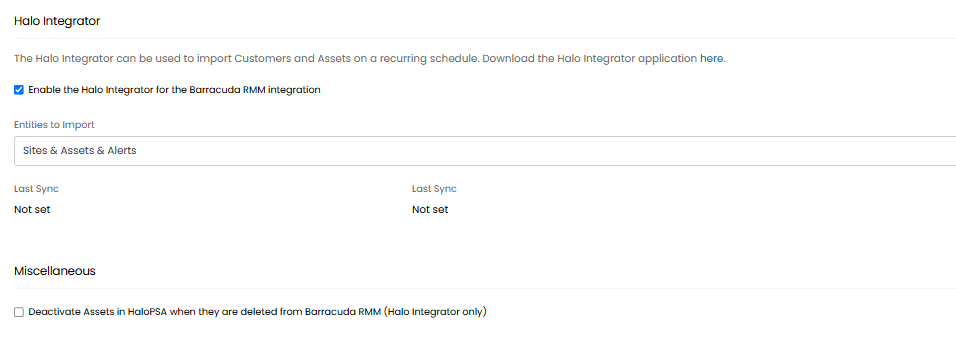
Fig 8. enable Halo Integrator
When enabled you will be able to select the entities you would like to import, only the entities selected in the 'Entities to Import' field will be imported. These will then be imported on a schedule, on a daily basis (once every 24 hours).
Deactivate Assets in HaloPSA when they are deleted from Barracuda RMM (Halo Integrator only) - Enable this setting if you would like assets to be deactivated in Halo when they are deleted (not found) in Barracuda. This only applies when syncing via the Halo integrator and will not apply when completing manual imports.
Sync Alerts
Alerts raised in Barracuda can automatically create tickets in your Halo instance. Allowing you to manage alerts from your Halo instance.
Alerts are synced across using the Halo integrator, this means Halo will check if there are any alerts in Barracuda on a schedule, any new alerts will be created as ticket in Halo. This schedule runs daily, which means new alerts will be created once a day.
To setup alerting first choose the ticket type you would like to be created when an alert is raised. All alerts from Barracuda will create a ticket of this type, we recommend creating a ticket type specifically used for alerts.

Fig 9. Alerting configuration
Then you will need to choose a 'New Alert User'. The end user of will be de this will be the end user of the ticket raised if the asset or customer associated with the alert cannot be found in Halo. We recommend choosing a generic user here.
Now to ensure alerts sync you will need to enable the Halo integrator for the integration. Once enabled ensure you have selected alerts as an entity to sync.
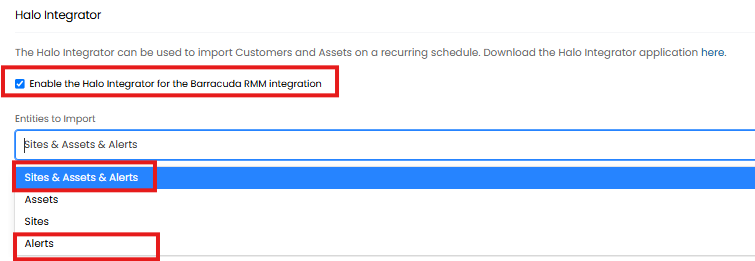
Fig 10. Enable alert syncing