Halo have removed this guide from their knowledge base. This is our last mirrored copy, kept so existing links keep working — it may now be out of date.
Mail Campaigns and Distribution Lists
- mail campaigns
- distribution list
- segments
In this guide we will cover:
- What are Distribution Lists?
- What are Mail Campaigns?
- How They Work Together
- Creating a Mail Campaign
- Sending Emails
Distribution lists and mail campaigns work in tandem to send email campaigns to a list of contacts. In this guide, we will go over what both are, and how they work together to achieve this.
What are Distribution Lists?
Distribution lists are a list of contacts' email addresses that can be used to send one-off emails, or a mail campaign as outlined within this guide.
Clicking into the module will show a list of existing distribution lists, and how many contacts are in each. You will notice the "Member Count" in the first one is set to "Dynamic". This is because it uses what is called a dynamic distribution list, which means it uses filters to create an ever-changing list of which contacts are included.
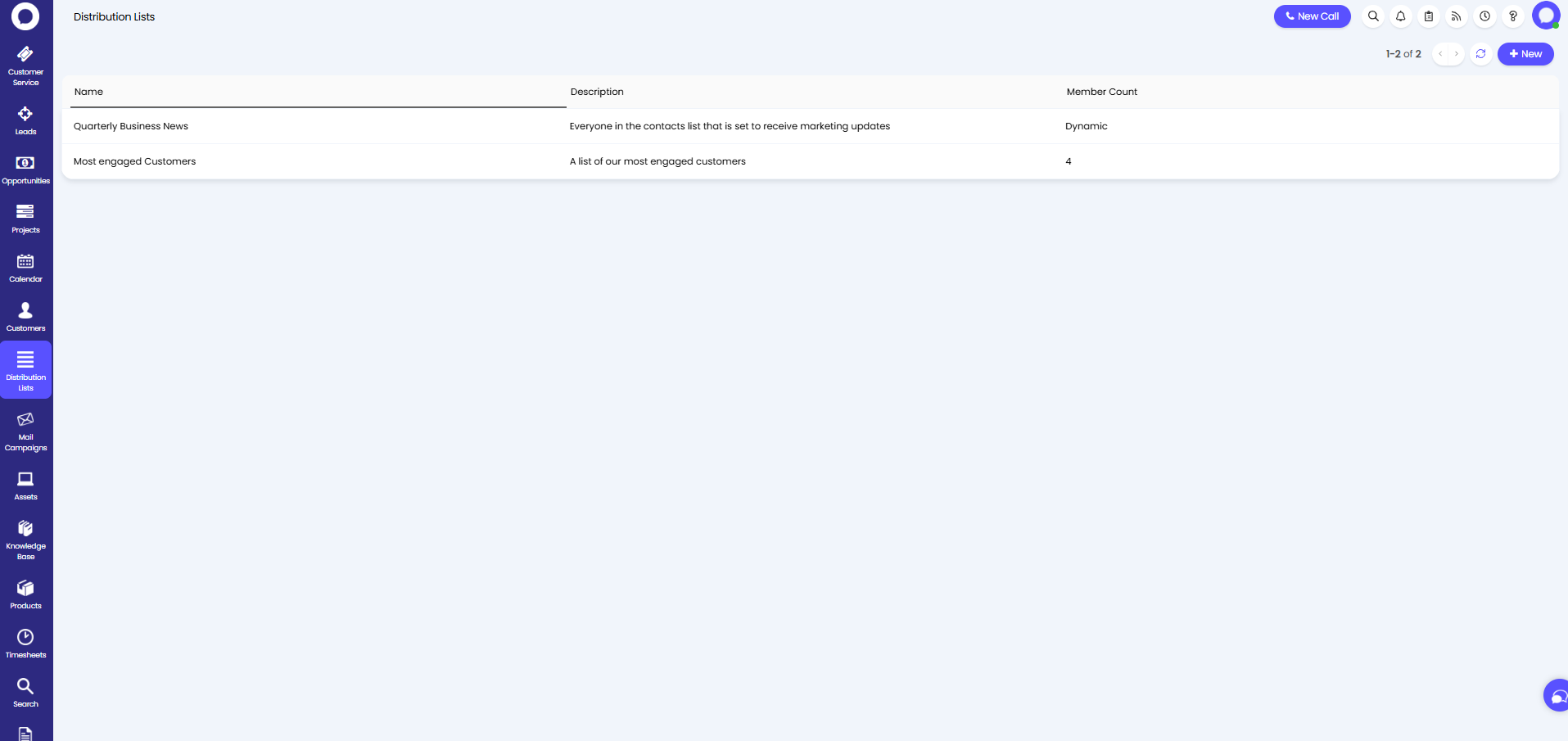
Fig 1. Distribution Lists module.
Clicking into that distribution list, the below field is set to "Yes". This is what makes a distribution list dynamic. You can then set a filter of what is included. If the custom field named "Marketing Preferences" is set to "Yes", a contact will be subscribed. If the value against the field ever changes, a contact can be added or removed from the list automatically. This is a useful method of sending a newsletter to the correct contacts.
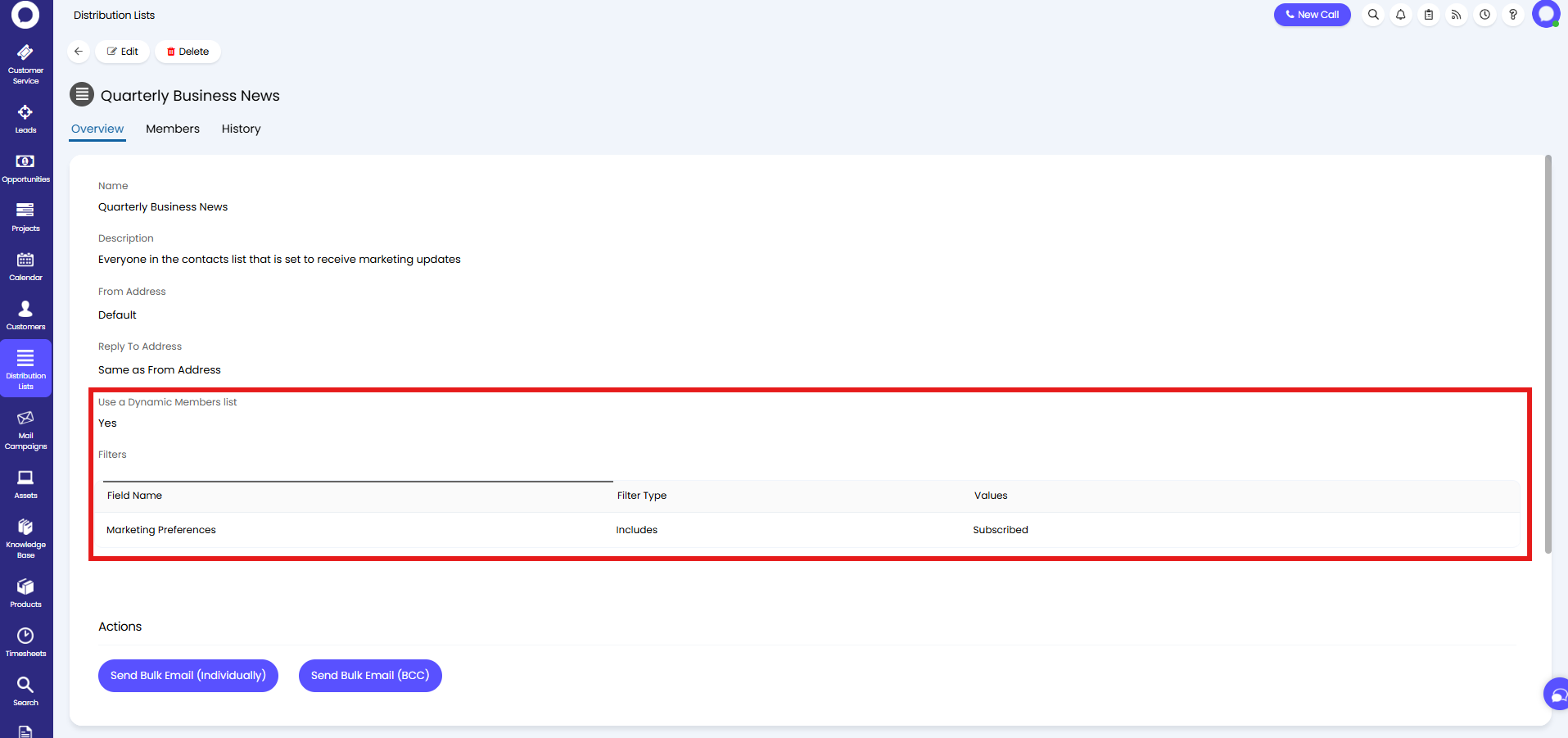 Fig 2. Creating a dynamic distribution list.
Alternatively, a static list an be used if this is set to "No". In this list, contacts must be added or removed manually.
If you are using a Static List you can include/exclude inactive Users in your Distribution List by using the checkbox "Include inactive Users when sending Emails to this List".
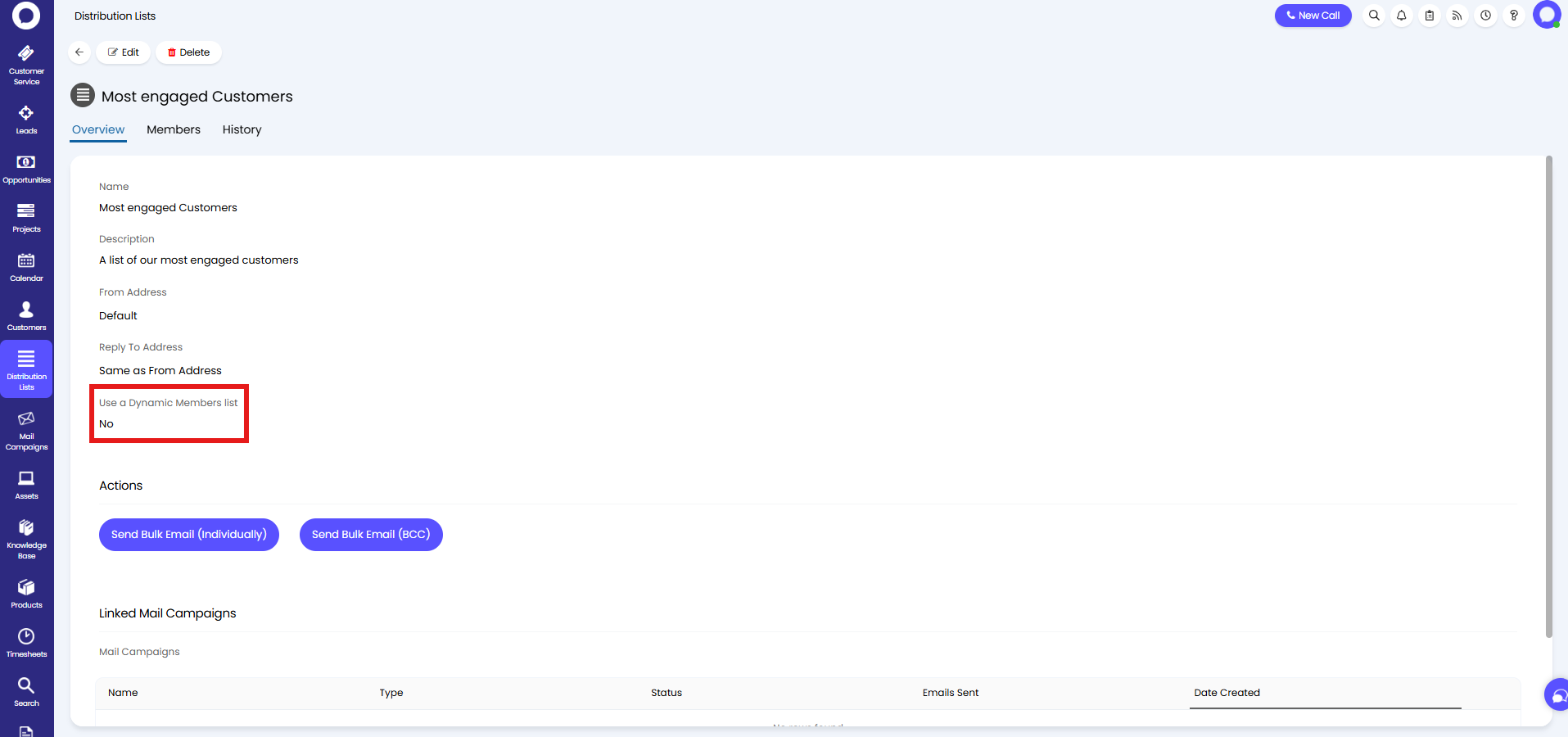
Fig 3. Creating a static distribution list.
Filters - If the "Use a Dynamic Members list" checkbox is selected, adding to this table allows you to include/exclude Users based on specific fields such as if a User is inactive.
What are Mail Campaigns?
Mail campaigns are a way of sending a series of emails to a list of contacts. This is useful feature for newsletters especially, as emails can be planned and formatting in advance.
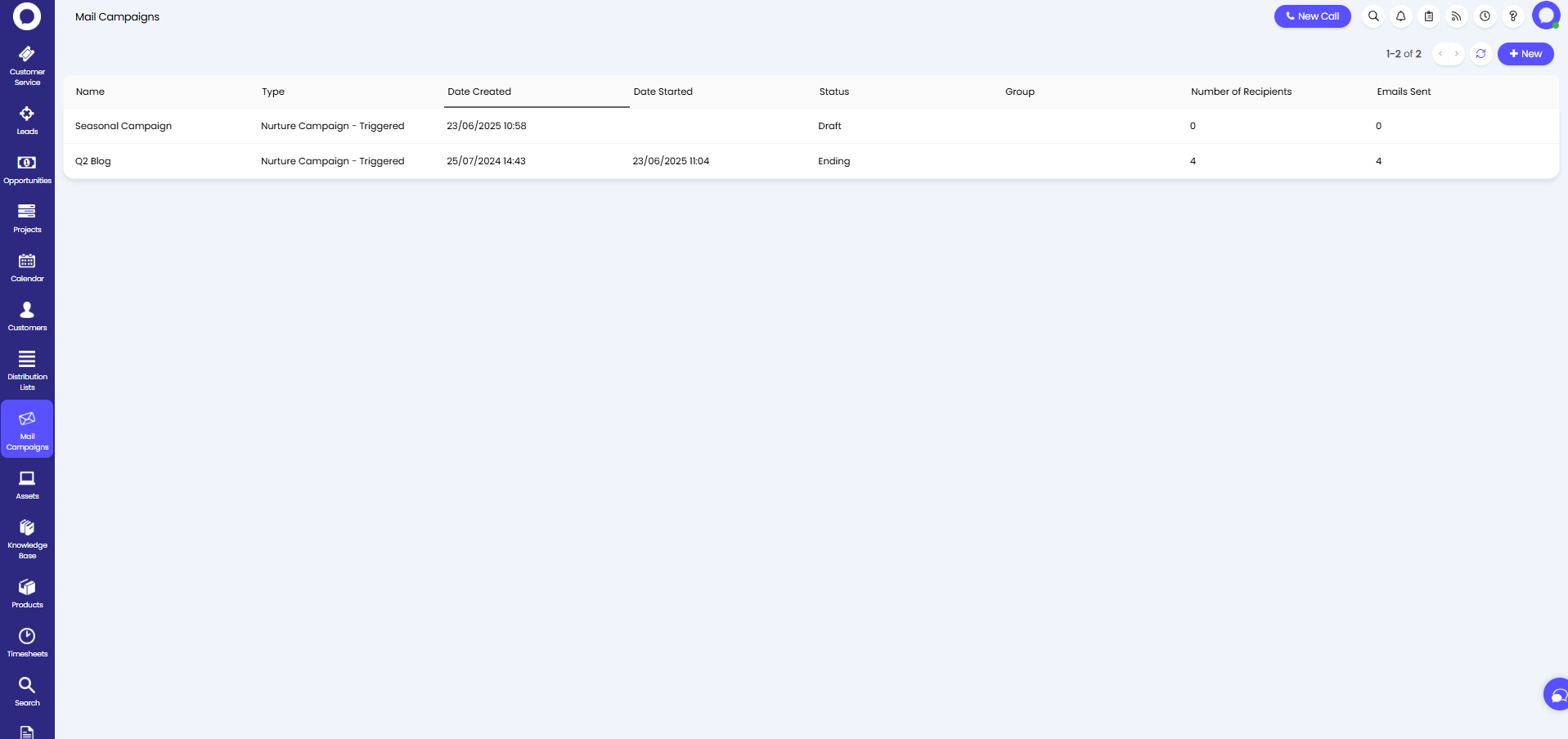
Fig 4. Mail Campaigns module.
How They Work Together
The two work together so emails can be sent at certain scheduled times after the campaign has been started. In the "Settings" tab of a mail campaign, a distribution list can be set as the recipients of the emails. This means when the mail campaign is sent, the contacts within that distribution list will all get these emails.
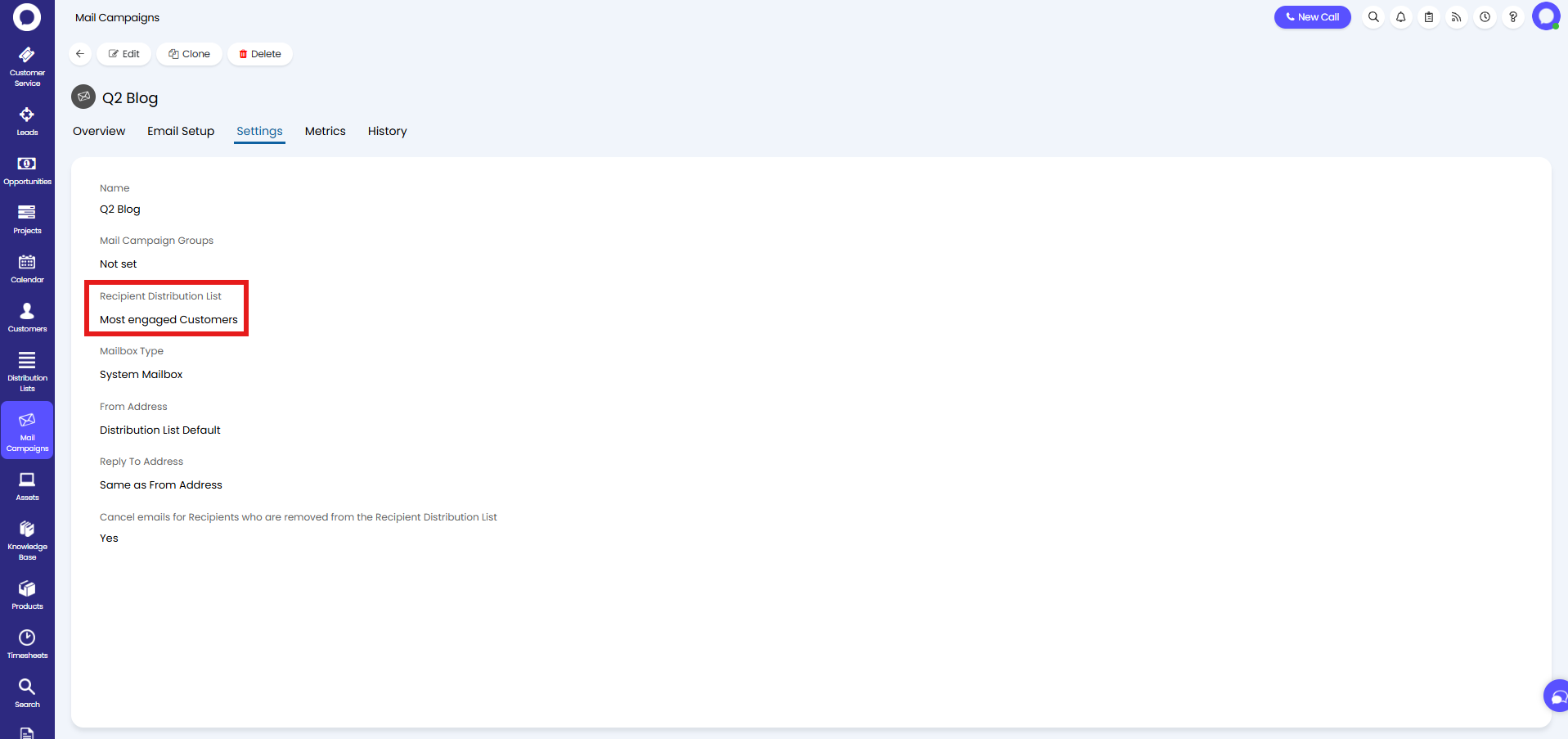
Fig 5. Assigning a distribution list to a mail campaign.
Creating a Mail Campaign
Let's create a mail campaign. Give it a relevant name, set the type to "Halo CRM" (unless using the Mailchimp integration), and select the type. Mail campaigns can be either "Blast" or "Nurture" campaigns.
Note: If using dynamic distribution lists for a mail campaign, you will need to use to "Blast" type of campaign.
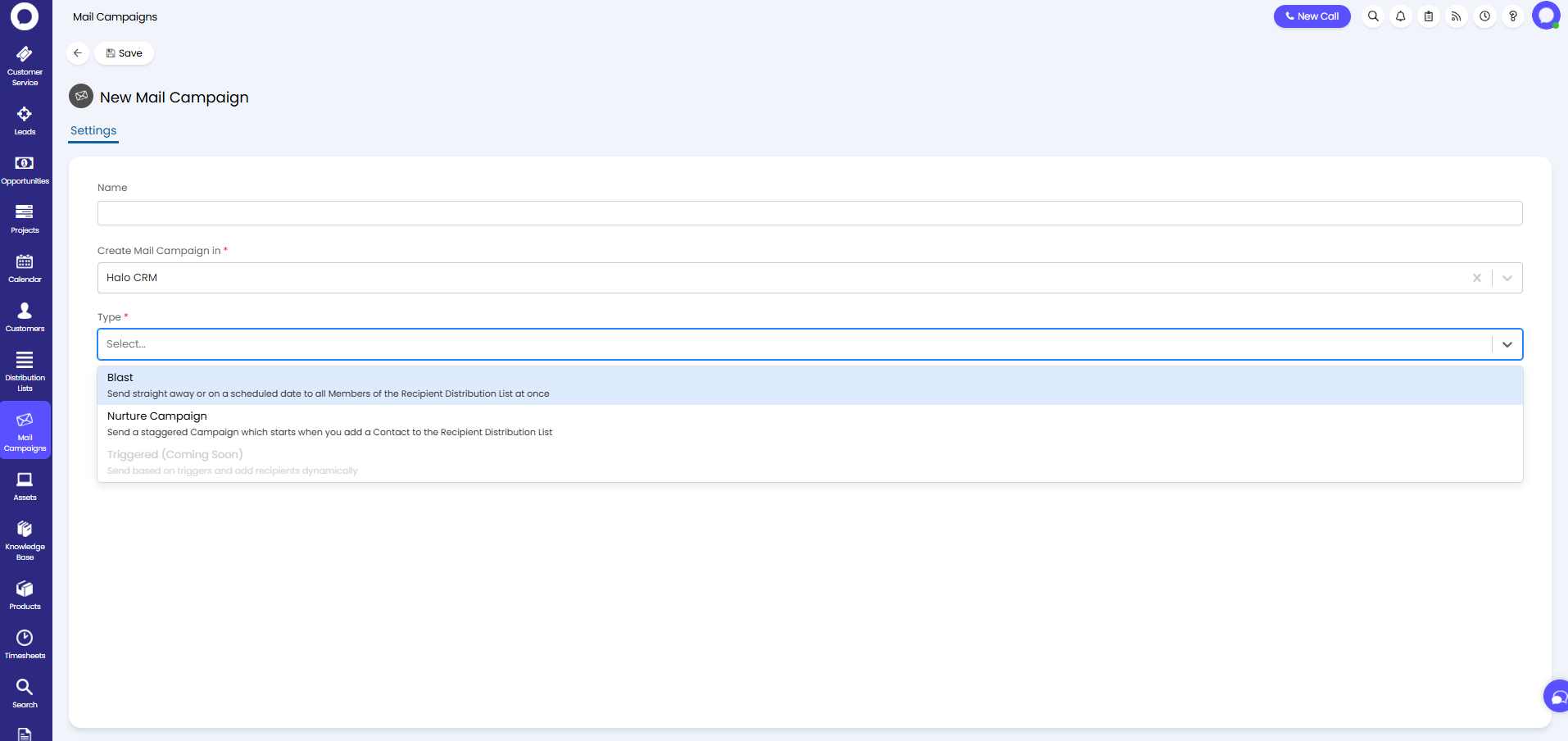
Fig 6. Creating a new mail campaign.
Save this, and you will then have access to configure the campaign. In the "Email Setup" tab, click the "Add" button to add an email to the campaign.
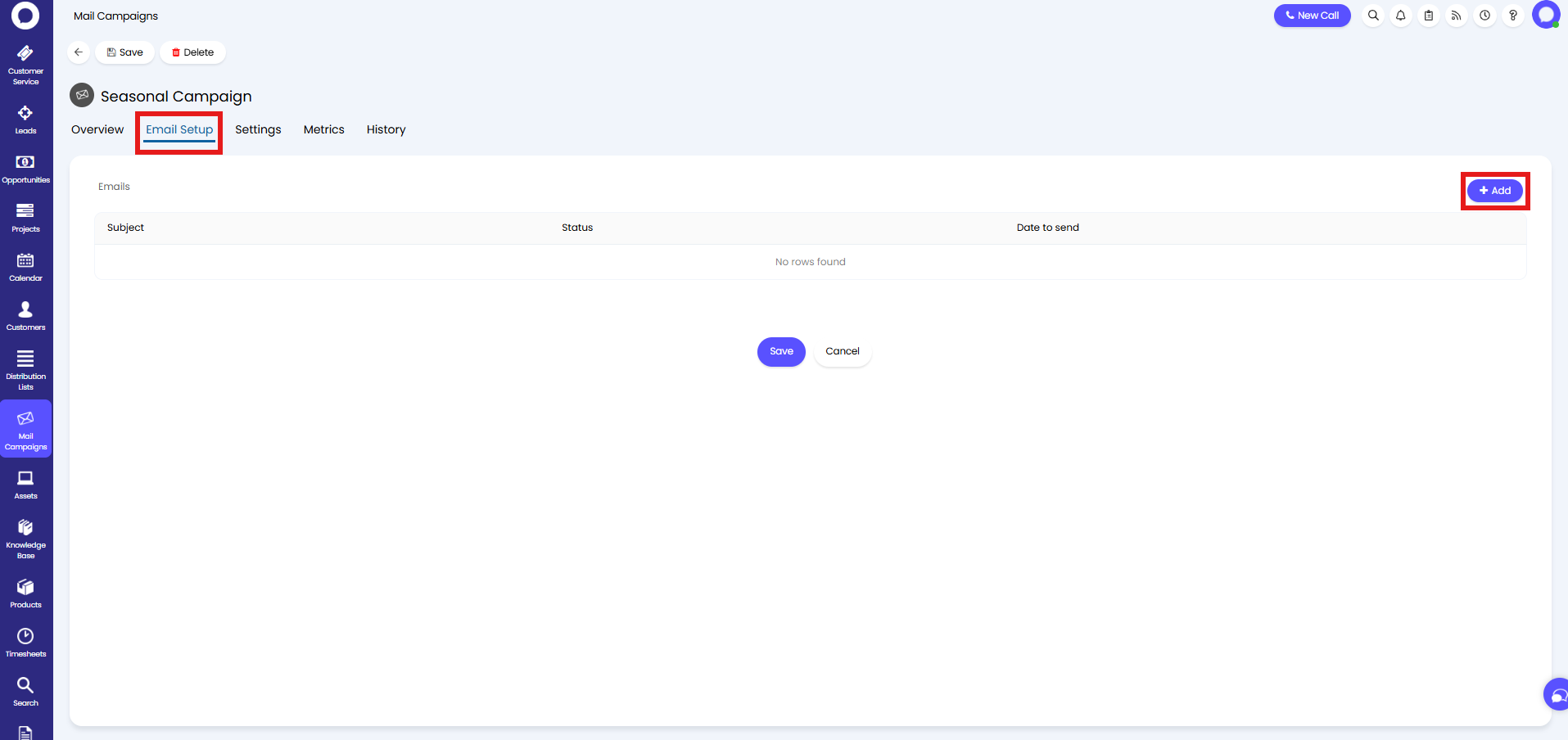
Fig 7. Email Setup tab on a mail campaign.
The following pop-up will then appear to configure the email contents. At the top, you can set the "Status" of the email. Before sending the campaign, every email must have the status of "Ready".
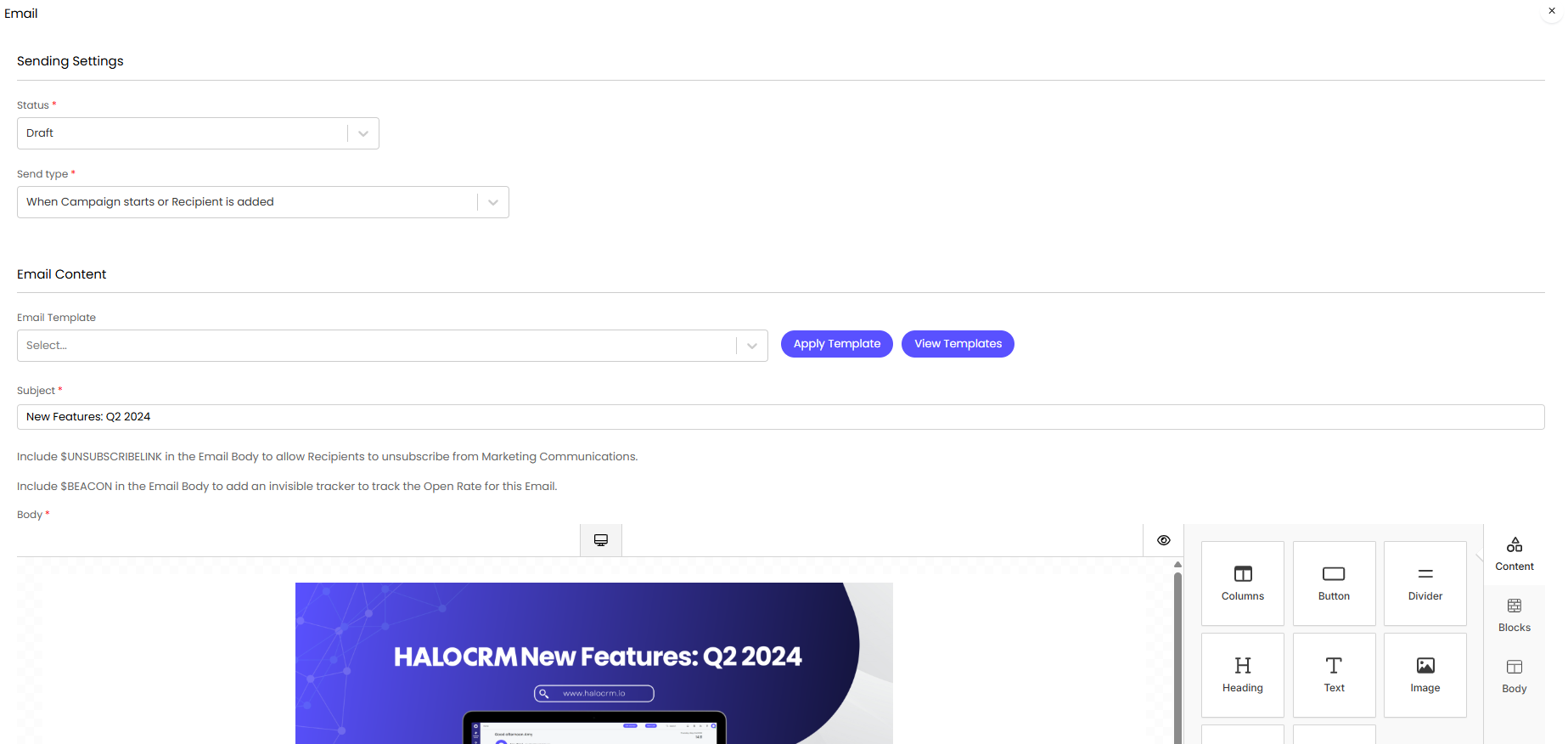
Fig 8. Creating an email.
You can also send a test email from this screen. Scroll down to the bottom, and the left corner will show a button to "Send a Test Email". This is useful to test the email appears as intended. A popup will show to enter an email, and the test will send.
Sending Emails
You can then send the emails from the campaigns. Ensure the status is set to "Ready", and choose a time to send each email.
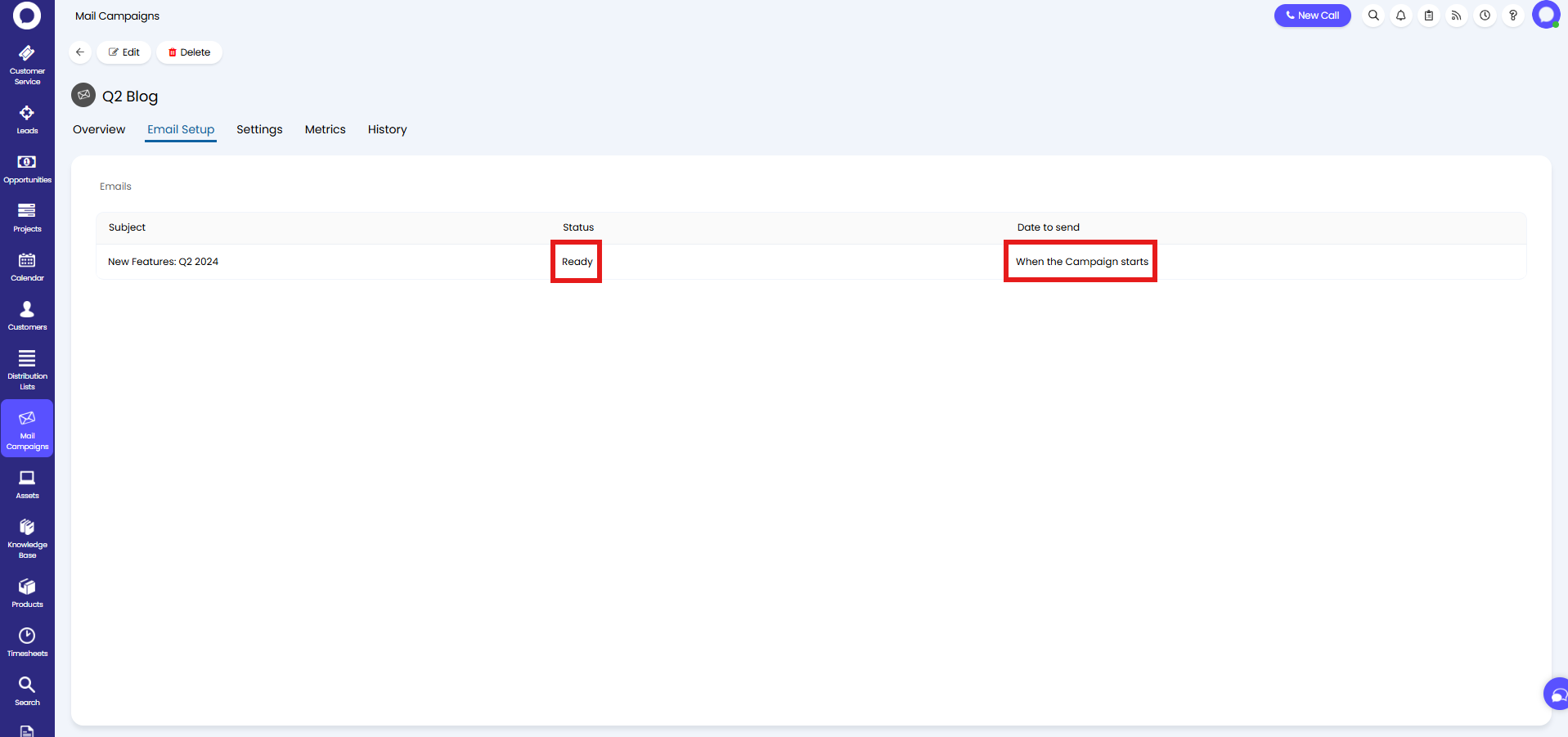
Fig 9. Email ready to send.
On the "Overview" tab, scroll down and click "Start Campaign".
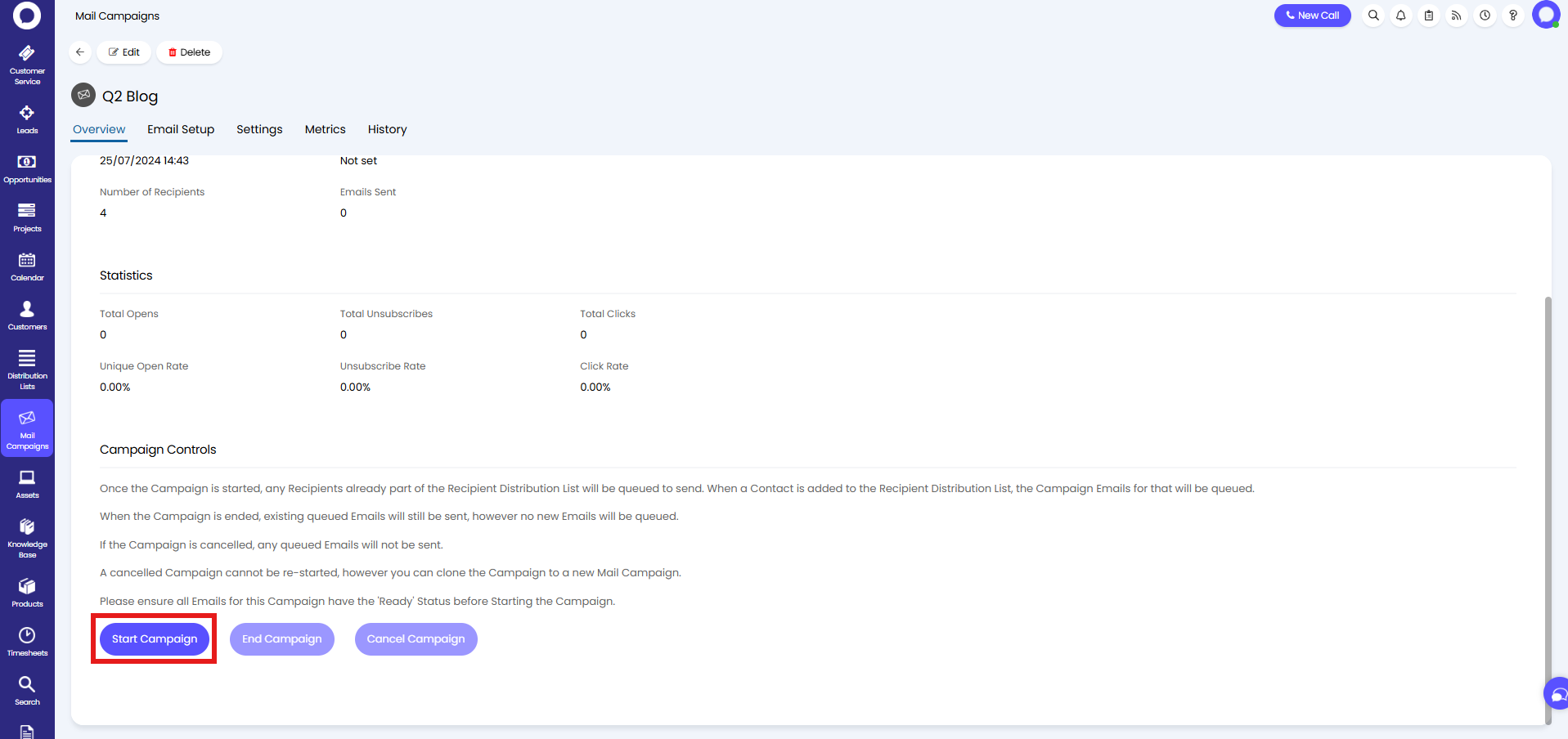
Fig 10. Starting the mail campaign.
A pop-up will show to confirm, so click "Start Campaign" here to begin.

Fig 11. Confirming the start.
The emails will then be sent on the schedule set against them to each contact within the distribution list. Since there were four contacts in the distribution list, four emails have been sent.
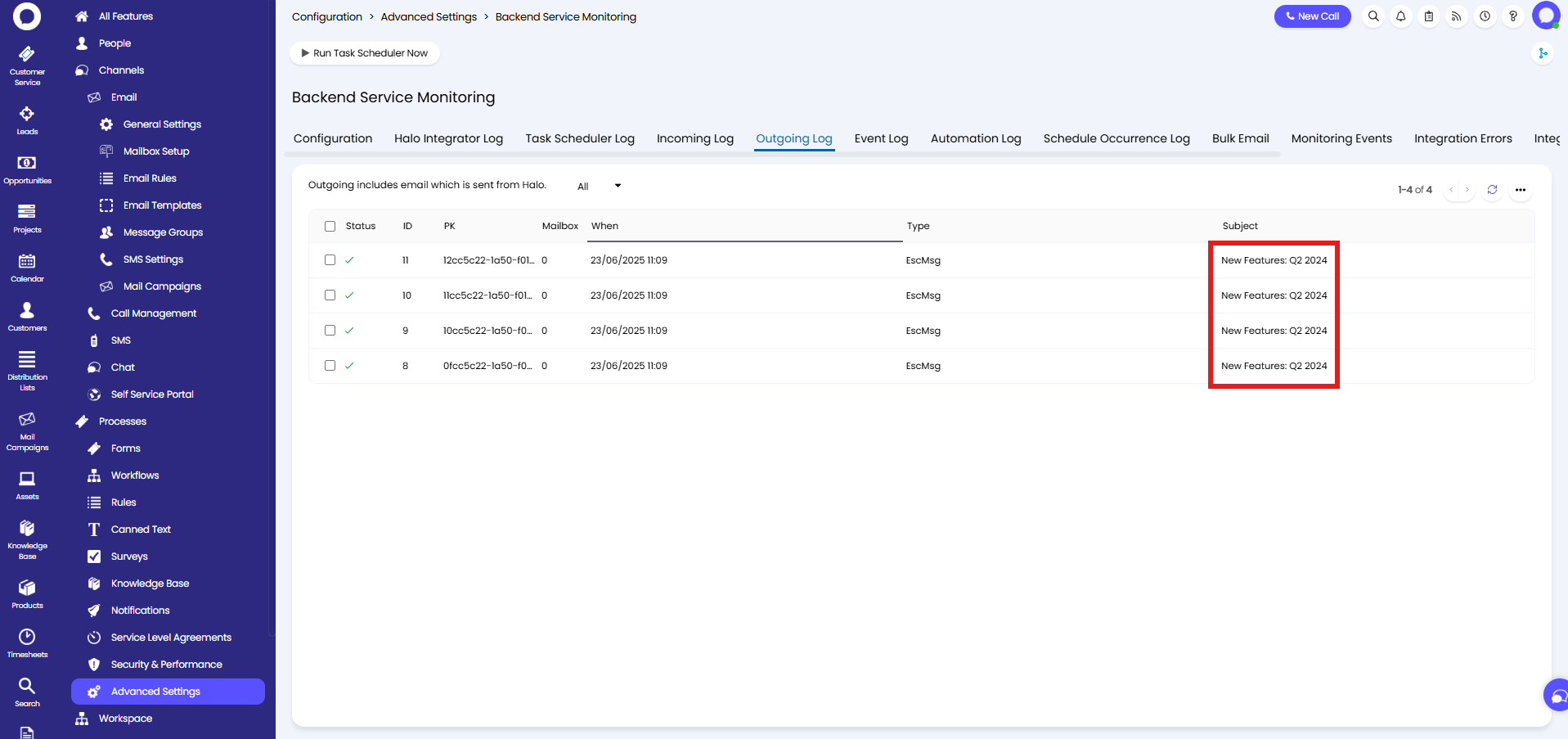
Fig 12. Emails sent to all four contacts in the distribution list.
Various elements can be edited after starting the campaign, depending on the campaign type:
Nurture and Blast Campaign Types:
- Email Subject
- Email Body
- Remove Emails
- Mailbox Type
- From Address
- Reply To Address
Blast Only:
- Add new Emails
- Change send time in relation to original start of the Campaign