Risk Scoring
- Risk assessment
- change management
- risk scoring
In this guide we will cover:
- Enable Risk Scoring
- Risk Scoring Using a Single Select
- Risk Scoring Using a Calculation
- Risk Scoring Using Impact and Risk Fields
Related Guides:
Risk scoring works by calculating a score based on custom fields on a ticket, and can be a useful tool within a change management process to determine the risk associated with the proposed change.
Enable Risk Scoring
The first step is to enable the risk scoring functionality. In Configuration > Tickets > General Settings, scroll to the "Advanced" section and enable the "Enable Risk Scoring" checkbox.
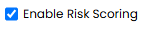
Fig 1. Enabling risk scoring.
Risk scoring can then be enabled per ticket type - go to Configuration > Tickets > Ticket Types > Settings tab and scroll to the "Advanced" section. You can then set the "Risk Calculation Type" field, and can choose between summing single select fields or using a custom calculation. We will go over both methods within this guide.
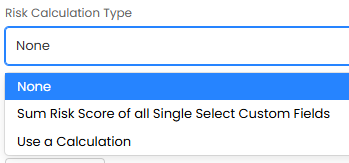
Fig 2. Risk Calculation Type.
Risk Scoring Using a Single Select
The first methods is to sum all single select custom fields. Within the dropdown in Fig 2, choose "Sum Risk Score of all Single Select Custom Fields".
Now you can create the custom fields to use for the calculation. Select "Single Selection" as the "Type of Field", and add your value names in.
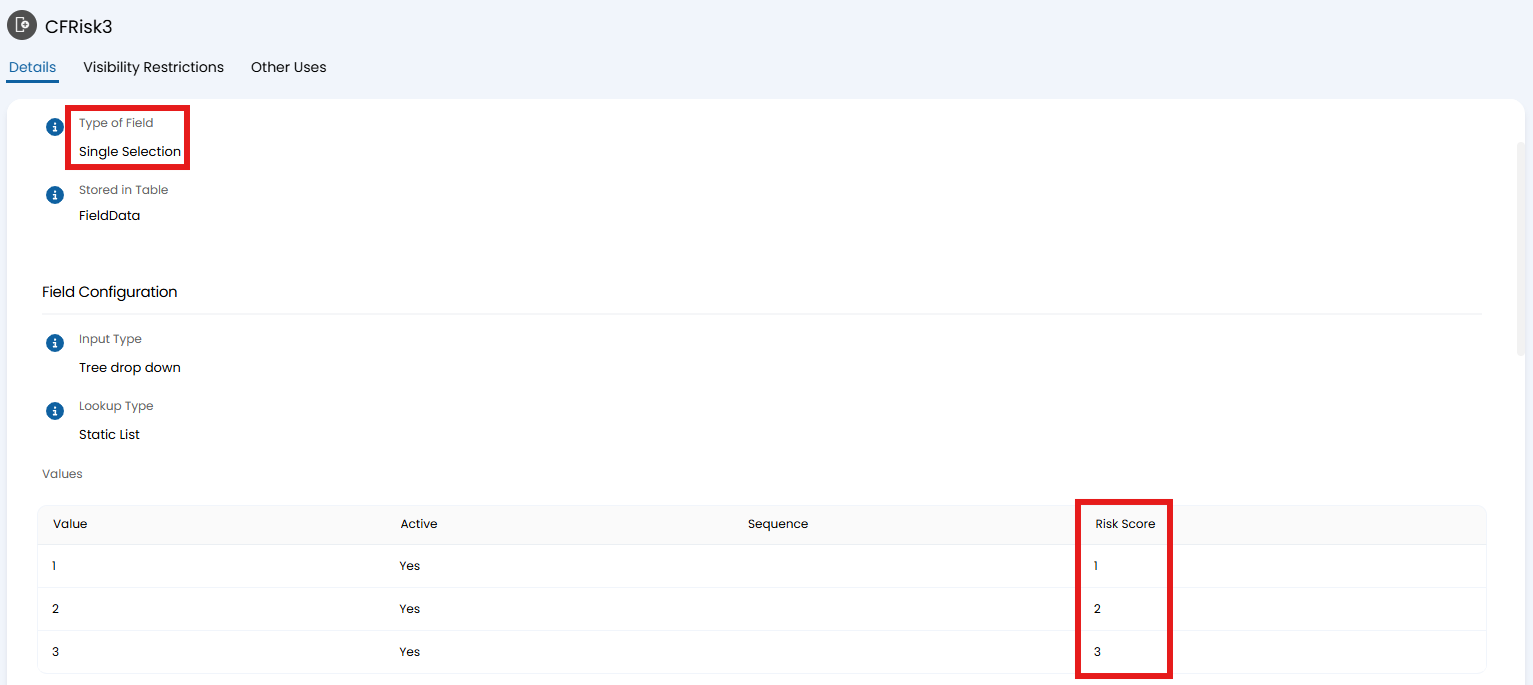 Fig 3. Creating a single select custom field with risk score values.
At this point, you will need to save before editing again, so that the "Values" table in Fig 3 shows. Edit a line on the value table, and assign each value a "Risk Score". Note: This score must be set as this is what the field calculates from, regardless if an integer is used for the value.
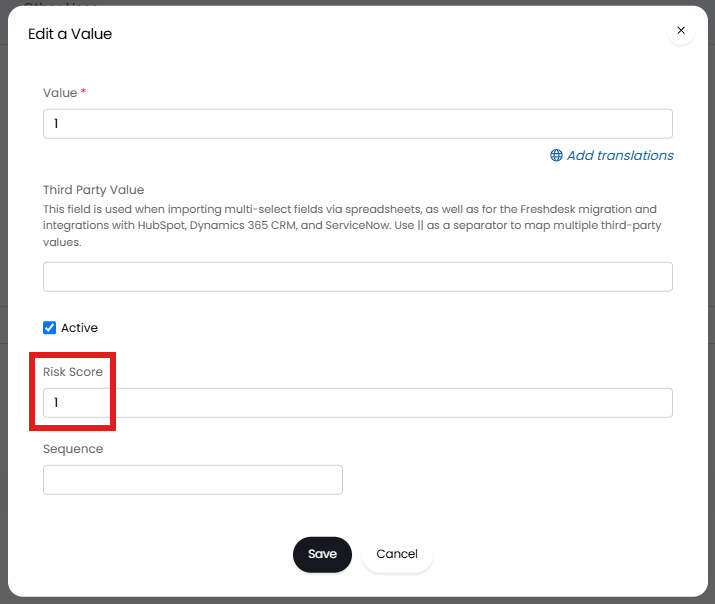
Fig 4. Assigning a risk score to the value.
Go back to your ticket type, and add the fields in we created into the "Field List", as well as the "Risk Score" system field. By default, this will show in the "Ticket information" on the right side of a ticket, but in this example this has been edited to place this on the same tab for easier reference.
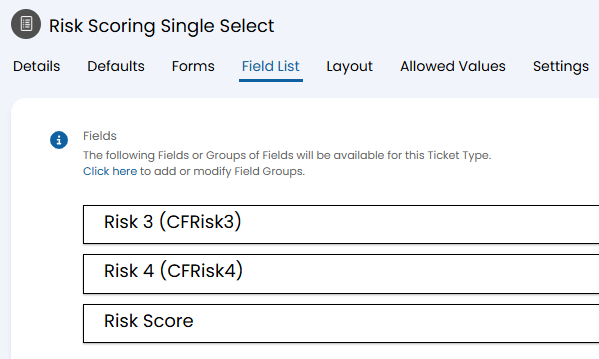
Fig 5. Field list.
You can then log a ticket and choose a value for each field from its dropdown. The "Risk Score" field we added will now show the sum of both of these single select fields and if the values in these fields change, the "Risk Score" field will update accordingly.
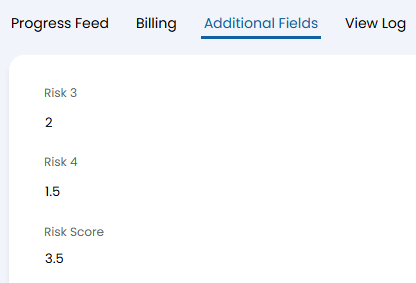
Fig 6. Risk score and fields it is calculated from showing on a ticket.
Risk Scoring Using a Calculation
Risk scoring can also be done using a custom calculation. This works similar to calculated custom fields, for more information on these please check out the "Custom Fields" guide.
Set the "Risk Calculation Type" in Fig 2 to "Use a Calculation", and another field will then show to add the calculation. In this example, the values of both fields will be summed; therefore working similarly to the previous method.
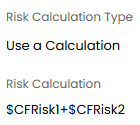
Fig 7. Calculation for the risk score.
Using this method, you can also use fields of type "Text" and "Input Type" of "Integer" or "Decimal". In this example, we will use one of each.
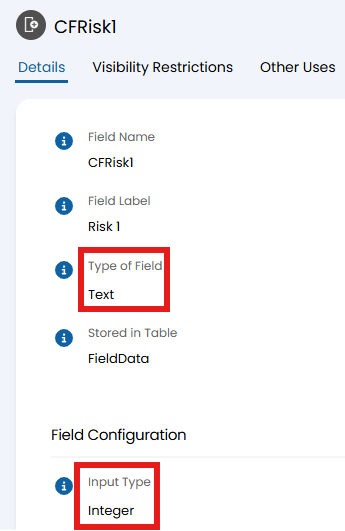
Fig 8. Integer field.
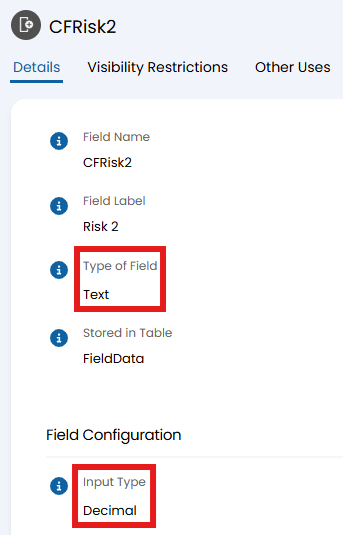
Fig 9. Decimal field.
Add your fields to the "Field List" of the ticket type, and the "Risk Score" system field to populate the risk score into. This system field will show within the "Ticket information" on the right side of a ticket by default, but for ease in this example this has been edited to place this on the same tab as the custom fields for easier reference.
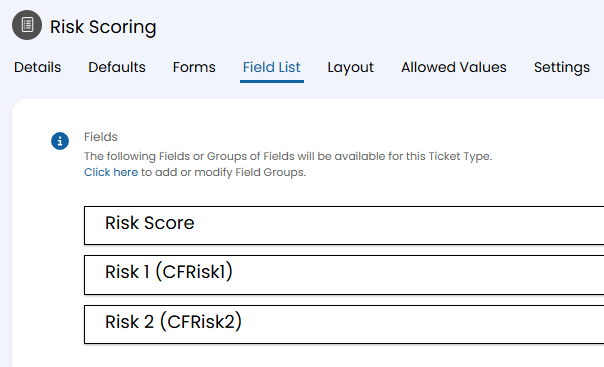
Fig 10. Field list.
You can then log the ticket type. The "Risk Score" field has calculated the sum of "Risk 1" and "Risk 2" as per the calculation set in Fig 7. If the values in these fields change, the "Risk Score" field will update accordingly.
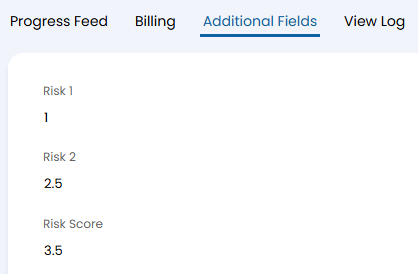
Fig 11. Risk score calculated by a custom calculation.
Risk Scoring Using Impact and Risk Fields
Risk scoring can also be done through the "Impact" and "Risk" system fields, often used for change management procedures.
The risk score values will need to be set on the lookup of these fields. To do so, navigate to Configuration > Advanced Settings and scroll to the bottom to click the "Lookup Codes" button. This will bring up a list of the available "Impact Level" by default, click the entity arrow in the top left to change this.

Fig 12. Changing the lookup code.
The risk score values will need to be set on each option within "Impact Level" and "Risk of Failure Level".
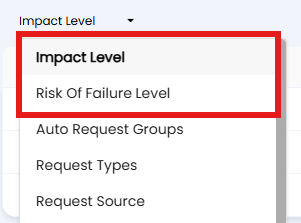
Fig 13. Impact and Risk lookup codes.
Clicking into an option in the list will bring up its name and the "Risk Score" field. Enter the numerical value you wish to use here.
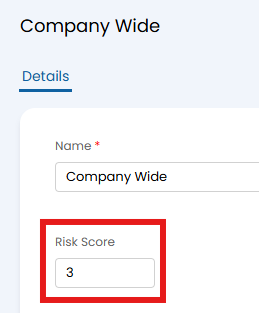
Fig 14. Setting the value.
When setting the "Risk Calculation Type" on the "Settings" tab of the ticket type as before, select "Use a Calculation". The variables "$-RISKLEVEL" and "$-IMPACTLEVEL" can then be used for "Risk" and "Impact" respectively within the calculation.
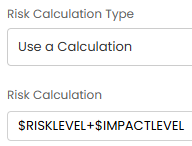
Fig 15. Adding the calculation to the ticket type.