Notification Templates
- notification
- notifications
- notification template
In this guide we will cover:
- Editing Notification Templates
- Using Notification Templates
Configuration Settings:
Related Guides:
Notification templates are used to edit the way that notifications appear if not using an email/SMS template. These are built-in to the system, and new ones cannot be created as these correspond with the notification trigger options, although existing ones can be edited.
Editing Notification Templates
In Configuration > Notifications > Notification Templates, you will find a list of pre-configured templates.
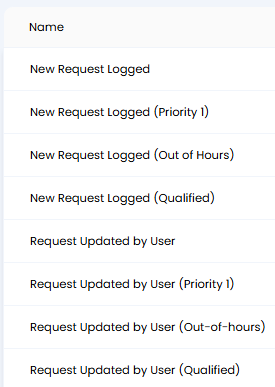
Fig 1. List of notification templates.
Clicking into one here will show its name and current message. The name cannot be edited and is read-only, however the message can be edited. Variables can be added here to auto-populate with information, such as the ID of the ticket within this example.
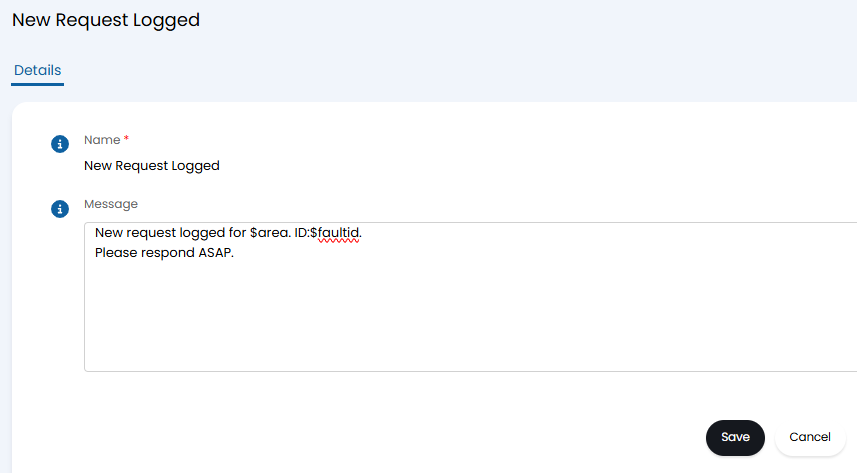
Fig 2. Editing the notification template.
Using Notification Templates
In Configuration > Notification > Notifications, you can then create a notification with the trigger that corresponds with the notification template that you edited. For the above example, we are using the "New Ticket Logged" trigger event.
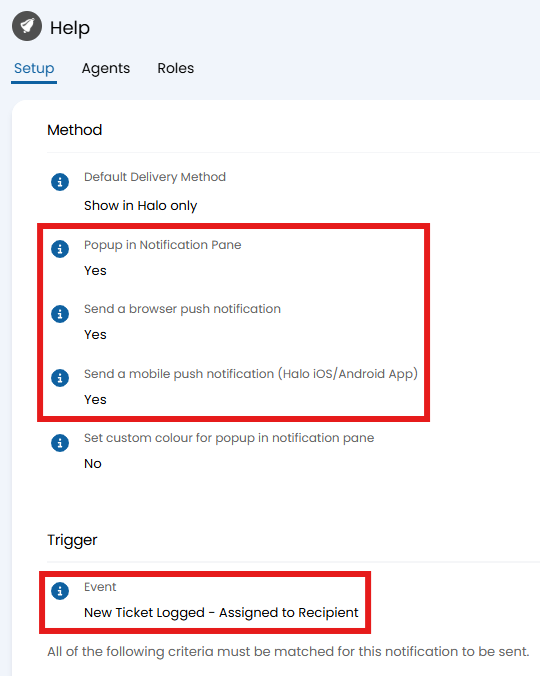
Fig 3. Configured notification.
Any delivery method other than email or SMS text message will follow the notification template.
The Halo in-app popup ("Popup in Notification Pane") will appear like below.
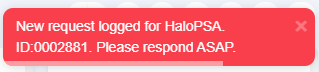
Fig 4. Halo popup notification.
As well as within the notification pane here.
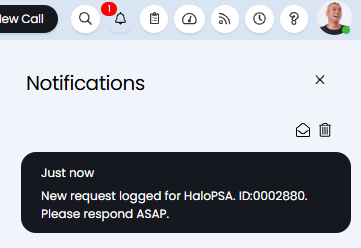
Fig 5. Halo popup in notification pane.
It will appear like below if using the mobile app ("Send a mobile push notification (Halo iOS/Android App").
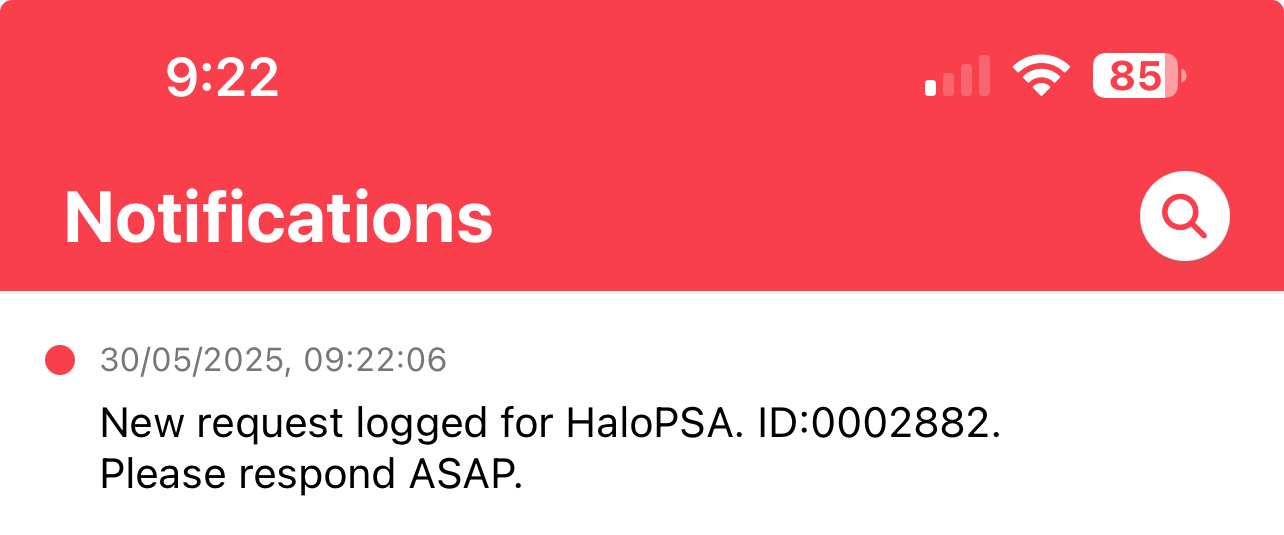
Fig 6. Mobile app notification.
The notification will show like below if using browser push notifications ("Send a browser push notification").
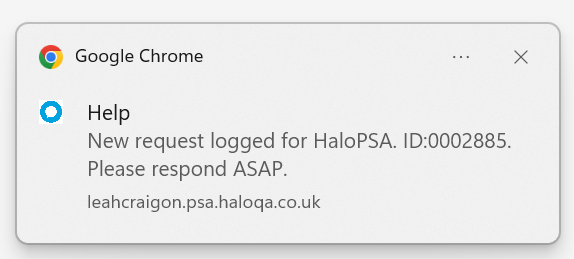
Fig 7. Browser notification.