System Notifications
- notification
- system notifications
- email notifications
- site contact
- owner notification
- follower notification
- acknowledgement email
In this guide we will cover:
- Types of System Notifications
- How to Enable Them
Halo has some pre-configured system uses for sending out notifications, which can be enabled or disabled within various areas of our system. This guide will cover a list of these, and how to set these up.
Account Manager
Account Managers can receive notifications of tickets logged against the customer, and updates sent out by agents assigned to them. An Account Manager can be assigned to a customer within a customer's details > Assigning and Account Manager section.
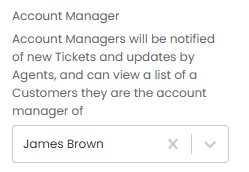
Fig 1. Account Manager on a customer.
Site Contact
Users can be added as a site contact to receive notifications such as when new tickets are logged, tickets updated, etc. These can be added to the table below within the site profile > Sits Contacts tab.
A site contact will receive all default notifications such as new ticket logged or ticket updated/closed - unless a custom notification is set up in its place.
"Send to Site Contact" is an available notification type to do so, and any notifications created with this type will be used instead, and the defaults will no longer be sent out. For more information on configuring site contacts and their notifications, check out the "Site Contacts" guide.
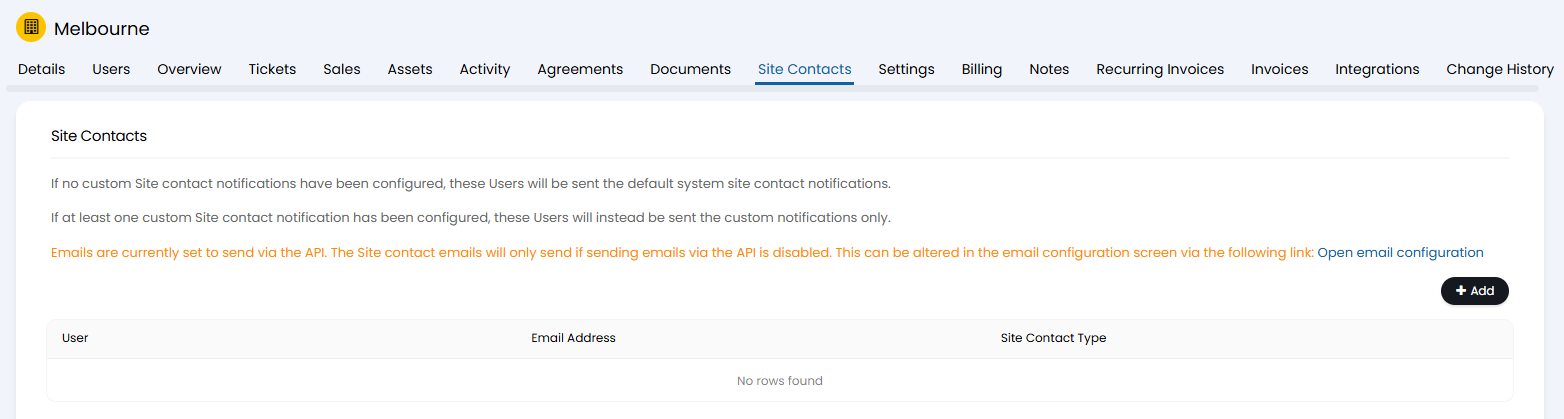
Fig 2. Site Contacts tab.
Owner
Agents can receive notifications when others complete an action on a ticket assigned to them. First, enable the below first checkbox in Configuration > Notifications > General Settings. You can then also configure if this functionality applies when linking/merging tickets, or if API agents are included within these.
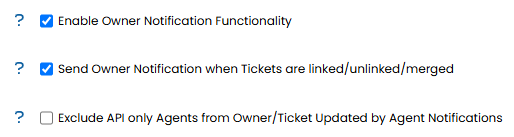
Fig 3. Owner notification configuration.
This can then be enabled per agent within their agent profile (Configuration > Teams & Agents > Agents > Preferences tab > Notifications dropdown).

Fig 4. Enabling owner notifications per agent.
The agent will then receive a notification stating what action has been taken, and clicking on this will take them to that ticket. This includes actions both shown and hidden from the end-user.
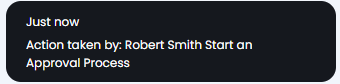
Fig 5. Action taken notification example.
Followers
Followers of a ticket can be send emails of updates to the ticket, and this can also be configured to send agent notifications to followers. In Configuration > Notifications > General Settings, ensure the first below checkbox is disabled, and if you wish followers to receive agent notifications, then enable the second.

Fig 6. Follower configuration.
Followers can receive the following notification triggers via this method:
- New Ticket Logged - Assigned to Recipient.
- New P1 Ticket Logged - Assigned to Recipient.
- New OOH Ticket Logged - Assigned to Recipient.
- New Ticket Logged (Qualified) - Assigned to Recipient.
- Ticket Updated by User - Assigned to Recipient.
- OOH Ticket Updated by User - Assigned to Recipient.
- Ticket Updated by User (Qualified) - Assigned to Recipient.
- Re-assign - To Recipient.
- Closed - By Recipient.
- 1st SLA Warning - Assigned to Recipient.
- 2nd SLA Warning - Assigned to Recipient.
- Priority Escalated - Assigned to Recipient.
- Estimate Exceeded - Assigned to Recipient.
- Ticket Changed - Assigned to Recipient.
- Ticket Deadline Warning - Assigned to Recipient.
- Ticket Deadline - Assigned to Recipient.
- Ticket Status Changed - Assigned to Recipient.
- Change Ticket Starts in X Hours - Assigned to Recipient.
- Ticket Date field in past by X hours - Assigned to Recipient.
- Ticket Updated by Agent - Assigned to Me.
- Rule Matched - Assigned to Me.
- Ticket Budget threshold met - Assigned to Me.
- Document uploaded by User.
- Document uploaded to Ticket.
- Ticket Deleted - Assigned to Me.
- Action added by Agent - Assigned to Me.
- SLA Breached - Assigned to Me.
Ticket Acknowledgement Emails
Users can receive notifications when they have logged a ticket, helping confirm the process was successful. In their user profile > Preferences tab > Email/Marketing Settings dropdown, enable the below checkbox.

Fig 7. Enabling acknowledgement emails.
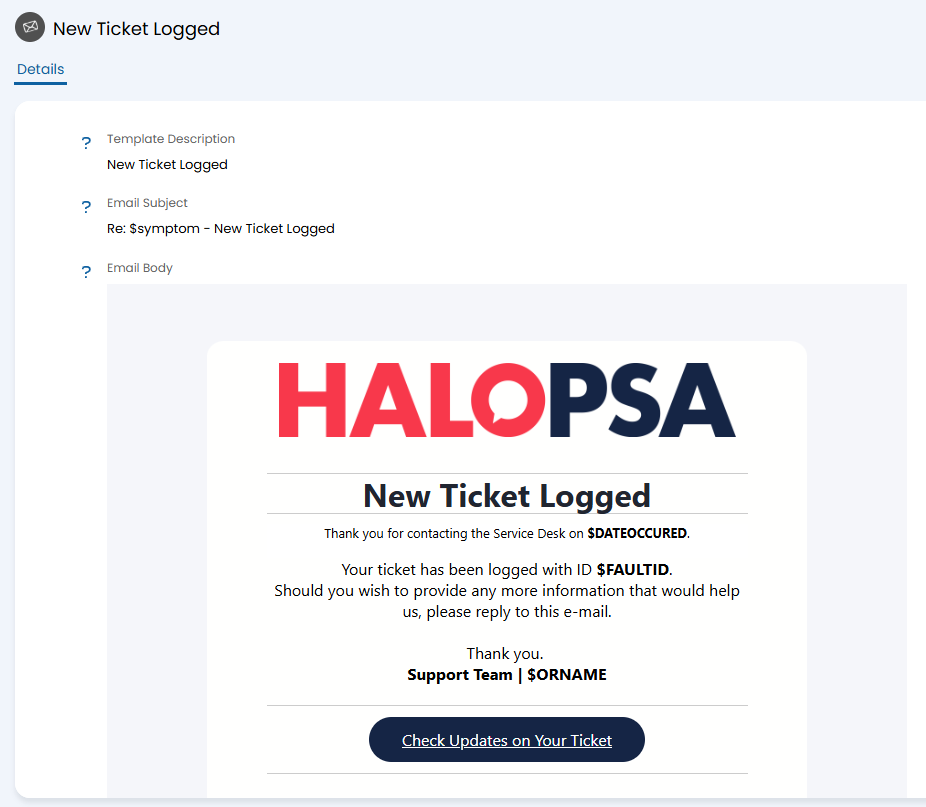
Fig 8. Ticket logged template.
Ticket Status
Agents can receive notifications when a ticket status has remained the same for a consecutive period of time. In Configuration > Tickets > Statuses, select a status and scroll to the "Email Settings" section in the "Details" tab.
Here you can set set to inform the assigned agent, their team or the team's manager if the status has not been changed in a certain number of hours. This can be recurring or not, and based on either normal or working hours.
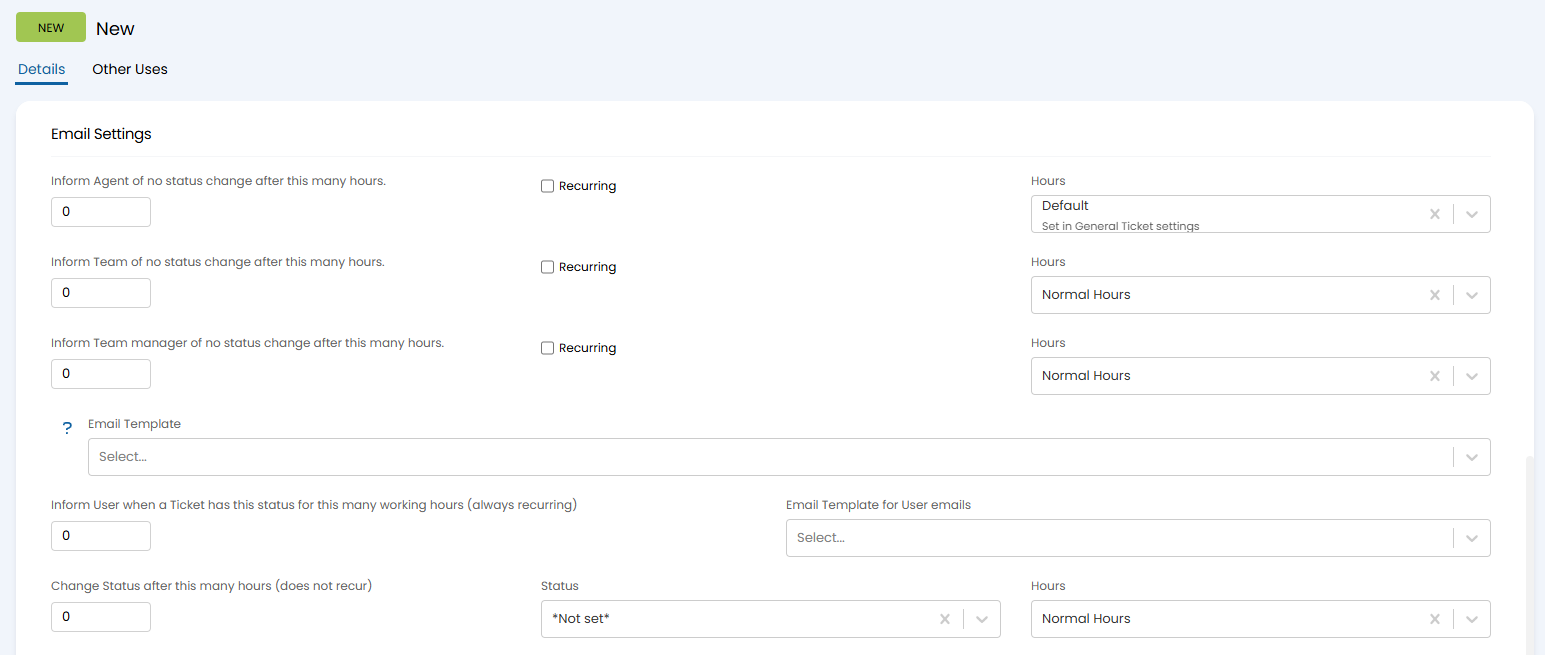
Fig 9. Status change configuration.
You can then select the email template to use. This can be either the default (ID: 32) or a custom email template.
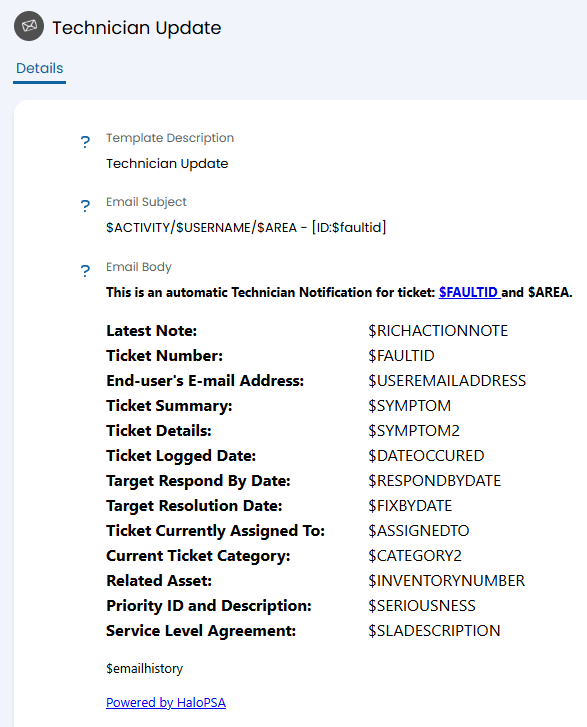
Fig 10. Default notification template.
Ticket Rules
Agents can receive notifications whenever a ticket rule is matched on a ticket. To configure this, go to Configuration > Tickets > Rules and select/create a rule. Scroll to the bottom where the "Notifications" section is.
Within the table, click the "Add" button to create a new notification, and configure a notification as normal.
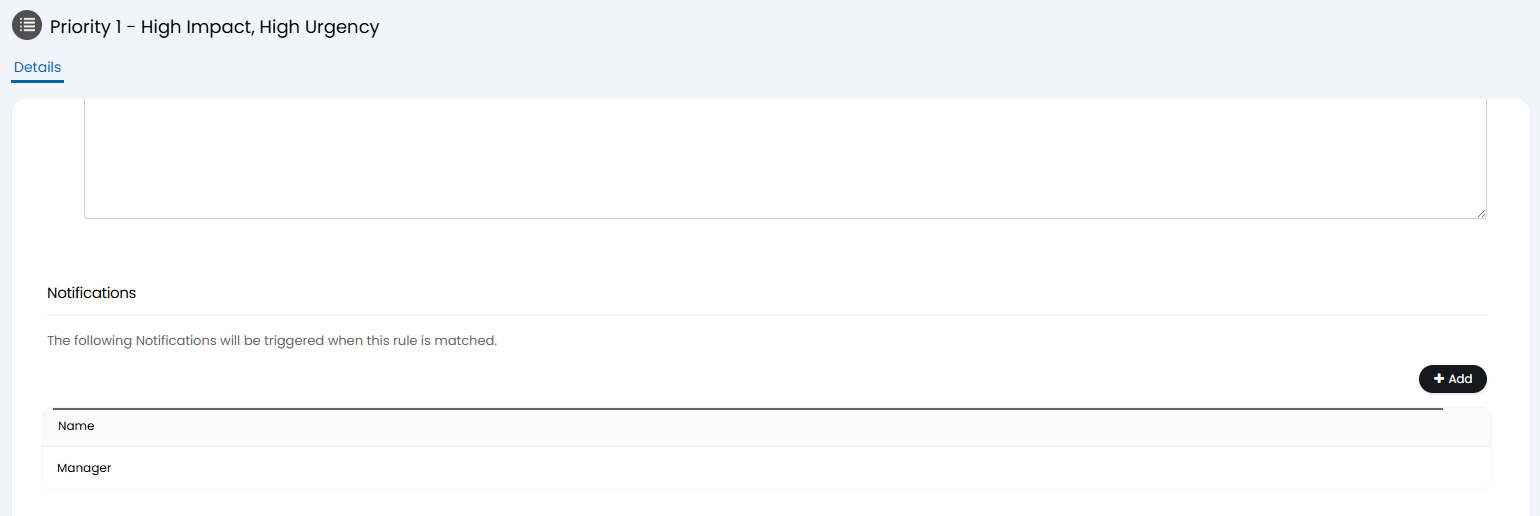
Fig 11. Notification configuration on a ticket rule.
The notification can be sent in multiple ways - the default notification pane will look like the below.
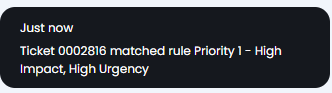
Fig 12. Ticket rule matched notification.
Service Level Agreement (SLA)
Agents or users can receive notifications when the SLA on a ticket has reached a certain percentage of its aimed time, or a certain number of hours before that time. The thresholds for this are set in Configuration > Service Level Agreements > General Settings, and scroll down to the "Notifications" section.
Select which method you wish to use, and type the value you wish to base this on.
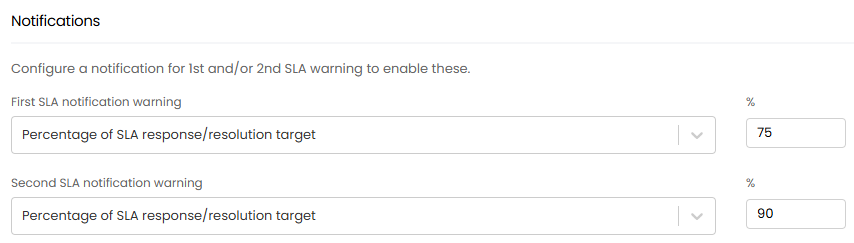
Fig 13. Choosing percentage thresholds on an SLA.
You can then go to Configuration > Notifications > Notifications, and create a notification with the triggers "1st SLA Warning" and "2nd SLA Warning". These triggers will use the above configuration as the warning indicator.
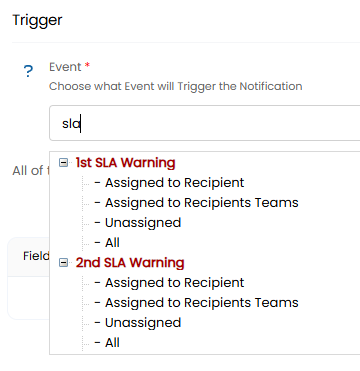
Fig 14. Creating an SLA notification.
These notifications can be configured to send in multiple ways - the default notification pane popup will look like this.
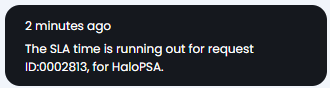
Fig 15. SLA notification example.
Additional Agents
Additional agents assigned to a ticket can receive the same notifications that are configured for the primary assigned agent. Go to Configuration > Notifications > General Settings, and enable the below checkbox.

Fig 16. Enabling additional agent notifications.
When configuring a notification in Configuration > Notifications > Notifications, any trigger that is set to "Assigned to Recipient" will also include the additional agents (if they are subscribed to the notification).
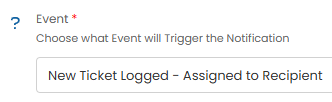
Fig 17. Assigned to Recipient trigger.
Backend Errors
Agents can receive notifications for error within backend services. To enable this, go to Configuration > Teams & Agents > Agents > Preferences tab > Notifications dropdown, and enable the below checkbox. The agent will receive notifications when email, the Halo Integrator, or other backend services error. These will appear in the notification side pane, as well as an email sent to the agent from the specified Halo address.

Fig 18. Enabling backend error notifications.
The notification in the popup/pane will look like the below.
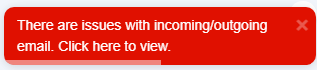
Fig 19. Backend error notification example.
Halo Integrator
Agents can receive notifications for when the Halo Integrator has not run for a certain number of hours. Go the agent profile (Configuration > Teams & Agents > Agents > Preferences tab > Notifications dropdown) and enable the below checkbox. Upon enabling, you can set a number of hours to base this notification on.
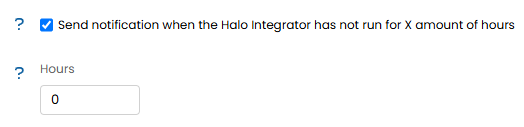
Fig 20. Enabling notifications for the Halo Integrator not running.
Agents can then see a notification popup once the the set number of hours has passed, stating how many hours it has been since the last run.
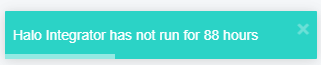
Fig 21. Halo Integrator notification example.
Quotation Notifications
Agents can receive notifications for when the end-user views a quotation, or when the user rejects a quote.
In Configuration > Quotations, scroll down to the "User Approval Settings" section. Here you will find two checkboxes - one for viewing, and one for rejecting.


Fig 22. Enabling quote notifications.
When enabled, the notifications will show in the notification side-pane within the agent portal.
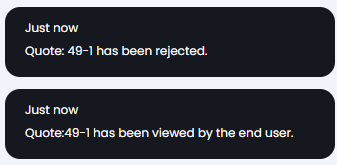
Fig 23. Quotation notifications.
Incomplete Timesheets Email and Notifications
Agents can receive notifications for incomplete timesheets for either your own timesheets and/or agents you manage. To enable this possibility, go to Configuration > Time Management and scroll to the "Timesheets" section. Here, enable the below checkbox.

Fig 24. Enabling timesheet notifications.
When the first checkbox is enabled, you can then go to an agent's profile (Configuration > Teams & Agents > Agents > Preferences tab > Notifications dropdown) where you can enable either of the two checkboxes. The first is for the agent to be notified of their own timesheet, and the second is for that agent to be notified about the agent's they manage.
Upon enabling, you can then set a percentage threshold for the notification to trigger, as well as a time to send the notification. If the timesheet is below that percentage of completion, a email will be sent at the specified time.
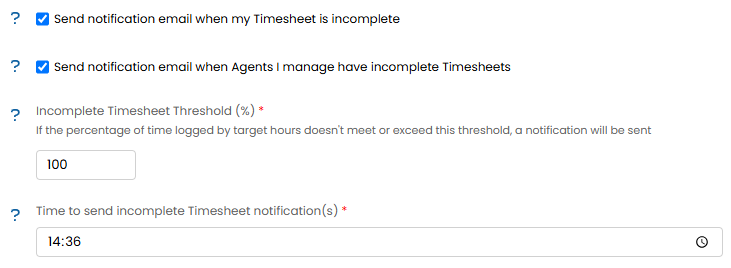
Fig 25. Configuring timesheet notifications.
If notifying of your own timesheet, this email template (ID: 336) will be sent.
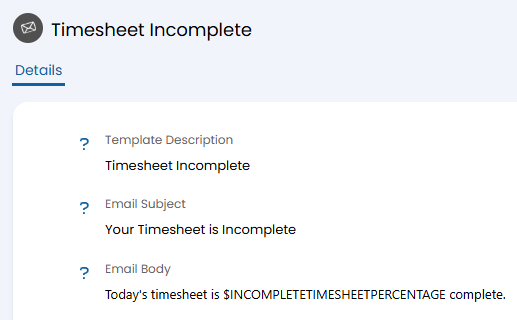
Fig 26. Own timesheet notification template.
If notifying about agents that the agent manages, this template (ID: 339) will be sent.
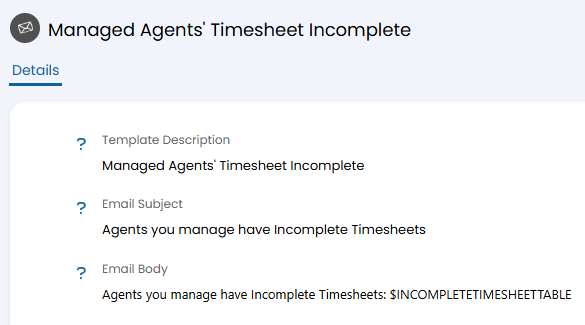
Fig 27. Management timesheet notification template.