Site Contacts
- site
- Users
- site contacts
In this guide we will cover:
- Creating a Site Contact
- Site Contact Types
- Setting Site Contact Access Level
- Logging Tickets on Behalf of Others within the Site
- Notifications for Site Contacts
Configuration Settings:
Related Guides:
Site contacts can be assigned to a customer's site, and can be used for access level, ticket logging, and notifications - either the default (when new tickets are logged) or custom notifications.
Creating a Site Contact
Site contacts can be created within the "Site Contacts" tab on the site. A table of existing contacts will show here, and new ones can be added with the "Add" button in the top right corner.
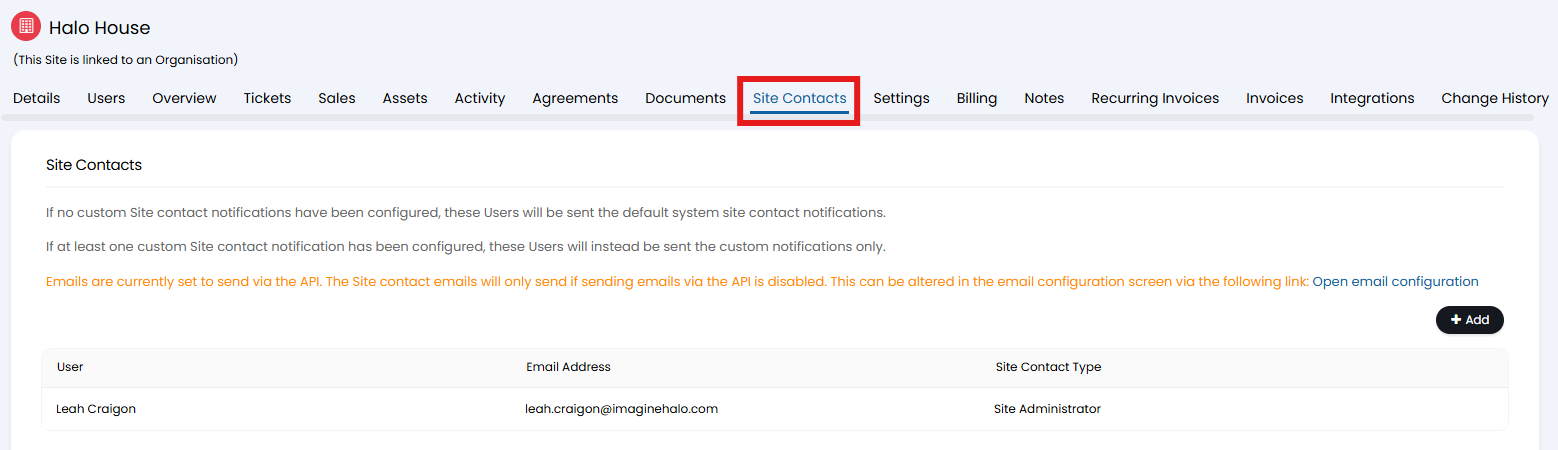
Fig 1. Site Contacts tab
Upon clicking this button, a popup will appear to choose a user, and a site contact type for them. Creating site contact types will be covered further into this guide.
Saving this popup will then show the contact on the table above.
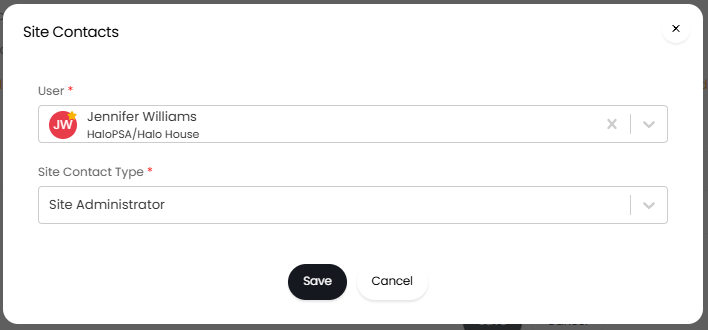
Fig 2. Site contacts popup
Create Site Contact from the User Profile (v.2.246+)
From v2.246+ you can manage the sites a user is a contact of from their user profile. Useful when a particular user is a contact for various different sites as this allows you to set the user as the site contact from their user profile, rather than having to set this per site.
To do this head to Customers/Organisations > Users > Preferences Tab > Site Level Notifications section > use the "Sites where this User is a Site Contact" table to set where the user is a site contact.
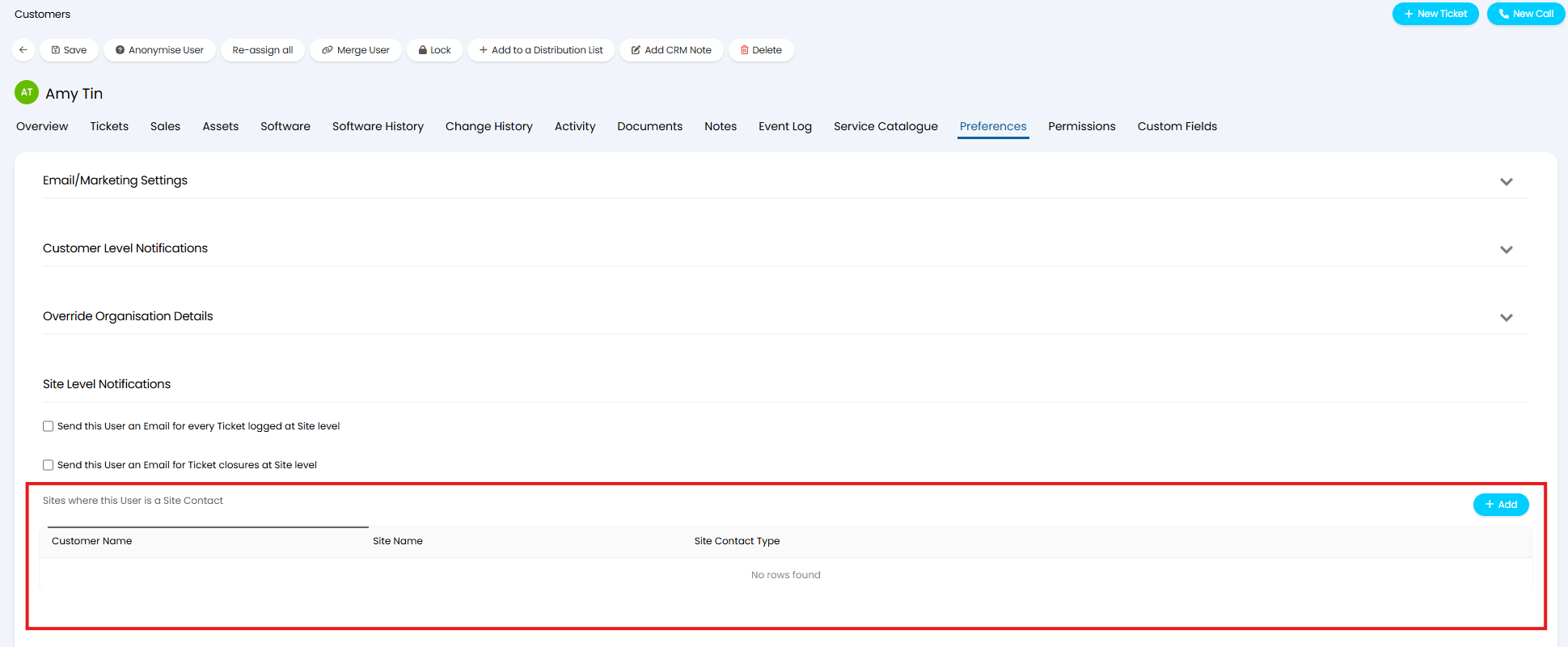
Fig 3. Sites where this User is a Site Contact table
When adding to this table you will need to choose which site the user is a contact of and the site contact type they are.
On versions prior to v2.246 this table will show which sites the user is a site contact for, but you will not be able to manage this from the user profile.
Site Contact Types
In Configuration > Users > Site Contact Types, you will see a list of any types you have already created, and a "New" button in the top right to create a new one.

Fig 4. Site Contact Types configuration.
Upon clicking this, a screen will show to set the name of your new site contact type before saving. This name will display in relevant lists and details tabs. You can then assign these types to a site contact shown in Figure 2.
Setting Site Content Access Level
If a user is a site contact, you can assign them access levels associated with those sites. This can be found at the top of the "Permissions" tab in their user profile.
For example, "Site Contact Tickets" in "Web Access Level" will allow them to view all site tickets that they are a site contact for, as well as their own tickets. This permission can also be set for asset access or quotation access.
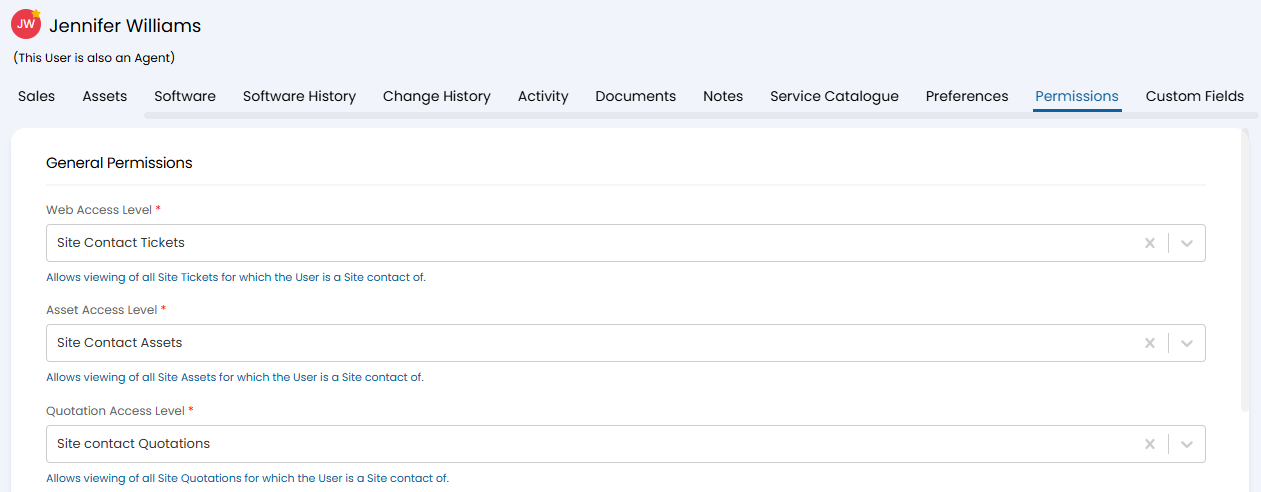
Fig 5. Access level based on site contact
Logging Tickets on Behalf of Others within the Site
In Configuration > Users > General Settings, the below setting can be used to base ticket logging off of site contacts.
If set to the below, users who are a site contact for site A as well as a member of site B, will be able to log tickets under both site A and B and their corresponding customer.

Fig 6. Site contact logging option
Notifications for Site Contacts
By default, site contacts will receive notifications for events like new ticket logged, ticket updated and ticket closed, helping them to keep up-to-date with what is going on within their institution. These are sent out by default, and they will receive the same email as the end-user. These will all be sent each time, unless a custom notification is set up in its place and will then be used instead.
Note: For these to send, disable "Allow the Web Application to handle the sending of Emails" in Configuration > Email > General Settings.
Site contacts can be set as a notification type when creating a new notification in Configuration> Notifications > Notifications. You can also choose to restrict this notification by the site contact type that is assigned to them.
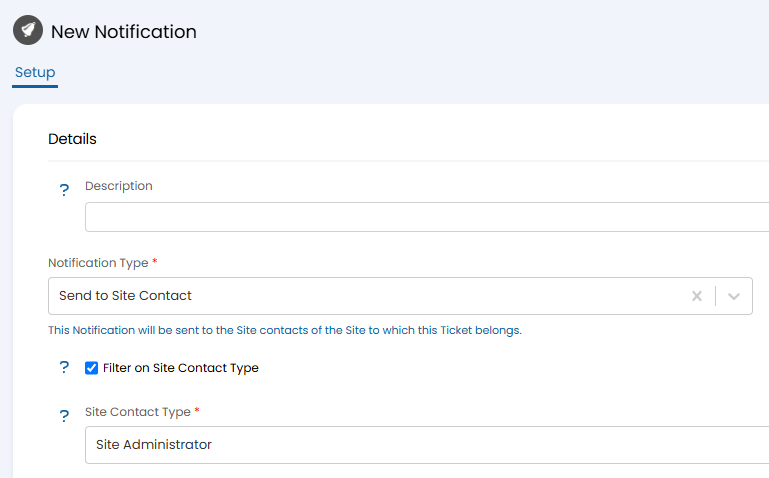
Fig 7. Site contact notification type
Site contacts can be sent an email when the trigger event occurs, and the triggers are from the same list as an end-user notification.
For instance, site contacts would likely want to know if someone logged an OOH emergency ticket. The below configuration would send them an email when this happens.
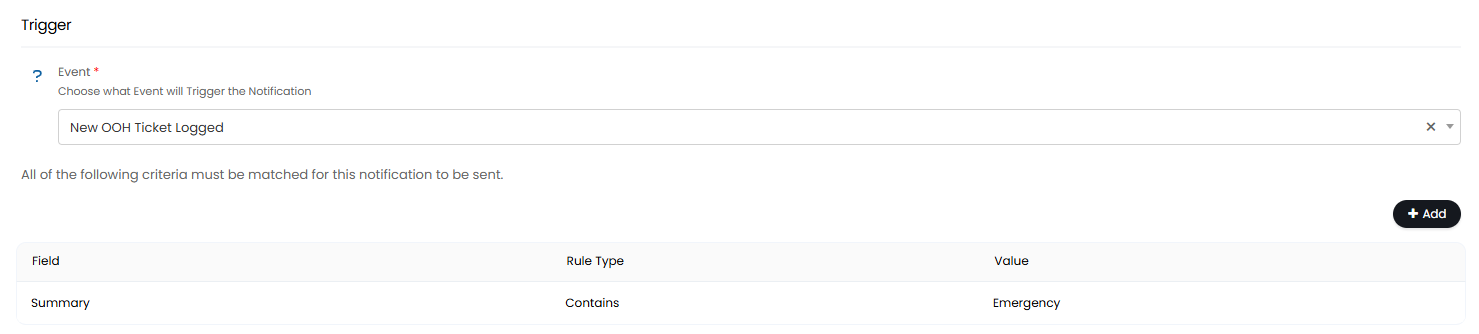
Fig 8. Notification trigger example
The benefit of a custom notification is you can choose your own email template that may outline more key information for the site contact to know.
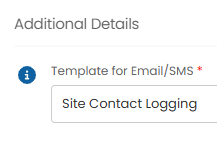
Fig 9. Selecting an email template
For instance, you could create a custom email template with relevant variables, such as who logged the ticket and when, and an outline of its contents with the summary and details.
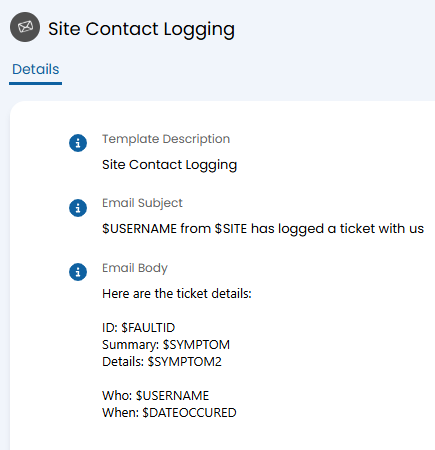
Fig 10. Example email template