SharePoint Integration
- integration
- Microsoft
- document management
- SharePoint
In this guide we will cover:
- What is the SharePoint Integration?
- Enabling the SharePoint Module
- Creating folders in Document Management
- Connecting SharePoint
- Configuring Mappings
- Using the Integration
Admin Guides:
Related Guides:
What is the SharePoint Integration?
The SharePoint Integration allows documents to be synced from SharePoint into the Document Management area of Halo.
From v2.238+ you can use your SharePoint connection to authenticate custom integrations (when using the authorization code with authentication method). Making it easier to create custom integrations to build on the existing integration functionality.
Enabling the SharePoint Module
The SharePoint Integration allows documents to be synced from SharePoint to Halo. This requires enabling the "Documents" module in Configuration.
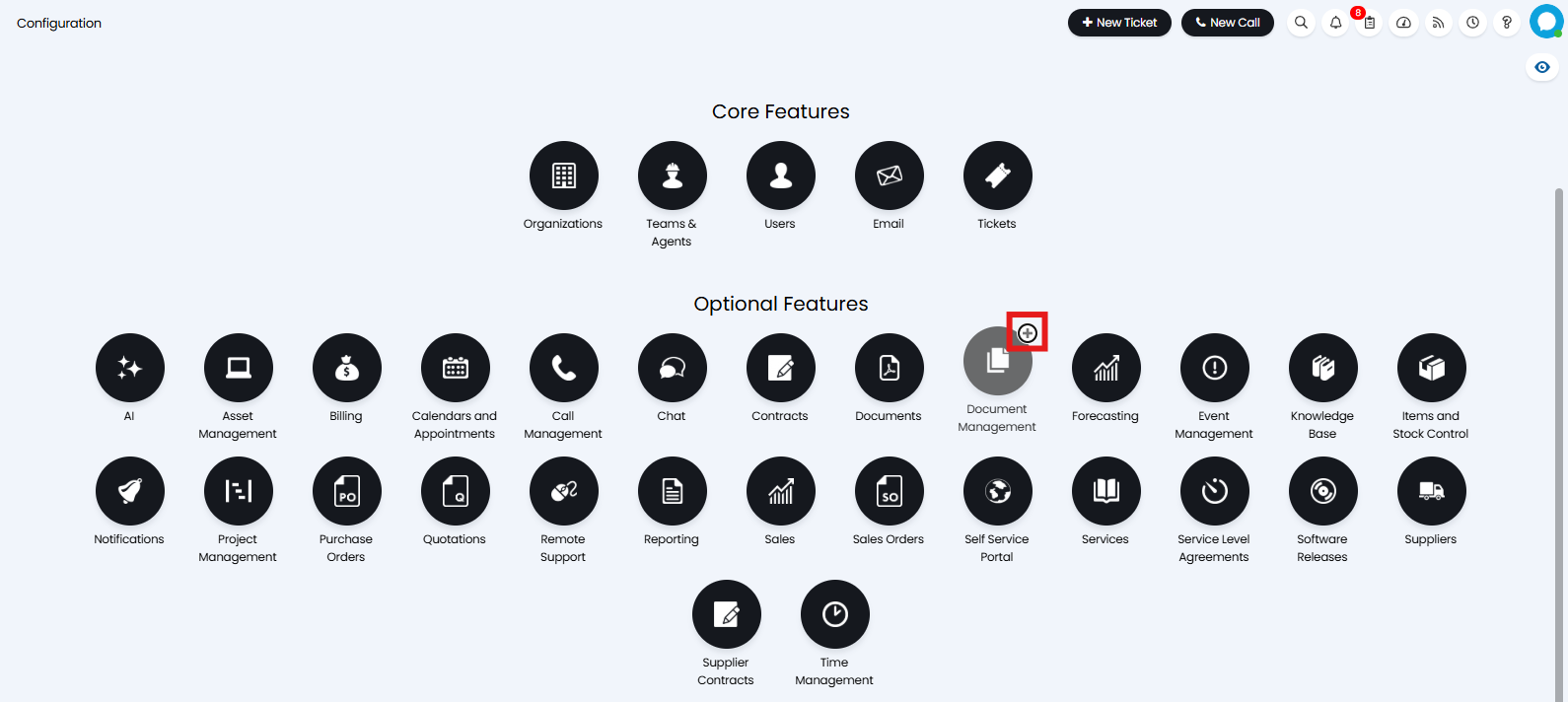
Fig 1. Enable documents
Then enable the SharePoint module by hovering over it within Configuration > Integrations, and clicking on the plus sign.

Fig 2. Enable SharePoint
Creating folders in Document Management
The documents imported from SharePoint can be stored in different folders in Halo. To create your folders head into the Document Management area. When you hover over the "New" button you will have the option to create a new folder.

Fig 3. Creating document folders in Halo
Any folders you create here can be used for the import of your SharePoint documents into Halo.
Connecting SharePoint
After enabling the Sharepoint module, you can click into it and add a new tenant by clicking "New" in the top right.
The SharePoint integration is multi-tenanted, allowing you to connect different SharePoint accounts to different default folders within Halo.

Fig 4. New tenant button
The SharePoint integration with have a choice of two authentication methods:
- Authorization code - Uses Delegated permissions.
- Client credentials (recommended) - Uses Application permissions.
This guide demonstrates using the Authorization Code method. The method chosen will not affect the functionalities of the integration, only how access to SharePoint data is authenticated. If you are unsure which authentication method to use, check out Microsoft's documentation here:
- Microsoft identity platform and OAuth 2.0 authorization code flow
- Microsoft identity platform and the OAuth 2.0 client credentials flow
You will need to configure an application in Azure with the required permissions listed further down in this guide, or shown on this screen within the integration after selecting a method, and enter the details on the configuration screen. You will also need to enter your SharePoint URL.
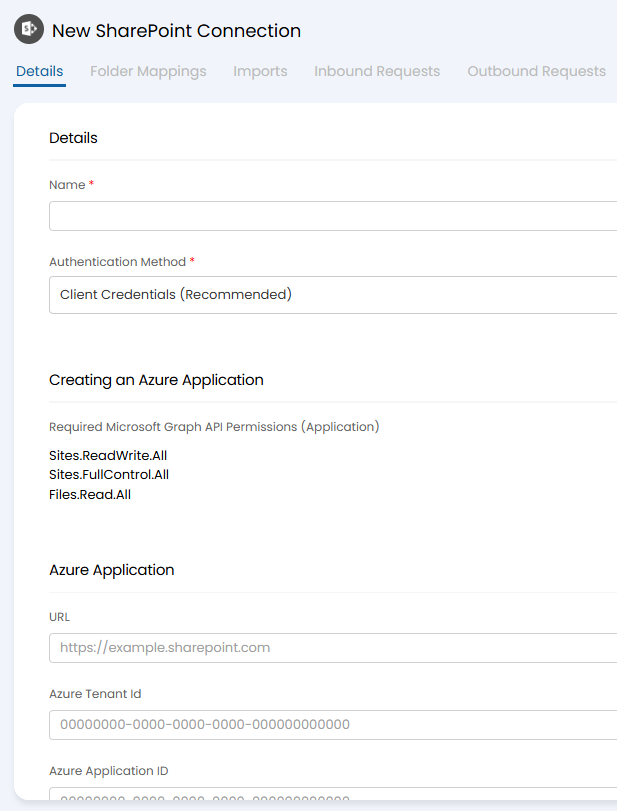
Fig 5. Configuring a SharePoint connection
After creating a new app registration in Microsoft Entra you will need to add a Redirect URI for the application. The redirect URI used will differ depending on the version of Halo you are using.
On versions prior to v2.200 the following redirect URI will need to be used:
- https://YOURHALODOMAIN/azure/auth
On versions v2.200+ you the following redirect URI will need to be used:
But the exact redirect URI you need can be found on the setup page for the integration in Halo.
Note: If you have disconnected to the integration and are reconnecting, if your Halo instance is on v2.200+ you will need to use the new redirect URI (https://YOURHALODOMAIN/authcallback).
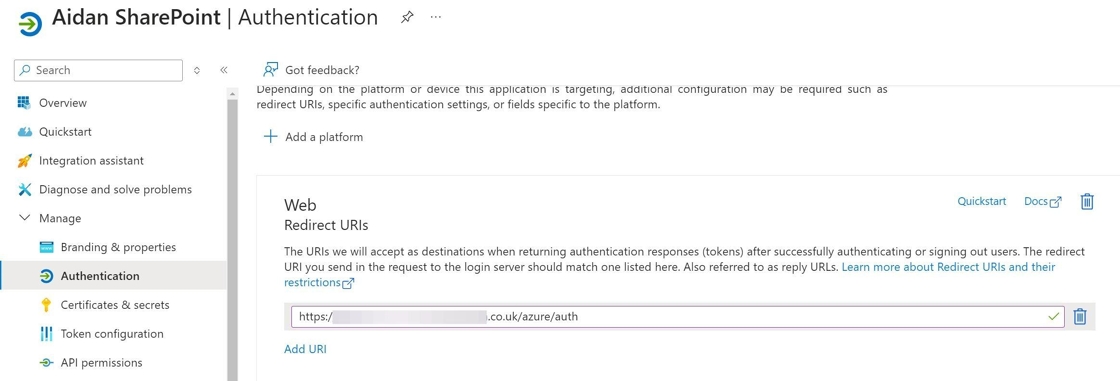
Fig 6. SharePoint authentication redirect URI
To configure this in Azure you must add in the following API Permissions to your newly created app registration, and then grant admin consent for all.
Authorization code (Delegated):
- Sites.ReadWrite.All
- Sites.FullControl.All
- Files.Read.All
- offline_access
Client Credentials (Application):
- Sites.ReadWrite.All
- Sites.FullControl.All
- Files.Read.All
Generate a new secret key and make sure to securely store the "Secret Value" (not the Secret ID) and also paste the secret value into the integration within Halo, as well as the App Registration ID's.
Then authorize the application from Halo by inputting the required credentials, saving the integration page and then clicking "Authorize Application".
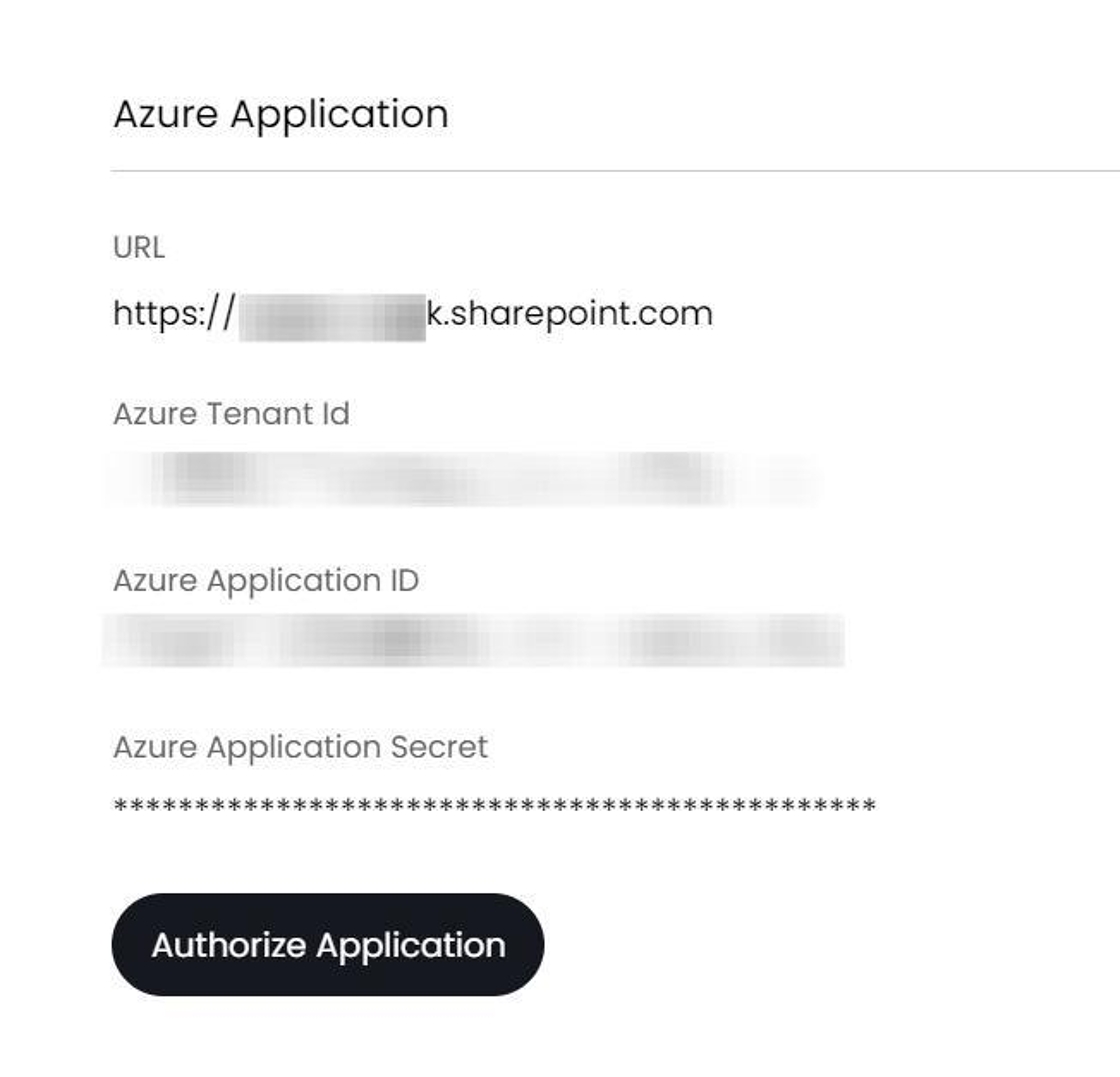
Fig 7. Authorising details
Configuring Mappings
Once your connection has been authorised, you can configure the import mappings in the table under the Folder Mappings tab. These map sites, lists, and folders from SharePoint to folders in Halo.
Here you will need to set:
- Mapping Type
- SharePoint Site
- SharePoint List
- Default Folder for webhook imports
- Site external file sharing
- Folder Mappings
When doing a manual import, files will only be imported from the folders given in the "Folder Mappings" table at the bottom of the mapping page. Any folders mapped here will be imported from when doing a manual sync or when webhooks are received with updates from SharePoint. At least one folder mapping must be added to use the manual imports. Once these mappings have been configured, you can manually import the files from your mapped folders.
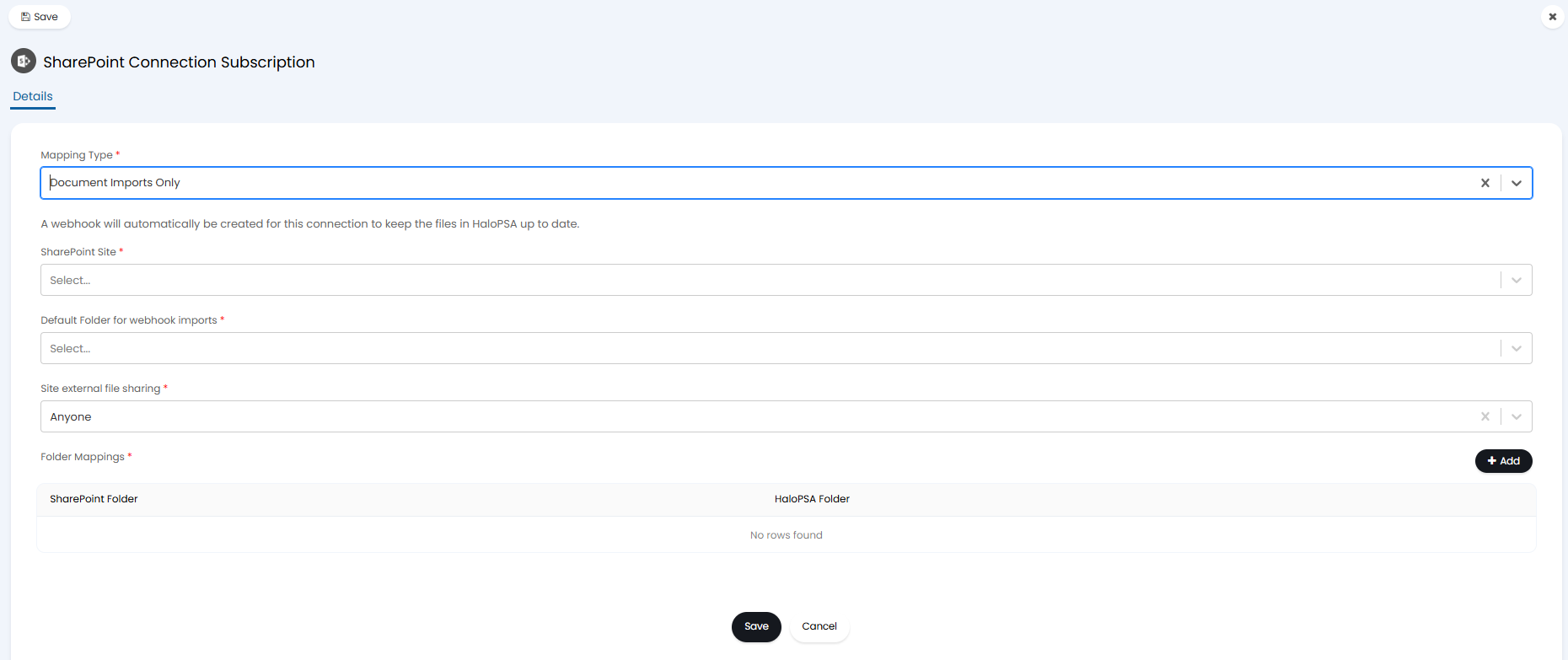 Fig 8. Mapping configuration
The files will be stored in the Document Management module.
Using the Integration
When these mappings are created, a webhook will be automatically created in SharePoint to sync across any new files, updates to field, or file deletions in that list.
If the file is not in one of your mapped folders, the setting "Default folder for webhook imports" will determine where those files are mapped to or if they are ignored entirely. The inbound and outbound tabs can be viewed, showing the sent and received files within the log and the associated payload.
Note: Webhooks are not sent immediately from SharePoint, so there may be a delay of several minutes before updates are reflected in Halo.
The documents created in Halo cannot be edited from within Halo, only from within SharePoint. These documents can be attached to tickets/actions in Halo and when they are downloaded, the user or agent will be given a link to the file in SharePoint.
Upload Scheduled Reports to SharePoint
This feature allows automatic upload of an XLS file of report data into SharePoint, where PowerBI can then pull the datasets sorted by day into a master database by using SharePoint as the source. This can be useful for combining multiple, more specific reports into a larger one, as well as allows larger datasets without strain on performance, etc.
It requires a folder that allows document uploads. You must configure at least one folder mapping that allows document uploads, and you will likely wish to create a new, possibly separate one for reports to be uploaded to.
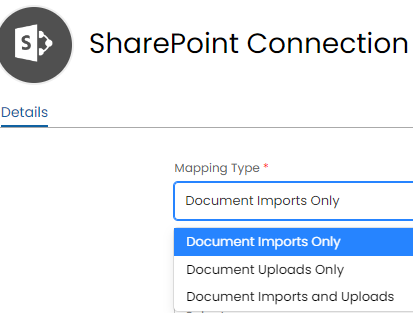
Fig 9. Mapping Types
Once this is done, you can configure the upload by adding a schedule in the "Scheduling" tab of a report.
This tab allows you to specify an "Export Type" of either "Email" (the existing scheduled reports functionality), or "Upload to SharePoint".
With the latter selected you can pick one of your mappings as the upload destination for the reports. The reports can either be uploaded with the current date append to the file name to create a new file each time or replace the existing file.
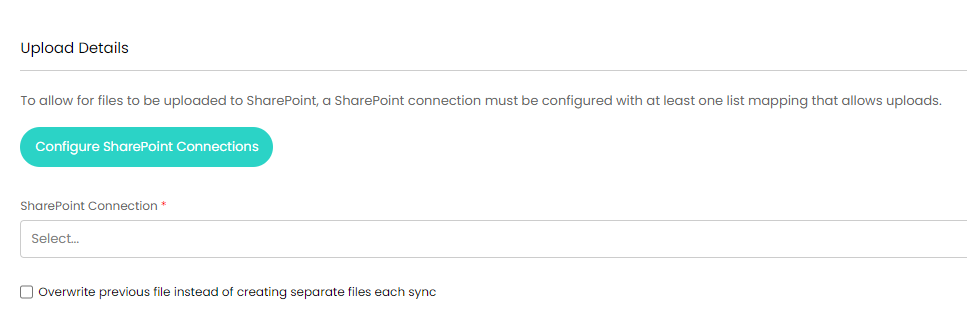
Fig 10. Configuring the SharePoint Connection.
Additionally, there is now an @lastrundate variable that can be used in reports. This can be used to filter the reports to just the data since the report last ran, which is useful for this functionality to only show data that has changed since the last schedule. The report will not be filtered during the first run.
For example, this could be used:
select faultid, ..., etc from faults where flastupdate > @lastrundate
Now when bringing data from Halo, we can send it to SharePoint (only the relevant data which hasn't synced over yet) then from SharePoint it can go to PowerBI via a SharePoint folder that is found in PowerBI as a data source, when connecting the report from SharePoint.
When it first runs it brings back all data. When it next runs it only brings back data after the last runs run date.