Document Management Area
- document management
- file management
- folder management
- documents
- folders
In this guide we will cover:
- Turning on and Configuring the Module
- Agent Permissions
- Documents Area
- Folder Access Control
Turning on and Configuring the Module
Halo has a dedicated area for document management. Here you can create folders, upload new documents, and manage versions of documents. First head into Configuration and hover to enable the module:
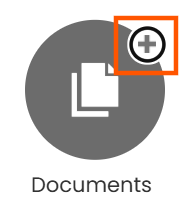
Fig 1. Enabling the Documents module
The following configuration options will be available after clicking into the configuration module:
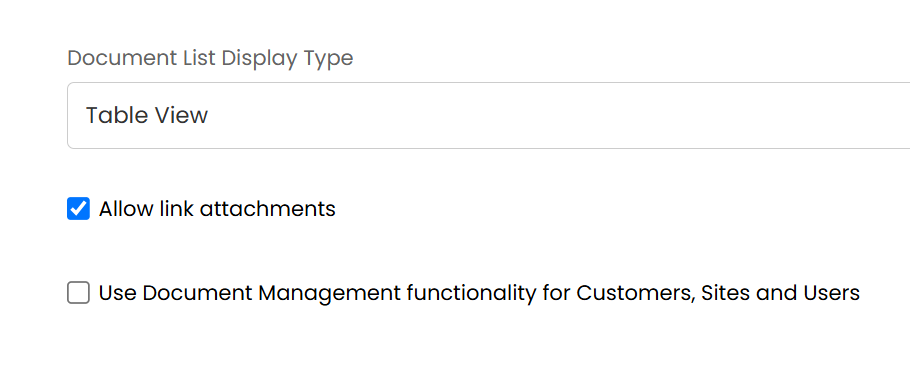
Fig 2. Configuration options in the Documents module
When adding a new folder using the button, it will default to the parent folder you were currently viewing. You can set a note and add the attachment as either an upload or as a link if this functionality is enabled using the setting "Allow link attachments".
Agent Permissions
There is an agent permission for document management, allowing agents to be restricted to no access, read access, or read and write access, this must be set in order for agents to view this area.
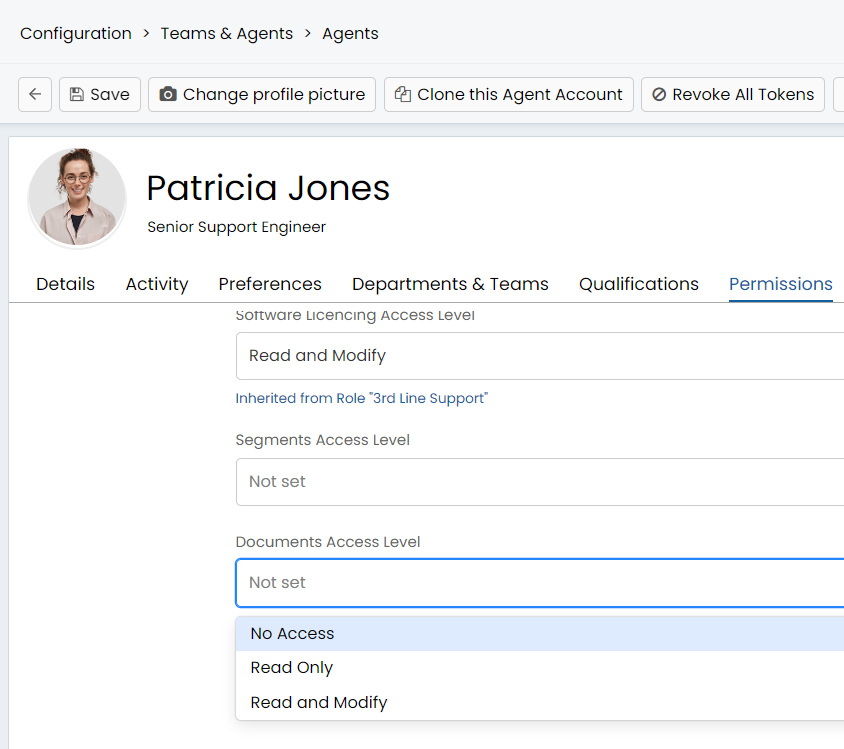
Fig 3. Setting agent permissions for the documents area
Note: By default, admins will not have access to this area, so you must add it to the administrator role and then log out and login, as this is how you inherit the new roles.
Documents Area
After enabling the module, setting the correct permissions under your agent and logging out and back in, you will notice this new area on the navigation bar:
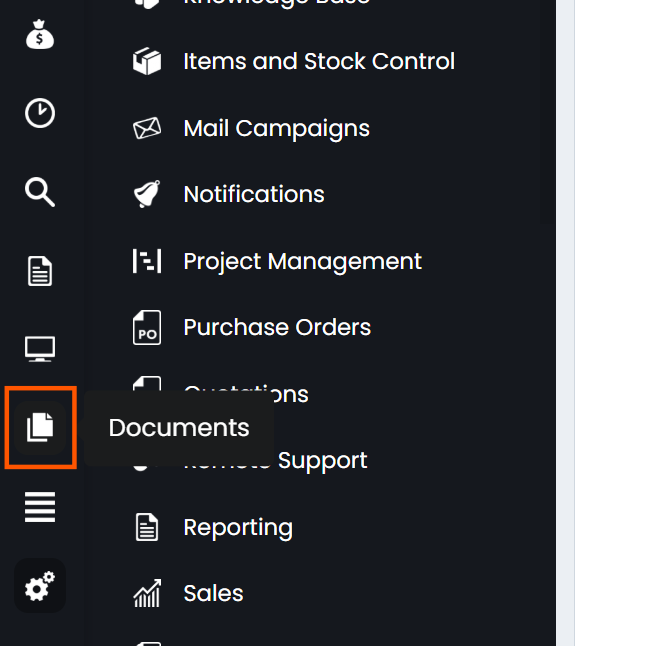
Fig 4. Documents area on the navigation bar
The document management area can be displayed as either a table or a catalogue view based on a global setting.
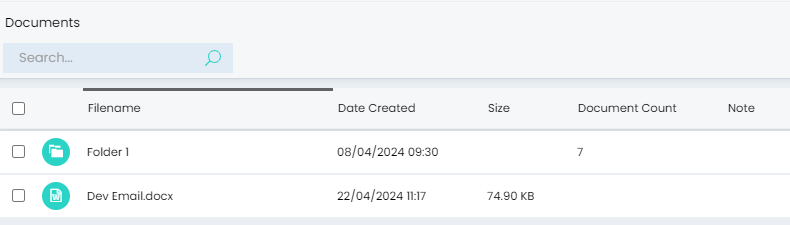
Fig 5. Documents area in table view
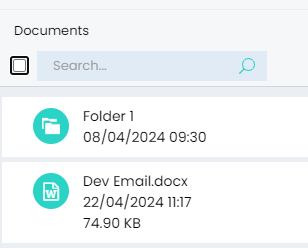
Fig 6. Documents area in catalogue view
From here you can add new folders or files. Folders can be added using the new button and can be edited by right-clicking on them. Folder names must be unique within a parent folder. Clicking on a folder will take load the contents of that folder.
New documents can be added using the new button, or by dragging an attachment onto the list, which adds the attachment to the current folder.
Attachments follow the file limit size set in Configuration > Advanced Settings > "Attachment Upload Size Limit (MB)". The attachment limit should be between 0 and 28 MB due to IIS restrictions.
From v2.250+, you are able to set a Document Type and expiry date on a Document. Document Types can be created in Configuration > Advanced Settings, by clicking into the Lookup Codes button and changing the entity to "Document Types".
Once a document has been added you can download the current version of the attachment or upload a new version. The new version you upload must have the same name as the existing document. All previous versions can be viewed and downloaded from the versions tab of the document.
Deleting a document will delete all of it's versions and deleting a folder will delete all documents within the folder.
With the document management module enabled, if an agent has at least read access to it they can select documents to attach to tickets and actions. This can be done using the "Add Attachment" button and selecting "Attach Document". This will allow you to search for documents to attach. You can filter on the parent folder of the document and sort by filename and creation date.
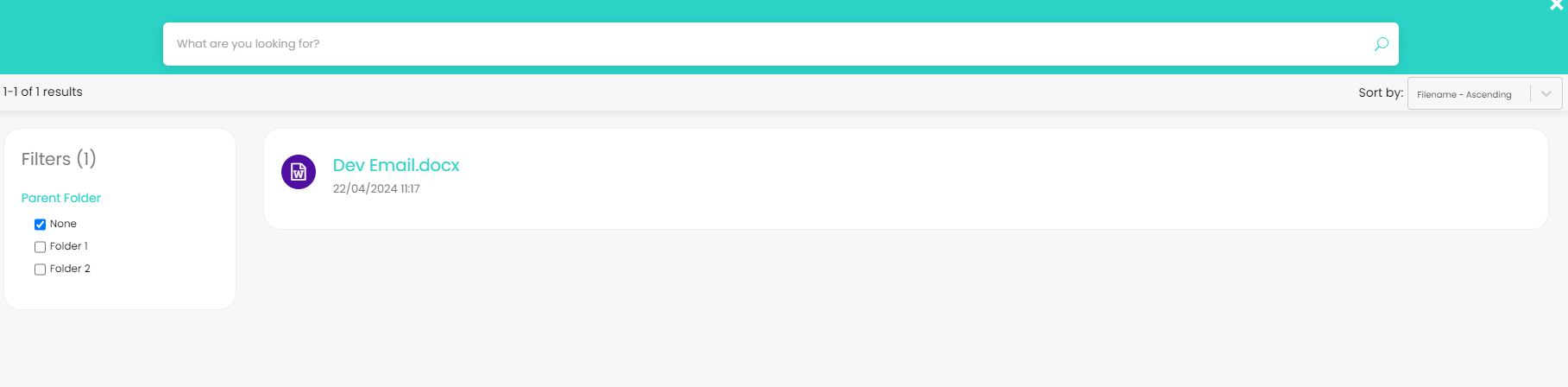
Fig 7. Searching for a document to attach
Folder Access Control
Access control can be used to control which Agents have access to view/create/modify folders. This includes adding documents to the folder and downloading documents from the folder.
First you will need to enable the Access Control functionality for folders, if this is not enabled an agent's access will be determined by their permissions. To enable the functionality head to configuration > Documents > enable 'Enable Access Control for Folders'.
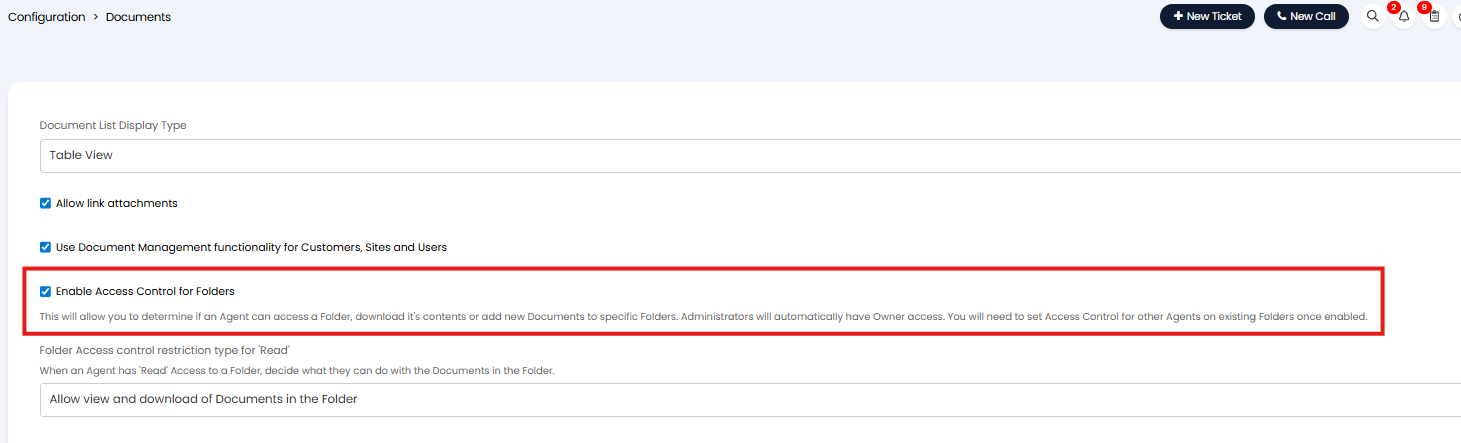
Fig 8. Enable Access Control for folders
Now you can add Access Control using the 'Access Control' button when editing the folder.
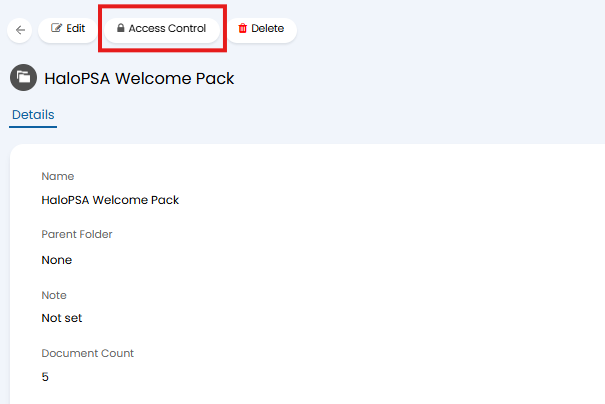
Fig 9. Folder access control
Here, you can choose which Role/Agent/Team/Department you would like to have access and the level of access they should have.
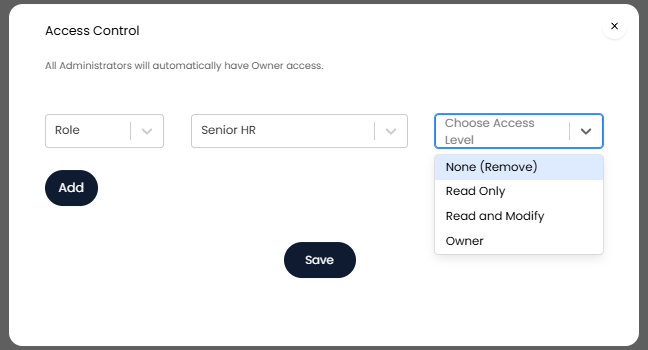
Fig 10. Giving access control
None - Agent cannot see folder or it's contents.
Read - Agent can see folder and it's contents, and can download the files but not add new documents to the folder.
Read and Modify - Agent can see folder and download it's contents, and upload new documents within this folder.
Owner/Administrator - All of Read and Modify with the ability to set Access Control on the Folder.
If you would like Agents to require 'Read and Modify' access control in order to download documents within a folder rather than just 'Read' this can be changed. Do this using the setting 'Folder Access control restriction type for 'Read'' found in Configuration > Documents.
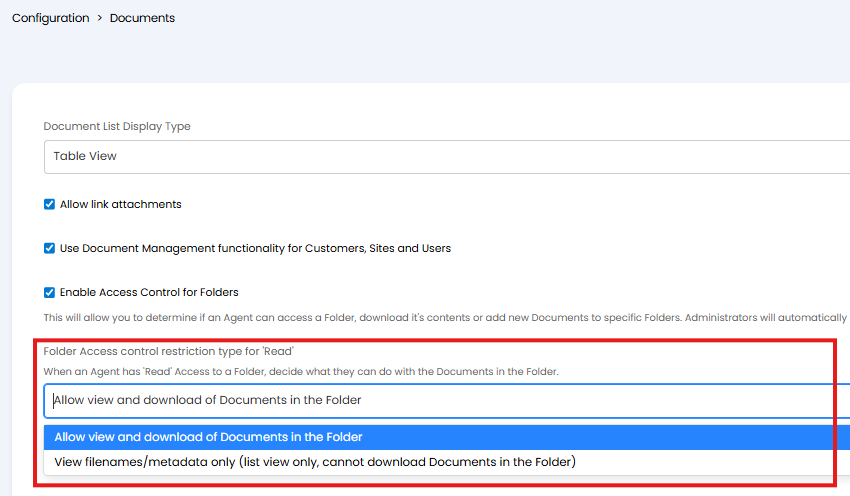
Fig 11. Folder Access control restriction type for 'Read'