Iframe Custom Tabs on Assets
- Assets
- custom tab
- Iframes
- Asset Custom Tab
In this guide we will cover:
- Configuring the Custom Tab
- Adding the Custom Tab to an Asset Type
Configuring the Custom Tab
Using Iframes within custom tabs will allow you to view a specified URL from within your asset.
To add custom tabs to your assets you must navigate to Configuration > Custom Objects > Custom Tabs and then set the entity to Assets.

Fig 1. Setting custom tab entity.
Then when you create your tab, give it a name and set the "Type" to be "Iframe". Then, enter the URL of the site you would like to embed into this tab.
Dollar variables can be added to the URL, or you may want to Iframe a report for analysis of assets. This can be done in the format of:
https://{YOURHALODOMAIN}/report?id={REPORT ID}
It is important to note that by default "reports" will be the value used in the URL, you must change this to "report" in order for the report Iframe to fill the tab screen. For more information on linking to reports, check out this guide: Report filters in the URI parameters for report links
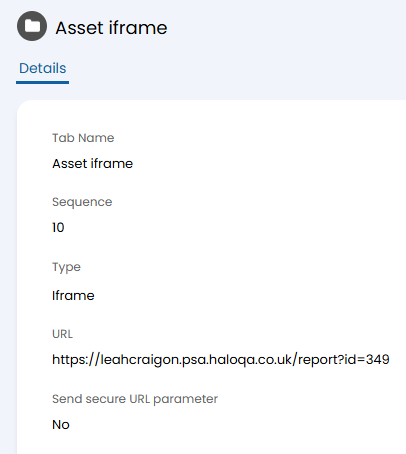
Fig 2. Creating a custom tab for an Iframe
Adding The Custom Tab to an Asset Type
Navigate to Configuration > Asset Management > Asset Type and then go to the "Layout" tab. Change the Tab Layout to "Custom".
From here, you can set the visibility of the Tab by clicking on the pencil icon on the custom tab field.
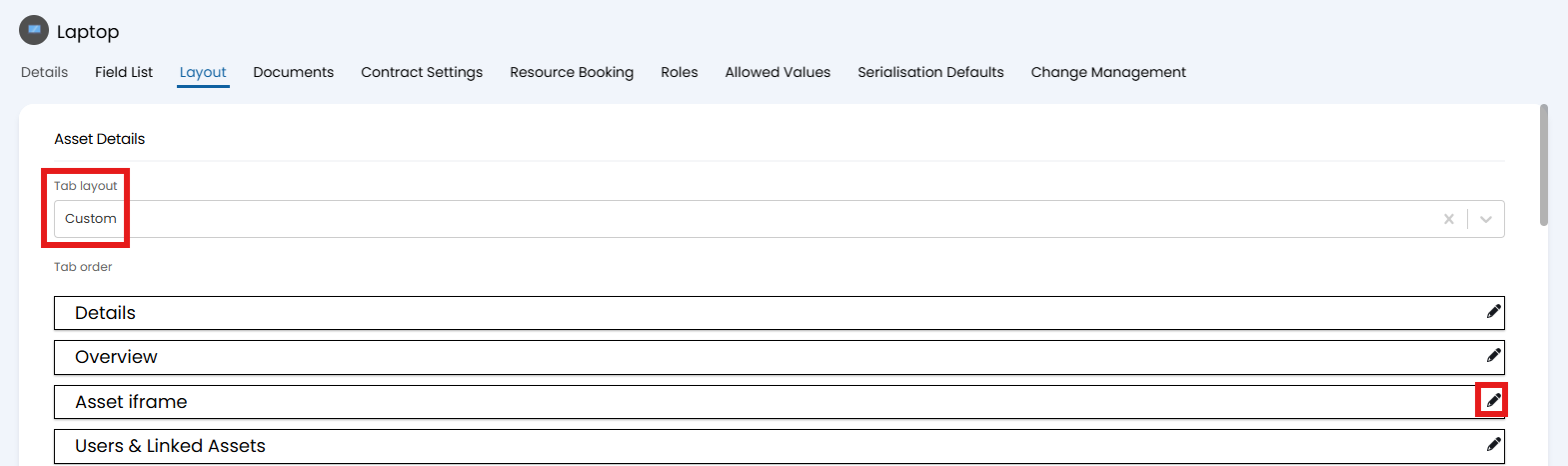
Fig 3. Custom tab layout
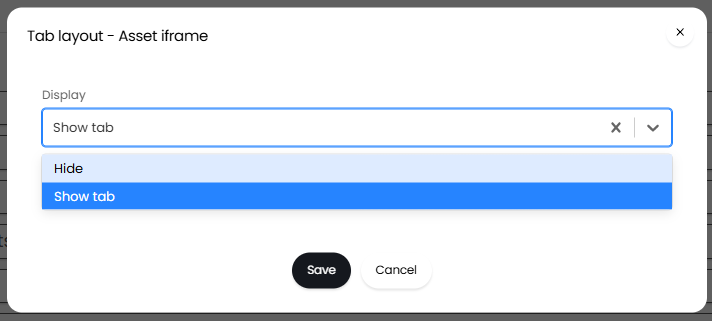
Fig 4. Set visibility of tab
Now when you view an asset of that asset type, the tab will show.
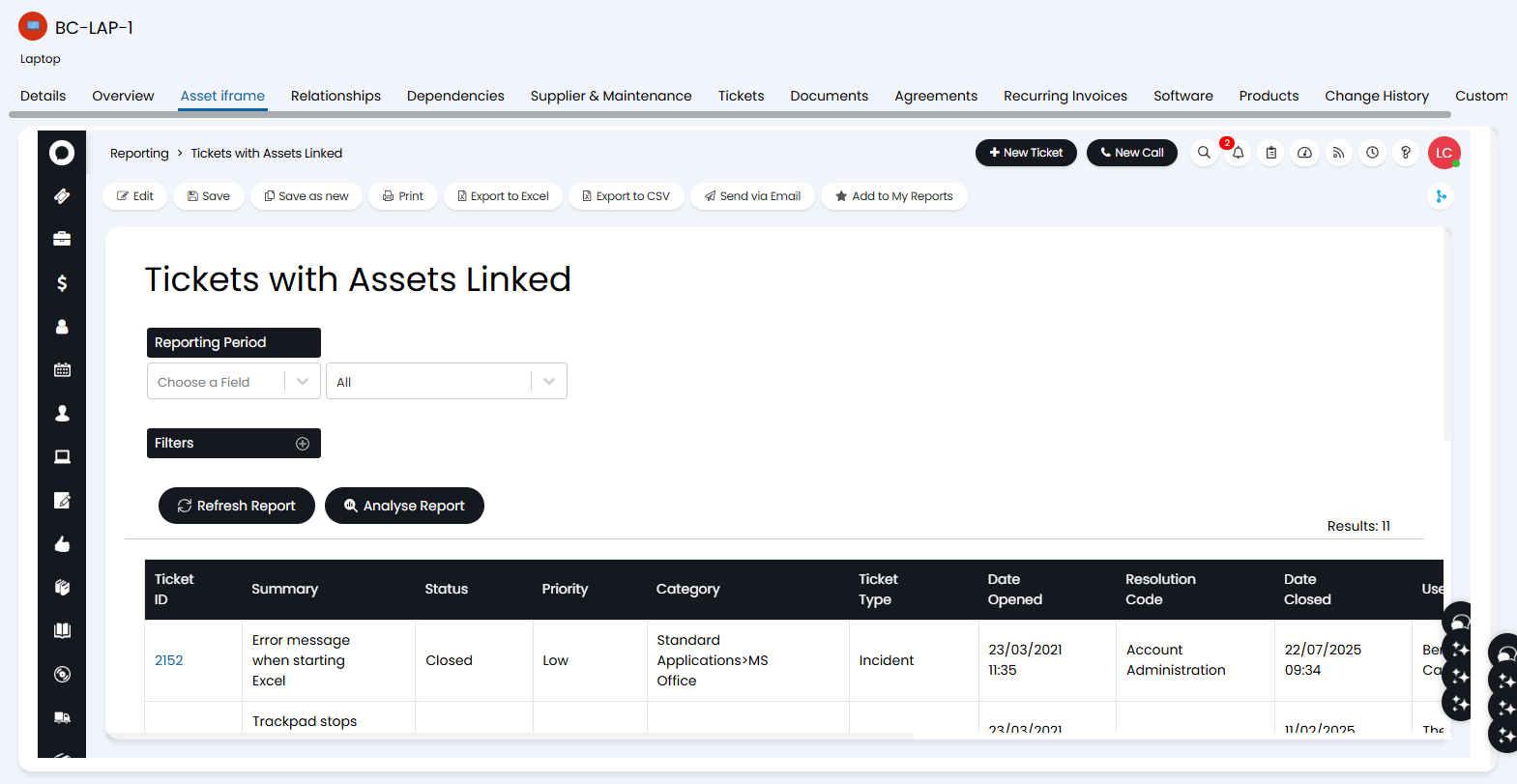
Fig 5. New custom tab against the asset