Adding Iframes to Custom Tabs
- customer
- custom object
- custom tab
- iframe
In this guide we will cover:
- How to create a custom tab containing an Iframe
- How to display a report in this custom tab, and filter the report
Adding an Iframe to a custom tab is used to embed another website into the custom tab. This means you can see/navigate another webpage within a custom tab in your Halo.
The following entities can have a custom tab against them containing an Iframe:
- Tickets
- Customers
- Assets (we have a specific guide on Asset Iframes here)
- Users
- Agents
- Quotes (v2.248+)
- Sales Orders (v2.248+)
- Purchase Orders (v2.248+)
- Invoices (v2.248+)
- Navigation Menu
Embedding a webpage into a custom tab allows you to access external webpages from within Halo. This is useful if you need access to information that is stored outside of Halo as it prevents the need for you to navigate to another webpage. It also allows you to view information from within a ticket or customer profile, that is stored elsewhere in Halo. This is useful for when you require information about a customer (for example) that can only be obtained from a report. You can then use an Iframe custom tab to view the report data within the customer/ticket itself, without having to navigate to the reporting module.
How to Create a Custom Tab Containing an Iframe
Display an External Website
Head to Configuration > Custom Objects > Custom Tabs > select entity you would like to make the tab under > New. Here, set the 'Type' of tab to be 'Iframe', and you will have an option to enter a URL. For the Navigation Menu entity, you will instead need to enter the URL and check "Open in Halo as iFrame".
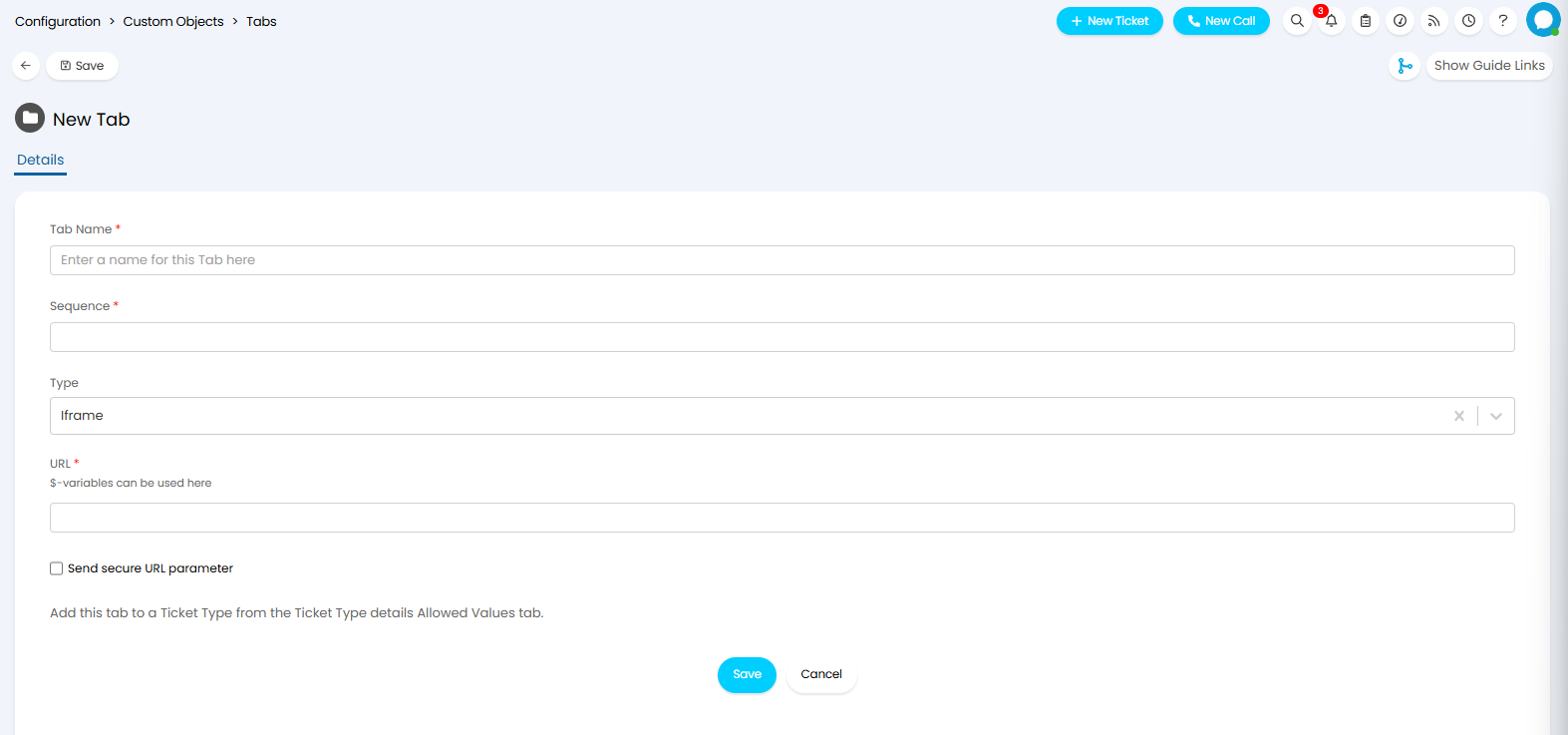 Fig 1. Custom Tab Setup
In the URL field, enter the URL of the webpage you would like to appear on the custom tab, your company website for example.
From v2.252+, you can choose to "Send secure URL parameter" for authentication. This will generate an Iframe secret which will be used, with the ID of the logged in Agent to create a HMAC. This HMAC can be added to the URL field using the variable $_HMAC.
Save this. Now when you view the custom tab, you will be able to see and navigate the webpage specified in the URL.
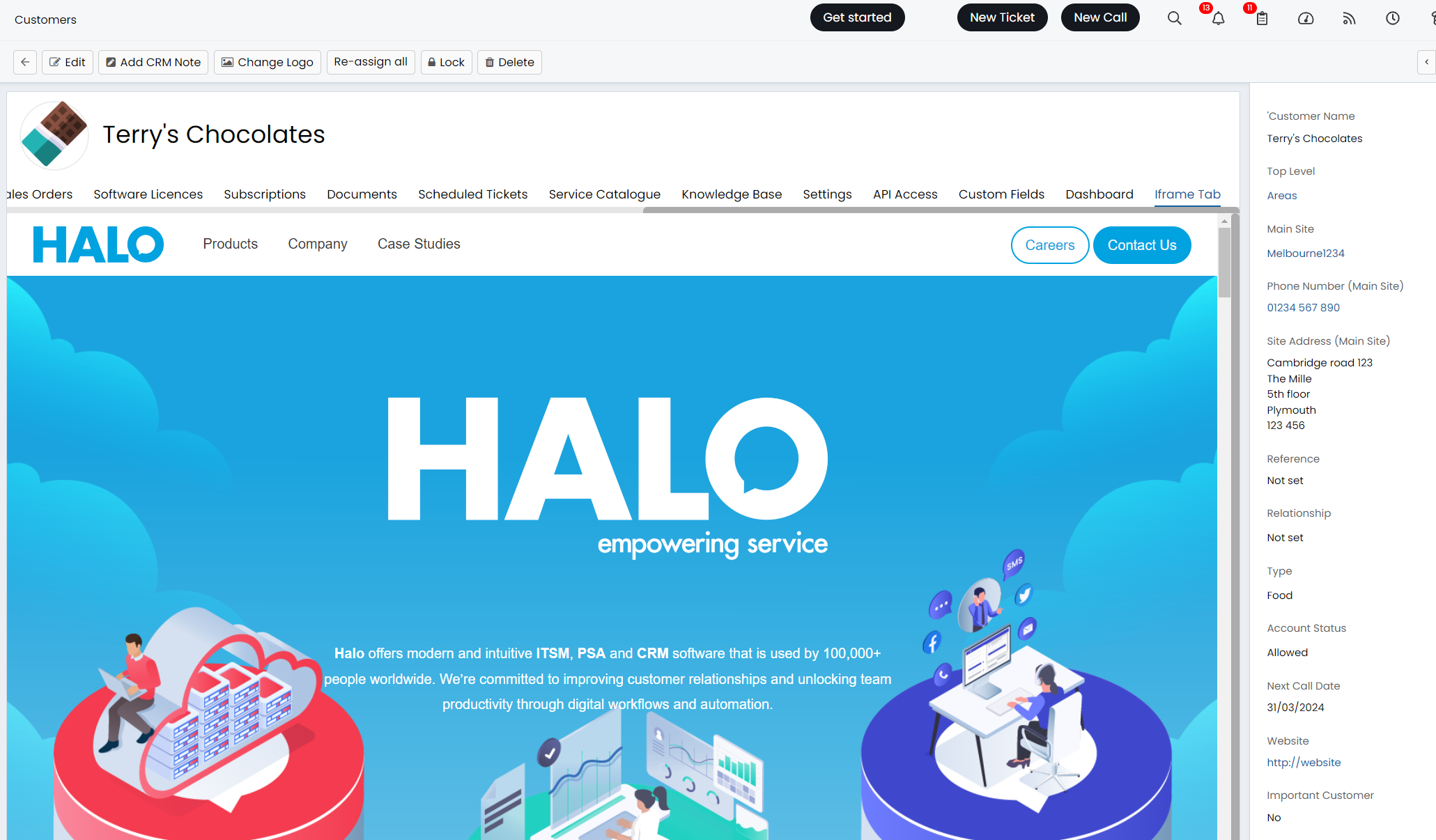
Fig 2. Webpage within custom tab
If you have made a custom tab against the customer, quotes, sales order, purchase order or invoice entity, this tab will appear under all your customers/quotes/sales orders/purchase orders/invoices.
If you have made a custom tab against the ticket entity the tab will only appear on ticket types that have this tab enabled.
To check this head to Configuration > Tickets > Ticket Types > select a ticket type you would like the tab on > Allowed Values > Custom Tabs section. Here you have the option to 'Allow all Custom Tabs', if enabled will show all the custom tabs you have created for tickets.
If you do not allow all custom tabs, you can add the allowed tabs into the table below, only tabs in this table will appear on this ticket type.
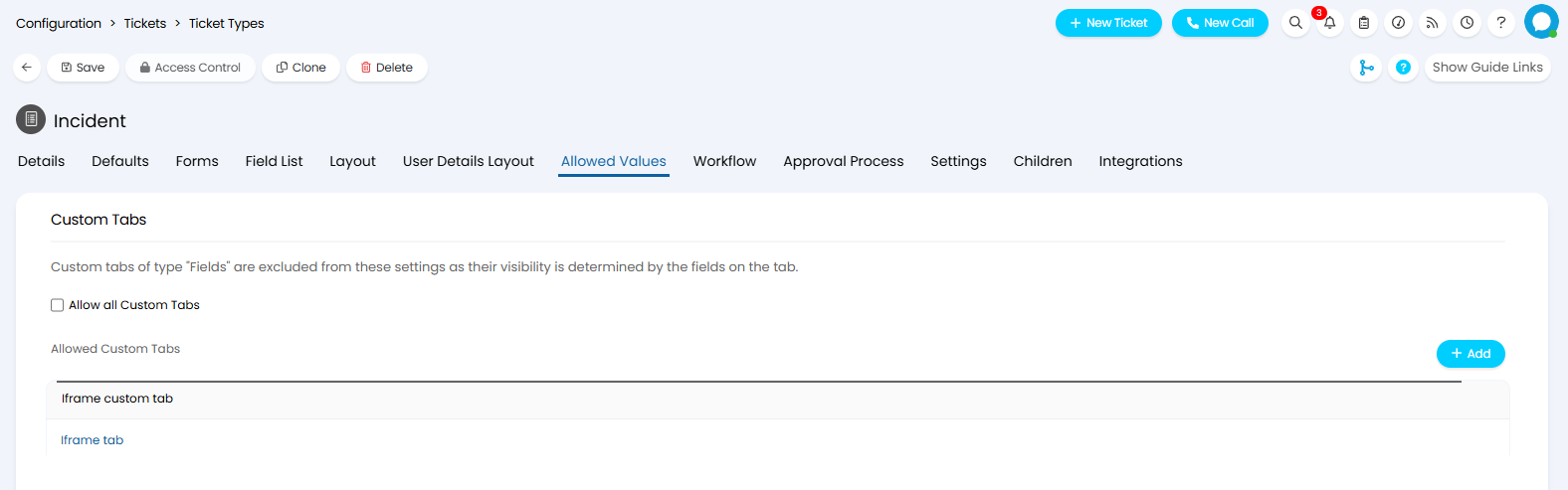
Fig 3. Allowed custom tabs for a ticket type
Display a Halo Area
You could also use the Iframe functionality to have one areas of your Halo appear under a custom tab. For example if you would like to see all your assets under the custom tab, take the URL from the assets page and enter this in the Iframe URL.
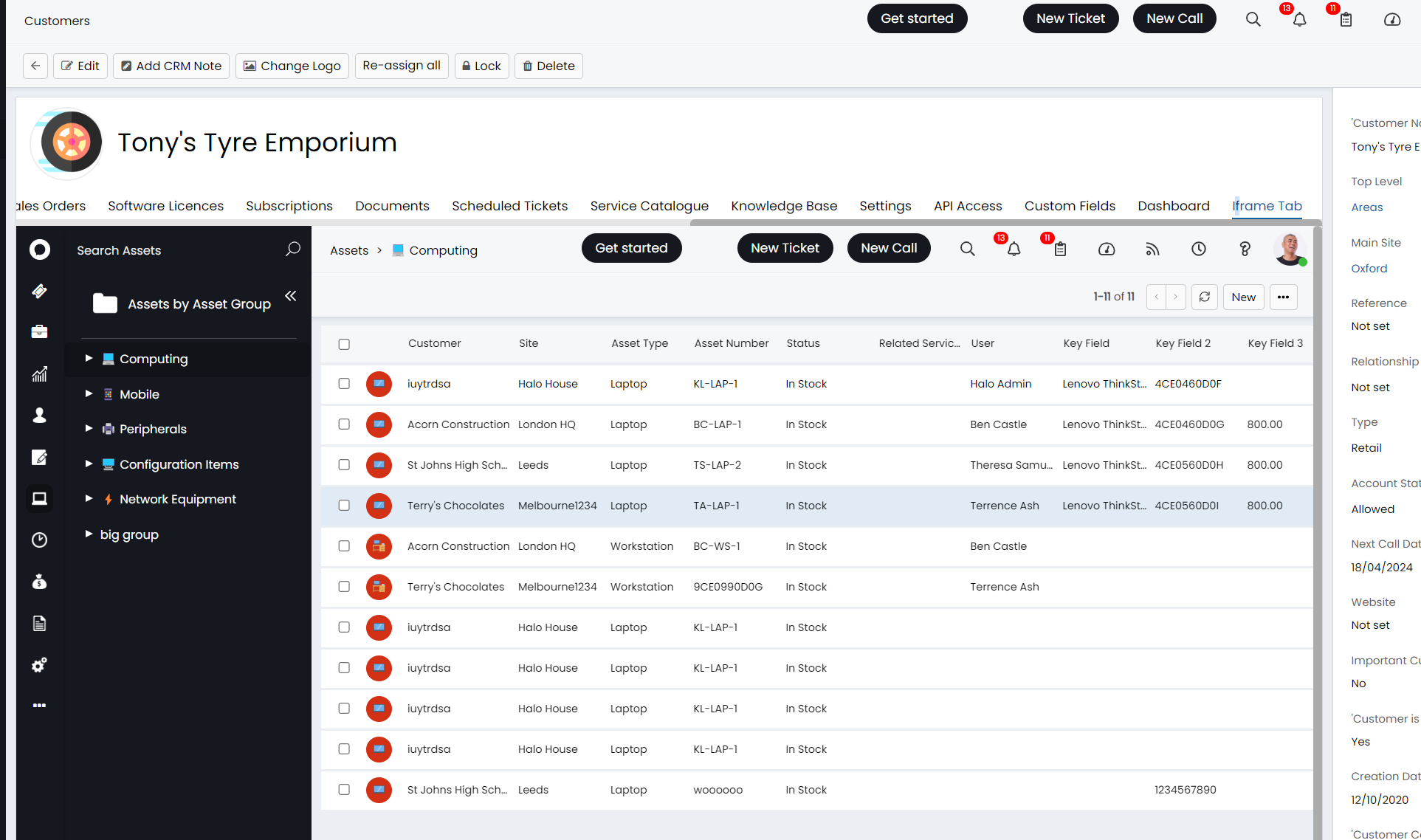
Fig 4. Assets page within a custom tab
Taking the raw URL will show the whole webpage. If you would like to hide the navigation menu (left hand side) so the agent cannot navigate to other areas of Halo (only quotations) you can add '&showmenu=false' to the end of the URL.
Note, when accessing an area in Halo through an Iframe this will take the permissions of the agent that you are logged in as. This means if an agent who does not have permission to access the asset module views this custom tab, they will not be able to see any assets here.
Display a Report in the Custom tab
The Iframe custom tab functionality can also be used to display reports under a custom tab. This is useful if you would like specific information/data about a customer to be visible against their customer profile. For example if you have a report showing the total revenue and profit for your customers, you may want this to be visible under the customer profile rather than having to navigate to the reporting module.
To create a custom tab Iframe that shows a specific report, head to the report you would like to display in the reporting module. Once the report is open, copy the URL and enter this into the 'URL' field on the custom tab. This will display the report as it does in the reporting suite, allowing you to apply filters on an ad-hoc basis. This is useful if you would like the ability to flexibly change which filters are applied to the report.
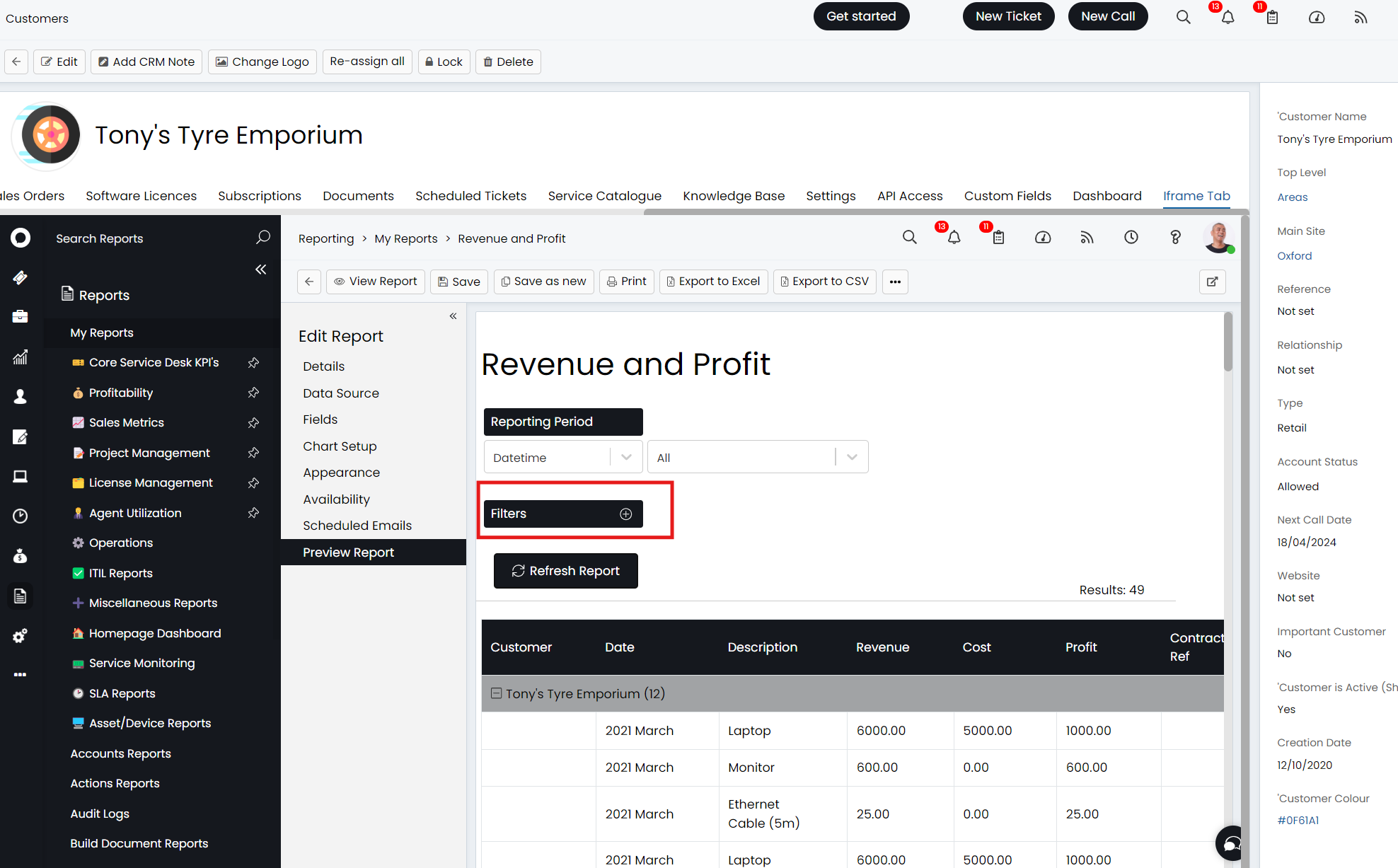
Fig 5. Report within a custom tab with ad-hoc filtering
You can also have the report to apply a filter automatically, such as only showing data for the customer the tab is under. To do this you will need to edit the URL inputted for the custom tab. In order to filter for the customer add the following to end of your URL: &Filter_Includes_[Colum name containing customer]=$area
To have the report filter so that it only shows data for the ticket the custom tab is under add the following to the end of the URL: &Filter_Includes_[Colum name containing ticketID]=$faultid
You must also change the URL from 'reports?' to 'report?' If this is not changed, the filters will not work.
For example:
This is the raw URL of the report I would like to appear in my custom tab: https://myhalo.halopsa.com/reports?mainview=reportgroup&selid=-99&sellevel=1&selparentid=0&id=168
To have the report automatically filter data to only show data for the customer I am viewing, I will change it to: https://myhalo.halopsa.com/report?mainview=reportgroup&selid=-99&sellevel=1&selparentid=0&id=168&Filter_Includes_Customer=$area
The are many other filters you can apply to the report through the URL, such as filtering for a specific time period, user, contract etc. We have a dedicated guide on this here.
Applying a filter through the URL will result in the filter automatically applying in the UI. This means filters can be removed/changed when within the custom tab. But if the page is refreshed the original filters will re-apply.
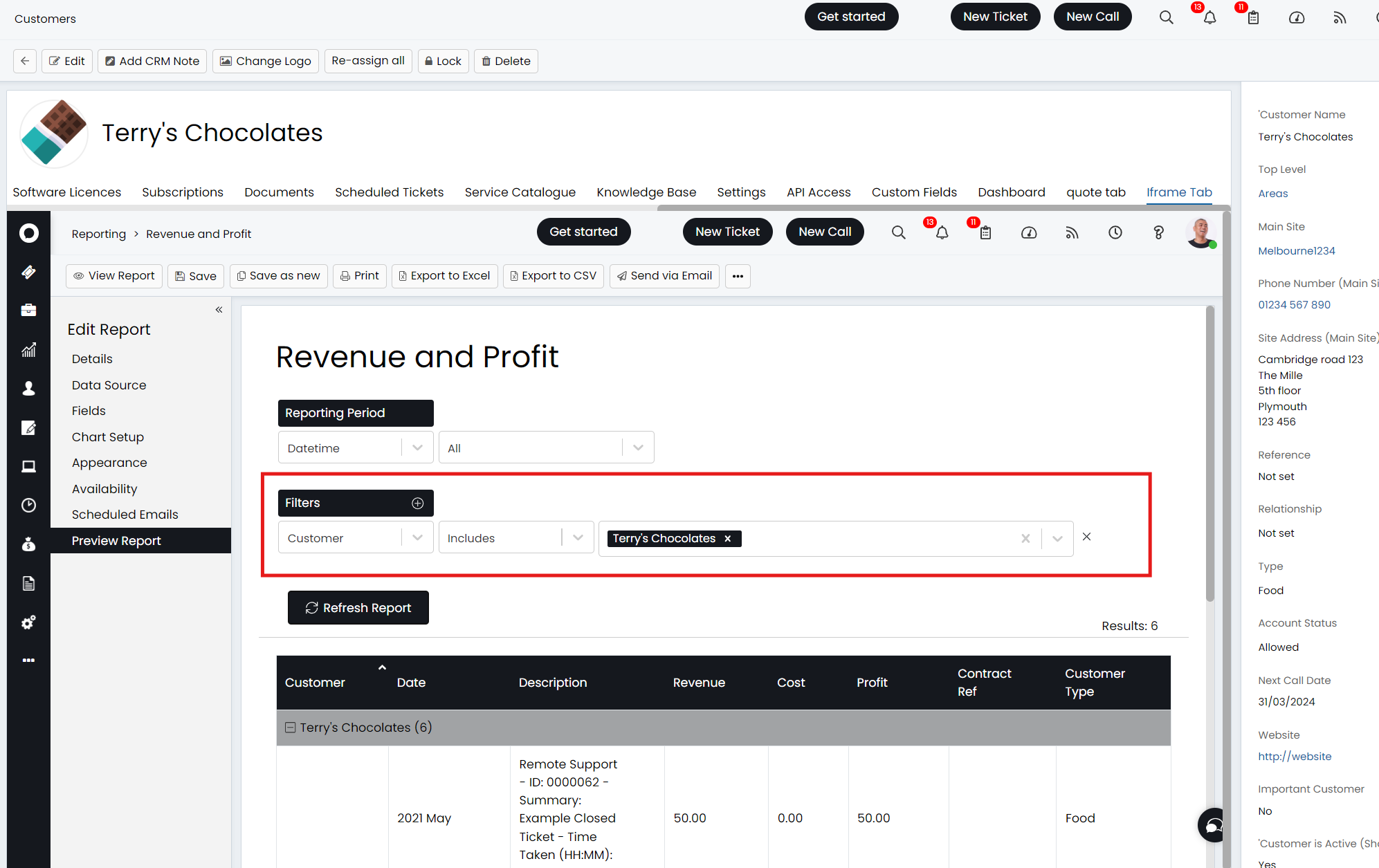
Fig 6. Report after customer filter applied in URL
Note that adding a filter in the URL will add an additional filter to those already applied in the report, so if you already have a filter saved to the report, this will be applied as well as the customer filter applied in the URL. If using URL filters it is best to not save any filters to the source report.