Ticket Fields & Forms
Every ticket type has a unique set of fields. These fields allow end users and agents to submit information against the forms that appear within the agent application and on the self-service portal. To tailor these fields you will need to navigate to Configuration > Tickets > Ticket Types then select the ticket type you wish to adjust.
Once you have selected the ticket type you will need to navigate to the 'Field List' tab.
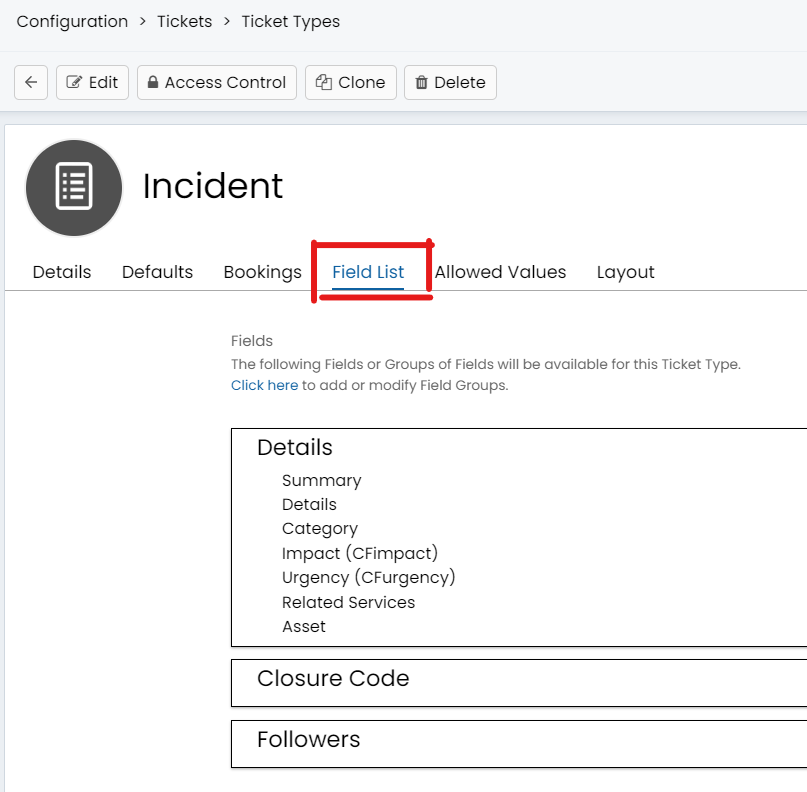
At this level you can modify the order in which fields appear, adjust the visibility of each field, control whether they are required fields, and create new fields. To make any adjustments you must first be in 'Edit' mode which is located in the top left of the screen.
To adjust the visibility levels of a field you select 'Edit' and then click the pencil icon on the right side of the field. This area also allows you to determine whether or not the fields are mandatory. Setting a field as mandatory ensures the field contains a value prior to the submission of the ticket.
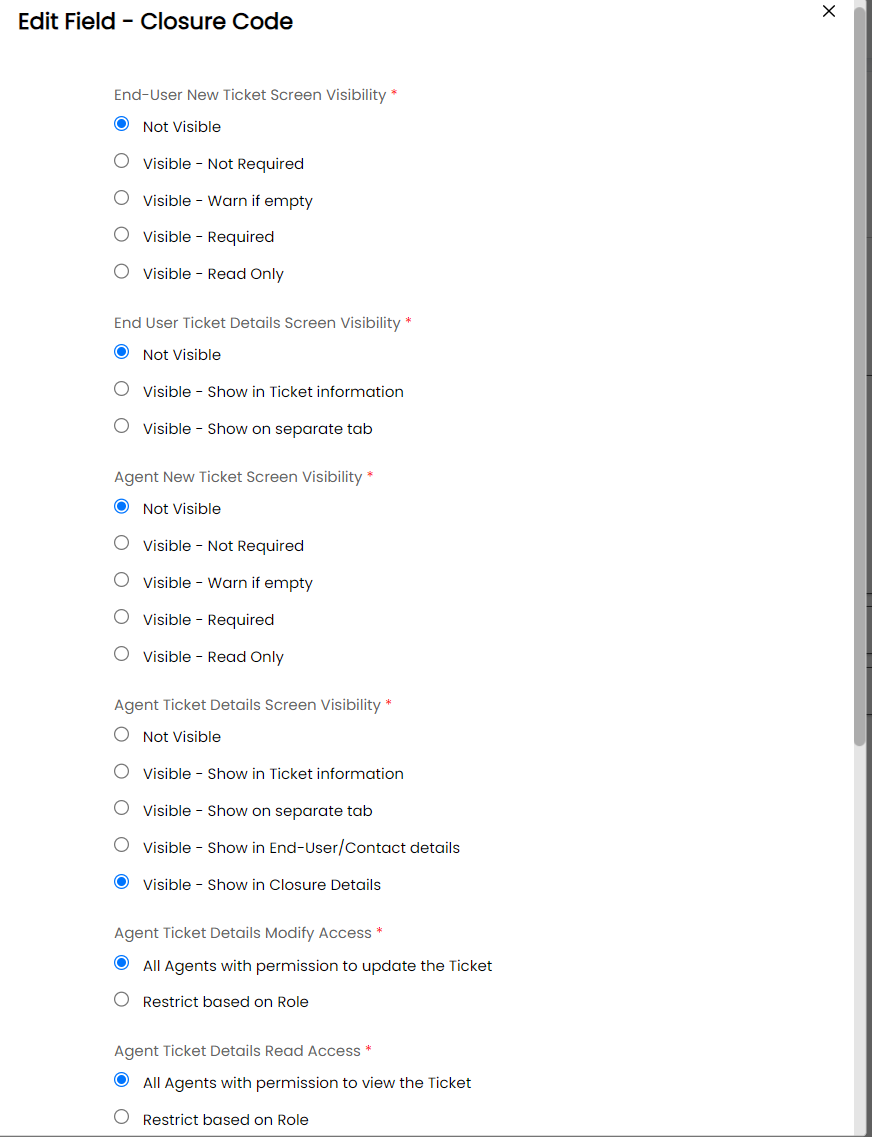
Additionally, you can set fields to by dynamically visible based on the value of another field. Let's use the 'Details' field group as an example. Assume you only want the 'asset' field to display if a specific category value is selected.
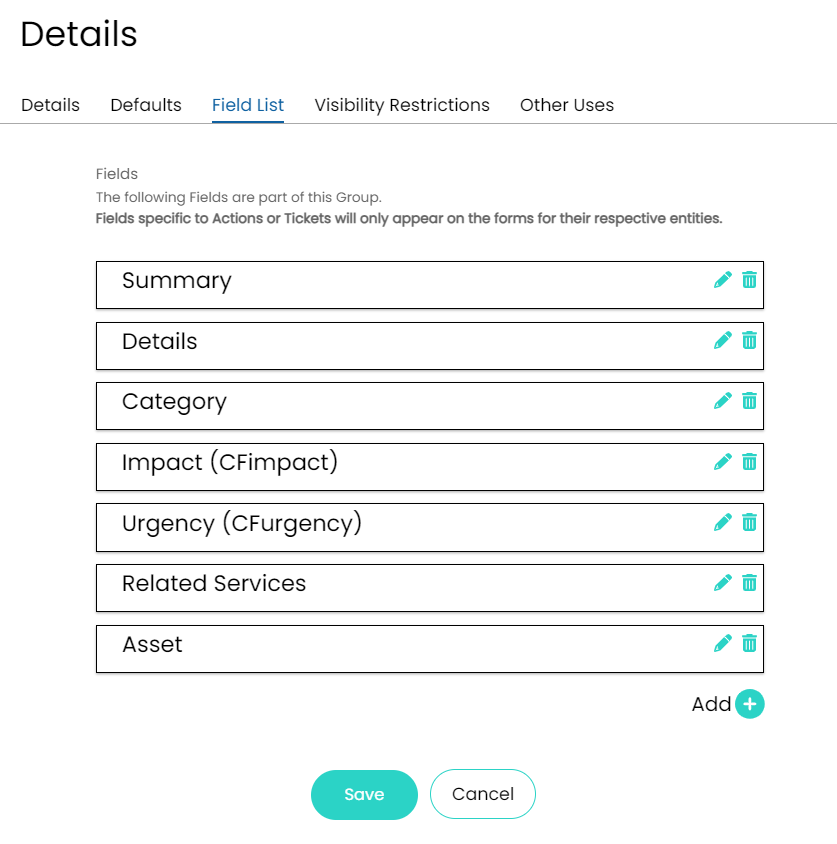
To accomplish this you will pencil into the 'Asset' field and scroll down to the 'Dynamic Field Visibility' area and add the category field. You then select the values from the category field that should populate the asset field:
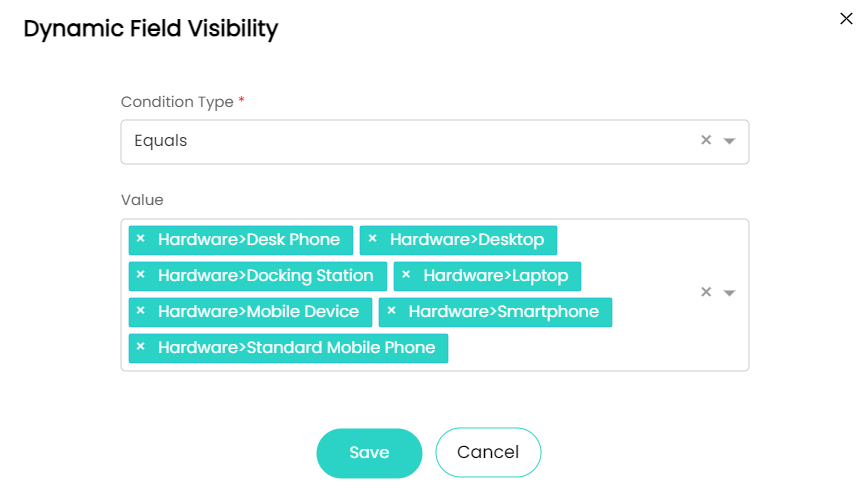
Once the category values are saved you will only see the 'Asset' field populate when the saved category fields are selected.
*Please note that we are editing a field group here and changes to any field groups are global. Should we want to edit the field list without a global impact, we can choose to edit the individual field under the field list tab*
Lastly you can create your own custom fields from the field list tab on a ticket type. Ensure you are in edit mode and select the 'Add +' icon in the bottom right area of the screen. The following screen will show:
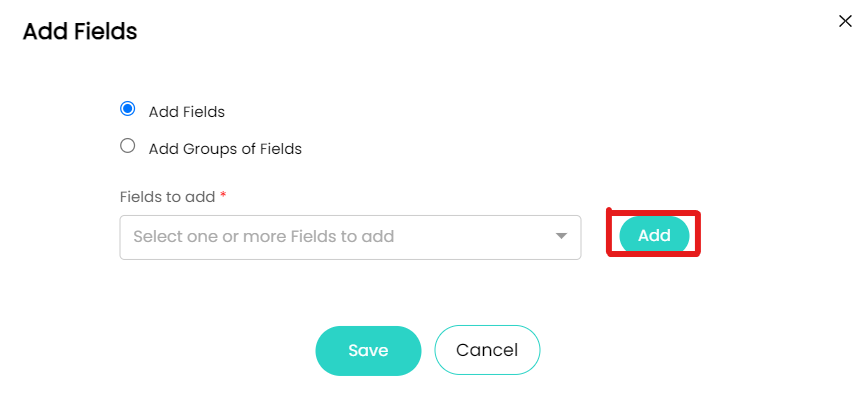
At this stage, you can add existing fields in the system under the 'Fields to add' section or create your own custom field by choosing 'Add'
You can find out more about adding custom fields here or by getting in contact with the team.